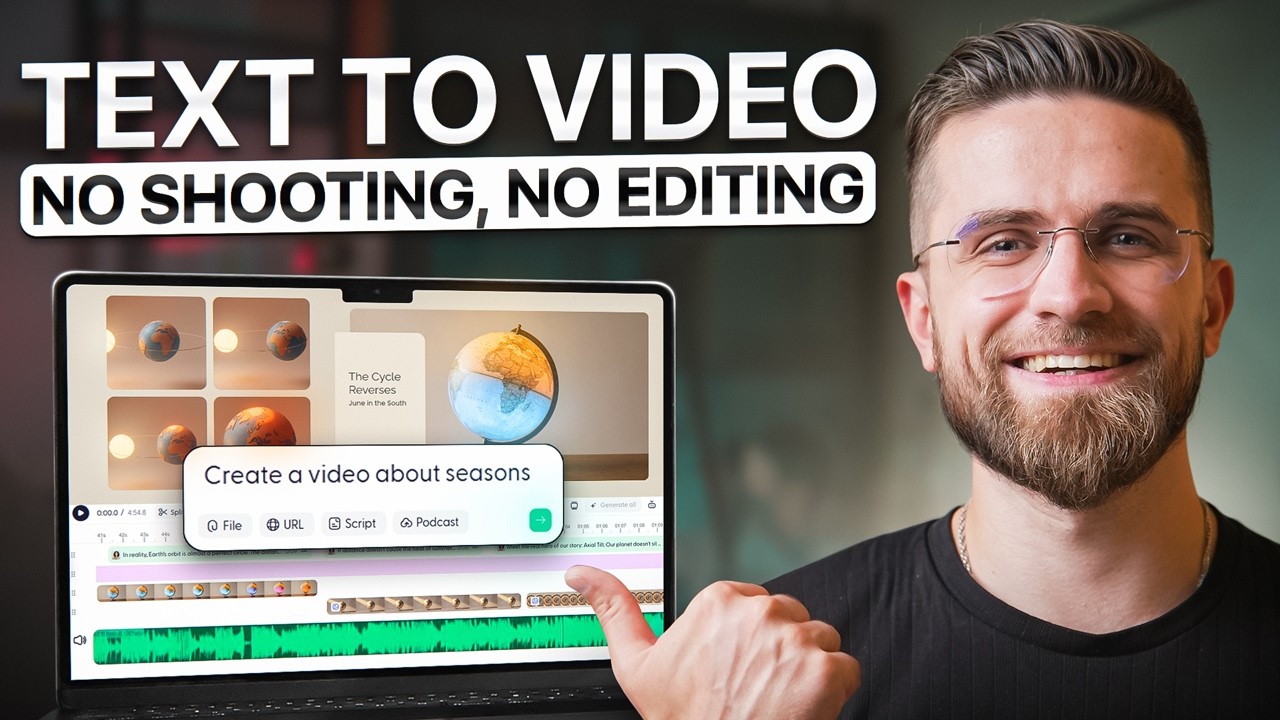
How to Create Video for Faceless YouTube Channel with AI (2026 Tutorial)
14:02

How to Create Video for Faceless YouTube Channel with AI (2026 Tutorial)

AI Master 18.02.2026 159 просмотров 18 лайков
Поделиться Telegram VK Бот
Транскрипт Скачать .md
Анализ с AI
Описание видео
#sponsored Use code AIMASTER to get 50% off the first month on Wondercraft! https://www.wondercraft.ai/ 🚀 Become an AI Master – All-in-one AI Learning https://aimaster.me/ 📹 Get a Custom Promo Video From AI Master https://collab.aimaster.me/ Want to create complete YouTube videos from just text—with no editing skills required? This 2026 tutorial shows you the exact workflow to go from a simple text prompt to a fully produced video ready for upload. I'm testing whether you can truly create publication-ready videos without touching a timeline editor. Watch as I generate a complete educational video with Wondercraft from scratch using only text input—script, visuals, voiceover, transitions, and music—all automatically assembled. 🔥 What You'll Learn: ✅ How to create videos from text with zero editing ✅ Complete text-to-video workflow (start to finish) ✅ Automatic script generation from topic prompts ✅ AI-generated visuals and animations ✅ Professional voiceover without recording ✅ Timeline auto-assembly and scene transitions ✅ Export publication-ready videos instantly ✅ Real test: Is this actually YouTube-ready? ⏱️ Timestamps: 00:00 - The YouTube Creator's Problem 00:41 - Text to Complete Video AI Tool 01:24 - Platform Setup & Text Input 02:51 - Watching AI Build the Video 03:26 - Customization Without Manual Editing 06:27 - Final Export & Quality Check 07:07 - Real Test - Second Video 08:01 - Scalability Test - 3 Different Styles 9:30 - What Needs To Start A Channel? 11:00 - Where Else It Could Apply? 12:50 - Final Thoughts 💡 Key Insights: This isn't about generating random clips—it's about testing whether AI can replace the entire editing workflow. From text input to YouTube upload, without opening a traditional editor. #Wondercraft #AI #texttovideoai#noediting #aivideogenerator #youtubetutorial2026 #aimaster 🔔 Subscribe for weekly AI tool breakdowns and advanced tutorials that actually move your projects forward.


Оглавление (11 сегментов)

  1. 0:00 The YouTube Creator's Problem 117 сл.
  2. 0:41 Text to Complete Video AI Tool 103 сл.
  3. 1:24 Platform Setup & Text Input 214 сл.
  4. 2:51 Watching AI Build the Video 105 сл.
  5. 3:26 Customization Without Manual Editing 518 сл.
  6. 6:27 Final Export & Quality Check 113 сл.
  7. 7:07 Real Test - Second Video 130 сл.
  8. 8:01 Scalability Test - 3 Different Styles 215 сл.
  9. 9:30 What Needs To Start A Channel? 228 сл.
  10. 11:00 Where Else It Could Apply? 275 сл.
  11. 12:50 Final Thoughts 202 сл.
0:00

The YouTube Creator's Problem

Am I spending too much time making YouTube videos, scripting, finding B-roll, editing timeline, recording voice over, syncing everything up? And when I finished, it still felt unfinished, like I was missing transitions. The pacing was off, captions weren't quite right. Most AI tools will generate clips for you. Cool visuals, interesting concepts, but there is a massive gap between this looks cool and this is ready to upload. you still have to script it, paste it, edit it, export it, and hope it all holds together. So, I wanted to test something. Can AI handle the entire pipeline? Not just generation, actual production. Let me show you what I found. I found a workflow that doesn't
0:41

Text to Complete Video AI Tool

start with a blank prompt. It asks you structured questions, topic, audience, style, pacing. Then it generates the script, the visuals, the voice over, and drops everything into a timeline editor where you can refine it all in one place. Today I'm going to start faceless YouTube channel from scratch. Pick a niche, generate a complete video, edit it, and show you the final result. No editing experience required. Also, I'm testing whether this workflow can realistically support a monetizable, repeatable YouTube channel you can publish consistently, scale, and earn from. Let's see if this actually works. All right, I'm using Wondercraft for
1:24

Platform Setup & Text Input

this test. Here's the dashboard. I'm going to pick the explainer video workflow because I want to create educational content. My niche, science explainers for students. Specifically, I'm going to answer the question, why do we have seasons? Let me walk you through exactly how this works. First step, enter your topic. I'll type why do we have seasons. For style, you get options. Gibli, Pro Studio, playful, whiteboard. I'm going with whiteboard because it fits the science explainer vibe perfectly. Next, narration. I'll pick single narrator. Aspect ratio. Landscape for YouTube. Duration, let's say 2 minutes for this first test. Pacing, medium, not too fast. Click next. Everything else I'll leave on auto. Voice over music all handled automatically. Now I hit generate. Okay, this is interesting. Look, it's building an outline first structuring the video into scenes. Intro hook. Explanation of Earth's tilt, how that creates seasons, visual demonstration of orbit and sunlight. Conclusion. Now it's generating the script for each scene. Then choosing visuals to match the script. diagrams, animations, earth rotating, then generating the voice over and syncing everything to the timeline. This is what I mean by workflow. It asks the right questions up front so it doesn't have to guess later. Less prompting, more building. All right, the
2:51

Watching AI Build the Video

first draft is done. Let's see what we've got. Okay, playing it back now. — Have you ever wondered why the world transforms from a snowy wonderland to a sundrenched beach every single year? Many believe it's because Earth moves closer to the sun at certain times. — Not bad. The voice over is clear. The visuals match the script. The pacing is decent. The B-roll shows Earth rotating. Diagrams showing the tilt. Animations demonstrating summer and winter positions. Captions are autogenerated and positioned well. But I want to refine this. Let me show you what you can edit. I'm in the editor now. Here's
3:26

Customization Without Manual Editing

where you can change anything you don't like. First, I don't love this visual in scene three. It's showing a flat diagram of Earth's orbit, and I want something more dynamic, a 3D rotating view. I'll click on that scene and hit regenerate visual. Give it a second. Okay, new visual. Much better. Now, it's showing Earth rotating on its tilted axis with the sun in the background. Next, the voice over. It's using a default AI voice called Eric. It's fine, but I want something with more warmth and clarity for educational content. I'll go to the voice settings, select all the clips with Eric, and swap him out for Alfred. Alfred has that authoritative teacher voice. — Earth doesn't sit straight. It orbits the sun while tilted on its axis at an angle of about 23. 5°. — Yeah, that's better. Alfred sounds more engaging. Now, I want to adjust the pacing. The intro feels a bit slow. I'll open the timeline view, find the first voice over clip, and trim the pause at the beginning to get into the explanation faster. You can drag the edges of any clip to shorten or extend it. You can also use director mode if you want to give specific instructions to the AI voice. Like, if I want the conclusion to sound more inspiring, I'll select that clip and type make this sound inspiring and encouraging. Alfred generates a new take with more energy. Without that 23° lean, our world would be a very different — Perfect. That's exactly the tone I wanted. And if I need to tweak the script itself, I can click directly on the text and edit it in line. Change a word, fix a phrase, adjust the explanation, whatever you need. The voice over will regenerate automatically to match your changes. Now, let's add some polish. I want to regenerate the captions with a different style. Go to the lefthand menu. Click generate captions. Choose block style. Done. The captions are now chunky and centered. Way more readable on mobile. You can also customize caption colors if you want. Click on the caption track. Choose your preferred text color. Adjust the background opacity. I'll keep it simple. White text with a dark background works well for educational content. If you want, you can also add a brand logo in the corner. Upload your logo, position it where you want, set the opacity, and it'll appear throughout the entire video. Or insert an AI avatar to deliver parts of the video on camera. Choose from the avatar library. Pick a voice, type what you want them to say, and drop it into the timeline. For this explainer, I'll keep it faceless, but the option is there if you're building a channel where you want a consistent host without recording yourself. Let me trim the outro slightly. snap the clips together so there are no gaps and adjust the music volume so it sits underneath the voice over without competing. Okay, I'm happy with this. Let's export and see the final result. Here's the final
6:27

Final Export & Quality Check

video. I'll play it one more time full length so you can see the complete output. — Have you ever wondered why the world changes from snowy winters to hot sunny summers every year? The real reason our seasons change is because the Earth's axis is tilted at 23. 5°. — This is what you get. Ready to download as MP4 and upload to YouTube. Voice over, B-roll, transitions, captions, music, everything is there. And here's the thing, I didn't start from zero. I didn't sit in front of a blank timeline wondering where to begin. I just made decisions at each step and the workflow handled the rest. Now, here's the real
7:07

Real Test - Second Video

test. Can I do this again quickly? Let me create a second video right now to prove the workflow is actually repeatable. I'll go back to the dashboard. Select explainer video workflow again. And this time, pick a different topic. How does photosynthesis work? Same audience, students, same style, whiteboard, duration 1 minute, pacing, medium, hit generate. Look at this. It's building the outline. Intro. What is photosynthesis? The chemical process. Why it matters? Conclusion. Generating script. Choosing visuals of plants and sunlight and chemical diagrams. Sinking voice over. 5 minutes later I've got another complete video. Same quality, same structure, different topic. I could make quick edits if I wanted to, but honestly, this first draft is already good enough to publish. That's what I mean by scalability. Once
8:01

Scalability Test - 3 Different Styles

you understand the workflow, you can produce consistently. Not one video, 10 videos, 20 videos, 100 videos, same process, different topics. And let me show you the range. I ran the same workflow with three different styles to see how much flexibility you have. First, the whiteboard style we just made. Clean, educational, minimal distractions, perfect for science content where you want viewers focused on the explanation. Second, I generated the topic using the Giblly style, the water cycle explained. Look at this hand painted backgrounds, soft watercolor animation, dreamy aesthetic. It's like watching a nature documentary through the lens of Studio Gibli. Completely different vibe, but still educational. This would work beautifully for a channel targeting younger students or anyone who loves that artistic touch. Third, I tried the Pro Studio style for introduction to physics. Sleek, modern, polished, clean animations, professional color grading, sophisticated feel, perfect for high school or college level content where you want to convey authority and precision. Same workflow, same platform. Three totally different outputs depending on what you choose at the beginning. That's what scalability looks like. You're not locked into one aesthetic. You can match the style to your audience and your content goals. So, let's talk about what this actually means for building a channel. Because
9:30

What Needs To Start A Channel?

there is a difference between making one cool video and having a sustainable content strategy. Educational explainer content works because it's evergreen. People search for why do we have seasons or how does photosynthesis work year round. And that evergreen angle matters for monetization. These are the kinds of videos that keep getting search traffic, keep getting views, and can keep generating ad revenue over time. Instead of oneoff viral hits, you're building a compounding content library that can actually pay you back month after month. The challenge with most creators isn't lack of ideas, it's lack of consistent production. You make one great video, then you burn out trying to make the second one. Then three months go by and you haven't posted anything. This workflow solves that problem. If you can produce one video in an hour instead of 6 hours, you can actually maintain a publishing schedule. One video per week becomes realistic instead of aspirational. 10 videos becomes small library. 50 videos becomes real channel with depth and authority in your niche. This isn't just for YouTube either. You can use the same workflow for Tik Tok explainers, Instagram reels, LinkedIn educational posts, internal training videos, client onboarding content, or course materials. The value isn't the generation itself. It's having a repeatable process that doesn't break when you need to scale. Let's talk about
11:00

Where Else It Could Apply?

where else this applies in practice. If you're an educator or tutor, you can build a library of lesson videos in any subject. Science, math, history, language learning. Pick your expertise, break it into topics, generate a video for each one. Students can watch at their own pace, rewind and rewatch difficult concepts, and you've created a resource that scales beyond one-on-one sessions. If you're a business owner, you can create explainer videos for your product features, onboarding flows, or frequently asked questions. Instead of writing long-help articles, show your customers visually. Film it once using this workflow. Embed it on your website and reduce support tickets. If you're a marketer, you can batch produce educational content for your audience. How to use our platform? Best practices for X. Common mistakes to avoid. Turn your expertise into video assets that drive engagement and conversions. If you're a freelancer, you can offer video creation services to clients without being a video editor. Set up templates for different use cases, plug in their content and branding, deliver polished videos that would normally cost thousands of dollars and weeks of production time. Which means this isn't just about growing your own channel. It can also become a paid service. You can monetize the workflow itself by creating videos for clients, courses, brands, or educators who need consistent, highquality video, but don't have production teams. The possibilities expand once you have a workflow you can repeat reliably. Here's what I learned from this. Most AI video tools give you raw material. They generate cool clips, but you're still stuck in the editor trying to make it all work. This
12:50

Final Thoughts

workflow is different because I'm not building from scratch. I'm just making decisions. Pick a topic, pick a style, adjust what needs adjusting. Export, done. I built that first science explainer in less than an hour using Wondercraft. Then I built a second one in 5 minutes. If I wanted to, I could generate a new video every day. Different topic, same workflow. That's how you scale content without burning out. And when you can scale content consistently, monetization becomes realistic through YouTube ads, sponsorships, affiliate links, digital products, or lead generation. The bottleneck stops being production. It starts being how smart your channel strategy is. I've linked Wondercraft in the description below. You can use my code amasser for 50% off your first month if you want to try it yourself. If you've been stuck between, I want to start a YouTube channel and I don't have time to learn editing, this is the fastest path forward. And if you want to see more tutorials like this, real workflows, real tools, no flow, subscribe and hit the bell. I'm testing AI tools every week and showing you exactly how to use them. Thanks for watching. I'll see you in the next

Ещё от AI Master

Ctrl+V

Экстракт Знаний в Telegram

Транскрипты, идеи, методички — всё самое полезное из лучших YouTube-каналов.

Подписаться



