#sponsored Check out my custom Zapier Copilot prompt here! https://bit.ly/4nKm7bI
🚀 Become an AI Master – All-in-one AI Learning https://whop.com/c/become-pro/ylqxkdp1c5k
📹Get a Custom Promo Video From AI Master https://collab.aimaster.me/
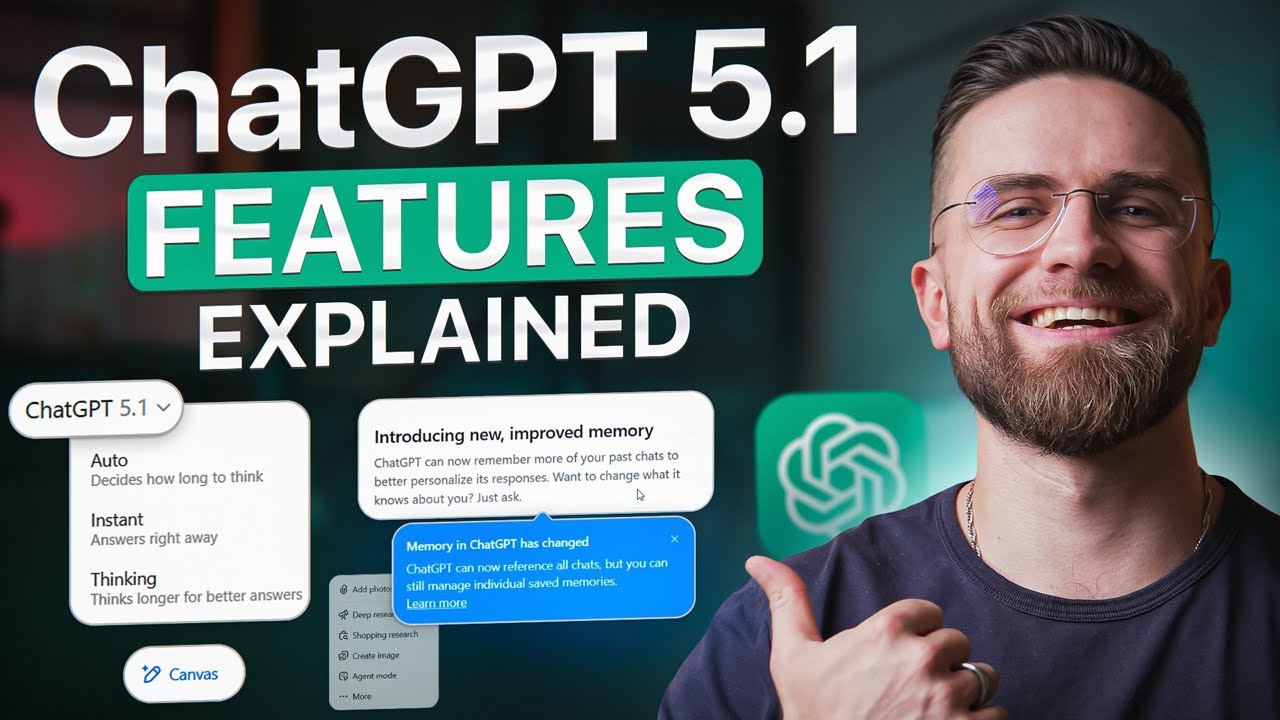
ChatGPT 5.1 dropped with dozens of upgrades - but most users don't know what actually changed or how to use them. This is the complete visual walkthrough.
In this guide, I'll show you every major ChatGPT 5.1 feature: the three model modes (Auto, Instant, Thinking), upgraded Memory, Canvas for real-time collaboration, improved Visual Search, Custom GPTs, Projects — plus the hidden settings OpenAI didn't highlight.
🔑 WHAT'S COVERED:
You'll see live demos, side-by-side comparisons, and practical use cases for each feature. By the end, you'll know exactly when to use each mode, which settings to tweak first, and how to make GPT 5.1 work for your workflow.
⏱️ TIMESTAMPS:
00:00 - What's New in GPT 5.1
00:44 - Three Model Modes Explained (Auto, Instant, Thinking)
02:30 - Warmer Personality & Tone Controls
04:55 - Memory 2.0: Smarter Personalization
06:15 - Canvas: Real-Time Collaborative Editing
10:25 - Visual Search Improvements
12:03 - Custom GPTs & Projects
14:50 - Final Tips & Recommendations
📌 SUBSCRIBE for more ChatGPT guides, AI tool reviews, and automation tutorials!
💬 QUESTIONS? Drop them in the comments!
#ChatGPT #ChatGPT51 #OpenAI #AITools #Zapier #Automation #NoCode
Оглавление (8 сегментов)
What's New in GPT 5.1
Pandas got smarter, memory remembers more, and there is a new tone control that actually changes how chat GBT talks to you. In this video, I'm showing you every major feature of the 5. 1 update. Live demos, side by sides, and the stuff OpenAI didn't highlight in the launch post. We are covering the three model options, auto, instant, and thinking, plus upgraded memory that actually remembers your preferences. canvas for realtime collaborative editing, visual search improvements, custom GPTs and projects. I will show you when to use each mode, what settings to tweak first, and the hidden features OpenAI didn't shout about. By the end, you'll know exactly how to make 5. 1 work for you.
Three Model Modes Explained (Auto, Instant, Thinking)
First thing you'll notice when you open GBT 5. 1 is the model selector at the top of the chat window. You've got three options now. Auto, instant, and thinking. autoalizes your prompt and picks a model for you. Instant is the fast one, perfect for everyday stuff like drafting emails, summarizing articles, or quick questions. Thinking is the deep work model. It takes longer but works through complex problems more carefully. Let me show you the difference. I'm going to ask both models the same question. Draft a professional email to a client explaining a twoe project delay. Watch how fast instant handles this. It gives me a solid polite email right away. Now I'll ask thinking mode the same thing. It takes longer and you can see it working through the problem, reasoning about tone, structure, and how to soften the bad news. The result feels more thoughtful. It anticipates follow-up questions and offers a revised timeline proactively. Here's the thing. Instant is your daily driver. Use it for most of your tasks. But when you need GPT to really think through a multi-step problem or handle something genuinely complex, switch to thinking. It's slower, but the depth can be worth it. If you're juggling Chad GPT, Claw, Gemini, and trying to keep up with every new model that drops, you might need a system for staying organized instead of constantly switching tabs and losing track. That's why I built AI Master Pro. It's one hub where you can learn how all these tools actually work and then use them right in the same place. It's courses, tools, and prompts all together. I will walk you through the full setup in a few minutes and show you exactly how it works. Let's keep going with these chat GBT 5. 1 features. First, GBT 5. 1 feels different
Warmer Personality & Tone Controls
to talk to. OpenAI trained it to respond in a warmer, more conversational style. If you've been using GBT 5. 0, I know, you know, it could feel stiff, especially when you asked personal or emotional questions. 5. 1 tries to fix that. I'll show you a comparison. I'm asking both versions the same emotional question. I'm stressed about work and feel overwhelmed. Any advice? GPT 5. 0 gives me a formal, bulletpointed list, technically correct, but it reads like a Wikipedia article. Now, watch GPT 5. 1. It opens with a more empathetic response, acknowledges the feeling, then offers practical tips in a conversational tone. It suggests strategies and offers to help break down tasks. The difference in tone is noticeable. This isn't just about feelings. If you're using Chat GPT for coaching, brainstorming, or any scenario where tone matters, 5. 1 feels like a step up. It feels less robotic and more like you're working with someone who's trying to help. Before we get deeper into chat GBT 5. 1, here's the tool that quietly makes your whole workflow run smoother. Zapier. Everyone wants automation autopilot until they open Zapier and it feels like a spaceship dashboard. You want your work to do itself, but instead you're staring at triggers and actions, wondering if you need a degree to use it. Here's the simple version. A zap is two things, trigger and an action. Something happens and something else happens automatically. New email with a label. Boom. It posts straight into Slack. No coding, no APIs, just connecting the apps you already use. Zap year handles the repetitive stuff from responses into spreadsheets, new leads into CRM, analytics into reports. It connects thousands of apps and creators use it constantly to cross-ost videos, collect data, or track content without doing any of it manually. Zapier also works with AI. You can autosummarize links, clean up transcripts, or format content using chat GPT directly inside his app. The free plan gives you basic two-step automations in 100 tasks a month. Enough to start when you need multi-step workflows or filters like only run if this keyword appears, then upgrade makes sense, start free, upgrade only when it's saved in real time. I've linked Zapier in the description below. Now go make your work run on autopilot the real way. Memory got an upgrade in 5. 1. If you haven't turned it on yet, go
Memory 2.0: Smarter Personalization
to settings, personalization, and toggle memory to on. Once it's active, chat GPT can remember details from your past conversations, your preferences, your projects, your writing style. Here's how it works in practice. I asked GPT to help me plan weekly content for my YouTube channel a few weeks ago. Today I opened a new chat and said, "Create a content calendar for next month based on what we discussed before. " GPT pulled up context from the old conversation, my upload schedule, content themes, target audience, and built out a calendar without me having to reexplain everything. You can also manage what GBT remembers. Click on your profile, go to personalization, then memory. You'll see a list of stored facts. If something's wrong or outdated, you can edit or delete it. The upgrade in 5. 1 is that memory has become more proactive. It doesn't just store facts. It tries to use them to anticipate what you need. I asked GPT to draft an email and it matched my preferred tone without me specifying. It suggested follow-up tasks based on past projects. This continuity can turn Chat GBT from a one-off tool into something that feels more like an assistant. If you're using ChatGBT regularly, memory is worth turning on. Give it a week and you'll start to notice responses that feel more tailored to how you work. Canvas mode is
Canvas: Real-Time Collaborative Editing
where 5. 1 really shows off. If you've ever wished you could edit GBT's output in real time instead of copying and pasting back and forth, canvas is the answer. Here's how to launch it. Start a new chat and look for the canvas option, usually near the top of the interface. It opens a split screen view. Your chat on the left, a live document on the right. Let me show you what this looks like in action. I'm going to ask GPT to write an article outline about remote work productivity. Watch the canvas panel. GPT writes the outline directly into the document. Title, intro, five main sections, conclusion. Now I can interact with it. I'll say expand section 2 with bullet points. GPT adds three detailed bullets under that section. And I watch the text appear live in the canvas. No copying, no pasting. Now I'll ask it to rewrite the intro in a more casual tone. Watch this. The intro text changes word by word in real time. The formal remote work has transformed the modern workplace becomes remote work changed the way we think. That moment right there is the magic. You're not generating static text and tweaking it manually. You're collaborating with GPT like it's a co-writer sitting next to you. But canvas isn't just for writing. Let me show you another use case. I'm asking GPT to create a project brief for a product launch. It generates the dock in Canvas. Now I can give targeted feedback, add a section about budget constraints, or make the timeline more aggressive. Each instruction updates the dock in real time and I can see exactly what changed. Canvas also has editing shortcuts. I can select text directly in the document and ask GBT to improve it, shorten it, or change the tone. It's like having a co-editor who responds quickly. One more thing about canvas that's really useful, it works with code, too. Let me show you a quick example. I'm asking GPT, write a Python script that scrapes a website and saves data to CSV. Watch the canvas. It writes the code and I can immediately test, modify, or ask for improvements. Now, I'll say add error handling for connection timeouts. GPT updates the code in real time, adds try except blocks, handles exceptions. If you are building scripts, automating tasks, or learning to code, Canvas makes the feedback loop way faster. You're not jumping between windows, you're iterating live. This is one of my favorite features in 5. 1. If you write articles, reports, scripts, presentations, or any long- form content, Canvas can save you a lot of time. Try it once, and you might not go back to the old copy paste workflow. Chad GBT 5. 1 is great, but it's just one tool. You've also got Claude, Gemini, Medjourney, and every week something new drops. The problem isn't learning one tool. It's keeping up with all of them without losing your mind. That's exactly why I built AI Master Pro. It's one hub where you can learn how these tools actually work and then use them without switching between a dozen tabs. Inside you get the AI master method, structured courses that teach you not just how to prompt check GPT, but how to build AI workflows, automate tasks, and turn this stuff into real results. And while you're learning, you can immediately practice. There's an AI master assistant trained on our data. Ask it anything about AI 24/7. There's a prompt creator if you need help building better prompts fast. Plus, you get Prompt Lab Pro with over 300 readytouse prompts for freelancers and businesses organized by use case. Just copy, paste, tweak if needed. And we are integrating newer models like V3 Nano Banana Pro and Sore 2 Pro directly into the platform. If you join before the end of the year, you'll get bonus generation credits for those tools when they go live. It's not just a course, it's a hub where you can learn and work in the same place. I use it every day and honestly, it's made keeping up with AI way less chaotic. If that sounds useful, I've linked it in the description below. First 10,000 people get 24% off the annual membership. Visual Search got a
Visual Search Improvements
major upgrade in 5. 1. You could already upload images in GBT 5. 0, but 5. 1 analyzes them with way more accuracy and actually understands context. Let me test this with real examples. First, I'm uploading a photo of handwritten notes from a meeting. The handwriting is messy. There are crossed out words, and some notes are scribbled in the margins. Watch what GBT does. It reads through everything, transcribes the key points, and organizes them into a clean, structured list. It even infers context from abbreviations and shorthand. Now, I'll try something visual. a screenshot of a restaurant menu with multiple sections. GPT not only reads all the text but understands the structure appetizers, mains, desserts, prices. I can ask it questions like what vegetarian options are available or what's the most expensive item and it answers based on the menu layout. Third example, I'm uploading a diagram, a workflow chart with arrows, boxes, and labels. GPT 5. 0 would just describe it. This is a flowchart with boxes and arrows. GPT 5. 1 actually interprets the logic. It tells me what the workflow represents, identifies decision points, and even suggests improvements to the process flow. The improvement over 5. 0 is real. Text recognition is sharper. Context understanding is deeper, and GPT handles complex visual layouts without breaking. If you work with diagrams, screenshots, receipts, whiteboard photos, or handwritten notes, this upgrade makes visual search actually essential instead of just a novelty. two features that got quieter upgrades but are super useful. Custom
Custom GPTs & Projects
GBTs and projects. Custom GPTs let you create specialized versions of chat GPT trained for specific tasks. I've built one for script writing that knows my style, my channel's tone, and the format I use. Every time I start a new script, I just open that GPT and it's already in the right mode. No need to reexlain my preferences or provide examples. To create one, click explore GPTs in the sidebar, then hit create. You'll walk through a simple setup where you define the purpose, tone, and context. You can upload files as reference materials, style guides, templates, password, and the GPT uses those as context for every response. Let me show you a real example. I'm creating a custom GPT for email marketing. First, I name it email marketing pro. Then, I describe what it does. You help write high converting email campaigns for e-commerce brands. Focus on clear subject lines, benefit driven copy, and strong CTAs. Next, I upload three past email campaigns that perform well. GBT analyzes the structure, tone, and style. Now, I test it. I ask, write a product launch email for a new fitness tracker. Watch it. Immediately matches the tone and format from my uploaded examples. No generic template, no vague suggestions. It writes exactly the kind of email I'd approve. That's the power of custom GPTs. Now, projects. This is huge if you're juggling multiple work streams. Projects let you organize your chats into folders with their own context and files. I have a project for each video I'm working on. One for YouTube scripts, one for sponsor integrations, one for workflow automation builds. Here's why that matters. When I'm in my YouTube scripts project, GPT already knows the show format, target length, and my content calendar. I don't have to re-upload the same style guide every time I start a new chat. Everything stays in context. The workflow looks like this. Click projects in the sidebar, create a new project, name it content marketing, then add files or set instructions like this project is for creating blog posts and social media content for an e-commerce fitness brand. Target audience 25, 40 year old. Tone motivational, authentic, no corporate jargon. Format hook, value points, call to action. Keep posts under 1,000 words. Every chat you start inside that project automatically inherits the context. It's like giving GPT a dedicated workspace for each area of your work. If you're managing multiple clients, projects or content streams, custom GPTs and projects keep everything organized and save you from repeating yourself. Set them up once and your workflows get way faster. So, when should you actually use auto instant or thinking mode? Here's my workflow after testing all
Final Tips & Recommendations
three. Auto mode is the default and it works well. Chad GPT analyzes your prompt and picks a model. For most people, this is fine. Let auto decide and you'll get decent results without overthinking it. But here's when you might want to override. Use instant when you need fast answers and you're okay with good enough instead of perfect. Drafting emails, summarizing articles, brainstorming ideas, quick research, casual questions. Instant handles these quickly. I use it for most of my chat GBT sessions. It's fast, reliable, and usually gets the job done. Switch to thinking mode when you're dealing with genuinely complex problems. Planning a detailed project road map, analyzing data with multiple variables, solving logic puzzles, writing strategic documents. This is where thinking can shine. You'll wait longer, but the depth might be worth it. Here's the tell. If you ask instant a question and the answer feels shallow or misses something, try the same prompt in thinking mode and compare. Instant gives you speed. Thinking gives you more careful reasoning. Real example, I asked both modes to plan a threemonth content calendar with SEO strategy, audience growth targets, and monetization milestones. Instant gave me a decent outline quickly. Thinking took longer, but delivered a more structured plan with dependencies and contingency options. For quick drafts, instant wins. For strategy, thinking wins. My workflow, default to auto, switch to instant when I'm in a hurry, and use thinking when I'm stuck or the task needs deeper reasoning. Try all three and you'll figure out which mode fits which task. And if you want to go deeper, not just with chat GBT, but with every AI model, I keep everything inside AI Master Pro. Courses, tools, prompts, and a community that's actually helpful. First 1,000 people get 24% off the annual membership links below. Thanks for watching. I'll see you in the next video.