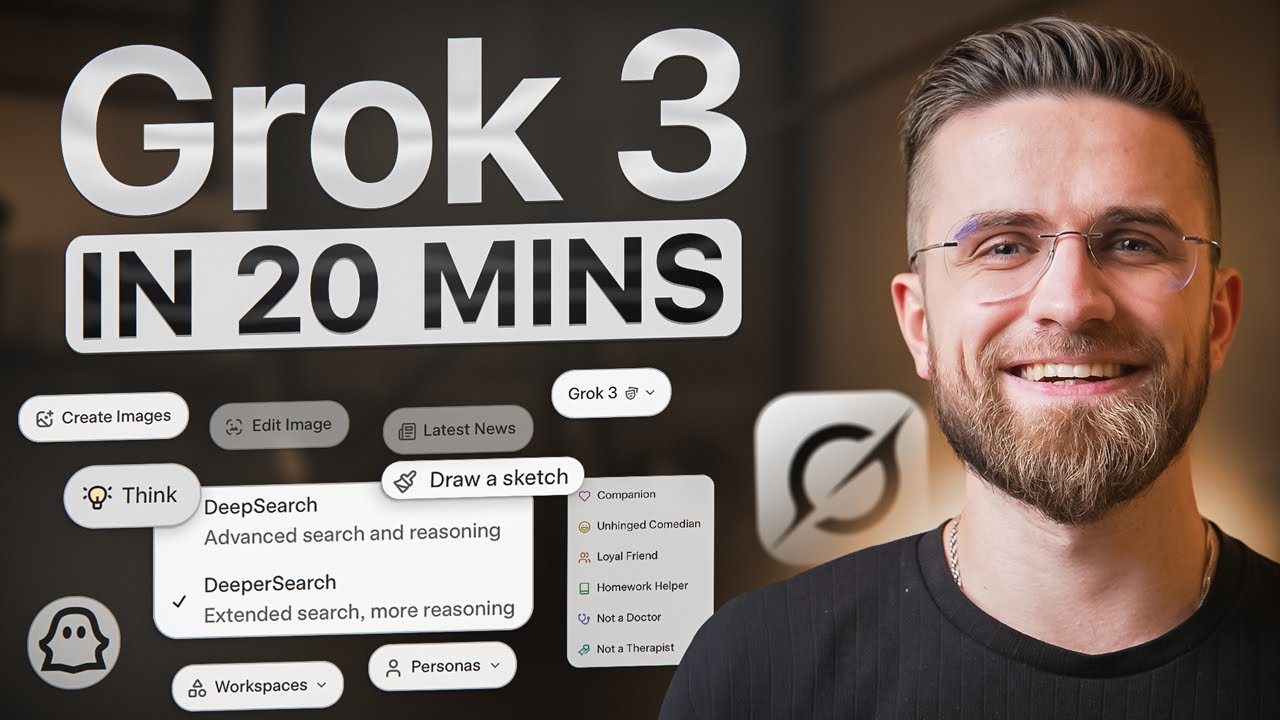
Ultimate Grok 3 Guide 2025 (How to use Grok AI for beginners)
22:02

Ultimate Grok 3 Guide 2025 (How to use Grok AI for beginners)

AI Master 02.06.2025 92 640 просмотров 1 743 лайков обн. 18.02.2026
Поделиться Telegram VK Бот
Транскрипт Скачать .md
Анализ с AI
Описание видео
#sponsored Check out Recraft’s newest featues for free – https://go.recraft.ai/AIMaster. Use my code MASTER11 for $11 off any paid plan. 🚀 Become an AI Master – All-in-one AI Learning https://whop.com/c/become-pro/yut6vtu2tqu 📹Get a Custom Promo Video From AI Master https://collab.aimaster.me/ In this video I walk you through all the new features of Grok, Elon Musk’s AI that’s challenging ChatGPT, Gemini, and Claude for top spot. You’ll learn how to optimize your prompts for better text generation, enable “Deep” or “Deeper” searches, generate and edit images, and keep your chats organized with Workspaces. I’ll also share tips for toggling Grok’s built-in “Reasoning” mode when you need step-by-step logic. Whether you’re looking for more creative freedom, deeper web search, or a flexible interface, Grok offers a fresh approach to AI. If you’ve ever felt limited by ChatGPT or Gemini, this guide will show you how Grok stands out—and how to get the most out of every single feature! Chapters: 0:00 - Intro 0:30 - Setup 0:50 - Tip 1 1:27 - Tip 2 1:49 - Tip 3 2:28 - Tip 4 5:12 - Tip 5 5:47 - Tip 6 6:55 - Tip 7 7:34 - Tip 8 8:07 - Tip 9 8:21 - Tip 10 9:04 - Tip 11 9:29 - Tip 12 9:53 - Tip 13 10:28 - Tip 14 10:55 - Tip 15 11:20 - Tip 16 11:49 - Tip 17 12:20 - Tip 18 12:50 - Tip 19 13:21 - Tip 20 14:55 - Tip 21 15:18 - Tip 22 15:45 - Tip 23 16:39 - Tip 24 17:22 - Tip 25 18:05 - Tip 26 18:48 - Tip 27 19:28 - Tip 28 19:49 - Tip 29 20:38 - Tip 30

Оглавление (32 сегментов)

  1. 0:00 Intro 103 сл.
  2. 0:30 Setup 47 сл.
  3. 0:50 Tip 1 88 сл.
  4. 1:27 Tip 2 57 сл.
  5. 1:49 Tip 3 121 сл.
  6. 2:28 Tip 4 493 сл.
  7. 5:12 Tip 5 99 сл.
  8. 5:47 Tip 6 182 сл.
  9. 6:55 Tip 7 113 сл.
  10. 7:34 Tip 8 91 сл.
  11. 8:07 Tip 9 39 сл.
  12. 8:21 Tip 10 126 сл.
  13. 9:04 Tip 11 59 сл.
  14. 9:29 Tip 12 66 сл.
  15. 9:53 Tip 13 97 сл.
  16. 10:28 Tip 14 64 сл.
  17. 10:55 Tip 15 62 сл.
  18. 11:20 Tip 16 83 сл.
  19. 11:49 Tip 17 94 сл.
  20. 12:20 Tip 18 76 сл.
  21. 12:50 Tip 19 92 сл.
  22. 13:21 Tip 20 284 сл.
  23. 14:55 Tip 21 57 сл.
  24. 15:18 Tip 22 72 сл.
  25. 15:45 Tip 23 140 сл.
  26. 16:39 Tip 24 122 сл.
  27. 17:22 Tip 25 117 сл.
  28. 18:05 Tip 26 116 сл.
  29. 18:48 Tip 27 118 сл.
  30. 19:28 Tip 28 54 сл.
  31. 19:49 Tip 29 134 сл.
  32. 20:38 Tip 30 223 сл.
0:00

Intro

If any AI tool can really stand toe-to-toe with Chad GBT, it's Grock. Elon's AI not only rolls out updates at breakneck speed and packs in shiny new tricks, but it's also aiming straight for a huge share of the market. Still, even though it looks like Chad GBT or Gemini or Claude, Rock has its own vibe and you feel that right away. It's been stuffed with new features lately and you need to know how to drive them to squeeze out every bit of value. That's what this video is for. I will walk you through every single feature start to
0:30

Setup

finish. Grock looks a lot like Chad GPT or Gemini. There's the big input box, buttons to flip extra features on or off, file upload icons, and uh quick switches for personas or workspaces. But before we jump in, a bit of setup will save you headaches
0:50

Tip 1

later. First, click your profile picture, then settings, then customize. You'll see three ready-made response styles. Concise gives short, sharp answers. Formal sounds businessfriendly like office email. Socratic explains things as if it's teaching you. Each style shows the actual prompt behind it. Take a minute to read those. They're perfect templates. If you want your own style, switch to custom and type whatever instructions you like, who you are, what jobs Grock should handle, which tone to use. The more detail you give, the better Grock performs.
1:27

Tip 2

Next, open data controls. Turn off improve the model if you're working with sensitive stuff. Then switch off personalized gro with your conversation history. That memory feature is still in beta. And while it sounds handy, it can make answers less predictable, especially when you mix work tasks with personal questions, so I recommend keeping it off.
1:49

Tip 3

Hook up your Google Drive and Microsoft One Drive so Grock can grab files or drop outputs without extra uploads. Still in data controls, you'll see every file and asset you've given Grock. Click here to delete anything you want Grock to forget. Grock may look and feel like Chad GBT on the surface, but it was trained differently under the hood. Builds itself as a truth seeking GBT. So, let's shy around tricky or controversial topics that makes clear prompting even more important. Spell out exactly what you want, set the rules, and Grock can deliver answers Chad GBT might refuse. Give it precise prompts, and you will see why many folks think this bot could be the next big
2:28

Tip 4

thing. There are three key parts to a good Grock prompt: format, style, and restrictions. Tell Grock exactly how you want the answer laid out, which tone to use, and any limits that stop it from drifting off topic. For example, explain how to cook pasta for a beginner. Style, very casual, like talking to a friend. Format, step-by-step instructions in bullet points. Restrictions, under 100 words total, no brand names. Setting things up this way cuts confusion and keeps the output steady. The clearer your instructions, the better the result. Speak in plain English, no special prompt code needed. Plain English is the main rule for image generation in Grock, and we'll cover more about that soon. Just keep in mind that images aren't Grock's main focus. So, if you want serious everyday image creation, it's better to use something more specialized. My top pick lately has been Recraft. They are sponsoring this video, and it offers a ton of different styles. Maybe not literally a billion, but still a huge number. They even call their style library infinite, and it does feel that way. There are dozens upon dozens of unique looks to choose from. I can click on any style to see sample images of what it might produce and I'll also see similar styles right underneath which makes browsing really effortless. It's a bit like an endless rabbit hole. I spot one style, then notice another one I like, click on that, and so on. The variety never seems to end. I can also filter them by name or mood if I'm searching for something specific. Here's my usual process. I start a new project, hit style, and pick one style from the list. I type in a prompt, choose the aspect ratio, the number of images, and the artistic level. Style mixing is my favorite feature. I just click create style, and special menu appears. All I have to do is add images of different styles or select a few styles from Recraft's library after saving them first. With the sliders, I can control how much each style affects the final image. I can even throw in a prompt with extra details like everything is made of small dots. I will test my new style right there. If I like the result, I save it and it becomes part of my personal style library forever. One thing I really appreciate about Recraft is how well it suits businesses. Creating a unique brand style that stays consistent is a big deal, and Recraft makes it super simple to craft brand new styles for your company or project. Even if you're not a designer and have no idea where to start. Consistency, and more consistency. By the way, be sure to use my special promo code for a discount on any plan. And click the link in the description to check out ReCraft's latest features. When you chat with Grock
5:12

Tip 5

share as many specifics as you can. More context about the subject, your end goal, and the tone you like. Lets the bot nail the answer on the first try. You could say, "I am a high school student who needs a short outline on gut microbiome research," or, "I want a 500word funny story about space travel. " Now, Grock knows whether to sound serious or playful, how long to write, and exactly which facts to cover. With that background in place, it can respond more clearly and more accurately because it isn't forced to guess what you
5:47

Tip 6

meant. If you have a big and complex task, break it down. Instead of piling every instruction into one message, split the job into smaller, logical parts. This works especially well for things like long essays, heavy coding questions, or detailed data analysis. The bigger the project, the more this helps. If you only need to read one document and spit out a summary, fine. Do it in a single prompt. But when the task needs deeper analysis, multi-step reasoning, or extra processing Grog can't finish in one go, take it step by step. For example, start by asking, provide me with a broad outline of the French Revolution, five to six bullet points. Wait for my feedback. Once Grock replies, follow up with expand each bullet into a paragraph, citing key dates and events. Aim for 100 words per paragraph. Doing these in separate prompts is called iterative refinement. You can also pack the steps into one big prompt, spelling out each phase and telling Grock to pause for feedback. Just add something like, "After these edits, proceed with the next
6:55

Tip 7

step. " For better results, give Grock an example of what you want. Attach a file with a paper clip or paste a chunk of text right in the prompt. Suppose you need a fresh blog post that sounds like your own writing. type. Here is a short example of how I write my video scripts. Paste your sample, then add, please write a similar script about prompting for Claude. Grock will study your tone, structure, and rhythm, then copy that pattern in its answer. This trick also works if you need very simple language, a strict outline, or any special format because Grock can see exactly what you're after and mimic it.
7:34

Tip 8

Sometimes, even when I like Grock's draft, I ask it to reread the text and suggest fixes. Always do this in a brand new chat. A fresh Fred has no memory of earlier messages, so Grock reviews your words with clear eyes and zero bias. As for Grock's text improvement trick, copy your writing into new chat and say, "Please critique this text clarity and style. Suggest ways to make it sound better. " Grock will focus only on feedback untouched by earlier context. It's a fast way to sharpen your
8:07

Tip 9

writing. If you want answers that actually make sense, flip the web search switch on. Just tap the model's name, find the toggle, and boom, you're online. Grock will pull in web results by itself. You don't have to
8:21

Tip 10

beg. Then there's a hidden feature that Grock has, but no one actually uses. Canvas. By now, you've probably heard the name tossed around here. though it doesn't behave like the canvas in chat GBT or Gemini. In Grock, you have to usually wake it up yourself with a line in the prompt. Type use canvas mode or enable canvas mode and hit enter. A fresh window pops up where you can twiddle the text like a word dock. But everything you change is just paint on the surface, headings, bald, italics. But you can't highlight a paragraph and ask Grock to rewrite it. Nor can you tweak tone, length, or reading level. Fingers crossed they beef it up soon. Always spell out any limits you
9:04

Tip 11

care about. Word count, school grade reading level, whatever. For instance, you can say, "Write me a short 300word summary of Greek mythology in a simple reading level suitable for 10year-olds. " That clues Grock in to stay short and keep the vocab training wheels. If you fence things off up front, Grock won't wander into a five-page thesis.
9:29

Tip 12

If you notice Grock repeats phrases or adds fluff, you can ask it to avoid that. Tell it straight. Explain the concept of machine learning, but do not use long filler sentences and do not repeat the same phrase more than once. Negative rules like that act as a friendly slap on the wrist. Grock then mixes up its wording and zeros in on the meat.
9:53

Tip 13

meat. If the topic you are asking about is complex or involves multiple steps, consider asking Grock to list the order of those steps before it gives a detailed explanation. Say, number the steps for diagnosing a software bug and then explain each step in detail after listing them. You get a clean checklist before the deep dive and it's easy to spot if something's missing. Image generation in Gro is very similar to the one in Gemini actually though here it seems to be a bit more dependent on detailed directions. Your first step with Grock
10:28

Tip 14

is always brainstorming. Don't rush in with random prompts. You'll burn through your image credits fast. Pause and picture the scene, the place, the mood, the main subject, and any extra objects. Ask yourself, indoors or outdoors, morning, night, or midday? Is the atmosphere calm, tense, cozy, or eerie? Once you can see the shot in your head, write a prompt that captures those
10:55

Tip 15

details. As for the details to mention, start with the location. Beach, city, skyline, forest, and so on. Name the subjects and say where they sit in the frame. A person in the foreground with an open background or something more crowded. Describe what they're doing, standing, running, talking. Be specific about actions. Mention textures, materials, and colors so Grock isn't left
11:20

Tip 16

left guessing. If you do not mention the style, Grock will give you the most generic AI image ever. Think of the style line as telling an illustrator how the image should feel. Want it hand painted, say watercolor style? Prefer something high-tech? Say in a cyberpunk style. Giving that style cue up front saves editing time later. You can reference famous artists or upload your own image and say, "Copy the art style from this image. " And remember about the correct
11:49

Tip 17

prompt length. You want prompts to be detailed and focused but perfectly sized. If your prompt is too short, Grog 3 might not have enough information. If it's too long, it can get overwhelmed by details. With these image generation prompts, there's no specific number of words or characters. Start with a short prompt. Mention all the stuff you can and read it out loud. If you get tired of reading or you get lost in all the stuff you wrote, it might need some trimming down. Open any image in full screen mode
12:20

Tip 18

and you'll see its editing panel. Three buttons set up top, creative, background, and subject. Click one and a menu of preset tweaks drops down. Switch the style to graffiti. Swap the background for a volcano layer or turn the subject into a Mecca warrior. There are plenty of these quick options and Grock does a solid job of locking onto either the background or the subject and changing only that part while leaving everything else
12:50

Tip 19

untouched. Right under those buttons is a prompt box for manual edits. Here you need to be exact. Spell out what should be removed, recolored, brightened, or replaced. Gro 3 can't read your mind. If you just type make it better, the result may miss the mark. The clearer the instruction, the closer it gets to what you picture. You can stack several edits in one go, but list them so Grock reads each request cleanly. Use short sentences or even bullet-like lines inside the prompt. Grock can actually do many types
13:21

Tip 20

of edits, so don't limit yourself. Making the image darker, brighter, changing the time of day, or even redrawing the images completely. These edits work best when you refer to the same objects in the generated image as the ones you ask Grock to generate. So if you ask it for a duck and a dog and the final image has a cat in it, it'll be more difficult for Grock to properly identify the cat and do edits to it. With AIS like Grock, it's really important to know how to prompt and the rules change with every update. One update lands and boom, everything you thought you'd mastered flips upside down. And when you want to integrate it into your business, that's the opposite of what you want. For this exact reason, we've built a generative AI 101 crash course. Think of it as a GPS through the AI jungle. Each week, we drop a short jargon-free lesson video or PDF. We designed the course from our own trial and error scars. Our team started from scratch, faceplanted, plenty, and boiled everything down to the methods that actually move the needle. You get the shortcuts without the bruises. Click the link in the description and check it out yourself. There's one button that is really tempting to press. Deep search. Press it and you'll also see deeper search. The names fit. Both act like the deep research option in Chad GBT or Gemini. Just at two depths. Deep search thinks quickly and returns stronger results than a normal web search. Deeper search takes longer but digs much further with quality that rivals Chad GBT. Both modes follow the exact same prompting rules.
14:55

Tip 21

When asking for a deep search, frame the question clearly and in detail. For example, do a deep search on new treatments for migraines from 2021 onward. That tells Grock exactly what to hunt for. If you need stronger evidence, add a phrase such as evidence-based. The topic doesn't have to be academic, but precise wording still
15:18

Tip 22

helps. If Grog's first deep search feels too wide or brings back a flood of links, tighten the rules. For example, add only include official journals and ignore personal blogs. Think ahead about what matters most. Place date range or a particular angle and say that right away. Clear limits. Cut out random or shaky sources. Keep every follow-up in the same chat so Gro can lean on the context it already
15:45

Tip 23

has. Once the results show up, ask, "Explain how these sources differ in their methods or findings. " That lets you spot each source's unique take. Also, have Grock flag the most reliable source and pull exact lines. Try include one short quote from each article about its main point. If the list is long, add organize these studies into categories and either give category names that are broad enough to hold several topics but not so broad that they blur together or let Grock figure it out. Reasoning is my favorite upgrade in LMS. In Chad GBT, you must switch to special model to get it. Start without it and you're stuck. Rock bakes reasoning in by default. You can toggle it anytime with a think button. On when you need step-by-step logic, off when you just want quick
16:39

Tip 24

answers. Start by breaking your questions down into small parts. A single jumbo prompt packed with details can make Grock miss steps or jam up. Slice the job into clear tasks and feed them one at a time. For instance, first figure out the necessary formulas for this math problem. Next, show me how to plug in the numbers. Lastly, give me the final answer. If you're undecided, ask Grock to argue both angles. First, convince me why option A is the best choice. Then, pretend you are a critic and argue for option B. Forcing the model to look at each side lays out the pros and cons in plain view. Handy for papers, slides, or just sorting out your own
17:22

Tip 25

thinking. Combine reasoning with follow-up instructions. When Grock drops a long brainstretching explanation on you, just ask it to shrink the finale into plain talk. Say, "Summarize your reasoning in one short paragraph for a beginner. Also, give me any extra resources I can check out. " Boom. Now you've got the deep dive for the nerds and a bite-sized version anyone can pass around or remember. If you're worried a detail got lost or clashes with something else, tell it. Go over this reasoning and see if there are any contradictions or if we need more information. Grock will rescan its own logic, flag anything weird, then either patch the hall or ping you for extra
18:05

Tip 26

facts. But my favorite trick is asking Grock to simulate a logical chain of events. This is especially useful if you want to see how something might play out over time or in different situations. You can say, "Imagine we roll out a new product in a small city first, then a bigger city next. Show me the steps and outcomes for each stage. " and explain why you think it will succeed or fail. This type of whatif scenario helps you see potential pitfalls and strong points all organized through Grock's line of thought. And let's not forget about working with files, you know, data analysis and about those two buttons that we haven't touched
18:48

Tip 27

yet. If you want to give Grock extra context, don't just rely on big blocks of text in your prompt. You can also upload reference files like PDFs or spreadsheets so Grock has more accurate information from the start. For example, you could say, "I'm attaching my sales data for 2022. Please analyze it and look for trends. Then let Grock read the sheet for itself. Got more than one file? Make it play detective. Compare the 2021 data I attached to the 2022 data. Show me what changed in customer demographics. It may need an extra coffee break to chew through everything, but the insights it spits out will be worth the wait. Once Grock's done number
19:28

Tip 28

crunching, don't stop there. Make it dress the results up. Ask, "Turn your analysis into a short bullet list or rewrite this as a formal report. " That tiny request turns raw stats into something you can proudly slap into an email or scam in 10 seconds flat. Persononus and Grock let you pick
19:49

Tip 29

a specific style or viewpoint for the AI and it has exactly the same effect as if you said directly act as a doctor for example. And we've already talked at length in our other guides on how useful this trick is. It limits AI's vocabulary and knowledge to only the relevant stuff. This in return gives more factual answers that also do look and sound like something written by professional in that field. If you switch personas halfway through a chat, Grock immediately updates its tone and phrasing to match, so you get the right kind of answer without starting a new workspace. This is especially handy if you need different types of content during a single project. Maybe first a creative narrative, then a clinical breakdown effects. The last button we haven't
20:38

Tip 30

pressed is workspaces. These are like separate rooms that keep all your chats and files organized around a particular task or subject. So you can switch between personal and work rellated projects without mixing them up. Exactly like projects in chat GBT but more convenient. You can set default instructions in each workspace like telling Grog to always speak in a friendly tone or to format results in a certain way and it will remember those settings for every new chat you start in that space. and it shows all the uploaded files really neatly. I only wish these custom instructions were a bit more advanced, at least like they are in Chad GBT. At its core, Grock is just another Chad GBT with a few extra twists. I really like how friendly it feels and how fresh the interface and whole process looks. The division into deep search and deeper search is the best thing for me. But I also appreciate very friendly and simple image editor and prompting for grock is devoid of weird formulas or super technical parameters. Plain language is the king. All that matters is the info you give. And be sure to check out our prompting guys at Geek Academy. All tricks from them work here flawlessly. Thanks for watching and see you in the next one.

Ещё от AI Master

Ctrl+V

Экстракт Знаний в Telegram

Транскрипты, идеи, методички — всё самое полезное из лучших YouTube-каналов.

Подписаться




