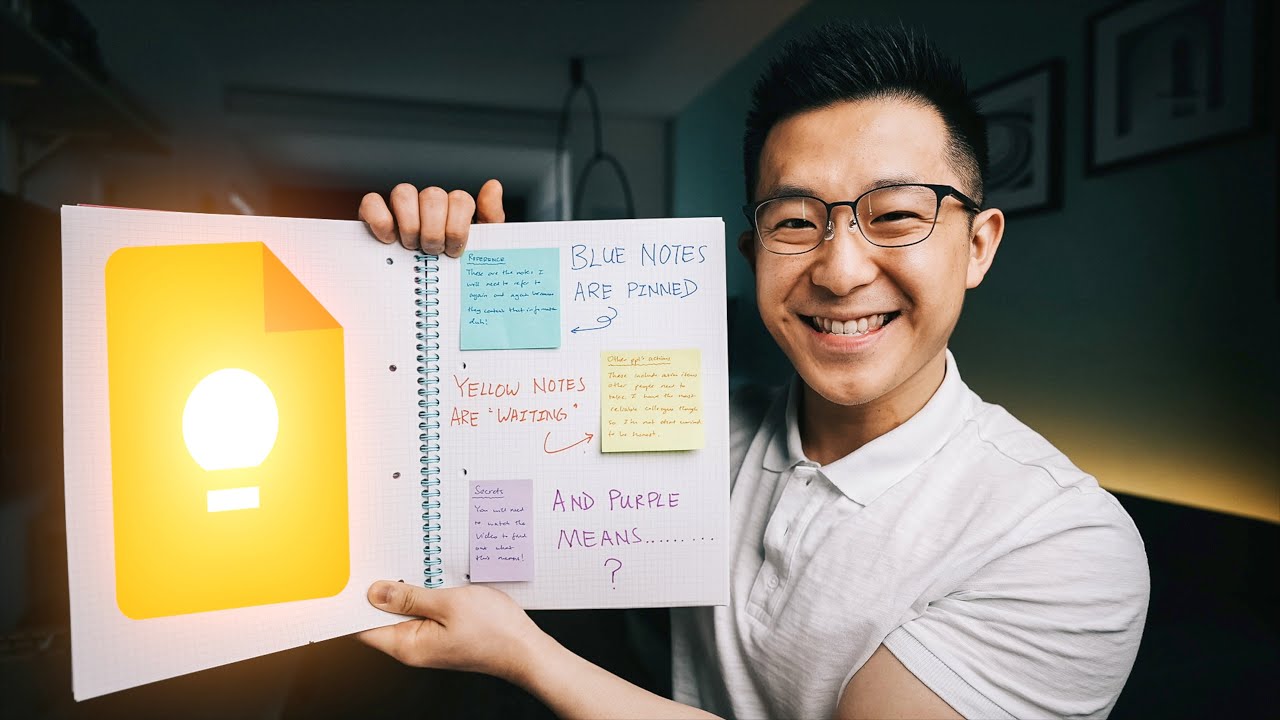
8 Tips to KEEP Track of Things Productively!
8:12

8 Tips to KEEP Track of Things Productively!

Jeff Su 18.05.2021 111 510 просмотров 3 502 лайков обн. 18.02.2026
Поделиться Telegram VK Бот
Транскрипт Скачать .md
Анализ с AI
Описание видео
🔩 Grab my free Workspace Toolkit: https://academy.jeffsu.org/?utm_source=youtube&utm_medium=video&utm_campaign=051 💡 I basically view Google Keep as a place to store all my "off-email" thoughts, ideas and to-do's; so in this video, I share with you the 8 Tips I use to KEEP Track of Things Productively 😉 (you can expect a lot more puns in this video) There are no "right" or "wrong" ways to use Google Keep, but when used effectively, this tool is great for productivity at work. So how do you use Google Keep efficiently? First you want to get familiar with the label, color, and archive feature and functions. The most important Google Keep tip: after every single note you take, make sure you label it appropriately (according to your needs) and color-code it to remind yourself what action (if any) you need to take. This is the best way I've found to keep my Google Keep notes clean and organized! After mastering these 8 tips, you're going to be using Google Keep notes like a pro and increase your productivity with this tool like no other! Enjoy 😁 TIMESTAMPS 00:00 Related Notes 00:58 My Google Keep Setup 01:47 Quickly Create Notes or Lists 02:19 Manage Google Keep Labels 03:59 Search Notes by Color 04:46 Easily Access Pinned Notes 05:33 Manage Checklists 06:27 Capture and Store Business Cards 07:29 Make Bulk Edits to Keep Notes 💪 Support this channel by becoming a member: https://www.youtube.com/channel/UCwAnu01qlnVg1Ai2AbtTMaA/join RESOURCES I MENTION IN THE VIDEO Inbox Zero Video - https://youtu.be/9ql1CQfxWxQ Red - https://keep.google.com/u/0/#search/color%3Dred Yellow - https://keep.google.com/u/0/#search/color%3Dyellow Blue - https://keep.google.com/u/0/#search/color%3Dblue Dark Blue - https://keep.google.com/u/0/#search/color%3Dcerulean Gray - https://keep.google.com/u/0/#search/color%3Dgray Teal - https://keep.google.com/u/0/#search/color%3Dteal Green - https://keep.google.com/u/0/#search/color%3Dgreen Orange - https://keep.google.com/u/0/#search/color%3Dorange Purple - https://keep.google.com/u/0/#search/color%3Dpurple Pink - https://keep.google.com/u/0/#search/color%3Dpink Brown - https://keep.google.com/u/0/#search/color%3Dbrown MY FAVORITE GEAR 🎥 My YouTube Gear - https://geni.us/youtube-gear 🎒 What's In My Bag - https://geni.us/mybag 💻 What's On My Desk - https://geni.us/mydesk 🛩 What I Travel With - https://geni.us/mytravel MY FAVORITE SOFTWARE ✍️ Skillshare - https://geni.us/skillshare-jeff 🎨 Canva - https://partner.canva.com/jeffsu BE MY FRIEND: 📧 Subscribe to my Productivity newsletter - https://www.jeffsu.org/productivity-ping/ 📸 Instagram - https://instagram.com/j.sushie 🤝 LinkedIn - https://www.linkedin.com/in/jsu05/ 👋🏻 Clubhouse - https://www.joinclubhouse.com/@jsushie 👨🏻‍💻 WHO AM I: I'm Jeff, a full time Product Marketer. In my spare time I like to tinker with tools and create systems that help me get things done faster - or as one of my friends puts it: "Get better at being lazy" 😏 If you'd like to talk, I'd love to hear from you. Messaging me on Instagram (@j.sushie) directly will be the quickest way to get a response! PS: Some of the links in this description are affiliate links I get a kickback from 😇 Disclaimer: My opinions are my own and may not reflect that of my employer #googleKeep #notes #productivityatwork

Оглавление (9 сегментов)

  1. 0:00 Related Notes 167 сл.
  2. 0:58 My Google Keep Setup 167 сл.
  3. 1:47 Quickly Create Notes or Lists 97 сл.
  4. 2:19 Manage Google Keep Labels 296 сл.
  5. 3:59 Search Notes by Color 152 сл.
  6. 4:46 Easily Access Pinned Notes 137 сл.
  7. 5:33 Manage Checklists 153 сл.
  8. 6:27 Capture and Store Business Cards 189 сл.
  9. 7:29 Make Bulk Edits to Keep Notes 142 сл.
0:00

Related Notes

you know the feeling when you're at work you have a meeting coming up and you prepared some special talking points to really wow the audience for example a really funny opening joke you want to keep to yourself see what i did there anyways you want to remind yourself but you don't want to give it away by adding the joke in the meeting description so google keep tip and trick number one is with the event open in google calendar open the google keep app in the companion bar on the right hand side and type whatever prompt you prepared for yourself for example make fun of dc universe now when i exit back to the calendar home screen the note disappears but when i select the event the note reappears because it knows it's related to that specific event pretty cool right and that is how i have funny jokes prepared for all my meetings and my colleagues just can't keep themselves from laughing
0:58

My Google Keep Setup

hi friends welcome back to the channel if you're new here my name is jeff and in a nutshell i see google keep as a place to store two types of work notes first long term notes i continue coming back to and second short term notes i can forget about after dealing with them jumping into my current setup you can see that i have pin notes up top that include information i know i need to reference on a regular basis more on that later and rough notes i started to take down here when i didn't have time to open up my usual note-taking apps and thanks to the labels and archive features google keep is like an off email space for me to organize my thoughts ideas and to do's at work in this video i primarily share cool tips and tricks but you also get to see how my google keep workflow is set up oh and expect more funny puns google
1:47

Quickly Create Notes or Lists

keep productivity tip number two quickly start a new note or list if i'm pulled last minute into a meeting or if i have a brilliant idea on my way to lunch i can immediately open a new tab command t and type in note. new to start a new note now because i also have a google keep tab pinned here at all times in my chrome browser i can quickly just navigate to the tab press c to start a new note or press l to start a new list google keep organization tip number
2:19

Manage Google Keep Labels

three number your labels to keep yourself organized as a product marketer i have different work streams targeting small clients medium clients and large enterprises and i also have a special products label that catches all the one-off projects that i work on uh the pro tip here is to number your labels so that they're ordered in a way that makes sense to you after every single note i take for example this one where i talk to elon about dogecoin i always do two things first i label the note by adding a hashtag this is special project so i type hashtag special projects press enter now it's labeled and i color code it based on what needs to happen next white means it's unorganized i need to color code it red means i need to take action which is relevant here yellow means someone else needs to do something green means it's just a regular note i can review and gray can be understood as useless for example if red and yellow actions have been taken or green notes are outdated i mark them as grey the reason i perform these two steps is because usually at the end of every single day i highlight all these notes and archive them by pressing e this keeps my home page nice and clean and i can still find the notes very easily because they're labeled in their corresponding folders if you saw my inbox zero video this might sound familiar because for my email labels red means action yellow means waiting and green means to reference so make sure to check out that video after this one if you use gmail the reason why color coding helps so much when it comes to organization
3:59

Search Notes by Color

is because of google keep tip number four search your notes by color for example if i paste this url into the address bar and press enter it returns all the red colored notes so i can see immediately all the action items i need to take across my different work streams i've actually included the different urls for all the colors down in the description below so you can actually create like a bookmark folder and you have easy access to all these different colors by the way i don't really use reminders with google keep because for time specific events i usually rely on calendar or todoist i know you can get really fancy with it with location-based reminders so let me know in the comments if this is something you use and how you use it because i love to learn any best practices google keep tip and trick
4:46

Easily Access Pinned Notes

number five easily reference pin notes directly from gmail this tip saves me a ton of time because i work with external co-marketing partners and suppliers and usually for recurring partnership agreements we need to reference the same information over and over again so i have the information pin up top and google keep in blue and this these pin notes actually appear up top when you open up the google keep app in the gmail companion bar when i need to use this information for example replying in the email i can simply copy and paste in a matter of seconds as opposed to digging around in a document or trick somewhere oh and yeah my chinese isn't great so i keep a list of chinese vocabulary here for me to review on a daily basis
5:33

Manage Checklists

google keep productivity tip number six is all about checklists as mentioned earlier you can use a keyboard shortcut l to quickly start a new list or within an existing list use the keyboard shortcut command right bracket to indent and command left bracket to unindent this is actually the exact same shortcut for bullet points within gmail secondly the indentation feature in google keep is really user friendly in that you can either check off the indented items one by one or you can cross off the parent checkbox and have all the child children check boxes marked as completed all in one go and finally let's say you have a recurring checklist like a grocery shopping list you can after all the items are checked go down to the three dots down here and uncheck all items and now you have a clean note once again tip and trick number seven
6:27

Capture and Store Business Cards

is related to the camera feature for the mobile version of google keep i rarely take photos using the app but the one type of image i do keep around is business cards for all business cards i receive i label them using the reference hashtag and then i archive them to declutter the home page and because of it all labeled all the business cards will show up in the reference folder here and if i wanted to grab the text from the business card i can simply select the three dots down here and click grab image text so even if i choose to not grab image text so let's just delete this for now the amazing thing about keeping business cards within google keep is that let's say i forget the names of the people working in one company but i just want to find all of them i can go to the search bar and start typing the name of the company under mifflin and because of image recognition google keep will spit out the business cards related to that company and finally tip number
7:29

Make Bulk Edits to Keep Notes

eight if you wanted to make bulk edits to all your notes within google keep you can first press command a to select all the notes in your home page uh and you can see the check mark selects every single one and now you can make both changes pin all of them set reminders for all of them color change colors archive delete change labels make a copy change google docs so if you want to start from scratch let's say you got some inspiration from this video you can select all and press e to archive everything instead of delete uh since you can still search for them in archived mode alright check out this playlist here for more tips on how to be productive at work see you on the next video in the meantime have a great one

Ещё от Jeff Su

Ctrl+V

Экстракт Знаний в Telegram

Транскрипты, идеи, методички — всё самое полезное из лучших YouTube-каналов.

Подписаться




