Vlookup Function in Excel for Beginners
11:35

Vlookup Function in Excel for Beginners

Teacher's Tech 24.02.2020 2 073 225 просмотров 19 816 лайков обн. 18.02.2026
Поделиться Telegram VK Бот
Транскрипт Скачать .md
Анализ с AI
Описание видео
Want more Excel videos? Here’s my Excel playlist: https://www.youtube.com/playlist?list=PLmkaw6oRnRv8lAKbKbflJRqS-9wuYNWUw Excel formulas and functions are very important to learn. In this 2020 video, I will show you how to use the vlookup function in Microsoft Excel. This vlookup tutorial for beginners will show you how to create and use the vlookup function. Improve your excel skills and quickly get the data you need from your table using the vlookup. Learning the vlookup function can save you a lot of time and is easy to use. Replace VLOOKUP with the XLOOKUP function: https://youtu.be/tPaXEZRh9_k Download sample data used in the video: https://drive.google.com/open?id=1T1foXuyw1NMUcxHd5QO2HzSbQYf8NgkP More Excel Function Tutorials: https://youtube.com/playlist?list=PLmkaw6oRnRv_GeQNcc_hHtnxbRC7gDLST Other Microsoft Excel Tutorial: Microsoft Excel Tutorial - Level 1: https://youtu.be/k1VUZEVuDJ8 Microsoft Excel Tutorial - Level 2: https://youtu.be/bhZckWTLkJM Microsoft Excel Tutorial - Level 3: https://youtu.be/47yu50CsH00 Pivot Tables for Beginners: https://youtu.be/igSovq_H24A How to Make a Line Graph: https://youtu.be/0jdX22qM8JA 10 Best Excel Tips for Beginners: https://youtu.be/ZthlSLYc5UQ Want more Excel videos? Here’s my Excel playlist: https://www.youtube.com/playlist?list=PLmkaw6oRnRv8lAKbKbflJRqS-9wuYNWUw


Оглавление (5 сегментов)

  1. 0:00 Introduction 162 сл.
  2. 0:51 Vlookup 112 сл.
  3. 1:27 Example 299 сл.
  4. 2:58 Vlookup Function 274 сл.
  5. 4:21 Writing the Arguments 1387 сл.
0:00

Introduction

hi there Jamie Keita here today a teachers Tech will be having a great day today I want to show you the vlookup function inside Microsoft Excel now this tutorial is geared towards beginners so if you've never heard of vlookup before or wondering about it I am just using a simple data set to show you but I think this way you'll be able to use it with more larger tables of data if you're doing this at work or for a project at home this is a super powerful function and I'm gonna go through it so that you understand it and then just take a look they'll put a link down to the data file that I'm using here so if you just wanted to open up you'll be able to open it up in Microsoft Excel and follow along by trying to reconstruct what I'm showing you anyways let's get started with vlookup for beginners inside Microsoft Excel
0:51

Vlookup

so if you're looking for other Microsoft Excel began to tutorials I'll put the link to my popular ones down below in the card above let me know what type of things you're looking to learn and I can create more videos on that or other tech topics too but for this today vlookup so the first thing I want to say B stands for vertical so this what I'm talking about vertical I'm talking about the columns here now you might hear something called H look up if you that's a different function because then we would be talking horizontal across the rows but this tutorial is V lookup ok so
1:27

Example

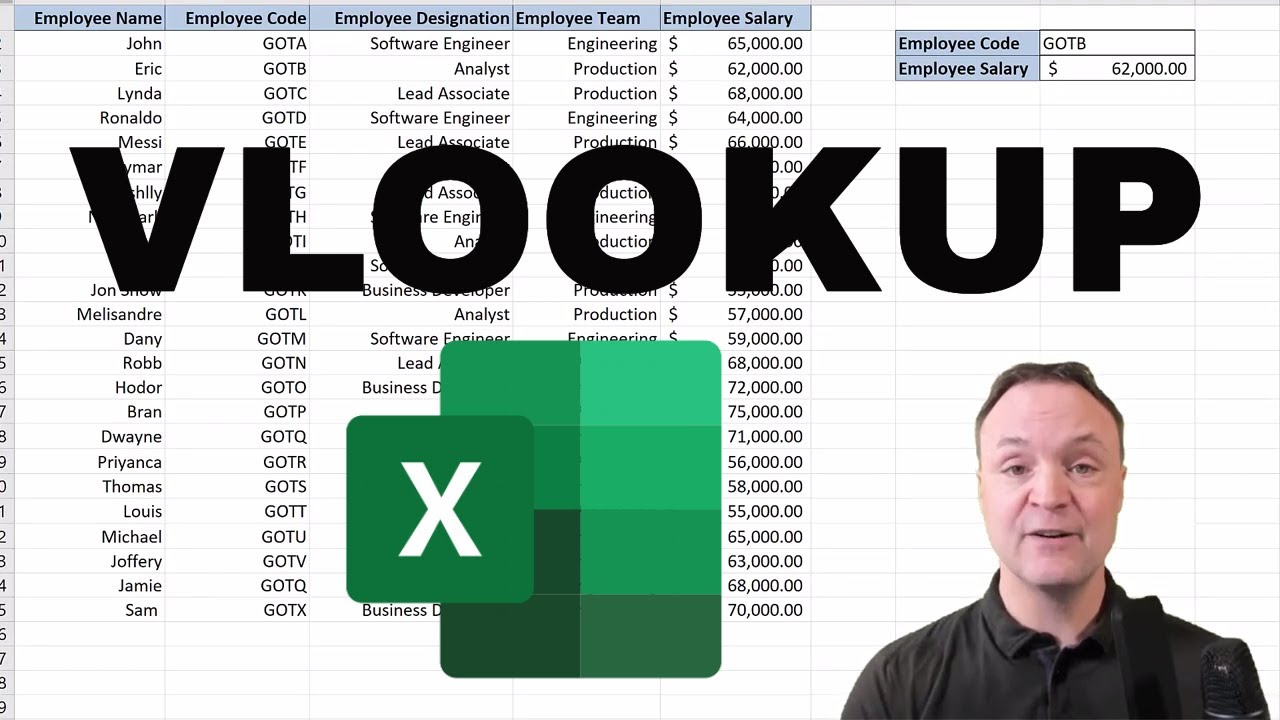
before we get creating our function I want to give you a little example to see why you'd be creating it and now I have a this data set that I have is a small data set but you could imagine if it was much larger with hundreds of rows and thousands of entry entries why this would be more valuable but this will give you the essence of the power behind vlookup now with this case right here I already have my function created up here and I'm going to enter a employee code from over here and it's going to return me the salary of that employee code now when you're using vlookup the V L the vlookup value must come from the first column and then the columns the vlookup columns must be to the right of it so I'll be looking up over here but then the columns is looking up will come to the right of it so if I go ahead and click an employee code notice it says an error right now well the reason it says there's an error because I haven't entered anything in it so it's not reading anything and it's giving back that and a to it but I'm gonna click in here so I'm just going to type in G ot and I'm gonna type in E and hit enter and you can see it gave me back 66,000 so you can see if I go to G oh Qi Yi over here and then it gave me back so it gives you this powerful way to look up the data in your tables using this vlookup function but let's go and I'm going to show you how to construct this with this data sheet okay so
2:58

Vlookup Function

for the example from the data that I'm using here what I want to create for the B is I want to be able to type in an employee name and then I want it to give me back what team they are on so I'm just going to construct this vlookup over here I'm going to use let's say these two cells and I'll move them around after to show you how you can adjust them but those are the two cells I'm going to use but to start my function I'm just gonna click on this cell here and when the first thing when you start writing a function you need to put the equal sign so when I like that then I can start spelling vlookup and you notice as soon as I start putting a couple letters I get VL look up pop-up and it gives me an idea what vlookup is so if you read it over here it says look for a value in the leftist column of the table and then returns a value in the same row from a column you specify by default the table must be sorted in ascending order now I'm going to go ahead and select this vlookup right here so as I select it and then I have these number of things that it is requiring so as I go through you can see how its separated by these commas each of these are an argument that I got to make sure that I fill or the vlookup isn't going to have isn't going to work so let's go ahead and
4:21

Writing the Arguments

start filling in these four arguments and now the first argument is look up value so what this is I need a place I wanted to be able to write the name in and it's going to give me what their job designation their employee destination is so I need a spot to write this in now this is where I pick a cell and I'll just I'm going to click above it here so I'm just going to click here and that's the spot where I'm going to write the name of the person and so that's all I have to do for the first argument is give it the lookup value and then I'm gonna go ahead and do comma press the comma and then I'm on to the next argument to the next one is table array so I need to select the table that I'm going to be using so it's this table right here I'm just gonna drag it down and select now if I wasn't using all the columns I don't need to bring it all the way in this case it's just a small table so I'm just selecting everything but if I'm just looking at the employee destination I don't really need the team or the salary in this one for this be vlookup the other way you can do it I just did a selection tool but let's say it was a really large table what you can do I'll just go back a few you can just type in the numbers too so if I put b2 you can see now I have this selected up here if I add the colon here and now I can add the second part and I know it's going to go all the way down to F 25 so I'll just type in F 25 and you can see how everything is selected so that might be an easier way rather than using the selection tool is just to find those put two points to get the range and now I'm done argument number two I just add my comma I'm on to the column index number now the thing to remember about this a lot of people think that the column index number when they see this so I have a blank column here to kind of serve a purpose of explaining this I need to pick the column that is associated with what I want to be looking through so this is what I want right here this employee designation now I need to start counting from the beginning of the table here at as this one it's in B so this is one right here this is two three four and five a doesn't it doesn't make a difference that this is a column over here this isn't part of the table so this isn't one so it's just something I just want to point out making sure that you know that the start at the table note don't connect it to the letters up top on it so this is one two and three so I know it's column three I want it to pull from and so I put my three and I'm done my third argument now my last argument is just a true or false one and this is so the four if you want it true it's going to be an approximate match versus the exact match now this is going to be dependent upon when you're searching do you want to force it to be that exact match can you get karey Kenny can move you back a close match to it so it's going to depend you can kind of switch that back and forth depending what works the best for you my case I want to be able to type in a name and then an exact name and give me back their destinations so I'm gonna click on false here and all they have to do is end the brac you put an end bracket but actually I don't even have to do that I could just hit enter if I wanted to but I will and then I'm gonna hit my enter notice it says na it's because I haven't entered anything into that cell that I swipe selected and I'll give it a try Eric here so if I tape Eric hit enter it says it's an analyst and you can see it's an analyst there if I go and pick Danny here I'm gonna write Danny and as I said this is an easy little table that I could just look on the look and see but I'm trying to talk to show you the big picture if you had hundreds of entries or thousands how this could work for you to save you a lot of time it can be very powerful so now whatever I enter into here I'm gonna get it back it with a vlookup there now I can move this around too so if I wanted to maybe if I didn't want this on top I'm going to just cut this and paste it below here maybe I wanted this one I can cut these both over I can paste it over here I can fix my rows if I want just by double clicking up here it stretches out I could give it some titles so if I wanted this to be if I put in my equals here I can just click on my I'll just click here and it will copy that over and I notice that's not large enough I could put an equals here and this is going to be the employee name hit enter and I can go through and format this with it too so I'm gonna write some other names in here we'll type in Aria again and you can see it comes back as analysts so it's working even though I moved it now check if you ever want to move a cell like this you can just click back into the VL lookup and you make any changes so it's an i7 now because as I moved it down it moved down with it but maybe I wanted in a different place I would have to go back into the formula I can adjust it up here with a different spot or if you've ever find anything or your table gets moved you can go through and adjust these after - now another reason that you might want to maybe make an adjustment if I type in Sam notice that I get this error well I can see that Sam's down here now the thing remember when I checked faults for the exact match on it now it looks like Sam's right but the problem is I actually have if I go down and double click in this cell Sam has a space in it so and I didn't see that at first or if you didn't see that I knew it was there but if I go ahead and delete this space and then click in here and I'll write Sam again and you can see there might be still another error in there so if I go through and try to find you can see now there's some more at the very beginning and if I hit enter now he's a business developer so that's the thing with an exact match if there's some spaces and there are somethings messing it up and you're not getting it back that could pose a problem but you can always go back and make the changes on these when you double click back into it you can change you can type I could change that to true on that one and make it to suit my needs better so I hope you liked this tutorial on vlookup here today it's a very powerful formula can save you a lot of time inside Microsoft Excel let me know if you want to learn some other things in microsoft excel down in the comments thanks for watching this week on teachers tech I'll see you next time with more tech tips and tutorials

Ещё от Teacher's Tech

Ctrl+V

Экстракт Знаний в Telegram

Транскрипты, идеи, методички — всё самое полезное из лучших YouTube-каналов.

Подписаться