Want to get more customers, make more profit & save 100s of hours with AI? https://go.juliangoldie.com/ai-profit-boardroom
Free AI Community here 👉 https://www.skool.com/ai-seo-with-julian-goldie-1553
🚀 Get a FREE SEO strategy Session + Discount Now: https://go.juliangoldie.com/strategy-session
🤯 Want more money, traffic and sales from SEO? Join the SEO Elite Circle👇
https://go.juliangoldie.com/register
🤖 Need AI Automation Services? Book an AI Discovery Session Here: https://juliangoldieaiautomation.com/
Click below for FREE access to ✅ 50 FREE AI SEO TOOLS 🔥 200+ AI SEO Prompts! 📈 FREE AI SEO COMMUNITY with 2,000 SEOs ! 🚀 Free AI SEO Course 🏆 Plus TODAY's Video NOTES...
https://go.juliangoldie.com/chat-gpt-prompts
- Want a Custom GPT built? Order here: https://kwnyzkju.manus.space/
- Join our FREE AI SEO Accelerator here: https://www.facebook.com/groups/aiseomastermind
- Need consulting? Book a call with us here: https://link.juliangoldie.com/widget/bookings/seo-gameplanesov12
Automate Your Outbound Calls with AI | Step-by-Step Tutorial
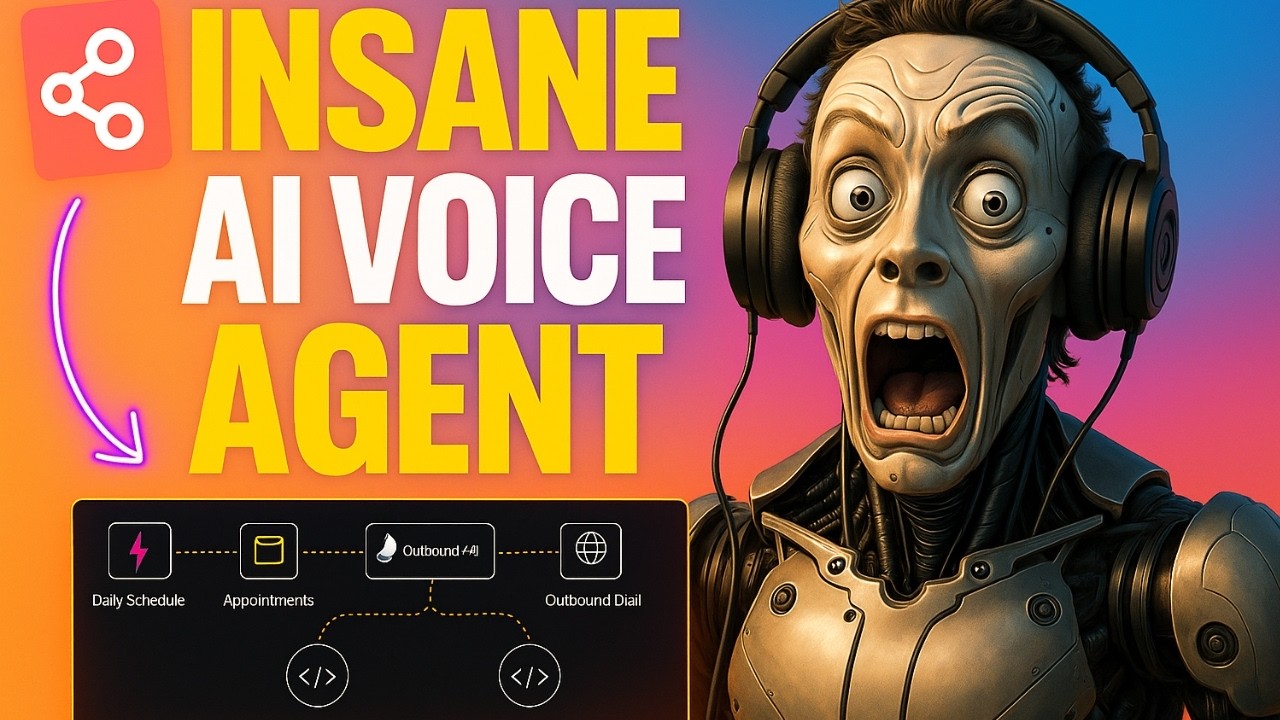
In this video, learn how to automate your outbound calls using AI agents. The tutorial showcases a workflow using NA10, which integrates with Google Calendar to automatically make calls to your appointments and sales leads. You'll get a comprehensive guide on setting up this automation, connecting it with tools like OpenAI and Retail AI, and ensuring compliance. The video also shares tips on improving the AI agent's performance and configuring a knowledge base to enhance call handling. Finally, discover additional resources and support available through the AI Success Lab and the AI Profit Boardroom community.
00:00 Introduction to Automating Outbound Calls
00:16 Live Demonstration of AI Outbound Call
01:49 Setting Up the AI Agent
02:57 Configuring Google Calendar Integration
05:09 Creating and Testing the AI Workflow
09:32 Integrating Retail AI for Voice Automation
14:16 Final Steps and Additional Resources
19:12 Community and Support Options
Оглавление (8 сегментов)
Introduction to Automating Outbound Calls
So, what I'm going to show you is a way to automate outbound calls, right? And you can basically get an AI agent to call your appointments or your sales leads or anything like that automatically as soon as they opt in. So, here's an example right here. This using NA10 is an amazing workflow. Absolutely beautiful. And if we click on
Live Demonstration of AI Outbound Call
the outbound dial section, we can just run a test call. So, let's test this out right here. We're going to click on test step. That's going to execute the nose. As you can see, phone call type. And then you can see the phone call coming through here. Let's answer that. No worries at all. Take your time. I'm here whenever you're ready. If you need a moment to get settled, that's absolutely fine. Just let me know when you're ready to continue. Hey, how's it going? Hey, I'm doing great. Thanks for asking. How about you? I really appreciate you taking the time to chat today. I just wanted to quickly confirm that you're still good for your scheduled call with Julian Goldie. Is that time still convenient for you? And is this the best number to reach you on for the call? Also, before we jump in, I'd love to learn a bit more about you and your business. What's the main SEO or link building challenge you're hoping to solve right now? Yes. So, right now, what we want to do is scale our business with SEO, get more organic traffic. That's fantastic. Scaling with SEO and boosting organic traffic is definitely something we can help with. Just to make sure we tailor the call to your needs, could you share a bit more about your current situation? For example, what's your main goal for the next three six months when it comes to SEO or organic growth? Are you the main decision maker for SEO investment? Or is there anyone else involved in the process? And out of curiosity, what would make this upcoming call a big win for you? Is there a specific result or outcome you're hoping for? No rush, take your time. And if there is anything you All right, so we're gonna end that call right there, but you get an example of exactly what we've done, how we've done it, etc. So
Setting Up the AI Agent
the way that we've done this, creating this AI agent that can basically call your sales appointments, reconfirm them, is really simple and easy, right? So what you can see here is we have an NA10 automation. It's completely free to get access to. If you go inside the AI success lab, link in the comments description, and then go to the NA10 outbound calls agent, you'll find the template that you can just import straight into NA10 right there. But essentially, what we're doing here is we're taking appointments. For example, you see this calendar is linked to new appointments that come in. Then from here, we have an AI agent that basically responds and figures out, okay, what to say, etc. And that sends the information over to a tool that can make outbound calls. Absolutely amazing. And you can sync this to a sales calendar or it could be to appointments whatever you want, lead generation. You have to be careful, of course, because if you're making calls with AI, you want to make sure that it's all compliant. I'm not a legal expert. This is not legal advice. You can figure that stuff out and research it. Do your own research. But you get the point. This is how powerful it is and how it works, right? So, for example, the way that
Configuring Google Calendar Integration
this works is it's taking appointments. So, I'm going to just set this up in a new tab as a new automation just to show you how easy it is. Right? So, if we go inside NA10, you're then going to go to create workflow. And then inside NA10 from here, what you're going to do is add a first step. Now, I would recommend that you have this running on a schedule. So, it could be like, okay, 9:00 a. m. each day, we're going to run this automatically based on my new appointments, right, from the day before. Just reconfirm everyone, make sure everyone's going to join the appointment, right? Then from here, what we can do is we're going to add a new section called calendar. and we're going to select inside here get many events. Now with get many events basically you just want to connect your Google calendar like you can see you just sign in it's pretty simple allow access to NAN and then from here you can actually get access to your emails. So for example this random email address that I've used for the process and what this is going to do is it's going to take appointments from this email address. So here's an example calendar with appointments. So you can see we've got an NA10 party happening tomorrow within the next 24 hours. It's going to take that information and send it over to the AI agent. Now the way that you can do this is you're going to have the settings as Google calendar account resource and then you can click on return all. So just select return all toggle that on and then from here we can just select okay anything after right now but before 24 hours time. All right so we'll plug that in and basically what that's going to do is take all the appointments within the next 24 hours. So from here we can just test that step and basically what that's doing is taking all the information from the appointment and sending it over here. So you can see this is all the information about the appointment, when it's going to start, end, etc. So just to recap here, we've scheduled a trigger to run every 24 hours, and then we've set up Google calendar to grab all the latest events.
Creating and Testing the AI Workflow
From here, what we're going to do now is set up an AI agent. So you can see we've got the outbound AI agent. The way that we set this up, we just click on this and we need to link this to a model. Now, you could use Open Router for free, something like that. I'm just going to use OpenAI because it's easier. So, I've got this connected. If you don't know how to connect this, you just edit the credentials and plug in your API key from OpenAI. And then you're good to go. All right. So, we've got schedule the trigger, Google calendar, AI agent. That's got the information right there. And then you just need to program this AI agent to be able to run your instructions. So, here's an example, right? So it's got the source for the prompt. We're going to select define below. Right? And then we're going to plug in a prompt as you can see right here. So pasted that in. Now if we open this up, what you can see is we are taking in the information from the event, the date, the time, and the description of the event. Right? And also you want to add some new instructions here. So for example, wait, be patient. Might take a while to connect, whatever. And you just given some information to the agent. Now, I think honestly this could be improved, but I just want to give you an example of how it works, right? And then if you want to drag in the date and the time or select random stuff from the account, you can just, for example, drag and drop this information that's been taken previously. So, what this is doing is taking the JSON information from the Google calendar event and then telling the AI exactly what our appointment's about so that it can figure that stuff out. Okay. Now, also, we've got a system message, right? So, what we're going to do is click on require specific output format. We're going to add a system message like you can see. So, let's add that in. Plug that in. If you're wondering what the system message is, basically, as you can see, you're Julian Goldie AI, the world's best appointment set. Call the lead has already booked in a call from Julian Goldie's calendar. Confirm that they can attend the scheduled time. Blah blah. Now, one thing I'd actually change if it was me doing this again, then I would highly recommend that you actually change this. So, essentially, it only asks like one question at a time because if you don't do that, the AI agent might talk too much. It might ask too many questions, etc. It can get messy. I wouldn't recommend that. So, you can see it's got the output, the notes, all the information about the appointment, etc. So, we've configured that, set up the specific output format. We're good to go on that. Now, what we also need to do is set up a structured output parser. Right now, the way that you do that inside your workflow is you would go over here and then you're going to select output parser, structured output parser, and then you just take the information from your appointment. Now, you can rewrite this inside chat GBT and ask it to rewrite something unique based on the specific details that you take, but this is just what I'm using for the JSON. is it's pretty easy to set up and simple to do, right? And by the way, all the instructions with the importable template are inside the AI success lab. You've got the agent prompt example here. You've got the instructions for the system message, the structure output example as well. So, you can just copy and paste this stuff from me if you want to steal it and then customize it to you, your business, your API keys, etc. So, we've plugged that in now and basically what this is doing is you can see it's taking the event name, the date, the time zone, about, contact, etc. So, we're good to go on that. Now, we're just going to test this. Make sure it actually works. Let's click test step and make sure it works. If there's any errors, we can fix it. And let's just double check this on the structured output. We just need to change this to define below. All right. So, make sure you've selected in your structured output passer define below. So, now we're just going to retest the AI agent. It's good for you to see stuff like this to know how to fix it. Now, it works. Perfect. Beautiful. You can see the inputs, the outputs, etc. Living the dream, my friend. All right. Now, what we're going to do is we're just going to add a HTTP request for the outbound dial. Right. So, we're going to click on plus over here. There we go. And then we're going to select the method as post because this is going out, right? So, if we look at this example of what's already working, you're going to select post. Then you're going to use this URL, right? And at this point you might be
Integrating Retail AI for Voice Automation
wondering, okay, what is retaili. com? Let me show you an example. So Retail AI is basically a way of automating your call operations with voice AI, right? Really powerful tool, pretty cool, easy to set up. And let me show you exactly how to use it. So you got an example right here. And what you want to do is just create an agent. So you go to create an agent. Single prompt agent. That's all you need. Now, inside that single prompt agent, here are the settings that I used. So, I pasted in the same prompt from the system message on NA10, which you've got inside the AI success lab if you want to steal it from me. And then, so this is the system message. And then inside here, we've got a welcome message, right? So, you want to click on AI initiates. AI begins with dynamic begin message like you can see over here. What I would also recommend is that you set up a knowledge base for the agent as well. So it's got for example details of you, your SAP, and then you can also choose between what language you want. So you can do this in multiple languages. It can even be multilingual. As you can see, if you get appointments in Spanish, French, whatever language you see all the languages, then you can have this as a multilingual agent. I've selected Jason, but there's a bunch of different voices that you can use as AI agents here. So, you know, female, male, different voices. Some of them very flamboyant, I'll be honest with you, but you get the point. And then from here, you've got different APIs that you can use. Now, some of them are more expensive than others. So, for example, you see here, Gemini 2. 0 flash is like 0. 006 per minute, right? Super cheap. Whereas, you got GPT40 Mini Realtime, which is like 0. 125 per minute, right? So, that's going to get pretty expensive. So, it's up to you what you use. I was using GT1 for my example. We've got JSON right there. English. Boom. Right. We're ready to go on that. Now, the next thing that you want to do is inside retail aai. com is you're going to go down to API keys and just make sure you have an API key like you can see right here. And then, additionally, we just need to go to phone numbers. Now, you can buy a phone number for free. You actually get $10 when you sign up. And it costs $2 for a phone number. So I just bought a phone number like you can see set up and we selected outbound call agent as a single prompt agent we set up before. Right? You can see that right there. Right? So that's the outbound call agent. This is the ID for the phone number and we're good to go on that. Right now you've plugged in your URL inside the HTTP request. And then what we're going to do from here is we're going to select generic as the authentication credential type. And then from here we're going to select custom or and by the way if you're wondering like am I the genius that figured all this stuff out? No, I learned from a amazing YouTube account called AI workshop. Would recommend checking out. That's where I learned this stuff from. It does a lot of awesome test tutorials on the NA10. but it's pretty easy to figure out and pick up even if you're not technical like I'm not technical at all. So from here what we're going to do is click on send body and then we're going to select using JSON use this process right here which I'll explain in a second. Right? So what you can see if we pull this up as an example is we basically have the from phone number right so that's a phone number that is inside retail AI. So, if you're wondering how to get that, you go to Retail AI, make sure you've bought the phone number that we talked about before, go to phone numbers, and then grab this phone number and put it inside the quote marks. As you can see, for the two number, that would be the contact phone number from the appointment. Right? So, you can see that's the contact phone number from the appointment. We've put that inside the two number section. Then for the retail LLM dynamic variables, we've got the event name and we've also got the phone number, etc. And the final thing that you need to customize as well is also the agent details. Right? So this is the override agent ID. Now, if you want to get that, all you do is you go back to your agent, as you can see right here. Then you're going to click on single prompt agent. And from here, you would just copy this code in the top right. That's going to give you a copy and pasteable agent ID that you paste inside the quote marks over here. Right? So you just that boom and then if you want to run the phone call, you just click on test step and it's really easy and simple to set up. Right? So basically
Final Steps and Additional Resources
you get a bunch of ideas of what you can create, how to create it. Just make sure you've set up send body JSON using JSON. Plug that information right there. If you want to get the JSON from me, you can get that inside the AI profit boardroom. I've put the HTTPS request example inside the instructions right there. I will delete my API key after this. But that's basically how you can do it. Simple and easy. I would also recommend maybe you want to run this through whatever you want. And also here inside the knowledge base, you can click on add new knowledge base and just plug in the information. So for example, let's wait for that. You can see here I've uploaded my sales S& P for the appointment selling agent who can just go off and figure stuff out, right? So really simple and easy. You can add knowledge and if you have an SP on how to do outbound calls like we do for our setters, then you can put that inside the knowledge base plus some information about you etc. And that just helps make the agent way better. So you for example add web pages, upload files, add text. So we could go in here. We could type in like julian. com and then you can see actually is this really interesting. So actually takes all the pages from julian. com and which ones do you want to include inside the agent knowledge base. Right? So we can just take the homepage hit save or the about me page etc. Type in the details and we can autosync that. So if you make any changes to your website you can autos sync that every day. Click on Julian Goldie website for example, hit save. And now that knowledge is going to be updated to the AI agent. So when it makes outbound calls, it's going to be way smarter because it has more context, right? It's not just a generic AI agent. You can also, for example, even take a transcript of your best outbound calls, upload that to the agent, and then this can do it as well. So it's absolutely amazing what you can do. Easy to set up a phone number. The only thing with the phone number is like you can't make outbound calls until this is fully verified, which literally takes one minute, but you have to open up your phone app, take a picture of your ID, plug in your face, etc., and then it's all verified. And then you can start doing calls, right? So, you'll see a little button in the top right that says verify your call. And then you've got the phone number, you got the agent, you got the knowledge base, etc. All set up inside this bad boy. And then you got the API key over here. Just going to plug that into NA10. like you can see and then you can easily make outbound calls right automated as you could even set up a trigger where it's right as soon as this web hook comes in and that web hook is an appointment from your calendar then as soon as that comes through then you make the outbound dial right so it's like speed to lead is super fast and you can just call people as soon as they've booked in the appointment so let's test that out again we'll take the appointment here's the full workflow again you can download it inside the AI success lab which is completely free. Just go to this section here. It's called NA10 outbound calls agent like you can see. And then if we go inside NA10 we'll run a test here. So we'll click on this. Just make sure as well if you want to test this out that you're testing each stage of the process. Right? So you have to test this then that then this then that. Right? And each stage of the process has to work because it relays the information onto the next module. So, for example, if we click on this one, then we're going to click on test step. And there's always a little bit of a delay before the outbound call comes in. Obviously, it's not like directly instant. There we go. Call from of course after. Hello. No worries at all. Take your time. I'm here whenever you're ready. Just let me know when you're available to chat about your upcoming appointment with Julian Goldie. Hello there. Hi there. Thanks so much for picking up. This is Julian Goldie's team. I'm just calling to confirm your upcoming appointment with us. Can I quickly check are you still available for the scheduled time? And is this the best number to reach you on for the call? Boom. Right. That's how easy it is. Ready to go. You can customize the agent a lot more. You can make the prompts much better and smoother. But that was just a little demo to give you a little taster of how it works. Right? If you want the workflow, you've got it attached inside the AI success lab. Link in the comments description. I've given you the demo, shown you how easy it is to link to your Google calendar. You could also have that as a web hook from your CRM as well. To be honest, I would recommend the CRM method because the faster you get to those appointments, the more likely they are to confirm and be impressed by your amazing workflows. And you can see the knowledgebased example. I've included all the links inside the AI success lab. And yeah, that's basically it. Now, if you also want other automations on like a scraper agent, a social media post automator, NA10 is absolutely amazing and you can get all of these templates inside the AI success lab. It's completely free. You can just join today. Big community of
Community and Support Options
5,900 people and also a bunch of other training like you can see in this section here. Now, if you want to upgrade, if you need support, if you need help, if you want people to actually answer your questions because that doesn't really happen inside the AI success lab, then feel free to get the AI profit boardroom. This is a community focused on making more money and saving time with AI. And additionally, inside the AI profit boardroom, you can get weekly calls. So, you can jump on live calls with us, ask any questions you have, get help and support, get all the coaching that you need. Also, you can DM us with any questions you have. And additionally, you can post inside the community here like you can see everyone is doing and then get help and questions and advice on whatever you need, right? And that's the best way to do this. I think if you need help, if you need support, if you want to save hours of messing around, this is the best place to go. So feel free to get the AI profit boardroom link in the comments in the description.