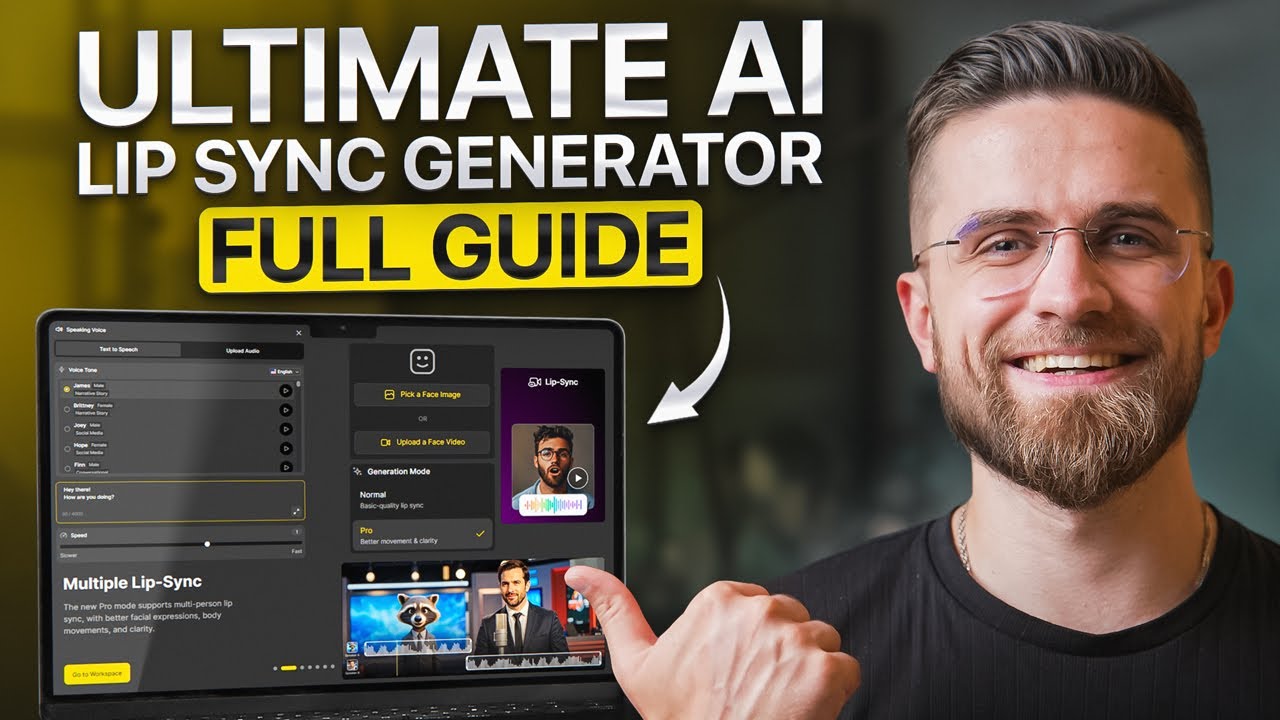
Best AI Lip Sync Tutorial: How to Make Any Photo Talk
15:25

Best AI Lip Sync Tutorial: How to Make Any Photo Talk

AI Master 26.01.2026 12 495 просмотров 73 лайков обн. 18.02.2026
Поделиться Telegram VK Бот
Транскрипт Скачать .md
Анализ с AI
Описание видео
#sponsored Dzine AI Lip Sync: https://www.dzine.ai/tools/lip-sync-ai-video/?src=YouTube/aimaster01 🚀 Become an AI Master – All-in-one AI Learning https://aimaster.me/ 📹 Get a Custom Promo Video From AI Master https://collab.aimaster.me/ Make any photo talk with Dzine AI using multi-character lip sync! In this video, you’ll learn how to create realistic lip sync animations for multiple characters in one frame. This step-by-step guide covers everything from image setup to final animation, making it easy to produce professional AI lip sync videos for content creators, animators, and storytellers. 🎯 What You'll Learn: • How to animate multiple characters simultaneously with perfect lip sync • Creating natural facial expressions and dialogue timing • Working with photos, art, cartoons, and 3D renders • Advanced timing control for realistic conversations ⏱️ Timestamps: 00:00 - AI Lip Sync Relevance 00:51 - Single Character Test 03:24 - Two Person Test + Dialogue Setup 06:50 - Three-Person Interactions 08:30 - Group Image Test 09:30 - Anime Characters Test 11:08 - Animal and Side-Face Detector 12:40 - Advanced Workflow 13:56 - Final Thoughts 🔔Subscribe for weekly tutorials, tool reviews, and practical AI strategies. #dzine #dzineai #dzinetutorial #lip sync #multiple lipsync #AIMaster

Оглавление (9 сегментов)

  1. 0:00 AI Lip Sync Relevance 134 сл.
  2. 0:51 Single Character Test 447 сл.
  3. 3:24 Two Person Test + Dialogue Setup 572 сл.
  4. 6:50 Three-Person Interactions 294 сл.
  5. 8:30 Group Image Test 171 сл.
  6. 9:30 Anime Characters Test 240 сл.
  7. 11:08 Animal and Side-Face Detector 253 сл.
  8. 12:40 Advanced Workflow 205 сл.
  9. 13:56 Final Thoughts 219 сл.
0:00

AI Lip Sync Relevance

Breaking news. You can now lip-s sync two people in one photo. Not just that, watch how I can control exactly when each person speaks. Even this dog just started talking. Let me show you how. Here's the problem. Most AI lip-s sync tools handle one character at a time. They ignore dialogue timing. They fail on anime faces, animals, anything that isn't a perfect front face in human portrait. The result, your photos stay dead. Your group shots never come to life and creating animated conversations requires pro-editing skills you don't have. Design AI just changed the game. Multic character sync with timeline control. Natural expressions works in any face type. Humans, anime, even animals. By the end of this video, you'll turn static photos into living scenes in minutes. Let's start simple.
0:51

Single Character Test

Head to Design AI link below. Once you're in, open a new project and click lips sync in the side toolbar. You'll see two options at the top, face image or face video. We'll begin with face image. Upload a photo from your computer or choose one from the canvas. For this first test, I'm using a single portrait, just one person in frame. Once the image loads, Design AI automatically detects the face. You'll see a box around it. The system scans for facial landmarks, eyes, nose, mouth, and draws a bounding box. If the detection misses, click mark face manually and draw the box yourself. Just click and drag around the face area. It takes 2 seconds. Click next. You're now in the voice editor. This is where the magic happens. You'll see a timeline interface with a single track for your selected character. Click pick a voice. You have two options. Upload your own audio file or use text to speech. For this walkthrough, I'll use text to speech because it's faster and gives you full control over the script. Type the line you want this person to say. Keep it conversational. Then on the right, you'll see language options: English, Spanish, French, dozens of choices. Below that, browse the voice library. Each voice has a preview button. Listen to a few. Some sound younger, some older, some have accents. Pick the one that fits your character. Once you've selected a voice, you can adjust the speaking speed with a slider. Slower for dramatic moments, faster for energetic dialogue. Click generate. Wait a moment. The audio clip appears on the timeline as a waveform. Play it back to confirm the delivery sounds natural. If you don't like it, regenerate with different punctuation or different voice. The TDS engine is sensitive. Commas create pauses. Exclamation marks add energy. Now, scroll down in the lips sync panel and choose your generation mode. You'll see normal mode and pro mode. For single characters, normal mode works fine. It's faster and handles basic lip sync well, but we'll need pro mode in a moment for multicar sync. Click generate. Wait a few seconds. Design AI processes the image, analyzes the face structure, and bakes in lip movements that match your audio waveform. The result pops up. Check it. — Hey there. How are you doing? Any plans for the weekend? — The lip sync is clean. The mouth movements match the audio. Even subtle details like head tilts, eye blinks, and micro expressions are baked in. This is your baseline. One person, one voice synced perfectly. Export it if you want, but we're just getting started. Now, the
3:24

Two Person Test + Dialogue Setup

real breakthrough. Upload a photo with two people in frame. I'm using this movie theater couple. Both faces visible, both looking forward. Decent lighting. Design AI detects both faces automatically. Two boxes appear around each face. Select both by clicking the check boxes. You can also select just one if you want. Even blurry background characters might get detected, which is impressive. For this demo, we're focusing on the couple in the foreground. Click next. Here's where it gets interesting. The voice editor now shows two separate tracks, one for each speaker. Track one for character one, track two for character 2. This is the timeline control that changes everything. You're not limited to sequential dialogue anymore. You can overlap, interrupt, create natural conversation flow. Let's add voices. Click. Pick a voice for the first character, the woman. I'll give her a line. I can't believe this movie is so boring. Choose a female voice from the library. I'll pick one that sounds slightly annoyed. Generate. Her audio clip appears on track one as a waveform. Now click. Pick a voice for the second character, the man. His line. Wait, did you just say that out loud? Choose a male voice. something surprised, maybe a little embarrassed. Generate his clip appears on track two. Here's the magic. Drag each audio clip left or right to adjust timing. See the timeline? You can slide these clips anywhere. If you want him to interrupt her mid-sentence, slide his clip earlier so it overlaps hers. The overlapping section turns a different color to show the conflict. Listen to the preview. — I can't believe this movie is so boring. — Did you just say that out loud? — Perfect. The conversation flows naturally. She starts her complaint. He cuts in halfway through with his panicked response. You can trim clips by dragging their edges. Grab the left or right handle and pull to shorten the audio. You can stretch them too, but that changes the playback speed, so use it sparingly. Design AI supports up to 30 seconds of video at a time, which is plenty for most dialogue scenes. If you need longer, generate multiple clips and stitch them in post. When the timing looks right, click confirm to return to the lip sync panel. If you want to change dialogue or timing later, just reopen the voice editor. Your tracks are saved. Now, choose pro mode. This is critical. Pro mode enables multic character lip sync and advanced timing control. Normal mode won't handle overlapping dialogue. It'll either fail or only sync one character. Pro mode costs more credits, but it's the only way to get true multic character results. Click generate. Processing takes longer for pro mode. Maybe 15 to 20 seconds depending on server load. When it finishes, check the result. Play it back. — Did you say that out loud? — The lip sync is incredibly natural. Both characters move independently. Their mouths sync to their own audio tracks. The overlap in timing makes the interaction feel real. He actually interrupts her and you can see her react even though she's midward. Body movement and speech emphasis sink better when everything is generated together. Promo doesn't just animate lips. It adds micro movements to the whole face. Even background elements show subtle motion, blinking, breathing, slight head tilt. The scene feels alive, not like two cardboard cutouts with flapping mouths.
6:50

Three-Person Interactions

Now, let's push this further. We've done one person, we've done two. Let's test three. and four people in one frame. Upload a group photo with three people. I'm using a shot with three friends sitting together playing video games. Design AI detects all three faces automatically. Boxes appear around each one. Select all three. Click next. Now you're looking at three timeline tracks in the voice editor. Track one, track two, track three. This is where it gets complex, but the workflow is identical. Add a voice for the first person. Generate. second third person. Generate. Now arrange the timing. Maybe the first person starts talking, the second person responds, and the third person jumps in to interrupt both of them. What's really cool is that you can add extra dialogue tracks with the same remembered voice and sequence them to feel like real situational communication. I added additional audio lines for each character to better capture the tension and in-game communication flow. Drag the clips around. Overlap them where you want interruptions. Preview the audio to make sure it flows like a real conversation. Click confirm. Switch to pro mode. Generate. Check the result. — Cover me. I'm pushing left. — What are you doing? He's right there, — bro. I see him. Relax. Oh my. Wait. Wait. — If you just listen for one second. — Let's go. I got him. — All three characters are lip synced independently. Each mouth moves to its own audio track. The timing, movements, emotions are there. If you set an interruption, you'll see one person's mouth close midword while another's opens. This is exactly where the multi-person group conversations are brought to life. Now, let's go to the maximum. Four people in one image.
8:30

Group Image Test

Upload a group shot with four faces clearly visible. Design AI detects all four. Select them all. The voice editor now shows four tracks stacked vertically. It looks crowded, but it works. Assign dialogue to each person. Keep the line short. This is a lot of audio to manage. Use the zoom controls at the bottom of the timeline to expand the view horizontally so you can see all four waveforms clearly. Position the clips so the conversation feels natural. Maybe two people talk at once while the other two listen. Then the rolls switch. Generate with pro mode. The result is impressive. — All right, hear me out. This idea might actually work. — Wait, wait. You said that last time, too. — Yeah, but this time he's got numbers. Look. — Four people. Four independent lip syncs all happening simultaneously in one frame. The system handles it without breaking. Mouths move correctly. No glitches. No weird artifacts. This is production level multicar animation. Now let's test range. First anime
9:30

Anime Characters Test

characters. Upload an anime image. Two characters. Stylized faces. Big eyes. Drawn features. Many lip sync tools completely fail here because they're trained exclusively on realistic human faces. The algorithms expect skin texture, natural proportions, photographic lighting. Anime breaks all those rules. Design AI detects both faces automatically. Boxes appear around the drawn faces. That's impressive already. Select them. Add voices using the same voice editor workflow. For anime, I like to use slightly exaggerated delivery, more expressive voices that match the art style. Generate with pro mode. — Hi there. Would you join me visiting the new art station in city center? — Hi. Yes, absolutely. Where should we meet? — Result: flawless. The lip sync adapts to the art style. Mouths move naturally within the drawn aesthetic. No uncanny valley. No flickering. The animation respects the original line work. This is rare. Most tools either refuse to process stylized faces or produce nightmarish results. Design AI handles it smoothly. Pro tip. The textto-spech model is very sensitive to punctuation. Use this to your advantage. Commas soften the tone and add natural pauses. Ellipses add hesitation, great for uncertain or thoughtful characters. Caps add emphasis. The voice gets louder and more forceful. Exclamation marks increase energy, perfect for excitement or anger. Question marks raise the pitch at the end of the sentence, essential for interrogative lines. Play with punctuation before you regenerate audio. It's faster than tweaking settings. Next
11:08

Animal and Side-Face Detector

test. Animals. Upload a photo with a dog or cat, something with a visible face, not a side view. If Design AI doesn't autodetect the face, which often happens with non-human subjects, click mark face manually, and draw a box around the animal's snout and eyes. Doesn't have to be perfect. Just approximate the face region. Add a voice line. Something funny works well here. Finally, you're back home. Let's go playing ball together. Choose a voice that fits the animal's personality. Generate. — Finally, you're back home. — The result is hilarious and surprisingly convincing. The animals mouth sanks to the audio. The movement is subtle. Animals don't have the same range of motion as humans, but it works. Eyes blank at natural intervals. If the photo has decent resolution, you'll even see tongue movement on certain phonemes. This is perfect for meme content, pet brand ads, or just making your friends laugh. Final range test. Side profiles. Upload a photo where the subject is turned to the side about 45° from the camera. Many tools require a direct front face in view. They fail if the face is rotated even slightly. Design AI handles it. The detection algorithm recognizes the face despite the angle. The lip sync works even at 45°. movements are more subtle because we're seeing less of the mouth, but they're accurate. — H, should I include this part on my report as well? — For three quarter profiles or dramatic angles, this opens up way more creative
12:40

Advanced Workflow

options. Here's where we level up. So far, we've been using still images, but design AI also accepts video input. If you want smoother background animation, wind in the trees, characters swaying slightly, subtle motion, start with a video instead of a photo, switch to AI video inside design AI. Upload the same image. Write a simple prompt for subtle movement. Gentle breeze, soft lighting, slight head tilt, natural breathing motion. Keep it restrained. You just want the scene to feel alive. Pick a duration, 5 or 10 seconds. Generate your static photo now has motion. Hair sways, eyes blink naturally. The whole scene breathes. Now upload that video back into lips sync. Switch from face image to face video. The workflow is identical. Detect faces. Add audio tracks. Adjust timing. Generate with pro mode. Design AI automatically loops the video. If your audio is longer than the clip, the result, dynamic lip sync on top of a moving video. — This tool is really great for my photos and videos. Agree. My portfolio is now much better. The realism jumps significantly. This is what I use for high-end client work. Layered animation, precise dialogue timing, and natural motion allin one. One more tip for
13:56

Final Thoughts

complex projects. If you're syncing four people, the timeline gets crowded. Use the zoom controls to expand the view horizontally. Label each track with character names Sarah, Tom, Lisa, Mike, so you don't lose track of who's speaking. You can also copy and paste audio clips between tracks if characters repeat lines. Generate once, duplicate the clip, position it separately. Small workflow tricks like this save hours on multic character projects. This is the closest we've gotten to oneclick animated dialogue. No editing skills. No hours of tweaking key frames in After Effects. No motion capture rigs or expensive animation software. Just upload signed voices, control timing, generate. The results are production ready. Game changer for tutorials, presentations, social media, sketches, storytelling, client work, multic character conversations that used to take days, now would take minutes. And because design AI supports pro mode with timeline control, you're not stuck with robotic back and forth. People interrupt each other, conversations overlap, reactions feel natural. That's the difference between a demo tool and something you actually use in production. Link to design AI is below. Try it yourself. Drop a comment with the first thing you'd make. Talk photo, group shot, art, animal, whatever. I want to see what you build. Thanks for watching. I'll see you in the next one.

Ещё от AI Master

Ctrl+V

Экстракт Знаний в Telegram

Транскрипты, идеи, методички — всё самое полезное из лучших YouTube-каналов.

Подписаться




