How to Switch from ChatGPT to Claude (Without Losing Anything!)
4:17

How to Switch from ChatGPT to Claude (Without Losing Anything!)

The AI Advantage 02.03.2026 4 684 просмотров 354 лайков

Machine-readable: Markdown · JSON API · Site index

Поделиться Telegram VK Бот
Транскрипт Скачать .md
Анализ с AI
Описание видео
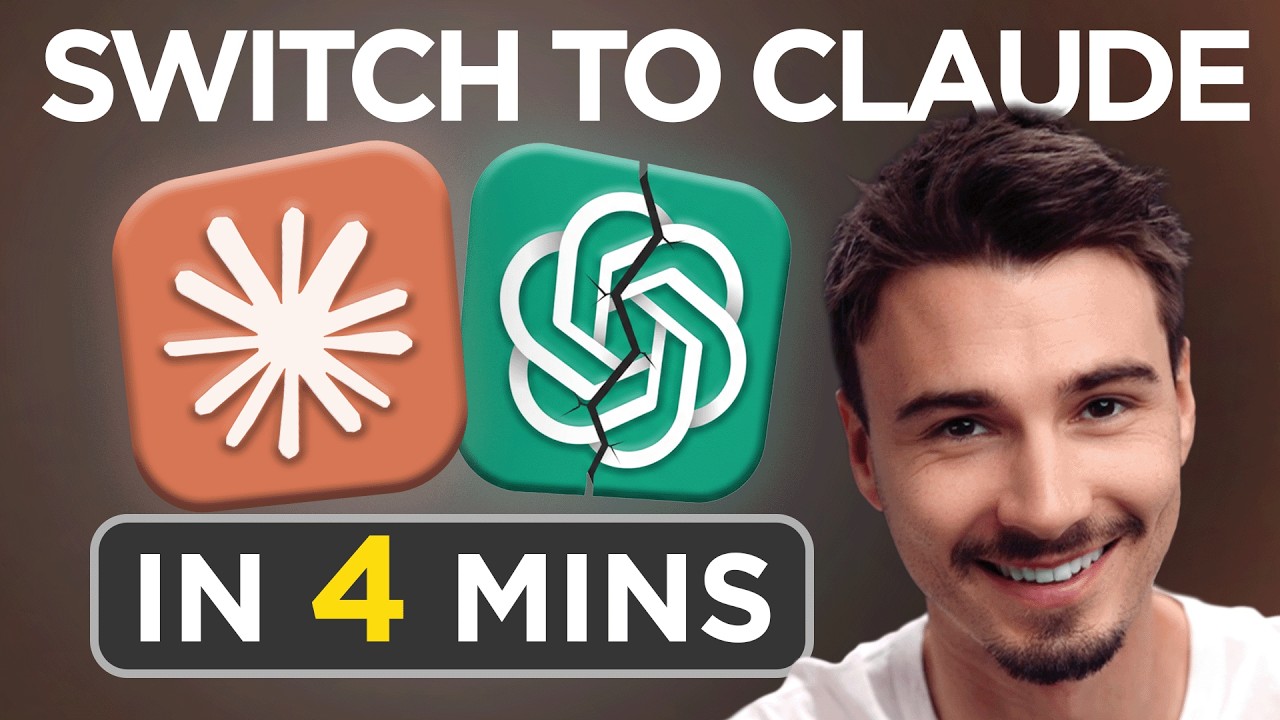
Subscribe for more weekly guides teaching you how to use AI! In this video, Igor shows you how to quickly and easily switch from ChatGPT (or any other LLM provider) over to Claude without losing all those precious memories you've built up. Give it a watch if you're one of the many making the switch to Claude! Enjoy :) Links: 🔑 Free ChatGPT Prompt Templates: https://bit.ly/newsletter-aia 🧑‍💻 Igor Pogany on LinkedIn: https://bit.ly/IgorLinkedIn 🐦Twitter/X: https://bit.ly/AIAonTwitter 📸 Instagram: https://bit.ly/AIAinsta Claude Support Article on Importing/Exporting Memories: https://support.claude.com/en/articles/12123587-importing-and-exporting-your-memory-from-claude Prompts: I'm moving to another service and need to export my data. List every memory you have stored about me, as well as any context you've learned about me from past conversations. Output everything in a single code block so I can easily copy it. Format each entry as: [date saved, if available] - memory content. Make sure to cover all of the following — preserve my words verbatim where possible: Instructions I've given you about how to respond (tone, format, style, 'always do X', 'never do Y'). Personal details: name, location, job, family, interests. Projects, goals, and recurring topics. Tools, languages, and frameworks I use. Preferences and corrections I've made to your behavior. Any other stored context not covered above. Do not summarize, group, or omit any entries. After the code block, confirm whether that is the complete set or if any remain. Chapters: 0:00 Intro 0:36 Step-By-Step Guide 4:04 Final Thoughts
Оглавление (3 сегментов)

Intro

A lot of people are moving from chat GBT to Claude. And whether that's happening because of the improved writing capability or people's preference for the code and apps that Claude creates or ideological reasons, the fact remains that transitioning accounts hasn't always been so easy. But now there's a super simple way that Claude themselves introduced that will bring you over in a minute or two. But there is a few things to watch out for. So let's have a look at how to bring over your data from chat GPT that you built up over there to claude so you have a seamless experience and can move from worrying about your data being lost in a transition to actually getting things done in the AI assistant of your choice. Okay, so

Step-By-Step Guide

journey starts here. Claude even created a separate page. I'm switching over from another service to Claude. And the way it works is very simple. In your Claude. ai account, you click your profile picture in the bottom left. Then you navigate to your settings. And here under the capabilities tab, you can see this new button, import memory from other AI providers. When I click this start import button, I will see two fields. One of them is a prompt that I now need to copy that will extract all the memories, all the context, all the information that chat GPT or another provider might already have saved on you. And by simply using this prompt, it extracts all that. Now, intuitively, it looks as simple as just pressing copy and inside of chat GPT, pasting this prompt and running it. And it can be that simple, but for many users, that's not going to get everything. all the information you care about. As you can see, in my case, it gets five different pieces of information about me. But the goal here is to bring as much as possible over. So, here's my recommendation on what to do in your Chat GBT account. You click your profile picture. You go to the personalization tab. And here you make sure all of these are on. Reference saved memories, referenced browser memories, and reference chat history. Now I want you to pick a different model cuz here in the model picker you can go from auto to thinking. And now as a final step, I paste the prompt and hit enter. And what I found in my testing is that this thinking model actually does a better job of retrieving more information about you because it simply has more of these thinking cycles where it looks through your account and tries to find different pieces of information that you can then bring over. As you can see already, it brought out more information, some of it from previous chats. Now, we're ready to finish the transition. If you've never used projects before, if you used projects before, I'll get back to that in a second. But to finish the process, all you need to do is go here and press copy on the top right of this code block with all of your info. Then go back to claude. And now inside of here, I rightclick and paste all of that information and click add to memory. It's as simple as that. Now, it will format all of it into brand new memories that will live inside of Claude. Matter of fact, I would say the memories inside of Claude are even better than the ones in chat because, as you can see, they're cleanly categorized. Plus, they get regenerated every night based on the new chats that you have. Really neat. To finish off the process, I would just say read through these ones, and if you see any mistakes, you can click the pen here and communicate any corrections here. That step is totally optional, though. Otherwise, you're ready to exit out of this. and you ported all of your chaty memories and information about you to Claude, which can now be your new LLM of choice. One more note, if you're a projects user, meaning that you organize your chats and your context within projects, which for example, I use this one with my work context where I have some files attached that help me complete my work more efficiently. Well, these chats in that project and the files that I attached and the memories and instructions of that given project live in a container. So if you use projects and you want to bring those over to you would do the same thing that I showed you before where you run the prompt in here with the thinking model. See how there's way more information in here. Now I would go to claude projects create a new project. Call this one work context. And then inside of my project I would just manually say add this information to the project memory. And then I could take all of these and put them into the project's instructions over here. And that brings over the entire project. And then in about 12 hours when these memory updates, this project will take all of those memories and you also have your project level memories inside of Claude which completes the migration. And that's really it. If you have any questions or

Final Thoughts

additional tips on how to migrate from chat to Claude, feel free to leave them in the comments below. And if you enjoyed this tutorial, make sure to subscribe to the channel. I produce tutorials and news updates like this every single week. Okay, see you soon.

Другие видео автора — The AI Advantage

Ctrl+V

Экстракт Знаний в Telegram

Экстракты и дистилляты из лучших YouTube-каналов — сразу после публикации.

Подписаться

Дайджест Экстрактов

Лучшие методички за неделю — каждый понедельник