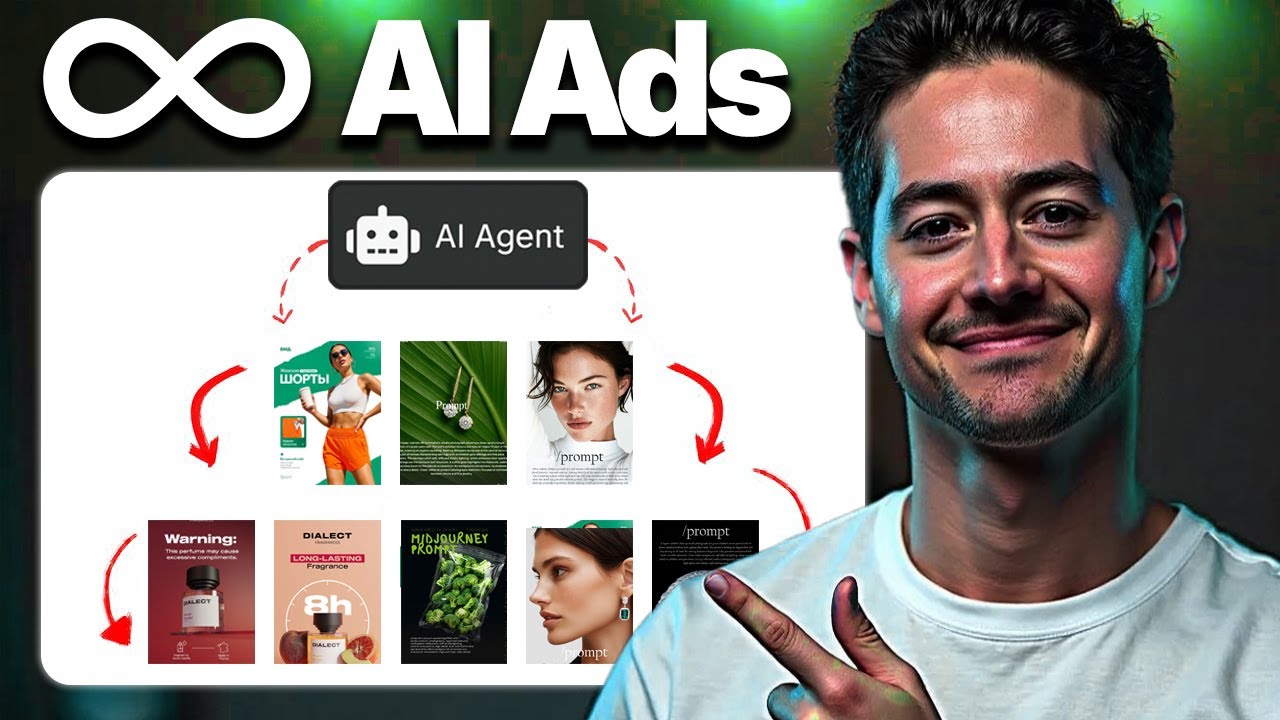
Okay, so this is a live build. That means as of the current time of this recording, I am looking at a blank in Canvas and I have no freaking idea where I'm going to go from here. I have a strong feeling that I'm going to be able to make this turn out pretty good, but I don't know for sure. What I am planning on doing is we're going to start by scraping ads using Facebook or Instagram, a search term. Then we're going to download from Facebook and Instagram and then upload images to some sort of Google Drive. For every image, I want to analyze it using Open AI, just some sort of like vision model, then generate a description that we can spin. Spinning, for those of you guys that don't know, refers to an old like copywriting tactic where you would take a piece of text and then just like change all the words so that they were synonyms. Basically nowadays with image models, I think we can do basically the same thing. What we're going to do after that is we're going to feed in a GPT images one edit endpoint along with the spun image prompt, make some changes to it, and then we're going to take this new ad and then add it to a specific Google Drive folder as well as a Google sheet just for organizational purposes. Now, to be clear, I think that this could probably eliminate like 60 to 70% of an entire PPC agency's job. A lot of the time all you guys are really doing in a PPC agency if you work there is just like spinning working ads either ads that you guys have created in the past for yourself or you guys are like informally or manually looking at competitor ads finding what works and then doing the spinning yourself. So that's why I'm really excited about this cuz I have a strong feeling that this is going to crush. And I work with growth agencies and PPC agencies. Actually used to be one of my target markets and I've owned one of these. So yeah, I'm just super stoked for this. Let's see how this goes. Okay, so the very first thing we need to do is scrape ads using Facebook or Instagram. In order to scrape, what I'm going to be doing is using a platform called Appify. Appify is just a marketplace that allows you to buy scrapers or rent them on demand. It looks something like this. And if you guys have watched my videos before, you'll know that I absolutely love using them for this purpose. So, I'm actually just going to type in ads to start and we're going to see what we got. So, Facebook Ad Scraper, Google Ad Scraper, LinkedIn Ad Scraper. This immediately makes me confident that we could do this not only for Facebook or Instagram ads or whatever. We could actually just do this for any sort of platform with image ads. So, realistically, we could probably do this for like everything. You know, we could totally do this for LinkedIn. You on Reddit. like Kora and so on and so forth. Yeah. And then in addition, you have Twitter ads here. Hell, you might even be able to do this with Snapchat ads if they're static. Good lord, I'm excited. But what I'm going to be doing in this video is we're just going to be using Facebook ads. So, the specific one I want is this Facebook ad library scraper from Curious Coder. And I'm just picking this because I've used it before. I've found reasonable success rates with this. I want you guys to know that you could use basically whatever the heck you want. You don't have to use this. You could use a million other scrapers. And whether it's on Appify or it's some other platform like Rapid API or whatnot, all of these are basically up for grabs. I don't recommend one over another at this stage. Okay. So, what is this URL that we're feeding in? This is basically just like a Facebook ads library page. So, if I put this in, what you can do is you can actually just search across meta for Facebook ads and then Instagram ads, right? So, hypothetically, you know, if I wanted to look for things that had specific keywords, I could. And in a previous example, when I was doing some other stuff, I did AI automation. I think what I'm going to do right now is coding for this. coding just seems to make sense for me because odds are a lot of the ads are probably image ads. Don't get me wrong, most ads nowadays are going to be some form of video image carousel or something like that. But yeah, this looks pretty reasonable to me. What I am noticing though is I'm getting a lot of things that aren't coding. They're like belief coding and so on and so forth. So maybe coding isn't the best way to put it. Maybe we're going to do like agency here and then just get a bunch of agency ads. Now don't get me wrong, a lot of these are going to be video ads as we can see here. Um but what we're looking for basically is stuff like this. So, we're going to take this, we're going to filter out all of the videos. And, you know, you could try recreating spinning videos and stuff like that as well. I just don't think the technology is good enough at this point for it to do really well. And then we're going to feed this in and then ultimately generate a bunch of highquality spins. So, I'm pretty excited about that. In order to do this, we feed in the URL right back here. Then, I'm just going to scrape 20 records at a time right now with the scrape ad details thing on. And, you know, all I'm thinking right now is like I want to verify that this works on Appify. If I can verify this works on whatever platform that I'm using, you know, we'll worry about everything else later. Looks like we're doing some scraping. How's the output file looking? It's currently getting our data. Cool. So, what do we have here? We have more or less everything that we need in all honesty. Um, these are the ads and there's URLs that go directly to the specific ad library that contains thing that we're looking for. Filters out everything. Uh, and then we also have images that we can grab as well, but we don't see it over here because this is just like kind of a compressed version. We have things like categories. We have some advertiser information about the specific people that are running the ads, impression count, some menu items. Anyway, um I'm confident that this has what we need. So, I'm just going to move on. And what we need to do next is we just need to find a way to get this now from Appify into our lovely NAN canvas so that this dang thing can stop being blank. So, first of all, why don't I call this PPC thievery? I don't know what the system name on YouTube is going to be, but I just find that hilarious. And then what I want next is to do an HTTP request node. So, the thing is Appify doesn't have a built-in module, which is why, you know, I type in Appify, nothing comes up. So, we need to do this request ourselves. And uh that's pretty intimidating to a lot of people, but don't worry, I'll show you guys how to do it really easily. Just type API docs, API FY, and then documentation. And then what we want to do is we want API docs specifically. So just type in ampify API docs up at the very top and click on this button over here. What you're going to get is you are going to get API documentation. Now API documentation is historically pretty intimidating if it's your first time doing things, but let me run you through what I think is the simplest way to go about, you know, getting up and running with an API. First things first, you always want to just find out the authentication. So just like command f off or something like that and look for a section that looks something like this. Not all API docs are the same obviously but this is how I do it for all of them. Then what you want is you want to identify how to actually make a request. Now amplify does it using this authorization bearer and then xxx where this x string is just your actual token. So all we need to do basically in order to make this work is go and grab the API token up here and then you know I have the API token. I'm just going to call this PPC thiever. Actually make a new one here. That way I can resend it. You're never supposed to share your API credentials or tokens. I've shared it so many damn times on this YouTube channel. So nowadays I'm trying to be a little more organized. We just drag this over here. And then what we do is, you know, we have this token somewhere here, right? So that's my token. But where do we put it? Well, we definitely don't put it in the URL bar. That's where Appify is going to um tell us what to do. So, you know, to run an actor, send a post request to the run actor endpoint using the ID code or its name. So this is an example of what that URL looks like. Now, what we want is not just to run an actor. We want to do a couple other things. We want to run the actor and then we want to grab the data. I've uh used Appify enough times to know that there are a bunch of different endpoints you could use. One endpoint in particular is the one that we want and that is run actor synchronously get data set items. What this allows us to do is we run it in real time. We wait for the results and then we actually return all of the data as well. If you just use like one of the run actor endpoints or whatever, then it doesn't actually include all this. So, you know, you have to like do two or three API calls to do what one API could do. We're all about simplicity here. So, what I'm going to do is I'm going to copy the curl. Curl being the code that looks like this, which I just, you know, command C and copied back on the previous page. Then I'm going to paste it into this import curl section. What this allows us to do basically is very quickly and easily scaffold together an API request. Okay. And then all I need to do is I need to update this section here called actor ID. over here called bearer token. Okay. So what I'm going to do is I'm going to go back to my token page. Just copy this over again. And then I'm going to paste this where it says token. You'll see it'll say authorization bearer and then token. Then up over here where it says actor ID. What I need to do is I need to swap this out with the actor ID. Now, I've used Appify enough times to know that the actor ID is always just in the URL right between actors and inputs. Just this section up here. You can also actually just copy this though if you wanted to. And then do something like this. Uh I just like using the ID. IDs are the simplest for me. Anytime you have something that just looks like a big string of characters mashed together that make no sense, it's usually an ID. So, good place to start. Uh what I'm going to do now is paste this in. Make sure to replace the colon section as well. And then, uh you know, I guess there's one more thing we need to do now that I'm thinking about it. Like this is insufficient to run because we're not actually adding like a URL. We're not actually telling it to do anything. You see how over here it says URLs? We need to actually like um find a way to put this in the API call. So I'm going to go to JSON and then what this provides us is like the code version of the request we just made. So I'm now I'm going to go back here. Then where it says body content type, I'm going to feed this into the JSON. Now more or less every API does what I just showed you in slightly different shapes and forms. But you know, you always need some sort of URL. You get that just by importing the curl. You usually need some sort of authentication and you usually need like the actual body of the request. So you know, I just did this a little bit fast. to sort of blaze through it because I know how all this stuff works. But I want you guys to know that if you don't screwing around with APIs, getting 400s and 404s and all this stuff, this is entirely expected. Actually, like even myself now when I make an API request, like I expect to get a 400. some issue. I expect the server to just like, you know, stab me in the face multiple times every time I try and do anything. So, you know, debugging is just part of the game. When you guys ultimately get an error, don't freak the heck out. Like, if you freak out every time you get an error, you'll never really be able to work past it. Just take a deep breath and be like, "All right, well, I guess that was expected. let's see how we could solve it. I find that this just helps manage expectations. And you know, there are a lot of things that I'm doing here that you guys probably aren't realizing that I'm doing that. Um, when you try and recreate it on your end, you guys aren't doing. So, yeah, this just helps manage expectations. Go through everything. You know, feel free to pause the video frame by frame, check out the template, and so on and so forth till you get it right. Okay, so this just finished. What did we get on the right hand side? We got 20 items up here, which is great. And, um, I always like returning things in JavaScript object notation. This may seem kind of scary if you guys have never done this before, but to me it's just a very simple way of looking at all the data because the way that all these other reviews work, schema and table, they sort of hide the fact that there are multiple items from you. You see how it says 20 items up here? Well, what we're seeing here is we're just seeing one item. We don't actually see all 20. And so the biggest issue with NAN is what's called item matching. I just eliminate it by like clearly visualizing all 20 of my items. And what you can do is if you ever output more than one item, you can very quickly just click on these little curly brackets here and then you can actually see like, you know, here's item number one, here's item number two, here's item number three. I find it just like a lot easier to conceptualize what's going on cuz you know like, okay, this thing outputed a bunch of items. And what that means logically is that like all subsequent nodes are going to run that many times. So again, just helps like solve some of the item matching issues. But anyway, so uh what do we have now that we have all this? We have everything that we need to basically go ahead because as you see, we have this original image URL. What I can do is I can just paste this in. I can actually get the ad. You guys see this? This is the ad that we just got basically, which is incredible. Let's scroll down a little bit more. Let's see if there's another one. Okay, looks like everything is in this original image URL. So, I'm going to copy that. Let me paste this another ad. Lawrence Conferencia gratuit gratuit. Okay, all the Spanish viewers here, please do not laugh at how terrible my Spanish is. And consist. Gonna stop embarrassing myself. Please don't be Spanish. Good god, you're still Spanish. Okay. Anyway, so there's a lot of ads here, right? And the cool thing is we can grab all the images and then we can spin the images just like I was talking about. So that's pretty cool. I'm pretty excited about that. What do we do? Uh, well, the simplest permutation of this, if you think about it, is just scraping the ads using some Facebook, Instagram search term. So we basically did this now, which is nice. Now we just need to download each of these images and upload them to some sort of private Google Drive. So I'm going to go back to my little module here. We need a Google Drive, right? So multiple different ways to do this. I think probably the simplest way for me is to actually like if I want to give this away as a template, I should probably give you guys a way to initialize this really quickly and easily. So, I'm just going to go to Google Drive. What I'll do is I'll go create folder. We'll just call this like the master folder. Okay. So, basically at the beginning of the flow when you guys get in here, you guys are just going to like create your folder. We'll just say number one. So, this is going to like initialize and create a Google Drive folder and then the rest of the flow is just going to like work within the Google Drive folder, which I think is cool. Okay, so let's click on this. So, how do you actually run this puppy? Well, you need to connect your credential. So, click create credential. The setup here can be kind of complicated if this is the first time you're doing stuff like this, but you need to go to open docs. Then, you need to scroll all the way down and then basically fulfill all of the prerequisites on this page. So, you have to create what's called a Google cloud account. And then you have to set up your OOTH, which involves creating a project within the account, then enabling the APIs within the account, configuring your OOTH consent screen. I'd like to show you guys this, but Google changes the way that this looks pretty often. And so usually what happens is like somebody like me will make a video on it and then 6 months later somebody will watch the video and they'll be like mine looks different. I don't know what's going on and then you know sometimes you'll screw up because the video is so vastly different. My recommendation for you is just get used to using like NAN's built-in docs cuz these are updated much more often than random videos you find on the internet. Um so if you can you know eventually learn to run this then you can run anything. So you know go through these settings and eventually what you'll end up with is a client ID and a client secret and you just paste these in right over here. After you're done pasting these in, what you can do is you just click save and then a little window will pop up basically asking you, do you sign into your Google account? You'll account and then your connection will be done. Okay. After this, we'll be creating a folder. What we're going to do is we're just going to call this, I don't know, PPC thievery. I'll leave this for now and then we'll worry about everything else later. And why don't we just create in the root folder right now. I'm going to click execute step. This is going to do is going to create my folder PPC thievery. How cool is that? Okay, so once we've created our PPC thievery step, what I want to do now is we need to grab this ID here. this the thing that we just generated and then we need to use it in a subsequent part of the flow. So in my case, I'm just going to hardcode this and then the way I'm going to do it is I'm going to use the edit fields node here and I'm just going to call this Google Drive folder ID and I'm just going to paste this in. Then you guys can just go in here and like you know swap this out with whatever the Google Drive initialization is. So let me just go set Google Drive folder ID. Now that we've done the HTTP request, it is time for us to download all of this stuff to Google Drive. So, let me see. Uh, if I go drive, can I download? No, actually, I think what we need to do is we need to do an HTTP request and then we need to do upload. So, let's go here. Now that we have an HTTP request, we basically gotten a bunch of items here. I guess I need to rerun this. It's kind of annoying. Still, what we're going to do next is we're going to download a file. Can I just download a file here? No, I can't. So, I have to use HTTP request. Okay, so I'm going to feed in the previous node. Let's execute all these previous nodes. And the URL for this is going to be that image URL. Okay, now let's actually feed in the image. So, go to image. What I want is not card. I don't think it's cards. I think what I want is images, original image, URL. I think this is it. I'm not entirely sure. Hopefully, it is. You're seeing that it's saying undefined sometimes. The reason why it's saying undefined is cuz not all of these ads have images. So, we actually need to sort this out cuz if I run this now, some of these are going to be broken, right? So, how do you do it? I'm just going to use a filter node. And then what I'm going to do is I'm going to make sure original image URL, which I think was here, let's just say exists, right? So, does this exist right now? I don't think so. Right. So, it discarded the seven items where it doesn't exist, which is awesome. Cool. I'm just going to pin all these now so that I don't have to worry about them again. I just um highlighted them, pressed P, and now what you see is this is green. The reason why is cuz all of the images here, all 13 actually have spun image ads. So, to be clear, like this is the AD20. We're just like throwing away the ones that don't have image ads. You can do a bunch of stuff with this. You don't have to throw away all these records, but I'm really lazy and I personally just like getting something that works and then I worry about optimizing it all later. So, yeah, that's that. Let's rename some stuff here. We'll say run ad library scraper. And then over here will be download static image ad. Cool. That looks good to me. Now that we have this, do I want to run this? I mean, I kind of do, but you know, the thing is, you see this 13 items up here. Be very wary when you test stuff with a lot of data. What I always like doing is I just add a limit. And then what I do is I'll just do two items. The reason why I do two is because if you do one, then you don't get to see how to interact or how to set your flow up um in such a way that it handles multiple items. But if you do more than two, then you're just like running and downloading and uploading a bunch of stuff, wasting a bunch of your tokens or um execution. So what I do is I click execute. And now I have two. And this is these are going to be my two testers that I'm just going to do all of my subsequent testing with. Now I can actually click on this and go execute step. What you'll notice is the way that I'm running this is I just like run it and then I add one more node and then I run that I run it. This is called like iterative development. So I'm basically developing while running over and over and over again. And the reason why I do this is just because let's say I ran this and there was an error. Well, now I know exactly where the error is, right? Like obviously it was just in the node that I put down. It's not in a previous node. future node. Like it's in this node. So in this way, you really get to sort out exactly what the problem is. Just makes you a lot faster. Okay, great. So now that we've downloaded the static image ad, you'll see that the output here is like this data, right? And what this is always is this is just like a binary representation of the data. When you actually download a file, what you're downloading is like this big binary string. And so what we do is we now that we have this we can actually upload it. And uh usually all of the nodes that deal with upload or download they take as input some sort of input data that is in binary format. So that's why there's this additional field here in the upload to Google Drive node where it says input data field name. You basically just need to make sure the two align. So this is equal to this and then this. All obviously they all are. What am I going to do for file name? I don't know. Can I grab I kind of want to grab this, right? Because this is probably always going to be unique. So if I just go to expression and then I write these and then I go dojson what do I get? So add archive ID. Okay. So we actually do get a lot of data here. But do I need JSON? They go binary. Okay. Binary. data. file name. You guys see that? So now we actually get the file name. So this is going to be the file name of the thing inside of my Google Drive. The reason why I like this is because now it means that all of the data is going to be unique, right? And uh maybe in the future, you know, if I need to, I'll be able to line these up. I'm just going to pin this here because I forgot to earlier. And now I'm just going to execute workflow. I'm executing these both um as opposed to pinning this one and then executing them one at a time just because NAN is kind of weird when it comes to binary data. You need to like test the binary data right now. You can't just like pin binary data as an output. If I were to pin this and then try and run this node, it just wouldn't work for whatever reason. But anyway, that's okay. Now that we're done, we can actually pin this. And then notice that now what do we get? We get a web content link and a web view link. I'm just going to copy this web view link here, paste it in, and I'm just going to make sure, do I actually have the file? And yeah, I have the file. File is named with the naming convention that I want, which is really cool. We put it inside of the folder that I generated earlier, which is even cooler. Um, so now we have accomplished the second step here, which is to just move my coffee out of the way. Download from Facebook, then upload images to a private Google Drive. Now it's time to get into the fun part. So, what we're going to do is we're going to analyze each image with OpenAI, and then have it tell us something about it. Now, I've actually already gone ahead and created this node multiple times. I actually created this in a previous video, so I'm just going to skip ahead and save us all a lot of time and energy throwing a bunch of OpenAI GPT formatting against the wall, a bunch of prompt engineering and whatnot, and just let's go check it out. I have a previous flow here called image spinner that um says, what's in this image? Describe it comprehensively, leave nothing out. So, I'm just going to copy this over and go back to my original end flow. Then what we want is we want the OpenAI analyze image node. And then I'm just going to paste what's in this image. Describe it extremely comprehensively. Leave nothing out. Not exactly rocket science, let's be real, but it's pretty good. And we kind of have a couple options here. We could upload just the image URL. We could also upload the binary URL. I don't actually know if I could access this now that I'm thinking about it. I don't think I can. You see how like I just tried pasting this into an incognito window and then it didn't let me see it. It asked me to sign in. So I don't actually know this is going to work. I think what we need to do is we need to go Google Drive and then like share a file. I think we need to do this cuz like right now if I try and paste this file in I just get this screen and that's what OpenAI is going to try and do right so I think what we have to do is we have to share we have to go by ID and we just need to feed in the ID of the file that we just fed in otherwise it'll be inaccessible to anybody but somebody that is logged in then the RO I think we just have to go writer and then I have to we have to go everyone I think I don't know for sure but I think this is the way if I execute this step it's going to run on both my items right so now if I go to an incognito tab open this can I see Yeah, I can see it. Okay, that's great. But is this like sufficient? Is OpenAI still capable of using this? I don't know. I don't honestly not really sure. I have no clue. So, why don't we give it a try? I think just catch4 latest. I think I'm just going to paste this in like as is. And then I think I'm going to disconnect this and just run this on its own. Let's see. Can it even access the file? Yeah. No, it can't access the file. You see how it says the image needs to be one of the following formats? Well, it is formats. The thing is it's just it's not seeing it. I think the reason why is because in Google Drive, there's such a thing as a direct Google Drive link. It allows you to directly download files you've stored in Google Drive. So, I'm just going to paste this in. I think what we have to do is we just have to copy this format. I know this is annoying and if you've never done this before, you're probably like, "What, you know, what the heck is he doing? " But basically, Google Drive doesn't let you do this natively. So, I think what we have to do is we have to rebuild the Google Drive URL by feeding in the ID here, I think. I don't know. I think so. I'm going to try this now. Should the file ID anyone with link? Oh, no. This is the wrong Sorry, it's the wrong ID. I didn't mean to do that. I meant to feed in this ID here. Let's feed this in. I'm going to pin this now. So, we should just run this now. And is this going to work? Can we download images directly from Google Drive? I think we can. It's taking a while to run. This is a good sign. Okay, great. Yeah, looks pretty solid. I'm liking this. We now have um the analysis. And if I go to Jason, the image depicts a scenic and serene outdoor setting featuring a burnt orange or copper colored SUV parked near what appears to be a mountainous over. A burnt orange. That is terrible. That is not that good at all. A burnt orange. How could it be either a burnt orange or a car? Okay. Anyway, this is why you should not trust AI with your finances. Yeah, regardless, we now have everything we need to actually proceed with the flow. So, we've now analyzed the image and then what we need to do is we need to generate a description that we could spin. Right? If you think about this logically, what have we done up until now? Well, we've downloaded the image ad over here. We've then done a bunch of upload and sharing shenanigans. And this stuff is like, you know, all data formatting. In an ideal world, we wouldn't have to do any of this stuff over here. Here what we're doing is we're analyzing the image and then we generate a description of the image. What I want to do now is I want to spin it. So I want to change the description of the image. The reason why is because I'm going to feed this into an image generator in a moment. That image generator is going to do a bunch of cool stuff. But in order to like maximize the diversity of images that we generate, I want to feed in a description that we can alter various sections of it. Like you know the description says this image features a car and the car is blah blah. I actually want to be able to feed that into something that says change the car color to green or make the car a hyper stylized pointalism thing or something just so we could spin the ad into a bunch of different styles. So that's what this um note over here is going to do. What I've done is I've said you're a helpful intelligent prompt assistant. You help rewrite prompts. Okay. Then I've generated an image description. I want you to take that image description and give me a simple change request prompt I could use to tell an image editor what changes to make. So, if you guys have watched my second BLAST video where I've done something similar to this, you guys will know that this change request prompts was at the core of like allowing me to change images dynamically. What we're doing is we're taking that logic and we're stitching it together with scraping logic to give us basically an endto-end PPC generator. But anyway, so I'm just going to leave this up on screen here. What we're doing is we're generating a bunch of JSON with variants. Then we're taking those variants and then we are going to be subsequently feeding it into another model which is going to generate the image. Let's see how many change requests do we want to do. Previously, we had a big variable. I'm just going to say three change requests, no more, no less. So, we're going to spin. We're going to generate three images for every ad. And then what I'm also doing is I'm also giving it like some training where I have a user prompt that feeds in this original description saying the image features a promotional graphic with a bright blue background. And then I'm actually giving it an example of how to make variance. I the output is variance. Make the background bright orange blah blah blah. So, that's pretty cool. I should make this a system. And then, okay, now we're actually feeding in the original description and the change request. I think I'm probably just going to like fix the change request. Maybe I should feed this in here. Set variables. This one here is going to be called change request. Spin this ad so that it features bright blue stylized ultra maximalism. A maximalism design. If there is any text on the page, replace it with something like get your AI automation today. Get your systems optimized today. As you can tell, a little late for copyrightiting today. If there are any images on, assets on the page, leave them as is. Okay, so this is going to be the change request that you could do. Add a logo, add a company name, leftclick in the bottom right hand corner along with a little stylized mouse pointer icon. Okay, that's going to be the variable. So, this is what you're going to do. You're going to set like your Google Drive ID and then you're also going to set the change request to get the style that you want. And what I'm going to do later is I'm going to feed that in here. So where it says set variables, we don't have access to this, but I can math out what I want it to do. And the way I'm going to do that is I'm actually just going to grab this here. I'm just going to change it. So instead of Google Drive folder ID, it's change request. Now, um the reason that works is because there is actually a variable here now called change request. I go all the way over here. This is now change request. So even though it is not currently visible in the editor, we still technically have access to it. I know it's kind of cool, kind of clean, kind of scary if you guys haven't done it before, but uh yeah, it works great. So why don't we now rerun all this? I'm going to unpin. I'm going to run this end to end. And then what I want is here, I want to generate a bunch of these change requests. After I'm done generating these change requests, we're going to feed all this into a model. Let's execute the workflow. Okay, looks like everything here has worked pretty well. We're not going to analyze the image. Come on, image analyzer. You got this. I believe. How you doing? While we're at it, why don't I just rename this? Why don't we call this spin prompt? Nice. Oh. Oh, jeez. Okay. Well, don't Sorry, I lied. Don't actually rename stuff while you're running it or you will stop the execution of the workflow apparently. And because of this, we have to rerun it again. Okay, rerunning it again. Man's hubris. Pride comes before his fall. Oh, Icurus flying too close to the sun. Pick related. That's me. But it's all good in the hood. We got there in the end. All right. Now that we've spun the prompts, I'm just going to pin all the stuff up again so I never have to spend 3 minutes or however long that took testing again. And let's check out the variants. Change the overall design to feature a bright blue ultra maximalist style with bold patterns and decorative accents. Replace any existing text with get your eye automation in. eye-catching oversized display font. Add a company name left click and a stylized mouse pointer into the bottom righth hand corner. These are the instructions we're going to give to a model to edit the uh thing we're feeding in, which is kind of cool. So, I'm looking forward to this. This uh this looks pretty solid to me. Cool. So, what do we have to do? We're now we're going to feed into GPT image 1's edit endpoint along with a spun image pro. I mean, I haven't done it yet being all accuracy again, but let's do it. How exactly do we do this? Um, basically what we need to do is we need to feed in the image. In addition to the image, we also have to feed in the spin prompt and maybe some other I don't know stuff. And ideally, we could just feed this directly into another one of these little like uh I don't know like GPT modules. But um we can't. What we have to do instead is we have to go via API. Reason we have to go v API is just because I've searched far and wide. There's just no built-in nad integration that does the image edit endpoint. I guess people just didn't think the image edit endpoint was as valuable as the image create endpoint. You know, proof is in the pudding. If I go to OpenAI, there is like a generate an image endpoint. There's just no way to edit it, unfortunately. You can generate SOAP GT image when I just can't edit it. So, how do we actually do this? Well, you know, as I mentioned, HTTP request and then I'm just going to connect this. And what I have to do is I just have to do a bunch of like very specific settings. So, I'm going to do that in a sec. I'll cut back. Okay, so this is what it is going to look like. We have a post request coming in with the URL API. The authentication is a predefined credential type. If you guys have never used a predefined credential type, start using them. They're incredible. They're super easy and extraordinarily I want to say like time efficient. What you do is if you've already created credentials for something, instead of you having to do everything from scratch again, you can actually just make use of a previous credential that you've created for a built-in node. So predefined credential type just go to open AI then open AAI I have a bunch here AI Facebook ad analyzer graphic design agent these are just all credentials I've generated for open AI before then it actually goes and it connects them which is really cool so yeah that's that um from there no query parameters no headers and then body is over here body content type is form data it needs to say model and then gpt- image-1 then we actually have the image itself that we need to feed and I'll show you guys how to do that in a second and then binary file image and then data then we actually have the prompt and we're going to feed that in as another item. So, I'm going to run through the prompt in a moment as well. Then we have the form data, um, size, and then just 1024 x 1024. Okay, these are all of the, uh, parameters you need in order to make it work. Prompt is obviously where you do the image generation. So, if I open this, because I took this from a previous workflow, it says, your task is to generate an image. Here's your prompt. Then I have the prompt itself, right? So, what we're going to do here is this is what we're going to feed in our variants to. The thing is, do you see how it says variance zero, variance 1, and variance 2? There's three variants here. So, what am I going to do? Am I going to generate all three at a time? No. But we need to actually add some additional logic to this workflow to make it work. Basically, what we need to do is for every prompt that we generate, we need to loop it and then run additional stuff for every prompt. And just because I know for a fact that like generating images is extraordinarily compute intensive right now, like it takes a lot of time, energy, takes a lot of tokens, I'm actually just going to like loop through and then add a little bit of a weight as well. Um, so I'm going to type in loop. We're going to get the loop over items split in batches node. From here, we have the batch size of one. That's what I'm going to feed in. And when we do this, uh, you're going to see the workflow change. We now have a looping design pattern with this little replace me node. This replace me node needs to be connected, needs to be replaced with the thing that you want. So that's what I want. Then the output of this, I'm just going to attach to a wait and I'm just going to do 1 second just so that we don't end up like querying or running into rate limits. And then I'm actually going to feed the output of this generate image using GBT image one back into this loop over items node. And now what's going to happen is we're going to take in this variance or variables image or whatever. Well, I'm going to show you guys how to do that in a second. The idea is that we take that in and then we loop over that every single time. All right. We actually need to split out one more uh little node. What we have to do is we have to feed in uh variance. Okay. Fields to split out variance. So, why don't we now let me just unpin this for a second. If I execute the step now, we should get six items cuz what we're doing is we're feeding in two items in here. Then each of our two items has three sub items. So 2 * 3 is six. These first three are going to be our first item, which is going to be over here. And then these second three are going to be our second item, which is going to be over here. Right? That makes sense to me. Yeah, Cool. Now we're going to take this in. I'm going to pin this, grab this little plus, plug it into the loop over items node. The loop over items node is going to do is going to take as input all six of these items. We're then going to generate the image using GPT image one. And then um I'm realizing we actually need to feed the image in. That's going to be tricky. How are we going to feed the image in? Huh. Let me think. Well, well. Looks like we got ourselves a little problem here. Well, we got a couple of options here. We could do some funky merge logic. I want this to be really simple so that anybody here that's watching that even doesn't know a lot of NAN can like pick it up. I think I might train bandwidth for simplicity here. You know, like any like actual NAD devs are probably just going to look at what I'm doing here and they're just going to like laugh at me and be like, "What the hell are you doing, you moron? " But I feel like I probably should. H Okay, so what the problem is we need to feed an image in here, right? Do you guys notice how it says n binary file and then says image and then input data field names says data. Basically, in order to run this, we have to like make sure that the previous node is outputting data like binary image data in some way. We don't actually have that right now. So, what we need to do is we need to make it so that every time we pass a thing through here, we're actually like feeding in all of the data and then we're going to use all that data to do something pretty cool, which I'll show you guys in a second. I'm just going to disconnect this, execute this again. So now, in addition, because we said all other fields, we're going to get message content variance, but we should also get all the rest of this now, which is cool. Now, the question is, what do we have access to with these six items that we're feeding in? What I'm going to do is I'm just going to disconnect everything. And I just want to see what comes into this node. Okay, the loop branch has just this. Okay, that's not good. We need more. We need much, much more. So, what I'm going to do now is I'm going to go into the edit fields node. Edit fields node will allow us to directly reference a bunch of variables. For split out, I'm going to say variant. And then I'm going to go JSON here. I'm going to feed that in. So, we should now have like one. Yeah. So, six. It'll run six times. And then here, what we want to do is want to go to where it says download static image ad. Then what I want to say is I want to say like image ad URL. And I want to go back to original image URL right over here. And I want to feed that in. The reason why I want to do this is because we're going to download that image inside of our flow. So, we're gonna have the variance and then we're also going to be able to download it inside of our flow. And I think that makes sense to me. Then what we're going to do is every time we run this, okay, well, I'll deal with the Google Drive stuff later. Let's just feed this in. Now, this should now work. We should have everything that we need in order to make this work. Let's feed the output into the loop over items again. And here where it says generate image, uh, well, actually, sorry, we just need to run this one more time so we get all of the data inside of the loop over items node. How we looking? We should have image add URL. Yes, we do. If I feed this in here now, we actually have access to the image ad URL, right? That's good. So, what we want is we want one more HTTP request here. Just disconnect all this stuff. Feed this in. Now, we're going to download the static image ad using this image ad URL. This is going to give us a bunch of binary data, which then we can generate an image using with GPT1. So, now what I'm going to do is I'm just going to run this again iteratively. Run both of these. We'll now have downloaded one item. This is going to be our first ad. Now we're going to take this. We're going to feed this into generate image using GPT image one. And over here we should have access to data which is really cool. We also need what did we need? We need variant as well. So I'm going to feed variant in here. And now we should have the variant and the image which should actually allow us to create an image. So I'm just going to run this once so we can watch it download. then take the downloaded image and feed it into this. Okay, now we're done generating that image. So, let's take a peek at what it looks like. Oh, right. We don't actually get anything. Um, what we get when we finish this node is we just get a bunch of base 64 JSON. It's pretty annoying, but what we can do is we can convert this into an image file pretty easily. You just need to go over here and then I think just type base 64. Oh yeah, convert to file. What you want to do is you want to convert base 64 string to file. So if you just feed the output of this node into a convert to file, you can actually grab all of this base 64 and then turn it into something which is useful. So now I'm just going to click execute step. We're going to put this in over here and then it'll just take all that binary and actually turn into an image. If I click view, actually get the image. Wow, look at that. Get your AI automation today. Whoa, look at that. That's actually like pretty crazy. Okay, first thought is we probably shouldn't force it to say that the phrase H. Let's say one more thing. Let's say adjust the copy so that it's relevant to an audience that wants AI automation. Let's hypothetically say. Also, make sure your generated copy is similar in length to the copy of the original. Okay, that makes more sense to me. Anyway, I'm not going to rerun this whole thing because, you know, it's going to take a fair amount of time. What we need to do now, if you think about it, is we need to take this file, we need to upload it somewhere, right? So, the question is where do we upload it? Well, we upload it back to that original Google Drive that we had earlier. So, I'm going to go upload file now. This is going to be data. Uh the file name is going to be let's uh do JSON view. Well, I think we should probably do whatever we called it back here. Should just feed in the name directly in here. Uh, we're getting this because we uh crap. We do actually have to like unpin everything, which kind of blows, but whatever. We're just going to feed this in. Anytime you get something from Naden where it says, "Hey, you know, you need to unpin whatever node like you do have if you want to test it. " Um, I really dislike that feature because then obviously I need to spend a bunch of time doing node gymnastics as opposed to actually like delivering value with my automation, but it's all just part of the game. So, what I'm going to do now is I'm just going to go here. I'm going to unpin everything. Everything that is purple, I should say. And once we've unpinned everything that is purple, we should now be able to actually run this through. The file name of this should be Google Drive one item JSON name. Hm. I don't think it knows which item. Regardless, let's just run it and see what happens. This is getting pretty sexy in so far that it's like getting kind of complex. Um, and I mean that not in a good way. I mean that in a bad way. Like the sexier your flow gets, like the more complex that it gets. Typically, the less valuable it actually is. Uh, and the reason why is because, you know, the simpler a flow is, the more maintainable it is. It's easier for you in the future to make changes to it. it's easier for you to, you know, swap out one module for another module and so on and so forth. We're not doing that. We actually have like quite a few bits and pieces in this. So, while it may look really cool on YouTube and whatnot, it's probably not actually ideal. Uh, I wonder if there are any ways I could simplify this. Yeah, logically, I could remove the image uh the limit node. H, we don't really need to redownload the image. I'm just doing that because it's simple. We don't really need this edit fields node. We could pin the set variables node in the trigger. We could hardcode variables to remove like four of these. We could remove the weight. Yeah. Okay. We may actually need most things here. Okay. It should just be finishing up generating here. And what we want to do is just check to see if this Google Drive node call works. If you guys remember, this was red. Red is bad. Now it's gray. Gray is okay. Taking its time. Nice. That actually looks like it worked. So yeah, logic was fine. It actually uploaded it. And now we're just going through and cycling through the generation over and over and over again. So I'm just going to grab this web view link here. Let's see how we looking. This is the ad for Small Business Expo. Looks like very cool. We're going to try recreating that in our like hyper maximalist style. I don't remember what the output of this was. This is the Google Drive folder ID, right? So how do we actually get a Google Drive folder? I think we need to go like here and paste this in. We may not have access to this right now. Oh, actually there's nothing inside of it. Right. So we're not actually uploading to it right now. So right now this folder is just empty. Okay. So what that means is now that you know everything else here works. Um what we have to do is we have to go in we have to adjust it so that we upload the completed image to the Google Drive folder. And actually I think we should probably make a new Google Drive folder at the beginning of this um uh loop for all of the items that we feed in. So let's say we do this. We run the ad library scraper. We limit it here. We shouldn't limit it. What we should do is we should feed in Google Drive folder. Then we create another Google Drive folder. Inside of that Google Drive folder, what we do is we have two. One that says source. Inside of that folder, there'll be another one. The one that's a source, one that says spun. So, here's how I want it to look. Let's just pretend this is my little Google Drive here. It's like a book. It's supposed to be a book. Kind of looks like a gun. Let's go book. very American looking book. Then over here, um, this is my parent folder. Actually, I guess my parent folder is up here. So, basically at the beginning of the flow, one time we create a folder. I don't know why it's so thin. Then here, we create um another folder every time we execute. Then we'll have two more folders underneath. What I want to do is this one's going to be like, you know, I don't know, like leftclick agency or whatever. This is going to be like the parent. whatever the ad name is. Then here we're going to have the source asset. And spun assets. Then we're going to put all of our spun assets in here. This is going to be the source. And then yeah, just thicken that puppy out. Cool. Sounds good to me. Why don't we go ahead and find a way to implement that logic? So logically, that means that right after the filter, well actually in my case after the limit, we should create everything here. So what that means is just going to back this up a bit. I'm going to go over here, add Google Drive. What I want to do is I want to create a folder first. So create folder. The first folder I want to create, I'm just going to call it the ad archive ID. Odds are there's not going to be another ad archive ID coming in. I mean, this seems unique to me, right? Like, isn't it unique? At archive 217728. Yeah. So, this is going to be the unique one. So, that's what we're going to call the folder. We're going to put the folder inside of our original folder, which if we just go all the way back here to set variables will be this folder. So this is our create asset parent folder. Then we need to create two more folders. If you think about it, create child source folder. And over here we're going to create another folder to say create child spun folder. Let's do that. So source and spun. So this folder name is going to be source assets. spun assets. We want to feed in this right over here. So, this is going to be, if you think about it, dollar sign JSON ID, I believe, this should also be okay. Well, jeez, this is getting unmanageable. Let's just run this instead of just screwing around like I'm doing right now. We'll pin this and then I'm just going to uncheck all of this. So, what we want to do is we want to create an asset parent folder. We want it to be set variables item. Okay, so this is going to be creating it inside of my parent folder. Then we're going to have an asset folder. Inside we're going to create the child source folder and then the child spun folder. So we'll have two folders. I think what we need to do go create asset parent folder item. json ID. I'm not sure, but we'll give it a try. I'm not going to execute this workflow, and we should just make three Google drives. Using the item method doesn't work with pin data in this scenario. kind of sucks cuz I really wanted to use the item variable here. Oh, it's using this because of the set variables. I see. That's fair. Let's go back here now. We're going to have to test this again. Okay. And then just double checking, we've now created an asset parent folder. Okay. We should actually be able to see this inside of our parent folder. Okay. And what I'm seeing here is inside of the parent PPC thievery, we then have these two ads. So, I'm going to click on the first one. Then we have spun assets and source assets. Source assets is over here. Spun We don't have anything inside of here so far simply because we haven't put the stuff in. One more change I'm going to make is I'm just going to add a one. Like I'd like it if this was naturally always arranged. Usually they do this by name, I believe. So if we go source assets first, spun assets second. Just be a little bit more logical for everybody, I think. So let's do that. We'll go number one source assets. Number two spun assets. Sorry. Is that what it is right now? No, it's spun assets first then source assets, right? So that'll help. Cool. And then uh once we're done with all this, we should actually be able to proceed with the rest of the flow now. And then all we have to do is when we upload this, we have to pick the same folder as the well actually sorry when we upload this we have to pick the child source folder which we don't have access to right and then when we upload this we have to do the child spun folder. So I know I'm kind of going in circuitously here but I just didn't want to deal with the Google Drive logic um while I was actually making sure that we could do the thing we wanted to do. Okay. Okay, so now that we have modified the logic a little bit, obviously things have moved around and we're running into couple issues here. Looks like JSON. image add URL for whatever reason saying invalid URL. So why is that? Looks like we're not getting anything inside a loop over items node, which means we're not getting anything over here in the edit fields node, which means we're not feeding anything to download static image ad. So where is this getting it from? Download static. Oops. Do not do that. Oh jeez. So, it turns out when you delete a node, you have to rerun everything because it does not cache the input and output. That kind of sucks. Okay, after a little bit of finagling, we made that work. Uh the finagling in question was where I went to download static image ad, I realized that uh it was not good for me to set the source data as the filter node because every time that I test, I then have to unpin everything and then execute over and over again. And so if you think about it, like on average, I probably test like 30 or 40 times every system that I build. And if every single time I test, I add on an additional 2-minute wait time, I'm basically adding on like an extra hour and a half. Quick and easy way for you not to have to do that is just make sure you don't reference nodes that filter things or nodes that limit things. Then subsequent nodes aren't going to have to do that. Okay, so uh yeah, that's what we're working with here. I'm just going to head over to the web view link and let's actually take a look at some of these. Get leads face to face. Close sales. Cool. So, this is one of the ads that is automatically generated. You notice that this is like a maximalism ad, which is why there are colors all over the place. I defined that style earlier, but I can make this however pretty I want, and I'm going to do so when I get to the demo. You know, we instead of doing this crazy kind of like noise texture maximalism with the glowing mouse pointer. We can do anything else. We can do like I don't know, I'm going to experiment with a bunch of designs and style guides and stuff like that and see. But anyway, I'm glad to see that this is working. Obviously, it's writing everything that we want very cleanly and, you know, looks great. Yeah, I won't say that one in particular is going to be high converting. I don't know for sure, but uh obviously it's going to give us a lot of raw material to work with. And the cool thing is we just did it completely autonomously. Didn't take us any extra work or anything. We just fed in ads from people that are maybe not our direct competitors, but yeah. Okay, so the question is where do we go from here? Well, we can now add to specific Google Drive folders for that ads. I think the last thing we need to do is just add a drive link to the Google sheet. Question is what Google sheet? Well, all of this stuff is cool, but we need a way to organize it, right? So, what I'm going to do is, and I'm now going to add one final node to this that just goes into a Google sheet and just adds all of the information that I need. You can think of this as like kind of like housekeeping. It's kind of like a database sort of node. Um, but what I'm going to do is I'll just go to sheets new. Then over here, I'm just going to call this like PPC thievery. Again, I'll probably update the title later. And then what do we need? Well, um, logically, we can go through this run ad library scraper and just copy in a bunch of the stuff that we need. So, why don't I go like add archive uh let me see how is this written? It's written with underscores. Add archive ID right over here. Get a bunch of other stuff. We get page ID. Um let's do original image URL. This is going to be stuff that's scraped. Maybe we'll do page name as well. And then why don't we do maybe like body? Maybe the body is good to have. And then why don't we also do time scraped. That probably makes sense. So maybe like date scraped should probably also do. Okay, that's the output from here. Let's now go and do h what other data would be important? The asset folder. So asset folder. This is going to be the parent folder. We'll do the source spun folder. So we could very quickly and easily just make use of all of the images. Am I missing anything here? I guess we have the spin prompts and stuff, too. We could feed them. We might as well, right? Spin prompt. And then, yeah, I think we should just have like the final Google Drive web view link of the asset itself, right? That makes sense, I think. So, we'll keep all of this stuff here. And then we'll also say like asset link. Okay. And basically what this is going to be is this is going to Oh, actually add archive ID is not going to be different. What am I talking about? H well actually think about it like add archive ID we get one error. I know we get two of these add archive IDs but then we're getting six total items. So three times. So we can't actually just feed that as a primary key. Well, what you always need in um any sort of database thing is you always need like a primary keys like one what is going to be different between one row and the next um such that if that is different, it's a different record. So, you always just need one thing that's always unique. I'm not actually seeing anything here that's unique. Huh. One standin thing that you could do that always ensures things are unique is you just take like the date and time. So, uh I'm just going to do a time stamp. So, why don't we just call the time stamp our ID. I mean, that's the simplest way to do it. So, I'm going to go here. I'll call this time stamp and then the time stamp is going to be the ID and this is just going to be a different ad basically for everyone. Okay, so page ID will be here. We'll do add body dates scrape spun assets. Okay, source folder spun photo asset link. Cool. And this is going to be like the specific like I don't know image link. Let's say direct spun image link. That makes sense. Okay. Okay, so now that we have all this, what we need is we need a way to get the timestamp and then dump it all in. So, I think we could probably do this. I just wanted to wait till it was finished. And it looks like it just finished. So, that's great. We'll go to sheets now. And then what I want to do is I want to append a row in the sheet. This is doing some weird funky math. So, let's move it back. The specific sheet I want is going to be this one. But now that I'm thinking about it, like we should probably just make new sheets. I should just make a sheet for you guys, right? Like you should initialize by making a sheet. You sheet then that' be great. So create a sheet right to left sheet index. Sorry, can I add a header row? I don't know if I can add a header row. We'll see. Oh, sorry. In NAD, you don't just create a Google sheet. What you do is in sheets, you create a spreadsheet first, then you create a sheet. So the credential I'm going to use here, if you guys don't, by the way, if you don't have a Google Sheets credential, usually pretty easy. You just click sign in with Google. Um documents going to be create over here. I'm going to call this PPC thievery. Uh what we're going to do is we're going to add a sheet. This one's just going to be called like let's call this scraped ads. Okay. And then can we do anything? No, we can't. And then what I'm going to do is I'll go here into my scraped ads and I'm going to add one row aka headers in that sheet that I just created a moment ago. So the document I need is going to be back here. So what I need to do is I'm just going to unpin this. I can actually create the Google sheet inside of the folder. I'm thinking local. No, that's not what I wanted to do. Document H. Okay. So we're going to actually click on this. This is going to create a folder. We're going to create Google Sheets. We're going to create a Google sheet called PPC thyory. And then I'll append a row to that sheet. Cool. Now that we've created this, when I connect this, I should have access to all that data. Nice. The document I want is by ID. We're going to feed that in the sheet that I want. I mean, like we'll just select whatever the heck we have. Scraped ads. Now, I'm just going to map automatically or map each value manually. Looks like they're not finding any columns on this Google sheet. Uh, that's okay. Can we just like Sorry. Can we not just add stuff? Hm, that sucks. Is there no header row? I feel like we should be able to do this. All rows will be appended. Well, we definitely don't want all rows to be appended. Okay. Well, actually, I'm just kind of curious what happens when we do that. I don't think I've ever done this specific flow before. Sheet with ID blank not found. Really? Uh, ID 1398. Well, yeah, we don't have 1398. Maybe this is doing something weird. So, why don't we just like go name, we'll go scrape ads. We don't need columns in this Google sheet, do we? Execute this again. Nice. Cool. So, we actually did make this Google sheet. That's kind of cool. Values to send spreadsheet ID, property sheet, spreadsheet URL. That's pretty neat. I should now check and see what the heck is going on up here. So, how do we get the spreadsheet? Um, okay. So, what we have to do if we want to make this work is we need to go over here to edit fields and we need to now add essentially a bunch of the fields that we want the spreadsheet header row to include. So, I'm going to go drag input fields here. I'm just going to map this to what I have over there. So, I'll say timestamp and we're just going to add a bunch of fields. And I believe the value of these have to be the same as the headers themselves. So, we're just going to paste this in. Add archive ID. page ID original image URL page name add underscore body date scraped we have spun prompts and we have asset folder source folder spun folder direct spun image link wonderful so now that we have all these this input should now automatically generate a spreadsheet that contains everything we need. We're then going to take those fields and then we're going to use them. Why am I getting this? Because we can't get sheet by ID with a value undefined, right? That's because the spreadsheet ID is actually back here. Now, let's just remap that. The sheet name is just going to be scraped ads always. And now should if we pin this be able to execute a workflow that creates a Google sheet that has everything we need. I'm now going to feed this in. This looks great to me. Looks like we actually have the sheet. What I'm going to do is I'm just going to copy this over and see. Does this new spreadsheet I've just created have all the fields that I want. Looks like we've actually added two. I think the reason why I added two was because I was feeding the same thing. So, let's just run this one more time. Let's see what happens when we do this. Okay, cool. Which is everything we need. Oh, actually, we are doing this twice for some weird reason. Hm. Why is that? It might be because the values are embedded in the edit fields. I wonder what happens if I take this out. If I adjust the pin so there's nothing in time stamp and then I save this. I delete this. If I click execute workflow, what are we seeing pop up here? Yeah. Okay. So, what we do is we actually don't need that additional. We don't need the value. We only need the key name. Looks like it'll map the header as the key name for whatever reason just due to a quirk of how the NAN Google Sheets module is working. We'll delete these now. And now I'm going to unpin all of these and then generate a new Google sheet as well as a new Google Drive folder. Verify that works. And now we have our initialization good to go. Let's just check the ID of this. Wonderful. Cool. So now that we have all these header rows, um we can now automatically grab the spreadsheet ID that we've generated down here. Then if you think about it, I can now make it easier for other people by just feeding it in directly. And now we actually don't need to create the spreadsheet manually. We don't need to hardode it in. We actually just append this to whatever set variables is. So I'm going to go back to Google Sheets here and then the document. I'm just going to pull by ID. I'm going to use the expression editor here. add a dollar sign and then what we want is one of the earliest nodes we have access to which is set variables and then it was spreadsheet ID if you guys remember just double checking this on my own spreadsheet ID with a capital I wonderful and then the sheet itself name is just always going to be scraped ads because that's just what I dained to call it uh and then what we're going to want to do is we're going to have to manually map this right with all of the data the thing is it's not finding the data because we're currently feeding in a blank list, which is unfortunate. I wonder if I go here if I could just pin the output. Let's see if I just feed this in. This has some JSON breaking, so I'm just going to remove that. Now, we just need one final value. So, we'll feed that in here. This will say spreadsheet ID. And then we need to do is pump this in as follows. I'm getting an error here. And I think the reason why is cuz I have a comma at the end. If I save this now, this should be pinned. If I go back over here, I should have access to the pin value, I think. See, I should be able to drag this. Okay, cool. Now I can go scraped ads. Now it's going to find all the records entries and now I can actually dump in everything that I want. So how are we going to do time stamp? You just go expression and then I think there's just a is there a time stamp? No, I guess it's just now. And then what you want to do is you want to format this um as a time stamp to time stamp. No to local to UTC to seconds I believe. There you go. Okay. Um, add archive ID. You know, we can actually just go through the schema and then we can actually find all of these. I think I'm this is all going to be in download static image ad. Oh, right. And we don't actually have like access to this now because I've added in a new field. So, I am going to have to rerun this once. Uh, I'm just going to drag this over here, pin this in, and then the second that this is done, uh, we should be good to go. Okay. Now that we have all that data, I just went ahead and added some notes. So I'm just going to stop this workflow and start mapping fields. So what we need next is we need an add_archive ID. So I'm just going to feed this in. You'll see that we have a choice to pick this between the limit nodes, the filter nodes, and the run ad library scraper nodes. I'm just going to map this directly from the run ad library scraper nodes to avoid the issue I had before. Same thing with page ID. We're just going to go straight to add source. Then we have original image URL. So that is going to be pulled not from cards but from this images. We then have page name as well. So page name and feed that in from the top level variable here. Add_body if you guys remember that was just the body. So I'm going to feed that in one by one. date scraped you can get actually directly from one of the very first nodes that run ad library scraper node there should be top uh I see a start date over here so that's what I'm going to use we then have spun prompts so where are we going to get those spun prompts if you guys remember we're actually getting that directly from um openai so scrolling through here um it should be in the variance section type in variance right okay and what we want is we actually on all six of these items. Okay. Or I guess three of these items. Well, actually, logically, if this is being run for every variant, then my bad. What we want is we want download static image one. No, we want this edit fields here. No, actually, sorry. We want this one cuz it says um one item. So, that's going to be the spun prompt. Asset folder is going to be this Google Drive um back way back. So, this is the source folder. So, we're going to feed in the ID here. Sorry, the source folder is going to go over here. Asset folder is going to be here. Then spun folder is going to be over here. Then the direct spun image link we'll put in a second. Um, what I actually want to do is I actually don't just want to map to an ID. I actually like a Google Drive that is accessible. So, I'm going to go back to here. And you guys notice how we have this stem that says drive. google. comdrivefolders. Well, if you append the ID of the folder to it afterwards, then you guys can actually get clickable links. And that's exactly what doing this will let us get. Then over here, we can just map directly this web view content link. And now we should have closed the loop and we have a system that can function more or less independently. So I'm going to back this up, execute the workflow, and while I'm waiting, I'm going to create my notes just to be a little more time efficient. Okay. And what we can see is we are now generating everything. We have the timestamp, which is for all intents and purposes our unique ID, original image URL of the ad right over here, travel with us, HF travel. Then if we scroll all the way to the right, you'll see that we also get the spun image link. So if I open this up, we now have get your AI automation today. As you guys can see, this is a little bit cut off. So there's no guarantee that all of these will be perfect. But that's why we're feeding it in multiple times and we get the exact same idea as the initial just spun two or three times to avoid the probability of making a mistake. So this one actually looks pretty cool. I like this a lot. I like the um kind of neon glow purple. You can imagine that this was one of the variants that was generated. In reality, you can change this to be as I don't want to say wasteful, but as overeager as possible. You could generate 50 variants per image if you wanted to. In our case, I'm just doing three for time reasons and to show you guys what's possible. And yeah, that's more or less it in a nutshell. So, I'm going to give you guys access to everything that you need in order to do this yourself. As I mentioned at the beginning of this video, you can find the free template down below in the description, as well as, you know, instructions. I've now updated the workflow to include some detailed notes and so on and so forth. Godspeed. And