Join Maker School & get automation customer #1 + all my templates ⤵️
https://www.skool.com/makerschool/about?ref=e525fc95e7c346999dcec8e0e870e55d
Want to work with my team, automate your business, & scale? ⤵️
https://cal.com/team/leftclick/discovery?source=youtube
Watch me build my $300K/mo business live with daily videos + strategy ⤵️
https://www.youtube.com/@nicksaraevdaily
Free Make.com template ⤵️
https://leftclicker.gumroad.com/l/jtnti
Summary ⤵️
Asset-based lead gen systems are the path forward.
My software, tools, & deals (some give me kickbacks—thank you!)
🚀 Instantly: https://link.nicksaraev.com/instantly-short
📧 Anymailfinder: https://link.nicksaraev.com/amf-short
🤖 Apify: https://console.apify.com/sign-up (30% off with code NICK30)
🧑🏽💻 n8n: https://n8n.partnerlinks.io/h372ujv8cw80
📈 Rize: https://link.nicksaraev.com/rize-short (25% off with promo code NICK)
Follow me on other platforms 😈
📸 Instagram: https://www.instagram.com/nick_saraev
🕊️ Twitter/X: https://twitter.com/nicksaraev
🤙 Blog: https://nicksaraev.com
Why watch?
If this is your first view—hi, I’m Nick! TLDR: I spent six years building automated businesses with Make.com (most notably 1SecondCopy, a content company that hit 7 figures). Today a lot of people talk about automation, but I’ve noticed that very few have practical, real world success making money with it. So this channel is me chiming in and showing you what *real* systems that make *real* revenue look like.
Hopefully I can help you improve your business, and in doing so, the rest of your life 🙏
Like, subscribe, and leave me a comment if you have a specific request! Thanks.
Chapters
0:00 Introduction to Asset-Based AI Lead Generation System
2:39 The Importance of Value in Cold Outreach
4:02 Building the Lead Generation System
4:56 Sourcing Lead Data
13:32 Using AI for Asset Creation
23:35 Crafting the Newsletter
29:17 Email Campaign Setup
37:10 Integrating with Instantly
40:24 Conclusion and Next Steps
Оглавление (9 сегментов)
Introduction to Asset-Based AI Lead Generation System
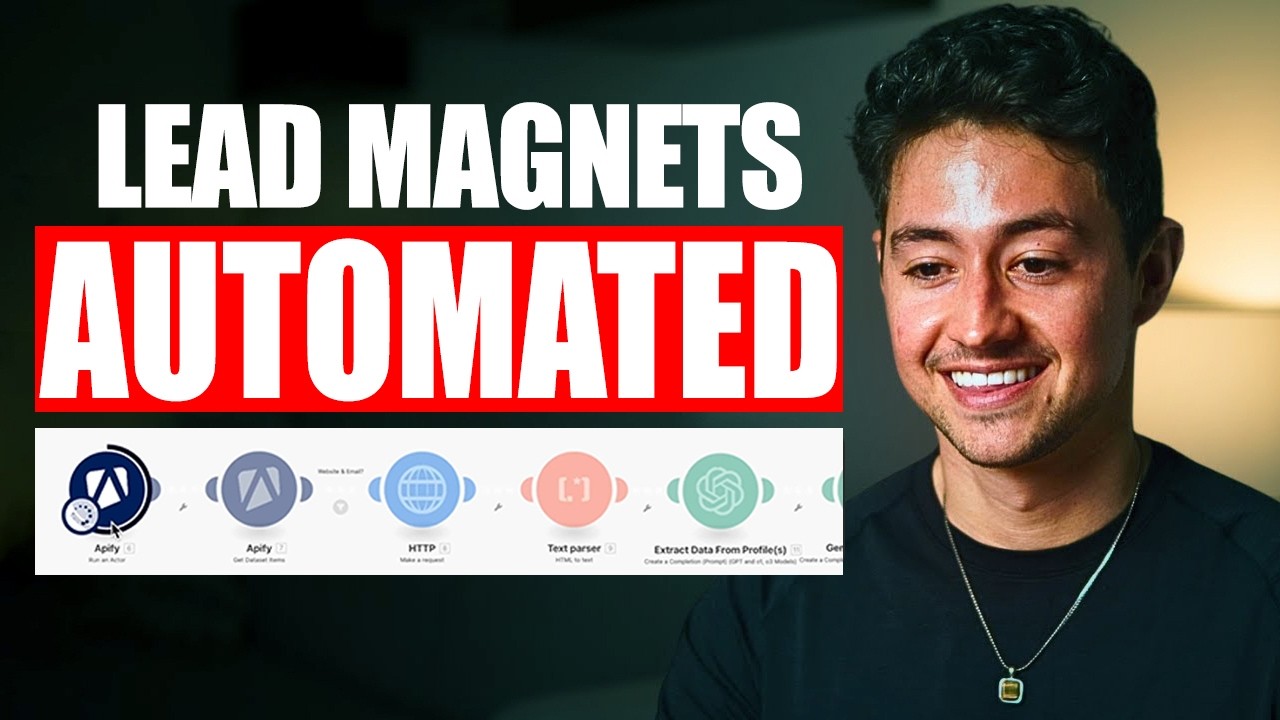
Today I'm going to be building an assetbased AI lead generation system. Essentially, we're going to be scraping customer data and then generating a custom lead magnet or asset for them using artificial intelligence and some pretty smart prompting before finally adding them to an email campaign and running this on autopilot. The same approach is being used by myself and many other people in the AI and automation industry to generate reply rates of over 5, 10, or even 15%. I'm going to run you through everything you need to know in this video. This is what the system looks like. We're starting by scraping an audience on Appify using the Appify run an actor node. What this is doing is this is going out on Appify and then scraping a web service called Apollo, which gives us a big list of essentially email addresses, first names, last names, websites, and everything that we need to run a successful campaign. From there, we're getting all that data using the get data set items node. We're then scraping the customer or prospect I should say website using an HTTP request which delivers us a bunch of HTML. We are then parsing that to text. The reason why we parse it to text is it just allows us to feed data into our first open AI node. This open AI node is responsible for essentially returning a bunch of personalized context about both the website, who the person is through the various fields Apollo returns, and then it gives us some unique angles that we could use to write a custom asset for them. Now, the custom asset I'm doing in this video is a newsletter. So, we actually go through and we generate a highquality piece of content, essentially a newsletter using a format that I've used before for my own newsletter that had the founder of HubSpot follow me a few years ago. And then we're taking that newsletter, converting it into HTML. Once it's HTML, we then use it to create a Google doc. This Google doc is a high-quality asset that includes some customized messaging up here saying, "Hey, we just put this together for you. I really want to work with you. So, here's a bunch of value up front. Then, we have the actual newsletter down below. Now, this newsletter um doesn't look beautifully formatted, but if I were to add a little bit of space before and after and then change up the maybe the font or something like that, I'm sure you guys could see how this could be a very high quality and uh beautiful piece of content to receive completely out of the blue. And then finally, what we do is we do an HTTP call to instantly, which is a cold email service, which will allows us to add them to a sequence that allows us to send this stuff out on mass. Now, we can realistically go through a,000 leads a day, creating a,000 custom assets, um, significantly improving the probability that somebody gets back to us. And then at the end of it all, what we get is we get something that looks like this. For person, I wrote you a newsletter. Hey, person, I'm a big fan of your work. was on your company name's website earlier. I know that giving value up front is how you form connections. So, I thought I'd start with that. If you have any interest, you could find it here. This
The Importance of Value in Cold Outreach
is how high quality people are doing cold outreach today. Because the bar has gone up so much, you got to deliver value. You got to do it up front. And usually, without some sort of super crazy hard ask. Although, you can experiment with asks and whatnot. I have over 2,400 people collectively across my two communities that are experimenting with approaches like this. So, I literally get to see them firsthand. this video is for you and for them to take as a nugget to build out your own high-quality assetbased generation system. And I'm going to dive into building it right now. Okay. So, why assetbased AI lead genen systems? Well, the first is the bar for cold email is going way the hell up right now. So, a lot of people are getting into cold email understandably cuz I and a bunch of other people are talking about it. And because of this, you basically need to offer more and more value if you want your emails to make it through the noise. The other big thing that makes this possible now is AI is just now getting to the point where it's good enough to produce actually valuable assets. Okay, up until quite recently, this was not the case. If you had AI try and generate a Google doc or something like that and it was longer than maybe a paragraph or so, the quality of this thing was usually very poor unless you were prompt engineering pro. So now we're getting to the point where AI is actually good enough and capable enough to generate assets. I'm going to show you what that looks like. And ultimately what we're going after is we're going after those higher reply rates. So um yeah, that's the whole idea here. How exactly are we going to do this? Well, if you think about it logically, and I haven't built the system yet, I'm going to be doing all this stuff live in front of you because I want to show you guys what a real build process looks like from start
Building the Lead Generation System
to finish. What you're going to do is we're going to start by sourcing some lead data. Then, we're going to scrape the website and the socials of the person that you know leads whose lead data we're scraping. Then, we're going to use that to create a custom asset using AI. And we could do any sort of custom asset. YouTube titles, we could write a whole newsletter for them. We could write an app for them. I might do the newsletter thing um just because I think that's a little longer than YouTube titles and then it's also less work than an app. So good length for this video. Then finally, we're going to add it to a cold email campaign. In my case, it's going to be instantly. And I'll actually go and I'm going to write this for you as well. Then we're going to launch this and check back in on this in I don't know 2 weeks or so and I'm going to make another video about it. So I'm pretty excited for this. Obviously more content for me. Um and I think this is also going to be a really cool system to walk you guys through. So let me actually go ahead and set something like this up. Very first thing I'm going to do is I'm going to open up a new. com scenario. And I'm going to call this assetbased cold outreach system. And we're going to be able to do most of what we need to do just in this one scenario. Okay. So, as I said, the very
Sourcing Lead Data
first thing we need to do is we need to source the lead data. Currently, the best way to source a large volume of lead data is using a platform called Apollo and then scraping Apollo with Ampify. So, I'm going to run you through what all of that looks like right now. Okay. So, first and foremost, I'm going to go to Apollo. io. I'm going to log in. I'm now in the account. Looks like we got dark mode enabled, which is awesome. And then going to go over to people. Cool thing about people is we can actually construct our own lead list using various filters for Apollo. So, you can see I've actually already created a list for creative agencies. That's uh more or less my target audience. It's who I usually go after, hence why I created this. Let me zoom out a bit, make this a little bit more visible. On the left hand side here, we have a bunch of job titles. Founder, partner, co-founder. Um, then underneath we have location, person locations, United States. Then underneath here we have employees, one to 100. I'm actually just going to remove this filter and see if we get more records. Looks like we got marginally more records. Not too many. And then u maybe why don't I just uh open up uh locations so that we get location people from everywhere. Basically here we see 2,149. Okay, cool. So basically this is the most general audience ever and I'm doing this as proof of concept, but I'm just going to scrape this audience and then I'm going to pump them into an email campaign and then generate custom assets using some scraping. Okay. All right. So, once you have the Apollo search that you want, what you do is you copy this URL and you pump it into this platform, Appify. And what we're using specifically is we're using an Apollo app scraper called code_crafter/apollo-io-scraper. It allows you to scrape up to 50,000 leads per search URL. What I'm going to do here is I'm going to click try for free. Then over here, I'm actually just going to pump in this search URL. In terms of total number of records required, I'm just going to type 500 here because I want this to run as a test first. I want to make sure that this is all good to go. And now this is going to go through the process of scraping these leads for me. Okay. And we just wrapped up. As you see, we got 500 results in that data set. Now, I am doing this manually just because I want us to see what the data looks like manually before I go into the rigomeroll of putting all the work in and building out automated systems. I'm just going to export this really quickly. Um, we could omit a bunch of these fields. I think I'm just going to leave them all. Let's download it. I'm going to sheets new. Just a quick and easy way to open up a Google sheet and then import the um lead list that I just got using this little feature here. File, import, upload. And then I just append to the current sheet. That way I don't have to make a new one. Once this is all done, we can actually see all the data in front of us. So, as you see, we got a ton of data. We got the city name, we got the country email address of a fair number of these. We got the catch all verification status. Some of these will be verified right off the bat, which is nice. Then we have a bunch of employment um related stuff, right? So we have employment history 1, employment history 2, and so on and so forth. Now, API is kind of annoying about this unfortunately, but we can go all the way back to the right. Um you'll see that the vast majority of these people are co-founders and founders. So what that means for us is okay, there's um there's like a website uh for the organization, right? Well, odds are if they're founders and we have a website URL tab here, they're the people that created the website. So, we can actually do is we can go on the website, then we can go on, I don't know, their social media profiles, their LinkedIn profiles. We can scrape a ton of stuff from their website, profiles, and actually just like add that all to like some big, I don't know, context variable, and then feed that context variable to AI and say, "Hey, based off of this context variable, and then based off of um this structure, I want you to write a high quality newsletter, a high quality email, or a high quality asset. " That's basically what we're going to do. Okay? Okay. Okay, so let's actually take this now and use this information to create an asset. Now, um I did test to make sure that this worked using the Ampify scraper. What I'm going to do now is just jump right into make. com and verify that we can build out a scraping system using that. So, very first thing I'm going to do is go to Ampify. What I want is I want the run an actor. Okay, this won't run the actor that we just triggered manually, but it'll do so using an automated uh mechanism. I'm just selecting the right email here. The actor I'm going to look for is going to be the Apollo Scraper. Scrape up to 50K leads. I'm going to click run synchronously here. This just means it's going to execute directly in this scenario. There's some nuance there, but um if you're testing something that's pretty quick, you can generally get away with it. Then what we want to do is under input, go to JSON and just copy everything that we have here. Okay. And make sure that you're um using the right one. Actually, I think I might have reset that. So, one sec. Let me go back to input. Okay. So, copy the input from the specific actor run. Go back to here and then just paste it in. For now, I'm just going to hardcode that same URL that I provided earlier. Um, but as I'm sure you can imagine, you could make this dynamic if you wanted to, just by having a Google sheet as input or something. Everything else here is going to be normal, the same. And then the way that the appy module works in make is you need to get the data set items after you're done running it. So running it is one thing. Getting the data is another thing. That's what we're going to do next. Head over to Appify and click get data set items. Perfect. And what we do is we feed in the default data set ID as let's see this one right over here. Okay. So that's default data set ID. Now, the issue with this is if we wanted to test this right now, I would actually have to rerun the whole thing. So, if I were to, you know, click run once, it would actually go through and spend the next couple of minutes running it just like I did a moment ago manually. I don't really want to do that. I actually already know what the default data set ID is because it's actually I'm hidden over here. I can actually just copy this. I can go here, unlink this, move this over here, and then I can actually paste this in and hardcode it. The value in hard coding it is now if I click and then click run this module only, you'll see we actually have access to all that data that we had before. I just don't have to like wait five minutes to run it every time. So this is what I call um uh it's like iterative testing. Okay, module by module testing and you can hardcode modules as long as you're using um one module as the data source for the entire flow, which I'm going to be using this one as the data source for the entire flow. This is okay. And then it allows you to like cut the testing loop down quite a lot. Okay, so once we have this stuff, what do we need to do? Uh well, if you think about it, what we want to do is we want to look to see if they have a website because we're going to use the website for scraping. So, I'm going to go and put in a I think I'm just going to do an HTTP request module from now on. Uh, I'll do make a request and the URL is going to be the website. Okay, so I'm just going to feed in the website URL right here. The method is going to be get body type is going to be raw. Content JSON application JSON. We're going to parse that response. And if you think about it, we need to add a filter in between the get data sets and make a request module cuz not all of these are going to have a website. So, I'm actually going to check to see, hey, does this website exist? If it does, then proceed. But I'm also going to check to see if they have an email because if they don't have an email, well, then I can't really do anything either, right? So, basically, we want to check, hey, does the website exist and does the email exist? If so, we can proceed. All right. Now, I'm actually going to run this as a real test, and I'm just going to see what I get. So, let's do limit three. I'm going to send three HTTP requests that the first three results that are being returned here. Okay. Anytime a module returns multiple bundles like this one, um, all subsequent modules will just run one at a time. So that's what's going to happen here. Click run once. Looks like all three of those had websites and emails. And then we perform three HTTP requests to scrape the site. We got one here. Looks like we got another here. And then it looks like we got one final one down over here. Okay. But do you notice how all of this is like HTML? It's very dense. It's very difficult. and annoying for us to get through. It's not like uh what I showed you guys a second ago and actually went on that person's website. Well, a very quick and easy way we can transform this into text is using the HTML to text module from the text parser. Okay, what we do is we feed in the HTML from the previous module. And then by doing so, we're actually just going to output a bunch of plain text. The value here is when it's a bunch of plain text, it's really easy for us to pump this into AI, right? So, let's do it. I'm going to run these three tests one more time. Going to ignore any warnings. Let this go. And now what I'm going to do is I'm going to see how many of these actually got the right text. Okay, check this out. You can see we actually got a bunch of information about that MIA website, right? All of the data here is basically accessible to us as plain text. Wonderful. If we go down here to the second one, see, same thing with website number two. Beautiful. And then how about number three? Go down here. We get access to most or all of the text here as well, which is nice. So, what do I want to do next? Well, this is where um AI comes into play. We've now demonstrated that we can get a bunch of data about the person using the appy module. Now, we've also demonstrated we can get a bunch of data about the websites using the HTTP request module. Well, now what we want to do is we want to feed all that into AI and have AI do something really cool
Using AI for Asset Creation
for us. So, I've actually gone ahead and I've created a couple of prompts that I was considering using at some point for a system like this. And I'm just going to copy those prompts over and show you guys what I mean. But let me run you through logically on how all of this is going to work. Okay, first things first is we are going to have one open AI module to extract all the information. And then we're going to have another open AI module generate a newsletter with this information. Then we're going to have that newsletter um be added to a Google doc. And then after that Google doc is generated, we're actually going to append it to an email somehow. Okay. So, first things first is I'm going to go over here and uh what's the model I want to use? We have a lot of models available to us, right? 03, 03 mini. Very cool. Um the one I want is 4. 1, I think. Yeah, GPT4. 1 just because that's the smartest one as of the time of this recording. Then what I'm going to do is I'm going to add a message. I'll go down to system. I'll say you are a helpful, intelligent newsletter. Let me just move this over so you guys could see. Newsletter writing assistant. Okay, that's what we're going to with right now. Then under message number two, I'll say, "Your task is to take as input information about a website and a person and then return a fully a customized polished newsletter that I will use as a lead magnet to sell them on stuff. You'll receive your data in JSON using the following format. And uh we're just going to have three fields. Okay. Oh, sorry. Actually, I'm kind of jumping ahead here cuz I'm not generating the newsletter. I'm not extracting the data. Okay. Anyway, whatever. I'm just going to do this and then I'll make one before. Um what we're going to do is we're going to generate three fields. Okay. Um the first field is going to be website context. The second field, okay, is going to be person context. And then the third field is going to be unique angles. Okay, your task, your newsletter example to write your newsletter, you'll be using the following example. What I'm going to do now is I wrote a ton of newsletters way back in the day. So, I'm actually just going to go to one of my newsletters and copy the formatting over and paste it in. And because the context window is so huge and because GBT41 is so smart, it's going to essentially mirror my tone of voice. It's going to mirror my language. everything that I need. And then it's going to almost like um replacing variables in an email. It's going to go in and intelligently replace the content so that it matches the customer information. Okay. What I'm going to do is um this is mine right over here. Okay. Our knowledge economy is swiftly coming to an end. This is one of the many newsletters I used to write. Funny story, the founder of HubSpot followed this newsletter several years ago uh when I started writing about artificial intelligence the way I thought all the stuff was going to go. And I called it the cusp. It's pretty neat. So, I'm going to copy this now, this entire thing, okay, all the way down to the bottom. I'm just going to paste this in. Okay. So, now check it out. I have this whole newsletter all ready to go, right? Pretty neat. This is the title. What I'm going to do is I'm going to do some minor formatting changes because I don't really like this. Okay, I'm just going to do some minor changes here. Okay, now that that's good to go, what I'm going to do is I'm going to tell it return the entire newsletter in markdown ATX format using this JSON. And I'm just going to have it say title of the newsletter. This is going to be beneficial because it's going to allow us to name our Google doc in a moment. Then I'll say subheading and then um I'm also going to say use letter body. Okay. Then under here, what I'm going to do is I'm actually going to give it an example of the data I want it to use. So let's go over here. Website context person contacts unique angles. And we're actually going to source this from the previous one. Okay, previous module which I'll open up in a second. Under show advanced settings, I'll go to response format JSON object. Parse the JSON response. Awesome. Looks very cool. So, we're going to call this one here generate newsletter. This is going to be a high quality newsletter as you guys will see. Then we're going to have an intermediary step here that I'm going to call extract interesting or extract data from profiles. Okay. What this intermediary step is going to do is it's going to be responsible for generating all of that stuff that the AI model in the subsequent module is going to use to create the newsletter. So, we're going to say you're a helpful intelligent data extraction assistant. Your tasks take as input a bunch of unstructured information about a person's website and their LinkedIn profiles and then convert this into the following JSON object. Cool. Then what I'm going to say is you'll receive all of the data you need in an unstructured string. Your task is to parse that out and turn that into the above object. Rules. I'll say one um go deep into detail for website context. Write at least I don't know two paragraphs. Two for person context use all of the data available for and three for unique angles. Use the website data and the information about the provided person to create three interesting points that we could write about in a later article. Okay. And then four, um, return any new lines as back slashn. Okay, should be good. Now, what I'm going to do is I'm just going to dump in all the data. Okay, so I'll say website scrape. Boink. Then I'll say personal information. Then I'm just going to go through top to bottom. Just list all the stuff. Boing, boing. We are just literally boing boing. That's funny. God, that was a Twitter meme that is totally canceling me, isn't it? Um, organization ID. Can I go parse? Can we do that? Is that a thing? Parse. No. Can we go JSON? No, can't do that. Go organization ID. That actually doesn't matter now that I'm thinking about the IDs don't matter. So, we can remove those. For their employment history, um, we'll go state, United States. Then, this is most likely to be their current company. Okay. Um, we'll go seniority. Then over here we'll go marketing and advertising. And then employees will go to. Okay. Notice I'm just dumping all this as unstructured information. It doesn't really matter. AI is smart enough now that it can deal with this. Okay. All right. Now, what I'm going to do is I'm going to have it generate a JSON object containing all the information that I want. How cool is that? Okay. And then I'm going to have it generate a newsletter. And you guys are going to see what this newsletter looks like. So, let me see. What was the most interesting tidbit here? I don't really think the first one was super interesting. So, I don't know why don't we do one just have this generate a poll newsletter in markdown format then here after this we will go markdown to HTML okay feed in the um I guess I got to wait actually let's just generate it let's just test it first let's not get ahead of ourselves let's now run this is now going to go and extract the data from all of the profiles this massive dump that I just provided it right huge dump okay it's now extracted that data let's take a look at it go to result the website context tons information about the website. Then person context and the unique angles. Very neat. Then over here we have the whole newsletter that is going to be generated using GPT4. 1. Awesome. Now that we have that, we can actually go ahead and dump this into a Google doc. So let's go markdown to HTML. First of all, let's feed in um the newsletter body, which I think should be written in markdown. I just need to double check. One sec. Um yeah, looks like it's written in Markdown. Very cool. Uh, so we'll feed in all of the stuff here and then this should be good. And then after this, we'll go Google Doc. Okay, I'm going to create a document. I'll go niclook. a. The name is going to be four and I'm going to put the person's name in here. This is actually really important. The reason why is because this um little snippet appears in the email under the asset section on Google or on Gmail and on Outlook. So you actually see the asset that they are linking and most people use Gmail nowadays. So Gmail actually like add a little icon for it. Okay. So now it's for whatever custom newsletter. Here's the content that we're going to be sticking in. Let's feed all that in for now. New document location. I'm just going to feed in a backslash. We're just going to dump it. All right. All right. Very cool. Once we have the Google doc, excuse me, let me think. Is there anything else that we need to do? H I guess that's about it. We could just send the email. Yeah. So, let's just run it and gun it. See how it works. Now, as I'm sure you can imagine, we could add additional routes here. For instance, you know, if there is no website, well, maybe we do something else. Maybe we perform a Perplexity or a Google web search or an OpenAI web search looking for a person's website, right? We could do some additional enriching steps here so that we don't just say no to all that data that's coming in. Anyway, I'm curious what this is going to look like and whe there'll be any bugs. Okay, let's take a look and see what is it that we get. Web view link. Paste this in. Okay, here is our super customized email. Um, a super customized Google doc, which looks pretty good. Welcome to
Crafting the Newsletter
the outbound edge, where the art and science of outdoor marketing meets the spirit of real adventure. This week, we dive behind the scenes at Mia Creative. A team proven that for modern outdoor brands, a true connection is built far beyond the boardroom. In this issue, community-driven marketing that action moves a needle, leading a national monument, one close to a client at a time. Designing experience and packaging, the reverberate bond, the trail head. Let's set out. This looks pretty good, but I think it'll look way better if we um made a couple of formatting changes. Like, imagine getting the Google doc before versus this Google doc, right? This just looks so much sexier. Imagine changing the font. Maybe we could make some color changes or something like that. I always like bricklage. That looks really nice to me. So, I think we'd probably improve the perceived value of this. Um, but anyway, for Zach, custom newsletter. Let's see if the name is good. Yes, we also have all the data over here. Very neat. Underneath, we could actually do something like this. We could say just put this together for you. Want to see if there might be uh Yeah, just put this together for you is probably sufficient. Let me know your thoughts. and if I can help in some way. I know giving value upfront is how you get ahead in this industry. So hopefully this helps. I'm a big fan of the emojis. So I'm just going to drop one of those in here. Change the fonts. Cool. That looks good to me. Yeah, two lines just feels better. Then I'm going to add um space here. And then voila. Now we have our newsletter. So let me just add this in as plain text up at the top. I think that'll just make my um Google doc seem better. So, right before this, I'll go P. I'll paste this in. I'll go back here and I'll go back slashp. I feel like I could probably go NBSP. I forget how you do the uh maybe BR. I think you do a BR tag. That's probably how you add a space or something. Anyway, we'll see how that goes. But now that we have this, we can actually, you know, pump it into a cold email sequence. So, first things first, why don't we actually just test this out with Gmail? I'll go to my Gmail just so we can see how it looks and I'll click send an email. Then once we verify that this works, we'll go over to um you know like a like instantly and then give it a try there. So I'm going to send this to nichlgmail. com. Just one of my emails. Why don't I go for uh for Zach I made I wrote you a newsletter. Okay. Not saying that's the best and the brightest. Uh and then I'll say hey Zach. Let's do this. Hey Zack. love what you do or big fan of your work was on and then I'm going to say the company name's website. Well, I'm just going to hardode this for now. Big fan of your work was on Mia's site earlier and thought I'd write you an end toend custom newsletter. and then I'm just going to say around 400 words with a twist, let's say. I know giving value upfront is how you form connections. So, I thought let's start with that. If you have any interest, you can find it here. I'm going to link the Google doc. So, let's now go to the Google doc. We'll go web view link. Let me know if you want more. Got a couple of other. Let me just zoom out a bit cuz we're running into the bottom here. Maybe I'll just say if you want more, just say the word. Got a few other interesting pieces of content for you. Thanks, Nick. Cool. should be pretty good. Uh, I'm hard coding some of these things because I don't want to have to go through the rigomeroll of doing them. The cool thing about Google is if you add a web view link, this should just automatically add a link to the thing like an asset. So, we don't actually have to add the attachment. Um, if not, you could also just add a PDF with the email. So, now that I have this, why don't I just test this? Um, let me actually just run this once cuz I just want to check to see if there's going to be an issue with my connection. Doesn't look like there is. So, let's actually run this. Now, we're going to run like basically a piece for Zach and we're going to send it to my own email so I can see what it actually looks like. How cool is that? Okay, we just sent it. So, why don't I go over to my own email address now and see? Uh, just piece it just did two because I ran it twice, right? So, for Zach, a rich newsletter. Uh, okay. This looks pretty good. The issue is it's all um just on one line. So, we just have to fix this. I think the reason why it's on one line is I probably picked HTML as the sending type, right? Yes, I did. Oh, sorry. I used the wrong Jesus, module here. I actually much prefer the send in email module because it has plain text built in. So let's just take all this now, copy it, and then paste this over here. Okay, very good. Going to send this from my July 19th one. Cool. Let's do that one more time. Okay, so we got what looks like a pretty cool email here. Um, as you see, it has the attachment built in, which is nice. Uh, as I mentioned, the formatting I think could be a little bit better if we like space this out more. That's the one downside to this approach. Uh you can very easily not very easily but you can reasonably easily space this out with an API call to the um Google Docs API. You would basically have to go over here where it says Google Docs go down to um make an API call and then you would have to go through their API and determine the specific parameters that change the font for you and then that add spacing and stuff like that. Um
Email Campaign Setup
which is doable. I just think that it's a little unnecessarily technical for this video. Uh, but feel free to to give that a go. I think it'll significantly improve the perceived value of the asset. Now that we've verified that this works for email, there's really just one more thing we need to do, and that is logically add it to an instantly campaign. So, what I'm going to do is I'll call this assetbased outreach. Okay. Then I'm going to go under sequences, and I'm basically just going to rewrite what I wrote back there. Okay. So, let's just copy this in, paste this over here, and we're just going to add variables here. Okay. So, I don't have the variables yet because I haven't uploaded a lead. But, for instance, we we'll probably put the company. We'll put the person's name here. Then over here, um, we'll put like the company name. Then we'll do newsletter here. Over here will be like the link, right? And then that should be basically it. We're not even making an ask on here. We don't even have like a CTA. The CTA is just like, "Hey, do you like this? If so, let me know and I'll make more for you. " Subject line uh is probably just going to be for blank. I wrote you a newsletter. Seems pretty reasonable to me. And then, yeah, we'll just preview it really quickly. Make sure that there's no major hiccups here. Looks good to me. So, now what we need to do is we actually just need to um go to the instantly API and then queue up a send. And actually, sorry, one more thing. I need to add a single lead to this campaign to make sure I can map the variables. After we're done with that, we're going to um just ceue up a call to the instantly API, then actually just add people to this campaign live. So, let's go over to leads first. Um you know, I had that Google sheet earlier, right? Let's just go back to that Google sheet. Okay. right over here. I'll just call this leads example. And um I mean, how many leads do I really want here? This is a ton of fields, right? So, realistically, I'm not going to want like 90% of these fields. Um, okay. So, now I've just created my own spreadsheet with three fields. We'll call this example leads. Uh, I don't really need a lot, so I'm just going to go here. Then, we're all the way down to the bottom. Remove everything except for these. Maybe remove this, too. Then over here, I'm going to download this as a CSV and I'm going to import this in instantly. Oh, sorry, one more thing. Uh, we need a Google doc link. Let's just do the same one for all these. Okay, now we're going to download this CSV. I'm going to go and instantly import these leads. And I'm only doing this so that I have access to that uh that field picker. Okay, we're going to call that company name here is just going to be called link custom variable. We're not going to do any verification or anything like that. But we're just going to go for it. Now that we have this, we should be able to map the first name. Looks good. Should have company name, site earlier, and then we should be able to map the link, right? Very cool. So now we have everything that we need. Awesome. Um, this is just one. And I'll say four. Can we add a variable in here called first name? I'll say just wrote you a newsletter. I think that looks nice. And then now we just need to hook this up via API. So how do we do the API call? Well, we just go to the instantly API and there's a couple of new kind of knickknacks here that we need to do. So, they just updated their V2 API. That means I'm going to have to get myself some scopes and show you guys how all that works. Basically, what we need to do is we need to go to campaign. I think we need to add sorry probably lead list. No, just lead. We just go to lead and then we go like add lead. That seems pretty straightforward. So we need um a campaign for the lead, email address, we need some variables like website, last name, and then whatever other things we need. Uh want basically. So it seems pretty straightforward. Um cool. I see the API request doc docs right over here. Uh done this before, but I don't have a template that I could easily whip it out. So I'm going to go to HTTP. We'll go make a request. And what do we need? First thing we need is we need the URL. paste that in there. Second thing is it says post, right? So I'll use post. Third thing is we need the authorization bearer token. So I'll go to headers and I'll go authorization. I'll go bearer and I need my API key. So I'm going to go over to I think here and then settings. Thank you for the API endpoints. We'll go integrations and I'm going to go API keys and I'm just going to create a new one and I'll call it YouTube. Scopes just going to be all. So I'm going to delete this right after I make it. copy this key and I'm going to go back here and then paste this in. Then I need content type application JSON. Well, that's easy to do. You just go body type raw and then content type application JSON. Then D is where the data is in. So this is kind of this section right over here. So this is where I'm going to add the data I want. Okay. So what sort of data do I need? Looks like we have a field called campaign. Okay. So I'm going to go over here and I'll go campaign. Now, what is the campaign I want to add to? Well, it's actually the campaign that I just created a moment ago. Now, you get the idea of the campaign by going to the URL up here. Okay. Copy and go paste. That looks pretty good to me. All right. What else we got? Um, email. So, we need the email address of the lead. What is the email going to be? Well, should be pretty straightforward, right? The email address is just going to be the same email address that we had before. Right over here. Done. Personalization. I don't have any website. Um I have a value called link. So when I go over here, link will be my Google webview link. Nice. We'll go back over here. Uh we need first underscore name. Well, we can find that just by clicking all the way down again and going first name. Right. Okay. So, email link, first name. What else did we have? Company name. I think it was just company name. I'm pretty sure it's company name spelled like that. Yes, it is. Wonderful. I love it when a plan comes together. We go down to company name and then go actually kind of forget. What was the company name here? Organization name. There we go. Cool. So, this should be good. I'm not entirely sure if it is to be honest. So, why don't we just try this out with like a junk lead. I'm going to rightclick this. First of all, I'll say add to instantly lead list. Okay. Rightclick this. Let's just make our own nga left click. Nick leftclick. I'll go http google. com. Let's see if it works. Okay, looks like we have an issue. Why do we have an issue? Um, I don't know. Let's find out. It says that I'm seeing a problem with the post request. The JSON looks pretty good to me. No major issues from what I could see. It's saying we expected some sort of thing after property. So, looks good to me, but maybe I was I'm lying and there's a problem. Let's go to JSON formatter and just paste this in. Ah, I see. Looks like I added an additional I did. um uh comma over or apostrophe here. Whatever quote sign. Let's do that again. We'll go Nick. Nick, we'll go left click. Thank you. And then we'll go hbgoogle. com. Click. Okay. Awesome. Looks good. We got the heads up that it's here. So now if I go to my campaign, I go to leads. Let's see. I've just added a new lead here. It's processing in the queue which is pretty nice. So that means that actually at this point we are now good to go. We have most of the data. It doesn't look like I added the link for some reason. I don't know why I might have left that empty by accident. But uh we basically now have we the thing added to the queue. So what this means is when I run this, okay, when I save and then I click resume campaign, this will actually go and send the emails to all the leads under this lead sequence. Okay, pretty neat stuff if I do say so myself. Oh, and the reason why this link isn't coming in is because we're not using the custom variable object. So, I should have used Basically, what we need to do is we need to go custom variable. Um, and then we need an object that is like this. And I'll say
Integrating with Instantly
link. And we just need to wrap that like so. That should be good. Now, we should have a link variable. So, when we run that one more time. Okay. I just kept on running into bugs with um instantly's website parameter. So, I just sent over a ton of custom variables to see if maybe there was some issue in just what it was. So, site webs. Yeah. Okay. So, both of these look good. Web site looks to be the one that I'm going to use. So, I'm just going to head over to instantly. I'll go to leads. Refresh this. And um we're not seeing the the fields here because there's just so many fields. But um the one that I want is let's go over here. Um not link. What was it called? Custom variables and then web site. I think that's what it was called. Web site. Okay. Web site. Cool. Save this. Now let's preview this. Um, looks like we got everything we need. Nice. Yeah, it looks awesome. And, uh, yeah, we should be good to go. We're starting by scraping an audience on Appify using the Appify run an actor node. What this is doing is this is going out on Appify and then scraping a web service called Apollo, which gives us a big list of essentially email addresses, first names, last names, websites, and everything that we need to run a successful campaign. From there, we're getting all that data using the get data set items node. We're then scraping the customer or prospect, I should say, website using an HTTP request, which delivers us a bunch of HTML. We are then parsing that to text. The reason why we parse it to text is it just allows us to feed data into our first open AI node. This open AI node is responsible for essentially returning a bunch of personalized context about both the website, who the person is through the various fields Apollo returns, and then it gives us some unique angles that we could use to write a custom asset for them. Now, the custom asset I'm doing in this video is a newsletter. So, we actually go through and we generate a highquality piece of content, essentially a newsletter using a format that I've used before for my own newsletter that had the founder of HubSpot follow me a few years ago, and then we're taking that newsletter, converting it into HTML. Once it's HTML, we then use it to create a Google doc. All right, hopefully you guys appreciated seeing how to build a system like that live. You guys can build the system in any noode platform you guys want. Whether it's make. com or naden or lindy or any of the the major current platforms today allow you to do stuff like this. You just need to sprinkle on a little bit of prompt engineering. I'm sure you guys could see. So yeah, hopefully you guys found that valuable. If you like these sorts of videos, definitely drop a comment down below with some ideas for future ones. If you haven't already checked out Maker School, which is my 0ero to1 automation community, we're just under 2,000 members right now, coming up on that probably in the next 24 hours, and I increase the price every hundred. So, if you want to use assetbased lead generation strategies like the system I'm showing you here to land new clients or if you want to sell a system like this to people and you have no idea where to start, that is your uh beginning. If you guys already have a successful business, you want to scale it up even more, check out makemoneywithmake. com, my premier automation community, which also includes maker school access builtin.
Conclusion and Next Steps
Thank you very much for watching and I'm looking forward to seeing you in the next video. Tears.