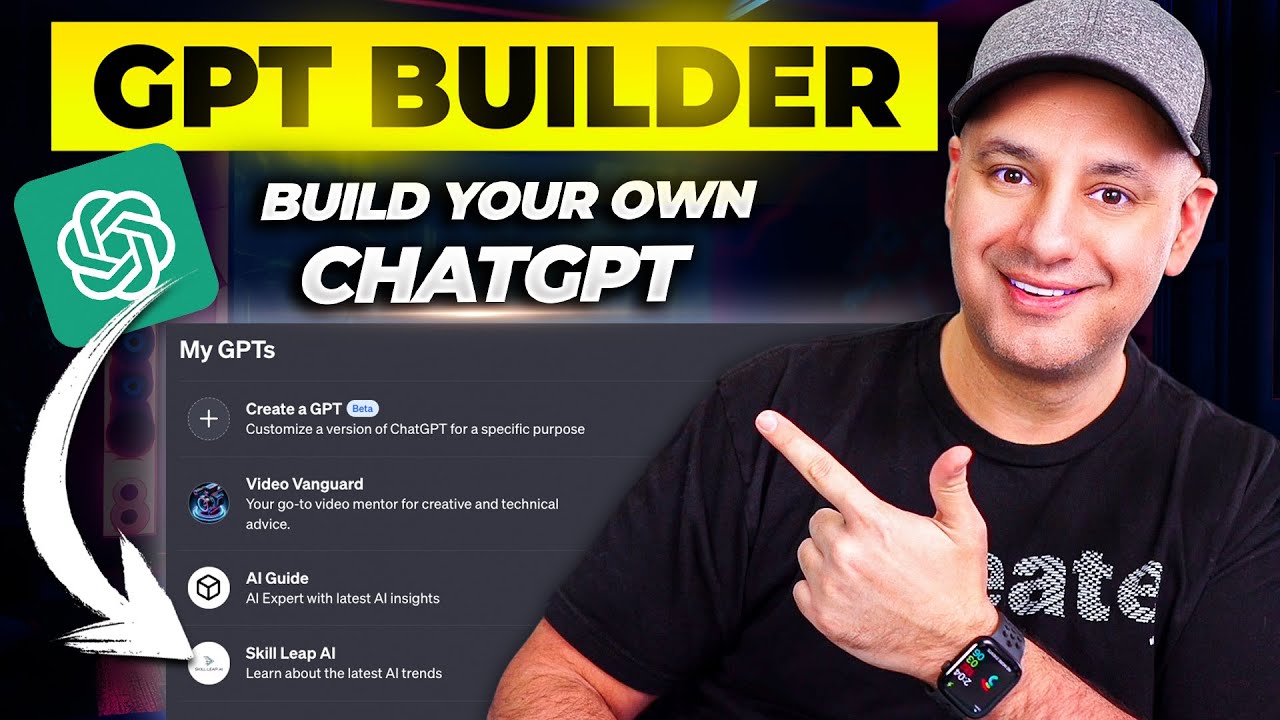
How To Create Custom GPTs - Build your own ChatGPT
12:16

How To Create Custom GPTs - Build your own ChatGPT

Skill Leap AI 09.11.2023 552 140 просмотров 10 038 лайков

Machine-readable: Markdown · JSON API · Site index

Поделиться Telegram VK Бот
Транскрипт Скачать .md
Анализ с AI
Описание видео
ChatGPT has introduced a new option called GPTs. You can basically create custom ChatGPTs and train them with your own data and introductions, using the new GPT builder. It’s basically a ChatGPT for a very specific function. So in this video, I’ll show you exactly how to create your own GPTs step by step. To access GPTs and to build your own, you need ChatGPT Plus, the paid version or ChatGPT enterprise. Once they roll out this option to your account, you will have a new section called explore. Here, you can explore other GPTs and create your own. This window is divided into two panels. On the left side, you can give directions to create your GPT and on the right, you’ll see a preview that you can test. To start, you can describe in simple text what you want your GPT to do. It will come up with a name, create a logo and generate a description. You can see all the updates in real-time, on the right side. You can even upload your own logo if you want. GPT builder will follow up, asking for clarifying questions, in order to customize your GPT. You can also use automations and build AI agents with Zapier. learn more here: https://actions.zapier.com/docs/platform/gpt ▬▬▬▬▬▬▬▬▬▬▬▬▬▬▬▬▬▬▬ MORE FROM SKILL LEAP: 💡 Join the fastest-growing AI education platform & Instantly access 20+ top courses in AI: 👉 Start with a free trial: https://bit.ly/skill-leap ▬▬▬▬▬▬▬▬▬▬▬▬▬▬▬▬▬▬▬

Оглавление (8 сегментов)

Intro

Chat GPT has rolled out a new exciting option called GPTs. With GPTs, you could basically create your own custom chat GPT and you could train it with your own data and with your own set of instructions. And these are basically mini chat GPTs for a very specific function. So in this video, let me show you exactly how to create your own GPT step by step. And I'll give you a ton of resources to make the process a bit easier. So to access GPTs and to build

How to access GPTs

your own, you need chat GPT plus. That's the paid version or you need chatgpt enterprise and they are just rolling this out. So if you go to your accounts and your account doesn't have this new layout, you don't have it just yet. So you have to wait. This is not something you could force to actually be added to your account. You will just have to wait. They are rolling this out. But any day now you should have this new option where your layout should look like this. And on top right here, you'll have GPT4, GPT3. 5, and the plug-in store. Now, this version of GPT4 has Dolly, web browsing, and advanced analysis built into it. So, they're all in one. Now, you no longer have the dropdown. Then, the GPTs are under this new tab called explore. So, if you go to this explore tab, you're going to see my GPTs. These are the ones you could create. So, I've created one here as an example, and I'll create it again from scratch to show you how it works. recently used any of them that are made by OpenAI for example you could click on any one of these to use them. So this is just very specifically for generating images using Deli. Although this is part of GPT4 you could access it here in a GPT that is very specific. So these GPTs as you could see they're for very specific use cases. So this one just teaches you how to play board games for different age groups. This one is a negotiator, for example, for helping you become a better negotiator when you're trying to buy a used car, for example. And we're going

How to create your own GPT

to make our own up here. So, to create your own, press this right here, and it's going to bring you over here where you could actually just use plain language here to customize your own GPT. So, on the left side, you're going to go ahead and create here. We're going to do this with just giving it a prompt one at a time. You also have this configure tab which is a little bit more advanced, but I'll show you exactly how this works as well. And on the right side, this is a live preview. So, whatever changes take place on the left side, you'll see a live update in the preview window. And you could go ahead and message your GPT over here to see how it's working. So, let's go ahead through the prompting process here one at a time. So, the very

Prompts

first prompt is you need to tell it what kind of GPT you want to make. Okay. So, my prompt is I want to make a GPT. So, you would start like this. that is an AI expert. So tell it what kind of a thing you want to build and mine is going to have the latest AI knowledge and information. Again, this is going to be very up to-date because I make these videos literally the day things come out, right? So it's going to be a lot more updated than the regular version of GPT. So this is going to first access my own information and then it's going to also have access to the regular GPT to give answers if it doesn't know something that is not part of my data set. So I'm going to just press send here and then it's going to go through the process of actually giving it an update. So you can see this is updating it. And as soon as it has an update, it will refresh here on the right side. So the first thing it does is it comes up with a name, AI Insider. You could actually ask it for another name. If you don't like that name, and it's going to give you another name. If you like it, just say that's okay. And I actually asked it for five simpler options here. And I'm going to go with number one. And then it's going to create you a logo. So this is a logo here and it's going to update over here. So AI guide, this is basically a little description. This is the logo and I could even upload my own logo if I want to do that. So let me show you how that works. You could press this icon here and here's the logo I already have. This is for the AI learning platform, Skill Leap AI. So I could go ahead and click this and then I could just press enter. make this basically the new logo over here. So you'll see that it'll replace it over here. I could even use this as a way to show basically my AI expertise and maybe use this as a way to generate leads. Next, he's gonna ask me a follow-up question. What kind of information should AI guide focus on when interacting with users? And I could say something like AI apps, AI training, AI trends. So, this is again based on the type of chatbot you're building here with these GPTs. So, answer accordingly. I'll show you a couple other follow-up questions because based on the ones I've built before, it usually asks me similar set of questions. So then it's going to ask what kind of tone you want. This is a question I get every single time. So I'm going to say formal and friendly is the tone I want, but it's going to give you some options here to choose from. And then it's going to say, is there anything you should avoid? So you give it prompts for things you should avoid. And I'm going to say avoid medical and legal advice. This is something that Chad GPT also does by default. Now I'm going to go to the configure tab to show you. It's filled out all this information for me as I was going. So you can press the plus sign that's here by default before you add a logo. And you could actually upload your own logo I created with Dolly. You could also name it manually here. The description, the instructions. These are the instructions I've given it so far. You could add a whole lot more instruction here. And you could just keep talking to it to get better instructions. Just ask it what other types of instructions should I give you? And it's going to give you some ideas. And then he always asks, do you want it to ask clarifying questions or should it always make an educated guess? I'm going to ask for clarifying questions. And as you look over here, there's these things called conversation starters. So it gave me four of them here. And if I go to the configure tab, these are the conversation starters. So I could actually X these out. So again, I said I don't want anything in the world of medicine. Maybe I could go ahead and X that out. And then I could add my own over here as well. So it's going to have four. And it's going to show up like this. And it says it's basically ready to go. And it's asking me if I want to refine it anymore. And I could say no, I'm all set. But we're going to go to the configure tab to actually give it our own data, too. Right now, it only knows our instructions and what kind of topic we are covering. So, just to test it out, if I click one of these starter questions, it's going to go to work just like chat GPT. And here's basically the

Test GPT

limitation before it gets my own data. You could see it says latest AI trends as of early 2022. Well, that's pretty useless since most AI trends happened in 2023. So, you can see this is a very good use case for someone like me that stays up to date with all these type of AI tools to actually give it information that I would only have access to. So, I could go to the configure tab here now and do some of that customization. Right now, the capabilities are available as well. So, you could check these on. So, web browsing, yes, I want web browsing. You could always set that as an instruction too. You could say access the web for the latest information first as a prompt. Image generation is turned on and code interpreter or advanced data analysis is also turned on over here. And I usually leave all these on. If you're building it, there's no reason not to have these on to give it all that functionality. Uploading the files. This is where really the magic of these GPTs come into play. You want to give it custom information. So, I'm going to upload files. And I have some of my scripts here from my latest videos. So I could select these and upload them over here. You could do PDFs and things like that over here as well. And now I could tell it always refer to my own data set first. So I could add that as part of the instructions here under the configure tab. Now it has all these documents and here you have additional settings. So it says use conversation data in your GPT to improve our model. So this is training OpenAI for example. You could choose to check this off if

Actions

you want. And then there's this option called actions. This is really interesting. Basically, I'll give you a link to this page of what exactly this is, but this lets you use third-party services to retrieve information and take actions. This is where GPTs are really going to shine. They're going to become what are called AI agents. AI agents could go and perform tasks on the web, right? They're no longer limited to just this box. They could basically go do things for you like send emails or Slack messages. So, in order to use these, the service they recommend right now is called Zapier. So, I'll put a link to this page in the description below this video. This is going to basically walk you through exactly how it all works, but you do need a Zapier account in order to do this. If you don't know what Zapier is, it's basically an app that connects 6,000 different apps that usually wouldn't talk to each other. And right now, it says it could do 20,000 type of different actions across all these different apps. and it's going to walk you through how to exactly get started. So, you want to copy this over and then this is the box that is going to go into over here and then it will actually populate it and you'll have to connect it. Now, this is far more advanced than this beginner guide to GPT. So, I'll make a dedicated video coming up on how to integrate this automation with building your own GPTs, but this could be very powerful here. And let me ask you a question that is only available in one of these documents. So, I'm going to say what's chat GPT4 Torbo.

ChatGPT 4 Turbo

And this is from my last video. So, it says chat GPT4 Turbo is an advanced version of ChatGpt introduced by OpenAI. Context window 128,000 tokens in length. Updated data to April 2023. These are directly from the transcript of that video I made. So, I transcribed my own video. You could take transcripts from YouTube. They all have transcripts as well. And then you could put it into a Word doc or a PDF like this and upload it. and that becomes your knowledge base. In this case, I'm using my own videos, but there are information online. You could just gather them and serve a very narrow specific purpose with these GPTs. So, people will use these because they have more updated data and more narrow focus than just regular chat GPT for example. So, let's say I'm done here. I could go up here to save and these are the three options. So, you could just make this privately available for yourself. So, this is a great way to chat with your own documents. For example, you could share this with a link with other people or you could turn this into public which this will be something called the GPT store and they're going to do revenue share with you based on usage. Now all the information is not available just yet on how the stores are going to work but again make sure you subscribe as soon as the stores come out. I'm going to share how to make these GPTs available inside the store and exactly how the monetization works as soon as there's more information. And there's one more setting available. Let me go ahead and confirm this. If you go down

Profile Builder

to your profile and if you go to settings and beta, there's this option now called profile builder. So this is how you would actually look inside of the store for example when that becomes available. And you could go ahead and verify a new domain and actually link your domain to it. So this becomes what the lead generation is. You could basically get people to go to your website. So, if I want people to go to Skill Deep AI, I could go through this process and actually add this text record to my domain provider and I just verified it actually inside of GoDaddy just to make sure it's all good and press done. And I just refresh the page. I turn this on here. Now, it's going to be available again once I roll this out into the store once that is released. And if I go to the AI guide here, and if I refresh the page, there it is. So, this will take people directly to my website, which is really, really interesting. A really great way to generate leads in a whole new way for businesses. I'm really excited to test this out with a few different ideas. And if you want to stay up with all things AI, this platform, Skill Leap AI, is basically an AI platform for all kinds of different AI courses. So, we bundled them all into one, and it's completely free to try out. So, you could actually enroll in an entire course if you want. We have well over a dozen different courses. We have 20 different downloadable resources like prompt guys. So if you want to master chat, GPT or midjourney or any of these top AI tools, especially if you're doing this to be more productive with work and business. So I'll put a link in the description if you want to learn more and try the free trial. Again, lot more videos are coming up about GPTs.

Другие видео автора — Skill Leap AI

Ctrl+V

Экстракт Знаний в Telegram

Экстракты и дистилляты из лучших YouTube-каналов — сразу после публикации.

Подписаться

Дайджест Экстрактов

Лучшие методички за неделю — каждый понедельник