Getting started with connectors in Claude.ai
3:43

Getting started with connectors in Claude.ai

Anthropic 11.12.2025 30 071 просмотров 605 лайков обн. 18.02.2026
Поделиться Telegram VK Бот
Транскрипт Скачать .md
Анализ с AI
Описание видео
Learn how to supercharge Claude by connecting the tools you already use. This video shows you how to set up connectors that give Claude access to your files, apps, and workflows.


Оглавление (1 сегментов)

  1. 0:00 Segment 1 (00:00 - 03:00) 595 сл.
0:00

Segment 1 (00:00 - 03:00)

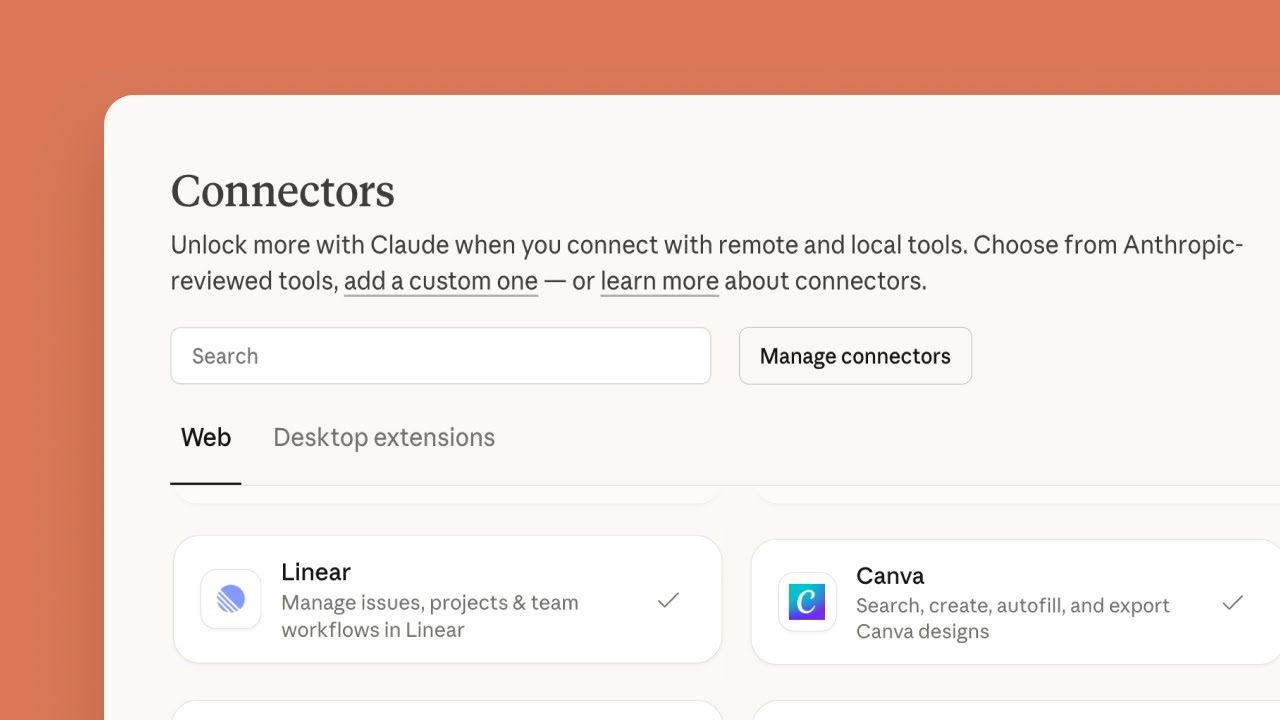
Connect the tools you already use to unlock a smarter, more capable productivity partner with Claude. Claude can help you write, comment, create, code, draft, design, and so much more. However, it becomes an even more effective partner when you provide Claude more access and connectors make this possible. Connect supported apps to give Claude access to your knowledge and files, including permission to perform actions in connected sources. Connectors make Claude more knowledgeable, which means more useful responses for you. For example, with file handling capabilities, Claude can read your uploaded documents, analyze spreadsheet data, create presentations, and generate reports, all while keeping track of your broader goals and maintaining full context throughout the process. To start using connectors, navigate to the lower left portion of your Claw chat window and click the search and tools button. Once the submen is open, you may have some existing connectors, a button to add connections, and a button to manage connectors. Let's set up a new connector. Click the add connectors button. You'll see a directory of connectors that work with both web tools and your local files on desktop. The directory includes connectors for productivity, communication, development, business, automation, and desktop extensions. Go ahead and choose a connector to get started. Follow the steps for your specific connector to set up. This process safely and automatically handles the configuration via the model context protocol or MCP. Once configured, you're free to start using context and performing actions in your connected tool. The simplest way to ensure your connection is working is just to ask Claude if it has access to a specific tool. When you click on any connection, you'll see exactly what permissions it has. You can easily turn these on or off, or browse through them to get ideas for what you might want to work on together. Later, if you need to add or remove connectors, or look at a detailed list of available connectors, you can navigate to the manage connectors button. When connectors and web search are toggled on, Claude will consider whether or not it should use your sources to answer your question. You can always add to your prompt explicit instructions to use one of the other. Connectors don't just bring context to Claude. They create a dynamic bridge across all the tools you use to get work done. Let's see connectors in action with a real example. Say it's late Friday afternoon and you need release notes from your latest sprint. Instead of manually searching through tickets and trying to remember what each feature does, simply ask, "Pull the completed tickets from this week's production sprint and create product release notes using our standard communications template. " Watch as Claude automatically connects to Linear, identifies your completed sprint tickets, and pulls the real feature descriptions, bug fixes, and improvements. Next, Claude finds your release note template from your files. No need to search through folders or remember where you saved it. Within moments, you have product release notes that include actual future details, proper formatting, and your company style. Not generic descriptions, but the real work your team shipped. These notes are ready to share with stakeholders, complete with accurate technical details and professional formatting. The same approach works across your entire workflow. Meeting notes become project tasks. Project updates become executive summaries. Documentation becomes visual designs. Claude enhances your productivity by integrating seamlessly with your digital tools. Connect your workspace to unlock powerful workflows and automation. Visit claude. ai/directory to browse available connectors and get started.

Ещё от Anthropic

Ctrl+V

Экстракт Знаний в Telegram

Транскрипты, идеи, методички — всё самое полезное из лучших YouTube-каналов.

Подписаться