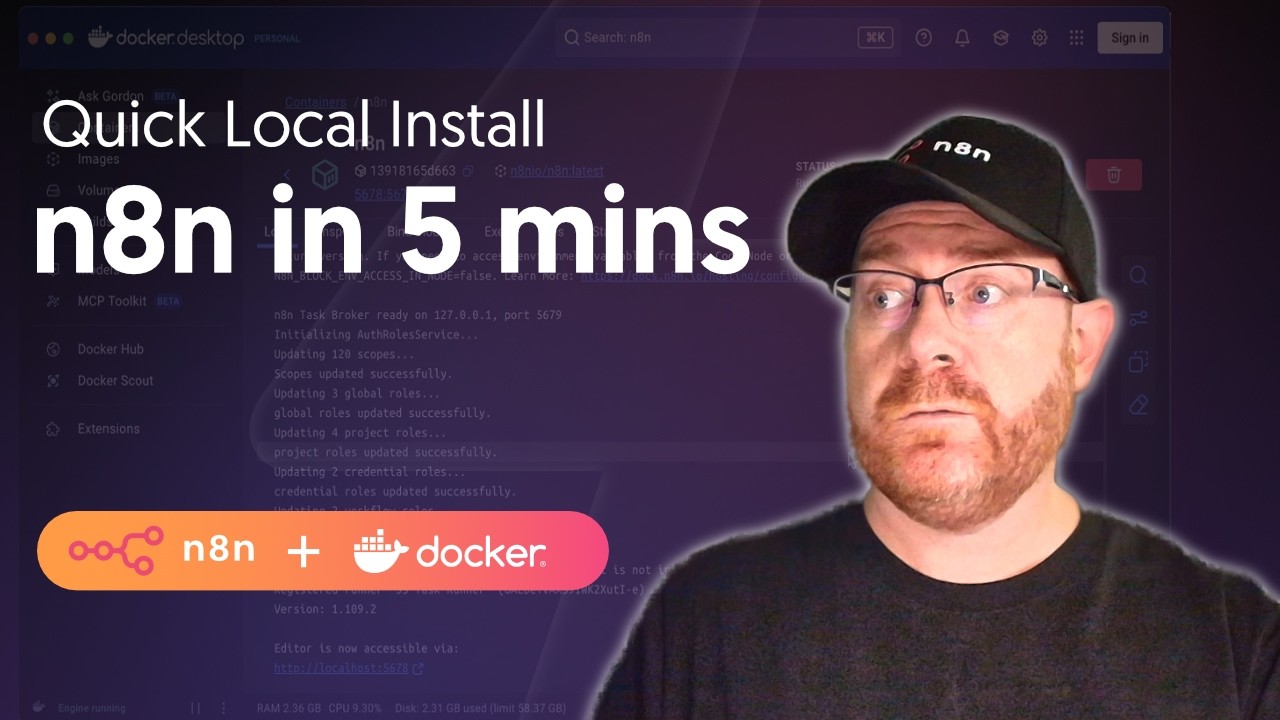
Download workflow templates for this tutorial:
#1: Ingest Template: https://n8n.io/workflows/13353-ingest-and-enrich-qanda-pairs-then-store-in-data-table-12/
#2: Q&A AI Agent Template: https://n8n.io/workflows/13354-question-and-answer-ai-agent-chatbot-22/
In this walkthrough, @theflowgrammer gives a comprehensive tour of key n8n concepts by building a Question & Answer AI Agent with a knowledge base to ground it's answers. He covers building an ingest workflow for new Q&A pairs, saving that in n8n's Data Table, and building an AI Agent that can query those Q&A pairs. He'll also show how to use the Chat Hub to interact with that AI Agent day-to-day.
This packed tutorial teaches triggers and actions, data items paradigm in n8n, conditional logic, transforming data, configuring basic LLM-based tasks and AI Agents with tools, setting up chat interfaces, and publishing your workflows.
Chapters
00:00 - Intro
00:55 - Build Ingest flow
12:16 - Build AI Agent flow
18:46 - Testing in Chat Hub
19:17 - Viewing past executions
20:25 - Outro
This video was recorded on n8n@2.7.3
Hey, I'm Max the original flow programmer and in this video I'm going to teach you the key fundamentals of agentic automation in NAN. To show you all this Agentic goodness, we're going to build a question and answer chatbot in two parts. The first is an ingest workflow that lets you submit new question and answer pairs via web form to an NEN data table and a separate workflow with a chatbased question and answer AI agent who uses that data table of question answer pairs to ground its answers. To continue, you'll need Naden already set up and access to an LLM. You can self-host our community edition for free. However, if you choose our free cloud trial, we'll arm you with some open AI credits to get you started faster. I also assume that you're at least a little bit technical because techies get really bored with super basic tutorials. I'm also building this on N8N version 2. 73. The team is shipping a new version every week. So, if the UI looks a little bit different, don't worry. The key concepts are all the same. Let's jump in and start
Build Ingest flow
flowing. I'm in a brand new Nadin cloud account and from here I could just type out the use case and run it with our AI workflow builder would generate the workflow but after 6 years of teaching new users how to use NN. I highly recommend that you learn some of these key fundamentals yourself and then perhaps use AI assistance. Let's start from a new workflow in the workflow canvas here. The first things that we can do is just give our workflow a name. So QA ingest and then we add the first step of the workflow. In n we have triggers and actions. So triggers start our workflow and then actions perform steps inside your workflow. Since we want to capture a number of details from a user and then submit that to a knowledge base, a web form is a pretty good trigger for us here. We're going to use NEN's native trigger, but you could, for example, use a third party trigger. But since NIN pays my salary and we have a native form, we're going to drag on the on form submission trigger. So let's give this form a title. This is the QA submission form. And let's give it some form elements. So these are the questions itself. We need a name. That's a text input. Their email will be useful to capture. Then there's the question itself and then their answer. The answer could be a bit longer. So in this case, let's change the element type to a text area and respond when form is submitted. This is the default. That's fine cuz we're not doing a multi-step form. From here, I can execute the step to bring in some test data. I can also do that from here or from here. So let's click that. And then this pops up a test form. Let's fill that out. And then a question that we get very often is how do I become an ambassador? And I'll just paste in the answer which is basically that anyone in the community can become an ambassador. And then there's a page to learn more. So let's submit that. We can close this tab. And back in my workflow, we see that it ran successfully. We've got an item of data coming out of my trigger node. And if I double click on that, I can see this item of data in my output here. I don't want this data to be cleared because I don't want to fill out that form each time I'm test running this. So we can go over here and pin this data now. So now every time I run this workflow from the execute workflow button, it'll just run with that pin data while we're testing. The next thing that I want to do is I want to append to each question and answer whether it's a trusted source. So we can click the plus button here and the first thing we want to do is check whether it's an N. io email or not and then do something based on that. So we need some conditional logic. We can go in here into the flow section and then choose the if node which is going to let us route based on a condition. So we'll drag and drop that. And how this node works is I can use data from earlier in my workflow. In this case for my form trigger set up a condition to check and based on that condition we'll route out to the true branch or the false branch. Let's first just rename this so it's a bit clearer. Is it n IO email? Let's go set up this condition. Basically we want to drag and drop this email onto the first value here. What that's done is set this value to an expression. Before it was a fixed parameter. This is just text. If it's set to an expression, this syntax here maps in data. I dragged and dropped that. I could have also just written that out and accessed it through autocomplete as well, whichever way you prefer. So, we'll map that in there. And in this case, we want to check if this value contains value 2, which is nn. io. And if we test this, we'll see that data is coming out to the true branch. That makes sense. This email does contain n. io, and there's nothing coming out the false branch. Now we want to append some data. So we'll click the plus again. I'll go into data transformation and we'll add the edit fields node. We could also do this with the code node and execute arbitrary JavaScript for Python and append that to the item of data. But since we're just adding some simple data, I'll do this with the edit fields node. As we can see now in my input panel, I can access the data from my form submission trigger also from my if node. Since this node didn't manipulate any data, that data is just passing through. And this would be a really good time to explain a really key paradigm in Nitn. I've been talking about these items of data and we see that item is flowing through my workflow now. And the key thing to remember in n is that each node passes along an array of items. Each element in this top level array that's being passed around is considered one item in n. Why is that useful to know? Because each node by default performs its step on each item. So if I had two items coming in from this trigger into the if node, one might route up here, one might route down here. It's useful because each step only needs to be configured on the per item basis. You don't have to do that looping conceptually as you build that workflow. Let's go set up this step here. By default, if I run this step, nothing passes through. It resets the data, the item coming out. I want to instead append something to the item passing through here. So I can check include other input fields to true. By default, includes all other input fields. So if I run this, I now have the exact same item of data flowing through. All I need to do is add a field and we can call it is trusted. In this case, it's a boolean since it's only going to be true or false. And we can set this to true. So now when we test this, we can see that we've appended is trusted to the incoming item, but we haven't changed the item otherwise. Let's rename this is trusted true. Go back to the workflow canvas. Now we just need to duplicate this and set it up for the false condition. If I right click on my node, I can duplicate it from here. And then you can see also all the shortcuts that are available. We'll drag that down here, attach it, and open this up. Let's update this to false here. And this as well. The next thing we want to do is add a reference node here because I might want to reference this node or this node later in my workflow, but I won't know which route it went through. So, if I add a reference node here, I can reference the data from that node downstream. So, it's just a bit of hygiene and a best practice when you're building more complicated workflows. I'll click the plus here. And a great node to use for reference nodes is a no operation node. It doesn't do anything by default. So it's great as just sort of a placeholder or an anchor to reference from. It doesn't have any parameters to set up, but what we can do is rename it to something clean like ref and connect both of these here. So now for the rest of the flow, we can reference from here if we need to. The next step is before I add this to a database or a data table to create my knowledge source, I want to enrich this form submission with some tags because I want my AI to be able to search over that knowledge base and it might use other tags and keywords when it's searching. AI is really good at that because it can process fuzzy human inputs. Let's go ahead and click the plus and go into the AI section. Unsurprisingly, you've probably heard a lot about AI agents. We're not going to add a tool to this case. It's a really simple LM call. So in this case, we can just use a basic LLM chain, which is the most simple AI building block in NN. What we can do, go back to the canvas and let's just run our reference node. So we've got that data flowing through and it's coming into my basic LM chain. And before we set up inside the basic LM chain, most AI nodes have one or more dependencies that we have to set up. Almost always they have an AI model that we need to attach because it needs to have a thinky brain. There's lots of different thinky brains we could add to our AI model. In this case, I'm going to use OpenAI because on Niten cloud, you actually get a 100 free runs from OpenAI to get started faster. I've already added that credential. You would see a little pop out here to add that. And basically how app nodes work in Nitn like a chat model, any other app you're connecting with, there will be a credential that you need to specify. Since we've already got one here, we'll use that. But if you needed to create a new one, for example, if you're self-hosting on NN, you can click create new credential here. You would fill out the details for that credential. And if you ever get stuck, you can just open our docs that guide you how to set up that credential. Let's go ahead and use that free one from NadN. And we don't need to change the model, but all the various things you would usually find in the API of a vendor would be available either in the options of the node or in the parameters. Okay, we've got the chat model set up. Now, let's go into my basic LM chain. Let's rename this to add tags. And how this node works by default is it's expecting a chat trigger connected which is a feature that we have in Nadn and that we'll use in our AI agent. But for this case I want there to be the same user message each time. The user message is basically what you would be writing to your AI pal like chat GPT. Let's set that to define below and write one out. Analyze the following question and answer and output relevant tags. So now I need to merge in data from earlier in my workflow. So I'll set this to an expression and just to get a bit more room to work with, let's expand this. We still have access to that input data. So what we can do is here write question and then map in that question here. We'll do the same for the answer. And here we can see the rendered result. Obviously, this will change each time I run the workflow cuz the data in my workflow will be different. But I can see a preview of that. I've defined my prompt to the AI, but I don't really have an instruction manual on how I want it to think about the task. So let's add a system prompt. That's the default. Let's expand this again and paste one in that I wrote earlier. This is not a prompt engineering course, but just to go over the basics, we're adding a role prompt. You're a content tagging expert. We're explaining what its task is, a bit of definitions on how it should do the task, and then giving an example output. So, let's go back to the canvas and we can also run it from here inside the node, however you like. We can see it's ran now. And let's take a look inside of the node. It's outputting multiple tags. That's great because we're going to save this as one column in our question and answer database. So now that I've prepped all the data in my workflow, we need to load it somewhere to store it. We could use Google Sheets, Postgress, and in Nitn, we do have coverage of a lot of those kinds of apps. But since Nednen has a native data tables feature, it's super easy to use. And again, NAND pays my salary. So let's go ahead and use that. To do that, I'll expand the menu and go into my personal section here and open that in a new tab. In my personal section, we can see we've got the workflow that we're working on, workflows, credentials, executions, and over here, data tables. So, let's go ahead and create one. Let's call this Q and A, and create it. Now, it's got some default columns in here. I need to add the custom ones for my questions and answers. And then we've also got that is trusted. And in that case, that's a boolean. That's the data type. So, let's add that. This is all set up. Back in our workflow, we can now load this into the data table. We'll search for data table. Click in here. And then the action that we want our data table to do is we wanted to insert a row. Let's pick the Q& A data table here. That's going to add the columns. And now we can map data to those columns. So from the add tags, let's drag and drop that into tags. And then let's expand that ref node and populate the other fields. And we can also do the same for booleans. Since this is a boolean here and this is a boolean, this automatically works. Okay, great. Let's run this. We see it outputed successfully. Let's go into the data table and double check that. Great. We can see that that's loaded into there. Back in my flow, we're pulling in the form submission. We're checking if it's coming from an NN email. We're appending some data. Then we're appending some tags and then inserting that into the database. This is ready to go. Before we go build the AI agent that consumes this, let's go and publish this workflow. So, let's call that v1 and let's publish that. Great. The workflow is published. There's a checklist here if we were going into production. Uh, that's out of scope of this, but you might want to go through this list in your own time. As a quick call out, the version of this workflow is now available here in the version history. As you can see, we've got the v1 and it's live here. Now, let's go build the AI agent workflow that's going to use that data table that we just set up. So
Build AI Agent flow
we'll go ahead and create a new workflow. And from the workflow canvas, the first step that we want to add, that trigger step is going to be on chat message since we want a chat experience with our AI agent. So, we'll drag that on. Let's get some test data into my workflow. So, I'll click the test chat button, which is going to open up an inline chat where we can chat with our AI agent while we're building out the workflow. So, let's just get a test message in there. It's going to reply with JSON right now because it's replying with the output of the chat trigger. If I open that up here, we can see there's a session ID, which is going to be great if we want to have multiple messages with my AI agent as we'll be able to store that somewhere. And we've also got that chat message coming in. So, with that in place, let's add the AI agent, which again, unsurprisingly, is in the AI section, and we'll drag and drop that on there. In this case, the source for prompt can stay to the default because we are using a chat trigger. The AI agent does have a few dependencies to set up. Again, we're going to need to add an LLM for inference, or as I like to call it, a thinky brain. Let's add Open AI since we already have that credential. There's nothing else that we need to set up in here right now. But what we do need to add is some memory and then a tool so that it can interact with that database and fetch relevant Q& A answer pairs. We click on the memory connector here. And there's a few different options for memory. Why do we need memory? Because I might have multiple messages with my AI agent. Each message I send to the AI agent, it takes that input, runs its step, then outputs the message to reply to the user. So, it's stateless by default. By adding memory, it's going to remember the multiple messages in the message stack related to this session ID. There's a few external ones we could use, but simple memory is great if you're not doing stuff in prod with thousands of users. So, let's go ahead and drag that on. The way simple memory works by default is it's expecting a chat trigger to be connected. So, it's autopiping in that session ID. If you're perhaps doing something custom with a web hook, you'd have to set that up yourself. But right now, this works by default. The only other thing that we need to do now is to set up the tool so the AI agent can interact with that data table that we set up. We'll click the plus here just to call out there's a lot of different types of tools that you can use. There's MCP, you can make HTTP requests. We also have native tools for lots of different apps and services. But since we want to interact with the data table, we'll just search for that and then we'll click to add that. How this tool works is it has a description. This is the description of the tool that the AI agent will see to understand to use that. Let's set that manually because this is a custom data table. So right now it's got a pretty generic description. Let me paste that in. And here I've said use this tool to search the feedback data table for relevant entries. Provide a search query that will be matched against the question column to find relevant feedback etc. The action by default that this tool is doing is currently inserting a row. So let's change that to get many rows. Like a lot of nodes in NN, we're going to have to do a get many and then filter by some conditions. Before we do that, let's just pick the Q& A database. Let's add one condition at first. And let's give our AI agent the ability to query this database based on the question. So we'll pick the question column here. And for the condition, we want to make sure that it gets a broad range of matches. So let's do a contain search. It's case insensitive. and then the value. This is that query that the AI agent is going to be able to do on the database. Let's allow the AI to set that. So we'll click this magic button. So now each time that the AI agent chooses to run this tool, it's going to be able to populate that question. And so it's going to be helpful to give the AI agent a description of how to this parameter. And so I'll paste one in. So here the description, you can pause just to read that. This is going to help the AI agent to understand how to populate this at runtime. And then let's also add another condition because we want it to also be able to search by the tags. So, I'll go ahead and click tag. Again, we want a contains condition. We'll allow the AI to populate this at runtime. And we'll also set a description because we kind of want to let the AI know that it should probably pick one tag. If it does a couple tags, it might not contain one of those. So, it wouldn't return that match. So, I'll paste that in as well. Here, the key point is to use one search term per tool invocation. We do want it to return all records and there's no need to set order by settings right now. Although that's something we could do as the Q& A database grows. The last thing I'll do is just update the name of my tool so it's clear for the AI because this is also something that it will see fetch QA from DB. Now that all the tools and the memory and the inference is in place, the last thing that we need to do is inside of our agent give it a bit of definition on how it should do its task. because we're not saying right now that it should use that database. So, it might hallucinate. So, let's define that with a system message, which is basically the instruction manual for how the AI agent should perform its task. The default is UI helpful assistant. So, let's just paste a better one in. Let's quickly run through this. Even though this isn't a prompt engineering course, we're basically telling it what it is. It's a QA assistant. We're telling it to use the tools and we're saying if it doesn't find relevant answers in the tools to let the user know that it didn't find information instead of hallucinating. Now that I've got my workflow done, let's test it. Before we do that, let's just clear this session and let's ask it that question that we do have in the database. How to be ambassador. This is not great grammar. Let's test that case because folks aren't always replying with good grammar when they're chatting with their AIS. We can see that it's now performing multiple steps. The AI agent is choosing to run different tasks. And we'll go through that in a minute. But we see here that it's responded. It's got that notion page, so it's not still hallucinating. And here in the logs, if we expand this out, we can see the different steps that the AI agent took to complete the task. First, it checked if there's any existing messages in that thread yet. It then had a think on what to do next. It decided to use our tool. We can see here that it used the word ambassador for the different search queries. It got a response back. It added that message then to memory and then replied. This is working great. Now that I've got the workflow working, let's quickly give it a proper name. So, QA AI agent and let's also publish this. It's the V1. Let's go ahead and do that. Even though my AI agent is published, there's no way for me to publicly interact with the AI agent right now. There's a few different ways you could do this with the chat trigger in Nitn. If I double click on the chat trigger, we could make it publicly available. There's going to be a URL here then when it's published that you can send to anyone to go fill out. Could also add a password on that if you want to. If we turn that off, we can also make it available in Eniden's chat hub, which is basically a chatgbt- like interface inside of Eniden that you and other users on your account could use. We'll check that to true. We'll give it a name. We'll say it's the QA chatbot. If I go back to my workflow canvas and now publish this new version, let's say V2. We'll publish this. I can now go
Testing in Chat Hub
into the chat hub. And from here, I can go to my workflow agents. I can see that I've got the QA chatbot here. And if I click on it, I can now ask it that same question. That's now started the workflow in the back end and it's going to reply with its answer here. Okay, great. We got a very similar answer with the exact same information. And let's just go see how that ran under the hood. In case you want to modify the response, we would go to the open workflow button here. It's going to open it in a new tab. We've got
Viewing past executions
the workflow here, but you're not going to see the run here yet cuz this is the workflow itself. We need to go over into the executions of the workflow. Each time the workflow runs, it creates an execution. You can see we've got a couple test executions that we made while we were building the workflow. And then here, this execution doesn't have that test beaker icon because that's the one that we ran in the chat hub. I can explore that run. Could double click on that AI agent, explore the logs from in here as well, if that's more useful for me and understand why it interacted with the user in the way that it did. I could also copy that back to the editor. That's going to pin the trigger data of that. It's going to load in the data for all the other nodes in the workflow from that production execution. From there, I could tweak some things, rerun it with that same input and see how that new version is updated. I can then publish that, create a new version, and that's how I iterate on my use case. So, what we just did is we built a rather simple AI agent. It's got a chat trigger as its starting point. We've got inference, we've got statefulness, and we've got a tool. From here, I could add more tools, lots of different options. I could change the system message and that's how I basically evolve my AI agent to become
Outro
more capable over time. Felicitations, you just completed the quick start and you're well on your way to becoming a flow programmer. If you need some inspiration on what to automate, make sure to check out our templates library. It has thousands of workflow templates submitted by our global community. And if you have questions as you continue your journey, the best place to ask them is in our community forums. On that note, happy flowing. —
![n8n Quick Start Tutorial: Build Your First AI Agent [2026]](https://i.ytimg.com/vi/GuaKeDS6UKU/maxresdefault.jpg)
![n8n Quick Start Tutorial: Build Your First Workflow [2025]](/thumbnail/4cQWJViybAQ.jpg)
![One Click Connect n8n to AI Tools [Instance Level MCP]](/thumbnail/JihC9nR_DqQ.jpg)
![Building AI Agents: Chat Trigger, Memory, and System/User Messages Explained [Part 1]](/thumbnail/yzvLfHb0nqE.jpg)