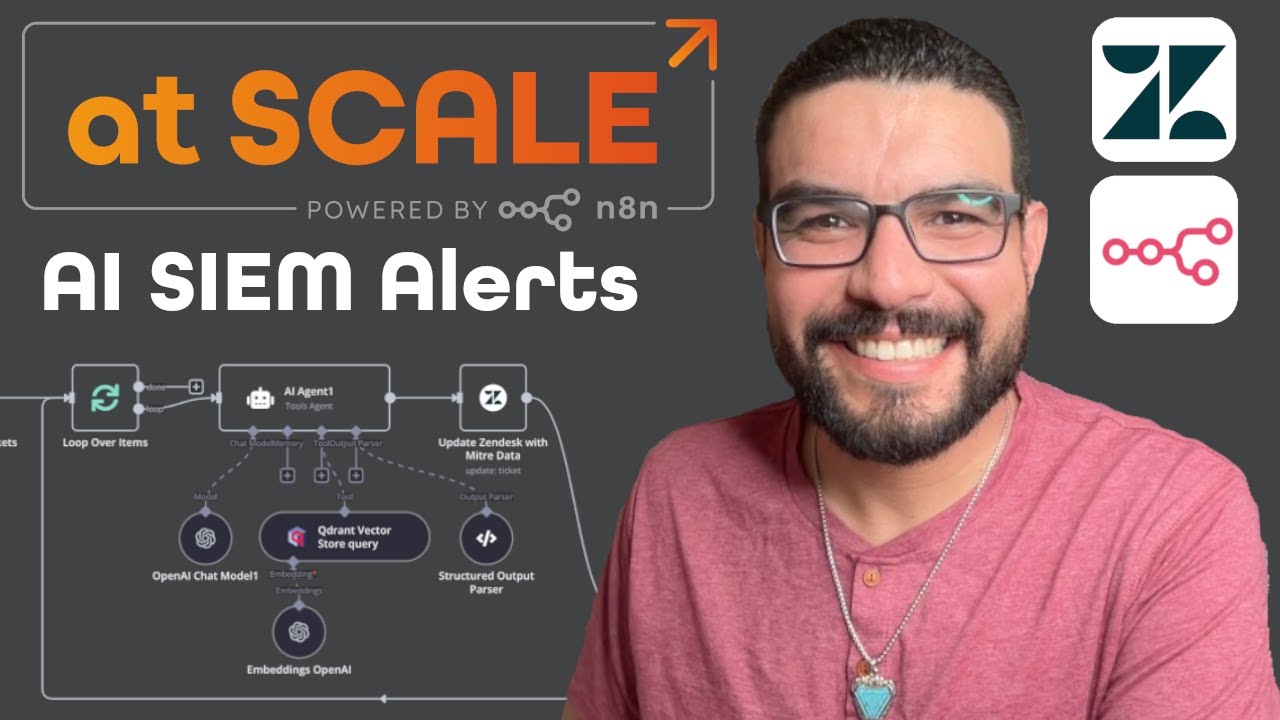
Deploying MITRE ATT&CK in Qdrant: AI-Powered SIEM Alert Enrichment with n8n & Zendesk
16:45

Deploying MITRE ATT&CK in Qdrant: AI-Powered SIEM Alert Enrichment with n8n & Zendesk

n8n 06.02.2025 6 709 просмотров 178 лайков

Machine-readable: Markdown · JSON API · Site index

Поделиться Telegram VK Бот
Транскрипт Скачать .md
Анализ с AI
Описание видео
🚀 Want to supercharge your cybersecurity workflow? In this video, I’ll walk you through how to embed MITRE ATT&CK in a Qdrant vector store, use an n8n chatbot to process SIEM alerts, and enrich tickets in Zendesk for more effective threat response. 🔹 What You’ll Learn in This Video: ✅ Step 1: How to embed MITRE ATT&CK into a Qdrant datastore to make security data searchable. ✅ Step 2: How to use an n8n chatbot to process SIEM alerts and extract actionable insights. ✅ Step 3: How to enrich Zendesk tickets with MITRE ATT&CK context, allowing security teams to respond faster. ✅ Bonus: How this automation helps small security teams get clarity on raw alerts and streamline investigations. 🔹 Why This Matters: Cybersecurity teams often get overwhelmed by raw SIEM alerts that lack context. By embedding MITRE ATT&CK in Qdrant, we can provide AI-powered insights, group attack patterns, and suggest remediation steps. This integration with n8n and Zendesk ensures that every security ticket comes with actionable intelligence—saving time and improving threat response. 🎯 Ideal for: ✔ Security analysts looking to automate their workflow ✔ SOC teams that want better SIEM alert context ✔ n8n users who want to integrate AI-powered security workflows ✔ Anyone interested in vector databases, MITRE ATT&CK, and automation 🔹 Resources & Code: 📌 Link to Workflow Template: https://n8n.io/workflows/2840-automate-siem-alert-enrichment-with-mitre-attandck-qdrant-and-zendesk-in-n8n/ 📌 Relevant MITRE ATT&CK Documentation: https://attack.mitre.org/ 📌 Qdrant Documentation: https://qdrant.tech/documentation/ Want to connect? Find me on social media and reach out to me directly: - LinkedIn: https://www.linkedin.com/in/angelgmenendez/ - X: https://x.com/djangelic 💬 Have questions? Drop them in the comments! Let’s build better cybersecurity workflows together. 🔥

Оглавление (4 сегментов)

Segment 1 (00:00 - 05:00)

hi welcome to another episode of n8n at scale in today's video we're going to be deploying a quadrant Vector store for miter attack is a globally accessible knowledge base of tactics and techniques used by cyber adversaries it's a framework that helps cyber security teams understand how attackers operate so they can detect respond and defend against threats more effectively think of it like a cheat sheet for cyber attacks helping teams map security alerts to known behaviors used by attackers instead of treating every Alert in isolation we can use miter attack to classify threats see attack patterns and take proactive defense measures now small cyber security teams face overwhelming amounts of raw data from their tools especially Sim tools without context it's hard to determine which alerts are serious which ones are related and how to respond to these alerts the workflow we're going to be demonstrating today takes Sim alerts applies miter attacks framework and provides actionable insights it automatically classifies threats suggests remediation steps and helps teams prioritize responses instead of guessing what an alert means this tool tells you what it is what it affects and what to do next so let's Dive Right In we're going to start embedding the miter attack framework inside of a quadrant data Vector store this will convert our Json into a numerical Vector representation using an embedding model this makes the data searchable in a vector database once the data is embedded it is stored in the vector store and index for efficient retrieval the index allows similarity searches and AI powered queries this methodology is sometimes called rag or retrieval augmented generation essentially making an AI agent smarter by giving it access to this Vector store now quadrant allows for one free Vector store per customer so you can deploy this on your own instance connect it to your own AI agent and utilize it as well so follow along as we go through this process and by the end of it you'll be able to deploy this in your own environment all right let's get started so here we have the original miter attack file so this file is huge it's about 40 megabytes and it's got a lot of information that we do not need so I'm going to be including but I won't be covering this portion of essentially cleaning up the data of just what we're looking for so here is the cleaned version clean Miner attack data and as you can see it is a lot smaller it's about 2 megabytes now I'm currently hosting it in Google Drive that just makes it a little easier for me but any you can even send it into the workflow that we're going to be using to embed the quadrant Vector store using a web hook just sending it into the workflow so let's take a look at that workflow so here we are so this right here is our embedding workflow so here what we're going to do is when we hit uh test we're going to go ahead and uh pull the Json file from Google Drive extract the Json from the binary file we're going to then split that Json into a array object and then we're going to pass that into our quadrant Vector store now there are a few things we're going to have to do in the quadrant website to prepare this data to be embedded so let's go ahead and do that now I've gone ahead and deleted my old Vector store as sad as that makes me what that's going to allow us to do is start fresh start from the beginning and make sure that you get a view from the very start of what needs to be done so I'm going to start by hitting create we're going to create a cluster here so let's go ahead and select the free option here and I'm just going to call this miter attack there we go and I'm going to go ahead and hit create we're just going to go ahead and go with the default options here and it shouldn't take very long and there we go so we're going to wait until the creating status uh changes so we'll give it just a few moments for it to go ahead and spin up all right so now we're getting not ready let's go ahead and refresh all right healthy that's what we're looking for excellent so let's go ahead and enter in here and I'm going to be deleting this after I create the video so I'm not going to bother uh deleting the API keys or blurring out endpoints cuz I'm going to go ahead and delete this right after so let's go ahead and dive right into it so let's go back to the workflow let's make sure that we have our setup correct so I'm going to create a new credential we're going to call it Angel miter attack

Segment 2 (05:00 - 10:00)

attack demo cluster all right and we do need an API key so let's go ahead and generate one so I'm going to click on API keys and I'm going to go ahead and hit create we'll go ahead and call This naden Cloud API and we'll leave it at 90 days until expiration we'll leave it on global and we'll go ahead and hit create there we go so here we go I'm going to go ahead and copy this make sure you copy it before you close this pop up otherwise you won't get it back we're going to go ahead and paste we're going to come here and we're going to copy our URL so now we do want to copy it all the way to that six to the end of that uh 6333 go ahead and copy we'll go ahead and paste and let's go ahead and hit save and this is what we're looking for connection tested successfully that means the naden was able to talk to the end point and it did work so we're going to go ahead and close it and we are good to go now on your end we're going to go ahead and leave this fixed we're going to leave this ID and we're going to actually create the collection by typing in the name here in nadn so nadn is going to create the collection based on this ID so if you've ever tried to create this is something I struggled with initially but if you've tried to create a collection before and you weren't sure how to do it because nadn had it was red and you weren't sure all you have to do is you manually type it in here and that will push the name of the collection into quadrant Cloud here so let's go ahead and close this and there we go so we've got our we've got this set up so what I like to do is I like to and actually let's go ahead and create another API key here because I forgot to copy it to my let's go ahead and call this dashboard login I forgot to copy it so that we could use it to log in to visualize the data so I'm going to go ahead and copy this here I'm going to go ahead and close it and we're going to go ahead and access the database so what I'm going to do is open the dashboard there we go and this is why we needed that API key so I'm going to go ahead and paste it so that we can get into it directly there we go so here we can go ahead and set up our collection so we can do a quick start load sample data Vector search tutorials I'm not going to bother with any of these I'm just going to go ahead and get started so we're going to go back here and I've already set up all the setups here um as needed so I'm using the open AI embedding I'm using text embedding small we're going to use the default data loader so here I've already passed in the different bits of data that I want embedded into the vector store so we're going to load specific data and I've already set up the text splitter correctly to a chunk size of a thousand so all we need to do now is test this workflow and that will go ahead and create the collection and start embedding it so let's see what happens here so we're going ahead downloading the file from Google Drive there we go we're extracting the file binary data and we should see about almost 800 objects that are going to be embedded into our Vector store so let's see what we get here there we go splitting it out there we go and here we are so as you can see it's rapidly starting to embed um so here we've already got 21 items embedded and it's rapidly going through here and setting it up so we'll give it just a few moments to go ahead and go through it and once it's done we'll go ahead and dive right back into it all right and there we go so now we have embedded the entire miter attack J collection into our quadrant data store now let's take a look and visualize this so if we go into our collection here on the back end we can go ahead and go down to the collections click on miter and we can go to visualize this is one of my favorite parts so let's go ahead and change this to 800 and go ahead and hit run now this could take just a moment for it to load but what we're going to see here is a visual representation of the Json objects that we have embedded in our Vector store essentially other than for visualization purposes what this allows us to do is see in a 3D space or 2D space in this particular case the data that we have essentially just uploaded because of this it gives us a better understanding of how the AI agent is going to utilize this information to query oh and there we go excellent so here are our Vector points so if I hover on them you can see on the right hand

Segment 3 (10:00 - 15:00)

side which of the Json objects it's referring to so again this kind of gives us a good idea of what we're looking at and it's grouping them together based on distance now we need to be able to reference this so let's go ahead and move on to the next part of our workflow let's go ahead and go to the AI agent so what we're going to do is we're going to double click on here and I've already preloaded some a prompt in here to make it a little bit more intelligent I'm going to go ahead and go into to my tools quadrant and we're going to go ahead and change this to My Demo cluster so now that we have aimed it at the correct location we need to make sure that the name is correct so we're going to go ahead and click on our collection here there it is and this name is the one that the agent is going to use so I've already referenced this in the prompt and this right here is the collection itself so now let's go ahead and test it so what I'm going to do is I'm going to go ahead and select the chat option here and we're going to go ahead and let's go ahead and erase the previous go ahead and unpin this go ahead and save this and there we go we now have our chat so I'm going to pass in a demo Sim Alert in here I'm going go ahead and hit send and let's see if we're able to query our Vector store there we go it looks like it's querying it successfully there we go so it's identified it it's found it it's given us a link to the uh Source we can go ahead and click on it takes us to the correct miter attack uh location now this part is usually something that it that if you were to just use like chat GPT for example it would struggle with it wouldn't be able to usually give you a direct link it might or might not it's 50/50 but with the vector store you're going to get this consistency that you wouldn't with a with an AI agent that isn't already trained on this so by embed by giving it this indexed and embedded data Vector store we're able to get more consistent reliable results so here as you can see we have our remediation steps historical patterns external sources what we could do is from here we can go ahead and set structured outputs so in the model I have here we're going to go ahead and once again aim this at the correct tool or the correct Vector store here and what we can do is we can set this to Output in a structured format so we could require a specific output format and then that gives us a new output here for parser so if I just click and drag here we can essentially use I like to use the structured output parser I essentially feed it ad Json as example and then the output needs to match for the AI agent what your Json output is so if I wanted to get the tactic or the technique ID in a specific format I could as we see here so let's test this so let's go ahead and see this live in a ticketing environment so let's make our way over to zenes here so as you can see here we've got our Sim connected to our zenes platform so here as you can see we have the alerts being fed directly into the ticketing system not particularly useful just by reading these at least especially to somebody that might be new might not have a very good understanding of where to even start so let's go ahead and run this tool on these tickets so I'm going to go ahead and test workflow it's going to go ahead and get all seven tickets and it's going to start looping through all of them and as you can see here it's going ahead and querying the vector store use using open Ai and it's using the structured output parser to ensure that the output is formatted as we expect so there we go so now I've created two custom Fields tactic and technique ID rather I should say and let's see here all right perfect we've already got two of them so t106 execution t193 defensive Evas defense evasion so essentially we're getting we're starting to group together our tickets using these tactic and techniques and you can use any of the outputs as custom fields to be able to do this so we'll give it just a few moments let's see if it gets through all of them here we go command and control there we go it's quickly making its way through them we've also got credential access here and it includes the a sub ID here so that's

Segment 4 (15:00 - 16:00)

great all right we can start grouping these together credential access excellent persistence okay and there we go and our workflow is now done defenses asan so essentially what we can do is keep building on this and tightening up our prompt to make it more specific and use the underlying miter attack framework in ways that you would typically be unable to use in a normal environment so my hope is that small or new Cyber secur teams can utilize this workflow to essentially supercharge their teams and help them essentially group or find Trends within their own ticketing systems and also for things like graphing and visualizing your data is so important this allows you with these structured outputs to be able to do exactly that and as you can see I've passed in the summary so it gives a slightly more uh concise summary of what might be happening with this alert so I hope that this demo has been useful I hope that by the end of this now you're able to embed your own uh collection in a data store you're now able to query it using n8n and then pass that into any ticketing system that you might be using internally so if you like this type of content let me know in the comments I hope you enjoy it and I hope you get use out of it thanks and have a great day

Другие видео автора — n8n

Ctrl+V

Экстракт Знаний в Telegram

Экстракты и дистилляты из лучших YouTube-каналов — сразу после публикации.

Подписаться

Дайджест Экстрактов

Лучшие методички за неделю — каждый понедельник