Day 15: How to Generate an AI Notion Database Assistant in minutes
6:09

Day 15: How to Generate an AI Notion Database Assistant in minutes

n8n 16.09.2024 17 598 просмотров 302 лайков

Machine-readable: Markdown · JSON API · Site index

Поделиться Telegram VK Бот
Транскрипт Скачать .md
Анализ с AI
Описание видео
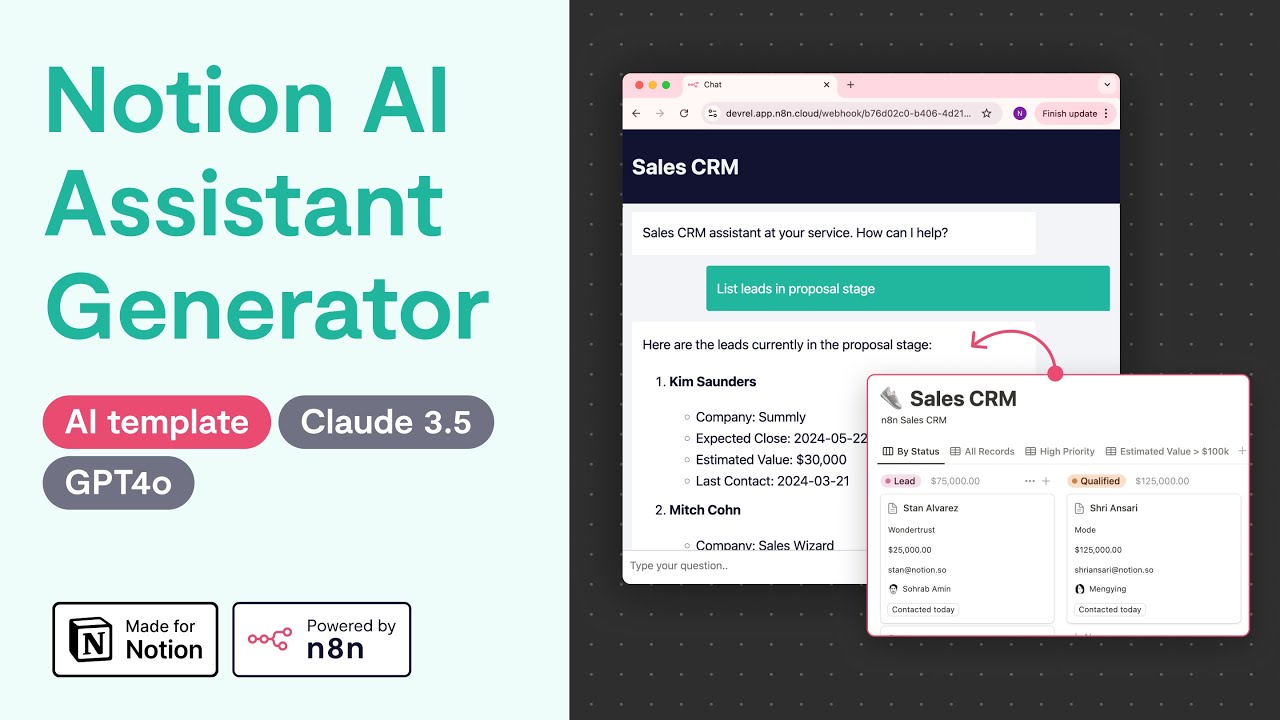
Ready to supercharge your Notion databases with AI? 🚀 🔗 Download the Notion AI Assistant Generator Template: https://n8n.io/workflows/2415-notion-ai-assistant-generator/ In this video, I show you how to quickly generate a custom AI-powered chat assistant using an n8n workflow template I made during my 30 Day AI Sprint. Perfect for product managers, support teams, and ops professionals—this template builds a tailored AI assistant based on the schema of any Notion database! 00:00 - Intro 00:33 - Set up Notion credential 01:48 - Import + set up Generator template 03:53 - Set up generated workflow 04:25 - Test generated workflow 05:29 - Password protect your assistant [optional] 🔧 How It Works: Input a Notion database URL, and this template generates a fully-functional AI assistant workflow, no coding required. The assistant can search by different Notion column types (incl. tags), and even search inside Notion pages within the database. Includes automatic validation checks to ensure your AI assistant runs smoothly—retries if necessary! Always provides direct links to the Notion pages it uses to generate its answers for easy verification. 🔗 Learn more about the 30-Day AI Sprint: https://30dayaisprint.notion.site/ #Notion #AI #Automation #aiagent #nocode

Оглавление (6 сегментов)

Intro

I just shipped an AI assistant that takes a notion database URL and outputs an AI assistant that can interact with your notion database it works for arbitrary notion database schemas including Fields like tags and URLs and emails it's set up to use anthropic clae 3. 5 but it also works with GPT 40 and it can be swapped out in a sec to set this up all you need to do is have an netn account you can host on NM cloud or self-host got to have a notion account and you're going to need an

Set up Notion credential

llm the first step to setup is to create a connection in our notion account share that with our database and then import that into NN to do that you're going to want to go into the settings here and from here you're going to want to go to my connections develop or manage Integrations and we're going to want to create a new integration we'll give it a name I'll call it the Nathan Bo workspace this is the notion workspace and then we can keep this to internal cuz we're not publishing this as an app and we don't have to add a logo so let's just click save in the settings we'll want to copy our internal integration secret here and we'll want to import it into NN so we'll go over into our NN account go over to credentials and then add credential we SE for notion we need to add the notion API not the notion O2 API and then we'll paste out key in and save it so we now have the credential created in na we still need to share it with the actual database that we want to use so endan can access that database so when you're viewing the database itself you can go over to the ellipses menu here go to connections and then sech for that connection just created and add it you can confirm and now my connection

Import + set up Generator template

can see this database the next step is to import the workflow template into our NN accounts we can click this use workfl button and copy the template to our clipboard I'll go over to my NN account I'll add a new workflow and I'll paste in the workflow template that I've got in my pasteboard and we can see we've got a few different errors in my workflow these are the steps where I need to add a credential so we can interact with that service so the first one here is the notion node that I need to add a credential We'll add that notion account that we just added that's that connection that we created earlier in the video and there's nothing else that we need to change in here we'll do the same with these AI chat models that my AI agents are using so I'll open up this anthropic model here and I'll pick my existing anthropic account now if you don't have an anthropic credential on your n instance what you can do is create a new one from here and you'll just have to supply the API key in here that's out of scope of this video but it's pretty straightforward to do and then there's two more to set up so just double clicking here pick my credential and do the same thing for this one here as well and from here this workflow should be ready to go so we can save it and activate it now that the work for is activated I can go into my trigger here and I can copy the chat URL and if I open this in a new tab we can now interact with the actual generator so let's go to my sales CRM and copy the URL let's paste it in here and let's run it now from testing this sometimes takes a minute or two even depending on the complexity of your workflow this process you only have to do one time as you set up your workflow that can interact with your specific spefic notion database and from there the actual chat assistant that you use to interact with your database will be first great it looks like the work for ran we can copy and paste this Json output so this is a workflow represented in Json I'll go back into na create a new workflow let's name this is U my sales CRM assistant let's paste it in we can see

Set up generated workflow

that it's added the workflow we've got a few errors again these are the credentials that we have to set up so I'll double click on the notion node and in here I'm going to pick the notion account we can see it's set up with my sales CRM so that's working correctly going do the same thing in my AI agent I'll open up in here and in the notion API drop down here I also pick my notion account these are tools that my a i agent uses and they need to access the notion account as well because they're interacting with your notion database

Test generated workflow

from here you can save it and you can test it already from here we can test it before activ activating it from this button here we can click the chat button and let's go into our sales CRM and let's see if we can pull up some information on Stan Alvarez show me okay we can see it's outputed that Stan Alvarez is at Wonder trust stand at notion if we go in here we can see that is all correct and it's also linking to that doc you can always see the original source of Truth this is the first time I have run this specific workflow with this specific database I've tested it on five other databases and it's worked on all of those so far multiple times once you've tested it and you're happy with your workflow you can go ahead and activate it and again if you go into this workflow here and copy this link and go in a new T you can interact with your new database assistant so naturally some of the

Password protect your assistant [optional]

information you're interacting with him might be sensitive and you don't want this URL exposed publicly so what you can do as well is add some authentication on top for example basic or and here you can create a credential where you define a username and password and there'll be a little popup so for example if I said here it's user and the password is test and save that if I go ahead and save the workflow now and try to access it here I will now have to type in user and test for the password to be able to access my sales CRM

Другие видео автора — n8n

Ctrl+V

Экстракт Знаний в Telegram

Экстракты и дистилляты из лучших YouTube-каналов — сразу после публикации.

Подписаться

Дайджест Экстрактов

Лучшие методички за неделю — каждый понедельник