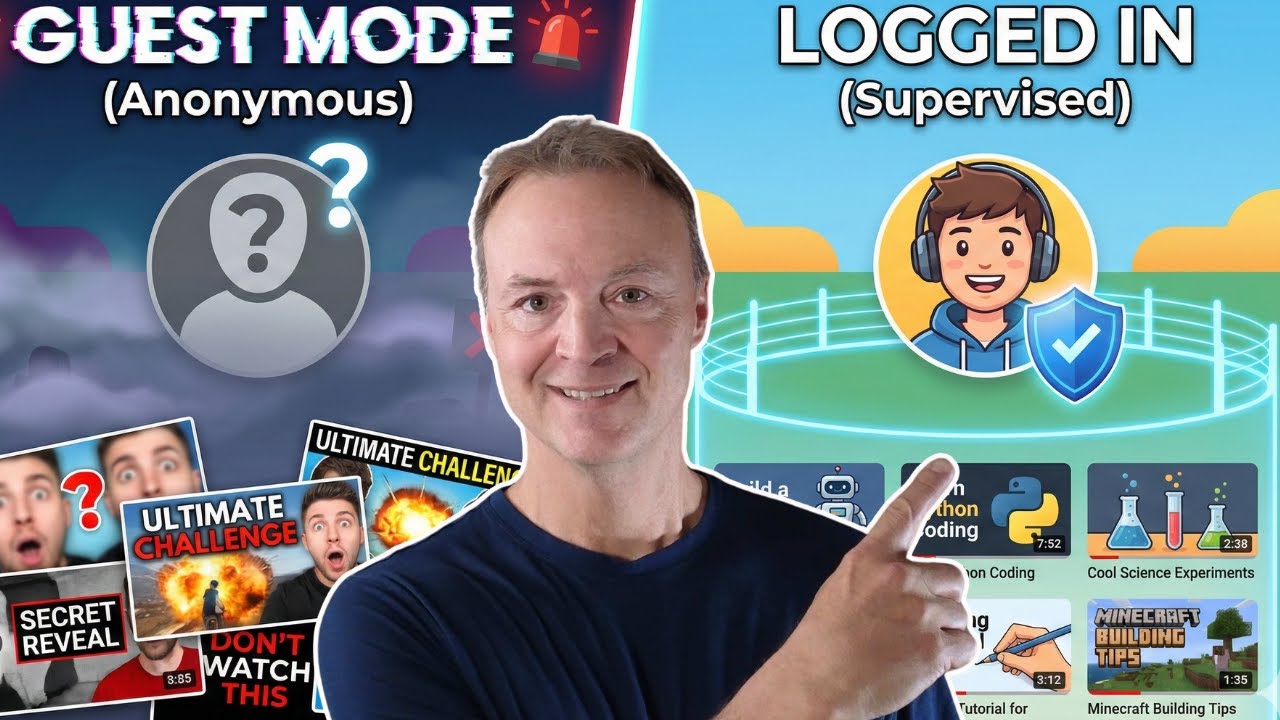
How To Make YouTube Safer For Kids In 2026 (Supervised Account)
9:44

How To Make YouTube Safer For Kids In 2026 (Supervised Account)

Teacher's Tech 08.12.2025 8 483 просмотров 74 лайков обн. 18.02.2026
Поделиться Telegram VK Бот
Транскрипт Скачать .md
Анализ с AI
Описание видео
Are you stuck between banning YouTube completely or handing your tween an unlocked phone and hoping for the best? There is a better way. In this video, I'll show you how to set up a Google Supervised Account—a "digital learner's permit" that bridges the gap between YouTube Kids and the full platform. Many parents believe that letting their child browse in "Guest Mode" without a login is safer because it's anonymous. This is a massive misconception. Guest mode is often the least safe way to watch, leaving them exposed to unpredictable viral content with no watch history for you to verify. I’ll walk you through the entire setup process using Google Family Link, explain the three "hidden" content tiers for different ages, and show you the powerful tools that give you peace of mind without starting a war at home. 👉 Get started with Google Family Link here: https://families.google/familylink/ In this video, I cover: 0:00 The "Tween Gap": Why banning doesn't work. 0:35 The "Guest Mode" Myth: Why logging in is actually safer. 1:00 Step 1: The essential foundation (Setting up the right account). 3:11 Step 2: Explaining the 3 Supervised Content Tiers (Explore, Explore More, Most of YouTube). 6:55 Trust, but Verify: How to use Watch History for connection, not punishment. 7:36 The Reality Check: Is this system perfect? (Spoiler: No, but it's still the best option). 8:10 Family Link on mobile 9:23 Conclusion: Building a safe digital driver.

Оглавление (8 сегментов)

  1. 0:00 The "Tween Gap": Why banning doesn't work. 120 сл.
  2. 0:35 The "Guest Mode" Myth: Why logging in is actually safer. 55 сл.
  3. 1:00 Step 1: The essential foundation (Setting up the right account). 488 сл.
  4. 3:11 Step 2: Explaining the 3 Supervised Content Tiers (Explore, Explore More, Most of YouTube). 792 сл.
  5. 6:55 Trust, but Verify: How to use Watch History for connection, not punishment. 115 сл.
  6. 7:36 The Reality Check: Is this system perfect? (Spoiler: No, but it's still the best option). 117 сл.
  7. 8:10 Family Link on mobile 248 сл.
  8. 9:23 Conclusion: Building a safe digital driver. 73 сл.

0:00

The "Tween Gap": Why banning doesn't work.

We've all been there. Your child hits that age  where YouTube kids is too babyish, but regular   YouTube feels a bit too much. You're stuck between  two choices. Ban YouTube completely, which is a   constant battle, or hand them an unlocked phone  and hope for the best. But there's a third option   that most parents don't know about. It's called  supervised experience. And think of it like a   digital learner's permit. Today, I'm going to show  you how to set up a perfect safety net that gives   them freedom and you peace of mind using the tools  that are already built into your Google account.    Let's address a massive misconception that  watching in guest mode without a login is safer.
0:35

The "Guest Mode" Myth: Why logging in is actually safer.

It's actually the opposite. Without a login,  you're playing algorithm roulette. YouTube serves   them unpredictable, unfiltered, viral content.   Furthermore, you have zero visibility. When they   close the browser, the history disappears. A  supervised account forces the algorithm into   age appropriate lanes and keeps a record for you.   Logging in doesn't expose them. It protects them.
1:00

Step 1: The essential foundation (Setting up the right account).

This all starts with a Google family link. If you  haven't set up a Google account specifically for   your child yet, don't let them just use your  account. That messes up your recommendations   and bypasses the safety tools. You need to create  a child account linked to your family group. This   is the ignition key. without a specific child  account, none of the YouTube features I'm about   to show you will work. Let's start by creating a  child account. And I'm just going to go up to sign   in. And if we go to create an account, you can see  the option for child right here. So I'm going to   choose this. And I'm going to you can go ahead and  read this. I'm just going to go ahead and click   let's go. I'm going to give it some fictional  name here. All right. I have some information.    I'm going to go ahead and in this case I'm going  to make them 12 years old right now and click   next. And we choose how this demo kid will sign  in. Uh they have some suggestions here. Could be   teachers tech demo kid or demo kid teachers tech  or I could create my own. I'm just going to go   ahead and do this one right here because it's  going to be easy to remember for me. Teachers   tech demo kit. I'm going to go next. I'm going  to go and put in a strong password and hit next.    Scan the QR code with my phone. At this point,  I need to connect it to the parent account. So,   this is going to be another demo account of mine.   I'm going to click next. Now, at this point,   it's telling me what I can manage, what parents  can manage uh this information, but I'll be   showing you more about the family link. I'm going  to click next. And with some more information,   you can go through and read, but at the very end  of this, you'll see some I agree statements here   that I'm going to click. And then I put I agree.   I can check my other email account now. Now I'm   back in my demo parent account and I can see that  I received an email that I've created a family   group. I'll come back to this and set this up in  a moment with family link. If I go back to the   account that I just created and let's go check  out YouTube right now. We'll just do a quick   search here. We'll go to YouTube. Um notice that  it says get help from a parent. Ask a parent to   uh set up YouTube. So we're going to go back over  here. And what I want to point out is if we go up   to the Google apps up top and we can click on our  account and notice on the side here, if I go down,
3:11

Step 2: Explaining the 3 Supervised Content Tiers (Explore, Explore More, Most of YouTube).

this will bring you to family group. I'm going to  select this. And now I can see that this was I'm   the family manager here. I was the parent and here  is the demo kid teachers tech supervised member.    I can still send out other invitations. These are  for 13 and above to kind of create a group here.    But I'm going to click on demo kid teachers tech.   And then I'm going to get some options here. So   I'm going to go to family link, supervised demo  kid with family link. And this is where we can   manage. So I can see this is the child's email  here. But we'll move down to here to YouTube.    And I'll show you how you can uh set this up.   I do want to point out you can even have Gemini   settings here. setting restrictions because  if they're on the web, if they are using AI,   this is another part that you might want to go in.   I'm not going to get into this in this video. I'll   talk about it in a different one. But let's go  to YouTube. And I'm not after YouTube kids. I'm   after this one right here. And I'm just going  to go back here down here and hit select. Now,   here you have some choices. You know, it aligns  with viewers 9 plus 13 plus. You pick what would   be best suited for what you want with your  child. Um, in this case, I'm just going to go um,   let's go with this one right here. I'm going to  hit select and I'll move down a little bit. You   can see where you can stay up to date. I'm not  going to click this and move down. Finish setup.    Now, I even have some more options. So, what  they can watch, you can see that there is the   what we've already said here. I have it set to  13 plus. We have down here content and uh video   preferences. So this autoplay setting is hidden  and they can't use autoplay to play the next video   automatically. So if you just don't want it to  go keep going again and again uh to the next one,   you can go ahead and toggle that on or off.   Unblock videos and channels that you've blocked on   YouTube Kids and you can learn how to see recently  watched video content right here. If you want to   remove access of your child, so if I click right  here, manage access to YouTube and YouTube music.    If I choose this, I can remove demo kids access  to YouTube apps by just clicking here. I'm just   going to hit cancel. I'm just going to move up a  bit. Hit the back here. I want to also show you   this one with time management. So, if I go click  on this, this is the shorts feed off or on. So,   you can choose what you would like uh on it. So,  if I just leave it off right now, we'll go check   that off. I'll check that when we move over to  their account. And we'll go back a couple times.    And another thing you might want to take a look  at is the privacy settings here. So with this one,   pause watch history. Stop using new video views  to recommend content. You can turn this on. Pause   search history. Stop using new search terms to  recommend content. So these might be a couple   ones you might want to uh go ahead and turn on.   And clear history. Delete the list of videos your   child watched and search for. So if I click on  this, I can go and delete them from there. So,   this gives you a lot of control w over your  child's account of what they're going to be   watching, finding out what they're watching. Let's  go back. Another way you can manage your family   account if you're logged in to your YouTube.   I'm the parent right now. So, if I click on   this and if you just move down to settings and I'm  under account, if I go down towards the bottom,   you can see family center, manage kids profiles  and features for teens. If I click on it,   it's going to bring me over to this as well.   All right. You can see now I'm logged in. I'm   on YouTube here. I'm going to do a quick search  here for Roblox. And then I'm going to click on a   few videos. I'll search for a few things and then  we'll see if we can look at it from a parent. Now,   let me show you how you can check what your child  was viewing on YouTube. And I'll admit this has
6:55

Trust, but Verify: How to use Watch History for connection, not punishment.

some flaws to this and I'll talk about that in  a moment. But we're going to go to this. So,   I'm logged in under the child's account now,  and I'm going to go to myactivity. google. com. You can see it right up top here, and hit  enter. So, what this does, if I go down,   you can see the activity of all the different  things that I just clicked on randomly. You can   see there's the Roblox. I search for Roblox here.   Now, the issue would be that I'm logged in as the   child right now and I can go to any of these and  delete the certain item. Now, this is a reality
7:36

The Reality Check: Is this system perfect? (Spoiler: No, but it's still the best option).

check. Is this system absolutely bulletproof? No.   If you have a techsavvy kid, they might figure out   how to delete specific videos from their history,  clear their browser cache, or pause their activity   tracking. And on a desktop computer, incognito  mode is always the challenge to manage. My advice,   don't use this just to catch them doing something  wrong. Use it to talk to them. Say, "Hey,   I saw you watching a video about 3D printing  or Minecraft. That's cool. Tell me about it. "   This turns supervision into a connection rather  than a surveillance. And remember, if they were   browsing in guest mode, you wouldn't be able to  have this conversation. All right. I just wanted
8:10

Family Link on mobile

to point out you can download Family Link on your  mobile device, whether it be iOS or Android. Makes   an easy way to just track different things and  manage. So, if I go to controls, you can see that   YouTube, everything is going to be the  same that I showed you there versus where it was   uh on the uh computer login. I do want to point  out if I go to the very bottom, you have signed   devices here. So, if I click on signedin devices,  I can check where they last were and remove   account access from there. The other thing I want  to point out, and I'm not covering it in this   video because I'm not a I'm an iOS user, but uh  you can set up supervision. So, you can see right   here where it says screen time, add demo kids  to Android or Chrome, Chrome OS devices to see   how much time that they spend remotely. So, I'm  just going to move this out of the way and I'll   put a link to this web page here, but you can see  here kind of some ideas where you can uh establish   some different rules of uh whether how much time  they're spending on certain uh apps or even on   their different devices here that you can go and  manage that. So, take a look at that if that's   something you'd be interested in. Technically,  you could just ban the app until they're older,
9:23

Conclusion: Building a safe digital driver.

but when they turn 16 or 18, they're going to be  on the internet anyway. By using these tools now,   you're just not protecting them from the internet.   You're preparing them for it. You're building a   digital driver that knows the rules of the road  before you hand in the keys to the Ferrari. Thanks   for watching this time on Teachers Tech. I'll see  you next time with more tech tips and tutorials.

Ещё от Teacher's Tech

Ctrl+V

Экстракт Знаний в Telegram

Транскрипты, идеи, методички — всё самое полезное из лучших YouTube-каналов.

Подписаться


