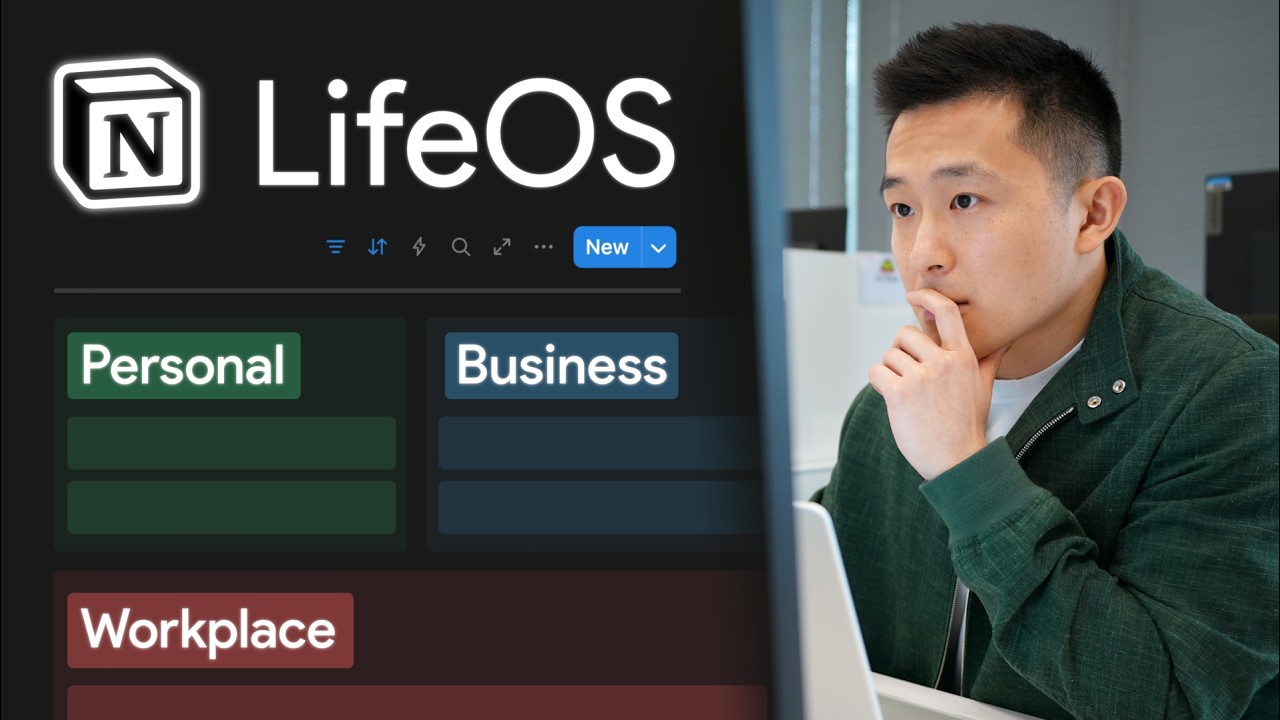
How I Organize My Life | Notion Tour 2026
11:26

How I Organize My Life | Notion Tour 2026

Jeff Su 20.05.2025 267 140 просмотров 4 663 лайков обн. 18.02.2026
Поделиться Telegram VK Бот
Транскрипт Скачать .md
Анализ с AI
Описание видео
✍️ My #Notion Command Center - https://www.pressplay.cc/link/s/92635AE6 Thanks to this single Notion page, I manage my full-time job, content creation, and everything else with total peace of mind. After years of tweaking, I've finally built a system I trust completely. Instead of boring you with every detail, I'll show you five key benefits of my Daily/Weekly Planner in Notion: no more planning paralysis, frictionless action-taking, intuitive structure, a custom-fit system, and information that finds you when you need it. *TIMESTAMPS* 00:00 Jeff’s Command Center in Notion 00:25 No More Planning Paralysis in Notion 02:40 Frictionless Action-Taking 05:11 Intuitive Structure 07:02 Custom-Fit System 09:11 Information that Finds You 10:51 Build Your Command Center in Notion *RESOURCES MENTIONED* Free Notion Toolkit: https://academy.jeffsu.org/notion-toolkit?utm_source=mywebsite&utm_medium=post&utm_campaign=181 Save to Notion Tutorial: https://youtu.be/diK9dZulkAs Easlo's Book Tracker: https://www.easlo.co/templates/book-tracker *BUILD A POWERFUL WORKFLOW* ✍️ My Notion Command Center - https://www.pressplay.cc/link/s/92635AE6 *BE MY FRIEND:* 📧 Subscribe to my newsletter - https://www.jeffsu.org/newsletter/?utm_source=youtube&utm_medium=video&utm_campaign=description 📸 Instagram - https://instagram.com/j.sushie 🤝 LinkedIn - https://www.linkedin.com/in/jsu05/ *MY FAVORITE GEAR* 🎬 My YouTube Gear - https://www.jeffsu.org/yt-gear/ 🎒 Everyday Carry - https://www.jeffsu.org/my-edc/ #dailyplayer #lifeOS

Оглавление (7 сегментов)

  1. 0:00 Jeff’s Command Center in Notion 88 сл.
  2. 0:25 No More Planning Paralysis in Notion 476 сл.
  3. 2:40 Frictionless Action-Taking 472 сл.
  4. 5:11 Intuitive Structure 345 сл.
  5. 7:02 Custom-Fit System 418 сл.
  6. 9:11 Information that Finds You 306 сл.
  7. 10:51 Build Your Command Center in Notion 128 сл.
0:00

Jeff’s Command Center in Notion

Thanks to this single notion page, I'm able to manage a full-time job, content creation across four platforms, and everything else in my life with total peace of mind. It took a couple of years to get here, but I finally have a reliable system I trust completely. So, in this video, instead of boring you with every little detail, I'll focus on the five key benefits of my command center that will hopefully inspire upgrades to your Notion setup. Let's get started. Number one, no more planning
0:25

No More Planning Paralysis in Notion

paralysis. Every morning, I literally do the exact same thing. I press this new date button to generate a daily checklist. This removes the mental burden of deciding what to do next, letting me focus on doing instead of deliberating. First in my checklist, complete my custom make time workflow, which I'll explain later. And assuming I've completed that, I'm going to press command and control enter to check this off. Then these next two tasks are sort of done together. I reply to messages from last night. Then I open up calendar uh to wish my friends happy birthday. And while I'm in the calendar, I'm going to check my commitments for the day so I know how much time I have for tasks. Speaking of which, next item, process tasks. This is going to look a bit weird, but bear with me. I'm going to scroll down to my weekly task view. Click for the task I need to do today. I click into them. I'm going to press command and control A, command control C to copy the name of this task. Mark this as done. Press escape. Go back to the today section. Create a new checkbox. Press at and paste the name of the task to link it to the original. Some of you might be like, "Wait, what Jeff? That was so unnecessary. " But there are two good reasons for this. First, I value flexibility. And within the today section, I want to be able to move this task around and determine when I want to complete this. For example, I'm working from home in the morning and going to the office later. I can easily create an office subsection and drag the task under there. Or when I'm in the office, my mom messages me asking for a photo of my 1 million play button. That was a real message. I promise I'm not flexing. Okay, maybe I am flexing a little bit. I'd add that task under the evening subsection. Enter tab. Because I can only complete this when I'm back home. Second, I like linking to the original task because it often contains important context. When I captured this task to reply on LinkedIn, I included a hyperlink and a reminder of what to say in my reply. Also, let's say this was a low priority task and I don't complete it by the end of the day. I can just delete it from my today section, uncheck the task down here, and move this to a later date. Obviously, you should tailor the new date button to your own needs. For example, in my actual workspace, I have a social media task that reminds me to respond to every YouTube comment because nothing says authentic engagement like responding strangers according to a checklist. Benefit number
2:40

Frictionless Action-Taking

two, frictionless action taking. Diving right to an example. As a content creator, I get ideas at random moments. So, thanks to this new idea button under the quick action section, one click, boom, I can capture the video idea, add tags, simplify, and start brainstorming right away. The exact same logic applies to the two other buttons. Basically, I've connected each button to a corresponding back-end database. New idea, ideas database. New friend, friends database, new prompt, prompts database. This last one I made a whole video on. And having the buttons here means I don't need to navigate to a separate page to capture information, eliminating the barrier between thinking and doing. Again, you can tailor this for your own needs. If you like to read, find a free book tracker template online. Easo has a great one. Duplicate it within your notion workspace and create a button that adds entries to that book tracker database. Moving on to a slightly more advanced example. From my command center page, let's say I open up an existing project, run my first full marathon in Bali without dying. Apparently, that second part is not guaranteed. Pro tip, command and control enter to expand this to full screen. And let's say I also come across a YouTube video with marathon training tips. Instead of copy and pasting the URL here, I can use a completely free save to notion extension to capture this video or any website for that matter by using a form I've created, scrolling down and selecting the project I want to capture this video to. So run a full marathon in Bali. Select this. Click save page and open page in notion. A few seconds 3 2 1. And we'll see that this entire video along with the link has been captured to our notion workspace. And this note has been automatically tagged as the research type as well. And if I were to open up the project page, scroll down, we see that yes, the marathon training tips video has been captured here. Example number two, under my AI area page. I'll talk more about areas in the next section. You'll see that I have multiple knowledgebased resource pages for different AI tools and features, claw, deep research, MCP, notebook LM, etc. And let's say my colleague sends me this article on a new notebook LM update. I can press save to notion resources notebook LM knowledge base and this gets saved as a note within my notebook LM resource page directly. I have an entire tutorial on save to notion if you've never used it before and I also share my tasks notes and projects databases in my notion toolkit. And just like a drug deal, you get this first productivity hit completely for free. Benefit number
5:11

Intuitive Structure

three, intuitive structure. At this point, let's take a step back and examine the overall layout of the command center page. Broadly speaking, this page is split into four sections. Quick access buttons and links, tasks and projects, areas, and notes. Zooming into the area section where I receive the most questions. I've organized it to match how my brain naturally processes information. As you can see, I have four area pillars: content creation, personal life, my business, the workplace. And under each pillar, I've added areas that belong under that pillar. YouTube for content creation, travel, health for personal, taxes for business, career development for the workplace. Why does this matter? Let's say my Wi-Fi stops working and I need to fix it. It's unlikely I remember exactly where I store the information. So, I think my router is in my apartment, which is part of my housing area. Okay, let's click into that and scrolling down. Right, I have a resource page for my internet. If I open that up, right, these are the troubleshooting steps I took down last time. Here's another example. Let's say the government announces a new tax status for businesses. I don't care about this right now, but I know I need this during tax season. So, where would I store this information? I can copy the URL, go back to my area section and think, okay, well, that's related to my business. And under business, right, I have a taxes area. Nice. Scroll all the way down, add a new note, new update to tax code. The type is documentation. I'm going to paste the URL here. And there we go. These examples highlight the beauty of this setup. We store information where our future selves will look for it. Zooming back out, you should obviously add areas and pillars according to your own life. If you're a student, you might have a college pillar with classes, extracurriculars, and job search areas. If you're a professor, you might have an academia pillar with research, classes, and publications.
7:02

Custom-Fit System

Next up, custom fit system. You might recall the first task I complete every day is to create a new page in my make time mini system which by the way is based on my favorite productivity book make time by Jake Nap and John Zeratsky. So let's say today is Sunday and after I select the date you'll see that the day of the week automatically updates thanks to a notion formula and I proceed to complete these three fields. The first is my daily highlight. This is the one task I must complete today and will time block on my calendar. My priority today is wrap up AI agents research. Second, what I'm grateful for. I'm grateful that my notion course is number one on the PPA platform. Yay. One student even said it was life-changing, but whatever. I don't really care about that. Um, third, let go. This is arguably the most important field because this is where I reframe negatives into positives. For example, recently a family member fell ill, but I would write I get to spend more time bonding with my mom and brother. Okay, I didn't go through all that to virtual signal. Well, not just a virtual signal because the whole point of having a modular system is that we can replace this make time workflow with any template that we want. For example, let's say we find and download a free habit tracker template online. I'll just walk you through how I would do this. Command control D to make a duplicate. Change this to daily habit tracker. Enter hypheny for slasht create a table view. Assuming I downloaded the habit tracker template. I choose link to database. And let's just choose the habit tracker template we made a copy of. I'm going to choose this week view that was already created from the creator. And I can just literally start using this template. Let's say daily habits. Today's date automatically uh updated. I made my bed. I haven't journaled yet. I don't want to journal. I'll probably change to something else. I've exercised and I haven't read yet. And I'm 50% done. Right? So this is just a very simple example of how we can easily replace our previous workflow with a new one and adopt this in our daily routine. The takeaway here is don't think of your notion workspace as a rigid structure, but rather as a modular system with individual components you can swap out
9:11

Information that Finds You

as your needs evolve. The fifth benefit, information that finds you. Your command center services exactly what you need when you need it. To show you what I mean, I'll create a brand new project. I'll name this revamp my website. The status has been set to work in progress automatically. End date, let's choose the end of the year. And I'm going to relate this to my website project like so. And I'm going to press command and control enter to expand this to full screen. Within this page, you'll see I have a related task section here. Let's add a new task. Reach out to freelancer for website audit. And you'll notice that this task has been automatically linked to this project. Revamp my website, right? Why does this matter? Look what happens if I choose to unlink this page. So watch here. this. The task disappears from the project page. Yet if I open up my master or raw task database, you'll see it's still there, right? It's just not related to any project. So if I were to add that back, revamp my website. Let's select that back here and go back to the project page. The task now reappears. Why am I making such a big deal out of this? If I open up an existing project, Gemini for productivity workshop. Scroll down. You will see only tasks, resources, and notes that are relevant to this project are surfaced. Similarly, if I open up my health area, pro tip, command or control T to start searching for a page in your notion workspace. Scroll down, you'll see that only projects, resources, and notes that are relevant to this area are visible. And all this is possible thanks to Notion's extremely powerful relations feature, which we don't have time for in this
10:51

Build Your Command Center in Notion

video, but it's something I cover in my course, Build Your Command Center in Notion. I want to be very clear. If you have a solid workflow and nothing slips through the cracks, you should not change anything. The best systems and tools are the ones you enjoy using consistently. That being said, if you don't want to waste years on trial and error and just want something that works, I share all my Notion templates in the course and more importantly, my step-by-step thought process on how to build a personalized command center tailored for your needs. I'll leave a link to the course down below. Drop any questions you have in the comments. See you on the next video. In the meantime, have a great one.

Ещё от Jeff Su

Ctrl+V

Экстракт Знаний в Telegram

Транскрипты, идеи, методички — всё самое полезное из лучших YouTube-каналов.

Подписаться




