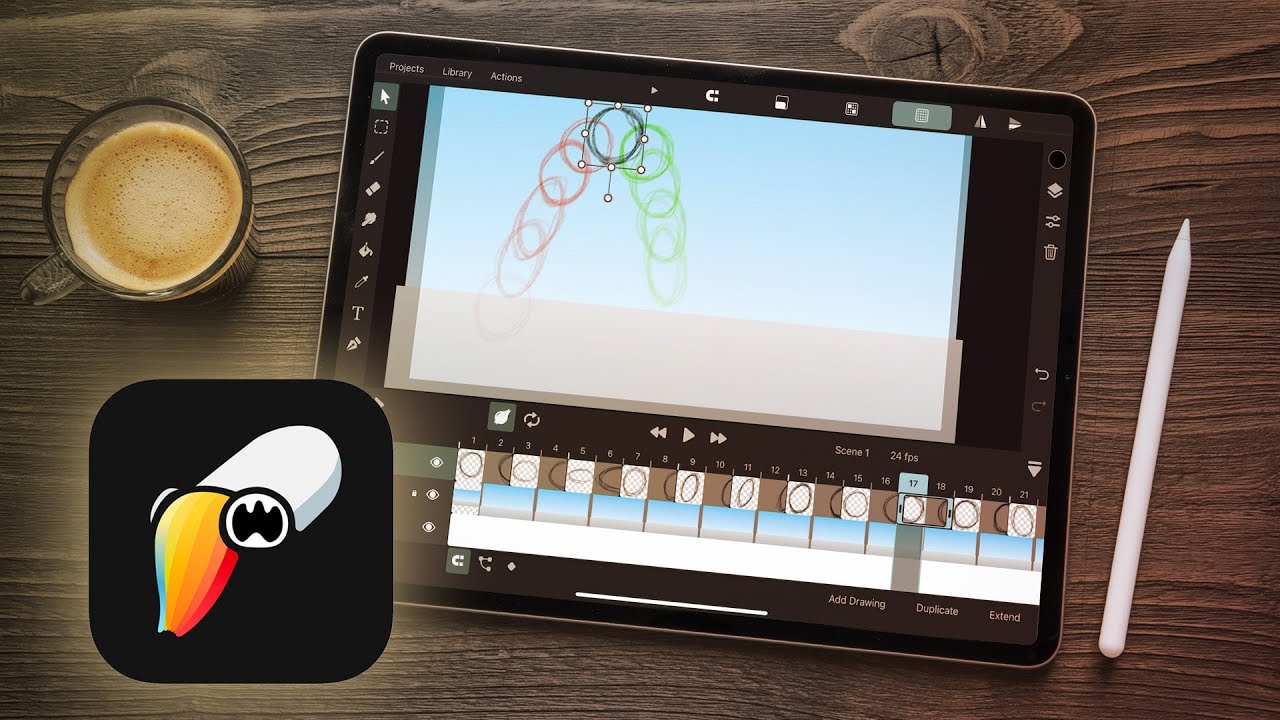
ToonSquid Animation Demo | Tutorial | iPad Animation
17:29

ToonSquid Animation Demo | Tutorial | iPad Animation

Bloop Animation 27.09.2023 51 565 просмотров 1 477 лайков

Machine-readable: Markdown · JSON API · Site index

Поделиться Telegram VK Бот
Транскрипт Скачать .md
Анализ с AI
Описание видео
Get the course: https://www.bloopanimation.com/ipad-animation/ Website: http://www.bloopanimation.com/ Facebook: https://www.facebook.com/bloopanimation ------------------------------------------------------------------------------------------------ Bloop Animation is an animation learning platform focused on animation filmmaking. We make: Video tutorials, awesome articles/interviews and guides, how to make an animated movie (a complete step by step series), books, courses, short films and more. Don't forget to subscribe if you liked this video! http://www.youtube.com/subscription_center?add_user=bloopanimation
Оглавление (4 сегментов)

Segment 1 (00:00 - 05:00)

this is a lesson from our iPad animation course to get the full course go to bloopanimation. com iPad animation in this video we're going to animate the third scene of our short here in tune squid now this scene is actually pretty complex in the sense that there are a lot of elements but each individual piece should be easy first let's set up the new project I'll give it a name and in this case I'll set the default workflow as keyframing since most of the parts of the scene will be keyframe animated now this is a new lighting environment for hitch so I'm going to want a new palette here in procreate I have tinted hitch for this lighting like we did before and now I'm going to export this image and bring it into toon squid in toon squid I'll go to the library and hit the plus sign to import from files and get the background then I'll sample hitches colors from that to create the new palette here in toon squid okay now I don't need that image anymore so I'll delete it the only other color I'm going to need is the green light from the beam itself I'm going to go to that background from scene 2 in procreate and Sample the green color then on the color menu under the value tab I can just copy that hexadecimal value and back in toon squid go to the color menu here values Tab and paste that hex number then I just need to click to add that to the palette then to get the timing from the animatic the scene starts at 19 seconds then he finishes Landing in his chair at 22 seconds nine frames and then it pulls out and the shot ends at 25 seconds 19 frames meaning the total scene is 163 frames I'll keep that in mind now to bring in the backgrounds like in scene 1 we need two versions of the background for when the beam is on versus off so I'm going to import those to the library then add each one to the scene then I want them to be on the same layer so I'll make room and drag the Blue version to the end so at some point when the beam goes off it's going to swap from the green lighting to the blue we'll worry about where exactly that happens later now I'll make the hatch that's supposed to be in the floor using some basic Vector shapes I'm going to turn this layer into a symbol so I can do the animation inside it the trick here is the door of the hatch is made up of these triangular shapes that are masked by the door shape layer beneath them then I just need to keyframe animate all of those shapes sliding from Beyond the hole into their closed position to create the hatch close animation then I'll color everything to match the blue lighting environment then on the main timeline on the time properties of the hatch layer I'll set up keyframes making sure the last one is set to hold then by moving around those keyframes I can make the hatch close whenever I want next I'm going to make the beam I'll just make a basic Vector shape matched up to the beam emitter then I'll give that a gradient with some transparency then what I want to do is make keyframes to animate the gradient throbbing a little bit I'm actually going to make that a symbol first and then repeat the keyframes to make the gradient animation Loop then I'm going to duplicate that shape make that a flat color and that will be

Segment 2 (05:00 - 10:00)

a mask for the beam ring animation I'm going to do got to turn on hide mask then like in the previous scene I'm going to make an animation of rings rising up the sides of the beam once those frames of Animation are done I'll turn that layer into a symbol toggle The Mask back on and since a symbol Loops by default I can just stretch that symbol out for the length of the timeline so now the beam will always have that animation next I need the hover chair that catches hitch this is just a single drawing that I'll draw based on the concept art that I've imported we'll animate this with keyframe animation later next I need the layer with the aliens on it I have that painted here in procreate I'm going to turn off the background and the stage color and Export a transparent PNG then I'll just import that into toon squid and we'll be able to keyframe animate the scale of this later now the only component of the scene left is the hitch animation so I'm going to make the rough layer and start roughing in hitch this is pretty much the same process you've watched me do before this time I'm just doing everything on threes once I get to this point in the fall I need to do the chair animation to know where to place him I'm going to copy and paste the keyframes for this Center position of the chair and have that come much later after the chair has come to rest then I'm going to change the start to be off screen then at the right time the chair will zip in jump up and catch hitch midfall and I'll make sure to include a little cushion and bounce as it comes to a stop once that's done I can fill in the rest of hitch's animation I'm still drawing this on threes even though the chairs animation is on ones once I have each of these drawings colored I'll make copies of them and just adjust their position to put them on ones matching up with the chair then after the chair comes to a stop there's the little animation of him gradually looking up and seeing the aliens when we get to that last pose I'm just going to hold that for the rest of the scene to give time for the camera pull out to happen once we have that I can make sure that the timing of the keyframes on the hatch and the turning off of the beam happen at the right time and I want a little more time before hitch appears so I'm going to slide his frames over and then scoot the keyframes of the chair over to match and I'm going to extend out the frames at the end to give us some more time there as well

Segment 3 (10:00 - 15:00)

okay that looked good I just didn't have the background layers extended far enough now the last little bit of Animation we have to do is the camera pullback so I'm going to add a camera layer and I'll copy the default keyframes to the end then back at the beginning I'll use the transform tool to scale down the camera to start pushed in on hitch then I'll copy and paste those keyframes to where I want the camera pull out to start then I'll adjust the timing and apply easing now we need to extend all my layers to make the scene last longer I want some time after the camera to hold for a moment this will actually get us to exactly our 163 frames that was in our animatic then once the camera's animation is where I want I also need to animate the alien layer to make the perspective move convincing I'm going to start by copying the default keyframes to the end matching up with the end of the camera pullback then at the same point as the start of the camera animation I'll scale up the aliens to be just out of frame then I need to make sure the easing matches as well and then I need to copy those keyframes to the start so that they start in that position great now that that's done all that's left to do is clean up and color the hitch animation I'll make sure I have a group for my hitch layers and then create a cleanup layer and I'm going to make a tracing paper layer 2 and fill it with gray to make it easier to draw dark lines over this dark background now I'm going to start making cleanup drawings using a vector inking brush being able to use a vector brush is nice because hitch is very small on screen in the scene so we normally be getting a lot of pixelation we just need to remember to make our line thick enough so that it will actually show up clearly when we export it's easy to get lost trying to put in too much detail when you're working with Vector tools always zoom out to check how it actually looks in the final screen size from here this is the same old cleanup process you've seen me do before okay let's see how that looks now that that's done we're ready to color so I'm going to make a color layer and I'm going to go ahead and make empty drawings matching up with the timing of the cleanup and with the cleanup layer set as the fill reference I can use the paint bucket tool to start filling areas of the character and to make sure I'm not accidentally coloring the line itself I'm going to lower the opacity of the cleanup line this also helps you make sure you're not accidentally coloring on the cleanup layer from here it's the same process we've seen before you might run into issues trying to use the paint bucket tool with the vector brush cleanup line especially when drawing this small you might run into glitches where the fill tool doesn't register the area or colors the wrong thing if you run into this I'd recommend just coloring as much as you can and then go back to the spots that don't work and just redraw the lines around the areas to try to get them to fill worst case scenario you always have the option to just paint in the area with the brush tool okay now that we've got hitch colored we

Segment 4 (15:00 - 17:00)

need to match them up to The Chair by putting him on ones for that portion for the frames where hitch is in contact with the chair I'm going to split the drawing on the second frame for the cleanup and color layer then making sure both the layers are selected use the transform tool to shift hitch so that he matches up with the chair's position on all of the frames when the chair bounces up I'm actually going to take this opportunity to make hitch fly up out of the chair a tiny bit just to make sure it doesn't feel like he's glued to it okay let's see how that looks great one last Finishing Touch I'm going to make a layer above the hitch folder and fill it with a shape with a gradient the color of the ceiling light that's brighter up top and call it gradient tint then on that layer I'll hit toggle mask to make a clip to the hitch folder below so now the closer he is to the light the more washed out and tinted he is the effect is a little strong so I'll set the blend mode for that layer to screen and lower the opacity okay then let's check out our finished scene great next we're going to be doing the next scene of our animation here in tune squid as well

Другие видео автора — Bloop Animation

Ctrl+V

Экстракт Знаний в Telegram

Экстракты и дистилляты из лучших YouTube-каналов — сразу после публикации.

Подписаться

Дайджест Экстрактов

Лучшие методички за неделю — каждый понедельник