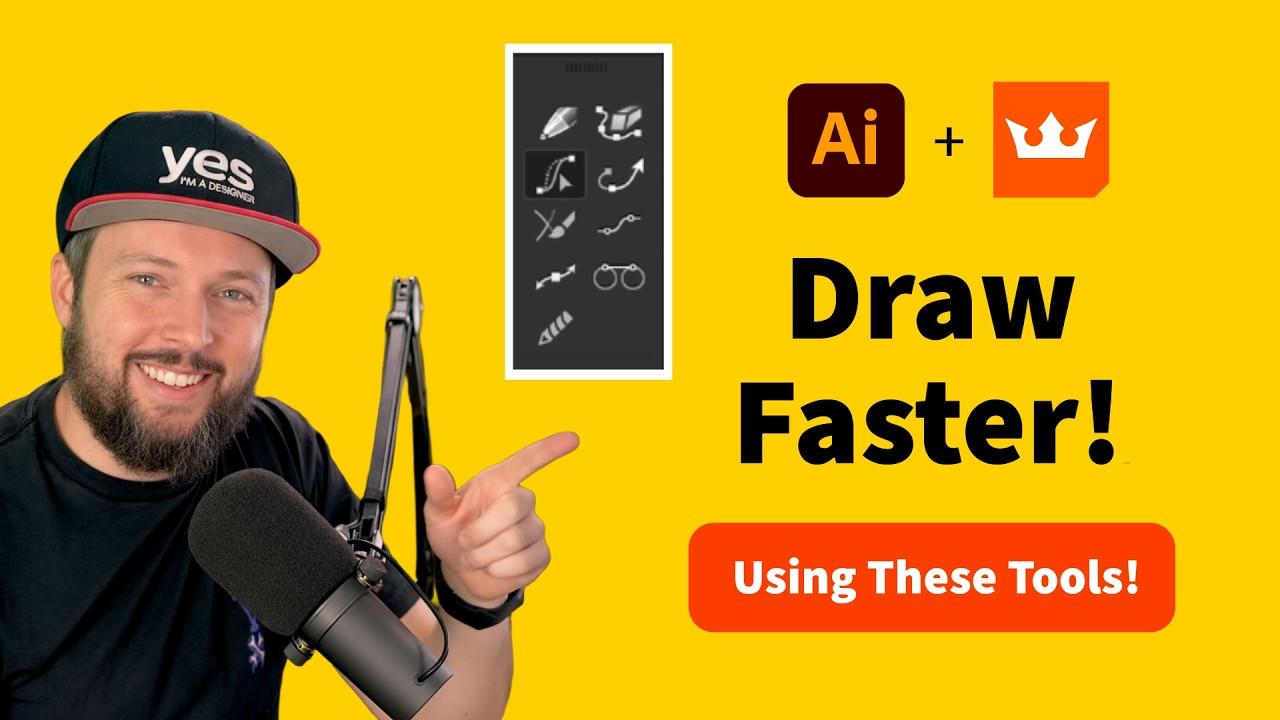
How to be more productive when tracing your sketches? #adobeillustrator #astute
1:35

How to be more productive when tracing your sketches? #adobeillustrator #astute

Yes I'm a Designer 16.10.2025 2 928 просмотров 76 лайков

Machine-readable: Markdown · JSON API · Site index

Поделиться Telegram VK Бот
Транскрипт Скачать .md
Анализ с AI
Описание видео
‪@astutegraphics‬ Try 100+ features for Adobe Illustrator FREE for 7 days: https://account.astutegraphics.com/#/auth/register?referrer=yesimadesigner LEARN FROM US: Join our creative community of 20k+ students and get mentoring from Martin: https://bit.ly/3R0qume NEWSLETTER: https://yesimadesigner.com/creative-resources/ READ OUR BLOG https://yesimadesigner.com/blog/ FOLLOW US https://www.instagram.com/yes_im_a_designer/ PODCAST https://yesimadesigner.com/podcast/ Apple - https://podcasts.apple.com/gb/podcast/yes-im-a-designer-podcast/id1462185547 Spotify - https://open.spotify.com/show/2vdeYhJimT7CXTVc09zfoA ADOBE CREATIVE CLOUD If you don’t have a Creative Cloud subscription yet, you can subscribe to it here. https://prf.hn/l/vwx0jBM (*We are partners with Adobe. If you purchase through this link you also support our channel.) (*We are partners with Adobe. If you purchase through this link you also support our channel.)

Оглавление (1 сегментов)

Segment 1 (00:00 - 01:00)

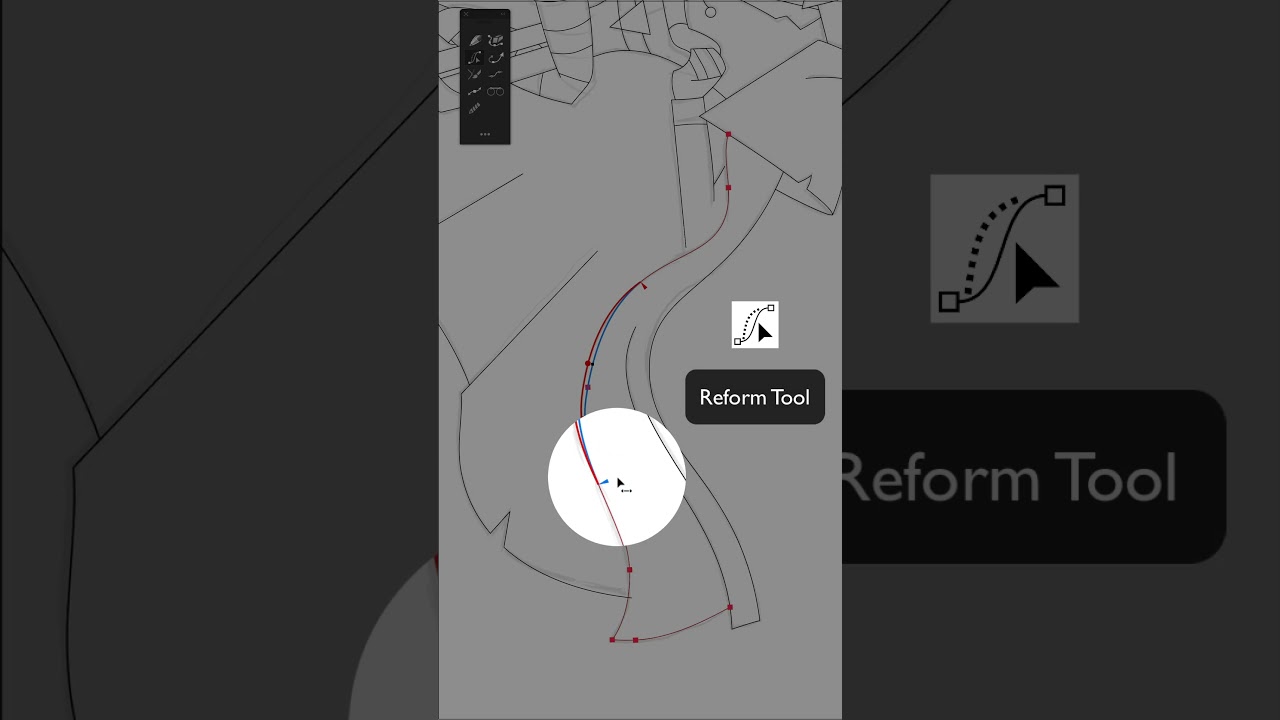
tracing over my illustrations in Adobe Illustrator. I like to stay as true as possible to my original sketches and I often end up creating paths that don't match my sketch. This is when SG graphics reform tool comes in really handy. With this, you can click anywhere on a path and start dragging it around and see your original path in blue and the adjusted path in red. You can add multiple reform points if you want, or you can double click on one that you don't need. And when you're ready with your changes, just press enter to accept it. And sometimes you might want to limit the reform tool to only make changes to a certain part of a path. This is when you can drag these end points in and define exactly where you want your changes to happen. My path looks already much nicer, but I'm going to use the smart remove tool as well to remove some unnecessary anchor points, which uses a default tolerance for keeping things looking exactly the same as before. However, if you hold down the alt or option key, you can also ignore the tolerance settings. Now, since we reposition this path, we have to fix some alignment issues. Here, for this small overlap, I can just use the dynamic sketch tool and hold down the shift key to trim that bit. Up here, I can use the brilliant extend path tool, another one of graphics plugins, which can continue these paths naturally and precisely snap onto the intersecting paths. Believe me, once you start using Astute graphics tools, it will be hard to imagine working without them ever again.

Другие видео автора — Yes I'm a Designer

Ctrl+V

Экстракт Знаний в Telegram

Экстракты и дистилляты из лучших YouTube-каналов — сразу после публикации.

Подписаться

Дайджест Экстрактов

Лучшие методички за неделю — каждый понедельник