Build a Complete Real-Time Chat with Next.js 16, Redis, Tailwind (2025)
3:00:00

Build a Complete Real-Time Chat with Next.js 16, Redis, Tailwind (2025)

Josh tried coding 07.12.2025 35 292 просмотров 1 816 лайков

Machine-readable: Markdown · JSON API · Site index

Поделиться Telegram VK Бот
Транскрипт Скачать .md
Анализ с AI
Описание видео
lets build a complete real-time chat with the newest nextjs 16, redis, tailwind, typescript and elysia :] -- links code: https://github.com/joschan21/nextjs16_realtime_chat twitter: https://x.com/joshtriedcoding github: https://github.com/joschan21
Оглавление (36 сегментов)

Segment 1 (00:00 - 05:00)

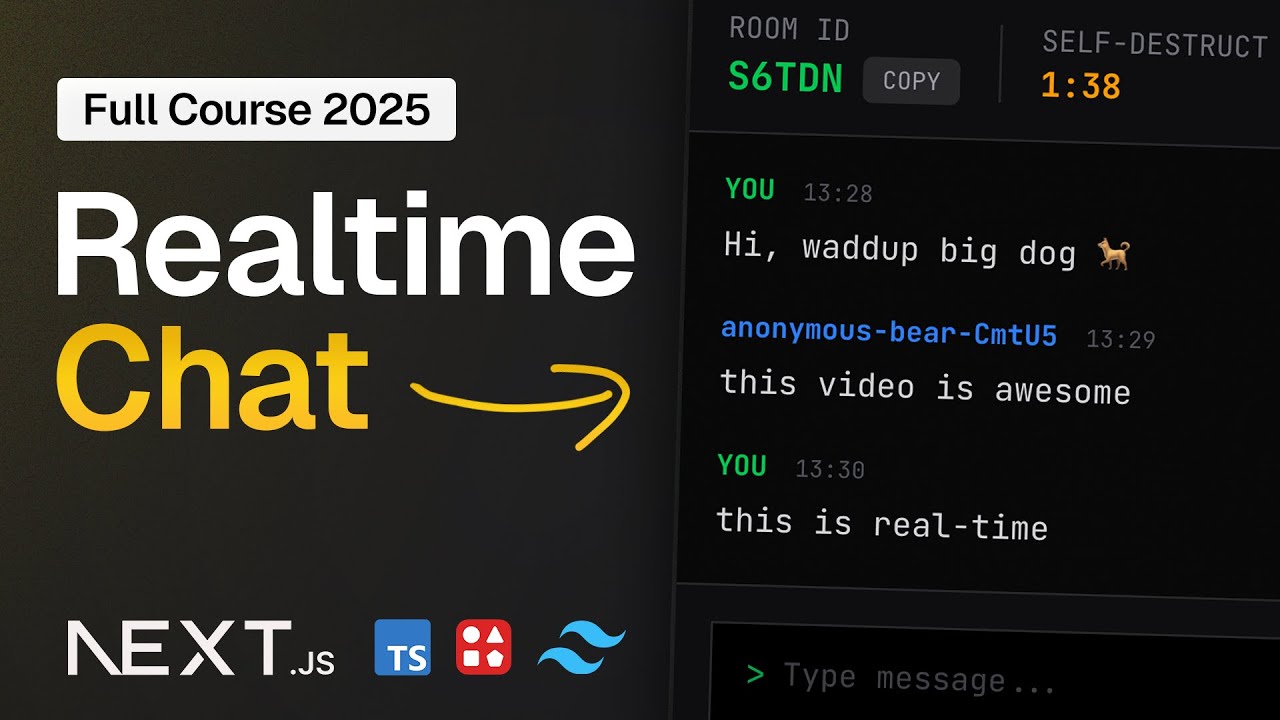
What's up, man? Big dog. Good to see you. My name is Josh and you and I in this single video will build together a secure private chat application. Now, Josh, what is a private chat application? Each user can create a secure chat room to chat with other people. They're automatically assigned a username using a custom React hook. We're going to write together step by step everything. In this video, we'll go step by step. You and I together, we want to learn the absolutely newest version of Nex. js. After creating a room, you're entered into a private two people chat. Nobody else can join your chat. They would get an error. It's just between you and I. And after 10 minutes, each room is automatically destroyed and all messages are automatically and completely wiped from our database. Chat apps like Signal and Telegram have had huge success with this privacy focused chatting. So, why don't we try it together as well? And probably coolest of all, messages are sent in real time. If you type and hit enter, I see it instantly. And the other way around, everything in this app, sending messages or even destroying a room whenever you want to by clicking this button up here destroys the room, deletes all messages, and kicks all users from the room instantly. Along the way, I want to teach you so much stuff like conventions I picked up over my jobs as a software engineer. What's a library folder? How do we name things? What are conventions? Why are constants in uppercase? Best practices and software conventions that I learned over the years that really helped me in my job and I want them to help you too. We're going to learn modern Nex. js routing patterns like dynamic routes and how the hell they work. We're going to learn one of the coolest and fastest, most performant backend you can use to write Nex. js API routes called Eliajs together. This is a open- source project, a faster, better way to build type- safe Nex. js backends. It is so much nicer than writing standard NexJS API routes. And I'm going to teach you everything you need to know, including middleware, type safety, and making calls from our front end to our back end in standard Nex. js, deployable to Versel step by step together, all in this single video. The entire video is free. There's no course I will sell you. There's nothing, man. The code is open source. I just want to teach you how I work so you can use the same things because I started like that 3 years ago as well. So here's my promise to you. If you take the 3 hours it takes to complete this video, not even a single afternoon, you will walk out of this video with a lot of knowledge that you will use in your next project and think back, hey, it was really worth watching this video. That's my promise. If you watch this video and don't feel that way after the video, dislike it, man. I dare you. And with that said, let's start into the build. This is a super cool project. Let's get started step by step from the setup and build everything together right now. All right, man. Are you ready? We are here inside of a browser and we're about to learn so much stuff together. I hope you're as hyped as I am. And let's start very, very simply. We're going to go all the way to the end step by step together. Um, you know, just so you understand everything. I'm going to take my time, explain every concept um so you can very easily follow and learn together here with me. So let's start in the terminal. I'm going to start right here and I'm going to go to the location where I want the project we're about to create to live. So I'm going to go to my desktop cd desktop. You could just uh you know create a new folder on your desktop. And here I'm going to use bun which is a package manager. But if you're on a Windows, even though bun is supported there, or you're using another package manager, any package manager works like npx for example or yarn or any other package manager works. I'm going to use bunx to say create next app at latest to initialize a new nextjs app. Again, any package manager works for that. Cool. Okay, that's going to ask us what is your project named? Let's call it real time chat. And then let's hit enter. Perfect. Okay. Now it's going to ask us would you like to use the recommended NexJS defaults? I will say no customized settings because there's one option in the defaults that I don't like which I'm going to show you right now. Most of the defaults are great. Right? So we're going to say would you like to use TypeScript? Yes. Which lint or would you like to use ESLint? Great. Would you like to use React compiler? Yes. Tailwind? Yes. And now here's the thing. By default, the source directory is set to no, but I prefer it. I think it makes our entire codebase a bit cleaner. So I will go with a yes for the source directory and yes for the app router. No, we don't want to customize the default import alias. And we're good to go. Perfect. Now the reason I used bun to create this and not npm is

Segment 2 (05:00 - 10:00)

because bun is just fast. You know, it works really well. It's very fast package manager. That's why I prefer it, but you can actually just use anything. Cool. Okay. And let's cd change directory into that folder we just created, realtime chat. And I will open up this project in cursor by saying cursor dot. So basically what that means is open the dot the current directory in cursor. If you're following along in VS Code, that's perfectly fine too. Great. Let's zoom in a bunch here. Now we are in cursor. Great. Hell yeah. All the packages are already installed from the installation. So what we can do is just say bunddev or npm rundev however you want to start your dev server and then we can go ahead and open up zen right here or any browser and go to localhost. Here we go. This is the standard Nex. js page that shows us hey everything worked. We set up our project correctly. Great man. Okay very cool stuff. Let's go back into cursor. Here we go. And actually start with a project. And we're going to start with by far the easiest part, which is some of the styling and layouting. So, what I prefer for our page is to not have the standard font right here. But actually, let me open up the uh icons here. Here we go. But to actually have a mono kind of font because I think it looks a lot nicer. So, what we're going to do is we're going to go inside of our root layout under source app layout, the main NexJS layout. We're going to get rid of the Guist fonts that they're in here by default. And we're going to use another font called, let me turn this suggestions off Jet Brains Mono, one of my all-time favorite fonts. And that font we can actually just import directly from next font Google because this is a Google font called Jet Brains_mono. Here we go. So this is nothing else in a function. We can invoke this function and pass it two things. A variable. For example, let's say d- font dashjet brains- mono, which is just a convention to name it like this. And then the subsets of Latin to specify which kind of font we want to use here. Perfect. And all we now need to do is to actually insert this class name from Jet Brains Mono into our body right here. So you can see instead of the gist mono that we already had, we can get rid of this. get rid of the guy's mono and just insert jet brains mono variable. Perfect. So if we save that, we should be able to see this doesn't quite work yet. Why is that, Josh? Well, let's go into our globals CSS. Here we go. And in here, we actually need to change one thing, and that's going to be on the body right here. You can see by default, NexJS uses this kind of font family. And we just want to change that to be the variable. And in here, we're going to pass the d-font jet brains mono that we specified in our layout. Just like this. Go ahead and save that. And then when we go back to our Zen browser, here we go. Perfect. We've got a new font. And I think this looks really, really nice. So that is the baseline for our entire page. This already looks really good. And what that also means is we can actually go ahead and get started on the actual page, right? with the actual layouting and design of this. So, let's start in the root page. And I have a really cool shortcut in my editor that lets me select an entire div here with a single press of a button, right? Or any like if we are in this div right here, it will select the entire div from start to finish and nothing else. Now, how did I do that? So you can also have that because that's just you know in this project really useful but for any project you will ever do that's really useful and this is under keyboard shortcuts and then called emit balance outward and I have that set to command M right so it's emit balance outward if you want that shortcut to set it to any keybind that you want and that's going to let us select an entire div and just remove it like that like for example the root div that's already in this page and we're going to replace it with a main. And to get rid of unused imports, we could just delete this. But a handy shortcut to do that is shift alt and o. That's going to sort all imports of the file if you didn't know and also get rid of any unused ones. Just really, really helpful for you to know. Perfect. Let's give our main tag here a class name of flex, a minimum height of screen, which translates to 100 view height, a flex call, item center justify center, and a padding of four. Perfect. Let's open this up. And inside of here, we're going to put one div with a class name of width full, a maximum width of

Segment 3 (10:00 - 15:00)

MD for medium, and a space y of 8. Great. Let's open this div up. And inside of this div, we are going to create our main lobby form, right? When you join our page like this and let's actually open this up side by side here, just like this. Here we go. So, we can see the rendered output as well. And let's close all the other stuff right here. Then we're going to be able to see everything we do live here on the right hand side. So, inside of this div, let's open up one more. And this will get a class name of border, a border zinc of 800, a background zinc of 90050, and this slash50 stands for the transparency of the background, a padding of six, and a backdrop blur of MD for medium to add some nice blur to the background. Here we go. Very cool. Let's open up one div in here. And this will get a class name of space y2. Here we go. And if we open up this div, we're going to create another div in here. And this div is also going to get a class name of space y. And then two. And I actually messed up a little bit. The first space y here should be five. Here we go. And one thing I will do is I will disable my Tailwind IntelliSense plugin because you can see every time I hover here, it takes up the entire screen. So it is a really useful plugin. Let me quickly go into full screen here and just go ahead into my extensions and disable the Tailwind plugin because during this video I think it's just uh not very helpful. Here we go. And then restart extensions. That should do the trick. Perfect. Now it's going to be easier for you to see what I'm doing here. And now we can go into side by side again. Cool. So we have one space Y of five. And then inside of that we have a space Y of two. Very cool. And inside of here, let's just mock something out. Like for example, create room. We're going to put some text here so we can already see, hey, what we're doing here is working. So this already looks pretty good, but we can make it look a lot better. So instead of the create room here, we're going to create a label. And we don't need the HTML for here that we automatically get from the image generation. Instead, we're going to give it a class name. And that's going to be flex items center and also a text zinc of 500. And inside of here, we're going to say your identity. So the name the user will connect with. And then right below the label, we're going to create one more div with a class name. That's going to be flex item center and a gap of three. Let's open this up. One more div with a class name of flex one. A background zinc of 950, border, border zinc of 800, padding three, a text SM for small, a text zinc 400, and a font mono. Here we go. And if we open this div up, we can just render out the username of the user. Now right now we will get cannot find name username because this will be dynamically generated later. What we can do for now is just save it in state right at the top of our component. So we can kind of mock it right. So I have a shortcut for this. It's called state and then I can press enter and it's going to create a use state for me here. If I go into full screen maybe it's a bit easier for you to see. Basically what this shortcut does is I can say state and it knows I want a react use state snippet here and then I can call it for example username set username and then the initial value will be just a empty string for example right but it's the exact same as if you were typing this out yourself. It's just a kind of faster way to do it. Cool. Okay. So we have the username set and for now the error is gone. We will worry about actually generating the username here in just a bit. Perfect. Okay. So, we have the username, one closing div, two closing div, three closing divs, and then with three more closing divs below that, we're going to open up here and just insert a button right here. That button is going to get a class name of width full background zinc 100 a text of black padding three text SM for small a font bold a hover BG zinc 50 a hover text black a transition colors here we go a margin top of two a cursor pointer and lastly a disabled opacity 50. Here we go. And inside of the button, we're going to say create secure room

Segment 4 (15:00 - 20:00)

and hit save. Cool. Okay, we're going to get an error as soon as we save that saying you're importing a component that needs use state. This react hook only works in a client component. The easy fix at the very top of the component here. We need this because of the Nex. js server component architecture. At the very top of the file, we can just insert use client to let the compiler know, hey, we need React hooks inside of this component. So, please make this a client component and not pre-render on the server. Right? Because state is a client side hook, it does not work on the server. Cool. And now for the username, how do we generate that? Just to take a look what this looks like. If we had like John, you don't need to follow along right now. I will just show this to you. If we had John here, we could see John show up in the username tab. So what we can do is just dynamically generate this username in a really clever way. So above our component, let's say const generate username is going to be just a regular arrow function right here. And inside of here, we will define a bunch of animals for example, right? Or we could even do that at the top of the function above it. let's say const and then in all uppercase we're going to say animals because this is a constant. This never changes. I was told this or taught this at my first ever developer job where I worked as a software engineer um for constants. We always mark them uppercase. So it's very easy inside of a component if we see an uppercase word to know, hey, this is a constant value that never changes. So this is just a really nice convention. And we're going to put a bunch of animals in here like wolf, hog. We can put bear or let's also put shark. You can put as many as you want. Basically, we are going to be using them for the username generation right here. And also what we want to do is just quickly define a storage key and that's going to be equal to a chat username. That is how we will persist the username in local storage for this user. So if you refresh the page, the same username will be given to the same user, right? And we store it under this key right here. Beautiful. So we're going to say conword is going to be equal to and then the animals array we've defined above at the index of math. Floor and then either math do random. Here we go. And let's uh expand this a bit so it's easier for you to see. And then times the animals do length. Here we go. So basically what we're doing here is we are accessing the animals array at a random index. So any one of these four animals right here. And then we're going to return a template string. And this allows us to interpolate. So we can say for example the anonymous. Here we go. It's a really hard English word, man. We're going to dynamically interpolate the word that we randomly selected from the array, like anonymous wolf, for example, and then another dash. And we want to go with a random ID as well at the very end here. Now, ids are kind of easy. We could go for crypto. random UU ID, but that would be way overkill here. So we're going to install one package into our project called bun install or let's say yarn add npm install whichever package manager you use. This package is called nano id. I really like this package. It's good. It's very lightweight. And what it allows us to do is to basically say nano ID which we can import from nano ID and then just invoke that with the length of the ID we want to generate. for example, fivedigit ID that we want to append just to make sure this is actually a unique username. Cool. And that's all we need to generate username. And to make sure one user always gets the same username no matter how many times they refresh the browser, we're not going to put that in state because that would run every time. Instead, we're going to put it inside of a use effect right here. That only runs when we render the page. So we're going to leave the dependency array at the end here empty. Inside of this use effect, let's define a const main that we can call right below this. So we're going to create a function and then call the function. So whatever logic we now put inside the function is going to run immediately. We're going to say const stored. So the save username and then local storage. get item at the storage key. Right? So basically we're going ahead into the browser storage whichever browser the

Segment 5 (20:00 - 25:00)

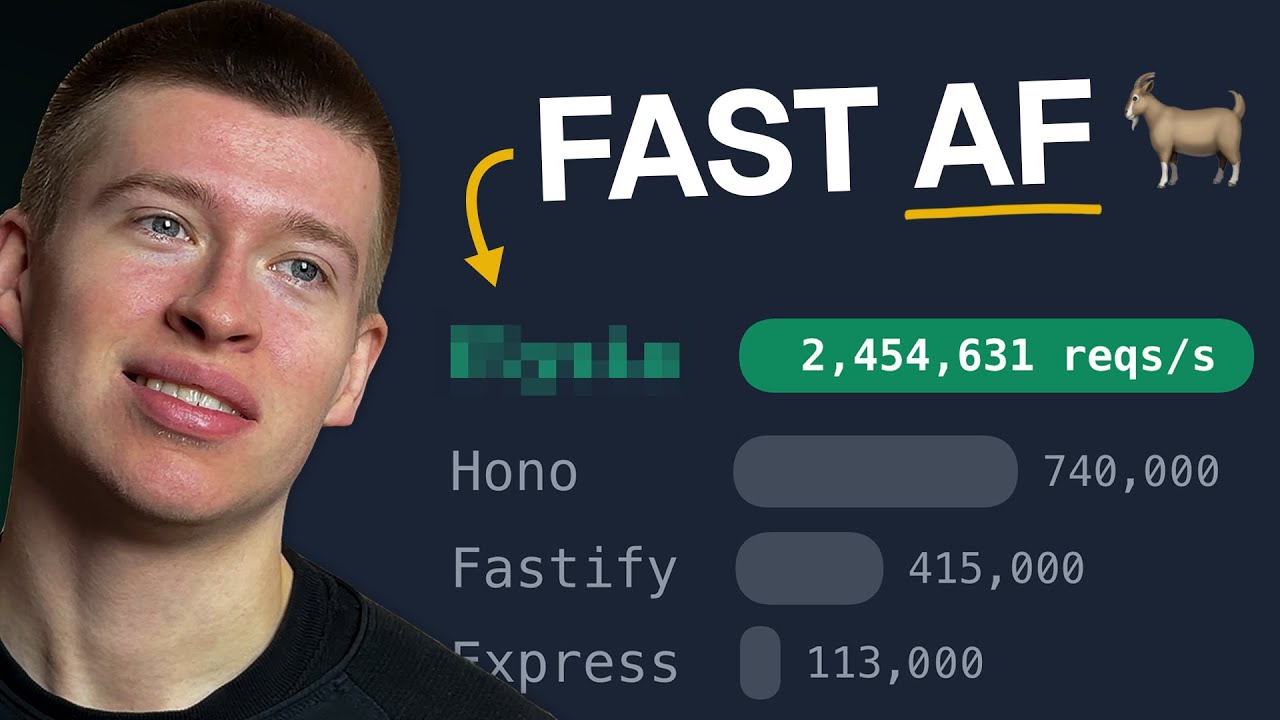
user is using checking does a username exist under this storage key called chat username and if it does if stored is true in that case we're going to set the username to that stored right here. Perfect. And we're going to return to prevent any further code execution. But if there is no stored username like the user is connecting for the first time for example then we're going to say const generated is going to be equal to generate username. Here we go just from the top. So in that case we're going to create a new username. We are going to save that username in local storage. We're going to say local storage set item. Here we go. We're going to save it under the storage key that we already created. And we're going to say generated right here to store that username. Perfect. And we're going to set the username to the generated in that case. Perfect. Okay. So, let's open this side by side. Here we go. And if we refresh the browser, we're going to be able to see cool. Our user is now named anonymous wolf and then a five-digit ID that we're generating. And if we refresh this browser, you're going to see it persists. It stays the same. Why does it persist? Well, because we saved it in local storage. So, if we go to inspect element under application, nope, not accessibility application. Here we go. Where is this in Firefox? Ah, I just Googled. And in Firefox, I normally use Chrome. It's called storage. Here we go. So, inside of storage, we can go to local storage and we're going to be able to see the chat username here that's saved. And if we were to delete this value and reload the page, then we will get a new ID generated for us. But this will again be saved every time we refresh the page. Beautiful. Okay. So let's move this to the site. Here we go. And the username generation logic is entirely done. Right? That's all we need to do for the username generation. And just to add the final design touch to this page, what we're going to do in the main and then the first div with a space Y of 8, we're going to open up here and one more div with a class name of text center and a space Y of two. Let's open this up. And in here we're going to put an H1, a heading one element with a class name of text 2XL font bold tracking tight and a text green of 500 saying inside of here private chat. And if we save that, we can see bam, that's like the title of the page here. And if we're a little bit edgy, we can even put a like uh this kind of icon here, the bracket. But because we can't put uh raw brackets in here because the syntax would be very confused. We have to put that inside of quotes in this curly brace. So it now looks like this. Right? So we actually have like a kind of terminal indication here. It looks a bit cooler if we insert that here as a string. And right below the H1, we're going to create a P tag saying a private selfdestructing chat room. period. And that's going to get a class name of text zing 500 and text small. Here we go. Very cool stuff. Private chat, a private self-destructing chat room with a automatically generated identity and a button to create a secure room. Very cool stuff, man. Now, for this button to actually do anything, we are going to set up two things. The first thing we're going to set up, oh, and I already have my browser open, is called Elisia. Now, what is Elisia? Um, here we go. A ergonomic framework for humans. Backend TypeScript framework with end-to-end type safety, formidable speed, and exceptional developer experience. Basically, this is a really, really good way to write very fast Nex. js API routes natively to Nex. js JS deployable to Verscell just a better way to do NexJS API routes. I just did a video about this. It's really good. This is not sponsored in any way, by the way. Just free open- source communitymade software and it's so much nicer than standard NexJS API routes. And also, it's a lot faster than other ways of implementing backend routes like for example Express. You know, Elysia can handle 2. 5 million requests per second and Express in this benchmark 113,000, right? It's a very big difference. Same for example with Hono. Hono is a super nice type- safe backend. Elysia is still a lot faster than Hono though. So all in all, Elysia is a nice way to do NexJS backends. I really enjoy it and I

Segment 6 (25:00 - 30:00)

want to show you how to set it up because it's super easy and again it's also absolutely deployable to Verscell. So how do we set up Elia? Well, they have a integration guide right here in NexJS. We can just pull this up and then oops I keep switching over here. Then we can just have it here on the right hand side and set it up on the left. Right. So let's go through this together. Now to set up Elia, the first step we're going to do is create a folder under app API and then we're going to call it slugs. So let's open up our sidebar here and under source app, we're going to create a new folder called API. This is just standard next, right? We would also do the same thing in standard Nex. js, but what's different is right here. We're going to create a double angled brackets dot dot slugs and then two closing angled brackets. Again, this is called a catchall route. I'm going to get to what this does in a second. And inside of here, we're going to create a route. ts. Basically, what this dot dot slugs does is let me demonstrate this really quick or visualize this really quick for you. Let's go to Xcala draw. Here we go. Basically what this does and again I just did a video about this so I can just reuse the same graphic that I had here. This is basically what it does. If we have a incoming API request to our NexJS back end it will be caught by this catch all that's what it's called. So every request to our app, no matter where it comes from, will always go to the slug and then we can forward it to the Eligia router that should handle the logic to do this with built-in middleware with built-in type safety extremely fast. That's it. Right? So this is a catch all route basically meaning any request that we have in our app, let's handle it through this slug. And that's all this is for now. Right? Inside of this route. ts, Yes, we can just grab the Eligia code right here. So, I recommend you also pull this page up. This is under iliajs. com and then the nextJS integration and then paste this code in. The reason I paste this in and we don't write it oursself is because if anything changes in the future in Elysia, I want you to have the more up-to-date code. I think it will remain very similar to this if it changes at all. But if you're watching this video in two or three years, who knows? Then this should still work. So we're going to paste this over and then take a look at this step by step right now together. So first things first, we're going to get an error because we need to install this package. So I'm going to say bun i elysia. You're going to say npm installia whatever package manager you're using. And we're going to see great. The errors are gone. And this is how elusia looks like. We can define an API route just like this. This is the same thing as any other Nexus API route by the way like a get or a post API route. So for you to really understand the benefit here, let's see what it would look like if we defined an API route in standard NexJS. So for example, if we wanted to have a user API, you don't need to follow along right now. I just want to show this to you. What we would normally do is create a user folder, a route. ts inside of that user folder. And from here we could say export const get is equal to an error function where we return a new response. Inside of this response we have to say JSON. stringify and then we could send back the user with the name of John for example. Right? So for every piece of logic we need a separate folder then a file then we need to stringify and also this is not even type safe on the front end. Right? Does this work? Technically, yes. Let me validate that with you by opening up my or actually we don't need a HTTP client for this. We can just curl this. So, if I just open the terminal and zoom in a lot here so you can see better. Here we go. If I say curl and then http localhost 3000 / user, then we're going to see the user of name John. We get that back, right? So, this works technically, but it's a really ugly way of doing things and also really complicated. The better way to do this is with Elia. So, let's delete our user route I just created to demo you this. And we can just do this, right? If we get the slash user, we can just return let's say for example the user of name John. That's it. We can delete the other endpoint. We don't even need that for now. And now if I do the same query, bam, we're going to get user name John but in a fully type safe and much faster way. And it's also a lot cleaner in the syntax because instead of a new file

Segment 7 (30:00 - 35:00)

new folder, it's just a chained function that we can call on the new eligia. Right? So that's literally it. This is really, really handy. And I want to show you how this connects to our client because right now this is on the server. We can actually call this API type safely from our React front end. And that's the amazing part of EIA. So how this works is let's kind of open this up side by side again. How this works is uh we can skip all of this with Eden. Eden is a end to end type safe client similar to TRPC but a lot more lightweight. So basically what we can do is set up Eden. First thing we're going to export the type of the app. So basically what this is this export type app is equal to type of app. If we hover over this, we can see this is the TypeScript type of our literal entire back end like which routes exist. User get what do they return like name John. This is step number one of two to something absolutely magical because just by exporting the type and installing one more package which is at Elyssiajs/Eden that we're going to install right now together. Let's clear this bun. I eliged. Here we go. And we can start back up our development server. Here we go. Oh, I actually already have it running. Never mind. We don't need to start up two development servers. We can just close out of that one. Anyway, after we're done installing the package, we can just copy this code over from lib/eden and create a new folder in our app under source. Let's create a new folder called lib. And lib stands for library. By the way, it's a convention in software development. Very common if you get a job in software to call things lib. Basically, it means we are preparing libraries to be used in our project. So, lib means library here. And we're going to create a we're not going to call it Eden, right? Let's call it client because that's more conventional. I prefer this naming. They suggest we call it Eden. Let's name it client though. I think that's a better way to name it. And then we can just go ahead and paste in the code. Beautiful. And let's just give this a little bit more space. Here we go. Now we're going to get an error because we need to um capitalize the A for app and also insert that here. And beautiful, the client error is now gone. And just like this, we have a type safe API we can use to call our back end from the front end. This is so beautiful. We can get rid of the comment. And actually I will rename API to client because again I think it's more conventional. I prefer this kind of naming. And we can now call or backend from the front end fully type safe. So for example client do user. get and just like that if we save the result and I'm just doing this to demo it to you. We know that the name will be John right and we can do this from the front end and call our back end this way. This is magical man. This is really cool stuff. So that's the type safe extremely performant link between our front end here, the client and our back end. This is absolutely magical. Cool. Okay, so we can close out of the client. That is literally all we need from Elysia. The rest is all on us, man. And it's going to be really, really fun to use this really quick. The second tool we're going to set up is Tanstack Query. Tanquery is the absolute industry standard of fetching data in React. If you want to get any kind of software job, you will 99. 9% use Tensa query for that job. In all my software jobs, we are using TensaQuery. It's such a nice tool. It's really good and every React developer should know this tool. Period. Um, so we're going to learn it together right now if you've never used it before and it's also not hard. So to install tens query, let's open our app here on the side just to have a nicer view. We're going to open up a new terminal and say bun i or npm install yarn add at tanstack/react-query. Here we go. This used to be named just react query, but eventually they renamed it to tanstack to make it more consistent with the rest of the suite of React kind of packages that these guys offer. Really, really cracked people, by the way. Now to set up tens query, we're going to create one new file in our app, let's or actually let's create a folder and let's name it components. And let's do it under source and not app. Here we go. So we have app and we just created a new folder here called components. And inside of here, we're going to create a new file called providers. tsx. Now inside of these providers, and let's give this a little bit more space. Here

Segment 8 (35:00 - 40:00)

we go. Let's first define this as a client component because we're going to use react context in here. And from here we're going to say export const providers is going to be equal to a standard arrow function. So just any other react component. But now the important thing we're going to say const and then the structure in this kind of array syntax here with these angled brackets the query client from equals use state. Here we go. And inside of here, we're going to pass a callback function that returns a new query client class instantiation just like this. Now, this might seem complicated, but essentially what we're doing here is on every render, we are regenerating a new query client. And the reason is so it never gets stale across renders. This is the um tan stack query documentation way, the right way of doing this. If you don't do it this way, you might just run into bugs. Um, and trust me, I painfully debugged like one day and this was the problem. So, this is the right way to initialize tens query. It's just really good to know. And then from here, we're going to return a query client provider. Basically, a context provider from React query. And we just need to pass it the client here as the query client as a prop. And inside of this query client provider, we're going to render out the children. Because this providers is going to be a React component that takes children, we can just dstructure the children from the props and type them out like children react. React node. Here we go. This is a built-in React type. Basically, the children are nothing else than React components. Bam. Let's save that file. That's it. we can exit out of the providers and just render them in our root layout. So what we can do is let's open up our root layout and inside of the body wrapping the rest of our app, the entire app, we are going to render out the providers. Here we go. So we can provide context to all of the components throughout our application. Perfect. That is it. We did all the setup work, right? I realize, you know, setup is not the most fun, but this was really important to do. We can close out all of our layout and we can now actually get started with a really, really fun part, which is using React Query and Elia together. And trust me, this is magical. So, for example, let's create a way for a user to create a new chat room. Right? If you click create secure room here, what should happen? And let's create a new router called rooms. So we're going to say const rooms is equal to a new eligia. Here we go. And this will get a prefix of slash room or yeah, let's do room in the singular and not plural. Here we go. And this router will get a post route to the index. So to slash. So whenever you call slash API/ room and make a post request, we want the following function to run just like this. Beautiful. Okay, for now we can just for example console log create a new room. So I can demo you how this works. And to connect this router with our main app or main backend, we can just say dot use rooms. Here we go. So if I open this up more, you can probably see this easier. The app is a main router and we use rooms. So when we now make a request to slash API / rooms, this post function will handle it. Beautiful. So let's use that on the client side to see if this works correctly. Let's hope head over to our page. tsx and let's like put this on the side here. And let's say on our front end const and then an empty object we're going to dstructure later is going to be equal to use mutation. Now what is use mutation? Well, it's something that comes from react query. And right now we don't get any intellisense. So I'm going to say developer reload window. If you just installed a new package and sometimes the automatic imports don't get suggested to you, reloading the TypeScript server in the window probably here we go fixes the problem. And I opened that tab by the way with shift controlp and then reload window. That's how I did it. And often times it fixes the import issue. So it's really handy. Inside of here we're going to pass a mutation function. So basically all this means is if we call this hook then this function is going to execute. So whatever we put inside of this mutation function like for example going to the network boundary to our back end and doing something react query this hook is

Segment 9 (40:00 - 45:00)

going to handle all the loading states automatically all the error states automatically. It's just really helpful. So inside of here we're going to say const res for response is going to be equal to await client which comes from or http client dot and we already can see the intellisense on here. Now dot room dotpost and we can just say parenthesis to invoke that function. Now this is beautiful right? But we can do one more thing to make this even more semantically clear and which is in or route. We could say for example here slashcreate because elicia is so type safe. If we adjust the string right here of if we post to the slashcreate route it will know in the front end that we need to pass. create as well. Right? So whenever we call this from the front end the client. room. create. post post. What it actually does is make a fetch call to our back end to the same API route we have defined right here and it should execute the create a new room console log. Right? So all it does is type safely very efficiently, very fast call or backend this line of code right here. Beautiful. So let's save that and see if this works. To see if this works, let's dstructure the mutate, which is the way to invoke this function, and call it create room, right? Because we can name it whatever we want. In this create room, when do we want this to happen? Well, basically, when you click the create button right here, and let's go to or oh, unable to connect. Did I stop my development server? Anyways, let's add the on click right here to the button. And we're just going to call the create room function. Here we go. And it seems like I stopped my development server. Here we go. So if we now click try again, it will say waiting for local host. Perfect. Okay. So here we go. Let's put this to the side. If we now click create secure room, what we expect to happen is to see a console log on the back end saying create a new room. Perfect. So what just happened is if we open this up full screen whenever we click the button it will make a network request right here a XHR fetch f fetch request right here to our back end right so this is what the eligia client on the front end does basically it just calls our back end man and it's really nice way of doing that perfect now okay what should happen in the actual logic of creating a room well we need some kind of back end, right? database to keep track of which rooms exist and also how long a room has to live before it self-destructs, right? And by far the easiest way to do that is in Reddis. And so I'm going to go to upst. com. Now, full disclosure, Upst is a company that hosts Reddus for very cheap. It's really, really good. But full disclosure, I work here. So, they're not paying me to make this video. I chose Um, you know, it's just not sponsored, no nothing. But I want to tell you, hey, I work here. You know, the reason I work here is because I like what we do because I think the Reddis here is really, really good. I just want you to know, hey, you know, so you nobody calls me a shill or something. I want to be very transparent about this. I also work here, but it's just a really nice service that I used myself before I even worked here. Um, so I feel very confident to recommend this for a video. If you want to go with any other Reddus provider or self-host Reddus, it's open- source software. You are absolutely free to do that, man. Uh, I'm not going to be saying you should use Upstash. I'm saying this is probably the best and easiest way to set up Reddus. Cool. Okay. If we log into Upstash using Google, GitHub, whatever we want, we can create even on the free plan a new database and let's call it real time chat. Here we go. We can select any database for our Reddis. Let's select Frankfurt Germany for me. And we can just hit next. And if you're on the free plan, you can just stay with a free plan here. I will go with pay as you go and hit next. Here we go. And I think 10,000 commands per day are free. anyways, which is more than enough. Um, so you know, it's a very big free plan. It's way more than enough for us to actually try everything out here and even deploy to production and get first production users. Absolutely no problem. Cool. So that's it. We now have a hosted Reddis database and all we need to do to connect from our app is to paste these credentials here, these tokens and or the token and the URL inside of av

Segment 10 (45:00 - 50:00)

file. we can create in our project. So let's quickly go ahead into our root create aenv file. The enenv allows us to basically paste sensitive values that are not deployed with our application. Right? So uh this is where very sensitive values like these passwords here go for our database in avoation. Let's go back to our app just to have that on the right hand side. Let's install the upstreddis package. So button i npm install at upstreddis. And this is basically a uh npm package that allows us to connect to a reddus database via rest. Right? So it's like a io radius is for TCP- reddus is for rest. It's perfect for nexress and serverless basically. Cool. Let's start back up our development server. And now we are actually good to go with everything related to creating this chat room. So what we're going to do is first generate a const room ID. Every room needs some kind of identification. And to do this we can just call nano ID. Right? That's closed out of the IntelliSense. Takes up a bit much space. Here we go. Um so we're just going to generate a random ID for this room. And after that we're going to say await. And now we want to connect to Reddus, right? We want to make a Reddus call to create this room in our database. How do we do that? The easiest way is inside of source and then our lib folder because we are after all just preparing the up-d. ts Yes. And inside of here we can say export const is equal to radius from updis dot from env. Basically what this dot from env does is if you pasted these credentials from upstredd will automatically read these two from our environment file and provide us a valid radis connection. That's it. You could pass them like this new radius and then the URL and token from your environment variables but this is just an easier faster way to do it. Here we go. So we can now say await radis and import that from our lip folderh set and the h stands for hash which is a reddis data set like an object and we're going to set one value or two values of that hash. Now let's give this hash a name of meta and then the room ID because it will store meta data for this chat room and it will store two pieces of data. The first one will be the connected and this will be an empty array which users are currently connected to this chat room. It can only be two, right? So that's how we track that. And the second one is created at and that's going to be a date. nell Now, very helpful piece of metadata to have later to see when is this room going to expire. Now, there's going to be a syntax error here because this needs to be an async function. Here we go. And just like that, we can write into our database. The last thing we're going to do is implement the auto deletion, the auto, you know, busting or whatever we call it, the self-destruction of a room. And that's really easy because Reddus supports expiry out of the box. So we're going to say await reddis. expire and we're going to say meta and then the room ID. So we're going to say this data that we created in this call should expire after exactly and let's name it room_tttl time to live in seconds as a constant all uppercase. And let's define that constant way above our file. And let's make it 60 time 10. So 60 seconds time 10. So 10 minutes. So each room will live 10 minutes. If you wanted any other duration or even let the user change it, whatever you want. You know, this is the way to do it. Cool. And then all we're going to do is return the room ID from our API route. And you notice how easy this is. this automatic or Elia automatically serializes JSON. You know in Nex. js we would have to do this return new response and then the JSON stringify and put the object in here and so on. In Elia we can just do this and it's so much easier and so much more beautiful. Perfect. So whenever we now click create secure room what we expect to happen is for there to be data inserted into our upstat database. Right. So let's kind of open this up

Segment 11 (50:00 - 55:00)

full screen here. Go into our data browser. Here we go. Right now there's no data in our upstairs database of course, right? But if we go ahead and click create secure room and we can also see the network right here. Create secure room. We can see the call was successful. Got a status of 200. So we now should see the meta of the room in our database. Beautiful. So whenever we click a button on our front end, actual data is implemented or added to our database. And the only thing missing is actually sending the user to that chat room now, right? Because the chat room is created successfully, right? We can actually see it in our database. All we need to do now is inside of our front end right here inside of our mutation, we can just send the user to that chat room. And the way we do that is with a hook that's built into Nex. js JS called con router is equal to use router. This is a builtin nexjs hook we can use to send the user to certain pages or URLs. So with address we can say if the rest status is equal to 200. So this is the HTTP status code of 200 meaning successful everything worked. Then we can just say router. push push and we're going to push the user to slashroom slash and then dynamically insert the res. data room ID that we get fully type safe from the Eligia front-end client because we know we're sending that room ID right here on the back end to our front end. And this is how we know, right? This is beautiful. If we go ahead and save that and click secure or create secure room again, what we expect to happen is to now be sent to a 404 page, right? Because the room doesn't actually exist yet. But let's click that create secure room. And if everything works, perfect. We are now sent to a 404 page under slashroom slash and then the dynamic ID we are generating on the back end. And this will be the actual chat room. Right? So let's quickly go back. But we know everything works. This is absolutely beautiful. We should see two pieces of data in our database now. Very nice. When each room was created and who is connected to it and now we can actually go ahead and implement our chat room. Very good work, man. So we can now create secure rooms. And once we do, it's going to take us bam right to the room with a 404. Now, of course, we don't want to have a 404 page for every room, right? So, let's go ahead and create a room. And we are going to create rooms with an Nex. js routing pattern called dynamic room. So, let me show you how that works. Let's create a new folder under source app called room as the singular. In here, we're going to create one new folder called in angled brackets room ID. Here we go. This will be the dynamic route in a second. And inside of here, let's create a new file called page. tsx. Now, the reason we call this page. tsx is because that's a NexJS convention. But the very cool thing you're going to see happening on the right hand side here is without me doing anything, Nex. js now knows, hey, okay, this room page now exists. Now, there's no actual content on the page yet, right? So, let's quickly do that before I can explain to you what we just did. Let's say const page is nothing else than a regular arrow function that we export as the default at the very bottom here. And we can just say return p for now saying hello just so we return something from this page. And as you're going to see, we are now on a page where it says hello, right? And you can see the URL we used to get here is the localhost 3000 / room, then the room ID, right? And no matter what kind of ID we put here, let me zoom in for you. Right here, no matter which kind of ID it says right here, it will always take us to the same room page. So we can enter any gibberish here. And once I press enter, it will always take us to the exact same page because this is now a dynamic route. Meaning any ID now corresponds to the room ID here. And that's great because we can now dynamically fetch this room ID inside of this page. Let me show you what that looks like. First things first, let's define this as a client side page by saying use client at the very top of the page right here. And now let's actually get the dynamic ID of the page we're currently on from this dynamic next. js route. Let's say const params is equal to use params. This is a builtin next. js hook. We can simply use to get the room ID. So for example, let's say con room ID is equal to params

Segment 12 (55:00 - 60:00)

dot room ID. Right? We can just access it like that. And we can also type this as a string so TypeScript knows what's going on. And that is now the dynamic room ID that we are on with this page. So let's save that. And you can see whatever we input as the room ID. So let's say for example, hello, my name is Josh. So it doesn't actually matter whatever ID is generated on the lobby page for the button dynamically. We can now press enter and we now have that exact thing as the room ID in our page. Right? That is the beauty of dynamic Nex. js routes because whatever we generate on the front end, let's go to the front end again by removing the / room. Just going to localhost 3000. If we now click create secure room, whatever ID it will generate for us now automatically we have as the room ID, right? Because this is a dynamic route. So this is beautiful. But before we use the room ID, let's actually make this look not completely horrible, right? So from our page, we're going to return a main tag. That main is going to get a class name of flex, flex co, a height of screen, a maximum height of screen, and an overflow hidden. Here we go. Let's open up this main tag. And inside of here, put a header. Here we go. This header is going to get a class name of border B for bottom. A border zinc for or let's do border zinc 800. Here we go. That looks better. A padding of four. Flex items center justify between and a bg zinc of 900 /30. And this slash30 stands for opacity, right? Um, if I had the Tailwind IntelliSense plug-in enabled right now, I could show you what this does, but basically we apply a background zinc of 900 with an opacity of 30. That's just a cleaner, shorter way to do the exact same thing in Tailwind. Cool. Inside this header, let's create a div. And this div gets a class name of flex item center and a gap of four. Inside of here, let's open this up. one more div with a class name of flex and flex call. Here we go. Let's open that div up. And inside of here, let's create a span that's going to say room ID. And this span will get a class name of text XS for extra small, a text zinc of 500, and let's say uppercase, which will automatically format this in uppercase. Boom. As soon as we save that, beautiful. We have a little header here saying the room ID. Cool. Right below this span element, let's create a div with a class name of flex item center and a gap of two. And inside of this div, let's open this up. We'll do two things. The first one is let's create a span element with a class name of font bold and a text green of 500. And in here, we're going to render out the room ID so the user knows what room they are currently in. Right? Beautiful. Okay. And right below the span element we just created, let's create a button. Let's give this button a class name of text dash and then in angled brackets for a custom value 10px because we want this text to be very small. A background zinc of 800. On hover, we're going to apply a BG zinc of 700, so one tone lighter. A padding X of two. A padding Y of 0. 5. Round it to apply a little border radius. A text zinc of 400. On hover, we're going to apply a text zinc of 200. And lastly, a transition dash colors to make the color transitions very smooth. Perfect. Inside of this button, let's say copy and save that. Beautiful. We now have a button that technically doesn't do much yet, but this will be the button that lets the user copy the link to the current room so they can share it with a friend. And this is actually really easy to implement oursel. So let's do that. Let's create a function in our component and let's call it const copy link. And this is nothing else than a standard um arrow function right here. First, let's grab the const URL, the current URL of this page we're on. And that's going to be window. location. href. So, where we currently are. Then, let's copy that into the user's clipboard. And we can use a native web API for that

Segment 13 (60:00 - 65:00)

which is the navigator. clipipboard. right text. And we can simply write the URL into there. Then let's display that the user actually just successfully copied the value through react state. Right? So instead of copy, we want this to say copied. So the user knows they actually just did something correctly. For that, let's create a state and let's name it copy status and also set copy status, you know. So we have the uh name of the state and then set the same name just by react convention is going to be equal to use state from react and by default we can set this to copy. Perfect. After the user has the link in their clipboard after we put it in. Let's set the copy status to a string called copied so the user knows hey this was successful. And then we're going to set a time out. Set time out. Here we go. And so we're going to set the copy status back to copy to the original value after let's say for example 2,000 milliseconds, which is 2 seconds. Perfect. And that's all we need to do. Now, instead of the hardcoded copy, let's render out the copy status down here. And finally, let's add the on click handler to the button saying copy link. So whenever you now click the copy button, bam, we should expect the full URL perfect to be copied to your clipboard. Very, very nice, man. Very cool stuff. All right, let's save that page. And after the button right here with one closing div and two closing divs to go, that's where we're going to open up another area right here. So there's one closing div, closing header, closing main after that. Now here we're going to put a div. And this div can be self-closing because it's just visual. And we're going to give it a class name of height 8, a width of px, which stands for one pixel width, and a background zinc of 800. So this will be a visual separator to the next element that we're doing to the right of it. Below this, let's open up a div with a class name of flex and flex call. Let's open this div up. And inside of here, a span element with a class name of text XS for extra small, a text zinc of 500, and uppercase. And inside of here, we're going to say selfdestruct. So, we're going to show the self-destruction timer of the room right here. That's going to be one of the coolest parts of logic of this entire app, the self-destruction mechanism. Cool. Right below the span, let's open up one more span with a class name. This class name is not going to be a simple string because it will be dynamic. We're going to use curly brackets right here and then use a template string so we can dynamically interpolate here in a second. The standard class name we're going to apply is text small font bold flex item center and gap minus2. And then dynamically we're going to interpolate here and not separate by a comma. This should be still inside of the template string. Here we go. And now we're going to do a logic check because what we're going to have here in a second is a time that's remaining for this room. Right for now we can just kind of mock what this should be. So let's go to the very top of our component and let's create a state. This will be the time remaining and set time remaining and this will be equal to use state and this can either be a number or by default we don't know how much time is remaining for this room. So we're going to set it to null and just so TypeScript knows this will be set to a number later we're going to say number or null as the generic type for this state. Right? So what we can do now in the dynamic interpolation here is really clever. We can do a logic check based on the time that we have remaining for this room. So for example, let's say time remaining and if that is not equal to no. So if it's defined and the time remaining is smaller than 60 seconds left in that case we're going to say text red 500 because the room is about to self-destroy. And in the other case, we're going to say text amber 500. So it's yellow to indicate, you know, this room is not very close to self-destruction, but somewhat close, like anything more than 1 minute. Perfect. And then inside of the span element, we're going to dynamically insert something. So curly braces, and we're going to say if the time remaining is not equal to null. So if it is

Segment 14 (65:00 - 70:00)

defined in that case we're going to format the time remaining because we want it to look good. This is a function that doesn't exist yet. So we're going to create it in a second here together. And we're going to pass it the time remaining. And else we're just going to render a default placeholder for the time which will be dash colon dash to indicate you know this is currently loading. Now the only thing left is to actually go ahead and define this format time remaining function. We can simply do that at the very top of our file even outside of the component because this doesn't need to live inside of the component. Let's define a function format time remaining. This takes the amount of seconds we have remaining as a number. And inside of here we can simply say the const mins the minutes are going to be math. floor seconds divided by 60, right? So very simple maths here. And then the const seconds is going to be equal to seconds and then modulo 60 right here. So whatever is left from the minute. So if it's like um oh and let's call that sex. Here we go. So we have mins and sex. So we avoid a naming collision with the seconds up here. So this is very simple stuff. If for example we have 121 seconds then this will be two obviously so divided by 60 and this will be the remaining one right so the remainder of 120 and 60 is going to be equal to one perfect very simple math here and we're going to return a template string and basically that's going to be in the format that we want so this is going to be the minutes then colon and then the sex dot to stringpad start to just format this nicely and we're going to apply to zero right here. So a2 and then this string of zero and that's just going to take whatever time we have remaining. Let's say for example 121 seconds. Let's put that inside of the state just so I can show you. And that's going to end up as 2 minutes 1 second in amber text, right? And if this was like 51 seconds, it's going to be in red. So the only thing we now need to do is to actually update the time based on the actual time that the room has left to live. But all the formatting, the design, the layouting we now have. And it looks really, really nice, man. And now the last element of the header is going to be after this closing span after this and this closing div as the last element still inside of the header. So one closing header, one closing main to go. In here, we're going to open up one final button. And this button is going to get a class name of text XS for extra small. A BG zinc of 800. Here we go. On hover, we're going to give it a background red of 600 because this will be a destructive button. A padding X of three, padding Y 1. 5. Rounded a text zinc 400. on hover a text of white. A font bold transition all group flex items center. And there needs to be a little space bar here. Here we go. After the item center, we're going to give it a gap of two. And on disabled, a opacity of 50. And this button is going to say destroy. Now, here we go. And right above the destroy now we're going to put one span element. And this will get a class name of group minus hover animate dash pose. And we can just put a little emoji in here. So for example, let's use the bomb emoji. If you're on Windows, you can just copy this from the web. If we save that, nice. There's a little, you know, posing bomb on the button now. And that's the button that's going to destroy a room immediately. Beautiful, man. Very, very cool. So, that's all the groundwork done for each room, right? We have an ID that we can copy. We have a self-destruction mechanism. And we have the option for a room to destroy immediately. Very, very good stuff. After the header, so just with a closing main tactical, let's open up a div. And this gets a class of flex one overflow Y auto padding four space Y4 and a scroll bar thin. Here we go. This div will later on contain all the messages sent in this room. But right now we don't have a concept of messages. And to you know allow a user to write a message. First things first we need an input right? So it makes sense to do the messages part after the input part. So let's do the input first. Let's allow a user to write messages. We're going to

Segment 15 (70:00 - 75:00)

do that right above the closing main here where we're going to open up one more div with a class name of padding 4, border T for top, border zinc 800, and a bg zinc 900/30 for opacity. Let's open this up with one more div with a class name of flex and gap 4. And let's open up that one with one final div with a class name of flex one relative and group. Here we go. Okay, let's open up this div with a span element. Inside of the span, we're going to put two curly braces just like that. So, we can input a HTML like opening bracket. This is just visual, but it does look pretty cool. Here we go. And this span will get a class name of absolute left for top 1/2 minus translate minus y minus one/2. So we're going to center it a text green of 500 and animate pose. Here we go. So it just looks like a little dev input. I really like this kind of aesthetic. Right below the span element, let's put an input. And this gets a type of text. Yep, that's cool. And let's give it a class name of width full. A background black border zinc 800. A focus border zinc 700. Focus outline none to disable the defaults. A transition colors, a text zinc of 100, and a placeholder text zinc of 700. Let's also give it a padding Y of three, padding left of eight, padding right of four, text small. Here we go. And let's hit enter or save on that. Beautiful. Let's disable this nextJS icon because that's just annoying. Here we go. Uh, hide dev tools for the session so we can just get rid of the ugly ass next icon. Here we go. And that's our chat input. Very, very cool stuff, man. We can also give this a autofocus property. Not auto capitalize, autofocus. Here we go. So when we load the page, this input is automatically focused. That's just really, really useful. Cool. And then right below the input and one more closing div with two closing divs to go, we're going to put the button to submit this input. So this button is going to say send and let's give it a class name of BG zinc 800 text zinc of 400 padding X of six a text small font bold on hover a text zinc 200 a transition all disabled opacity 50 a disabled cursor not allowed and lastly a cursor pointer here we go and hit save. So we can see there's a beautiful send button now we can use to submit this message. Cool. Okay. Now when we hit the send button right now nothing actually happens. So I think the smartest thing we can do right now is actually keep track of the input that the user is making here just through react state. Right? So let's scroll up a bit to the top of our component and let's define one more state which is going to be the input. Oops. And set input right here. The input is going to start as a empty string and we can now use this input to turn um this text box into a controlled input. And while we're at it, we're also going to define a ref right here. Con input ref is going to be equal to use ref. So we can programmatically put focus to this element after you type the message. And this ref will be of type HTML input element. Here we go. And we can default it as null before the rendering cycle the first one has completed. Beautiful. So let's turn our input into a controlled input. The value of our input is going to be the input state we just defined on change. Whenever the user writes something into this input, we receive the event and then set the input to the e. target. Here we go. So just like that, this is now a controlled input field. Beautiful. One more quality of life thing when you press enter here the message should be sent as well. So we're going to say on key down just for accessibility here we get the event and if the e key is triple equal to enter and we have an inputtrim. So basically any input is defined not just spaces or nothing. In that case let's open up this if statement. We're going to do two things. The first one is going to be we want to send the message to the back end, right? I'm just going

Segment 16 (75:00 - 80:00)

to comment this in to-do send message because right now we don't have a way to send the message. But the other thing is we want to set focus back to the input, right? So after you press enter, if you want to write the second message, the focus should still be in this input field. So we can say input ref. curren. focus. Here we go. And this is a function we can just call on the input. So when we type a message, hit enter. Right now nothing happens. But after we implement the send message function, of course, we're going to set the focus back to the element. Beautiful. And the absolutely last case we need to handle for the input. If you didn't type anything, let's just give it a placeholder. And that can be type message dot dot. Here we go. Just so it looks a bit nicer. Very, very cool. Okay. I think now, man, it's the right time we go ahead and actually implement the message functionality. And that's going to happen on the back end. So, inside of our Elia back end, right, we're going to have a bunch of methods to send messages, read messages, and so on. But logically, there's one thing we need to consider before implementing the message logic, and that is who is allowed to join a room. It's a maximum two people, right? A maximum of two people should be able to enter a chat and no more. So, how can we enforce that limit? Well, we can do that in the brand new Nex. js proxy, right? So, this used to be named middleware. Now, it was renamed to proxy. And basically, if we define a new file right here in our source folder at the same level as the app folder and call it proxy. ts, TS this is basically a middleware that can run whenever we want when we define a case we want to run it on right so for example let's say export const proxy and this is nothing else than a arrow function and we can determine when this function runs by creating a matcher so we can say export const config is equal to an objects automatically reads this when it compiles our code to know when this proxy should run. And inside of here, we can define a matcher that defines this proxy. This code should only run on the server side when the user goes to slashroom slash and then any path, right? So, colon path star means if they go to any room, then we want to run this serverside function before it to check if the user is even allowed to join this room. Right? And we automatically get the request from next. js. Next request is the type of that to determine who is making the request and are they allowed to proceed or not. Right? So basically what we want to do in here as an overview I'm just noting this down you don't need to follow along right now is check if user is allowed to join room. If they are, let them pass. If they are not, send them back to lobby. Right? So, if a user tries to join a chat between two other users, of course, we want to send them back to the lobby before they can ever read any messages of that chat. And this code will be executed before. Um and only if we validate the user here and authenticate them then they are allowed to actually join the room and read the messages and so on. Cool. So to start with this let's start with const path name is going to be equal to rec. next URL path name because we want to know which room is the user trying to access right so if the URL is localhost 3000/ room slash Josh room for example. What we care about is this ID of the room and we can extract that from the path name. So we can just write a regular expression to parse that. We can say const room match is equal to pathname match. So we are matching it against a regular expression. And for example the reax we're going to put in here is a I don't know what this called on English. a carrot, I think, like a roof thing. This is just how we write a regular expression. And we're going to do a backslash, another slash, then room, then a backslash, another slash. So, you know, this syntax seems weird, but this is just how you write regular expressions. And then in parenthesis we're going to put angled brackets a carrot slash and then after the angled brackets we're going to put a plus after the parenthesis a dollar sign and I

Segment 17 (80:00 - 85:00)

promise that's it. Oops, I just did that on accident. So basically what we're doing is if we have this kind of statement right here, we're matching it against this regular expression from beginning to end. That's what this means. And we only care about the room. Great. And if we do not have a room match, in that case something is wrong, right? The user is trying to access a room but or reject didn't match. That doesn't make a lot of sense. So realistically, this case won't really happen. But if it does, we will still handle it just as a best practice. We're going to say return next response that we can import from next/server. redirect and we're going to redirect the user to a new URL leading to slash with the base of the erect URL. So basically what we're doing here is constructing an absolute URL based on the current request URL and we're sending the user to the homepage the lobby page right here. Beautiful. As soon as we save that, the error is going to be gone because our proxy is now a valid you know NexJS compliant definition. And let's actually extract the room ID. And that's going to be equal to the room match at the index of one. So that's going to be Josh room for example. Or if the ID was this right here, the room ID would correspond to this room ID. And we don't care about anything else in the URL. Perfect. Now to know who is allowed to connect to this room and who isn't, we're going to need access to the meta data for this room. So let's get it from Reddus. We can say con meta is equal to await radis let's import that and in order to use a weight we need to mark this as an asynchronous function perfect radis. h H get all. So all properties of this hash and the item that we want to get from Reddus is going to be in a template string meta colon room ID. So exactly what we called our data because if you remember if you go to upstach right here and reload our page. Oh, I think we deleted this. Let's go ahead to our lobby and create a new room. Here we go. Create secure room. Perfect. And now we should be able to see that in our database. Perfect. It's meta colon and then the room ID, right? And we care about this connected property here because this contains the ids of the users that are allowed to connect or that have already connected, right? And we want to get that in the middleware to see who is already connected and can this user um that's requesting to join the room actually connect. Perfect. And because upstreddis is uh supporting Typescript, this is a TypeScript native library, we can pass it a generic right here to let Typescript know the type of metadata. So in our case, that's going to be a connected property. So as an object, here we go. A connected property which is of type string array. And we also have a created at which is going to be of type number. So now we know this is the type of metadata that we get. And Typescript is happy. Perfect. If there is no metadata for this room, again, something went wrong. We're just going to copy the return next response redirect. Bam. Paste it in here. And we can return, for example, with a custom error to the homepage. So we could say, for example, question mark error is equal to room not found. So later on in the homepage we can check are we redirected with a error in the query and if so we can show that error message to the user property. Cool. So that's very nice error handling which is really important. Cool. Now the way we are authenticating user to join a room is through a concept called tokens or authentication tokens. These are not going to be based on like a Google login or any login. Basically, it's an arbitrary token that we write to the Reddus database to know which users are already connected. The way this works in middleware is really simple. Let's say const response. So, what we're going to send back from this middleware or proxy is going to be equal to next response. ext. And now we can attach a cookie to this response. So, for example, we can say con token. The token we're going to generate for this user is going to be equal to nano ID. So any arbitrary ID and we're going to attach it to the response by saying response docies do set. And then we can choose any name for this. For example, x of token to follow naming conventions. We're going to put the token as the value and then some parameters of this cookie. For example, the path is going to be slash. So for any request across the whole website, this token will be sent to the server

Segment 18 (85:00 - 90:00)

we're going to say HTTP only true. This is nice for security because just like that, JavaScript on the client can no longer read the cookie. So if anyone ever managed to do an XSS attack on our website, our cookies would still be safe. This is just a security best practice that you'll find for any important cookie on the browser. We're going to do secure yes but only if the process envoenv is equal to production. So what that means is when we deploy our app to production the secure will be true on local host it will be false because we don't need that in local development just on production. Then same site is going to be strict we only want this cookie to be sent along on our website. Beautiful. So just like that, we attached a O token to this response that will now be saved in the user's browser as long as we return the response at the very end. We can get rid of the um comments right here. We don't need them. And now the important thing is great, we generated the token for the user. We attach it to the response. But we also need to mark this user as being connected to this room now because if anyone else joins later with a different token, they shouldn't be allowed to join. The way we do that is by saying await radis. h set and we want to set the meta for the room ID. So we're updating the room metadata. What are we updating basically? Oops. Here we go. At the end, let's put an object here. The connected property. This will now be dot dot meta. connected. So, everyone who was connected previously, but also this user with this current token, right? If this is the first user that connects, the first user token is going to be put in here for the second user, the second token. Great. Let's save that proxy and let's see what happens. Let's go into full screen here. And whenever we join a room, let's go to our uh local host to the lobby. Whenever we join a room, bam, then the middleware should have run and we should be able to see in our new metadata for this new room. Bam. We now have this user with the token of ZR PM something something. They're now connected to this room. Perfect. So for the second user, their ID will be added and then we know there are two users connected to this room. But also there's one problem in the current implementation because if I reload this page I just did once, twice, now three times you're going to see if we go back into our database, every time the proxy runs, a new ID is added to the room connections, right? And we want a maximum of two. So right now one user always gets a fresh ID every time the proxy runs. That's not great. To prevent that is really easy though. We can just check for an existing token. Right. So right after our meta check we can say constexisting token is equal to rec. cookies. get x of token. Right? So this basically means if the token exists then this user already has a token an x off token attached to their browser right and we only care about the value by the way. So we can do dot value and there are two scenarios now that can happen with the existing token. The first one is user is allowed to join room because if the user was in the room previously and just refreshed their browser in that case they should be able to join again. Right? So if we have an existing token and the meta. connected. inccludes this exact existing token that means this user has already been in this room and they should be allowed to reconnect. So we can say return next response. next which basically means allow the user to take the action they are requesting. Just allow the user for the next request which is to connect to a room. But the other case user is not allowed to join if their ID is not in the existing values or if the room is already full. Right? We already checked for this case if they're in the existing values. So the case we need to check now if the meta. connected. length length is larger than two or larger or equals than two because if two people are connected this should already not allow the user to join. Basically they want to join a room that's full right that they are not

Segment 19 (90:00 - 95:00)

allowed to join. In that case we can say return next response dot redirect and we're going to redirect to a new URL for an absolute URL. You already know how this works now. And we're going to redirect to slash. So the homepage with a error. So question mark error is equal to room dash full. Here we go. And we're going to base this off the rack. URL. So if the user is trying to connect to a full room, we're sending them back to the lobby with the error of, hey, this room is already full, man. What the hell are you trying to do? And that's it. If we now delete all our data in the database just to start over. Here we go. Let's go into a full screen. Let's try this out. Let's go into our lobby by just removing the whole room thing here. Let's create a secure room. Bam. And that's going to take us to the room. Perfect. We're going to see the metadata in upsted. And if we now refresh the browser, I'm going to click reload here. Well, the exact same ID will be in our proxy because we already have this token in our browser and this user can simply rejoin, right? So, if I open a private window here in Zen and hit enter, then this generates a new ID. We can check that in our application storage and then cookies. Right here, we can see we have a cookie that is the X token. If we give this some more space. Well, I can't. Anyway, you can see we have an X token that's automatically generated in our proxy and attached to our browser with a value of F AHP something something, right? So, basically this is different than our other can close out of this window. And if we now go into Reddus, we can see two users have connected to this room already, which is our main browser and then the incognito tab I just opened, right? And if any other browser or person whatever now tried to connect to this exact same room. Well, let's try this. Let's open a new incognito tab. I'm going to hit enter. And as you can see, we are sent back to the lobby because this room is already full, right? We can see here the error room full right that our proxy just managed for. So basically it checked is this user allowed to join the room by token and if they are not send them back to the lobby with this error. Beautiful. So we know our logic works. Very cool stuff. And this is a really simple but really effective O mechanism. Right? If we take a look at how this looks architecturally. Let's see. Let's go here. For example, we have the user. The user is trying to access a room. But before this request even goes through, it now goes to our proxy that we just created. And only if the proxy allows it is the room ever queried. So no message at all can be read if you're not allowed to by the proxy. And that's token based as we just saw. So if the user request is invalid, for example, the room is full, the proxy sends them back to the lobby before they can ever even interact with the room. Or let's make this arrow back to the user to indicate like invalid, right? And the room is only accessible under two scenarios. The first one there is room left, right? So there's only one connected user in the room or none. So there's still a space left for the user. In that case, they will be able to pass. Or the second one is their token user token is already in connected clients. In that case, they should also be allowed to connect because they are a user that has joined the room before that owns one of the spaces in the room. So just under these two conditions, the user is allowed to join the room and otherwise they will be rejected as invalid. And that's pretty much all the logic we have, man. It's as simple as that. and everything else like reading messages, sending messages and so on should happen based on your authentication status under these same two conditions. You can only read or send messages under these same conditions, right? If you are rightfully participant of that room and the way we're going to enforce that is beautiful because Eligia has a concept Eligia of middleware, right? It's here under life cycle. There should be something called derive. Um here we go. Where is that? Here derive. Basically the derive function inia is a backend function to define a middleware or self. So instead of for every API route that we have checking is this user allowed to do it or not we can

Segment 20 (95:00 - 100:00)

just write one central middleware and call that type safely before every API route. So let's do that. Let's go into our source app API and then under slugs and in this same folder right here create a new file called o. ts. And the reason I put this here is because it is semantically related to the Eligia logic here in the route. ts. So let's create an authentication middleware that defines is this user allowed to send a message to this room or read messages from the same room. Right? We're going to do that by defining first things first a custom O error. Let's say class O error. And this extends the base error. And the only thing we're going to change, well, we're going to keep the constructor the same. The message is going to be a string. We're going to call the main error. So, we're going to say super message. So, this would be the exact same as any other error, but we're going to say this name is going to be equal to O error. And this just makes it easier to check for this instance of error. And what that allows us to do is to now define or middleware in a very clean way. Let's say export const of middleware is going to be equal to a new eligia. And the name of this is going to be off. Here we go. And let's attach a dot error. by the way, we also need to import Elia for this to work. And the error is going to be our o error. Here we go. And on error which is a separate function we can chain to this. This takes a callback function and it automatically provides us the code and the set right here in the callback function. So whenever anything goes wrong in our middleware which we can create with dderive which is also nothing else in a callback function. If anything goes wrong in the derive and we throw an error here, we can define the type of error here in the on error to make it easy to debug on the front end. This is a really nice way to handle errors in its I want to show you exactly how it works because it's really easy. If the code is triple equal to O error, which is now registered by our custom O error, in that case, we're going to say set status is going to be equal to 401 unauthorized. That's the HTTP status code for this. And we're going to say return error and then in a string unauthorized. Here we go. So we have one place where we properly handle the error that can happen anywhere in our middleware. It all goes through this and I think that is beautiful. Cool. So let's actually go ahead and define our middleware. Now the callback function I put in here was just to get rid of the arrows for now. Let's actually remove that and get started with our middleware implementation. First things first, let's define this as a scoped middleware right here. There's some other options. I don't want to get too deep into it. Basically, this allows us to run the middleware just before the endpoints that we wanted to run before, right? This is not a global middleware. This would just run in front of the actual endpoints um that we care about. We're going to see what that looks like here in a second. And then the second thing is going to be an async callback function. Here we go. So now we also get IntelliSense here. You can see this can be a local scop or global middleware, but we're going to go for sculpt. Beautiful. Inside of this callback function, we get access to well basically a lot of things, right? To any information about the incoming request, but we only care about two, which is the query and the cookie, right? So the cookie to validate um does the user have a valid token and the query for the current room ID that user is requesting. So let's get that information. Let's say const room ID is equal to query. room ID and let's also say const token that the user is requesting this with is equal to cookie at the index of x of token dot value right and if we hover over this we can see by default this is typed as unknown so let's type this as string or undefined so it's just easier to work with great that's the only two pieces of data we need room is the user they're trying to connect to and is their token allowing them to connect to this room or not. If we do not have a room ID or no token, in either case, the user is not allowed to continue because they need to have both. We're going to throw a new O

Segment 21 (100:00 - 105:00)

error and inside of here, we're going to say missing room ID or token. Period. Cool. So after this guard clause we know both room ID and token will be present and we can check it against the metadata of the room that the user is trying to connect to. First off we need that metadata. So let's say const connect connected is going to be equal to arate radis. h get. So we're going to get a property from a hash. Let's import reddis to make this work. And we are going to put the meta of the room ID in here. So we're going to get the meta data. And what is the property we want to get? Well, the connected. So this call is basically going to get us well, we need to create another room because this data has already expired. Let's click create secure room. So I can show you this. Basically, what this call does is it gets us this connected property here of a room, right? We don't care about the created at. We just want the connected property. And to make TypeScript happy, we're going to tell it this is going to be of type string array. Great. And now for the very easy check, is the user allowed to join the room or not? Well, if not connected includes this token, then the user is not allowed to join. If the user token is not inside the connected array, they are not allowed to join. So we're going to say throw new of error and we're going to say invalid token. Your token does not allow you to join this room. And that's it. We can now return the O object and in here pass the room ID token and the connected array. So these values are now accessible to any API route that we have after this middleware was executed. Bam. So that's it. We now have a fully reusable, very clean middleware. We can run in front of anything that should verify that the user is authenticated to join and interact with this room. Right? And if they are not, we're automatically throwing an error. only if the user has been connected to this room determined by our proxy this middleware will let them pass. Very nice and also fully type safe. So this is beautiful. So let's actually go ahead and use this O middleware in a realworld endpoint. We're going to do that inside of our route. ts or main Elia server. Now logically the first thing that happens in a room is sending a message right without that we can't get messages or anything else. So we're going to implement sending a message first and that can only be done by of course authenticated users. So let's create an API endpoint to send messages. Let's say const messages is equal to a new illusia and we will give this a prefix not a pre-ompile a prefix of slash messages. Here we go. And we are going to say dot use of middleware and go ahead and import that. So any API route we now define on this endpoint will automatically use the off middleware before executing its logic. Let's attach a post to the main route. So this going to be slappi/ messages and then a post request and then the actual callback function that handles the logic of this because we use the O middleware before this. We absolutely know that we can receive the O object here because this runs before this code. If we didn't use the O middleware, there would be no authentication. But this will always run before this post request. So we know the room ID, the token and connected. And we also know the user is allowed to call this route because this middleware ran before it. Right? So that allows us in this logic to assume the user is already allowed to make this request to actually post a message to this room. Security-wise, this is super nice. Great. So let's also grab the body and the call back here and let's just dstructure both the well from the body let's dstructure the sender and the text. So who is sending this message and what type of text are they sending? But the problem is we don't know right. So whenever you try to make a request to the messages endpoint you need to tell me or the API I guess not me who are you who's the sender and what kind of text are you trying to send and elicitia also has a really nice way to validate that every API request involves this data and that's at the very end here we can open an object and

Segment 22 (105:00 - 110:00)

just type that out. For example, for the body, we expect a Z dot object. And that is not the Z add command. It's just Z. Z is a property coming from the ZOD package. Probably one of the most popular schema validation libraries of all time. It's called Zord. It's a TypeScript first schema validation with static type inference. This sounds very complicated, but if you've never tried out Zod, let me show you how it works. First things first, let's install it. Ban i z or npm install zord. And at the very top of the file, we can just say import z from zord. Here we go. So what zot allows us to do is to define a schema. Basically a shape. For example, the shape of the body. Just follow along with me here and I'll show you what this does in a second. The shape of data that we expect for this API route is going to be an object that has two properties. The sender which should be a Z dot string with a dot max length of 100. So a user ID cannot be longer than a 100 and a text and that's going to be a Z dot string of dot max 1,000 for example, right? So you can't send a message that's longer than 1,000 characters. When you now make a request to this API endpoint, you cannot send a text longer than 1,000 characters and it has to be of type string. If not, the API request is automatically rejected because the user is trying to abuse our service, for example, with some data that we are not expecting. The beautiful thing about Zot is before any of this code runs in the actual post endpoint, we automatically validate the request body against the shape and only if it exactly matches the shape, this code will run. So the beautiful side effect of that is we absolutely know the sender will be of type string and the text when this API logic runs. We validated the incoming data. This is also awesome for security, right? Because if the user tries to send some data we don't expect or tries to, you know, abuse our API endpoint, it they don't send the text, for example, they just sent the sender. We will automatically reject their request saying, hey, you missed this text. You didn't send that only if it's valid data exactly as we expected. Then our logic will run. So we know the exact type of data that we're working with in the actual API route. Right? This is really useful. And we don't only want to validate the body. We also want to verify the query and we want to have a Z dot object in there with a room ID. That's going to be a Z dot string. So let me show you how that works. Let's hook up that endpoint to our main Elysia by saying use messages. Here we go. And just like that, we have a API endpoint. If I now show you what that looks like. Well, let's go in here. Let me open up a terminal and let's say curl minus x post. So, I'm making a post request to this endpoint. http localhost 3000/ API/ messages. And I hit enter. Missing room ID or token because first things first, there is no room ID in our request or no token. So, our authentication middleware automatically rejected this request because we never went through our proxy. Great. This is of course great for security, but I want to demo you this. So, let me quickly comment out the off middleware. You don't need to do this. Let it there. Um, I just want to demo you the actual verification here from Zod. If I try this again now, Zot rejected or API request message invalid input expected string received undefined errors um for the path of room ID. So what it's basically telling us we forgot to add a room ID is equal to my room for example to our request right if it doesn't exist or message or request is rejected. So now, oh that didn't work because I forgot quotes around this URL. Here we go. If I now make a post request to the same API endpoint with the room ID, then we didn't pass a body with a center of text, right? So it's going to tell us invalid type expected object received undefined for the body right here. And only I think you get the point, right? only if our API request involves exactly this and the query then it is actually processed by our API. So we can be absolutely sure of the data that we are working with which is extremely useful. So let's comment back in the O middleware because

Segment 23 (110:00 - 115:00)

of course we want authentication in our app. Great. Let's comment that back in and let's actually continue in our main logic. So the first thing we want to check in the actual API logic is if the room even exists that the user is trying to send a message to. So we can say con room exists and that's going to be equal to await radisexist. So we can see if a certain data point exists in our database and also let's mark this as async so we can perform an awaiting operation. I'll also pull up our room here just so it looks nicer. Cool. All right. The data point we want to check for is meta room ID. So we're going to see does this exist or not. And where does the room ID come from? Well, from the O, right? We know we authenticated the request. So we can just grab the room ID from there. And if not room exists, the user is trying to send a message to a room that doesn't even exist, we're going to say throw new error. And inside of here, room does not exist. Hell yeah. Very, very nice. Cool. After that, let's create the message that the user is trying to send. All right, man. Sorry if there was a little cut here. I just took a break and it's actually the next day for me. Um, so if some things look a bit different in my browser or in the code, um, you know, that's because I just cut the video. Anyways, now comes the part in the entire project. I am most hyped about because when you send a message in a room, everyone else should see that message in real time, right? Let's hide the NexJS dev tools here. So when I send a message, everyone connected to this room should see the message in real time. So exactly when it's sent, how do we implement that? And now comes the coolest part, I think, of this video. We're going to use Upstash real time. Upstash realtime. This is not sponsored by Upstash, by the way. It's a package that I made. I own this project. So, I made this. I work at Upstash. I created real time. I think you got my point, man. Anyways, it's finding good adoption, man, because it's genuinely the easiest way to implement real-time functionality into any app. It's seriously good, right? It has firstass TypeScript support. It's extremely fast, has zero dependencies, and it's super small gzipped. It works on Versel natively. It's completely type- safe with Zot 4, so the most modern version of Zot. It's genuinely the best way to do real time, and I want to set it up together with you. So, what we did, I wrote some documentation for upstre time, and we're going to set it up together. It's kind of like a open-source pusher alternative, right? So we already have up-ash reddis and zot in our project. So to implement realtime messaging the only thing we need to add is bun ii npm installed yarn add at up stre and I want to show you how nice this is to use because that's all we need to do. That's literally it. We need to install real time. We already have the reddis database set up here. So we can skip that entire part of the documentation. And then let's create our real time file that defines the events that can happen in our app in real time. So under lib for library, let's create a real time. ts um file here. And from here we can just go ahead and copy and paste in the documentation. But I want to write this together with you because I think it's easier to understand what's going on. So the first thing we're going to do is define a const. Oops. And let's disable the autocomplete a const schema in this file. And in here we can basically define the events that can happen in our app. And didn't I just disable cursor tab? There we go. So in our app we want something called a chat event. And whenever a chat event occurs, well let's give it the type of data that we expect to send. So there's going to be two scenarios that can happen in our app. First, what do we want to transmit in real time? A message, right? If a user sends a message, then that should be sent in real time. The other one is a destroy event. So, when a room is destroyed, all other people need to know about that in real time to be disconnected from the room. Right? So, those are the two events that we want to have in our app for real time. For the message, let's type this as a Z. object. So we can use zot here. Let's get rid of this to properly type the schema to be 100% type safe. Each message will get the following properties. A id which is going to be a z dot string. Let's give each message a sender also a z dotstring. The username of the person that sends this message. The text

Segment 24 (115:00 - 120:00)

zstring. You can probably guess what this is. The actual message content. Let's give it a time stamp as a Z dot number when this message was sent. A room ID Z dot string which room was this message sent to. And finally a token who sent this message. And that's going to be a Z. string dot optional because for security reasons we are allowed to omit this token from sending it back to other clients in real time. So this should be optional to not leak any security credentials later. Great. And then for the destroy event, let's just say destroy. And this will be a Z dot object. And each destroy event should have a is destroyed property of Z dot literal true because technically we don't really care about the data that is sent in the destroy event. We just care about the event itself. So technically it doesn't even really matter what we put here. But what we need to do is to be able to send a real time destroy event to all connected clients. Beautiful man. That is almost it. Let's use our schema and say export const real time is equal to a new real time that we can just import from uprealtime and we can pass it or schema and also or reddis instance. So if you give this a bit more space here's how this looks like. If we import our radius, let's say import radius from addlibreus. Here we go. And sort or imports using shift, alt, and o automatically. Then the arrows are gone. And we now have a real time instance. We can use this real-time instance. Let me demo this to you. Real time. And fully type safe. We can emit messages on the server with the data that we expect based on our schema and in real time receive those events on the client using a special hook that's also fully type safe that I'm about to show you. Beautiful. The only thing we still need to do in this file is let's say export type realtime events so we can make this type safe on the client is going to be equal to infer real time events. And if you're wondering how I know all this stuff, like where is this type coming from? Well, it's all documented, right? So, you could theoretically also just copy and paste from the documentation, but I want to explain to you what we're doing as we're doing it. So, we're going to pass the type of real time inside the infer just like in the documentation. Now the last thing we can do is if we want to use this message type somewhere across our app. Let's actually just separate this in a separate schema. So we can say for example const message is equal to that exact same thing we just had here. And just like that here we go. We now have our message as a separate result schema. And we can just reuse that. It's the exact same thing right? It's the same logic but now at the very bottom we can say export type message is equal to Z. infer type of message. Here we go. So we can use ZO to infer the type of the message which is you know ID sender text timestamp and so on to just get the pure TypeScript type just from the message. As easy as that man that's our real-time file. Now this almost already works. The only two things we still need to do is for one to implement the handler. So under uh source app, let's create a new folder under API called real time. And in here, new file route. ts and just paste in the handler from the upstre realtime documentation here. This automatically handles reconnection events, message history, everything we need in a real-time communication system. It just works. We just need to paste the code under this API route. API realtime route. ts. And that's it. We can already close all of this. And now the absolutely last thing we need to do is add our real time provider to the providers, right? Right. So we can go into our providers file that we created way earlier and wrap our entire app or the query client provider from late from earlier in real time provider. Here we go. Oops. And then close that off with real time provider as well. Here we go. So we wrapped our app in this real-time provider. Same thing. We can just close out of the providers file again. And as long as we now create the real time client hook, the use real time that we can use to listen to these events on the client, we're done. That's it, right? So last file under lib realtime-client. ts.

Segment 25 (120:00 - 125:00)

And you're about to see how nice this is. Let's just paste this code in. Here we go. So we have the export consime is equal to create real time. We pass it the generic which is how we know the events that exist in our app and that's it. We have an extremely fast type very performant realtime system ready for our app. This is by far the nicest way to use real time and I will show you how to use it right there and now man. Let's do it right now. So let's construct the message that we want to send to all clients in real time in a room. Let's say const message. By the way, we're back in our Elysia main route here in our messages handler. That's where we are. And each message will be of type message from real time. So we know we're not missing any property here. Each message will get an ID. So we now get that type safety. And that ID can be a nano ID we just randomly generated on the server. Let's give it a sender which comes from the request and also the text body as we dstructure it way up here. Let's give this a time stamp of date now. So we generate that on the server and also for the room ID we also already dstructured that here coming from the O right from our O middleware. So that's all already taken care of for us. Cool. Now we have the message in memory in the server, right? What do we do with that? Number one, what we're going to do is add message to history because we need some kind of message history. If you reconnect, of course, you want to see which messages were already sent in this channel, right? So what we can do is say await radis dot and we're going to r push. We are going to push this message into a list. So into an ordered list of messages. So we can just fetch this again and the messages in this room will already be in the correct order. Let's name this messages and then colon room ID to identify this message history for this room. And for the data we're going to put in here. Let's put an object spread in the message. And also for the token we're going to use the O. ken. So we are going to persist the token in the message history on the back end because that's not leaking any credentials to the client. This is safe to do. Cool. And then to actually enable real time communication here, we can just do await real time. Let's import that dot channel. So we can push to a specific room only. And let's use the room ID for the channel. And we're going to dot emit. We're going to emit an event. the chat dossage fully type safe and it already knows the type of data we can put in here which is exactly our message. So this is it real time channel room ID. eit the type of event we want to emit and the data we want to go with that. That's it man. Just like that we now have realtime messages in our app. But before I show you, let's quickly enable some housekeeping here after this. So let's say housekeeping or whatever. You don't really need to comment this in. Um but basically we want this room to expire after um 10 minutes maximum, right? So what we're going to do right now is to enforce that expiration. Let's first get the remaining seconds of this room. And we can do that by saying const remaining is going to be equal to rate reddis ttl which stands for time to live. So basically time to live is a concept built into radius. Any piece of data in reddis can have a time to live which is by default infinity. Right? You can see for this room it's 5 minutes left here. This is the TTL and we're using Reddus as the source of truth for this data because if you consider how we create a room whenever a room is created, it already has the TTL of 10 minutes, right? Which starts expiring on the server side. So here we're just using Reddus as the source of truth for how many of those 10 seconds do we still have left, right? So let's get the meta at the room ID. Here we go. And that's going to give us back like this room still has 6 minutes for example. So after that we can say await reddis. expire. We can explicitly say hey this key we want to expire after this remaining duration. For example let's expire the

Segment 26 (125:00 - 130:00)

messages at the room ID after the remaining time just like this. Let's also say await reddis. expire expire and let's expire the history of this room ID after the remaining duration. Here we go. And lastly, let's say await radis. expire and we want to expire the room ID itself. And that's going to be after the remaining duration. So this holds message history information made by upstream realtime. Whenever we send something through up session realtime, it saves the message history in a reddish stream. So for example, when you are disconnected because of a network outage and reconnect after a second, the Reddit stream knows all the messages that were sent during that duration and it can replay it on the client. We also want to expire that after the remaining duration. Cool. And that's literally it, man. We now have real time messages sent from our back end. Let's verify that, right? Let's take a look at this. Let's go into a room. Let's create a new one just to be sure that it will, you know, stay around for at least 10 minutes. Here we go. And let's send a message in our um room. Here we go. So, I just hit send. Let's go. And we can now see a meta data right here. But the data is not here. Why is that? Let's go and make this smaller again. Did I forget to hook up? Aha, here we go. To-do send message. That's why it doesn't work. Okay, so we don't have a way to send the message from our front end yet, but that's really, really easy to do. Let's just go above the copy link function below our state right here and let's define a way to send the message because all the hard part is already done. We did the logic. Let's do that with react query. Let's say const empty object because we'll worry about dstructuring later is going to be equal to use mutation the way to make a post request to our server. And inside of the mutation function, which is going to be an async callback function, let's say await client or HTTP client dot messages dot post. And this takes some data. For example, let's pass in the sender. That's going to be the username of this user and the text that the user wants to send. Now, this is giving us a bunch of problems because for one, it's also missing the query that we need to pass, right? And that's going to be the room ID. Cool. And we get a bunch of errors. So, error number one, let's fix it. The room ID needs to be in an object because we expect it as an object in our back end, right? The second thing, the mutation doesn't know where the text is coming from. Well, let's receive it and pass it wherever we invoke this mutation. So let's receive some text in this callback function and type that out as text string. Right? So wherever we call the mutate and let's call that send message there we will now have to pass the text as a string and worry about it there. And the last name or the last thing is the username. Where is that coming from? And the thing is technically we already know the username from our main page. Right? So we implemented all the logic here already. We kind of need the same logic here in the room ID page because what's possible is that a user doesn't even go to the lobby. If they get sent a link from their friend, they immediately join the room. They didn't even have time to choose a username in the lobby. Right? So, the easiest way to go about this is to learn how to implement a custom hook in React. Right? Because the logic part of this is already done. We can just copy and paste this over and make this very clean and reusable to this other page through one centralized reusable hook. Doing that is super easy. Let's create a new folder under source and let's call it hooks. And inside of here, let's create a new file called use username. ts. Here we go. Now, any custom React hook has to be named use something something, right? So we can say export const use username for example. And this use here is really important. This is a necessity in React. It needs to start with this keyword to be recognized as a custom hook. Cool. Okay, that's the base is done, right? This is already a custom React hook. It doesn't do anything, but technically it works, right? But let's make this actually do what we want. So, let's grab the username state from our main page, cut

Segment 27 (130:00 - 135:00)

it, and simply paste it in here. Because this is a custom hook, we are allowed to use other React hooks inside of it, like use state, for example. The exact same goes for the use effect. We can just go ahead copy or cut that out with Ctrl X and go ahead and paste that in or use username function. We're going to see one or two things are missing here like the use effect import. We can just import that. We can also cut out the storage key. animals and the generate username logic. So the page is not anymore concerned with any of the logic that goes into making username. Just the use username hook is. And as long as we now import nano ID in the use username, we are almost good to go. Right? This is now a custom hook. It generates a username when it loads, when it renders. The last thing we need to do is to actually return the username from the hook. So we can just say return username from the hook. And this is how you make a custom React hook. It's as simple as this. So what that allows us to do is now very easily reuse this logic across our entire app. We can dstructure from use username now in the page that we had before. Just destructure the username from here. Bam. And we can clean up all unused imports with shift, alt, and o. Here we go. So we have cons, username, use username. As easy as that. We can now close out of our main page. And the exact same logic now goes for or other page, right? For or room page right here. We can just use username like this. And bam, we have the username accessible to this page as well. And now the send message knows which user is sending this message. Perfect. Cool. Let's save that. Close out of the other tabs and see what happens. Let's open this in full screen actually just so it's easier to see. And let's see what happens when we send a message. Hello world. And that's it. Send. And well, nothing happens yet because did I forget to use the send message? Okay, man. Of course I did. Anyways, let's go ahead uh and use this send message in wherever we put to-do send message. Where was that? Here. To-do send message. So, whenever you click enter or hit enter, we want to send the message and we now need to pass the text. And that's going to be the input. So, the React state, we're keeping track of the value of this input. Beautiful, man. The exact same thing goes for the button. If you hit the send button, of course, we have to have an on click handler here that sends the message. So let's say send message and again the text is going to be the input. And let's also reset focus to the input field by saying input ref. curren. ocus which is how we set focus to this input field again. Beautiful man. Very good stuff. Just as a best practice, I want to add one more thing here, which is a disabled property. If the inputtrim doesn't exist, so basically input. trim removes all whites space and if there's no actual character in it, this will evaluate to false or to true rather, right? So this will be disabled. You can't send the message if nothing is typed in the input field. Or what we also want to do let's say is pending. Now what is pending? Basically while we are sending a message while this network request is in transit it doesn't make sense to send another message right because the other one is already processing. And the beautiful thing is react query takes care of that loading state of that pending state automatically for us. We can just dstructure it from the use mutation where we send the message. And that's it. We can now send a message. Hello world. And that's going to be sent to our back end. Cool. And of course, we get the 500 response. Man, that's the show effect. Let's see what the error is. Why we get a 500. Ah, and we get an invalid token. So, I just did some debugging. This might actually be because this room has expired while we were in it. So, let's create a new room. We didn't do the room expiration logic yet, so this might be expected. Let's try this again. Let's open up the network tab and send a message. Hit enter. Oh, nope. This still happens. We still get a 500 response. This can happen, man. Let me debug really quick why this might happen and then tell you about what the problem was. So, give me just a second. Aha. And I did some debugging. I found the error. I accidentally typed a dot here in or off middleware and not a colon. So, it tried to find a database entry that doesn't exist because I just typed the string

Segment 28 (135:00 - 140:00)

wrong. Let's see if that was the error. Let's delete this. Let's try this again. Send a message. Send. And here we go. That was the problem. Very, very nice. If you didn't make that typo, um, then you already got the 200. Beautiful. So, we actually were able to send the message successfully. And let's verify that everything worked by going into our database. And beautiful, we can now see in our data browser, we have three things here. So the first one is the stream. This is an internal thing for upstre time to make sure no message ever gets lost, right? So it has a message delivery guarantee. We have our actual message history. So this is the message number one in that room. And we have the meta data for this room. for example, which token is connected to the room right now. Beautiful. And all of these expire here in eight minutes. So, they're all synchronized. They all expire at the exact same time. So, we know now it's 7 minutes here. We know this room will automatically get deleted in 7 minutes. Beautiful. Now, the message though doesn't show right now, right? So, we sent it. It did get recognized on the server, but it's not showing in the room right now. And that's actually really easy to implement. So let's do that now in our page. tsx file. Or actually, you know what? Let's start on our back end in our route. ts here and then hook it up to the front end here in just a second. So how do we get the message history for room, right? Let's go ahead and add a get method to this whole thing here. So we can say dot get. This is still on the messages kind of router and let's get the slash and give this a call back function. Let's mark this callback function as asynchronous and also dstructure or o from here that we know will be there because the o middleware already runs before this endpoint. Beautiful. And all we need to do now is fetch the message history from Reddus and it's already in here. We just need to get it. So we can say cons messages is equal to await reddist l range. So we're getting all messages from this list. And the name of this list is messages colon and then o room id. Beautiful. And to tell radius we want all messages we need to give it a start of zero and an end of minus one. So basically no end give us all messages. And we can also give this call a generic. So, TypeScript is happy. We already know that we will get events of the message type, you know, because that's what we put into this list in the first place. Beautiful. Now, as a security best practice, what we could do right now is return the messages to the front end. But don't forget, messages contain the token of the person that sent it. So what we want to do is to only include the token if you are the person who sent this message. So the reason here is if we want to display let's do xcal draw. the messages when we render them they look like this right all messages that are from you should be marked as you and all messages from you know anyone else them. And this could be like one person, five people, whatever in a WhatsApp group chat, Discord group chat, you know, this can be 100 people. The bottom line is your messages look different than anyone else's. And that's the reason why we want to do some logic here for this token and only include it for yourself and not for other people for security reasons. So what we're going to do is say messages do map. So we're going to go through every message and let's call it M and just return an object directly here. This object will contain every property of the previous message. But for the token, we're going to check if the M dot token, the token that is in our database right here. If that is the same token used to make this request. If the M dot token is triple equal to the O dot token, then this is a message that you sent. It's fine that we include the O token here because this is your message. You own it. And for anyone else's message, we're going to say undefined. So, we're not going to include their token in a response to you. Great. So, we did that for security. Now the last thing we want to do here is to actually force giving out let's say query here Z do. object and this will get a room ID of Z dot string. So whenever we query this endpoint we want to force that the user gives a object that contains the room ID. So which room are you requesting the message history for? And then our off

Segment 29 (140:00 - 145:00)

middleware will be happy because it expects this room ID. Right? Beautiful. That's it. That is literally the message history man because all the ground work is already done. So what we can do now in our component let's just query this. Let's say const empty object. We'll worry about dstructuring later is equal to use query from react query. And now as the query key we need to give this a name to identify this function against the cache because this has a built-in client side cache. Let's name it messages and let's make it a composite key of the messages uh string and the room ID. So if the room ID changes and you connect to a different room, the cache will automatically be busted and the messages will be fresh again. This is just to avoid any stale caches. Um you're going to see why this is uh helpful later. The more important thing is the query function. This is the important part. Let's make this an asynchronous error function. And in here we can say const res. So response is equal to await client dot room dot or not dot room dot message. Here we go. My bad. Dot messages dot get and we can simply as the query pass the room ID. Here we go. As easy as that. We make a network request to our back end telling it, hey, give us the message history for this room and then we simply return res data from here. Perfect, man. Very, very cool. This query function will automatically run on render whenever this component renders. And to access the data, we can simply dstructure the data on top here. And let's call it messages because that's what it is. It's just a message history. Beautiful. Now, where do we use that message history? Basically, we can simply render it right here. Right in the section we left empty earlier to actually show the user messages. So, let's already save this and we can go way down here below our header. Here we go. So, this was the part we left for the messages. We can even add like a little comment here messages where we can just render them out. So let's do that right now. Let's do a logic check. If the messages do messages length is triple equal to zero, then let's conditionally render a div element just like this. This div will get a class name of flex items center justify center and a height of fo. Let's open this up and give it a P tag inside of here saying no messages yet. Start the conversation. Oops, I misspelled that. Conversation. Here we go. In this P tag, let's give it a class name of text zinc 600 text small and font mono. Here we go. If we reload this and create another secure room because the old one expired. Here we go. No messages yet. start the conversation. Beautiful. Now, what if we have messages? Let's handle that case right below here. In the other case, we're going to say messages dossage messages. map and let's call each one a msg, a message. And let's directly render out some JSX here. So, at the top level, let's put a div. Because we're mapping, this div needs a key that stays consistent across renders. So, let's give it the message do ID. Let's also give this a class name of flex call and items start. Inside of this div, let's open this up. Let's create one more div. And this one gets a class name of maximum width 80% in these angled brackets for a custom value. And then let's give it a group as well. Nice. Let's open this div up. And let's give this div a class name of flex items baseline and gap three and margin bottom one. Here we go. And inside of here we're going to put a span element with a dynamic class name. So we're going to use these curly braces here. So let's create a template string. And first let's apply a text xs for extra small and a font bold. And then let's do a dynamic check. If the message sender right here is triple equal to the username, in that case, we're going to render out a text green 500. And in the other case, we're going to render out text blue 500. Here we go. Cool. All right. And then inside of the span element, let's open this up. We're going to do a conditional check. If the

Segment 30 (145:00 - 150:00)

message sender, oops, here we go. sender is triple equal to the username. In that case, we're going to say you and in the other message. ender. So, whoever has the username of the person that sent that message. Beautiful. Okay. Right after that, let's first save that. Actually, you know what, man? Let's just see if this works, right? So, we have the message history. Let's say we are going to create a new room because this one has probably expired by now. Let's create a new one. Create secure room. Here we go. Let's say hello world. Hit enter. That sent our message. And if we reload the page now, what we expect to happen is to see the full message history. So, we see our message. Let's open up the network. Hit reload. And here we go. We can see there is a message from you. We can't see the content right now, but we can see the message is here because we're not actually rendering out the content, you know, but we see this call in our network tab, which is for the message history. And we can see we get the full message also with the text here in the network request. We just need to render this out now. Perfect. So, just like that, we know we did everything correctly. And now we can just actually render out the actual text and the time stamp when this message was sent. Beautiful. So let's do the time first. Let's open up right below this span with three closing divs below it. One more span element. And let's give this a classroom of text 10px as a custom value. So in angled brackets and a text zinc of 600. Here we go. And inside of the span, well we want to put the message timestamp. But if we just put the time stamp and hit that save, it looks like this. It's a Unix time stamp, right? It looks really weird and ugly and we don't want it that way. So, we're going to install probably the last package of this entire project, man. And that is going to be let's screw this up. Bun ii date-fns, which stands for date functions. Basically, these are utility functions very lightweight to make it easy to work with dates and times. And date fns has a function called format. Now uh we're not going to get autocomplete here because uh or IDE is a bit stupid but I can do the trick or we that I showed you earlier. We can hit control shift and P and then reload developer window at the very top here. And if we click that then the IntelliSense is going to reload. The TypeScript server is going to reboot from scratch. And that should now recognize the new package that we can import this format function from here date fns. If it still doesn't show up for you anyway, you can always just import it manually here. Import format from date fns. But that's just the easier way to do it with IntelliSense. Here we go. And we can wrap the message timestamp in this format function. That's the second argument. This format function expects a format string. So what we can pass in here is the format we want this time to be formatted in. In our case, that's going to be uppercase h for hours and then colon mm for minutes and hit save. So that's going to show us the exact time. Oops. And we need to restart the development server. Here we go. That's going to show us the exact time that the message was sent at. Here we go. There we go. It's 1559. This is in German time. If you're American, uh, you know, you're not used to my time format, but it would say 340 59 p. m. here. So, the exact time the message was sent. Beautiful, man. Now, after this closing span, after one closing div, that's where we're going to open up with two more closing divs to go and put a P tag here. This pet tag gets a class name of text small text zinc 300 leading relaxed and break all. Here we go. And then inside of this B tag, we're going to dynamically insert the message dot text. Here we go. To show whatever the user has put in their message. Beautiful. Hello world. We can now see in the message. Now you might wonder, Josh, when I send a message here, it's not real time, right? What did we implement upstream for if I can't send a message into the [ __ ] chat? It doesn't work, Josh. Well, don't you worry. The fix is super easy because we did literally all the work. So, the only thing we need to do now to make realtime messages work is the following. Let's use or real use real time hook that we get from our lib realtime client right here. Be careful. The use real time

Segment 31 (150:00 - 155:00)

needs to come from our own real-time client and not from up-re directly. Needs to come from this file, this function right here. We want to use that from lib realtime client right here because then it's going to be automatically typed. The other one would theoretically work, but we already went ahead and typed this one. So, let's use this one. Great. Now, this takes a bunch of options. For example, the channels. which channel do we want to subscribe to real-time events to? And that's going to be our room ID because if you remember on the back end when I show you the route, which channel do we emit the real time message to realtime channel room ID, right? So, this is the channel we're going to receive the event on the front end. The events we're going to listen to are both the chat message and the chat. estroy. So both events and check how beautifully type- safe this is and then on data will automatically be called whenever we trigger this event from our back end. in real time. Actually, we can just dstructure the event from the callback function here and do a little check. If the event is triple equal to chat dossage, what do we want to happen? Basically, we want to refetch the message history. The message history is the single source of truth for a chat. So in real time when we detect a new message is sent let's get the newest message history and everything else is already taken care of right. So the only thing we need to do is to dstructure the refetch function from usequery that's used to run this query again whenever we want and simply call it refetch whenever we get data that is chat dossage in or use realtime hook and that's it. It is actually as easy as that, right? So, if I reload the page, we get the history. And if I now say my new message and hit enter, bam, my new message. It's right here, man. Beautiful. Now, the input field right now is not cleared after we send a message. That's really easy to implement in or send message mutation. Let's just say set input to an empty string after sending a message. Let's save that. Beautiful. Let's try again. Let's reload my new message again and then hit send. Bam. In real time, my new message again. And now everyone who is connected to this room can see this. And just to validate, to confirm, let's open a private tab. Paste this link. And it seems like the room just expired. Anyways, let's try this again. Let's create a new room. Create secure room. Here we go. Let's copy the link. Paste that inside of a private tab right here. And let's move that to the side. This one to the other side. Here we go. So, we have two chat instances basically. Hello world. Hit enter. Bam. We have it in both chats at the same time. Hey, how are you? Hit enter. Bam. And we can see it here on the other side that anonymous hawk wxpo whatever wrote us a message. And we can reload either of these chats. Both are allowed to rejoin. But if I try to join from anything else like for example a incognito chrome window for example I try to join the same URL we get error roomfo. Beautiful man. So nobody else is allowed to join the room that these two are connected to. They can reconnect. They can chat in real time. Everything works absolutely well in real time. This is incredibly cool, man. Very, very cool stuff. We now confirm that this works. So, let's move this to the side again. Very, very nice work. Now, what should happen in the other case where the event is not chat message, but we're also listening to chat. estroy. So, let's quickly handle that. If the event is equal to chat. destroy, well, basically we want to kick the user to the lobby, right? The database upstairs redders handles all the expiration logic anyways, right? The data will automatically be deleted after these five minutes. So, we don't even need to do anything here. The idea is just we need to send users to the lobby. That's the only thing we haven't handled yet. And we can just use the use router hook from React or from NexJS rather to do that. So at the very top of our page, let's say const router is equal to use router and just import that hook from next/navigation, not next/ routouter next/navigation because the next router import is for the older Nex. js versions. I know confusing, but that's just how they decided to do it, I guess. And we're going to say router. push

Segment 32 (155:00 - 160:00)

and we're going to push to slash with the query pram of destroyed equals true. So, this room is now gone. And that's all we need to do. Let's save our page. Beautiful. And let's actually handle these errors while we're at it. Right? We're already in the kind of designing step of things. So, why don't we just handle these errors while we're already here? Let's go into our main page, the lobby, to handle these errors. So, doing this is very easy. First things first, we need to read the error from the URL, right? And there's a really convenient hook we can use in Nex. js for that called let's say const search params. The hook is called use search params. And this just gives us really easy access to URL params. So the first thing let's say const was destroyed. Was this room destroyed? Is that why you're in the lobby? We can base the error message off of that is going to be equal to search params. get get distur. Here we go. And if that is triple equal to true and this true needs to be a string because a query is always a string then in that case was destroyed will evaluate to boolean. And while we are already up here we can already grab the const error. If anything else went wrong let's get it from the URL search params. get error. Cool. And that's all the data we need man. So, let's actually go ahead and render this out. This is going to be super easy. Basically, after our main and after div, let's open up here and we're going to do a conditional check. If was destroyed, then we're going to render out a div element. Oops, here we go. A div element. This div will get a class name, not an on click, man. What am I doing here? We'll get a class name of BG red 950 border red 900 padding four and text center inside of this div. Let's open this up. We're going to say in a p tag room destroyed and this p tag will get a class name of text red 500 text small and font bold. Here we go. Right after this P tag, one last P tag and this one will get a class name of text zinc 500 text XS for extra small and a margin top of one. And inside of here, let's say all messages were permanently deleted. Period. Because this room was just destroyed. Awesome. Okay, while we're already doing the styling, let's just handle the other cases because we can just mark the entire section of was destroyed. Hold shift, alt, and arrow down once and twice. And just like that, we copied the section three times. Right, the first one can stay as it is. For the second section, we're going to check if the error is triple equal to room not found because in that case we are going to change the error message. Instead of room destroyed, it should be of course room not found. Here we go. And then as the text we can say this room may have expired or never existed. Period. because this room is already gone, you know. And then for the last error message, we're going to check if the error is triple equal to room full. Here we go. That's how we let users know, hey, two people are currently chatting, you cannot join as well. So instead of room destroyed, let's say room full. And as the P tag, let's say this room is at maximum capac capacity. Period. Here we go, man. That's it. Those are the error messages. And if we now mock them to see if we did everything right. If we go to the homepage and do for example, let me zoom in here so you can see better. For example, uh question mark error is equal to room full. And we zoom out again. Here we go. Room full. This room is at maximum capacity. We are displaying the error message correctly. Beautiful, dude. Now I think the only thing that's left is if we create a secure room. Well, there is right now no self-destruct timer, right? So, let's do that. The actual self-destruct mechanism is already handled by Reddus as we figured out, right? But we're not actually showing that time on the page here. And the way we're going to do that is by initializing first off a state. In that state, we're going to keep track of the time remaining. We already did that way back if you remember to mock this state out here. Now when we load the page, we need a way to get the time to live from Reddus to know how much longer this room has and then decrement that by

Segment 33 (160:00 - 165:00)

1 second every sec or by one every second. Right? So first things first, let's make a query to know how much longer this room has to then set the state based on that. Right? So let's say const empty object, we'll worry about the structuring later is equal to use query inside of here. Let's put a query key to identify our function against the cache. We can just name this TTL time to live. And then let's also put the room ID in here. And then for the query function, the actually important part. This is going to be an asynchronous error function right here. And now of course we need a backend method we can call here with our HTTP client, right? So, let's go into our back end into our main Eligia into the router up here, the rooms router. Beautiful. And right here, we're going to create one new endpoint. This is going to be super simple. Let's create a dot get endpoint right here after the post endpoint. And let's name this slashttl. And this will be nothing else than a callback function. Now before getting a time to live we want to do a check is the user who's requesting this data the time to live for this room even allowed to do that. Now technically this is not super sensitive information but I want to teach you best practices and users who are not allowed to join this room shouldn't even be able to get the time to live for this room right so therefore before this route we are going to run dot use or off middleware here we go so this automatically runs before this request but not before this one because it's before that great now inside of our TTL we can just dstructure the O because we know the authentication middleware will have run. And before we get to the actual logic here, let's also enforce that in the query, we pass a Z dot object, which is going to be a room ID of type Z dot string right here, just like we did with every other route in our project. Great. Okay, let's open up the logic. And this is going to be super simple. Let's say const TTL is going to be equal to and let's make this an asynchronous function. So we can await radis. ttl the same command we used before and we simply want to fetch the TTL from meta colon and then the o room ID. Here we go. So we are getting the number how much more um milliseconds does this have to live and we can simply pass that back to the front end. We can say return and then as an object TTL and this can either be if the TTL is larger than zero the TTL or else zero right because technically this can be lower than zero maybe undefined something else I don't know we just make sure it's a valid integer here with this conditional check beautiful literally all we need to do let's go back to our front end by the way really cool trick if you want to switch between files in VS Code or cursor hold Ctrl Alt and then press arrow right or arrow left and you can just switch between them. Really cool trick if you didn't know that. Cool. Okay, so in our TTL let's say right here constress is equal to await what we always did client dot room dot there's now a TTL method here TTL dot get and of course in the query we need to pass the room ID just like with any other call and bam that's it we can now return the res data beautiful man let's dstructure the data from here and name TTL data. Here we go. And then let's put a use effect right below this use query to synchronize the state with the data from our back end. So inside of a use effect, let's create that. This takes a callback function and let's put a dependency array that reruns the use effect every time the TTL data changes. Right? When this is fetched, this effect should run. And the actual logic is going to be really easy. If there is a TTL data TTL and that is not equal to undefined so basically it's any number right 01 whatever it might be in that case and only then do we set the time remaining to the TTL data TTL here we go and that's it so as soon as this is defined in a valid integer we set and synchronize this state right so if I reload the page here we go Every time we reload, bam, we can see the state is updated. And by default, let's set the state to null because then our loading

Segment 34 (165:00 - 170:00)

state is also going to show here. Beautiful. Now, the only thing that's left upon load, we get the right data from Reddus. We know when this room is going to self-destruct. Perfect. The only thing that's left is actually setting the state here every second, right? So, this refreshes on the client side as well. And nothing easier than that. We can simply define a new use effect right below this. And inside of the effect, well, first off, let's pass a dependency array to this. And this will depend on two things. First is going to be time remaining. Here we go. And second is going to be the router. And now let's open this up. And I just want to check something. Hello world. Is my internet down? No, it's not. Okay, never mind. I just wanted to check if my internet was working because I had some problems earlier. Anyways, so inside of this effect, the first check we're going to do if the time remaining is triple equal to null or smaller than zero. In that case, we're going to return because that's not a case that we want to handle because it's unlogical, right? It means we initialized with a empty or invalid time remaining which can happen before the data from our back end is there. So to prevent any error we can just early return and everything will be cool. If the time remaining is exactly zero in that case we're going to say router. push and we're going to push to the slash route to the lobby with a error of question mark destroyed equals true. So we're basically kicking the user from the room as soon as the time remaining has expired. And we're going to say return to stop any further code execution beyond this point if this is true. And now the marble the most important part of this use effect. It's the interval that keeps updating this value right here. Let's say const interval is equal to set interval. Here we go. And this takes a callback function. And then as the second argument, it takes the interval which we're going to put to 1 second. So this will run every second. And inside of here, we're going to say set time remaining. Here we go. And this takes a callback function where we get access to the previous value. And now if the previous value is null so triple equal to null or the previous value is smaller or equal to one. In that case we're going to say clear interval and pass it the interval. So we're going to clean up right it's done or work is done and we're going to return zero from here. Now in the other case we are safe to deduct one from the um time right here. So we can say return previous minus one you know. So if we're at like five then this is going to be false. We're going to say five minus one it's going to be four three two and then eventually this is going to be turn uh this is going to be true and we're going to return one and clear up automatically. Beautiful. Now to just properly do this as well, we're going to return the clear interval from here as well to properly clean up after itself if the component ever dismounts so we don't get any memory leak from the interval. Beautiful. And if I now create another room cuz that one has expired, it's going to load the time from Reddus and it's going to start counting down automatically. Man, how cool is that? or room is literally going to self-destruct automatically based on Redd's expiration in exactly this time. If I refresh the page, you can see it's exactly what um the timer says. Every message in here, hello or world will automatically be deleted world after this exact time for everyone because the data is automatically erased from Reddis. Very good work, man. This is awesome. And now the last thing is this destroy now button. And this is super easy to implement because we literally already have implemented all the logic to do this. So once again, let's define the backend action first. What should happen when a user wants to delete a room immediately. Let's put it after this get and let's say delete. Here we go. This takes a call back function, but I forgot before it takes the callback function. It takes the path. And let's do slash. So we can just do you know room. delete. And that's it. Beautiful. Now because this also runs our o middleware, we can just dstructure our o. You know the drill by now. And now first things first, we can say await radius. Oo. ID. So we're deleting the actual meta uh not the metadata the upstre history for

Segment 35 (170:00 - 175:00)

this room. So all we need to do technically is delete all data associated with this room right now. So that's going to be await reddis oops reddis. dell the meta for the o room ID right the meta data like who's connected let's say await reddis. Dell and we want to delete the messages colon of room ID. So the entire message history and last thing await. And we want to delete the history. And we can say offroom ID inside of here as well. Oh, and you know what? I apologize. This is actually not used in our app anymore. I had this in my original project. Um, but we already store the message history in the messages. So, my bad. Let's take this out. Sorry. For these big projects, sometimes small mistakes happen. I hope you can forgive me. I just forgot that was an unused property. with these three data points, every information about the room is already deleted. Now, um this is just easy to write. I want to show you one trick really quick to make this faster because right now this code will execute, it will wait, then this will execute and then this will execute. There's one really cool trick in standard JavaScript we can do to make this execute all at the same time because no call here depends on one another and that's a await promise. all. I don't want to go too deep, but basically if we remove the awaits here using Ctrl D, I just marked them all and then remove them and we move this up um into the promise. all. Basically, all Reddis calls will be executed at the same time, essentially making our API a lot faster, right? We could do the same thing here down here for the Reddus expirations. Um you can just do that. It's really easy. Um and it makes our back end so much faster. Just a cool little trick I thought I should show you. Anyways, that is almost it, right? The only thing left is actually expect for the query to be the same format is always, which is a Z dobject of type room ID Z dot string. So, our O middleware is happy and knows what to expect. And that's it. Just like that, we can delete the room. And now to let everyone know, hey, this room has been deleted and kick them from the room. Let's just call await realtime channel and we're going to emit to the channel or do room ID do emit chat. estyroy. So we can emit the destruction event and simply pass the data of is destroyed true. Here we go. Just like that, we are notifying all connected clients in real time through our use real time hook way down here because we're listening to that event and pushing them out to the lobby whenever somebody clicks this button. Awesome, man. So, the absolutely last thing we need to do is to hook up this button to our front end, right? So, the user on click can destroy a room whenever they want. So, let's do that. It's really easy. Let's define one last mutation. const empty object is equal to use mutation. Here we go. And as always, this takes a mutation function. Cool. This mutation function is an asynchronous error function in which we can just do a wait client room dot you can probably guess by now delete. And as the data we want to pass here, that's going to be null. And then for the query, we can pass in the room ID. So our back end is happy. Beautiful. Let's dstructure the mutate from here and call it destroy room. And that's literally it. We can now use this function destroy room whenever you click the destroy button right here in our header. So to this button, to the on click handler of the destruction button, let's add the destroy room. Here we go. and hit save. So what should happen now? Let's go into full screen here. Let me copy this. Open in a new private tab and put these side by side. Here we go. And now we are writing. Hello, how are you? Bam. Write that to the other guy. We see the message in real time. Beautiful. And if one of them now clicks destroy. Bam. Here we go. We are destroying the room and then sending back both people to the lobby. If everything works correctly, which it doesn't seem to be, what is happening? Let's go into the network tab. Destroy now. Uh, what is happening? 405 request response. What is happening? All right, let's debug this together in real time. Do we have any error on the

Segment 36 (175:00 - 180:00)

terminal 405? Interesting. Aha. And after like 10 seconds of thinking what the issue could be, um there's one config we need to do in our Elia that's way down here. Um right now we only accept get and post requests to our endpoint and we also need to um support delete, right? So all we need to do is say export cons delete is equal to app. fetch and that should be it. Cool. All right. So let's open these up side by side again. Uh here we go. And now let's check. Do the messages work? Of course they do. I just want to demo this to you. And if one of the guys now clicks destroy, bam, let's hit destroy. Both rooms are automatically or not both rooms are destroyed but the room is destroyed and both people are automatically kicked from the room and the entire data is automatically wiped from Reddus as we can see here. Ah, and there's one little bug and I know exactly why this is happening. As you can see one data point is still happening or still not being deleted and that is the is destroy true event that we are emitting from up real time. So the problem here is that if we take a look at the code execution order we are deleting the metadata for the room and the messages and so on and then we are emitting. So let's change the order holding alt and the arrow keys I can move this up. So we emit first and then we delete from radius in that order. Beautiful. So that should now work. Let's open back up the other browser. Here we go. Let's delete this manually. And let's try this from scratch again. Let's create a room. Here we go. That's going to put us into the room. We can see in our database. The room is now created with metadata. And here we go. An expiration date. Beautiful. Very, very nice. Hey, this is me editing Josh real quick. So, I was done with this video, but I noticed one quick um mistake I made in the video. And so, when we run bun run build or npm run build, this is the command that the server will run when we deploy our application on Verscell or anywhere else. And this actually right now gives us a error. Now, this error is really easy to fix, but I forgot it in the original video, so I wanted to add it really quick. So this error we can easily fix in our page right here in our main uh page not the room page. It is because of these use search params right. So the error is use search params should be wrapped in a suspense boundary. So what does this mean? How can we fix it? Well the fix is really easy. We can say const page. So we're going to declare a separate component and then simply render this component and wrap it in suspense. So let's call the original home component we had for example function lobby because it's the lobby of our app and then simply return the lobby here from our page component and wrap that in a react suspense just like this. This suspense is a builtin react feature. We can just import from React and then we can say export default page or even move this to the very bottom of the file by convention. And if we now run the build step again, here we go. Then our nextJS, we'll see that hey this lobby this client side component is now wrapped in a suspense and everything is cool with using the search params. We can now copy this link, paste it in our other browser so this guy can join. Here we go. We're now in a room. We can write with each other. Hey, what's up? And the other person is going to receive that in real time. Beautiful. Yo gang, what's up? And when one of them clicks the destroy now button, the room is immediately destroyed. Both people are kicked to the lobby and all data is irreversibly deleted from our database. Everything is wiped. the entire history, metadata, everything. Cool, man. That is really, really nice. We just built something amazing together. I really hope you enjoyed today's build. I had so much fun while making this, and I hope you learned a lot while doing this, especially around real time, how to implement real-time features securely. And I really hope you enjoyed building this, learning about the NexJS proxy, about routing patterns, about dynamic params, about um Eligia and modern NexJS backends, type safety. There was so much in this video. I really hope you enjoyed building together with me. If you did, just like the video, man. That's it. Like just like the video. Maybe write a comment would be really cool. And that's all I'm asking. Thanks so much for watching. I really hope you enjoyed the build. And then I'll see you in the next video. Until then, have a good one and bye-bye.

Другие видео автора — Josh tried coding

Ctrl+V

Экстракт Знаний в Telegram

Экстракты и дистилляты из лучших YouTube-каналов — сразу после публикации.

Подписаться

Дайджест Экстрактов

Лучшие методички за неделю — каждый понедельник