Intro to Dart and Flutter DevTools

Intro to Dart and Flutter DevTools

Machine-readable: Markdown · JSON API · Site index

Поделиться Telegram VK Бот
Транскрипт Скачать .md
Анализ с AI

Оглавление (1 сегментов)

Segment 1 (00:00 - 04:00)

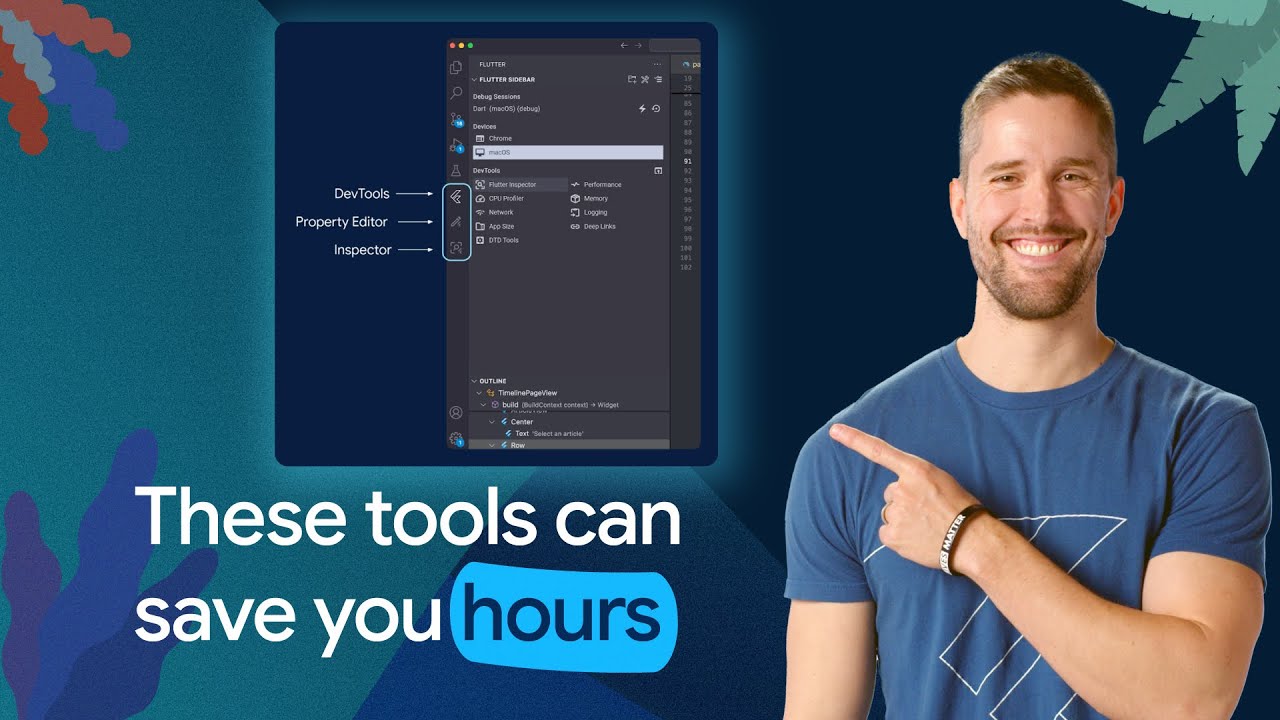
Hello, I'm Craig from the Flutter team. As a Flutter app grows in complexity, widgets in the source code spread across more files and classes, becoming harder to understand. Bugs become more likely to pop up, and performance is bound to be better on some screens than others. That's why Flutter includes a suite of developer tools to help you understand, monitor, and debug your Flutter app. In this video, I'll introduce you to a few of the dev tools that are particularly important at the beginning of your Flutter journey. The inspector, the property editor, and the debugger. To access the tools, you need to be running your app in debug mode. If you're using VS Code, you'll find the tools in the activity bar. Otherwise, you can access those dev tools in your browser. The URL will be output to the terminal when you run the Flutter run command. The Flutter inspector helps you visualize and explore your app's widgetry and debug any layout related issues. In the inspector pane, you'll see your app's widget tree. If you select a widget, you'll see that widget's size and other properties. Flexible widgets such as rows and columns have complex layout rules that often require extra inspection. And when you select those widgets in your inspector, you'll see the flex explorer tab. It displays why it and its children have the size and positions that they do. Here you can swap properties of the flex widgets to see what effect it has on your layout. Across your Flutter development journey, you're likely to run into an undefined width or height error at some point. The Flex Explorer is a great place to start your investigation into that error. The inspector also provides useful debugging tools. You can highlight widgets as they are repainted, show layout guidelines and text baselines, or identify images that are larger than necessary, which can have a significant performance impact. Working alongside the inspector is the Flutter property editor, an IDE tool that allows you to inspect and change individual widget properties without updating your source code. This tool really helps nail that pixel perfect design implementation. With the property editor tool open, drop your cursor on any widget in your source code, and the tool will list all of that widget's properties, whether or not the current value is the default, and if the property is an enum, all possible values. If the widget you're looking at is from the Flutter SDK, the property editor even includes the description that you'd find in the Flutter API docs. Having the API and description of a widget in a pane beside your code is often more convenient than stepping into source or looking up a widget on the doc site. And the listed properties are editable. You can rapidly experiment with the design of a widget by using this tool to edit values. You'll see the changes reflected in your running application without ever updating your source code. Finally, Flutter's dev tools include a full featured debugger that provides all the standard functionality you would expect. You can set break points, step through code, inspect variables, and pause on exceptions. There are several more tools that you may not need to use right away, but one day you're going to be glad to know that they're there. The performance view charts every frame your app renders. The memory view helps you diagnose memory leaks and monitor your app's memory usage over time. The network view helps inspect HTTP requests and their headers, response times, and other details. The logging view consolidates all the logs from your app. The app size tool helps you find opportunities to reduce well your app's total size. And the CPU profiler shows which functions are consuming the most CPU time. That's just a brief overview of most of Flutter's dev tools. For a complete guide, check the links in the video description below. Because if you're anything like me, you write a lot of bugs and you're going to need those tools. —

Другие видео автора — Flutter

Ctrl+V

Экстракт Знаний в Telegram

Экстракты и дистилляты из лучших YouTube-каналов — сразу после публикации.

Подписаться

Дайджест Экстрактов

Лучшие методички за неделю — каждый понедельник