18 Big NEW Notion Features for Your Life OS (PPV)

18 Big NEW Notion Features for Your Life OS (PPV)

Machine-readable: Markdown · JSON API · Site index
Поделиться Telegram VK Бот
Транскрипт Скачать .md
Анализ с AI

Оглавление (8 сегментов)

Segment 1 (00:00 - 05:00)

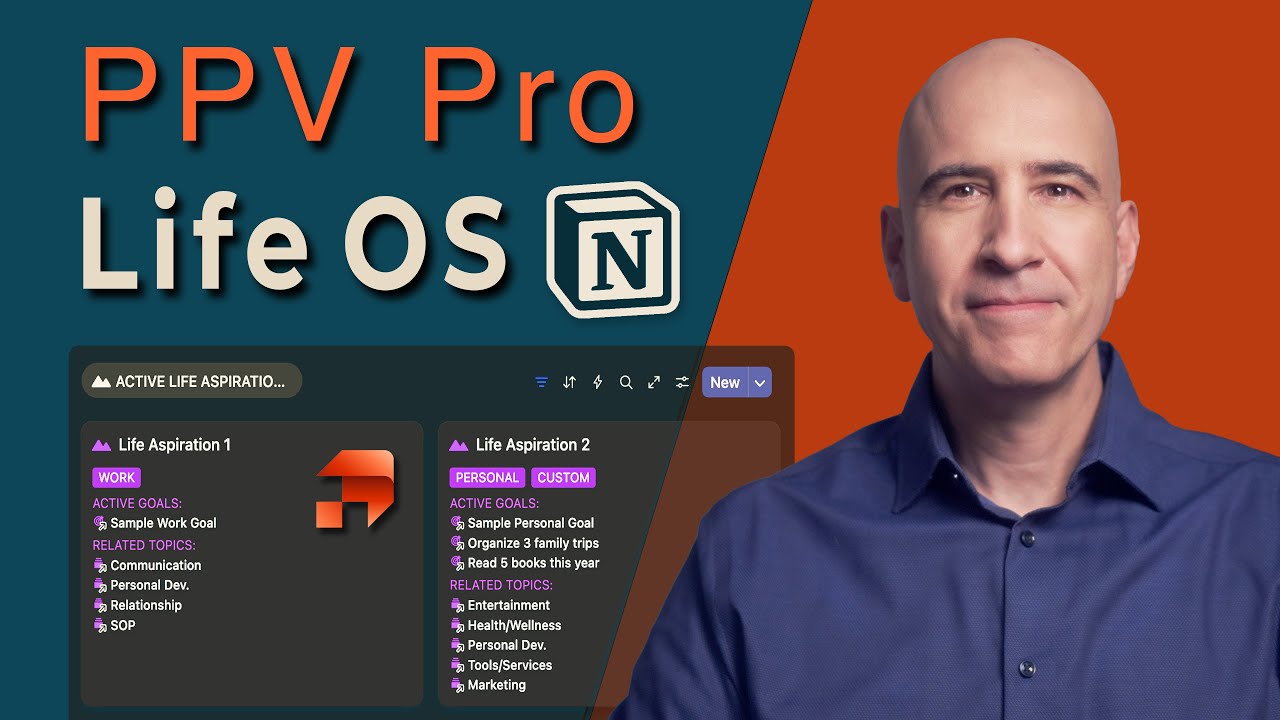
Hi everyone, I am back and we have a lot to cover from my time away. Let's dive into the 18 big new notion features for a life OS PPV system that have come out from Notion over the past number of months. It has been a fast-paced time and there are some real high impact new capabilities in the notion platform. I'm going to cover the ones that I see as particularly valuable for life systems such as the PPV Pillars, Pipelines & Vaults life OS or any personal and professional workspace. This channel started by introducing the first notion life west that the world had ever seen called Pillars, Pipelines & Vaults and PPV has become the most evolved and refined life system in the entire notion ecosystem. Today we are looking at the newest features that are driving improvements in its capabilities. In the videos that follow over the weeks and months ahead, I'm going to be sharing improvements to the pillars pipelines and vault system. either for those who followed the original PPV training on this channel years ago and want to upgrade or for those who have their own life systems but want to bring in some of the most innovative and high impact aspects of the new PPV system based on new frameworks that we've developed with the thousands of people who have gone through the notion life design membership and training. Now on to the main event 18 big new notion features for a life OS PPV system and there's one ultra big one that we'll talk about at the end of the video. Number one is the new database view called feed view. Feed view lets you see the entries in the database as if they were a social media feed. So if we take any database here, add a new view here. We have a new option called feed view. And feed view is one of the layout options for databases now. And it takes the entries in the database and presents them as if they were social media feeds. gives you a nice long look inside the contents of that entry. If there's a video, it shows you the video and it makes it playable. I tested the and lets you interact with the contents. So, this is a great way to present something where showing the sequential most recent entries would be valuable or it's also valuable when you want to show a large single view. You could filter this. So you have the same sorting and filtering capabilities of any database with filters here and sorting here. And you could filter such that you only see the most recent one. Perhaps you're doing daily journaling and you just want to see today's daily journal in a certain dashboard layout. You could do that. Or of course you could have the sequential view. I think organizing them by date is the logical way to do it. But of course you could sort them by any criteria. So it's a really nice view. You know, particularly in this case we're doing it with a media database. But you could do it with journaling, with daily entries, anything like that. So there's always special when we get a new database view. This one's a bit niche, but for the right situation, it's fun and useful. The number two big new set of features, and this is a grouping of them, is the new database interface. So there's been a refinement and change to how database properties and settings are presented and the way we interact with databases. So together we're looking at this as the number two big change that we're looking at. So we can see this in a number of different ways. One is if we add a new entry here. In the past we would start typing and it would search for the type of property. No more. Now when you start typing it's the title of the property. For newer notion users this may be new more intuitive. For longtime users this will be frustrating and annoying. So if you have muscle memory for searching for the type you're going to have to rechange that. So, initially you'll type the name, new crop. And you could actually use some of these suggested ideas. I don't find them that helpful. I skip those. Then once you type the name, you can then select the property type. Make it whatever type you want. So that's a change already. And if we rightclick this and we hover over this, now we get a quick popup here and the ability to add new options for selectors or whatever the property type is. is you'll get a number of ways to edit it. Simply by right-clicking and hovering here, you'll have quick access to make changes. That's new. Also, the ability to change type will be quick and easy right here. So, there's some nice refinements right there. Also, when you click into the settings, first of all, the settings icon has unfortunately changed. The three dot icon we've always had is now replaced with a slider icon, which is odd because three dots is the universal indicator of settings everywhere else in notion and it was until this change. Also, it's odd because this is a slider icon and there are no sliders in here. So, I would call this a change for change sake without any real logic behind it. But nevertheless, it is now the icon to access the settings. Inside the settings, there's some interesting changes. Now it's grouped by two different groupings. The first group is all the view settings. So these are things that modify this particular view of

Segment 2 (05:00 - 10:00)

the database. Down below are the source database settings. So these are the things that modify the source foundational setup of the database. So it is a bit more organized than before, but unfortunately we have some inefficiencies now built into it. For example, property visibility is here, but all you do here is set visibility down here. Here you edit the properties. We used to have edit and visibility together. It was a lot quicker and more efficient to interact with these. Unfortunately, they've been split into two different things. I don't know why. There's been a lot of shuffling that doesn't seem to have a lot of logic behind it. But, you know, these are changes that we're going to have to get used to. But, the idea of splitting them out by view settings and database settings does have a logic to it. And that is nice and organized. It' just be nice if we didn't actually go backwards in terms of efficient use by splitting out visibility and properties. Nevertheless, the organization does make sense even if in a few instances it brings in some inefficiencies. The center section that gave us more setting capabilities is now moved to the bottom. So if you click here, you now have the sub items, dependencies, and all these things that used to be accessed in the middle of the list. So it's really just a shuffling. No real new features added, no features taken away, just a reorganization of the layout. But you will need to be familiar with this, so I wanted to cover it. One new feature that's a nice touch in theory is that you can now close this and simplify and make it cleaner. I really like that. The problem is it hides the blue new button. And you still need to access the new button even if you want to hide these settings. These settings you do occasionally. So it would make sense to hide those, but it makes no sense to hide the blue new button. So what would be a nice feature is kind of lost because you need to keep it open to access the new button and the access to the templates. So a little unfortunate since it was a nice idea to clean that up. And also oddly now we have a three dot settings button access the settings which contradicts the logic of the slider icon to access the settings. I just wish there was a little bit more thought into the logic behind some of the finer points. But nevertheless, it all works. It all gets the job done. And there are some nice options like this cleaner look. Another big change is once you have multiple tabs, it works just as it always has, adding new tabs. But if we were to remove these tabs, we'll delete these. Now when we just have one view, we don't have that plus indicator and the initial tab visible here. Now be aware in order to add additional tabs, you have to hover over the name, hit this plus, add the new view, and then it gives you the tabs here. And it does give you a nice visualization. I think this is a cleaner, better aesthetic presentation of the tabs. And then we could add additional tabs this way. So cumulatively these changes to the database interface we're calling one feature and I wanted to cover those so we will be able to work efficiently and effectively in the new database layout. Next is one that I would consider a really big new one and that's AI meeting notes. Now this one is only on the business and enterprise plans. So you have to be on one of the higher tier plans but it's a really nice new feature and that is AI meeting notes. It's an entirely new block and it's really a supercharged extracapable block. All you do if you're on the business or enterprise plan is hit slashmeing and enter and you now have the AI meeting notes block. And this is a block just like any other block. You can move it around and insert it anywhere on a page that you can insert a block. So it can be added in any part of your workspace. By default, you have notes here. You can add agenda and notes as you wish ahead of your meeting or you can take notes here during your meeting. And then when you start transcribing it will capture everything you say. This block will record the conversation or your dictation. You could either be dictating on your own into notion or you could be recording a meeting. This could be a live in-person meeting on your mobile app or it could be a Zoom call or a Google Meet and it will record the system audio. So, it's important that you notify others that you're recording because it is actually recording the audio. Then it will take that audio, turn it into a written transcript. It will not give you the recording of the audio, but it will give you the written transcript and then it creates a summary. And the thing is, the summaries are fantastic. They are the best AI summaries I've seen from any meeting assistant and I've tried all of them. So the summaries are extremely good and it comes from the transcript, you get the written transcript, you don't get the audio, but then you have the ability to interact with the transcript using AI underneath. So on the business and enterprise plans, you have the whole AI package that comes with notion. It's no longer a standalone package. is now part of the business and up plans. But you can interact and discuss with the transcript

Segment 3 (10:00 - 15:00)

asking questions, asking for highlights of things that in addition to the summary that it gave us. So when this conversation finishes, you hit stop and it will start summarizing. So it has the transcript here. You can see everything I said was recorded. If I were discussing with other people, both of us would be recorded. Our notes are still here. Any notes we took during the meeting will be included in the summary and the summary is then generated and it's a really good summary well organized including takeaway action items at the bottom if there are any. Those could be dragged into an a task or actions database and acted upon. So it's a really well implemented version of an AI meeting notetaker. And you could create a meetings database. You could have a people database where each conversation with each person is in the entry for that person or you could have dated entries for each meeting. However you want to do it, you can throw them anywhere in your workspace at any time just with slash meeting and you put this block wherever you want it. And then you have access to these tabs. It's just so well implemented. The one thing is privacy. I think this has the potential to be exploited and taken advantage of. I wish notion had a little bit more emphasis on the ethics around letting people know when you're recording, but the functionality is actually well implemented. On to number four. Since we're talking about AI in the homepage now, we have enhanced AI capabilities. This also is part of the business and enterprise plans. So, it's not available on the lower plans, but they've made the pricing such that if you upgrade to business, it's about what you used to have to pay for the AI standalone package anyway. and you get a lot of additional features with the business package over and above the AI capabilities. So, it really is priced pretty well, but you do have to go up to the business plan at this time. Of course, these plans can always change if you're watching this at a future date. Always check the plans to see what the current plan layout is. But right now, if you're on one of the tiers that allow for AI capabilities, the home area now has some real enhanced AI capabilities. By clicking on the ask tab, you have the ability to interact with notion AI as well as JGPT, Anthropic, Claude and Sonnet, Google Gemini and Flash. So you can access the premier AI models directly from within your notion space. And the cool thing is you can interact with those and have access to these sources within your notion workspace. So it can draw on your notion items as well as draw on the capabilities of these premium AI models. You also have this research capability here which again lets you draw from your notion databases here. And build is something we've had elsewhere but now it's merged into this area where you can describe what you want in a database and it will build it for you. That's one of the items on our list coming later on. So, those are the enhanced AI capabilities within our notion workspace. Another great new capability is database tabs. This is a really cool one that none of us saw coming. And when I heard about this, I was part of the beta program testing it, but when I heard about it, I was like, wo, that's something I hadn't even thought of. So, let's open up this just as a sample database. This, of course, works in any database. We open up any item here. Make this the full page. And this is the content page as always. But now we have the ability to go into customize layout and in here we have the option to go from simple which is the default and the same as we've always had and add tabbed over here. Now once that's selected we have the ability to add additional tabs up here. Each tab would be a view into a particular database. It could be the database we're in or another database. And as you select one, let's just pick this one, you can title it and you add the view. And now you're here and you can set the filter and sort just as you would with any other database view. You can hide that to clean it up. But you can create a unique database view as a tab. So that would be a new one there. We could do an additional one. You can do multiple tabs. Let's add the media database here. You could have a new relation between the database you're in and this other one we're linking to or not. Just it could just be a view. Add the view. We set our filter. We set our sorting. And now when we apply this to all the pages, we have these additional tabs. The first tab is the content tab. This is what we've always had with the body of content down here, a view of the properties. But now, as we click on these other ones, we get a look into these other databases that we added. And they're not full pages. we can lay out with blocks like in the content tab in our traditional pages, but we get custom database views as tabs. Now, we've always been able to do these custom database views in the content down here in the blocks down here. And that's still the primary way

Segment 4 (15:00 - 20:00)

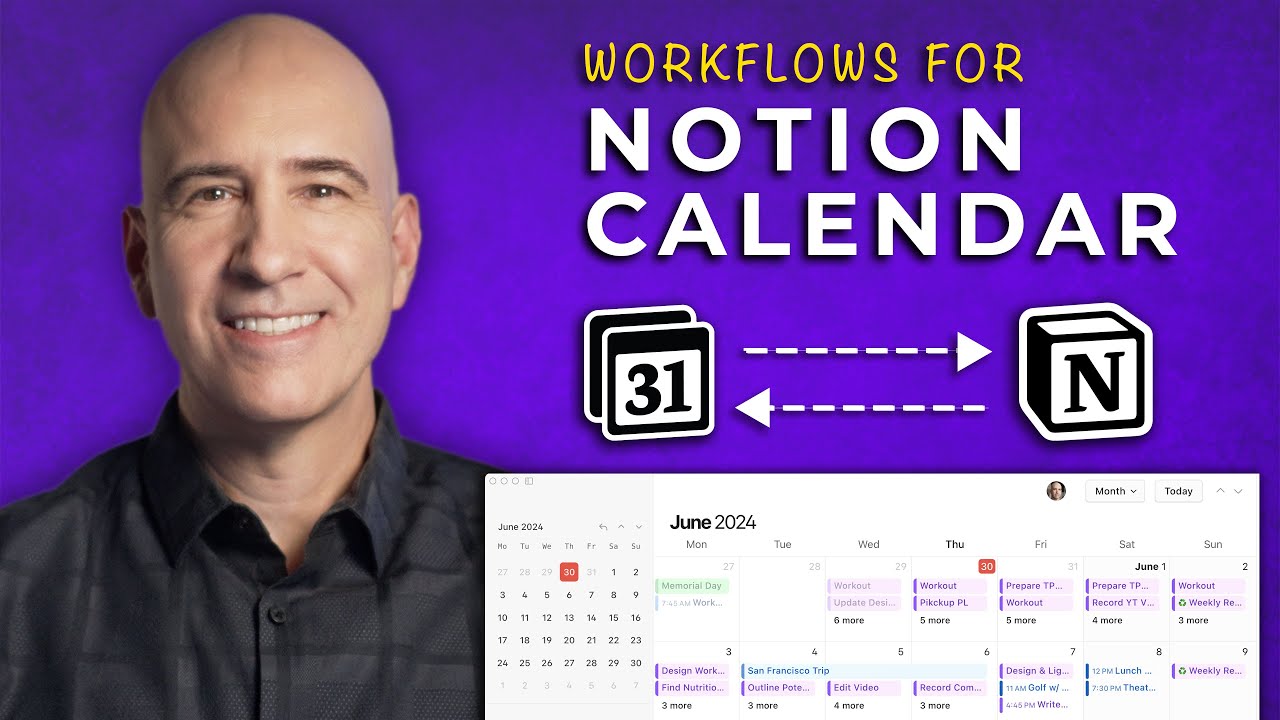
to do this. That's what I would recommend most of the time because down here you can put these views exactly as they are up here in context in a layout in a page, whether it's a dashboard or a set of page blocks laid out as you wish. So you can put them in context down here. But if you want a really quick, easy, clean view, you have the ability to add database views as tabs up here. And that can be really nice. One nice thing is if you have pages that are built out, you have templates that have a lot of elements and you have content in there. When you change a template, it doesn't update the pages. You have to copy all the content that you've added, delete everything, apply the new template, and then paste back all the content you had previously had. that makes it hard to update historical pages with new database templates. When you add these, it's more like modifying a property. So when you modify a property, it updates across every page of the database. Similarly, when you update these tabbed database views, it will update across every page in the database. So these are easier ways to update and add database views to databases that have a lot of pages and templates with a lot going on. But you can always add these in the page as you always could. And usually that's actually more valuable, but occasionally it's nice to have a clean, simple tab across the top. So we'll put that to good use. So number six is that hidden groups in a board view are now fully hidden. If you've ever created a board view, and I know all of us have when you used to do this, we have a board view. So each country here is a list. You would have additional ones over here. You look at properties and how this is grouped. Each of these used to be visible. Now we have the ability to hide any of the headers. In the past, they would be listed on the edge and it would just be messy. Now we have the ability to completely hide any and all of the unused groupings over here. Or you can have the empty ones visible. So we have a lot more control over how the board view columns and groupings are presented. And it's much cleaner cuz you don't have this sort of pile of empty ones on the end. So it's a much cleaner look at board view, you know, for the content pipeline, for any of these board views where we have pipelines. It's just a better view. It's cleaner. It's simpler and we have more control over it. So that is a really valuable one. Number seven is that status properties and additional properties are now shown in notion calendar when it's synced to databases such as our task database. So here we have a database with a calendar view set to status and in this case it's not started. Let's put it in progress. If we now have this sync to our notion calendar here we see notion calendar and this is the item here that we saw. We can drag it in here. Organize the length of its duration and it scheduled time whether it's up here as unscheduled or down here scheduled. We now see the status property and any selector properties. So they're starting to bring in visibility and the ability to change the status property and selector property. So this is a sign of which to come. I'm confident they'll have additional property visibility and interactivity in notion calendar so that we're now increasingly able to interact with the status and other selector properties in our notion databases for items that are synced to our notion calendar. This is notion calendar, the separate app, a full calendar app. It's starting to get the level of integration with notion that we would expect for an app called Notion Calendar. So that's a big addition right there. And we can see we made that change from in progress back to not started when we were in Notion Calendar and it's updated here. Similarly, if we change this, if we can change it here, it'll update in notion calendar. If we change it in notion calendar, it'll update here. Those two will be in sync. That is a big improvement and also exciting to see finally some higher integration between notion calendar and our action item databases. And number eight is we now have the ability to bring in handwritten notes and have it transcribed on the page using notion AI. Let's see how this works. So now if we type slash image and we upload an image of a handwritten note, we can shrink that fit it on the page however we wish. Now in the block on the left, click the three dots here and do ask AI. Again, this needs to be an AI activated workspace. But with this, we can interact with the image using Notion AI. So we hit notion AI here and you would type out your prompt. I'm going to do it with voice command. Please transcribe the handwritten note. Hit enter. It thinks for a moment. And then it writes out in typed text what is written in the handwritten note. You can click insert. And now it's inserted underneath. So those of you who like to do journaling by pen or any notes, meeting notes by hand, you can upload a photo of the image and very quickly have it transcribed and typed into your

Segment 5 (20:00 - 25:00)

page. So this is word for word what is written in the note transcribed here by notion AI. I find that very useful as I've been doing a lot of journaling by hand. So super valuable for life systems when you're trying to bring in some analog content. Number nine is clickable chart data. So we have notion charts now. They're awesome. We can do visualizations, graphics, charts. All our data can be put into a form where we can better interpret and understand it. Now a recent enhancement to notion charts is if you click on the item the visual item in the chart or graph it'll list the data that is being contributed to that item. So this is for this date multiple bench press exercises. This is measuring the total weight of all of three of the exercises the bench press exercises added up to show the total amount of weight moved. If I click that, it'll show each of the sets, each of the entries. So, this is part of our fitness tracker in the PPV Life OS system. And if you click on each of these, you can see the original source data. You click here, you see the source data. You know, any of the visualizations, this one just has one contributing to that total. So, you see the one, you can click through and see the entire entry. you could open that entry and see all the data in that entry that's contributing to that visual graph element. So it makes more sense and is more valuable perhaps when you can see the multiple ones added up. But any graphic element you can now click on it and see the source data. That's a huge enhancement to our ability to interpret and work with data in the charts and graphs. The visualization number 10 is a small one but a really nice quality of life one. We have always been able to hit command option T and it would open and close all the toggles on the page. But it didn't work for database groupings. Now it does. So we have a database grouping here where each of these is under these different personal, professional, close friend selectors. And by using grouping here we have chosen the type which is personal, professional, close friend. And we've chosen which are visible here. Again, you can hide the ones that you don't want to see, the empty ones, but once they're selected now, by clicking commandoption T, it'll close or open all of them as a group. So, really helpful. One of the things with groupings here is that when they're all open, sometimes it's really messy and hard to digest and you want to close them all and then just open them one by one for the one that's relevant or the one you're interested in. Or maybe you're working with two of them together and it's just easier to close them, open and close them all with this command option T on a Mac or control option T I believe on a PC and it's just really nice to be able to open and close all of them as a group. Makes grouping so much more useful. Of course, this also works and for a long time has worked on any page with lots of toggles. So if you've got some open and it's kind of messy, just do that. It'll close every toggle on the page and then you can reopen the ones that are relevant for that work session. Number 11 is conditional logic in survey forms. So notion added forms where you can take surveys, collect information. A great feature in any database. If you're in the database here, you add a new one. One of the options now is forms. You add the form here. It'll take an existing database and create the questions for you based on the existing properties. So it's quick to create them from scratch. or of course you can customize any of these. All this capability has been here, but this is a really nice enhancement we got not too long ago. But the new thing that just came out the last few months is conditional logic. This requires a certain level plan. So check your plan specs. But the ability to say based on certain selection options here, you click on the three dots and you add conditional logic. So here is another example of a database. This is say a survey form as an example. When we go to the form here, you can take any of these items that have multiple choice and depending on the answer. So conditional upon which multiplechoice answer they chose, you would say add conditional logic and then you can add a question that will only be asked if the condition is met. So you can set it to one or two or three stars. You then ask this follow-up question or a personal favorite use of this is when you have multiple choice. Right now, Notion Forms don't have the ability for other to ask what the other is. So, if you're asking what formats of the course is are most helpful to you, recorded videos, community, discussions, live sessions, or other. If they choose other, it wouldn't prompt to ask what it is. But with conditional logic, you can say if they choose other, what is the other format that is most helpful? So that other blank field will pop up if they choose something other than one of the multiplechoice selections you gave them. So it does actually enable this capability that more

Segment 6 (25:00 - 30:00)

sophisticated form apps have by using conditional logic. So basically any multiple choice question you can say if one or any of a number of certain multiple choice questions are selected in a form it will then ask a follow-up question or as many follow-up questions as you want. So that's a really nice enhancement to forms. Number 12 is the notion MCP server. So as AI platforms are expanding and becoming more capable, we want to be able to access the information in our notion databases. We want to be able to read from our knowledge vaults and our information that we've accumulated, our project information and all that. We also may increasingly want the output from our AI searches to be written on notion pages or even written into notion databases. MCP servers let the leading AI platforms like Anthropics Cloud and OpenAI's chat gpt and cursor interact with our notion workspaces however we give it permission to. So we choose which databases and which pages it can write to and read from and we choose whether it can write or read or what it can see and what it can do. But it's become much easier to do this. It was a little bit cumbersome in the beginning. It's become much easier now. So I'm here in Claude as an example. You click the settings here. The old way was to set up a notion API connection here. And you have all these controls over how it interacts, whether it can read, whether it can write, whether it can see other user data such as the other user emails in your workspace. You have a lot of control over what it can and cannot do. But now it's actually become much easier. You simply go to add connectors and these connectors are growing all the time. But importantly, we now have notion. You can now click on notion. And if you click connect here, it will set up the connection and it will ask you what it's capable of doing in terms of reading from your notion workspaces in what parts and writing to and adding to with results from chat GPT and claude. So it's become incredibly easy to bring your notion resources into your claude and chat GPT interactions and then if you want even write to your notion workspaces. Number 13 is scheduled automation triggers. So, in the past, the only way we could trigger automations is with a scheduled template. So, you'd set a new template here, and you'd make that template appear on every Tuesday and Thursday at 9:00 a. m. or what have you. Now, we can actually bring in scheduled events in automation. So, this requires a plan that enables automations. That means it needs to be on a paid plan, not the free notion plan. But once you have that, you can now have in the trigger option the ability to choose every. Every means you can choose every day, every weekday, every week, every two weeks, every month and so forth. And let's say we choose every day. Here you can choose which days and at what time these occurrences happen. So you have a lot of control over when the trigger happens. So it's going to happen every time this scheduled setting occurs and that will be the trigger and from that trigger you can apply any of the normal actions that we have in notion and those are growing with some new ones such as send mail through Google mail and more are being added all the time. So we now have the ability to write in our notion automations on plans that permit that which is any paid notion plan to have scheduled triggers based on any time setting we choose. So that's huge. That's something we've been wanting for a long time and now have the ability to do. Number 14 is we now have the ability to embed our Notion pages into other websites. This is great. It gives a lot more capability to bring our notion creations and our notion functional pages into websites into community web pages and it just makes it more versatile how we apply and use and share our notion spaces. It's very easy to do. You go up to share here under publish. You'd have to publish the page cuz you're publishing it in the embed. And now you have the ability to click here for embed this page. It gives you some link. You choose whether or not you want to show the title. You copy this code and you just embed that code as a code widget or snippet in the website page that you want it to appear in and then this whole page will appear there. That's awesome and super useful when we're trying to get more out of our notion pages and notion workspaces, especially in terms of collaboration and sharing with others because it's so easy to build our notion pages. So, the ability to embed them in any website anywhere makes the ability to use Notion as a content hub or resource to share information that much more valuable. And of course, it's quick and easy to update in Notion. So, it's easy to update whatever you've embedded in those other websites. Number 15, we have translation built into notion pages. Now you just come up here to

Segment 7 (30:00 - 35:00)

translate. You can choose so many languages and it will translate the page into whatever you want to translate it into. Boom. Suddenly it's in French. How useful is that? This makes interacting with people around the world so much easier and makes those notion knowledge hubs so much more valuable, especially with teams, global teams sharing information on websites accessible anywhere in the world. 16 is now the ability to create databases from AI prompts. Creating databases has never been easier. We're still going to probably end up fine-tuning on our own, but it saves so much time. First of all, if you're new to Notion, this makes it so much easier to create new databases. But even if you're a master of creating databases, it's so much faster to get started with an AI prompt. Let's look at how this works. So on a blank new page, one of the options is databases here. If you click database, one of the options is build with AI. You can do that here or in the homepage. Either way, you simply describe in English or whatever language you wish what you want the database to do and have and it will create it. So I'm going to do it with voice dictation, but this is the equivalent of writing. Please create a fitness tracking database that I can track my runs and cycling and swimming activities in. Each entry will be a date and there'll be a selector property for the fitness type, whether it's cycling, swimming, or running. I want to be able to track the time of each workout, my average heart rate, and my speed. Plus, I want to be able to give it a one through five star rating. You write out what you want or you dictate it and you hit activate and it will create the database for you saving you time. And if you're trying to create things you're not even sure how to create you can just do it by natural language. So once it finishes processing it will typically give you a few options that it may suggest and it's giving you some sample data. So it's helpful to see that it has ideas such as distance notes and weather or suggestions. So you can click those to add them if you find those helpful. You can remove any of them that you don't want and hit continue. And it gives you view options. So you could see all activities, calendar view, by activity type, which is a board view. I can see by the icon. You can remove or add any of these. We'll add all of them. Hit done. And now it has each of those views that we talked about pre-built. Sample data. Has all the properties we talked about. has all the date property, the title, nice icons added to it. It's just really well done. It's got the rating that I asked for with a one through five star rating. It even labels them. It's really thoughtful. Like, it doesn't just do the bare minimum. It takes your ideas and builds on it and really does a great job. So, it's built this so fast. I mean, that took almost no time. Even if I knew how to do this, which most of us do, we couldn't do it that fast. And now we could refine it from here. Plus, it gave us some nice ideas of additional properties that I didn't even think of, such as weather or notes and distance. So, really love this. This is a big enhancement. And of course, this capability is going to get better and better. I can see over time how this will really build out a lot of functionality just through natural language dictation to AI. And number 17, Notion Mail has officially launched. It's available to everyone. This is a glance at Notion Mail. I'm not going to go through all this. I did a previous video that talked about the main features, but they've been adding more as we go. Notion Mail is now available for everybody. It's been released and it has a really innovative take on email. Essentially, it does all the basics of what any email app would do. It has a lot of AI built into it, which is really nice and streamlining and making it efficient to do quick replies and preset snippets. But what really is different about this from all other email apps is that it lets us sort and filter and create views the way we typically think about creating notion database views. We can now do that with our email. If you think of all of your emails as a database, we can now create filtered views in sort of custom apps to look at our emails in new ways that we never have before. So of course the traditional way is just most recent top to bottom sorted by date and filtered by not yet seen or by a save later filter. But you can now using the normal filter capabilities that we always use in notion and sorting capabilities that we've always used in notion. We can now apply this to our email inbox and create views that are based on attachments based on certain people or types of activities. And it just brings a whole new mindset or framework of interacting with your email database as a notion type database. So it lets you create custom interactions with all of the entries in your database, which is each email you have received over years. Old ones become relevant because they resurface based on the filtering and sorting that you do. I did a teaser on that with more detail a few videos ago

Segment 8 (35:00 - 39:00)

so you can check that out. But it just is a whole new framework on how to interact with email based on the way we typically think about databases in notion. Plus, it just feels very notion. If you create a new entry here, you have slash and you can create the typical type blocks that you normally do and you know such as to-do list and checkboxes. So, it lets you actually format it similar to our notion pages. That's nice. It's fun. But we're not going to spend that much time formatting. The real value is to sort and filter and create interactive saved views of our inbox which resurfaces valuable entries i. e. emails you received and sent in our space treating them as if they were notion databases. So that opens up a whole new world of possibilities making our email platform more valuable in the way our notion databases are. But number 18, the granddaddy of all, the most requested feature in the history of notion is offline mode. And I've been in the beta program. I am loving it. It is not going to disappoint. You can take any page in notion. You go to the settings and you have the offline availability toggle. You can offite any page, any set of pages and databases. You can choose what you will have access to offline. And that is just a game changer for notion. It has been one of the things that has held us back. you're on an airplane, you don't have internet, but you still need to work in your space. access your resources. You still need to be able to construct new entries in your workspace. You can do that in offline mode. And then when you're back on Wi-Fi and have a connection, it will then sync up. Takes Notion usability to a whole new level. And with that, we have 18 big new capabilities for a life operating system. These are all supercharging the new PPV in big ways. So, I wanted to just go through them in sort of a rapid fire mode and show you the rest of the newest features that I'm finding most valuable as we build out the latest generation of pillars, pipelines, and vaults. Highly applicable to any life system or business system. In the months ahead, I'm going to share more about the new PPB system that has evolved dramatically since the version one of the system years ago on the early days of this channel. By creating an immersive community learning environment for our membership and training program, we have been able to evolve and improve the system at a rapid rate. There's so much interactivity. We learn from each other in the membership and that has enabled us to enhance the system with an incredible amount of iterative testing and R&D. So, we've had five version upgrades to the original PPV. And then earlier this year, we completely rebuilt PPV from the ground up, taking advantage of these significant enhancements to Notion's capabilities, which required a foundational redesign, like a complete rebuild from scratch. And the past five generations were built on top of the original one that we started this channel on. Then we just went from scratch, rebuilt, taking everything we knew from our membership and the thousands of people we've worked with implementing the system and all the new capabilities of notion, new foundational infrastructure built up and the system is on a whole new level. This new rebuild is called PPV Pro. And over the next few months, I'm going to be sharing some of the new frameworks and concepts and structures we are using in the new PPV Pro design. These will be the next series of YouTube videos that I'm going to be sharing. If this is of interest, be sure to hit the subscribe button and the bell icon to get updates on future videos. And please hit like if you found this video valuable. Leave thoughts or questions below or join us in the Notion Life Design program where we get deep into implementing the PPV Pro system. This is going to be relaunching soon in the next few months. All the information about that is at notionlifedesign. com. I also write the lifedesign newsletter on increasing human capability. I give away several of my best notion templates to anyone who subscribes to the free newsletter. The newsletter link is also below in the show notes. Thanks for watching. Lots more to come.

Другие видео автора — August Bradley

Ctrl+V

Экстракт Знаний в Telegram

Экстракты и дистилляты из лучших YouTube-каналов — сразу после публикации.

Подписаться

Дайджест Экстрактов

Лучшие методички за неделю — каждый понедельник