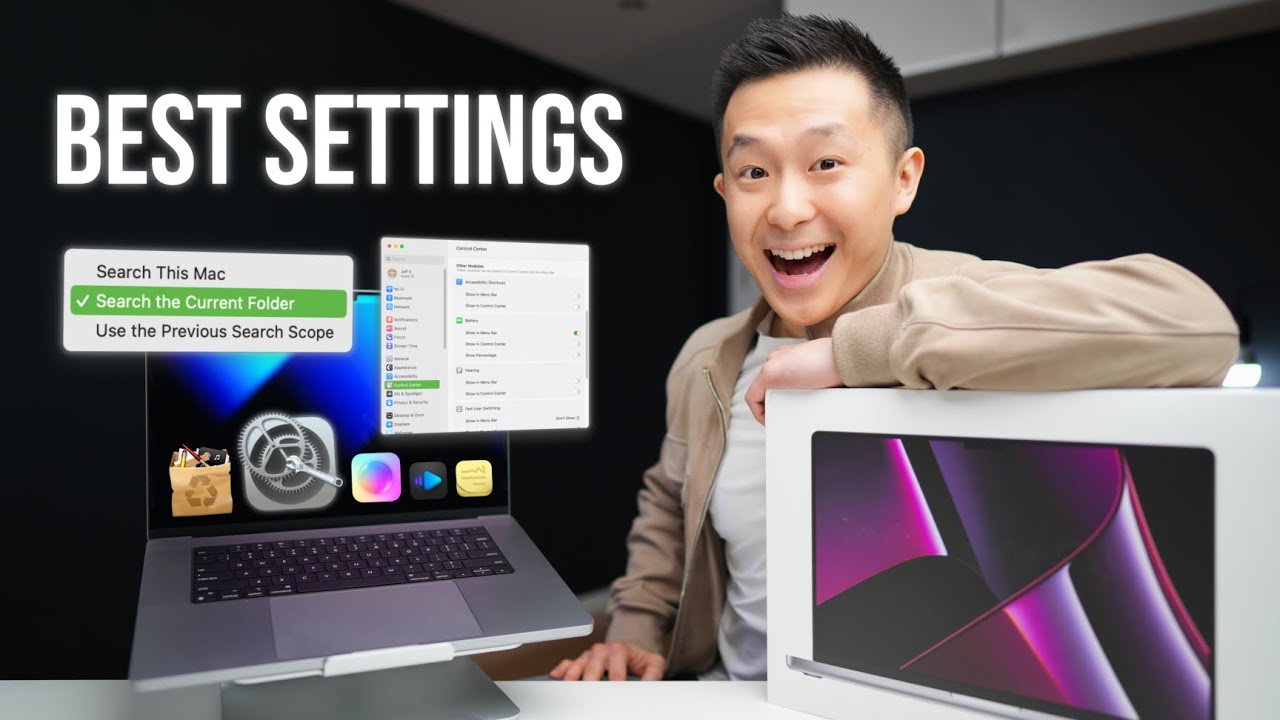
First 18 Things to Do for Productivity // New Macbook Pro!
8:42

First 18 Things to Do for Productivity // New Macbook Pro!

Jeff Su 14.03.2023 507 829 просмотров 16 307 лайков обн. 18.02.2026
Поделиться Telegram VK Бот
Транскрипт Скачать .md
Анализ с AI
Описание видео
My Premium Resume Package: https://jeffsu.gumroad.com/l/premium-resume-package 🌟 Here are literally the first 18 things I always do on a new Macbook Pro Right out of the box there are actually a lot of settings I recommend you DISABLE (e.g. true tone and slight dimming) Apple thinks they know best sometimes, but they don’t 😏 We then move on to 1-time Finder setting changes that will help you become more productive in the long run Finally, I end with the 8 Mac apps I always install on new Macbooks that make the Mac experience just that much better! *THE NO BS PRODUCTIVITY NEWSLETTER* 📧 https://www.jeffsu.org/productivity-ping/ *TIMESTAMPS* 00:00 Setup a New Macbook Pro 00:12 Add 2 Fingerprints for Touch ID 00:21 Display Settings 01:00 Desktop and Dock 01:33 Language and Region 02:07 Lock Screen 02:25 Ethernet Set Service Order 02:44 Show Path Bar and Status Bar 02:56 Customize Finder Toolbar 03:23 Airdrop Pro Tip 03:50 Finder Settings for Productivity 04:34 Access Library Folder 04:51 Migrate Fonts Folder to New MacBook 05:07 Dock Settings for Productivity 05:20 Tinkertool App 06:02 Alfred App 07:01 AppCleaner App 07:35 VLC and IINA Media Players 07:55 CleanshotX and Shottr Screenshot Apps 08:15 Moom and Rectangle *RESOURCES I MENTION IN THE VIDEO* Full Alfred Tutorial - https://www.youtube.com/watch?v=FXV-zwkRMxo Tinkertool - http://www.bresink.com/osx/0TinkerTool/download.php Alfred - https://www.alfredapp.com/ AppCleaner - https://freemacsoft.net/appcleaner/ VLC - https://www.videolan.org/vlc/ IINA - https://iina.io/ Cleanshot - https://gumroad.com/a/529753203/dkaTQ Shottr - https://shottr.cc/ Moom - https://apps.apple.com/us/app/moom/id419330170?mt=12 Rectangle - https://rectangleapp.com/ *MY FAVORITE GEAR* 🎬 My YouTube Gear - https://www.jeffsu.org/yt-gear/ 🎒 Everyday Carry - https://www.jeffsu.org/my-edc/ *MY TOP 3 FAVORITE SOFTWARE* ❎ CleanShot X - https://geni.us/cleanshotx ✍️ Skillshare - https://geni.us/skillshare-jeff 📖 Readwise - https://readwise.io/jeffsu/ *BE MY FRIEND:* 📧 Subscribe to my Productivity newsletter - https://www.jeffsu.org/productivity-ping/ 📸 Instagram - https://instagram.com/j.sushie 🤝 LinkedIn - https://www.linkedin.com/in/jsu05/ *👨🏻‍💻 WHO AM I:* I'm Jeff, a tech professional trying to figure life out. What I do end up figuring out, I share! _PS: Some of the links in this description are affiliate links I get a kickback from and my opinions are my own and may not reflect that of my employer_ 😇 #MacbookPro #productivity #Apple

Оглавление (20 сегментов)

  1. 0:00 Setup a New Macbook Pro 42 сл.
  2. 0:12 Add 2 Fingerprints for Touch ID 28 сл.
  3. 0:21 Display Settings 126 сл.
  4. 1:00 Desktop and Dock 118 сл.
  5. 1:33 Language and Region 112 сл.
  6. 2:07 Lock Screen 56 сл.
  7. 2:25 Ethernet Set Service Order 49 сл.
  8. 2:44 Show Path Bar and Status Bar 38 сл.
  9. 2:56 Customize Finder Toolbar 97 сл.
  10. 3:23 Airdrop Pro Tip 86 сл.
  11. 3:50 Finder Settings for Productivity 158 сл.
  12. 4:34 Access Library Folder 44 сл.
  13. 4:51 Migrate Fonts Folder to New MacBook 52 сл.
  14. 5:07 Dock Settings for Productivity 41 сл.
  15. 5:20 Tinkertool App 138 сл.
  16. 6:02 Alfred App 167 сл.
  17. 7:01 AppCleaner App 106 сл.
  18. 7:35 VLC and IINA Media Players 56 сл.
  19. 7:55 CleanshotX and Shottr Screenshot Apps 71 сл.
  20. 8:15 Moom and Rectangle 83 сл.
0:00

Setup a New Macbook Pro

this is the latest overpriced MacBook Pro I am the latest overrated product TV YouTuber and here are the first 18 things you want to do on your new Mac for productive setup let's get started number one doing the initial setup
0:12

Add 2 Fingerprints for Touch ID

process add the same fingerprint twice this way you'll never fail to quickly unlock your Mac or confirm a change ever again next up display settings because I
0:21

Display Settings

want my colors on screen to be as accurate as possible I first turn off true tone then under appearance I do not allow wallpaper tinting in Windows because as you can see there's a pretty big difference while you're here show scroll bars always jump in the scroll bar to jump to the spot that's clicked this is way more user friendly since you can now actually see how far down the page goes heading back to displays I turn off automatically adjust brightness because I'm a control freak but even with this off you might notice your screen dimming sometimes for no reason if that's the case head on over to Advanced and turn off slightly dim the display on battery under desktop and
1:00

Desktop and Dock

dock I can just click to jump down to Mission Control since we just updated the scroll bar settings I toggle off automatically rearrange spaces based on most recent use because I know I use desktop one for personal stuff that's up to for work stuff and desktop 3 for video editing and I don't want Apple changing that order around while we're here click on hot corners and turn them all off sounds unproductive but in a few minutes I'll show you a way to get all the benefits of hot corners without you wanting to blow your brains out because you activated an action by mistake for the 10 times that day for our next tip
1:33

Language and Region

first bring up Spotlight by pressing command space and typing language region enter I recommend getting the habit of using the new and approved Spotlight since you get to most system settings that much faster back to language and region let's be normal human beings and change the temperature to Celsius instead of Fahrenheit this will update your weather widget here and for measurement system metric instead of hamburgers per square feet I'm just kidding us friends not really though and like to have the first day of the week to be Monday instead of Sunday and this will update your calendar app as well next we bring up Spotlight again and
2:07

Lock Screen

type in lock screen enter and here I turn the display off on both battery and power adapter at the 10 minute Mark instead of the default two minutes or something and I require a password immediately so no one can um access my uh homework folder um by mistake if you use a physical Dock
2:25

Ethernet Set Service Order

and an ethernet cable with your MacBook open up Spotlight again type in network and select the setting instead of the app and three dots here click set service order and here you can actually select and drag the ethernet port on top to prioritize that over Wi-Fi moving
2:44

Show Path Bar and Status Bar

over to our lovely Mac OS file management app finder go to view and toggle on both path bar and the status bar so you can quickly see where you are and how much storage you have left
2:56

Customize Finder Toolbar

without having to dig around for it while you're here right click on the toolbar customize toolbar and I like to get rid of the actions I never use by just dragging it down like so I always use airdrop so I drag that up there and I always use share and I drag that up there as well I add a literal Space by dragging the space icon here I keep the view and group functions I add another space and I end with the search function and I click done to save Pro tip now
3:23

Airdrop Pro Tip

instead of having to run the airdrop app and then having to drag the files over like this you can now just select one or more files click the airdrop icon and transfer those files instantly drop a like or comment down below if you didn't know that by the way Apple still refuses to sponsor me because I'm apparently too sarcastic whatever that means but this video is supported by those of you who subscribe to my paid productivity newsletter Link in the description to
3:50

Finder Settings for Productivity

learn more back to finder under finder settings and under the general tab I have new finder Windows show documents instead of recents and I uncheck open folders in tabs because I find it much easier to navigate multiple finder Windows as opposed to tabs I don't use any tags so I uncheck all of this to keep my sidebar clean and speaking of sidebar uh here are the sidebar selections I find to be the most convenient so feel free to pause the video and just copy this under the advanced tab I check show all file name extensions and for the love of God please change this to search the cart folder instead of search this Mac because let's say you know the file you're looking for is within documents and you search for it will quickly show you the search results from documents instead of searching the entire Mac Pro tip with finder open go
4:34

Access Library Folder

to go hold down option and click library with Library open uh drag the file path here and put it under your favorites sidebar you will thank me in the future when you have to use this semi-hidden folder to access some random files
4:51

Migrate Fonts Folder to New MacBook

speaking of random files if you're migrating to a new Macbook make sure to go to the library folder in your old MacBook go to fonts folder command a to select all and airdrop all the fonts to your new Macbook so you don't have to download them again back to using
5:07

Dock Settings for Productivity

Spotlight type in desktop doc press enter and here I minimize Windows using the scale effect to speed things up automatically hide and show the doc so I'm not wasting any space and I disable show recent applications now you might
5:20

Tinkertool App

notice my doc hides and reveals itself much quicker than yours and that's because I'm using a free tool called Tinker tool I haven't exported fully yet it's apparently extremely powerful but for now if I uncheck these two options and I click relaunch doc you'll see my dock is so slow wow I cannot I can't get used to this anymore and if I check these again and I click relaunch it's basically instantaneous I know there's a way to achieve this using terminal but I feel like this is so much easier if you use tinger tool yourself let me know what tips you have for me down in the comments this is a great segue into all the apps I install on a new Macbook and the first one is always going to be Alfred
6:02

Alfred App

um Alfred used to be a complete Spotlight replacement but since Spotlight is more powerful now I use both I use Alfred 80 of the time to open folders Run apps and run shortcuts even because it's just faster than Spotlight you can also use Alfred to perform actions Spotlight cannot do by default like locking your MacBook or emptying the trash IU Spotlight the remaining 20 of the time to do things Alfred cannot by default for example accessing a specific subsetting like language and region or desktop and Doc like we did earlier on in this video since both Alfred and Spotlight require hotkeys to use I have Alfred set as command space and Spotlight as option space you can change this by going to keyboard enter uh keyboard settings keyboard shortcuts going to Spotlight and changing this to option space or whatever you want I also have an entire video on how to set up Alfred for productivity so check that out after the
7:01

AppCleaner App

next app I always install is app cleaner whenever I drag over an application I want to uninstall app cleaner not only uninstalls that app but also scans for leftover files and removes those as well Pro tip you can simply drag the icon away to remove it from the dock and normally when I'm not filming a video I only keep apps I can drag stuff into within the dock for example images for pixelmator pro and apps for app cleaner I actually find a much faster to use Alfred to open up the app than to like scroll down find the app you're looking
7:35

VLC and IINA Media Players

for then click on it next up VLS and Ina between these two free media players you can open up 99 of all media types out there including dot MKV and Dot AVI files which by the way I totally and I would never download via torrents online the next app is paid but it's totally
7:55

CleanshotX and Shottr Screenshot Apps

worth it clean shot X is my go-to screenshot app I've talked about it before it's so user friendly I can add blurred backgrounds to my screenshots and quickly drag to anywhere I want I'm actually using it to record my screen right now that being said a free alternative is called shutter and it has like 70 of the features clean shot does last app I installed immediately is Moon
8:15

Moom and Rectangle

which I use to resize and organize my windows but to be honest with you there are better free options out there like rectangle but I pay for room years ago I'm so used to it by now and I haven't switched let me know if there's something you always do on a new Macbook that I missed check out this video on all my favorite MacBook apps for productivity see you on the next video in the meantime have a great one

Ещё от Jeff Su

Ctrl+V

Экстракт Знаний в Telegram

Транскрипты, идеи, методички — всё самое полезное из лучших YouTube-каналов.

Подписаться




