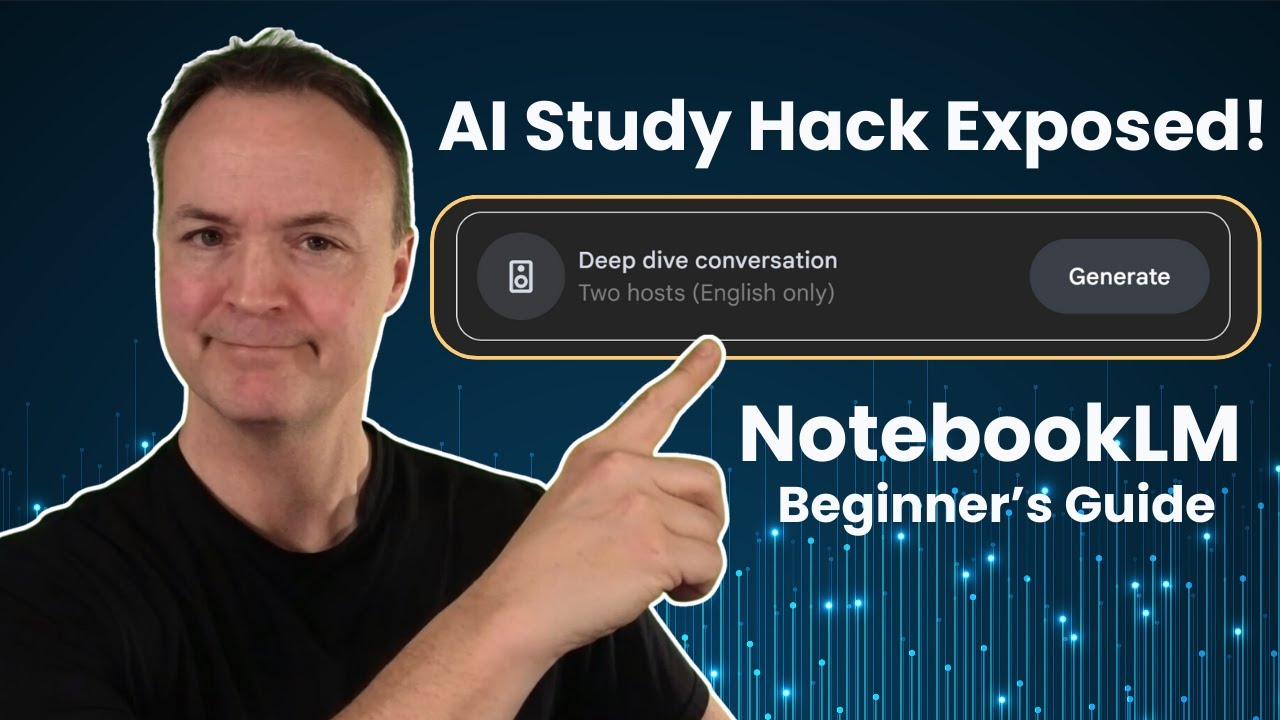
NotebookLM Guide: Google's AI Study Hack You Need for Faster Research
9:54

NotebookLM Guide: Google's AI Study Hack You Need for Faster Research

Teacher's Tech 25.09.2024 70 833 просмотров 1 285 лайков обн. 18.02.2026
Поделиться Telegram VK Бот
Транскрипт Скачать .md
Анализ с AI
Описание видео
In this video, discover how to use Google’s NotebookLM. NotebookLM is changing the way you study and conduct research. Powered by AI, NotebookLM helps you transform complex documents into quick summaries, interactive study guides, and even engaging audio overviews that sound like podcasts! Whether you're a student, researcher, or just someone looking to simplify your learning process, NotebookLM is the tool you’ve been waiting for. We’ll explore its powerful features, like AI-driven fact-checking, support for multiple file types (from PDFs to Google Slides), and the ability to create timelines and FAQs from your notes—all in a matter of seconds. Watch now and see why NotebookLM is the ultimate AI study hack for smarter, faster research! 0:00 Introduction 0:46 Accessing NotebookLM 1:22 Create a new notebook and add sources 4:17 Finding key topics in sources 5:25 Asking AI questions about your sources 6:20 Let NotebookLM create FAQ, Study Guides and more 7:41 Have NotebookLM generating example writing 8:12 Create a podcast out of your notes

Оглавление (8 сегментов)

  1. 0:00 Introduction 157 сл.
  2. 0:46 Accessing NotebookLM 121 сл.
  3. 1:22 Create a new notebook and add sources 572 сл.
  4. 4:17 Finding key topics in sources 219 сл.
  5. 5:25 Asking AI questions about your sources 181 сл.
  6. 6:20 Let NotebookLM create FAQ, Study Guides and more 259 сл.
  7. 7:41 Have NotebookLM generating example writing 95 сл.
  8. 8:12 Create a podcast out of your notes 327 сл.

0:00

Introduction

take a look at this brilliant AI tool from Google  I was able to upload all these different types of   files from PDFs Google Docs Google Slides my own  notes and web links and then with one click turn   into a podcast with two people talking take a  quick listen here how is this AI tool shaking   things up in education and more specifically  what's it like from a student's perspective it's   definitely a Hot Topic to get to the bottom  of this we're diving into some fascinating   research we've got two papers and a whole  Journal article isn't that amazing well   today I want to show you how to do this in  Notebook LM but I want to show you all the   great things that you can do to really give  yourself an advantage and quite the study hack now let me tell you the best things about  notebook LM first of all it's completely free
0:46

Accessing NotebookLM

you just need a Google account to access it it's  running Gemini Pro 1. 5 and any of the information   that you upload to it is going to stay private  they're not going to scrape it to train any of   their models so once you have your Gmail account  just go ahead and click on try me and it's going   to bring you right in you can see has an easy  user face and they have some examples that you   can uh go ahead and test out at the beginning but  I'm going to start by just uploading some of the   information that I showed you I had at the very  beginning of the intro if you prefer to work in
1:22

Create a new notebook and add sources

light mode just go up to the settings and you  can make that quick switch back and forth and   you'll also notice that we have some notebook  FAQ and a Discord you could join there let's   go ahead now and go and create a new notebook so  when we go ahead and click on it you'll see this   is where we add our sources to so we can upload  our sources so I can choose the file and go from   this way and grab documents so I can grab a PDF  and you'll see now for my sources I just have the   one but you can still add more but even at this  one I can do uh things like create the podcast   based on this one right here I could go ahead  and click generate but I'm going to come back   to this I want to upload a few more documents so  I'm going to go ahead and click the plus here and   we'll go ahead and just drag another one in here  and you can see now we have multiple ones because   as I drag up this information these documents  that I've already curated now I'm going to be   able to have a discussion with this notebook  LM and they they'll be able to find connections   between them based on what I'm telling it to look  for so let's go ahead I'm going to go and add a   few more this time I have a web link over here  just of an AI uh documents I'm going to go back   and just go to the website I can paste a URL right  into here to get my third one I can also go into   things like Google Docs or Google Slides so if I  click on uh Google Docs I should have a uh Google   Docs right in here that I can insert and we'll go  ahead and put in some uh Google Slides also so you   can see all the different sources that I've put  in now we can cross reference them and try to see   what connections that are between them so we've  added some PDFs Google Slides Google Docs and we   just came back from a class and we want to quickly  add those notes from the Prof if I go back up to   add Source I can paste in the text here so I go  copy text I can paste in the information and hit   insert and then you can see right away we have  this as part of what AI will reference I don't   want to have this called pasted text so I'm just  going to go and rename the source you can also   remove the source so if I just go rename I'm going  to go and call this just notes uh from class just   because to keep things simple so I have this now  called notes from class the other thing I want to   name is just going up here and I'm just going to  call this uh AI info uh just so that everything's   not called Untitled when I create a new notebook  so we have these six different sources if I look   down below I have the six different sources here  so since they're all checked I could start asking   questions over here just like normal AI but the  what I want to show you first if I click on any
4:17

Finding key topics in sources

of them so let's click on this PDF I can see the  summary right here of that document and I really   like how they have these key topics that will  be generated for each of these AR articles if   I scroll down below you can see uh the content but  if I go and click on let's say student engagement   here it's going to go ahead and uh find that  student engagement in this Source here and   place it here and everything's going to be cited  as well so here we go if we take a look at this   I'll scroll up a little bit student engagement  whenever you see this is going to be cited   so it will show me where uh that they're pulling  this from so the information I give it and then   I can double check what they're writing to make  sure that this is real this isn't a hallucination   that sometimes AI can do if I click on it will  bring me to that spot in the document I love that   feature so this becomes part of the chat with  AI I'm just going to close here and right now I'm   in the chat so if I go down I can continue asking  questions they're even promp to me here so if I go
5:25

Asking AI questions about your sources

how to uh how do AI tools impact student  engagement in higher education then AI will   double check this for that specific question  based on all the different check marks that I   have now when you come across any of these that  you like you can save it as a note you can also   copy the text from here but if you want to save  it as a note just click here and it becomes part   of the notes and you can use as you click on it  this could be uh you can see how you can add note   delete notes uh from here so I'm just going to  click off of it right now the chat is always going   to be if you want it open or close just click view  chat and you can see the conversation here as I've   asked different questions from the documents as  I go through and still you can check the sighting   so you can close the chat over here again if I  want to see The Notebook guide I can click over
6:20

Let NotebookLM create FAQ, Study Guides and more

here and it's going to have suggested questions  of these be based on those six   sources what I really like are these features so  it's helped me create an FAQ a study guide table   of contents timeline briefing doc so let's do  a little example here so maybe I just un check   a few of these here I'll just use these two PDFs  can it make me a study guide so if I go ahead and   click this is going to be generate me a study  guide and in the study guide it's going to give   me questions and answers and Essay possibilities  based on these two articles here's the stud guide   you can see we have our question and answers here  and here are the questions if I scroll down the   answer key is right here and if I keep scrolling  down essay questions and remember this is based   on those two articles there so if I just click off  of it you'll see that we have our study guide as   part of our notes here if I go back to notebook  guide I'm not going to run through them all but   whatever ones I click I can do any of these quick  uh quick uh capabilities here by just clicking on   them and having what I want to have selected now  do remember we can use this just like a normal uh   chat GPT or Gemini if I go ahead and if it's based  on these two here I can go and ask it to give me
7:41

Have NotebookLM generating example writing

ideas for possible introduction paragraph it will  even write things for you so if I go ahead uh and   just ask it for the ideas it will generate ideas  based on those two articles and again after it's   done writing you can see how everything is Source  where it's going to be pulling from so it can give   you some great creativity uh to get those ideas  and connections between all these different ones   again I'm just going to go and close out of this  I'm going to go back to the notebook guide because
8:12

Create a podcast out of your notes

what I started was with was creating the podcast  and it's so easy to do so if I go again and select   all the sources here all I have to do is click  on generate and it just takes a couple minutes   I won't make you watch the whole thing but then  we're going to have this podcast and we can even   download it here we go it's all ready I'm going  to go ahead and hit play listener name ready to   jump into this Ai and education research I am  let's go we're focusing on student engagement   right yeah definitely and how it's like act  isn't that great how real that sounds and how   quick that gets created so now what you could do  with this is if we click on the ellipses we can   go ahead and download this as an MP3 free so you  could take it with you and if you're on a drive   or if you can put it on any device to listen  to and you're studying as you listen to this   this podcast you can also delete it and change  the playback speed here as well I want to point   out there is share up top whenever you're inside  one of your notebooks you can share this out just   remember if you put any personal information that  you don't want other people to know uh make sure   you don't share it with other people so I hope you  like this walk through a tutorial of how to use   notebook LM this is one of my favorite AI tools  here I just love how quickly you can go through   research and make connections between different  articles based on the information that you curated   let me know what you think about this and uh  how much and how you are using it thanks for   watching uh this time on teachers Tech I'll see  you next time with more Tech tips and tutorials

Ещё от Teacher's Tech

Ctrl+V

Экстракт Знаний в Telegram

Транскрипты, идеи, методички — всё самое полезное из лучших YouTube-каналов.

Подписаться


