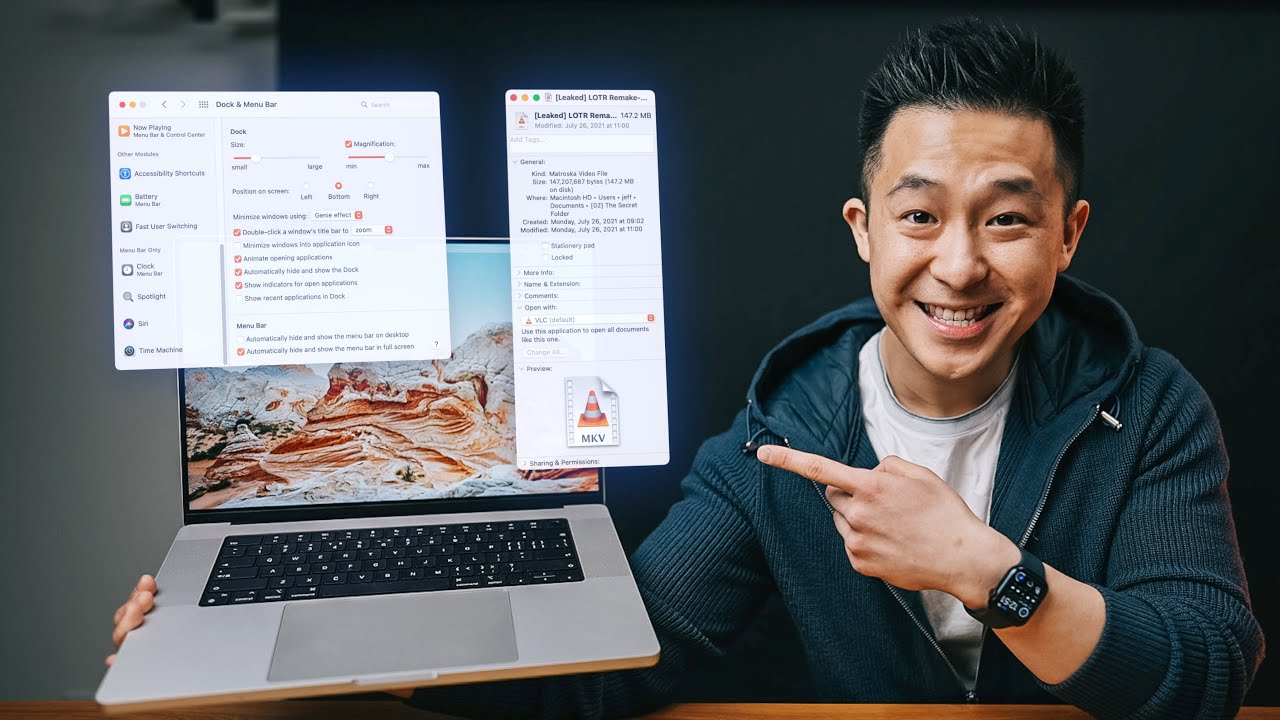
Top 20 MacBook Tips for Productivity!
8:56

Top 20 MacBook Tips for Productivity!

Jeff Su 22.02.2022 616 196 просмотров 19 819 лайков обн. 18.02.2026
Поделиться Telegram VK Бот
Транскрипт Скачать .md
Анализ с AI
Описание видео
My Premium Resume Package: https://jeffsu.gumroad.com/l/premium-resume-package ✍🏻 Sign up for Scribe: https://scribe.how/jeffsu Adopt the settings changes I go through in this Top 20 MacBook Tips for Productivity video to permanently increase your efficiency with your Mac! Then, practice the MacBook tips and tricks I go through (hint: option key is super super useful) to get things done in a fraction of the time ⏰ We’ll go through basic Mac settings changes (like showing path and status bars in finder) all the way to advanced tips like how to present your iPhone screen during your next video conference meeting TIMESTAMPS 00:00 Open with Default App 00:39 Show Path Bar & Status Bar 00:55 Finder Preferences: General 01:10 Finder Preferences: Tags & Sidebar 01:26 Finder Preferences: Advanced 01:45 Moving Files between Folders 01:59 Enable Battery Percentage on Mac 02:25 MacBook Dock Productivity Tips 02:47 MacBook Option Key Productivity Tips 03:54 Add Library Folder to Sidebar on Mac 04:20 Present iPhone Screen on Mac 04:48 Default Screen Recorder on Mac 05:03 Scribe Sponsorship 05:49 Change Image Size on Mac 06:14 Create PDF from Images 06:31 Export Images to PDF 06:59 Export from Keynote, Pages, Numbers 07:10 Force Quit Applications on Mac 07:47 Check MacBook Warranty & Support 08:07 Function + Delete on Mac 08:22 Accented Alphabet Characters 08:28 Quick Access Emojis 08:33 Secret Apple Logo Shortcut RESOURCES I MENTION IN THE VIDEO Subscribe to my Productivity newsletter - https://www.jeffsu.org/productivity-ping/ Most Useful Keyboard Shortcuts - https://youtu.be/gCnSozvvMMM MY FAVORITE GEAR 🎥 My YouTube Gear - https://geni.us/youtube-gear 🎒 What's In My Bag - https://geni.us/mybag *MY TOP 3 FAVORITE SOFTWARE* ❎ CleanShot X - https://geni.us/cleanshotx ✍️ Skillshare - https://geni.us/skillshare-jeff 📖 Readwise - https://readwise.io/jeffsu/ BE MY FRIEND: 📸 Instagram - https://instagram.com/j.sushie 🤝 LinkedIn - https://www.linkedin.com/in/jsu05/ 👋🏻 Clubhouse - https://www.joinclubhouse.com/@jsushie 👨🏻‍💻 WHO AM I: I'm Jeff, a full time Product Marketer. In my spare time I like to tinker with tools and create systems that help me get things done faster - or as one of my friends puts it: "Get better at being lazy" 😏 If you'd like to talk, I'd love to hear from you. Messaging me on Instagram (@j.sushie) directly will be the quickest way to get a response! PS: Some of the links in this description are affiliate links I get a kickback from 😇 Disclaimer: My opinions are my own and may not reflect that of my employer #MacBook #tips #productivity

Оглавление (23 сегментов)

  1. 0:00 Open with Default App 116 сл.
  2. 0:39 Show Path Bar & Status Bar 49 сл.
  3. 0:55 Finder Preferences: General 49 сл.
  4. 1:10 Finder Preferences: Tags & Sidebar 56 сл.
  5. 1:26 Finder Preferences: Advanced 60 сл.
  6. 1:45 Moving Files between Folders 46 сл.
  7. 1:59 Enable Battery Percentage on Mac 93 сл.
  8. 2:25 MacBook Dock Productivity Tips 68 сл.
  9. 2:47 MacBook Option Key Productivity Tips 217 сл.
  10. 3:54 Add Library Folder to Sidebar on Mac 97 сл.
  11. 4:20 Present iPhone Screen on Mac 75 сл.
  12. 4:48 Default Screen Recorder on Mac 43 сл.
  13. 5:03 Scribe Sponsorship 160 сл.
  14. 5:49 Change Image Size on Mac 75 сл.
  15. 6:14 Create PDF from Images 41 сл.
  16. 6:31 Export Images to PDF 65 сл.
  17. 6:59 Export from Keynote, Pages, Numbers 24 сл.
  18. 7:10 Force Quit Applications on Mac 121 сл.
  19. 7:47 Check MacBook Warranty & Support 60 сл.
  20. 8:07 Function + Delete on Mac 47 сл.
  21. 8:22 Accented Alphabet Characters 23 сл.
  22. 8:28 Quick Access Emojis 10 сл.
  23. 8:33 Secret Apple Logo Shortcut 63 сл.
0:00

Open with Default App

you know when you're trying to open a file on your macbook and you remember you're only supposed to open it with another app like so well to never waste time doing that ever again with the file selected press command i open up this window here under open with select the default app you want to use moving forward and press change all pretty simple right let's get started hi friends welcome back to channel if you're a macbook user we're going over eight settings changes that will permanently speed up your workflow and 12 tips you can use every day to increase your productivity on this overpriced i mean lovely machine staying within finder
0:39

Show Path Bar & Status Bar

under view you want to show both the path bar and the status bar this lets you see exactly where you are in the file management hierarchy and how much space you have left without having to dig around for it because this is now enabled under finder preferences
0:55

Finder Preferences: General

general tab i actually uncheck open folders and tab instead of new windows since i could just click the path to go back to the previous folder when i open new finder windows i also like to see my documents folder instead of the recent folder under tags if
1:10

Finder Preferences: Tags & Sidebar

you're like me and don't use tags you can uncheck all of them here or just leave the ones you do use and for sidebar i like to keep mine as clean as possible so i uncheck the ones i never use feel free to just pause the video and copy my settings here and under
1:26

Finder Preferences: Advanced

advanced the only thing i change is search the current folder instead of search this mac this means whenever i search for something like so it will only search within that folder instead of this entire mac which will actually give me irrelevant results pro tip for accuracy i haven't seen anyone else mention if you're trying to move a
1:45

Moving Files between Folders

document between folders like this it's actually very easy to drop it into the wrong one but if you move the cursor to the right to one of these info columns you're actually now able to drop it into the top level folder without any issues
1:59

Enable Battery Percentage on Mac

last macbook setting to change under system preferences go to dock and menu bar battery all the way down here and enable show percentage i don't know why apple makes the simple feature so hard to find by the way i do have a no bs newsletter called the productivity ping i send you one practical tip and one keyboard shortcut every other week so sign up for that if you're interested link down below moving over to macbook tips and tricks for productivity starting with the dock first you can actually change
2:25

MacBook Dock Productivity Tips

the position of the dock by holding down shift and dragging the line like so second you can right click on the vertical line to access docs settings instead of having to go through system preferences and within dot preferences i like to disable show recent applications in dock to keep this clean this is a nice segue into the option key tips because if i hold down
2:47

MacBook Option Key Productivity Tips

option command i can drag the downloads folder and create a download alias folder i can now drag this download alias folder into the dock and this is nice to have because i believe by default the downloads folder within the dock opens in a weird stack way that i don't really like and now i can just delete the download alias folder here and this remains where it is similar to the first tip of this video if you right-click on a file to open with another app you can actually just hold down option and this changes to always open with if you want to quickly make a copy of a file hold down option and drag the file down or to another folder normally you expand folder views one level at a time like this but if you hold down option and click you expand all child folders and files immediately and for almost every menu tab up here if you hold down option you'll see hidden directories or new functions this is very useful the next time you come across a help center article or tutorial telling you to go into a folder you can't seem to find clearly not jeff's two standard but by holding down option you might be able to
3:54

Add Library Folder to Sidebar on Mac

locate it on that note the hidden library folder is actually very useful for us to access regularly this under go hold down option and you'll see it open library go to file and add this to sidebar so you can navigate back to this easily pro tip the font folder is actually in your library and this is where you can add or delete fonts used on your mac to wrap this part up by holding down option and clicking the red x button you close all windows for a given application moving on here's a
4:20

Present iPhone Screen on Mac

macbook productivity tip very few people know about and that is if you connect your iphone to your mac using a cable open up quicktime player file new movie recording and here you can actually select your iphone screen like so now you can make recordings of your iphone directly on your mac and doing virtual meetings present your quicktime player window which is now your iphone screen for product demos command shift 5 brings
4:48

Default Screen Recorder on Mac

up the default macbook screen recorder and under options you can actually choose where you want to save the screen recording to the timer choose a microphone if you have different peripherals plugged in and show mouse clicks for a better viewer experience
5:03

Scribe Sponsorship

speaking of recording your screen the sponsor of today's video is scribe i've talked about them before big fan of their product they're a free chrome extension that you can use to create high quality step-by-step tutorials at work or for school for example for me at work all new joiners need to learn how to use a specific tool instead of teaching the same thing over and over again i create a scribe add the link to an onboarding document for all new hires to go through although the free version of scribe is more than enough for 80 of use cases they've been super nice and provided us with 200 scribe pro promo codes the pro version you can do extra stuff like recording on web and desktop and annotating screenshots you can sign up using the link down below and there's a scribe teaching you how to redeem the promo code so you can experience it for
5:49

Change Image Size on Mac

yourself back to macbook specific tips after opening an image or photo using preview i can click markup edit size and now i can decrease the size of this file if i need this below 500 kilobytes for example i can change the width to something like i don't know 17. the proportions stay the same but now it's only 486 kilobytes i can press ok command s to save and there you go while
6:14

Create PDF from Images

we're talking about images you can hold down command select multiple images right click quick actions and create pdf and in this pdf file you can actually move the pages around like so and press command s to save your changes
6:31

Export Images to PDF

alternatively after opening a pdf document you go to file export png to create an image file from all the pdf pages like so this is especially useful if you're uploading documents to a website that only accept a certain file type and although i don't really use keynote pages or numbers because google workspace is the best place okay remember you can export keynote
6:59

Export from Keynote, Pages, Numbers

presentations uh as powerpoint documents uh pages into uh doc and um numbers into excel i'm having way too much fun with this video
7:10

Force Quit Applications on Mac

all right next macbook tip if the program stops responding you have three ways to deal with it first you can bring up activity monitor select the apple process and click stop by the way i use a free app called alfred instead of a default spotlight so let me know if you want a video on all the apps i use on the mac second you can hold down the command option escape keys and force quit the application that way or finally you can actually go down to the dock right click and actually hold down option and force quit that way basically the option key gives you a lot of options i gotta end this video if you're
7:47

Check MacBook Warranty & Support

selling a macbook or buying one second hand go up to the apple logo here about this mac copy the serial number here go to checkcovers. apple. com paste in your serial number input this code click continue and this shows you whether your support and warranty have expired moving over to the keyboard this is how delete works on
8:07

Function + Delete on Mac

a mac right but if you hold down function you can actually delete like you would on a pc very useful if you're trying to get rid of the top line those of you who have never used a pc before probably don't even know what i'm
8:22

Accented Alphabet Characters

talking about next you can long press a key to reveal accented alphabet characters like so command control space to bring up the
8:28

Quick Access Emojis

searchable emoji bar and of course the secret shortcut apple
8:33

Secret Apple Logo Shortcut

employees are forced to use every day to pledge their allegiance option shift k to input the apple logo just kidding mr cook love your products if you enjoyed these 20 or so macbook tips for productivity you might enjoy my video on keyboard shortcuts i use every day see you on the next video and in the meantime have a great one

Ещё от Jeff Su

Ctrl+V

Экстракт Знаний в Telegram

Транскрипты, идеи, методички — всё самое полезное из лучших YouTube-каналов.

Подписаться




