This Hidden Affinity Tool Lets You Paint Back in Time (Undo Brush Tool Explained)

This Hidden Affinity Tool Lets You Paint Back in Time (Undo Brush Tool Explained)

Machine-readable: Markdown · JSON API · Site index
Поделиться Telegram VK Бот
Транскрипт Скачать .md
Анализ с AI

Оглавление (2 сегментов)

Segment 1 (00:00 - 05:00)

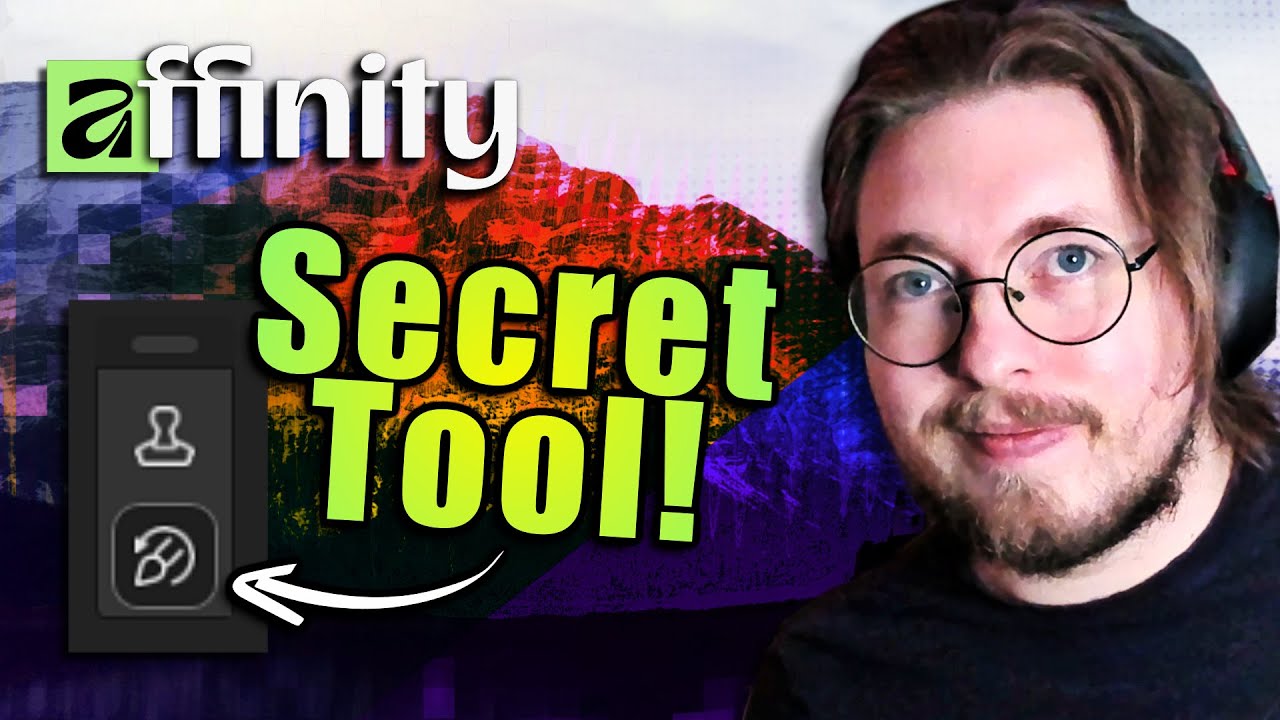
So, inside Affinity, we have a tool that I don't think a lot of people know about, which is something called a undo brush tool. And it doesn't sound very exciting when you say it out loud like that, but it is actually a super cool tool when it comes to creating many different awesome effects. So, I wanted to show this off in a separate video to just kind of demonstrate how to use it because it is slightly complicated, but once you know how to use it, it's going to be super awesome. Now, the tool I'm talking about is called undo brush tool, and it might not be that exciting of a name, but it does actually do some very cool things inside your images. And essentially, you can use it in two different ways. One is to just simply undo or recreate from a different step inside your history. And another thing is you can use something called snapshots, which is incredibly awesome inside your compositions. So, let me go ahead and demonstrate how you can use this in the simple version, which is just kind of to go back in your history and redo a couple of steps inside your program. So, let's say I have this photo here, and I might want to go in and do some changes. Let's say I go down and let's say I make it black and white like I do right here. And let's say I also go down inside maybe my filters and add a uh ripple effect inside the photo. And I might want to, let's say, pixelate it. So I can also go in and say I want to pixelate, turn it up a little bit so we get some pixels in here, you know, so we get different effects going on inside the composition. Now what I can do is I can actually go ahead and delete these again. And what I can then do is select my undo brush tool which is found inside underneath my clone stamp tool and I can go inside my history down here. So you can see we do actually have a history panel and I can choose a particular point in my history and redraw that point onto my canvas. So what I can say is maybe when I added the ripple layer, I'm going to take that one and then you can see I can actually draw that state inside my history onto my image. Or maybe I want to go back to where I just added black and white. So if I do that, you can see I'm still drawing black and white, but I'm not drawing the ripples because at that point in history, I did not add the ripple effect yet. So just kind of go in and reapply a certain point inside your history here. I can also go back to maybe my original drawing and just draw in the original. And maybe I can go back again and draw the pixelated effect. So I can start drawing in some pixels here. So you can just kind of see how we can go in and reapply from a certain point in history. But now there is also another way to use this tool which is incredibly cool when it comes to Affinity. So let's go ahead and go back in history and just kind of redo everything. And what I would like to do now is apply some effects inside this particular photo here. So I could say that right now there's no effects added inside my composition. Like this is just a default photo. So I'm going to go up to window, going to go down to general, and then we have something called snapshots. Now, snapshots is this awesome looking window. Well, awesome. It's kind of plain. Um, but it has some really cool features, which is that you can go in and add a snapshot of this certain point inside your project. So, what I can do is I can call this one default because this is just the default image. So, if I save this one, you can see that now we have a snapshot with all the layers and all the information saved inside this moment in time. So now if I want to add something inside my photo, maybe I want to go in and say I want to add a uh filter. This could be for example the pixelate again. So I'm just going to pixelate. Add a few pixels inside the photo like this. Maybe a little bit more like so. And then I can add another snapshot. So I'll say I want to add a snapshot. I can call this one pixelate cuz that's what I did. So pixelate. Now I might want to go back to the original version and do something different. So I can click on my original up here which is called default. Click on restore snapshot. And then you can see we have the original again. And if I want to go back again inside my pixel data version, I just click it down here and click restore snapshot. And we just kind of go between different versions of this image here. Now the really cool thing happens when we can start drawing in from various snapshots into one image. And in order to demonstrate that, let's actually go and create another snapshot. So, I'm just going to go back to my default one and say I might want to go down to filter and let's say we want to uh add a ripple effect. So, we're just going to do that. I might also want to go in and add a adjustment layer. This could be the normals. I could do just go in and add some really cool color schemes here. Uh so, in this sort of way, we can just kind of, you know, change how we want the image to look like. Like something like this, right? Then I add another snapshot by clicking

Segment 2 (05:00 - 08:00)

add snapshot and then call this one ripple like so. And now what we can do is we can go back inside my default version and say well this was the original and I might want to paint in from one of these other snapshots. So what I can do is I want to make sure that I have one of these snapshots selected. So I can select it by going down to um let's go and say pixelate here. you want to click on the small icon next to pixelate and then I can go ahead and make sure that my undo brush tool is selected which is right here. Now at the moment you can see when I start drawing nothing happens and that's because I need to make sure first of all that I have a layer selected that I want to draw on. So if I pick the layer up here you can see that now I start drawing in a pixelated part of that image. I'm just going to draw it inside the water down there. I might want to add the ripple effect inside the sky or something. So I can also pick that one. And I can go in and say, well, the sky has to be this awesome ripple effect that I added in like so. I can always change the size of the brush, you know, just so we can get the finer details. And again, if you accidentally did this, oh no, then go back to the default one and just kind of draw that one in again. Default one. Pixelate. here like so. So, you can draw in from different snapshots which is super cool. If you do get this, I guess bug where you can't really draw even though you did select the layer, add in a new pixel layer and start drawing from that one because you can also do that and go in and maybe add the ripple effect down here. So, you can see even though I don't have that particular layer selected, we can also do it from a different pixel layer. So, if you do not have the option to draw on the original image because we accidentally did something, um, just go and add a new pixel layer, which is going to allow for you to do this. So, you can see we can just kind of draw it in here and add some different really cool effects inside this photo here. Then you can add another snapshot of this version here and just say uh, new 01. Go back inside the default version here. I'm just going to restore it. Add another effect in here. Let's say I want to add some change the colors. We can do that. Going to just change the color scheme. And then I go back inside the new version and make sure I have the brush tool selected. And then I go back down and I draw in, you know, just parts of this, whatever I want to change. So I can just kind of do this. Oh, so we get like a sunset going on in the background. So in this sort of way, you can go in and just apply these changes from different versions of your image using snapshots. So, in this kind of way, we're creating brushes essentially of different versions of the same photo that you might have added as a snapshot inside your snapshots panel. And it's just a really cool way to create many different cool effects inside your different projects. I saw one guy, he uh he had a tutorial on YouTube, that's the one I used, at least back when I was using Affinity version 2, and he would create this sunglass effect where the person had sunglasses on, and he would create different effects on the composition and then just draw it in to the sunglasses, and it just looked really cool. So, you might find some really creative ways to use this tool for many different things. And again, this is just me showing off how to draw, but there's many different ways you can just sort of use this snapshot version to like create some really cool stuff inside your photos. So, with that said, I hope you got something out of this video, and I'll see you guys next time.

Другие видео автора — Dani Krossing

Ctrl+V

Экстракт Знаний в Telegram

Экстракты и дистилляты из лучших YouTube-каналов — сразу после публикации.

Подписаться

Дайджест Экстрактов

Лучшие методички за неделю — каждый понедельник