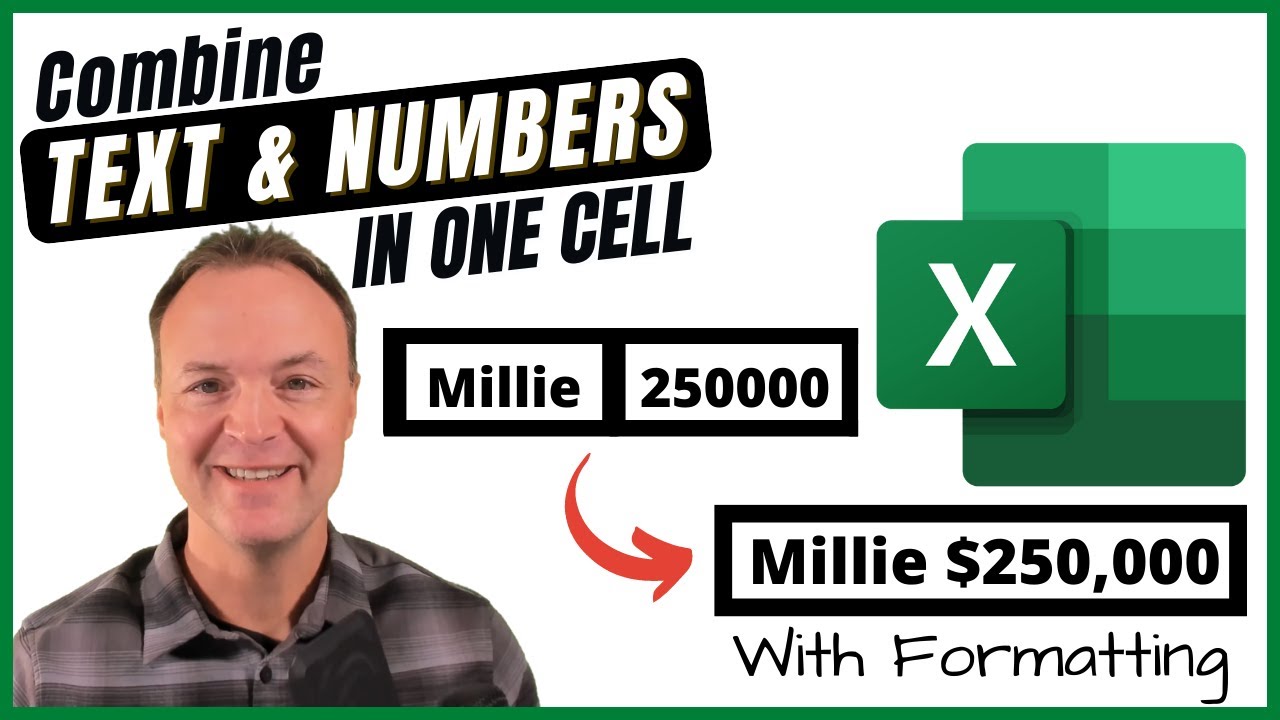
Combine Text and Numbers into One Cell in Excel
9:23

Combine Text and Numbers into One Cell in Excel

Teacher's Tech 05.09.2022 114 582 просмотров 569 лайков обн. 18.02.2026
Поделиться Telegram VK Бот
Транскрипт Скачать .md
Анализ с AI
Описание видео
In this Microsoft Excel lesson, I will show you how to combine text and numbers in different cells into one cell and keep the number formatting. Using the ampersand(&) in Microsoft Excel allows you easily combine cells into one. Using the TEXT function with custom formatting in the equation allows you to add formatting to the number. 0:00 Intro 0:36 Combining cells using the ampersand sign in Microsoft Excel 1:15 Adding spaces, symbols, or more text to the combined data 3:36 Coping number format into TEXT function 5:35 Customizing number format by adding text 8:05 Copy the number format from another cell into your TEXT function More ways to combine cells in Microsoft Excel: https://youtu.be/fgFzb5b7GlU Different ways to split cells in Microsoft Excel: https://youtu.be/nm9z1AdudCM

Оглавление (6 сегментов)

  1. 0:00 Intro 124 сл.
  2. 0:36 Combining cells using the ampersand sign in Microsoft Excel 148 сл.
  3. 1:15 Adding spaces, symbols, or more text to the combined data 450 сл.
  4. 3:36 Coping number format into TEXT function 411 сл.
  5. 5:35 Customizing number format by adding text 544 сл.
  6. 8:05 Copy the number format from another cell into your TEXT function 248 сл.
0:00

Intro

hi there jamie here today at teachers tech hope  you're having a great day today i want to   show you how you can combine cells in microsoft  excel so what i mean is you could have whether it   be numbers or text and combine them into one so  here's a little example what i want to show you   let's say i have a name and then i have a number  i can combine it to make it into this so i can   even add more and then i can take this and copy  it down just like that so these are some of the   tips of what i want to show you today on how to  combine cells text and numbers in microsoft excel
0:36

Combining cells using the ampersand sign in Microsoft Excel

so for this lesson we're not going to be using the  concat or concatenate function we're going to be   using the ampersand to combine this cell over here  with a number in this cell so how we do this is   we're going to start with our equation sign here  so our equal sign and we're going to just select   the first cell and then we're going to use the  ampersand sign which is above the 7 shift 7 and   now we click on our next cell and i'm just going  to hit enter so as you can see it's not quite   exactly what i showed you in the intro we need to  do a few more things to it so the first thing that   we could do is give a space in between the r and  the three here so we can do this by going back up
1:15

Adding spaces, symbols, or more text to the combined data

to the formula bar up here so i'm just gonna go  ahead and select here and i'm going to type in   uh just the quotation marks here and i'm going  to put a space i just hit space bar put another   quotation mark and now i need to add another  ampersand sign and i'm going to hit enter so by   doing that now if i click on it this space between  the quotation marks acts as the space here so what   i'll if i wanted a dollar sign on this to where it  says the 350 000 i could go up here and i'm going   to place it right here so i have a space but then  i'm going to do my dollar sign hit enter and now i   have a dollar sign right there i'm going to come  back and show you how we can format this number   uh in a bit here but i'm just going to continue  on to show you that we can add an ampersand   sign at the end too so if i wanted to add that  per episode i just can go up to the top here   and this is where i can add another ampersand  sign and use when you're typing you need to use   your quotation marks so i'm going to say per  episode but i want a space so i'm going to add   a space first and i'm going to say per episode  just like this and i'm going to go quotation mark   and i'm going to hit enter so now i have winona  writer 350 000 per episode just by using the amper   ampersand sign and using the uh the quotation  marks to put spaces now there's something   else i want to do i could copy this all the  way down just by double clicking and filling in   but i'm going to go back one step because i want  to add formatting now so this is a cool part of   this because i want to add a formatting to this  350 000 where i have the comma in the correct   spot and i'm going to have the dollar sign so i'm  going to actually remove the dollar sign from here   because i'm going to use formatting for this  and what i'm going to have is i just go we   are going to use a function too but before i go  grab uh put the function in i'm going to grab   some formatting and to do this you can right  click anywhere uh in here so i'm just going to   right click and i'm going to go to format cells  you can see it right here and i'll drag this up
3:36

Coping number format into TEXT function

and where you need to go to custom you can see  all the things in here we're going to actually   copy formatting out of here and so in the case of  the number here that i want in it it's going to be   it's going to have a dollar sign i wanted  to be formatted and i wanted to have comma   so if i look at this here this is you can  see there's going to be negative positive   how it's going to be formatting i could take the  whole thing and move it over i could just take a   chunk so what i'm going to do is just highlight  what i need here and i'm going to just go ctrl c   for copy so i'm going to have this i'm going to  hit ok now and a shortcut for this if i go back   to it if i just hit ctrl 1 that's the shortcut  that will get you there in a hurry too so two   ways to do that now if i go back to this cell i  need to add the text function and where i'm going   to add it is before the b2 so b2 is the number  and i'm just going to start by typing text and   you can see the functions come up and i'm going  to just select text it adds the bracket for me   and on this side of the b2 i need to add a comma  if you follow along you can see where it says   comma next and i need to add a quotation  mark so i'm going to be pasting in that   information that i copied from the formatting so  i'm going to go ctrl v and now i'm going to go   and do another quotation mark to end it and i need  to close my bracket so when i close my bracket i'm   just going to go ahead and hit enter and you can  see now this is formatted with a comma to separate   the thousands and it has the dollar sign in there  so at this point i can copy this all the way down   and it copies all the down wake down  correctly with the formatting in here also   but we're not done here yet here i want to show  you a couple other things that you can do with   formatting numbers and copying text and numbers  to get combining them so what i want to show
5:35

Customizing number format by adding text

you now is how you can add text and have it not  recognized so what i mean by this is let's say   so i have a formula simple sub formula here here's  my total of everybody here uh 2. 6 million of all   of these and then i have nine episodes and i just  divided it again so much per episode but if i was   going to go to here and go in this cell and if i  started typing episodes uh in here so that's built   incorrectly so if i just type episodes click off  it doesn't recognize it because it becomes text   you can see how it's aligning there's having some  issue in here but you can actually add text here   so if i look at this you can see what's typed up  here but i'm going to go and actually format it   so i can have words in it so if i go back to this  number nine here and i'm gonna use control one the   shortcut go to custom and this time so it's just  gonna be i'm gonna use the zero but i can actually   add my own custom text formatting here and so  what i'm going to do is add a quotation mark here   i'm going to add a space and i'm going to type  episodes like this and then i'm going to end   my quotation marks so if i hit ok now it says  nine episodes and it didn't wreck the formula   so if i look up in the formula bar up top it  still says nine so i'll do that one more time   if i click on this one where the amount is this is  already formatted with the dollar sign i'm to go   ctrl 1 and i'm going to go to custom and maybe  i just want the word total so i can see there   if i go up and just pick a simple one here you  can go up and see all the different ones that   you can pick but if i was just picking this and  i'm going to pick total i can use my quotation   mark and i write total and i'm going to give a  space an end quotation mark and now i have total   the 2. 6 million dollars and nothing if i look up  at the sum it's still there the text isn't there   it's being recognized as a number so that's a way  that you can add text to a cell that doesn't get   recognized as a number and with any of these cells  that you just formatted just go back i'm going to   use ctrl 1 again check out the custom and notice  that it's in here so this is a format that's   created and if you didn't want it you could delete  it and you can see how it goes back to normal like   that so i just want to show you one last thing  here quick thing to end this video here today i'm   going to show you how you can copy uh your format  from a different cell over to that text function   so you can see in this case i've combined if you  look at the formula bar it's the same thing that
8:05

Copy the number format from another cell into your TEXT function

i showed you before but it's coming out as 0. 85  so i could if i wanted to make sure i got the   same as this what i could do if i click in this  and then use my control 1 or go to format cell   and then notice that it's at 85 percent shows  me the sample if i go to custom it carries over   at that percent so what i need to do is highlight  copy so i'm just going to go ctrl c   go back over to this one go in front of the b2 and  i'm going to go and i put my text function in like   i showed you before and at this point i need my  comma so i need my quotation mark i need to paste   in that zero percent what i showed you before i  need to end my quotation mark just like that and   end my bracket and hit return or enter and you  can see that now it's 85 percent and it copied   the format from there so i just want to show you  that one last tip about when we're putting the uh   the formats into that text function so i hope  you like this way of combining cells here uh   let me know what you think if it's working  for you uh down below in the comments thanks   for watching this time on teachers tech i'll see  you next time with more tech tips and tutorials

Ещё от Teacher's Tech

Ctrl+V

Экстракт Знаний в Telegram

Транскрипты, идеи, методички — всё самое полезное из лучших YouTube-каналов.

Подписаться




