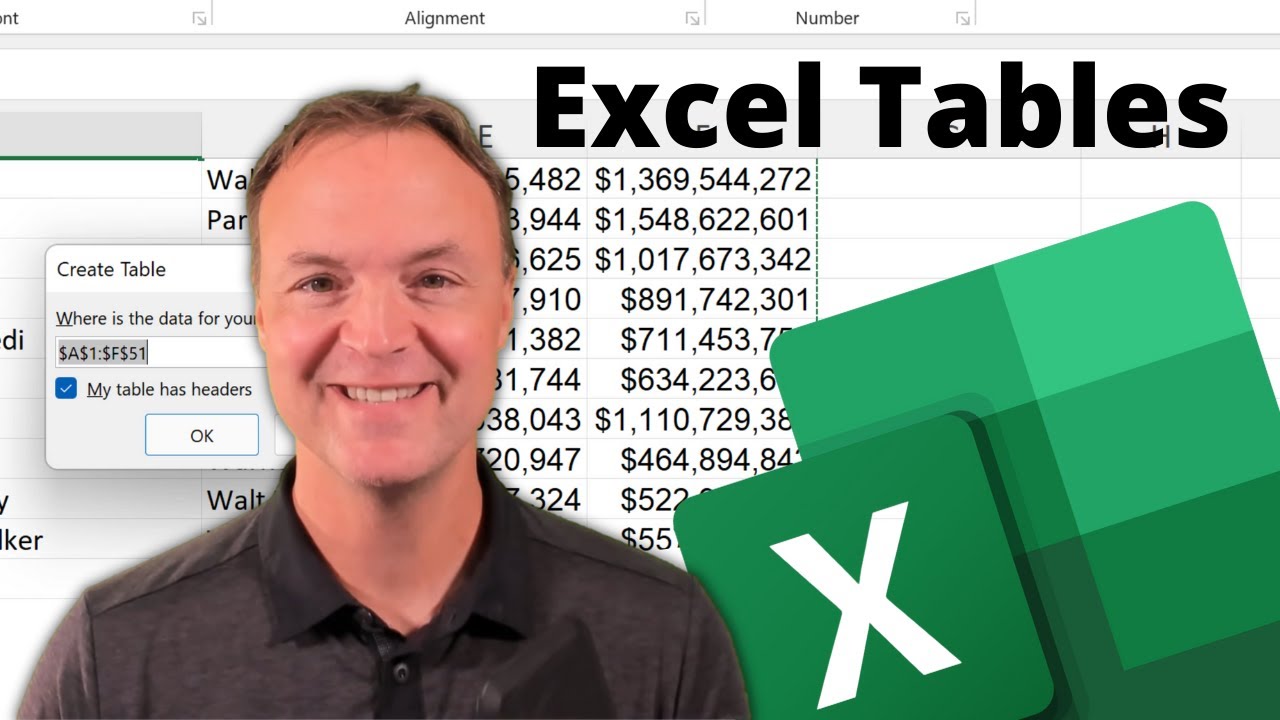
7 Reasons Why you Should use Excel Tables
9:35

7 Reasons Why you Should use Excel Tables

Teacher's Tech 21.03.2022 73 764 просмотров 1 239 лайков обн. 18.02.2026
Поделиться Telegram VK Бот
Транскрипт Скачать .md
Анализ с AI
Описание видео
In this video, I will go over 7 different reasons to use tables in Microsoft Excel. When you turn your data range into an Excel table you are unlocking more properties. Benefit from using tables in Excel. 0:00 Introduction 0:32 Creating a table in Microsoft Excel 2:05 Easy formatting with a table (banded rows, add a total) 3:27 Table headers remain visible even when you scroll down 3:44 Tables automatically create filters for each column 4:50 Tables automatically expand when you add new rows or columns 5:35 Tables automatically name ranges (can be used in formulas) 6:30 You can add totals to tables automatically 7:05 Add slicers to your table 8:05 You can create dynamic charts from Excel tables Learn more about mentioned excel topics below: Create forms to enter data in your tables: https://youtu.be/dV90KPArP5Q More about slicers in this tutorial: https://youtu.be/c8qePWuYleg More about tables in this tutorial: https://youtu.be/dV90KPArP5Q More about pivot tables: https://youtu.be/igSovq_H24A Practice File: https://leveragingdigitalinc-my.sharepoint.com/:x:/g/personal/jamie_leveragingdigital_com/EQKwmxoi8yJFrrYnyk8KUYUBsQW4XelB_jkA0JwQgbiT3A?e=n8Mu0q


Оглавление (10 сегментов)

  1. 0:00 Introduction 137 сл.
  2. 0:32 Creating a table in Microsoft Excel 318 сл.
  3. 2:05 Easy formatting with a table (banded rows, add a total) 283 сл.
  4. 3:27 Table headers remain visible even when you scroll down 39 сл.
  5. 3:44 Tables automatically create filters for each column 224 сл.
  6. 4:50 Tables automatically expand when you add new rows or columns 147 сл.
  7. 5:35 Tables automatically name ranges (can be used in formulas) 164 сл.
  8. 6:30 You can add totals to tables automatically 99 сл.
  9. 7:05 Add slicers to your table 181 сл.
  10. 8:05 You can create dynamic charts from Excel tables 295 сл.
0:00

Introduction

do you want to make your excel spreadsheets much  easier to use try making a table out of your data   range in this video i want to go over seven  reasons why to use tables in microsoft excel if you want to follow along with what i'm doing  here today i'll put a link to this sheet down   below in the description so you can click on  it and then just make a copy and save it to   your computer now first of all before i get  into the reasons why we want to use a table   if you're brand new to this i just want to  show you how to create a table first there's   a few different ways you can do this the first  way that you can do it make sure to that you're
0:32

Creating a table in Microsoft Excel

selected inside the data range that you want to  turn to the table turn into the table so i'm just   picking somewhere right in here so if i go up to  the home tab and then just take a look and follow   the ribbon over to format as a table i can select  this and right away i can pick what i want it to   look like so i could choose something like this  one and right away it's going to say is this the   range since i'm clicked inside of it this is the  range that i do want i can see kind of the line   around it and it will go all the way down to  the bottom of my table does it have headers   yes mine does have headers so i'm  going to hit ok and i have a table   just like that i can quickly change the formatting  to on it i can just go to any of these and you can   see as i hover over i get a different look so  i'm just going to leave it i'm going to select   this one right here i did say i wanted to show  you a couple different ways too to make tables   you can do a shortcut on this too so if i go ahead  and just undo a couple steps to control z and if i   wanted to do you this shortcut i could hit control  t on my computer and i get the crate table right   here and i can go ahead and click it the other  way that i could do if i go under insert you'll   find table here and i'm getting back to the same  thing so i'll just hit ok and i have my table back   so that's incredibly easy to use now let's get to  some of the reasons why we want to use our table
2:05

Easy formatting with a table (banded rows, add a total)

so the first reason what i want to show you is the  formatting and i kind of showed you that already   when i picked the different styles but there's a  little bit more that you can do when we created   our table we've unlocked additional properties on  our sheet notice if i click into a cell over here   that's not into the table and then i click in the  table i get the tab up here table design that's   how you know you're working with a table also but  look at this so i've showed you the table styles   here and we can change those quickly but we have  these different items that we've unlocked with   using a table banded rows make it really easy and  quickly to see data across the row so if i uncheck   this you can see how it goes on or off we can use  banded columns if that helps with the visual too   but as you click on any of these you can  turn things quickly on or off if you want   your filters on or off but what i liken this  too you can quickly add a total to this so if   i go ahead and click total and i'm just going to  stretch out this column so we can see the number   there we have a quick total of the of this entire  column right here so it makes it really easy to   format when you're using a table the other thing i  just want to point out and this is a quick this is   something very quick if i scroll down if you take  a look at this across the top where the headers
3:27

Table headers remain visible even when you scroll down

are if i scroll down i can always see the headers  here so this is something when i use a table   when i create a table you're going to see  the header all the time when you scroll down
3:44

Tables automatically create filters for each column

when we created our table we automatically got  filter buttons to each one across the top with   our header so if you look we have these drop  downs here that allow us to sort the column   and we can choose multiple columns to sort down  so take a look at this if i go and drop down   under the year i could sort smallest largest or  largest the smallest and then it would go through   and put the year through just like that and it  does everything in the entire list of movies   that i have there i'm just undoing that last  step but now if i wanted to say well something   more specific i could i'm going to undo with  select all undo all them i'll select just 2019   hit ok and then i have a list of movies from  from 2019 and i can see it's walt disney and sony   picture but if i had a lot more information if i  needed to sort down sort maybe by just distributor   i could go to this one here and pick  just walt disney and then i would have my   list what i'm looking for so i could use multiple  columns through the filters to really go through   the information to find exactly what i'm looking  for tables will expand automatically when you add
4:50

Tables automatically expand when you add new rows or columns

new rows are columns so let me give you a little  demo on this let's start with a row so we have 50   here let's see if i was continuing on if i go to  this last cell since i'm using a total underneath   i'm going to just hit tab notice how the table  expands and the color is there so i could go at   this point start typing in my information for a  new movie the other way it will expand is over on   the column so if i go and just click beside it and  i was going to type worldwide here just like that   you can see that i already have a filter that was  added to it and everything i have the banded rows   that got put in place so now it's just waiting  for that information so each of these when i
5:35

Tables automatically name ranges (can be used in formulas)

put worldwide it actually gave it a name range of  worldwide so the nice thing is within these tables   that each of these columns are is actually a  name range and you can add up these columns so   let me show you a little example here so if i  was just going to do a formula and i'm going to   just put use some here as an example and i'm just  going to choose domestic of an international right   here so if i go ahead and hit enter now you can  see it automatically filled in so just by doing   that one formula up here and you can see what the  sum is doing it's doing the sum of domestic so   it's taking things from this column because it's a  name range to international and summing it up and   if i go all the way down we have a total if we  can see how that 51 is zero but i can go ahead
6:30

You can add totals to tables automatically

and just click it here and drop down and what  am i looking for i could go and add my sum   at this point but you have these different options  under any of these so if i click under the columns   i can go and actually do something like an average  if i wanted to or you could pick what you'd want   maybe a max and you can go through and find all  those things very quickly even as you're expanding   with more columns and rows another way you can  sort information in your tables is to add a
7:05

Add slicers to your table

slicer so what i can do is if under the insert you  can see that there is slicer and i'm going to go   and just select slicer and for the little example  here i'm going to go and choose the year and we'll   choose our distributor and i'm going to hit ok so  at this point i can take a look at any movie let's   say if we're going back to which we're looking for  lionsgate and if i was looking for a specif for a   specific year i know right now they're in 2012 and  2013 but i could just choose 2012 and it goes and   gets that one so it gives me a attractive way  to set up my searching especially if i was   sharing with somebody else and have the slicers  there where they could just kind of select on   what they're looking for i can clear these very  quickly and as i do the entire list comes back   so with your tables try adding slicers like this  to sort through your data with a table you can
8:05

You can create dynamic charts from Excel tables

create dynamic charts so charts that will update  as you put more information so let me give you a   little example we'll put a pivot chart in this one  so i'm selected in this table i'm going to go up   to insert here's my pivot chart i'll go and select  it table 7 is what this one's called where do i   want to put this well i'm just going to keep it on  my same worksheet just so it's easy for you to see   where do i want i'll put the information to  come up in this cell and at this point i'll   just hit ok so as i select a couple items  and i'm only going to pick we'll pick year   and distributor here if i go and close this you  can see this is what it's graphing it was able   to pull from the table this information and i  have this chart right here if i was going to go   and if i started entering more information  and if i just paste in another one here   if i go back up to my pivot analyze i have this  selected so if i go to this and hit refresh and   then it slightly changes to adapt to it so that's  another thing you can do within a table so i hope   this video came in handy and maybe give you a  better understanding of tables and why you would   want to be using tables i have different lessons  on different parts whether it be pivot tables or   on slicers and i'll put some links down below in  the description and up above in the card thanks   for watching this time on teachers tech i'll see  you next time with more tech tips and tutorials

Ещё от Teacher's Tech

Ctrl+V

Экстракт Знаний в Telegram

Транскрипты, идеи, методички — всё самое полезное из лучших YouTube-каналов.

Подписаться



