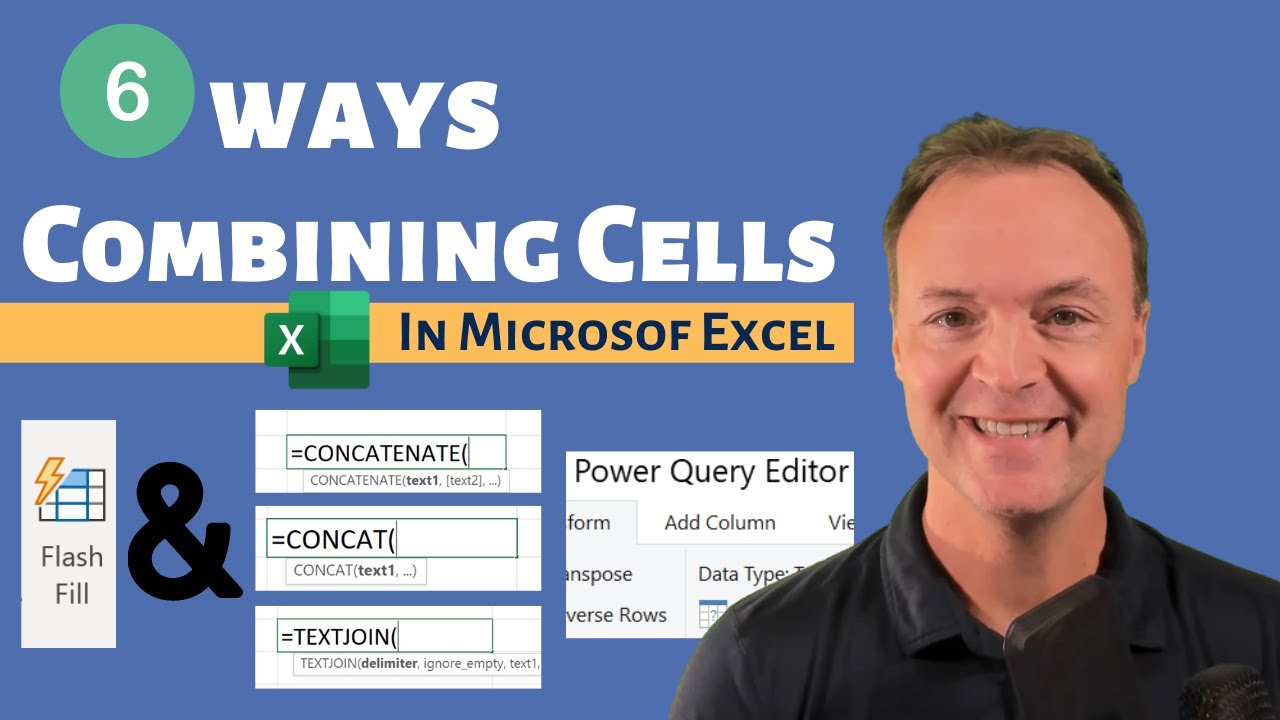
Learn Different Ways to Combine Cells in Microsoft Excel
11:36

Learn Different Ways to Combine Cells in Microsoft Excel

Teacher's Tech 17.11.2021 46 947 просмотров 641 лайков обн. 18.02.2026
Поделиться Telegram VK Бот
Транскрипт Скачать .md
Анализ с AI
Описание видео
In this Microsoft Excel tutorial, I will show you how to combine cells in Microsoft Excel using different methods like Flash Fill, the Ampersand &, Functions (CONCATENATE, CONCAT, TEXTJOIN), and Power Query. So when you need to merge or combine cells in Microsoft Excel consider one of these methods. Practice sheet: https://leveragingdigitalinc-my.sharepoint.com/:x:/g/personal/jamie_leveragingdigital_com/EaxIh4c8dUhFl3TgTpLUbQIBUjeypUWhXVSY0JbaK_NteA?e=X6cztf My Microsoft Excel Playlists Beginner Microsoft Excel Tutorials: https://youtube.com/playlist?list=PLmkaw6oRnRv8lAKbKbflJRqS-9wuYNWUw How to use functions and formulas in Excel: https://youtube.com/playlist?list=PLmkaw6oRnRv_GeQNcc_hHtnxbRC7gDLST 0:00 Introduction 0:50 Using Flash Fill in excel 1:44 Combining cells with the Ampersand (&) in Excel 3:03 How to use the CONCATENATE function 4:44 How to use the CONCAT function in Microsoft Excel 7:42 How to use the TEXTJOIN function in Microsoft Excel 9:14 Using Power Query to combine cells in Excel

Оглавление (7 сегментов)

  1. 0:00 Introduction 169 сл.
  2. 0:50 Using Flash Fill in excel 177 сл.
  3. 1:44 Combining cells with the Ampersand (&) in Excel 233 сл.
  4. 3:03 How to use the CONCATENATE function 306 сл.
  5. 4:44 How to use the CONCAT function in Microsoft Excel 541 сл.
  6. 7:42 How to use the TEXTJOIN function in Microsoft Excel 320 сл.
  7. 9:14 Using Power Query to combine cells in Excel 445 сл.

0:00

Introduction

today on teachers tech i want to show you how you  can combine cells from multiple places into one   cell so for example if it was combining  these names that are in different columns   into one spot without having to type them all out  together or copying and pasting i'm going to show   you six different ways that you can do this and  explain where you might want to use each of these as i go through these different methods of  combining cells in microsoft excel i just want   to point out some of these will be four different  years of microsoft excel and i'll let you know as   we go along and some of them are going to be on  the very simple beginner side and then we'll work   into our more intermediate uh type of processes  inside microsoft excel so let's get start with   the first one and one of the ones i think is the  most easiest so the first one i want to show you
0:50

Using Flash Fill in excel

which i think is the easiest one is flash fill  now flash fill is only available if you're using   microsoft excel 2013 or later what i use is excel  for microsoft 365. so let's start with flash fill   very easy to use flash fill can pick up patterns  and if i'm just doing something easy like this   combining two columns if i just type in the first  ones if i go ned stark and i go down to the next   one and i'm just gonna you can see as soon as i  start typing it recognizes a pattern there and   so if i just hit enter it will fill that in so it  can get complicated sometimes if you're combining   two different columns if the pattern isn't as  unique and you might have to fill in a few more   cells just some of the drawbacks of using that way  but this is a very simple way and it's using flash   fill so another way that you can combine cells  inside microsoft excel is to use the ampersand
1:44

Combining cells with the Ampersand (&) in Excel

now the ampersand is this key right here this  symbol and i'm going to use it as a fairly simple   one to use you need to start a formula so i'm  going to put my equal sign to start my formula   click on the first name that i want if i go and  put my ampersand in now and connect my next one   if i hit enter notice it combined the two there  so i want a space in between there so i need to   add something else i need to double click on this  and i'm just going to go ahead and add a space so   if i wanted a space what i would need to do is  put a quotation mark add a space quotation mark   like so and then put another ampersand so i'll put  the another ampersand like this hit return and now   i have a space which i can go ahead and fill down  and you can add other things besides spaces too so   i'll just make this enlarges here and if i go back  to this one here i'm just going to double click   and if you want it maybe a dash and you can see  how quickly i can change it uh over to the dash   so whatever you put in there uh it will show up  there and that's using the ampersand okay so now
3:03

How to use the CONCATENATE function

we're moving into using functions to combine cells  in microsoft excel and i just want to kind of talk   about these two to begin with we have our  concatenate and concat and the concatenate and i'm   just going to go ahead and start putting in the  formula you'll see it come up and it has mine   i'm using 365 here so it comes up with this  and that's saying you know it's out of date   i would be using if i'm using a newer version of  excel i would be using probably just come cat now   uh if you're on 20 if your versions may be 2016  or older uh then you might be using this one but   i'll show you they virtually do the same thing the  difference is that with concat you'll be able to   choose a range instead so i'll just go and give  this a quick demo with this one and so it joins   several uh text strings into one so i'll just  select this one all i have to do is select on the   first one give a comma and i'm following uh what  i need to put in the next one and then the next   one and i'll close my bracket notice it did the  same thing so if i go back to it what do i need   to add between these two different ones if i just  put a uh if i just put my quotation mark space   like so and another comma this way it will add  the space and i can go down and do the fill   with this and make it the appropriate size the  width here so let's move over to the concat and i   kind of want to show you make sure you realize the  different ways that you can put formulas in too
4:44

How to use the CONCAT function in Microsoft Excel

so like i said if you're using a newer one a newer  version of microsoft excel i'd be using concat   over concatenate i'm going to go and insert if  you're new to using formulas and functions try   using the function right up here insert function  because this will help you search and walk through   it a little bit more so if i go you can do a  search right here hit return and i get concat   you can see there's concatenate and text join  and that's the one i'm kind of really excited   about using more uh that one now about joining  in newer versions but so i'll go to concat here   hit okay and this helps me walk through a little  bit differently than before so what's my first   one going to be well i'll click in ned and then my  next one i actually just want that space so i can   put my space just like i did before by adding  the quotation marks in the space in this one   and then if i go to text three i can hit return  and hit okay now and so you can see how quickly   that worked just like con concatenate i just want  to show you a difference with it so if i go back   to this again and i'm going to insert the function  again concat i can do a range now this is where   it's different uh the problem is i can't use  the delimitators or a space in between so if i   highlight a range and hit okay it will put them  together uh concatenate won't do that so let me   uh let me show you here so if i go to this  one and i'm gonna go and just put my uh   concatenate in again here and if i go ahead  and choose a range and hit return notice it   doesn't put it into one spot it put them into two  different columns so that's just something about   the difference between the two how you  can select a range on this one so i'll   go ahead and just put concat again in here  selecting the first one and then a comma   using my space in between these and then adding my  next condition here or my next cell and hit return   and then i can go ahead and copy and paste those  all down now the next one text join and this is   where i would be probably going more and more  if you're using a function to combine cells   so right before i do this next function  of text join i just want to point out   you can see that there's spaces inside yeah where  some of these ones are showing up their spaces   and if i go ahead and change them if i go back  and delete the space you can see how quickly   everything updates so whenever i see that space  there i could go back and just fix it very quickly   by going and everything updates from here so  i meant to show that a little earlier in my   demo and i kind of went past it but i just want to  show you how that works with updating any of these
7:42

How to use the TEXTJOIN function in Microsoft Excel

now going over to our text join one and this  is probably the one i'd be using if it was if   you're in 2019 or micro microsoft 365 like i am  this one works great so if i go ahead and start   typing my text join formula i'm going to just put  it in here and the first thing you notice it is   the delimitator so what is what do i want there  is space hyphen that's going to be the delimiter   and for me i'm going to use that space and put  it right there my double quotation mark with   the space uh put my comma so now it's asking  if i want to ignore the empty cells or include   it in the concatenate when it's joining things  together i'm going to say ignore i don't have any   empty cells in this one but i'm going to choose  true in most cases that's probably going to be   the case so i'm going to go comma what's my  text one here and i'm going to go ahead and   put my comma and then my next one and you can see  how i could keep combining more and more   of these but my examples are pretty easy here and  i'm just going to end it and then we have our our   correct information in here that you can go ahead  and fix so i would if you're using those 2019   or microsoft 365 i'd probably be using text join  uh on these ones but you got to look at what's   best for you now the last one i want to go to is  more an advanced one and that's power query i'm   going to do a separate tutorial on power query  but i thought i'd give you a little taste of it   in this one with combining cells so this last  method that i'm going to show you power query to
9:14

Using Power Query to combine cells in Excel

combine the different cells is more of an advanced  technique i do just want to touch on this because   i do want to put out a different video kind of  helping you learn how to use power query inside   microsoft excel but for this example it's going  to be pretty simple i want to combine these two   columns into one using power query and to do that  if i go over to data here i'm going to have to   insert from table range and i don't have any  tables yet so i'm going to go ahead and create   a table really quickly here i'm just going to  highlight this is where my information   is coming from and i'm going to go and insert a  table here and this in my table has headers the   first name last name and we're going to hit ok so  this is a table now under data i'm going to   go ahead and then i'm going to put from a table  range so i'm going to click on from table range   and you can see at this point it's going to  pull in those two columns from the table i   can merge these two now so if i go ahead and  i'm holding down shift and selecting both and   clicking on the next column i can merge these so  i usually just right click and merge   it's also under transform and you're going to  see merge columns here too so i'm just going to   go ahead make sure i'll click it right from here  merge columns here and this is where i can choose   the separator what do i want it to be so i'm going  to use space and i can change what's this going to   be called so i'll just i'm just going to call  this names this is what it's going to be called   because it's going to create another worksheet  for me so if i hit ok it combines this so if i go   ahead now i and i'm just going to go and close and  load what you'll see is that another sheet will   open with the combined data like i said i'm just  kind of touching on power query here to kind of   if you haven't seen it before in action just a  simple little example so i hope you like these   tips here today on combining uh multiple cells  or columns into one uh into one inside microsoft   excel find the one that works best for  you with the with what you're working on thanks   for watching this week on teachers tech i'll see  you next time with more tech tips and tutorials

Ещё от Teacher's Tech

Ctrl+V

Экстракт Знаний в Telegram

Транскрипты, идеи, методички — всё самое полезное из лучших YouTube-каналов.

Подписаться


