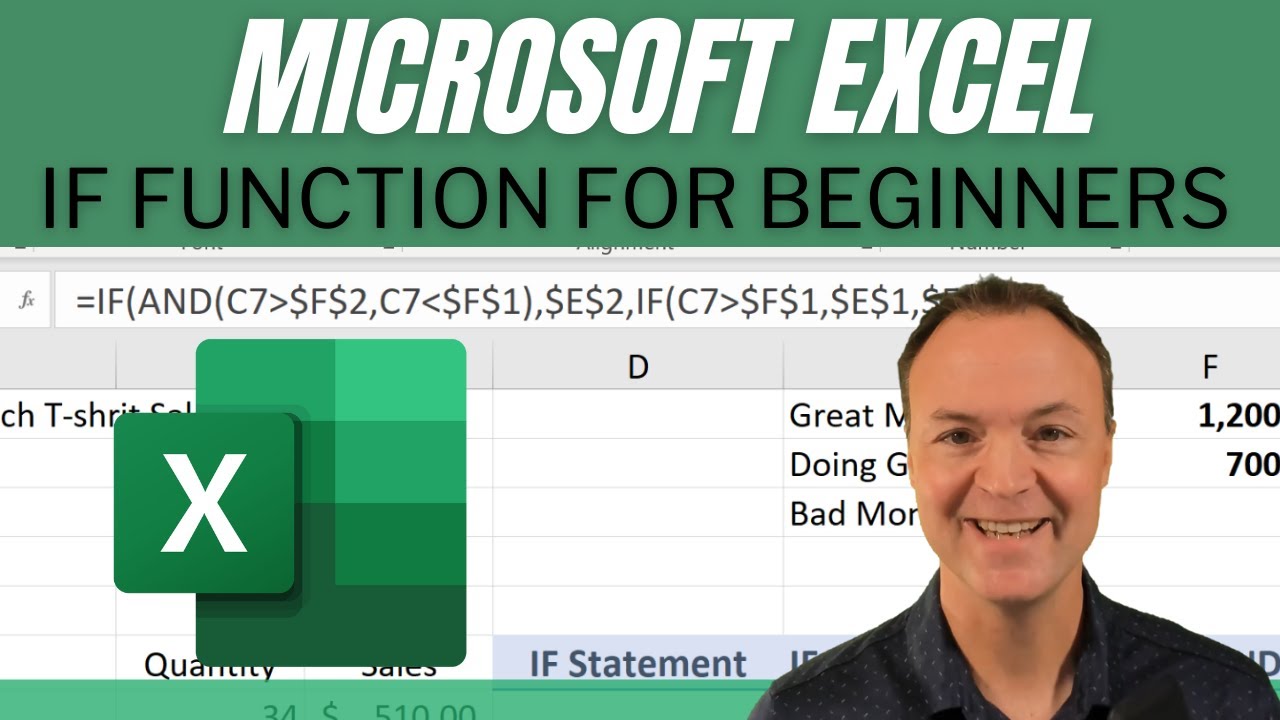
How to use the IF Function in Microsoft Excel - For Beginners
12:16

How to use the IF Function in Microsoft Excel - For Beginners

Teacher's Tech 10.10.2021 171 431 просмотров 1 999 лайков обн. 18.02.2026
Поделиться Telegram VK Бот
Транскрипт Скачать .md
Анализ с AI
Описание видео
In this video, I will show you how to use an IF formula with multiple conditions in Microsoft Excel for beginners. The IF function is one of the more popular functions in Microsoft Excel and an important one to know how to use. I will show you how to create a formula with an IF function and a nested IF and a nested AND Function. More Excel Function Tutorials: https://youtube.com/playlist?list=PLmkaw6oRnRv_GeQNcc_hHtnxbRC7gDLST Click here for the practice workbook: https://leveragingdigitalinc-my.sharepoint.com/:x:/g/personal/jamie_leveragingdigital_com/EUcPZ-EOneRIhu8jBeQDFJwBlo9uVTN7dhm2adzVxIFK4Q?e=6vx07O 0:00 Introduction 0:54 What is an IF function? 1:46 Inserting the IF function and creating an IF Statement 4:03 Typing in an IF function 6:18 The IF function with a nested AND function 8:50 The IF function with a nested AND function and a nested IF function All Excel Tutorials: https://youtube.com/playlist?list=PLmkaw6oRnRv8lAKbKbflJRqS-9wuYNWUw

Оглавление (6 сегментов)

  1. 0:00 Introduction 189 сл.
  2. 0:54 What is an IF function? 166 сл.
  3. 1:46 Inserting the IF function and creating an IF Statement 452 сл.
  4. 4:03 Typing in an IF function 467 сл.
  5. 6:18 The IF function with a nested AND function 509 сл.
  6. 8:50 The IF function with a nested AND function and a nested IF function 698 сл.
0:00

Introduction

Hi there Jamie Keet here today on teachers tech I hope you're having a great day today! Today want to   show you how to use the if function in microsoft  excel so if you've never used this function before   this is one of the more popular ones that you're  going to see in microsoft excel so it's an   important one to know how to use so i'm going to  go through it from a beginner's look at it but i   also want to add some other things on even how  a nested and or if inside of this function can   work too so let's get started today on teachers  tech with the if function in microsoft excel   if you'd like to follow along with the worksheet  that i'm using take a look in the description down   below and you can click and download this and  follow along you'll also see everything is time   stamped where you can jump around to different  parts of the video and i'll add a link to my   playlist that will have more excel functions  that if you want to learn and go through those
0:54

What is an IF function?

so an if statement can have two results so you can  ask for a comparison of something of a value and   then it's either going to say this is true then do  this or this is false then do this so to explain   this a little bit i have my fictional worksheet  that i have here for my teacher tech t-shirt   sales and i'm going to make an if statement  right here to begin in this cell so in this d7   i want to look at the sales in january right  beside here so i wanted to look i want to look to   see if it's larger than 700 and if it is i want it  to say doing good and if it's not i want it to say   nothing just blank so that's going to be the  first if statement i'm going to put in here   so to do this i'm going to do this in a couple  different ways in these first two columns
1:46

Inserting the IF function and creating an IF Statement

i'm going to just go up here and click this  function insert function and if you're brand   new to functions uh this can allow you to break  it down you can see the if statement's already   there but you can search uh type if and go if  it's not there so you can just type it here   and then type what you're looking for just  like this and hit go and you can see it will come   up so i'm just going to double click on this if  and this is where it's good if you're learning   this for the first time these function arguments  here allow you to break it down so what is my   logical test now i said if i want this number  right here this 500 uh this spot to be if it's   above 700 i want to say doing good and so i'm  going to what i'm going to do is click in this   cell and you can see c7 comes right there and i'm  going to put a greater than sign in and then i'm   going to put 700 so c7 greater than 700 what do i  want to have happen if it's above 700 so this is   the if it's true i want this to happen and that's  what i wanted to say doing good so just   like this doing good and if it's false so then  it's going to be anything else if it's below 700   then it's going to be i want it to be blank and  to do that i can just hit the quotation or the   quotation marks two times like that and i'm going  to hit ok notice as i put it in here take a look   at the formula getting created in here because i'm  going to do this a few different ways so i'm going   to hit ok and nothing came up well that's because  this is below 700 and i told it to be blank if   it's below 700. but if i'm just copying this down  i'm just going to double click on this copy it all   the way down and you can see it should say doing  good because it's above 700 this should be blank   and so on so that's the first way you could do  any of these functions anytime you click in these   cells if you click right here again it opens  it back up so you can see uh how it's working   here now on this next if statement it's going  to be the same thing but i just want to point   out different ways you can write it if you're new  to functions so i'm going to put the equal sign
4:03

Typing in an IF function

in here and i'm going to start with my function  and that's going to be i'm going to type if   and i could just start typing away if i wanted  to if i knew all the things to type or i could   click on this and you can see it kind of gives  me a path to follow so what was my logical test   well in this case i wanted to know if this c7  was greater than so i'm going to put greater than   now rather than typing 700 i'm going to make  a cell reference and it's going to be up here   so i'm going to click right here and so that's a  cell reference and i'll show you how it's easy to   change just that one spot if the number changes  but the thing to know is when i copy this down   this will move if i don't make it fixed and so  to do that i'm going to hit f4 and you can see   the dollar sign in front of the f and in front  of the two that won't move when i copy it down   now so this is going to be the same i'm going  to put my comma and what do i want it to say   well this time i'm not going to type in doing good  again i'm going to reference it to this cell right   here i'm going to click on it and i have to fix  it so i'm going to put f4 again so that makes the   dollar signs appearing from the e and the two and  i'm going to put a comma and this time i'll put my   double quotation mark just like this and i'm going  to end my bracket because i had a front one i have   to put an end one and i'm going to hit return  again same thing here as i copy this down you can   see i'll get all the same results and at any time  i can click on these and if i click back on the f   it will still make the reference and the nice  thing is if you're doing the cell reference   if this number changed to 500 all of a sudden you  can see how it just instantly changes so it makes   a quick way to make some adjustments to it just  by changing the one spot in here so even if i go   through and to get rid of this word you can  see uh how i'll just get rid of the doing here   like this and you can see how it quickly changes  on it so that's why cell references could be a   good way rather than just typing in the first way  just typing the words and the numbers like that
6:18

The IF function with a nested AND function

so i have these three different scenarios that  i'm working through here today in today's lesson   and i'm on number two the number one was the  first two examples with the if so in this   case what i want to have happen is that with an  if statement it's going to look at the number   but this time it's not that it's just above 700  it needs to be above 700 and below 1200 then it's   going to bring back doing good or be blank again  now i'm going to start with my equal sign in here   i'm going to write if just like this select  it now i need to have a nested end function   inside of this if statement if function  to have this work so i'm going to type end   because i'm going to get two different things  i needed to look for so i'm going to select   end what is the first thing i said well i said  this number right here needs to be greater   than this number and remember i have to fix it  to that spot because i'll be copying it down   i'm going to hit f4 comma and it  moves them up logical 2. you can see how i could   carry on i'm just doing the two things so the next  thing that i want to be is this number this cell   is going to be below this cell right here so i'm  going to fix that again with f4 at this point i   can close my bracket right here and it continues  on so if i put my comma it's going to move   to value if true what do i want to have happen  if my value is true so that beats is going to be   above 700 below 1200 well i wanted to say this and  i'm going to fix this again by hitting f4   otherwise i want it to be blank and remember you  could type whatever you want so if i i'll give you   an example here i'll just say type here and i'll  end it like this so it needs to be in quotation   and i'll end it and i'll hit here so it typed in  if i go ahead and put this down it put type rather   than blank but i can go back and fix these two so  if i go back to this one if i go up to my formula   bar here and i just delete this like that keep  the two hit enter i'm going to copy this down   again you'll see it will change so you can make  changes the other thing i want to point out in any   if i click on the function here you can see how  it's breaking it down inside that first way that   i showed you uh if you're going through so it's a  good way to kind of learn uh you know to break it   down to help you learn with how these statements  are uh created here okay so we're gonna move
8:50

The IF function with a nested AND function and a nested IF function

to our last one here in today's example and in  this case what's going to happen is it's going to   check for that first if what i just did right here  it's going to check to find that number between   700 and 1200 and saying doing good but then if  it's above 1200 i want to say great month and if   it's below i'm going to say well it's going to be  a bad month then so that's going to be the other   thing that happens so i'm going to go to this  cell right here i'm going to start with my equals   and actually what i'm going to do i'm not going to  bother writing this because i'm going to show you   a different way but what i know is i can actually  take this formula right here and i'm going to just   go up ctrl c i'm going to  copy this right here i'm just going to hit enter   and i'm going to go to this cell right here and  i'm just going to go ahead and ctrl v and paste   it right in here so what i did is i pasted it  because i know i want that first part still i   know i want the doing good for anything between  700 and 1200 so that will take care of that   now where does this change i'm going to put  another if statement inside of this so if we   look at this formula up top right at this point  so this displayed this the doing good if it met   that criteria this was blank if it was false  so i don't want it to be blank if it was false   what i'm going to do at this point is start to  change this so i'm going to write another if   statement and i can be writing it up here i'm just  clicking here and you can see now i can go ahead   and add on so what do i have to have what i want  to have happen here so if this number right here   so i click on c7 is greater than 12. so this  time it's going to be greater than what number   this number right here so again i have to fix that  with my f4 what do i want to have happen here why   i wanted to say great month if that comes back as  true otherwise and i know there's only one option   that i want i'm going to go back here so why do i  want to have it happening i'm going to type great   month here i'm going to make sure i fix that i  almost forgot that otherwise what's the other   option it's going to be a bad month and i'm going  to hit f4 like that so i'm going to hit enter   and you know what it this is where it's good i  forgot to put another bracket it's telling me do   we want to fix this and i just want to point out  uh there's i have to match this one with this one   this one right here matched this one so i have to  i'll say yes to this and we'll just add another   one i'll click on it and you can see they've added  an extra one at the end so it does help you out   about a bit so i'm going to go and double click on  this and it copies it all the way down through it   looking at the criteria so if it was below 700  it's a bad month if it was in between 7 1200 it   was doing good and if it was above 1200 it was a  great month and remember we can go back and check   our functions through this spot right here you can  see how everything was broken down so i hope you   like this little lesson on the if statement and  nested and ifs inside of it again check out   my other functions tutorials that i have in the  playlist listed in the description thanks   for watching this week on teachers tech i'll see  you next time with more tech tips and tutorials

Ещё от Teacher's Tech

Ctrl+V

Экстракт Знаний в Telegram

Транскрипты, идеи, методички — всё самое полезное из лучших YouTube-каналов.

Подписаться




