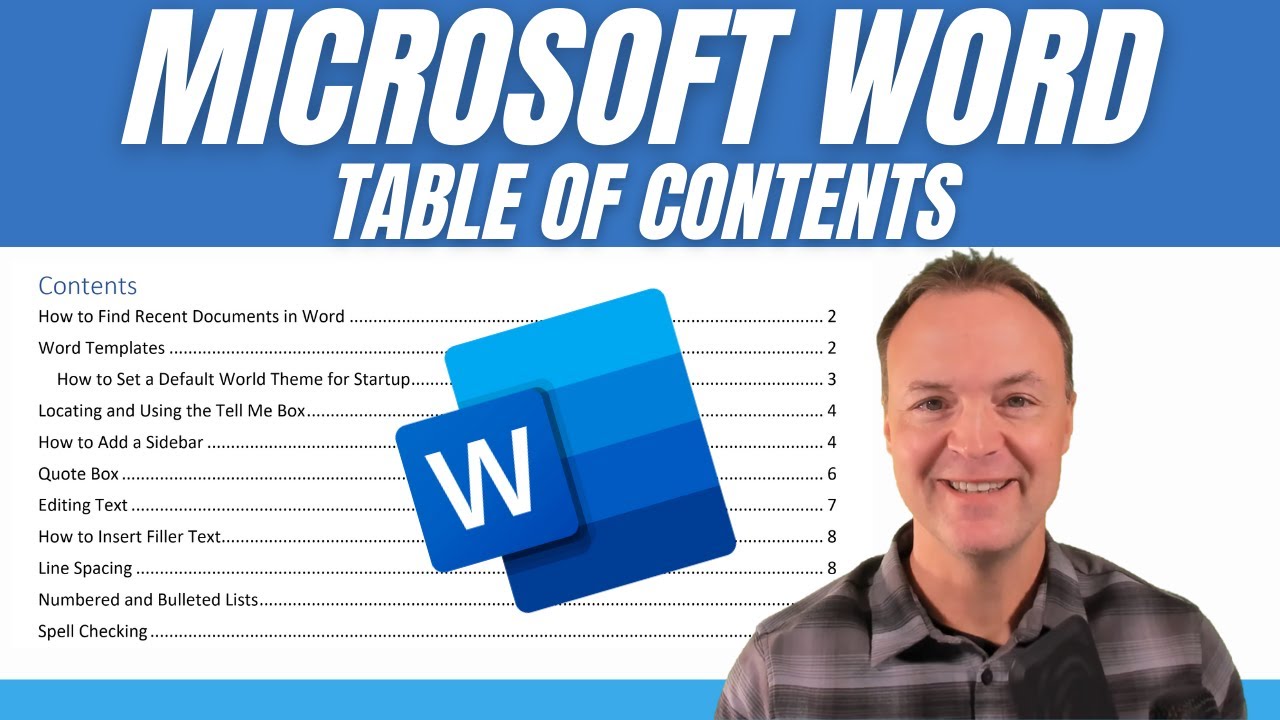
Quickly Add a Table of Contents in Microsoft Word
10:00

Quickly Add a Table of Contents in Microsoft Word

Teacher's Tech 03.10.2021 72 790 просмотров 822 лайков обн. 18.02.2026
Поделиться Telegram VK Бот
Транскрипт Скачать .md
Анализ с AI
Описание видео
This video will show you how to create a table of contents in Microsoft Word. Using styles for titles and headings in Word will let you instantly create a table of contents at any time. Customizing styles and table of contents in Microsoft Word will also be covered in this video. 0:00 Introduction 1:25 Show Navigation Pane 1:42 Apply your styles to headings and titles in Microsoft Word 4:30 Inserting your table of contents 6:02 Updating your table of contents after changes 7:16 Customizing your table of contents 8:25 Customizing a style in Word Download practice Word file here (Download button is in the top right corner)https://leveragingdigitalinc-my.sharepoint.com/:w:/g/personal/jamie_leveragingdigital_com/EVCMorg8EWBIrqrJoT8CgokBOt2L93NwwwybAwJlUbcd6w?e=Rjx7UC


Оглавление (7 сегментов)

  1. 0:00 Introduction 315 сл.
  2. 1:25 Show Navigation Pane 55 сл.
  3. 1:42 Apply your styles to headings and titles in Microsoft Word 600 сл.
  4. 4:30 Inserting your table of contents 327 сл.
  5. 6:02 Updating your table of contents after changes 234 сл.
  6. 7:16 Customizing your table of contents 233 сл.
  7. 8:25 Customizing a style in Word 332 сл.
0:00

Introduction

hi there Jamie Keet here today at teachers  tech hope you're having a great day today   today I want to show you how you can quickly add a  table of contents to your Microsoft word document so what we're going to do in this lesson  here today is add this table of contents to   this document here and i'm going to share this  document with you down below in the description   where you can click on it and download it  it might for microsoft word and open it up   it's not going to have the table of contents like  this in it and i'm going to be showing you how you   can add this and it doesn't take very much time at  all so if you're following along go ahead open up   that document and then we will go from there so  if you're following along with the document this   is the document that i'm working on right now the  title and the headings all they are bolded so   i haven't added any styles and that's what i'm  going to show you how to do and what i find is   a lot of people when they create their table of  contents they don't realize how quickly you could   do it if you use the built-in how it generates  forward what they tend to do is they'll go to   maybe a heading and then they just bold it like  this one is and increase the font size larger than   the other font and then they go through and then  just put the page numbers in after there's a much   easier way to do this and that's using the styles  and so i'm just going to click up in the title up   here and i'm going to add a style to it but before  i do that i'm just going to go to my view tab here
1:25

Show Navigation Pane

and in the ribbon just click on this navigation  pane here as i add the title and headings you're   going to see it kind of what what's happening  a little bit better so inside this so i'm going   to click on this line right here microsoft  word tutorial i'm going to go back to home
1:42

Apply your styles to headings and titles in Microsoft Word

and these styles right here you can see that there  is a title one i'm going to go ahead and click on   it quickly changes and this is classified  as the title now i'm going to go to this line   here and this is going to be a heading so it's  a subheading not that main title but i'm going   to call this heading 1 and you can see how this  changes now i do want to point out you can make   custom styles too so for example this one right  here is one a custom one that would match the font   to this i'll show you how to create your custom  style for these headings at the end of this video   but just for this demo here i'm going to go ahead  and use this heading one and i'm gonna go down to   this one and turn it into heading one i'm just  gonna do a few of these and you can do as many   as you want here but i'm gonna go to the next one  here and add just this one more so you can see on   the side i have three different headings  in the navigation pane happening i wanted to   point out if i go back uh to this one right here  word templates and i just click on the line if i   turn this to heading two now you can see how it's  been indented it's like a subheading of this and   you could go heading three like this so if i went  into even further on and click here into number   three you can see how that becomes a subheading  of that one so it's quick to make those changes   and you can see how it adjusts just by clicking  on any of these now uh the other thing i just   wanted to point out you can if you do highlight  it you do you can get your styles right here too   and you can see you have all the different uh  ones that you can pick so i'm just gonna i'm   gonna leave this one right here as a subheading  just when i generate it and i'll change it after   uh for it but i'm gonna go through and just  populate uh click on the heading one for all these   and then i'm gonna get back we'll generate our  table of contents so i went through the document   anytime i saw one of those bolded headings i used  the style and turned it into heading one except   for this word templates are still heading to the  other reason i like having this navigation pane   open when i add my headings from the styles like  this i can jump around just by clicking on these   navigation pane in the navigation pane so i it  allows you in especially a big document to get   to find what you're looking for so i'm just going  to go back to the beginning i'm actually going to   change a couple more things here i want to take  this heading here and i'm going to change it to   a just a heading 2 also so you can see a heading  two and i'm going to take this how to zoom one   uh here and change it to a heading three like  this oops i better do the whole thing here   and style three just like that so you can  see i have uh two different ones here how   it sets up with the sub pages on it so now  i'm going to go ahead and insert my table
4:30

Inserting your table of contents

of contents and i want to put this i'm going  to put a page in before this and insert that   table of contents because i know it's going to eat  up a bit of room because it's a fairly long one   to get to the table of contents i go and click on  the references tab and you'll see that over on the   left we have table of contents here now i'm going  to insert a page first i'm going to go and we'll   just put a page break here and i'm going to make  sure i'm at the top here and i'm going to insert   the table of conference table of contents  here so back to references and table of contents   i'm just going to click on it and you can see i  have from the automatic table 1 automatic table 2   and the manual table i'm going to click on the  first one and what it did and i can go through   actually i'm going to leave it like this because  i'm just going to show i'm going to make some   adjustments here this page got put in i'm just  going to delete a spot there so it comes back up   right like that so we have our table of contents  you can see it has all the pages in it uh look   at where i put the headings and subheadings how  it indented automatically on that and i'm going   to show you how you can make some adjustments uh  to kind of customize your table of contents too   but what happens if something changes on it so do  you have to redo everything or how quickly can you   redo it well let's say if i go to here i'm going  to change these table contents here i'm going to   go to this word one here and i'm going to go and  just turn it back to a heading 1. now if i go back
6:02

Updating your table of contents after changes

to my table of contents nothing has changed on  this but i just want to point out look at this as   i click in the table of contents i can update the  table of contents so if i click on this it asks me   do i want update the page numbers only or update  entire table well i made a change to the actual   where this is going to be the page numbers  are going to change so i'm going to say   entire table on this one and you  can see it just automatically   changed over so even if there's a page number  if you insert more uh more headings using the   style and add another chunk you can go ahead and  update your table and it's going to automatically   uh update to this so if the pages change on a  bit on some of it so if i was on this word   template that i know is on page two and i'm  just gonna push it down uh to page three here   just like that and then if i go back up again  you're gonna see a change here as i click in it   update this time i'll only do the page numbers hit  ok and i saw a couple changes in the numbers here   right let's look at some of the other options  that i mentioned before in the table of contents
7:16

Customizing your table of contents

so i want to point out some ways you could  customize your table if you go up back to table of   contents in the ribbon drop down and you  can see that there is a custom table of contents   if you click on that you'll get this table  of contents box and you can see where you   can adjust things do you want the page numbers  to show gives you a little preview up here it   doesn't change anything yet until you hit ok and  update it and you can see the different options   i have different levels that i can show so word  templates that's level one how to set a default   level two and how to zoom level three so if  i went and said to change it to two levels   hit ok and said yes right now then the how to zoom  is gone out of the table of contents it's not gone   as a heading if i look over on the navigation pane  it's still there it's just not added to my table   of contents because it wasn't a level i didn't  want to add to it now you can quickly delete   these tables too you can click drop down on  this and you'll see how you can remove tables   or change it to different tables also you can  remove it this way from here now i did mention
8:25

Customizing a style in Word

about making a custom style and i'm going to  go back to home here and we're going to make a   custom style for a heading how you do this is if  you drop down you can see that there's a create a   style when you hit create a style you can give it  a name i'm just going to leave this at style one   click on modify and you get all these different  options here so you can see from the name what do   you want this to be style and you can go through  so is this going to be a maybe a heading 5 and   you would go through and pick what you want out of  all these what type of font do you want what type   of color and you could pick all these styles so if  i go ahead and add you know we'll just so you can   see it just like this and we'll leave it i will go  orange and i'll hit okay and so that was style one   it gives a little preview so at any time if i was  going to go back to any of these here and i click   on this style you can see how it quickly changes  remember that's a level five if even if i updated   it wouldn't show my table of contents here so i  hope you like this little tutorial on how to add a   table of contents to word i think about setting it  up this way from the get go adding your headings   as you go along because it can help with just  navigation on the side of the navigation pane   uh and it'll just make it easier to kind of just  help you organize your document and remember you   can make those quick changes and update your table  of contents when you're finished too so thanks   for watching this week on teachers tech i'll see  you next time with more tech tips and tutorials

Ещё от Teacher's Tech

Ctrl+V

Экстракт Знаний в Telegram

Транскрипты, идеи, методички — всё самое полезное из лучших YouTube-каналов.

Подписаться



