How to Debug Data Flows in Azure Data Factory

How to Debug Data Flows in Azure Data Factory

Machine-readable: Markdown · JSON API · Site index
Поделиться Telegram VK Бот
Транскрипт Скачать .md
Анализ с AI

Оглавление (3 сегментов)

Segment 1 (00:00 - 05:00)

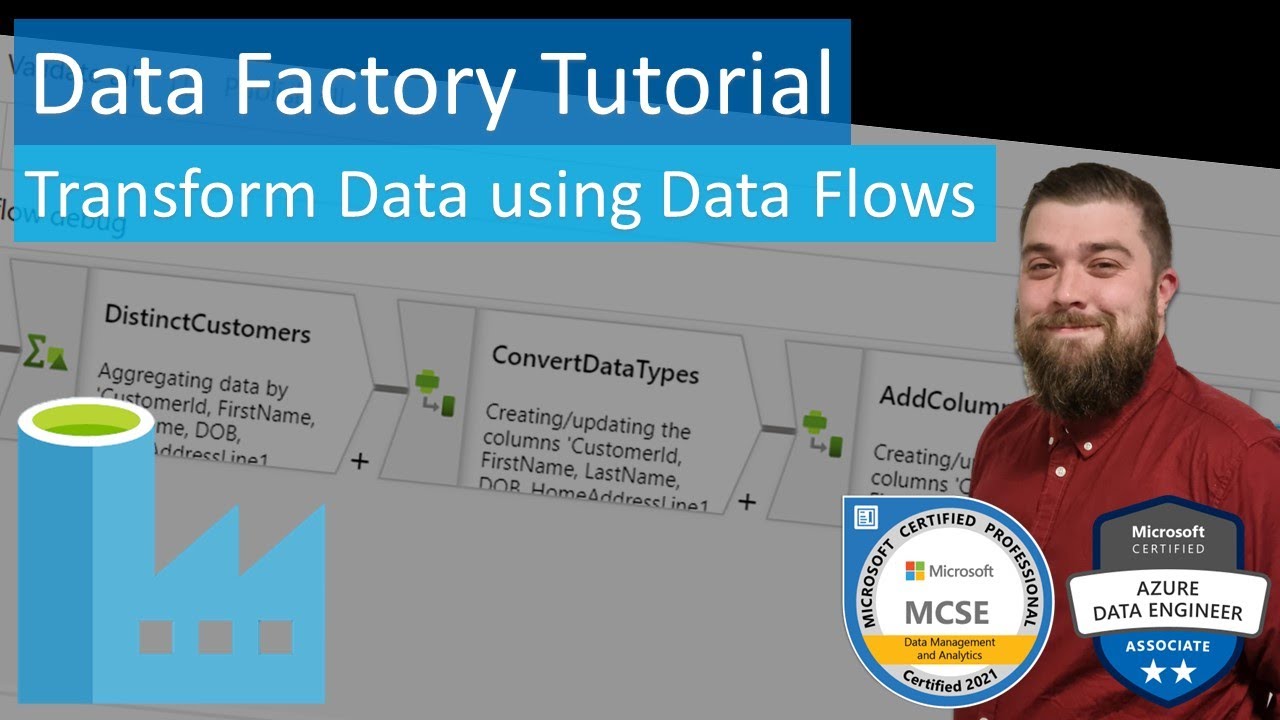
hello and welcome to my channel i am bearded dev and in this video we're going to be looking at data flow debug now data flow debug allows us to see the data flow through each transformation step it's very easy to use and we can see exactly what's happening to the data now i have here a data flow that i've created in a previous video that picks up a source of customers this source is actually a flat file containing about a million rows but there's actually only about 10 customers within that file so we grab a distinct list of those customers convert some data types add some columns and then write them to a table if you are interested in that video it should be coming up with a link towards the top right of the video so you're available to go and check that out now the first thing with data flow debug is we need to turn it on and we do that by simply clicking on this data flow debug icon here we choose our compute size time to live we can set that to one two or four hours and then the integration run time we're going to be using at the moment i've only got the auto resolve integration runtime so i'm just going to go click on ok on that and we'll see a message pop up to say that clusters actually starting up now that's actually going to take a few minutes to start and i recommend when you're working with data flows that's probably the first step you should do if you want to review the data then turn on your data flow debug first go make yourself a drink by the time you get back to your desk it should be on now a question i get asked a lot is does data flow debug actually cost anything and yes it does unfortunately like a lot of things it's not free so i put a link to this page in the description um but if we have a look here at dataflow execution and debugging this is set to my region of uk south and in pounds uh now if we're looking at general purpose which is what we're looking at 24 pence per vehicle per hour but if we look at the minimum cluster size it's eight vehicles so effectively we're multiplying that by eight which is off the top of my head one pound seventy six per hour uh correct me in the comments if i'm uh incorrect with my maths there so one pound seventy six an hour but then there's also a note here to say they will also be built for the managed disk and blob storage um so yes using data flow debug actually does cost the good thing is we've set that there's time to live for an hour so after an hour it's going to automatically turn off okay so we've received our little tick now to say uh data flow debug is actually running and if we click on our source of customers we've now got this data preview option i'll just minimize collapse that pane click on our data preview and bring this up and if i click on refresh this is actually going to get the a preview of the data for us to actually look at so that will just take a few seconds to load up like i say there is a million rows in that file so it should take only a few seconds to bring that data back to us and the default is going to show us a thousand rows of data so the key things for me for data flow debug is it's good to be able to see the data as it exists in the source but what i'm particularly looking at is the total row count like i say that the default setting is a thousand rows now we have this drop down uh and this is quite recent when i first started working with data flows when they first came out we only had a refresh button and now there's a drop down for a couple of options we can either refresh with changes to the data flow or refresh refetch from sources which is quite helpful because if you're working with source data that changes perhaps you've added new columns or things like that they don't automatically come into data flows there is some

Segment 2 (05:00 - 10:00)

caching in the background so that is a good addition to refresh refetch from sources now as we move through uh our steps we can also have a look at what happens here so within our distinct we're grouping by certain columns so we can have a look what happens to our data preview here i'm just going to expand that and this is going to take a again a few seconds because this is actually going to be taking the source data and performing that distinct on it so we've got one row of data here this is a simple aggregate function we added that doesn't actually mean anything it's just to use the aggregate transformation we needed to add in a an aggregate um rather than just group by columns so this is actually just retrieving a distinct count so that aggregate doesn't actually mean anything so we can see our total here is one row now why would that show as one row and this is where data flows can get a bit annoying so what's actually happening is if we look at our source of customers and if we bring this up we can see it's actually showing a so it previews the first thousand rows but what happens is they continue through the transformations so if i just quickly scroll down and you notice this name of dominic durant if i scroll through those thousand rows you can see it's actually just showing 100 actually sorry it's showing 100 rows but it the detection is the first thousand so it's actually showing a hundred rows and they're all dominic durant and that's because that customer within that thousand rows only exists once now to change that to get us a better perspective of what's happening we can actually edit our debug settings which are available up here next to where we turned on the data flow debug and this row limit is set per source so if we actually change our row limit ten thousand hundred thousand one million and save that next time we click refresh when we had our total over here that showed a thousand before and when working with large volumes of data you'll see especially when joining data um so imagine i'd join this to a data set that dominic durant wasn't part of you can actually check in your next step and it doesn't show any results whatsoever so we can see now it's actually showing a million rows that we've got within the file but more importantly if we now have a look at the distinct customers uh refresh that and it's just going to run that again over now that million rows of data now i know there's actually 10 distinct customers in that file so all being well we now see yes our 10 customers so it's important to keep in mind you might perform a step turn on data flow debug perform a step and if that doesn't if the first thousand rows perhaps don't conform to that step then you might see no data further down your transformations again we can have a look within data preview at the data types so we can see here we're still working with strings and then within a convert data types we're adding some manipulation to that data just expand that as it refreshes so we'll be able to see what that data looks like after this transformation so within this transformation step we're converting date of birth to a date and customer id to an integer value now notice we've still got order line id which is actually just a count of orders per customer which we don't actually use it's actually just flowing through that we ignore if we was being pedantic about it we could have applied a select transformation

Segment 3 (10:00 - 11:00)

after that then we're going to add in our additional columns so if we revert back to uh conversion of data types we can see we've just got those columns ending in our order line id then we're going to be adding our further columns so if again i refresh and expand this we can see after our second derived column transformation those new columns we've added as start date end date and validity so data flow debug is very helpful for looking at what's happening to our data as we work through the different transformations the good thing about data flow debug is i don't really need to worry about turning it off it's only going to live for an hour so if you do forget about turning it off and you come back to this browser window a couple of hours later you're likely to see a notification say your data flow debug cluster is timed out and automatically turned off really hope you have enjoyed that video let me know your thoughts in the comments below and if you would like to see any other videos on data engineering or data analysis please do let me know thanks a lot for watching

Другие видео автора — BeardedDev

Ctrl+V

Экстракт Знаний в Telegram

Экстракты и дистилляты из лучших YouTube-каналов — сразу после публикации.

Подписаться

Дайджест Экстрактов

Лучшие методички за неделю — каждый понедельник