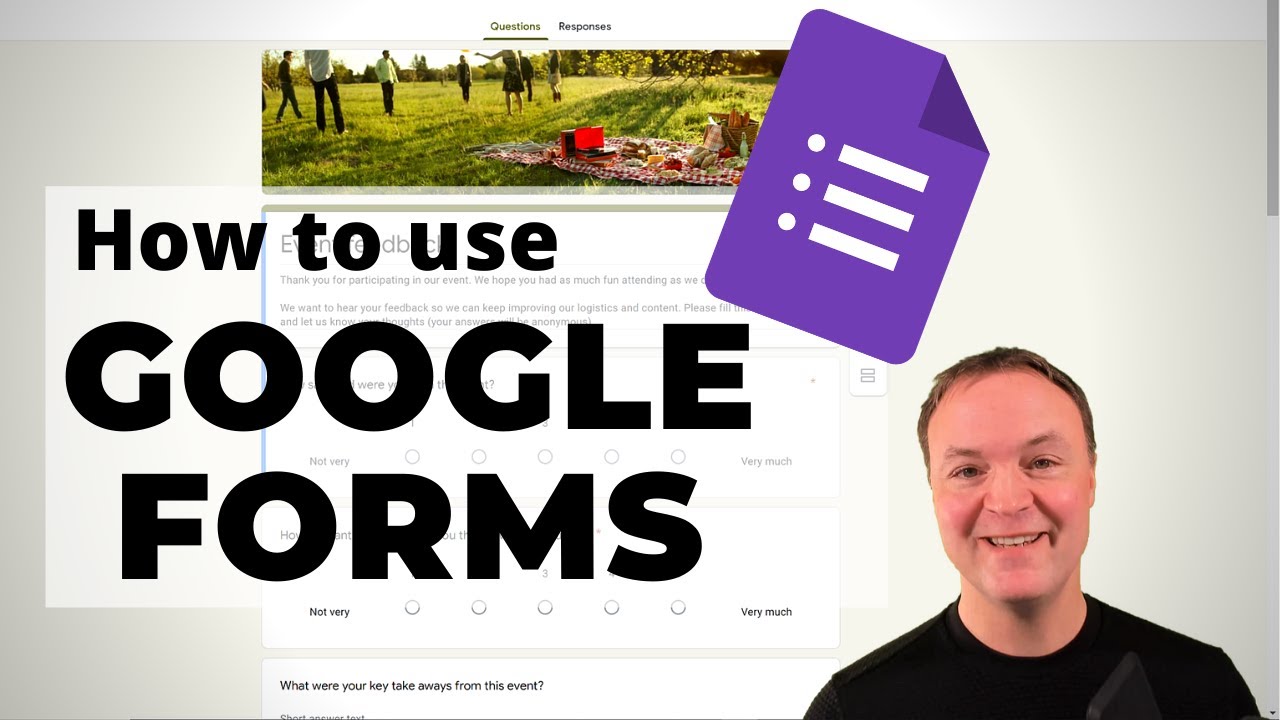
How to use Google Forms - Beginner's Tutorial
23:40

How to use Google Forms - Beginner's Tutorial

Teacher's Tech 10.03.2021 30 704 просмотров 409 лайков обн. 18.02.2026
Поделиться Telegram VK Бот
Транскрипт Скачать .md
Анализ с AI
Описание видео
In this video, I will show you how to use Google Forms for beginners 2021. Google Forms allows you to quickly create surveys, registration forms, quizzes, and much more. These Google Forms will save to your Google Drive for quick access. 0:00 Intro 0:32 accessing Google Forms 2:09 Using templates in Google Forms 4:19 Starting a blank Google Forms 5:12 Previewing your Google Form 5:52 Add contributors 6:22 Insert an image in Google Form 7:49 Creating questions 11:00 Viewing responses 12:00 Different types of questions and options 14:00 Grid questions 15:38 Adding sections 16:32 Customizing your Google Forms 17:35 Choosing settings 18:27 Sharing your Google Form 19:36 Creating a quiz in Google Forms 21:30 View quiz responses 22:44 Pre-filled links and add-ons Set rules for your Google Form questions: https://support.google.com/docs/answer/3378864#short_answer Learn about Google Classroom here: https://youtu.be/pl-tBjAM9g4 How to use Google Sites: https://youtu.be/5BhCVvFWEtE I use Camtasia to create my videos: Use this coupon code: TEACHCAM10 Camtasia purchase with 10% OFF code applied: https://techsmith.z6rjha.net/c/1264585/701976/5161 Camtasia EDU 10% OFF with code applied: https://techsmith.z6rjha.net/c/1264585/704928/5161 Camtasia Download page: https://techsmith.z6rjha.net/c/1264585/489271/5161 DISCLAIMER: This video and description contains affiliate links, which means that if you click on one of the product links and end up purchasing it, I’ll receive a small commission. This helps support the channel and allows us to continue to make videos like this. Thank you for the support!


Оглавление (18 сегментов)

  1. 0:00 Intro 114 сл.
  2. 0:32 accessing Google Forms 350 сл.
  3. 2:09 Using templates in Google Forms 426 сл.
  4. 4:19 Starting a blank Google Forms 192 сл.
  5. 5:12 Previewing your Google Form 138 сл.
  6. 5:52 Add contributors 107 сл.
  7. 6:22 Insert an image in Google Form 317 сл.
  8. 7:49 Creating questions 644 сл.
  9. 11:00 Viewing responses 195 сл.
  10. 12:00 Different types of questions and options 394 сл.
  11. 14:00 Grid questions 339 сл.
  12. 15:38 Adding sections 177 сл.
  13. 16:32 Customizing your Google Forms 204 сл.
  14. 17:35 Choosing settings 173 сл.
  15. 18:27 Sharing your Google Form 232 сл.
  16. 19:36 Creating a quiz in Google Forms 409 сл.
  17. 21:30 View quiz responses 252 сл.
  18. 22:44 Pre-filled links and add-ons 194 сл.
0:00

Intro

hi there jamie keith here today at teachers tech hope you're having a great day today today i want to show you how to use google forms and do this in a couple of different ways i want to show you how to create something like a event registration or collecting data from a survey and i also want to show you how to create a quiz with google forms so you can quickly get it marked to you and even back to the students right away as soon as they are done let's get started today on teachers tech how to create google forms so just before we start i just wanted to
0:32

accessing Google Forms

point out that everything will be time stamped down below in the description so you can look for a specific thing and click on the number and it will take you to that part of the video but before we start here today i just wanted to point out that you do need a google account to access google form so you can create a google account to do this or if you have uh maybe one for work that's what you need to be logged into so i'm gonna go up top i'm already logged into my account right now and i'm going to go to this app launcher here the google app series these nine little squares in the top i'm just going to click on this and you can see right away i have all my different google apps here and here is google forms if it's not right here sometimes it'll be down below here and just so you know you can drag these all around and have quick access to ones that you might want to have at the top but i'll put google forms right here for right now and i'm going to just open up google forms here and it's going to bring me right to a place where i can create these and when you create these you can access this through your google drive and i'll show you that in a moment too as i create some now what we have right away here is start from scratch and i'm going to be focusing on that today here but i'm also going to show you the templates because that can speed up the process too of creating a google form and down below here i have my recent uh ones that i've had that just get saved so you can give just click on them for quick access to open them up to create to keep editing them so what i want to show you here before we start here into the blank i just wanted to point out with the
2:09

Using templates in Google Forms

template and just so you can see these are some templates right through here i'm just gonna click on this template gallery and i'm under general right here you can upload your own templates if you want to if i go over to teachers tech you can see i can submit templates but i'm just going to go under the general one and this can save you a lot of time with some design and some ideas of what to collect information so for example if i go to the event registration template i can go ahead and open this up and it will create an event registration one and maybe there's some tweaking and everything you need to do especially with times or place and different things like that but you can go through and as you click on this you can go through uh do that tweaking and uh get exactly what you want you can change your images you can go up and change even customize your colors through here and change the images but i'm going to go back now and i'm going to show you if i go back to i'm just going to click up here and i'm going to go back and this is what i just created so it gets automatically saved you can see there's event registration right here i'm going to work from scratch because as i go through and show you the different types of questions that you can create you'll be able to edit any of those templates anyway that way so right now i'm going to click on blank and we're going to go from there so if you wanted to go to google forms from your google drive you can go up to the google apps here click on google drive or you can go to the main menu over here and click on google drive here once you get to here all you need to do is either if you've been working on one you'll be able to see the google forms that you've worked on if they're recent or down below you'll see them in stored in your google drive you can quickly start a new one here by clicking new and then you can see google forms if you go over to this one arrow you can see you can go from blank or uh template you can also just right click in here and get to the same axis here and start from a blank form right here
4:19

Starting a blank Google Forms

so i'm just going to make a little survey here uh as you see right now everything's blank i'm just going to go ahead put a title in here i'm just going to paste this in here it's going to be pete's pet store i'll add even a description here i'm just copying pasting some information across from one sheet to the other just so i don't have to type everything out here so it's going to be a little customer satisfaction survey if i click up top where it says untitled form by clicking here notice how it's named right away pete's pet store and then i can go back and click on this form and like i showed you before it's automatically saved here so i can go back now click on it and access it even though i haven't really done anything to it uh to give a quick preview what this would look like um so right now we're it's just you know just the title and everything so it's not much there but when you want to go up to here you can see this little eye
5:12

Previewing your Google Form

is preview so if i click on preview this is what it looks like i don't have any information when i click on preview it opens a new tab i can close this down and go back into the where i'm creating it so this is this is where you the preview mode is what it would look like when somebody's about to take it and i'll be going back and forth between those two the other thing i would want to point out at first and maybe you're working together and one thing about google is great for collaboration uh maybe you're working together to create this survey with somebody you can share this and collaborate so if i just go up to send here and i'll be going back to send a few different times but
5:52

Add contributors

but when i go to send notice that there's collaborators here so if i click on collaborators i can put the person's name in there and then they can help me create the survey or quiz or different things this isn't about taking the quiz it's about creating it when you send it to somebody to take it that's a different way but this is how you have collaborators to help you out in creating it especially if it's going to be a longer one and you can save a lot of time that way so right away let's look at what else we can do here
6:22

Insert an image in Google Form

so maybe i want to add an image at the top of this and i'm going to do that just by clicking here we have image notice i do have video i could add video here or i could add image i'm just going to click on image here you can see there's different ways to get your images you could upload it from your computer from browse you can go from a camera by url if you know where on the internet is coming from your photos google drive and even google image search so if i type in dog if this is a pet store you can see i could select one of these and put it in make sure you have the permissions to use any of the pictures you're adding to it i'm gonna go to google drive and i'm going to just pick a picture i have in my google drive here i'm just going to go ahead and insert it and now you can see it goes in maybe you don't want it this large you can click on it and you can have the handles and i can size it like so now it's a lot smaller if you uh if you notice too you have these dots here if you click on it maybe you want it aligned centered like so you could remove it change it from here also if you didn't want this you could go ahead and delete it and whenever you see these you can see there's a few more options all the time i could duplicate it if i wanted the same thing over again i could uh add a title to it which i'll just call dog so i can just click in here and type dogs just like that so what will this look like if i go up to the preview
7:49

Creating questions

you can get that quick look right here so let's close out this tab that just opened i'm going to add a question anytime you want if this box wasn't here just hit the plus here and you're going to see other questions get added even though i haven't filled out this one i could go back and still edit them and i can delete any of these two you can see that there's the delete here but let's add a question right here when i add it starts as multiple choice but i can quickly change any of these too if i do the drop down right here you can see i can have short answer paragraph multiple choice check boxes all these different ones i can even have it so they can upload file types right into here and it'll go into your google drive but let's make a simple question here and this is just going to be a customer satisfaction survey for pete's pet store tell us how satisfied you are and all i have to do to put in some uh content now i can type in here just by clicking any of these so when you want to have more options if i click in here you can see how it just adds so let's i'm just going to add about five options here all right so i have five different options i just want to point out you can add images to any of these here too so if there was an image so let's say extremely satisfied if i was going to say happy face here and i'll just go here and i can click this in and insert it and we could have a an image right in here to signify any of this but i'm just going to take this out so we have these questions some other things i just wanted to point out is down below is required right now i don't have required selected on this so if i didn't have it they don't have to answer this question but if i select it like this then they will have to answer the question uh we also have uh just the whenever you see these real dots it will show what you can do within the question on it so you can go to a section based on answers so this would be so if they answered extremely satisfied maybe i send them to a different part of the um of the form of the survey that is more in tune to how they answer so i can really send them through in a direction based on their answers so you could even do this with quizzes or create different options when people are answering your questions of where you want to send them to we could show a description if i put on description we could put that in there if you go back you can turn it off you can see how the check mark is there just like this and this final option here this shuffle option order what this if you have this turned on what it does and you can see now it's turned on with a check mark every time it comes back these would be shuffled in a different order but in this case you probably wouldn't want it because we have a certain order of it but if it was a different type of question it would come back each time and they would shuffle these all up so i'm just going to turn that off because it doesn't make sense on this one let's do a quick preview and you can see we i can test it out we could say extremely satisfied submit like so and so now if i close
11:00

Viewing responses

this down what i wanted you to notice is i have a response right here even though i haven't sent it i just tested that myself it gave me a response and i can see that things are extremely satisfied based on that one response that i gave and also what happens is it creates a google sheets with your response so right here you can see create spreadsheet uh there's some option get email notifications for new responses so if you want to be notified when a new response comes in if i click on this sheet here it will open up you can see create the new sheet right from here and i'll just show you this quickly before i go back here and then it has the one answer as i put more questions in this would become more columns in here with more answers filling it i'm just going to close that i'm going to go back to my questions here and i want to point out even though i created this in multiple choice i can quickly change this so if i go from multiple choice and i wanted this
12:00

Different types of questions and options

to be a check box you can see now if i preview it we have check boxes and check boxes will allow me i could even submit multiple ones like so uh when you change it to check boxes i'm gonna leave there your check those three little dots again you can see there's response validation now and what this does it allows you to set rules so if i click on response validation you can go through i'll put a link down below in the description where you can take a look at this a little bit more detailed but you can put some rules to this you can see select at least most exactly and you can have number and custom text in here uh so i'm not gonna dive deeper into that uh i turn this off turn these off here uh on it and i do wanna notice that there is a drop down box here so if i go to drop down box in it in this case we don't have the data validation one here but we can go to selected areas preview it real quickly and we have a drop down to answer so depending on how you want you can see that this is a required question i'm going to close out of this so let's go add another question now so now i want to add a written response back so i'm going to hit the plus here like so and i'm gonna instead of a multiple choice i'm gonna go to uh i have a choice from short answer to paragraph i think i'd probably want paragraph in this one i'll put a question what do you like best about your experience so i want them to explain this so what would this look like now in my preview we have here's the question they would give the answer and then it would collect the information in the responses here so i'm going to close out of this one i want to point out a few different types of questions before i get and showing you how you can change the look of your uh of your google form here too so i'm going to go ahead and hit a the add question i'm going to scroll down here so instead of multiple choice
14:00

Grid questions

here i want you to take a look at the grid options right here so we have our linear scale our multiple choice grid and our check spot checkbox grid and when you select them you can see if i was going to go linear scale we have all these different options and just so you know what it looks like what i'm going to do is actually i'm going to leave here for a moment and i'm going to go into this event feedback template and you can see them in action now and then you'll see how you can quickly change any of these so we have if i click on any of these this is a linear scale just like this so 1 to 5 on it so if i click in any of these i can start to edit them just like this here on this one you can see the grid so what the grid allows me to do is have all these different options in here so you can go through so accommodation you could pick uh welcome kit you could pick so you can in one question you could have a list of different things and they could rate each of them so that's kind of a handy feature to have you can see if you need more columns or more rows you just click in any of these like this so as they go through you can see they had a multiple choice grid here and they've used this quite a bit through this template so i'm going to go back now just to my other one i just thought it'd be easier to show you what those grid ones will look like here i'm going to go back to pete's pet store here what we're working on so any of these questions you can quickly drag and change the order of them too and the other thing that you can do is add sections to your form so whether this
15:38

Adding sections

works good for assessments or even if there's different sections that you'd want to kind of break your questions down into so we can add sections and since i was selected on that question and added a section here and i can go through and title them so you can break it down uh for when as people are going down through it might be a little easier for them to kind of break it down into chunks of section by section you can get rid of these too you can see we can delete a section but do you want the uh questions in there on it so i wouldn't go okay because i don't want the questions gone so what i can do is just uh merge with above and then it just goes into those questions like so all right so now let's look at uh some customization we don't want this uh maybe this light purple and everything and uh dark purple highlights we can change this around and that is just through
16:32

Customizing your Google Forms

custom theme here uh just looking at you can choose uh image header so you can go through and pick these and i'm just gonna pick kind of uh we'll pick this jelly bean one here and i'm gonna insert it adds uh this to the top of it and it automatically adjusts the colors to match the image so it kind of thought this would be the best colors for it you can override these so if i pick any of these you can see how i can choose i can add more through here to and pick your own if that's what you want to do i can hit add to it and i have another cut one just like that we do have some basic uh font styles here too that we can change around just by selecting you don't have a lot of them but it's nice to have a few options of it to change so make some quick customizations uh through this right here now let's say we're all done uh this and we want to send it out and i've talked about the send a few times i just wanted to point out a few different things
17:35

Choosing settings

things we have our settings here uh do you want to collect email addresses uh we haven't sent this out yet if we do this will collect the email addresses in here require sign in do we want to force them to sign in to access this google form so we can check this limit to one response and then you can see respondents can edit after they submit you could check that so if you don't want them to redo it leave that off see summary charts and text responses we have presentation here show a progress bar show shuffle question orders show link to submit another response and quiz it so i'm going to show you the make the quiz in a moment here but all we'd have to do is turn this on to make a quiz then we can add our questions but i'm going to come back to this and just do a quick overview of the quizzes here let's say we send this here so i'm going
18:27

Sharing your Google Form

to hit send there's different ways we can send it i could put the emails in right here so you can see this is email here i could automatically collect respondents teachers email addresses teachers tech email addresses i have a link here so i could do a short and sweet maybe you don't want to send out this whole url to somebody if i go short in this and i can copy this and so when i send this out i could send that an email just like that and i'll just paste this in here and it would bring them to this form that they would go through and complete we also have our embedding so we could put embed this into a website this works really good with google sites i have a different tutorial for google sites if you're interested in that and you can see where we can share on facebook and twitter and we over the embed code we can pick some sizes in here so that's how we share it out for people to complete it remember that's different than the collaboration that i was talking about before so before we end this today i just want to go over quizzes it's really easy to switch this over to a quiz just like i showed you before on it when we're creating a quiz here
19:36

Creating a quiz in Google Forms

what we can do is uh just go to a blank quiz template and this will set it up already in quiz form uh i already have a quiz that i started here just very simple to kind of speed up the process here i'm going to open this up just some very simple math questions uh in here you can see that we have some total points too this is worth two questions before as i showed you before if we hit the little gear here we go to quizzes make sure this is turned on to make it a quiz on it and you have some options here if they're working from a chromebook you can make it more secure so they're not allowed to open tabs like if they're trying to if you want to make sure that it's secure and they're not looking things up you can kind of turn that off we can release grades right after they're done their assessment or later upon manual review that when you look through it and they can also see things like missed questions correct answers point values on it so you pick what you want them to see so let's say we have our quiz here and i just have a couple of questions we add our questions just like we did before we hit our you know plus and we can all add all the different types of questions but with their multiple choice and or uh drop down uh or check box we can have different we can make sure that there's an answer to these you can see we have an answer key down here i already have it selected seven minus two five but if it was a different answer we could go and click we could actually have multiple ones so if i click up here that turns that one off and now three becomes this answer which i'm going to turn it back to this one but we can go through and select our answers and then just hit done on it so you go through and it makes it super easy uh to get those assessments uh graded right away and remember this connects really easily with google classroom too where you can add it right in uh from it i have a different one a different tutorial on google classroom i just want to show you a few
21:30

View quiz responses

responses that i just filled in and if i click up in responses i just filled it in four different times i'm going to go to the summary and it gives you an idea of the average medium range here you can see frequently missed questions on it we have scores that the email so i did this from the same account three different times then i also uh sent it over to a different account and remember you do have to if you're sending it out of the organization uh you do have to change this requires the sign in uh so you do have to change that if it's going outside of whatever your domain is you can see waiting for one response and we go through and can see all this different information here we have our questions we can go through and see how everybody did uh on each of the questions here we can also look at it individually dropping down to see how the different people did on it so you can see a lot of the different information and like i showed you before you can view your response in google sheets here and if you were if you had to release your scores if you hadn't had that set up to release your scores you can select it right through here so that just gives you a little idea how the information will be collected i just wanted to point out a couple other
22:44

Pre-filled links and add-ons

things uh up top here i see these where it's the more buttons i just want to point out get pre-filled link and what that does is pre-filled links you could actually populate with some of the answers and send out the link through there and you can add collaborators i showed you a different way but you can add your collaborators through here so if there's other teachers you're working with you can add them here and there's more add-ons uh that you uh can go through uh to it uh i you can take a look at these you can click on it and see what different things you can add to google forms um and just gonna play around and see what you like so i hope you found this intro to google forms uh helpful useful to you that you can start using it right away to collect the data that you want let me know what you think down below in the comments and what other things you're looking for thanks for watching this week on teachers tech i'll see you next time with more tech tips and tutorials

Ещё от Teacher's Tech

Ctrl+V

Экстракт Знаний в Telegram

Транскрипты, идеи, методички — всё самое полезное из лучших YouTube-каналов.

Подписаться



