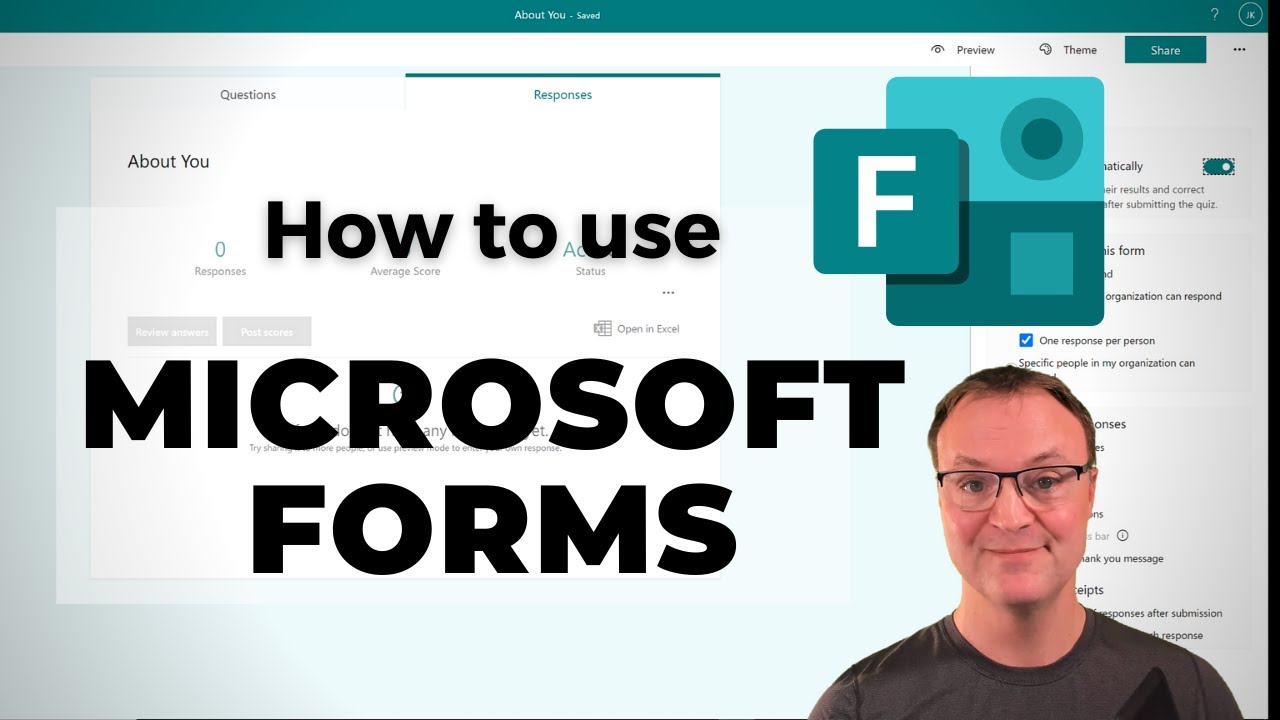
How to use Microsoft Forms for Beginners
20:28

How to use Microsoft Forms for Beginners

Teacher's Tech 03.03.2021 98 988 просмотров 723 лайков обн. 18.02.2026
Поделиться Telegram VK Бот
Транскрипт Скачать .md
Анализ с AI
Описание видео
In this video tutorial, I will show you how to use Microsoft Forms. You can use Microsoft Forms for FREE with a Microsoft account. Use Microsoft Forms to collect data for our business or to give quizzes to your students that are self-marked. 0:00 Introduction 0:48 Where to access Microsoft Forms 2:37 Create a new Microsoft Form 3:34 Using images in forms 4:31 Previewing your form 4:51 Immersive Reader in Microsoft Forms 5:21 Adding questions to your form 10:22 Adding an upload response 11:22 Adding sections to Forms 11:57 Customizing the look of your form 13:27 How to share your Microsoft forms with others 15:28 Viewing responses 15:51 Open your Microsoft Form in Excel 16:18 Settings in Microsoft Forms 16:45 Creating a quiz in Microsoft Forms 18:18 Adding a mathematical formula for a question Sharing your form with a collaborator Sharing your form with a respondent How to create a quiz in Microsoft Forms How to Use Microsoft OneDrive: https://youtu.be/rmqZW8fdolE ***More Videos on Microsoft Excel*** Microsoft Excel for Beginners - Level 1: https://youtu.be/k1VUZEVuDJ8 Microsoft Excel for Beginners - Level 2: https://youtu.be/bhZckWTLkJM Microsoft Excel for Beginners - Level 3: https://youtu.be/47yu50CsH00 Microsoft Excel for Beginners - Level 4: https://youtu.be/c8qePWuYleg I use Camtasia to create my videos: Use this coupon code: TEACHCAM10 Camtasia purchase with 10% OFF code applied: https://techsmith.z6rjha.net/c/1264585/701976/5161 Camtasia EDU 10% OFF with code applied: https://techsmith.z6rjha.net/c/1264585/704928/5161 Camtasia Download page: https://techsmith.z6rjha.net/c/1264585/489271/5161 DISCLAIMER: This video and description contains affiliate links, which means that if you click on one of the product links and end up purchasing it, I’ll receive a small commission. This helps support the channel and allows us to continue to make videos like this. Thank you for the support!


Оглавление (16 сегментов)

  1. 0:00 Introduction 167 сл.
  2. 0:48 Where to access Microsoft Forms 384 сл.
  3. 2:37 Create a new Microsoft Form 219 сл.
  4. 3:34 Using images in forms 189 сл.
  5. 4:31 Previewing your form 74 сл.
  6. 4:51 Immersive Reader in Microsoft Forms 98 сл.
  7. 5:21 Adding questions to your form 951 сл.
  8. 10:22 Adding an upload response 186 сл.
  9. 11:22 Adding sections to Forms 119 сл.
  10. 11:57 Customizing the look of your form 275 сл.
  11. 13:27 How to share your Microsoft forms with others 381 сл.
  12. 15:28 Viewing responses 67 сл.
  13. 15:51 Open your Microsoft Form in Excel 83 сл.
  14. 16:18 Settings in Microsoft Forms 96 сл.
  15. 16:45 Creating a quiz in Microsoft Forms 294 сл.
  16. 18:18 Adding a mathematical formula for a question 393 сл.
0:00

Introduction

hi there jamie keate here today at teachers tech hope you're having a great day today today i want to show you how to use microsoft forms so whether it's going to be collecting data for your business or creating online assessments to give to your students where they can quickly answer and get the results back microsoft forms gives an easy and free way to do this so i'm going to walk through how do you access your microsoft forms how do you set them up in different ways and how do you share them out and take a look at the data that you collect so let's get started using microsoft forms today on teachers tech just to point out everything is time stamped in this video so take a look at the description down below and you'll be able to jump to different parts of this video if you're looking for something specific about microsoft form so the first thing we're going to start
0:48

Where to access Microsoft Forms

with today is how to access microsoft form and you can do this completely free if you already have a microsoft account you'll be able to log into that if you don't you can easily create one now i can log in right from this page and i can put the link to this down in the description too so you can just click on this where i can go sign in and you'll see i have my sign in here if you don't have an account you can just go ahead and create one if you're used to logging in i'm just going to go over to office. com you can log in from here also and this is where you're going to have access to all of your all your different apps inside microsoft 365. so i'm logged into my office 365 account here and i'll just show you where you're going to find your microsoft forms now if you've already used it lately you're going to see it right on the side here you can see my forms is there but if you haven't accessed it might not be there so what you can do in a couple different ways one you could go up to the app launcher in the top left hand corner these nine little squares click on it and you can go to if you don't see it in the list you can go to all apps and then kind of go down and find find it from the list and you can see mine's right there the other way is at the bottom of the page you notice that you have all apps right here if you click on that it will open up all apps and then i'm just going to click and open up my forms from here now right away you're going to see some other ones that i've worked on before the recent ones uh different groups and everything are down here you can change the look here if you wanted it uh more you know i have it in tiles right now but you could go to a list one if you wanted to change uh the look on this one so now what we're going to do is go to
2:37

Create a new Microsoft Form

a new i'm going to show you how to make a new quiz or a new form where it doesn't have to be a quiz right from here so i'm just going to go ahead and create a new form here you can see i have new quiz i actually don't want to create a quiz yet i'm going to drop down and just create form so i'm going to click on the form click on it and away i go so i want to give this a title it says untitled right away but this is just going to be a simple form let's say for a business and i'm just going to copy paste uh pete's pet store into here and right away look at the top it says pete's pet store saving and it just said saved it's saved so if i go back to this over here and refresh you can see pete's pet store uh just now is now it's in my recent i can pin this so what that means it will be in here so if you have a lot of forms after a while and you just want it's kind of like a star it's important you could have it right there to go to so i'm just going to go
3:34

Using images in forms

back i'm going to give it a little bit of a description this is just going to be a customer sort of satisfaction survey and i'm just copying pasting things over and let's say i want to add an image right here so whenever you see this allows you to add an image if i click on this i can do image search i could go from one drive i could click on upload and upload something from my computer so i'm going to go image search and you can see you're responsible for respecting others making sure that you're what you're using that you can use so if i just type in uh dog and i have this you know search for results in creative commons so i'm going to go ahead and click on this one and add so we have this added to the image here we have a little bit of a description and i'm just going to take a look in the preview to show you what it looks like because what you're seeing here is what you're working on to create it's not
4:31

Previewing your form

what the people completing it will see they'll see this so this right here is what they would see on a computer and on their mobile device this is what they'll see so i like how it gives it this option as it gets longer it will show you the scroll uh down the side and on both of these on the computer are mobile so uh what i like is it has the
4:51

Immersive Reader in Microsoft Forms

immersive reader here so if i go ahead and click on it will actually and this is great for the quiz section pet store it will actually customer satisfaction survey read through there so it can make sure that things are being uh understood correctly so i'm going to go back now and ahead and add some questions and this will be a super easy one so i'm going to go add new and you can see i have some options it could be a choice it could be text rating date and there's a drop down here
5:21

Adding questions to your form

where we can get to more uh different types of questions i'm going to start with a choice i'm not going to enter every one but i'll show you kind of what they are i'll go to choice and now right away i'm just going to copy paste something i have over here and the first question will be tell us how satisfied are you now you can see right away i like this it has suggested options very satisfied somewhat neither satisfied or dissatisfied and so i can just select one of these but maybe i want to have extremely satisfied as my one option here so i'm going to put this here at whenever i want to get rid of something i could just hit delete if i would like to so now maybe okay and now i have a very satisfied and i can quickly add more options here somewhat satisfied and i'll add another option uh we'll go with very dissatisfied kind of jumps there i should have but not very important but i can move these around too whenever you uh grab these little six little squares i can change and drag things um all around and i'm going to actually add one more option we'll say just here and we'll leave it like that so now we're going to take a look at the few other things on this question here so you could copy this question if you wanted to have it again you could just hit copy you could delete if i had more questions i can move them up or down below i could have multiple answers so i turn this on you could have them select multiple ones and make this required so what required means if i go ahead and turn this on when they're completing this they have to give an answer to this and these three little dots here have some more options so i click on it and you can see if i go to we have drop down do we want this to be a drop down i'll go and preview it you can see what it turns into right here and the other thing is if i go to add branching so what this means and this is a good upgrade option so if i add branching if they choose this answer i could have the form set up so there'll be certain questions ready so if i know they're extremely satisfied i can send them to maybe a different section or different question i can really direct them through the form based on what they give me as an answer to these ones so that's a great option to have so i'm just going to go ahead down below here i'm going to hit add new and you can see here i'm going to just do a text one so i could go ahead add text so i want to them to elaborate a little bit and then i'm going to just put in as a question here and i'm going to say it's long answered required and i'm not going to change anything on here you can see uh with the different ones i'm going to i could add restrictions uh to this if there was numbers in it but i'm not going to add any restrictions on this i'm gonna actually turn this back off uh you can see how i did that it just goes from the check mark on and off so i have uh let's go to preview see what's happening we have on a computer on the mobile it starts to give me this scroll here and i'm just going to go click add new maybe i want to add a rating so this would be a handy feature going back to maybe i shouldn't even had this one i could have just had the satisfaction question here so if i went back to i'm just going to grab another question here what we could do is if this was the question put this in it could be a star rating i could change how many stars that we put this on maybe we just i want it on four or three you can just click or maybe you want a number on it and again you can adjust you could adjust the different ones as you see fit i'm going to go back just to show you how we can change things around if i move it up now i've changed the order of this now i've made this the number one question so you can really adjust things the way you want i can add new again and i just want to point out so you could put in a date so maybe i when did you visit the store if you're trying to get an idea of based of their satisfaction based on when they were there any of these you can add the picture uh to it so if i go back into the preview you can see if they just click on it the calendar will come up for them and they can just pick the date very simply uh that way i'm gonna go add new again and just to point out these ones too so we have the likert where we could have different options that they can choose and you can add a statement so each of these you can increase the options here and you can add uh statements and when they go through uh they can really select uh what you know so you can get really detailed
10:22

Adding an upload response

answers on there now i'm gonna go add new and i just wanted to point out that there is a file upload so do you want the people to upload a file to uh to it so i'm gonna put up file upload and hit the preview here so you can see that they'll get this and then they'll just from their computer they could go ahead and take something off their computer and upload it and if you look under the upload it tells you how many you're allowed the file type and size right here the last one i just want to point out a couple more things actually on this drop down here would be the net promoter score this one just gives you the 1 through 10 option here that really could eliminate a lot of the other different types of questions that i've had and if i go ahead and preview it you can see you would just be clicking the number in between of it i'm just going to go down and if your form is getting really long you
11:22

Adding sections to Forms

could have different sections so that really works well with the branching too if you're going to branch people off on different questions you can go ahead and make it make a section so depending on maybe it's part of different parts of the store if i was comparing that i could send people what type of pet did they buy and i could get it more specific that way too so you can add these sections uh to it i'm just going to go ahead and remove the section uh this section that i just put in here now let's talk a little bit about changing we just kind of use the default form we can change this
11:57

Customizing the look of your form

up and get different colors if i go over to theme notice that i can pick if i as i pick on different colors and these pictures it quickly changes things up here i do want to point out here if i go ahead i'm going to change the name really quickly here and i'm just going to call this business like so and i'm going to click out and notice that there's this lightning bolt here if i click on this now it is going through based on this name it's picked out a different uh maybe a different idea of what i would like of it so depending on what you title you might see this thunderbolt and as i click on it it's just going to give you some suggestions of what you might want to and that was based on that word business you can see if i put in if i just type in quiz and click off of it and go back now uh you're seeing that it looks like some academic uh pictures coming up here that i could just change very quickly i'm gonna go back to my uh back here and i'll keep now the one that i had that i chose last but you can go and make these modifications after notice you can customize the theme too you could go with upload your own image here and pick your own color so it's quite easy to customize this up if i go to preview again you can see what it's looking like in here and on the mobile device here too so how do
13:27

How to share your Microsoft forms with others

you share your microsoft form if you look up top here where it just says share now there might be a couple different ways you want to share it you're going to with people to actually complete the form but let's say you want to work on this form to create it with somebody else you could go to share to collaborate down here so that's not to fill in the form to get the answers that is if someone else is helping you create this form and you want to give them access to add questions to it to get things done quicker now how you share this though is right through here now when i drop down notice that it's uh it says anyone can respond normally if it was going out to anybody that's the way you want but uh since i have inside the organization since i have an upload question on here it's not allowing that to go through in my case here because the organization it won't upload it to one drive uh from outside so i would have to take that if i wanted outside file upload from there only people in my organization can respond specific so it all depends on how you're sending it out here if you're just using the free account you're not going to have the same the issue that i would have with that upload to it so i could go ahead and go copy through here and i could send that out to an email and then what they're going to get so if i go here and i'm just going to paste it in here and you can see this is the survey this is what they would get so i could email this out to them uh they could go through and i'll just answer some questions i put i i'll just change a few dates here and we'll see what we get we'll just say test i'm going to upload a file here of i've answered and i'm going to go here so ahead now i've uploaded everything looks good i hit submit now if i go back thanks here it was submitted i go back notice i have a response here so i
15:28

Viewing responses

could go back now and see the different responses it tells me how long it took to go ahead and go through it i did that quite quickly and it gives me the answers to it so as i get more answers it's going to give me averages to these things here so you can see um just the different responses so everything it makes it easy
15:51

Open your Microsoft Form in Excel

to do here it also i can open it in excel so we'll take the information out if i go and it will download it so right now it downloaded as an excel file where to go there it is right here you can see this was the information that opened up right through there before i move over to show you how a quiz is slightly different i'm going to go up to this where it says more from more form settings
16:18

Settings in Microsoft Forms

check out this settings here so if you want to make sure you're customizing all the different features to what you want to collect you can see who can fill out the form and you can go through and check off the things that you want and options for responses through here now let's go over back to our form so i'm going to go uh back to forms here and at this point i'm just going to go new quiz this time and i'm going to make a super simple quiz and just show you
16:45

Creating a quiz in Microsoft Forms

some of the differences in here so we'll go new quiz i'm going to make this i'm just going to say about you and i'm not going to enter a description in here but i'm going to go ahead and hit add new we're going to give it a choice uh and i'll make this simple what day of the week is it and you can see well i'll just populate some of this here now i can go through and say well what is the correct answer if today's thursday i can go and hit there if today was tuesday make this the correct answer so that's how they know that's how when it gets uh corrected that's how the no and then you can see display a message to the respondent who selected this answer so maybe do you want to say good job or if it was incorrect uh maybe give them a hint of how they could uh figure out the correct answer on it i'm gonna make a new one here so add new and you can see we can do the same similar things to it you know i'll say tell me about yourself and this time it's going to be long answer and they can go through and fill it out you can see there's a point system underneath that we could put in make it required and we have the different options in here notice that there is a math one and i'm going to show this on the next one i'm just going to go add new and we're going to go ahead i'm going to go and add a choice one just for an example here and i'm going to go to math and
18:18

Adding a mathematical formula for a question

i can go ahead now and enter the equation so if i was going to go through and said square root of 9 hit ok and you can see it gives me the correct answer already so maybe i put this as the first one and then this will be the next one i can put in a few different ones here and it's already corrected the right one so i like this feature that you can actually put the equations in when you turn this to math you can see it you can switch it back to text here you have that option uh going through uh on this it gives me the amount of points i haven't had any responses yet the preview is there shows me what it would look like and on mobile they could go through and do this too and as mentioned before it has the immersive read immersive reader in it so you can make your changes your themes in here to get the colors that you want when you go to share everything will be the same way so before i show you the link here that you could copy over you could do qr code you could do so if they're on their devices you could have the qr code that they just put right in front of it and it opens up you could imbed it or email it out here too uh i do want to point out though right up here notice that in the settings here options for the quizzes responders will see the results and correct answers immediately after submitting the quiz do you want that off or on so that's depending and you can go through and adjust the settings the way uh that you want through here so microsoft forms this is a great tool to use that to collect information to give those assessments quick easy assessments that you can give immediate feedback to it's free inside your microsoft office account so take a look at it if you haven't used it yet let me know what you think of it works with microsoft teams as well connects everything very nicely to give that those quick assessments thanks for watching this week on teachers tech i'll see you next time with more tech tips and tutorials

Ещё от Teacher's Tech

Ctrl+V

Экстракт Знаний в Telegram

Транскрипты, идеи, методички — всё самое полезное из лучших YouTube-каналов.

Подписаться



