Make Comics for School with Pixton Edu
10:09

Make Comics for School with Pixton Edu

Teacher's Tech 05.06.2020 42 630 просмотров 501 лайков обн. 18.02.2026
Поделиться Telegram VK Бот
Транскрипт Скачать .md
Анализ с AI
Описание видео
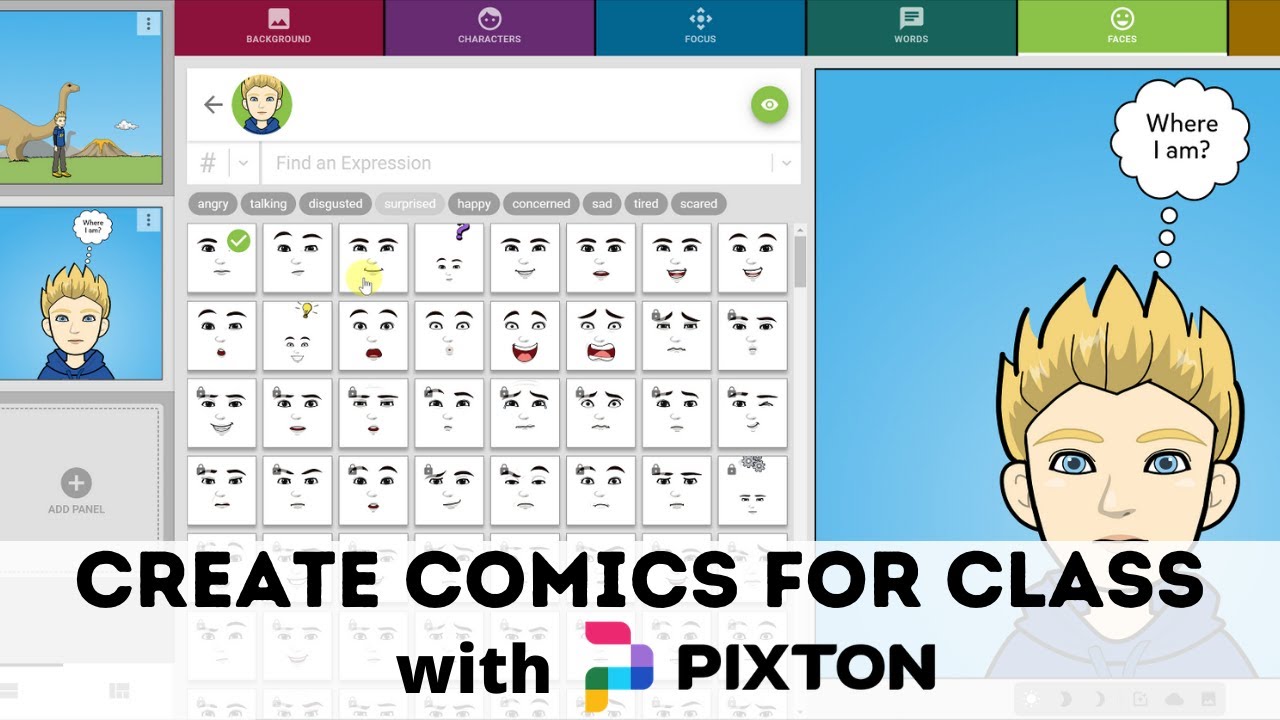
This video will show you how to create comics online for your class with Pixton Edu. With Pixton Edu teachers can create different classes and send the link to their students to easily join. Students then create their avatar and different comics to show learning or use it just for fun. Teachers will be able to view students' comics from their accounts and give live feedback. Find Pixton here: https://www.pixton.com/

Оглавление (6 сегментов)

  1. 0:00 Intro 90 сл.
  2. 0:30 Logging in 76 сл.
  3. 0:52 Dashboard 439 сл.
  4. 3:05 Comics 709 сл.
  5. 6:55 Class Setup 448 сл.
  6. 9:20 Conclusion 160 сл.
0:00

Intro

hi there Jamie Keita here today at teachers Tech hope you're having a great day today I want to show you pixton now pixon is a place where you can create online comics if you're a teacher you can in set up an entire class invite your students to it and have everybody in one spot where you can take a look at their comics and give comments back so I'm gonna run through how you create your comics and how you did set up your classes for pixton edu
0:30

Logging in

so I'm gonna go ahead and get logged into my account I'm using the for educators one here I'm just using the free one too so you can see if you don't have it account just go ahead try for free I'm gonna get logged in because I've already created an account with this I'm just gonna log in with one of my Google accounts you can do with Microsoft or Facebook as well I'm logged
0:52

Dashboard

in now and what you see is my dashboard as a teacher you can see I have grade five set up as a class I'll show you how to make a new class and get your students in it in a moment I'm gonna click on this one in view class I only have one student in here so I made this with a different account and they get to make an avatar you actually too so I'm gonna click rate up top here beside my name if I click on it then you can go through all the different sequences of your avatar from quite tall and everything from your face to your clothes all these things but I'm not gonna go through and set that up on here it's very simple just to follow through now I'm just gonna go back to view class I'm gonna click on the student and remember you'd have more students in here if you're using it as a class but I can see the comics that they created if I click on this again I can even give feedback that they're gonna get in their account too so when I show you the students view that will be there if you look over to the right hand side at the top you notice there's this toggle switch here if you want to make one your favorite you can just go ahead and toggle it this way I'm just gonna go back a few levels here to my dashboard and you have my favorites and it will show up right here when you have that turned on I just want to go back to the classroom here to show you a couple of the things in it if I hit view class you know how I showed you the one student that's in here if I show you the class photo you can see that one student that joint is in the class photo you can toggle this back and forth up here to get the kind of a graduation thing happening here but as more students join your class they make their avatars this photo will change showing all the students that aren't involved you can download it from here and sure that you can see I can edit my avatar also just by clicking on edit avatar at this point - now I'm gonna go over to printables just to point this out there are things that you can print off here that you can go through if you wanted to do that now I'm just gonna go back I'm
3:05

Comics

gonna go to my comics now and this is going to be the same way that students will make their comics - so I'm gonna click on my comics I'm gonna make a brand new comic here make a comic and I'm just gonna call this example here for today and we are going to go with a dinosaur theme so I'm going to pick this one right here you can see I have a blank canvas here I'm gonna pick a background now you pick your background you can always make adjustments to your background if I look under the image over here notice if I want it dark I can change it here so if you do want at nighttime you can add different things to it so just go through and take a look at this don't forget that's there I have a background and now I want to add a character to this so I just click on the next one over here and you can see there's different characters if you get anything with a lock on it that means that is a part of a paid-for one so there are some actually pretty good deals for it because it includes all your all yours and your students - as well as part of the pricing but I'll let you guys check that out but if I go to this one that doesn't have a lock I'll put this one on and I put this character in here and notice I can drag this person back and forth along the ground on it I can go through and make adjustments to the colors to the outfit of this so if I go ahead and click on it you notice that the changes that appear very quickly if I wanted blonde hair in here and even change the hairstyle like this so I can quickly make those changes I'm going to go ahead and make it duplicate of the same slide here so I'm gonna go duplicate panel up here and what that will do it just creates a duplicate now I'm actually going to change something into focus on this one so if I click on focus I can do a different shot here so maybe I want to zoom up on this one so I'll pick this right here and what you notice it kind of zooms up on it so if I go this and maybe I just want a headshot at this point I and then I can add some words so I can at this time just go to words hit add word so I'm gonna add my captions I could just use my mic talk by clicking this put it right in and I'm just gonna say where am I just like this and you can see you have some options on this one how it changes to the type of it so I'll just leave it as a thought and then I can continue on with the faces now do I what type of face do I want here do I want them to look kind of confused in it but I can go through and pick different ones and remember the lock ones you won't have available to you so I'm gonna go back to this one here again and I'm just going to duplicate this one and you can drag these around too so if you can see I can put them in different orders like this and I'm gonna go ahead and add an action maybe I'll put the person over here and I'll add an action to this if I want this person that this character running away I can go and change the faces that they look scared on it just like this and you can see very quickly I can make these changes on it I can view the cut of that comic if I click down here you can see it starts to put it like more like a comic you can go back and forth but then I can be when I'm done I go ahead and hit done like this and now I have a comic in my comics
6:55

Class Setup

and the students are going to be doing this the same way I can go back and edit I can share it at any time if I click on it you can see download print right from here too so very easy to create these so now how do you create your class well I'm gonna go ahead and go back to my classroom here I already had the one example I have a new class room I'm gonna go to new classroom and we'll just call this well English here so I'll call it like this and next and we'll just say this is grade 9 here we'll continue and I'm gonna have a second class at this point here once it goes through so I'll just call this actually will call this math here and how do I want to do this so you can choose to use pixton usernames I would probably use the Google ones if I was in a Google environment I'm gonna hit choose this one now all you have to do is copy this link and send it to the students so I'm gonna copy that but I'll hit close if I go back to it so you can see I'm in it right now if I go back I have this new English class I can always take that code from there and copy it so i'm i already have it copied i'm gonna bring in a new window here and all i would have to be doing i'm gonna bring it over here it's a different log and i'm gonna paste it up here so maybe you send it out in an email to students and they click on this link and then they go into this and they're gonna be joining english so now this student is going to be joining english here so I'll go into this class and I can start making a comic from here I'll be able to say test here well spell it wrong that's why and they go through the same thing and I'm just gonna do a one example I'll just put this bed and I'm gonna put a character in here really quickly and I'm gonna hit done just like this now if I go back I'm gonna go back to the teacher view I'm just gonna minimize this one and I view this class in English you can see James is in that one they went in through the link and I can click through and this is the comic that they made where you can go through and leave the feedback to it so it's easy for the
9:20

Conclusion

students to log in through Google it puts them all into the classes with the links that you send so you can have a lot of fun with this giving different assignments based on so many different things and it gives a different way for students maybe to explain what they know so I hope this is makes sense to you today with using pixton and you I'm just showing the free one you can check the pricing just click up top here and you can see all the different ones all the different pricing up here if there's something that if you do find you really like this but for now maybe the free one works for you and it's very easy to use and it could be a fun way for students to show what they know so thanks for watching this week on teachers tech I'll see you next weeks with some more tech tips and tutorials

Ещё от Teacher's Tech

Ctrl+V

Экстракт Знаний в Telegram

Транскрипты, идеи, методички — всё самое полезное из лучших YouTube-каналов.

Подписаться




