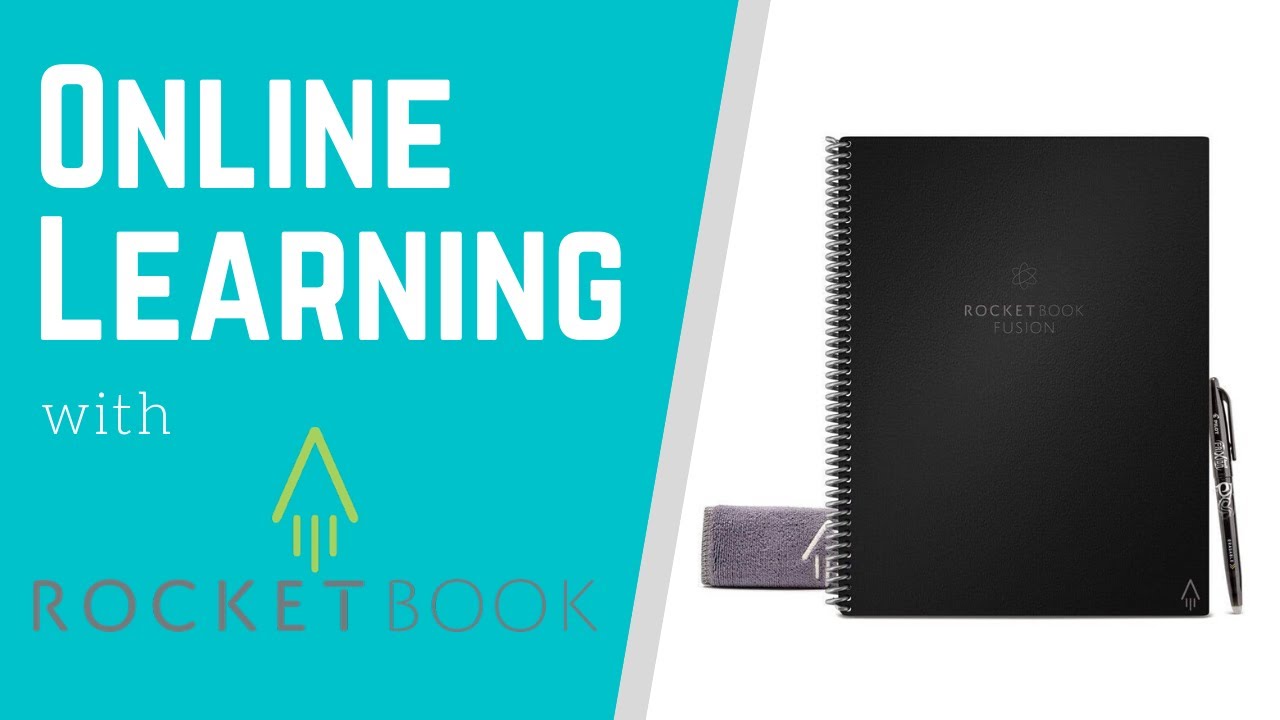
How to  Use RocketBook for Online Learning
10:20

How to Use RocketBook for Online Learning

Teacher's Tech 27.05.2020 39 508 просмотров 311 лайков обн. 18.02.2026
Поделиться Telegram VK Бот
Транскрипт Скачать .md
Анализ с AI
Описание видео
In this video tutorial I will show you how to use RocketBook. RocketBook is great for online learning. This could be the last notebook you need. With RocketBook Fusion you can use the designed templates to quickly fill out dates, ideas, and your great plans! Configure the RocketBook app for IOS or Andriod and a quick scan will place it in your cloud storage of choice. Use RocketBook with Google Drive, OneDrive, OneNote, and many more. Connect to even more mobile apps like Google Classroom. This is fantastic for teachers or students for blended or online learning. Website: https://getrocketbook.com/

Оглавление (5 сегментов)

  1. 0:00 Intro 125 сл.
  2. 0:39 What is RocketBook 1231 сл.
  3. 6:54 Changing Page Name 152 сл.
  4. 7:36 Connecting to Google Classroom 324 сл.
  5. 9:13 Using the Beacons 227 сл.
0:00

Intro

hi there jamie keate here today at teachers tech hope you're having a great day today today i want to show you rocketbook so i'm going to be using the new rocketbook fusion uh to show you how you can take notes and quickly move them to the cloud this is great for online learning for teachers for students all you need to do is have the book you can download the app android or ios and quickly snap that picture and send it over to onedrive or google drive or into your onenote and there's even different ways that you can move it into different apps so today on teachers tech i'm going to show you how to use rocketbook for the online learning
0:39

What is RocketBook

all right so before i get into the details of setting everything up i just wanted to run through what rocketbook is and how it works so first of all what you're going to do is i'm using the fusion here as i mentioned before and so with the fusion it has a few more templates than just lines on it you're going to find other pages that you can plan from calendar to week to just put your ideas down uh but it also comes with lined paper and then the square paper i know for myself i like just the lined or the square paper just to write and jot notes or shapes on it too but so you're gonna write your note down on a page just like this and then when you get your note done uh what you're gonna do is switch over to your app open up your rocketbook app it's good for available on ios or android hover it over the page and you're going to see it turn green and when it turns green it's automatically going to take that picture because it's know it's in the parameters based on the contrast of the sides the dark sides of it so it takes the picture and then prior to if you have it all set up it's going to be you pick where you want it to go so you can either pick if i have something like google drive set up i select it and then that image is going to go right into my google drive like i said before it can go into other things and when you're finished with your note in your notebook you can simply erase it or wash it off so use the pen erase it on the eraser side or put a little water on it and use the cloth and wipe it clean and you can do it over and over again on these rocket books when you get your rocket book it will come with a frixion pen like you see here i have the black one but you can also get it in other colors as well you also get the cloth with it that you can wipe down easily any of the stuff that you write on it okay so now i have my iphone open i have the app already open with rocketbook i have it uninstalled i'm just gonna go sign in with google you can see you could create an account or just sign up with google too so but i'm gonna sign in with google i'm gonna hit continue on my phone i'm going to choose my info teachers. tech here and i'm going to skip the notifications and what i want to show you is down below in destination so i could go ahead and hit scan right away but i just want to go to the bottom right hand corner hit destinations and you can see all the destinations uh that i have in there are the same it says info teacher dot tech but if i take a scan of this is gonna go to my email but maybe i want to send it to a specific place maybe to my google drive or onedrive or onenote i'm going to go where the diamond is right now and just hit that arrow and you see there's some choices that you can make here i'm going to change the destination i'm going to click on change destination i'm just going to do an example of google drive but it's very similar with any of the ones that you choose here whether it be slack or different ones i'm just going to go back to change destination but you can see even to message or email right down there i'm going to hit google drive continue and i'm going to select the account that i want to use again now i could create a folder you can see you could create a brand new folder i have something called rocket i'm just going to select on it and that's where i want it to be and i need to hit save in the top right hand corner when it's done so now if i click on destinations again actually right before i do that take a look at the different settings too you can have you're going to have file pdf type you bundle scans will connect it group scans as a combined pdf with multiple scans before you save it we have auto send uh offer on it and there's also ocr or optical character recognition that can take your text from your uh just hand written notes and everything but i wouldn't do it in cursive uh and if it is fairly messy it is hard for it to pick it up accurately but it does work pretty well if you i can make legible notes but now if i go to destination down below you can see i have google drive next to the diamond i could go down next to the apple now and choose a different cloud storage there so what does this mean so if i go to new scan here and i have just i have it open if i hover it over you can see it's going to pick up pretty quickly and it's scanning and i'm not pressing anything i'm just hovering it and it went through now uh what i want to point out here if you can i can look at it and here's the page i just took here i just hit the back uh down below there's the next button after that i hit next and i could rename it i could click in here and rename it i'm just going to leave this the same here hit done i can hit send now it's going to go directly to my google drive the reason why it's going and didn't ask me to change anything if i hover over this notice that there's an x over the diamond if you x since i x that diamond it knows to send it how it's connected since the diamond is connected to google drive it knows to send it there so you could be writing your notes at the bottom you just x where you want to send them and when you hover over this it will pick it will go to that file now if you don't have that set up you'll be able to pick which ones you have so you would just go through and pick where you wanted to go but if i erase this and did it again so i'll do this one time after i erase it so now i've erased it if i hover it over again i'll read over the page and you'll see it get to the green here scanning oh i got to make sure i position it right here there we go scan processing and now this time when i hit next notice it's asking me where i would like it i can still go to the google drive but i could pick any of these other ones to send it there too but take advantage of those symbols at the bottom of it
6:54

Changing Page Name

so i'm just over in my google drive the one that i created the account in and i went to that folder rocket and you can see here is the pdf right here if i open it up this is what my page was and it it's named what it was and like i said you could change the name even before it was sent here now the other thing i just would want to point out sometimes if you had all these different cloud storages you want to make sure that you get the right symbol with um with the right uh with right cloud service so at the front of the book you can actually just kind of make a note to watch which one you're using i just write it down there and then you can just always glance it there to make sure you have the right one
7:36

Connecting to Google Classroom

okay so i want to show you now how you could use something to like google classroom to directly go from rocketbook to send it to google classroom as an assignment or students could do the same thing to show you their work so i just already scanned in this one right here just to show you as an example but if i hit next on this one go to the very bottom and you can see share to other destinations so i'm going to click on that one and i'm going to go next and now what i'm going to do is uh go ahead and hit send and you can get to pick so i'm going to go all the way i don't have google classroom open i'm going to go to more and all the way down till i see google classroom i think it towards the bottom oh there it is right there google classroom and now i'm connected to this so what i'm going to do right now is create an assignment so you can see the assignment the thing that i took a scan was attached to it i'm just going to call this test and you could go through and fill out all the other information just like in google classroom i'm going to hit the send and that will go to google classroom so even for students to be writing in on their rocket book and then to be sending it directly to google classroom of course they could just send it to google drive and connect it through that way too but this is uh just a little bit more streamlined to connect it to different apps so take advantage of that and look at different apps that you can attach your rocket book to and now i want to show you one last thing and that's using the beacons in rocket book with these
9:13

Using the Beacons

beacons what it allows you to do is take an old white board and turn it into a large rocket book so you would put these on each corner of it so it gives it a frame that you know the picture is going to be around so if i click on an example here you can see how they've placed them at each corner and then it makes it really easy when you put your camera up it will know where that it needs to take the picture up so just a different option using more of this rocketbook technology to take uh just those handwritten notes or even off a whiteboard and bring it into your virtual world so i hope you like these tips today with rocketbook and how to use rocketbook if you haven't seen it this can be a great thing for online learning i know i enjoy using it and i'm erasing it i don't have to have a lot of notebooks if i want to take notes i just simply use the rocketbook and send it a lot of times i use onenote for a lot of things or google drive so you can send it right directly there so next week i'll be back with more tech tips and tutorials thanks for watching this time have a good night

Ещё от Teacher's Tech

Ctrl+V

Экстракт Знаний в Telegram

Транскрипты, идеи, методички — всё самое полезное из лучших YouTube-каналов.

Подписаться




