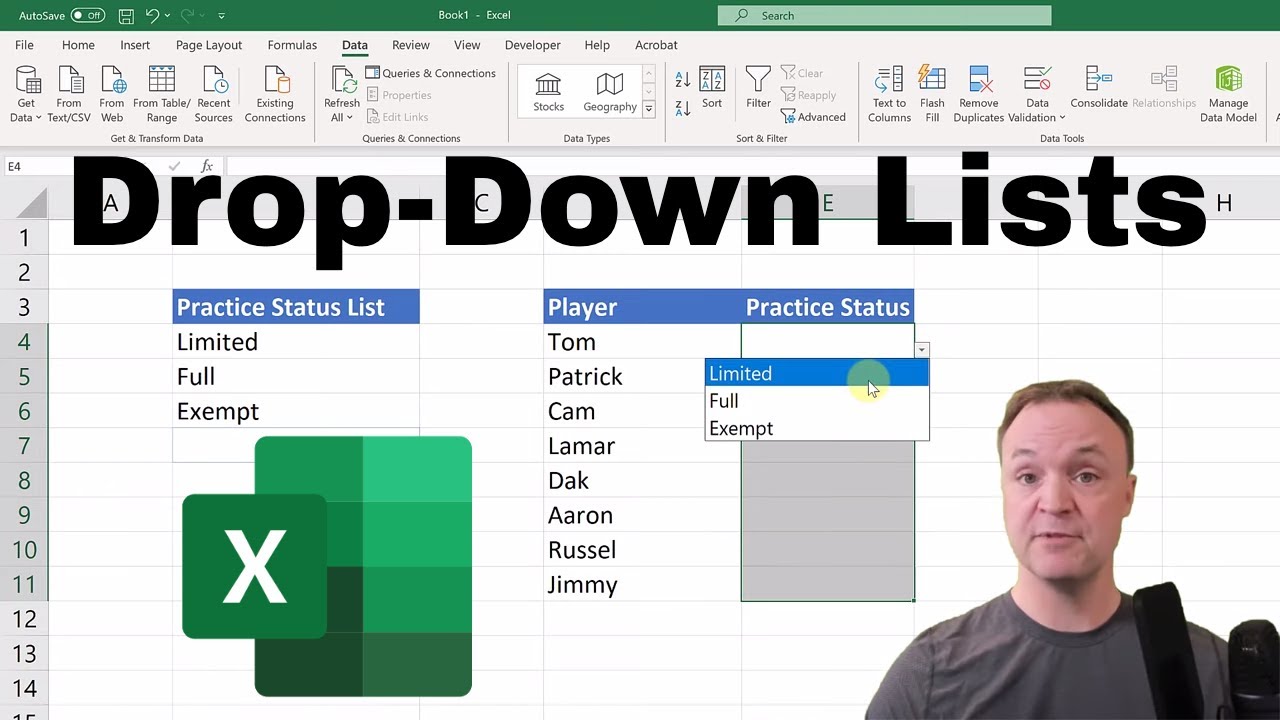
How to Create Drop-Down List in Excel
8:39

How to Create Drop-Down List in Excel

Teacher's Tech 01.03.2020 128 111 просмотров 1 744 лайков обн. 18.02.2026
Поделиться Telegram VK Бот
Транскрипт Скачать .md
Анализ с AI
Описание видео
Want more Excel videos? Here’s my Excel playlist: https://www.youtube.com/playlist?list=PLmkaw6oRnRv8lAKbKbflJRqS-9wuYNWUw In this video, I will show you how to create a drop-down list in Microsoft Excel for beginners. Creating a drop-down list in Excel is an easy process using Data Validation. I will show you two ways to create a drop-down list in Excel in this video. Other Microsoft Excel Tutorial: Microsoft Excel Tutorial - Level 1: https://youtu.be/k1VUZEVuDJ8 Microsoft Excel Tutorial - Level 2: https://youtu.be/bhZckWTLkJM Excel for Beginners Tuotiral - Level 3: https://youtu.be/47yu50CsH00 Pivot Tables in Excel for Beginners - https://youtu.be/igSovq_H24A VLOOKUP in Excel for Beginners- https://youtu.be/Lw03WcG4mt4 How to Make a Line Graph: https://youtu.be/0jdX22qM8JA 10 Best Excel Tips for Beginners: https://youtu.be/ZthlSLYc5UQ Want more Excel videos? Here’s my Excel playlist: https://www.youtube.com/playlist?list=PLmkaw6oRnRv8lAKbKbflJRqS-9wuYNWUw Want more Word videos? Here’s my Microsoft Word playlist: https://www.youtube.com/playlist?list=PLmkaw6oRnRv9-nqM7qW2aWkaKU6SfersL


Оглавление (4 сегментов)

  1. 0:00 <Untitled Chapter 1> 351 сл.
  2. 1:42 Data Validation 369 сл.
  3. 3:36 Create a Drop-Down List 322 сл.
  4. 5:20 Add Something to this List 650 сл.
0:00

<Untitled Chapter 1>

hi there Jamie Keith here today a teachers tech who'll be having a great day today today I want to show you how to create a drop-down list in Microsoft Excel using data validation now this might sound complicated but even if you're a beginner to Microsoft Excel this is still something you could add very quickly and easily to your spreadsheets to add a lot of functionality now what it allows you to do is quickly go down a list like this and pick and you know you're not gonna have to type things in and quickly but just kind of pre program what you wanted to say in those boxes and I'll even show you how to make some adjustments to it if the list changes so I'm going to show you two different ways today if you're looking for other Microsoft Excel tutorials for beginners take a look at my list down below in the description I'll put the playlist link there and up above in the cards but let's get started with how to create a drop-down list in Microsoft Excel today so I have some pretty simple lists that I'm going to be showing in this example today just so you get an idea how to create these but you can apply this to any type of sheets now in this first example what I want to have happened is so I have a list of sports and when I use my drop-down I all I want to be able to select is a played indoor outdoor or both on it so this might not be the most accurate one when I select what the answer is but you'll see the point how I make it now the first thing I need to do is select the area where the drop downs are gonna be so right here in this area I'm gonna go and highlight these here and then all I need to do is go up to data make sure you have that selected you can see where it is up top and find
1:42

Data Validation

data validation and it's right here I'm gonna go ahead and click on this one and now I have this little window the data validation window pop up and you can see right now the cells are set to any value what that means is you can type any number words letters gibberish it doesn't matter you can put anything you want but we want to be able to force it to only select from the drop-down list on it so what I want to do is if I drop down and then pick list right here and you can see there's other options but in this video I'm just focusing on the list and the drop-down but let me know if you're looking at some of these other ones too if you want a tutorial I'm gonna go ahead and pick list and now I can give my options what I want so I said is it gonna be played indoor and then I put a comma on it outdoor so depending on what your list is gonna be and then I'm gonna just type both so those that's my small list on it just to give this example and I'm just gonna go ahead and hit OK now so what happened was this little arrow popped up here so if I drop down you can see indoor outdoor or both so if I go ahead and pick football both will go to golf and if I'm just thinking about game play we'll just go to outdoor again I can pick different examples depending on this but you can go through and just kind of quickly go through and you know you're not gonna make any spelling errors because you've already told it what it wanted be now this is a simple way to create a drop-down list and the next way it's way I prefer so keep on watching on that one and I'll show you how to kind of make a list on the side that you can type in and increase it based on a certain range on your spreadsheet so I'm on sheet 2 now and in this case I want to create a
3:36

Create a Drop-Down List

drop-down list when I come over here I drop down and I want to be able to pull from the information that I typed over here but I also want to be able to show you how if that list changes or grows how you can quickly add it so the first thing I want to do in this case and a lot of people can over kind of don't do it this way but I think it's better I'm going to create a table over here so I'm gonna go ahead and highlight this and just go up to insert table and click on that and I do have a heading on there so I'm gonna say my table has the heading and I'm just gonna hit OK just like that so I've created a table from there and I'll explain why I'm doing and I'll show you a different way that you can do it but I just find it adds a little bit of work if you're changing around the table now this is very similar to what we did before I need to select the area that I want the data validation in so I need to go highlight this area and then go up to the data up top find my data validation and now this time I still need to change it to list like I did before but I need to change the source on it so when I go ahead and click this little arrow here I can highlight the source so I wanted to be limited full exempt and then I can go ahead and pick this and now hit OK so if I was going to go to practice status and you can see limited full exempt it's pulling from the list beside it so I can go through from this now let's say if something changes if I want to add
5:20

Add Something to this List

something to this list if I go in and I'll just give an example here and maybe the person's out so I'm just gonna go and type out and right away if I go over here notice it's out on it now if I didn't create that a table at first that wouldn't automatically happen there'd be a different way so if I just go back a bit here and I'm just gonna go back and take off the table so the tables off I you can see that it doesn't have the drop down it's just back to normal information in the on the sheet now I could go back here and I'm gonna go this time I'll just go back to my dad a data validation again and I'm gonna pick this right through here hit enter and hit OK so now if same thing it seems to be working but now if I type this like this time and I go through notice out isn't there what I'd have to do is it the way I would want to put out in there I'd actually have to put it in between what's there so I could add if I added a I'm just gonna insert a row here and I'm just gonna cut this and paste this over here so now if I go back over here you can see I was there and in the way I had it set up here I put a spot in here so I'd have to move everything out so I just find that just adds a little bit extra work if you create that table at first it was just easy to add and keep going on there now maybe if you were sharing this sheet out you wouldn't want people to see this part here you can go ahead and hide this spot so you can right click up here you can see the hide option and maybe so then they would just see this here as they go through but as I said I would recommend just create that table first in the first part that I showed you can also create it in different places so if I wanted to have the information in a new sheet so if I just go back here and put this back here I could create this information I could take it and so it wasn't even on this sheet so I just go down below maybe I just paste it here but the one thing you'd have to do if this is where your information is coming from you would have to update if I go back in my validation you would have to make sure that you go back here and update your source so if I anytime you move this if this is going to be my source now I'd have to update it here and you can see it's on a different sheet especially if you've moved it if you started from the first place it doesn't matter but you can put it in different places to maybe hide the list that you if you were sharing it to and if you didn't want people to see so like I said I would recommend doing the table first on it and then it just makes easy to add to it I hope you're able to use this information right away and add it to your Microsoft Excel experience let me know what other things that you're interested in learning just write them down below in the comments and then I like to keep track of those and gives me a lot of ideas and it helps me out to know what people are looking for but anyways thanks for watching this week on teachers tech I'll see you next time with more tech tips and tutorials

Ещё от Teacher's Tech

Ctrl+V

Экстракт Знаний в Telegram

Транскрипты, идеи, методички — всё самое полезное из лучших YouTube-каналов.

Подписаться



