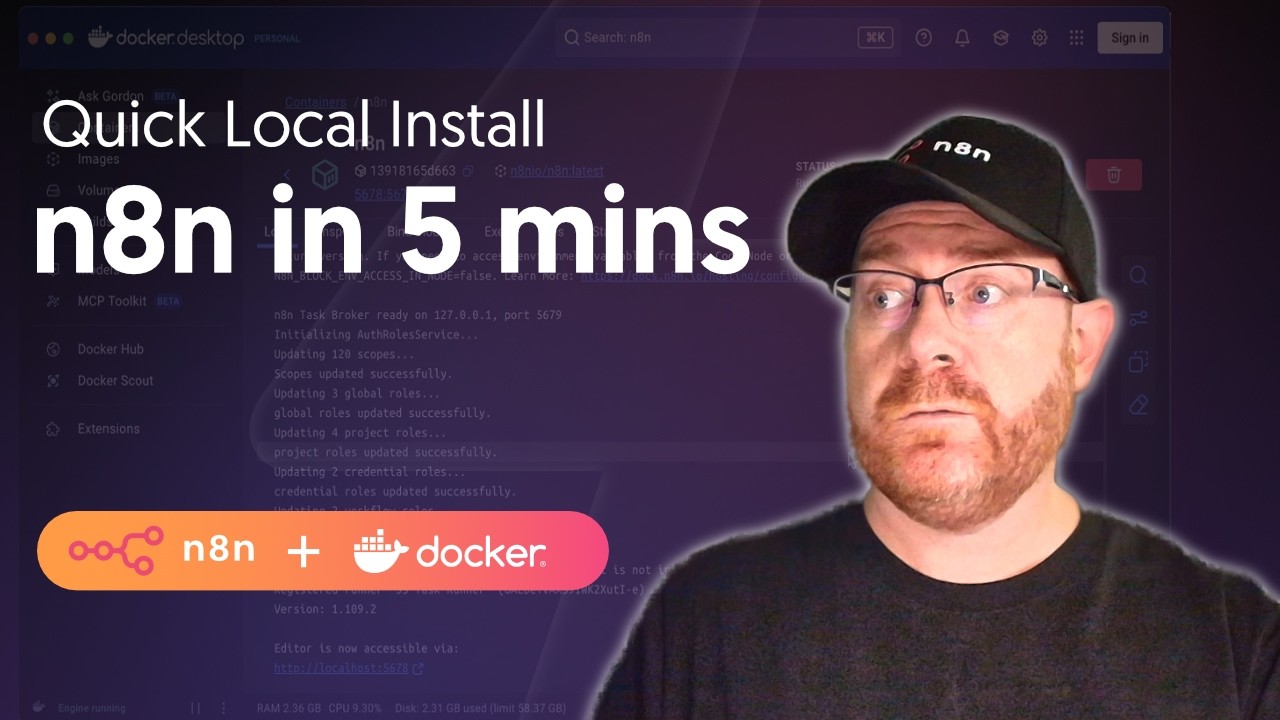
Create n8n Workflows With Agents | Official MCP
5:11

Create n8n Workflows With Agents | Official MCP

n8n 29.04.2026 6 179 просмотров 270 лайков

Machine-readable: Markdown · JSON API · Site index

Поделиться Telegram VK Бот
Транскрипт Скачать .md
Анализ с AI
Описание видео
@liammcgarrigle announces the expanded capabilities of the instance MCP in n8n that now includes creation and editing tools. Go here to leave feedback or get help 👉 https://go.n8n.io/GBwxtT Prompt from 03:43 to get setup in your agent I want you to wire my n8n MCP into this coding agent, following this exact workflow. 1. First, ask me to paste the MCP JSON from my n8n instance at `/settings/mcp`. 2. If you do not already know which coding agent host/client this is from context, ask me that too in the same message. Examples: OpenCode CLI, Claude Desktop, Cursor, VS Code extension, Continue. 3. After I paste the JSON, inspect the existing local config and, if needed, the official config schema/docs for this coding agent before editing anything. Do not assume the n8n JSON shape matches this agent's config format. Translate it correctly into the host's config format. 4. Add the n8n MCP entry to the correct config file, but keep the bearer token as the literal placeholder `(leftanglebracket)YOUR_ACCESS_TOKEN_HERE(rightanglebracket)` instead of asking me to paste the real token into chat. 5. If you have file access, make the config change directly. If you do not, give me the exact minimal edit I need to make in the exact file path. 6. Verify the config syntax after the change and tell me the exact absolute path of the config file. 7. Then give me exactly one copy-paste terminal command that uses the absolute path to that config file and replaces only `(leftanglebracket)YOUR_ACCESS_TOKEN_HERE(rightanglebracket)` in place. The command must: - prompt me with `Paste n8n access token:` - hide the token while I type - not require me to paste the token into chat - clear any temporary shell variable afterward 8. If my environment is macOS/Linux with `zsh` or `bash`, prefer this command pattern and fill in the real absolute path: `read -r -s "?Paste n8n access token: " TOKEN && printf '\\n' && TOKEN="$TOKEN" perl -0pi -e 's/(leftanglebracket)YOUR_ACCESS_TOKEN_HERE(rightanglebracket)/$ENV{TOKEN}/g' "/absolute/path/to/config" && unset TOKEN` 9. If my environment is different, adapt the command appropriately but keep the same behavior. 10. After giving me the command, instruct me to run it in my terminal and enter my token when prompted, then restart or reload the coding agent so the new MCP is picked up. 11. Do not print, log, or ask me to paste the real token into chat. Do not invent config fields. If anything is unclear, ask one concise clarification question before editing. Upgrade to version 2.18.3 or above to get all features highlighted in the video Links: MCP Install docs: https://go.n8n.io/k5lnJT MCP docs: https://go.n8n.io/7oO03Q MCP tool reference docs: https://go.n8n.io/PXNtFe link to official skill: coming soon 🤫 How to upgrade on cloud: https://go.n8n.io/wVcGPe How to upgrade on self hosted: https://go.n8n.io/iqK71K Sign up for n8n cloud: https://go.n8n.io/PxlflW Get help: https://go.n8n.io/GBwxtT

Оглавление (2 сегментов)

Segment 1 (00:00 - 05:00)

n8n's MCP connection now supports creating  and editing workflows. A couple weeks ago,   I asked some of the engineers working on this  MCP how well it works, and everyone's response   was the same. I haven't manually built a workflow  in weeks. I was skeptical. Uh, but after testing,   they were right. With the tools they built into  this new MCP, this is in a completely different   league than just asking Claude to generate  workflow JSON. The team wrote a whole new   workflow syntax and SDK specifically optimized for  LLMs to work with it. It's able to verify schemas,   create data tables, pin data, test workflows.   It's really powerful. And best of all, you don't   need to manually copy and paste JSON anymore. It  just goes right into your instance. In this video,   I'll show you how to set this up yourself.   It works on all n8n plans, including the free   community edition. you just need to be on version  2. 18. 3 or higher. So far in testing, it seems like   Claude code with Opus is really the best performer  when using this MCP for creating and planning out   workflows. And that's great because we are an  official connector in Claude. So, it is really   easy to set up in Claude Desktop. Just click on  the customize tab on the left and then click on   connectors. You can also find this in the settings  page if Anthropic decides to move it around again.    And then in the connector list, you can search  for n8n and click the plus button. Now it asks for   your server URL which is located in n8n settings.   In your n8n, click the settings cog on the very   bottom left. Then go to instance level MCP. Enable  it if it isn't already. Then copy the server URL   from the connection details. Paste. Click connect.   Authorize inside of Claude and accept the redirect   back. And then you're connected. As easy as that.   At this point, you're ready to go and can start   to use it. But I like to go in and configure all  the readonly tools to be auto approved. You can do   the same for write tools as well if you want, but  I prefer to have uh more say on the creation   and deleting. Now, if we go back to the regular  chat, we can ask Claude to make a workflow to test   it. And just like that, we have Claude making  workflows for us. But if your Claude plan has   access to Claude code, like I said earlier, uh I  really suggest using that instead. You can uh get   to it using this button in the desktop app. If you  aren't familiar with the way coding agents work,   it's essentially where you give your agent a  folder on your computer to work in and it's   able to access everything in that folder. So I'll  make one called n8n developer. In Claude code,   you put the system prompt into a file called  claude. md. And other agents do the same thing,   but the file is called agents. md. And we  can be extra lazy and just ask the agent   to make the system prompt for us in that file  uh with some of our preferences. And remember,   this is just a text file in your file system that  the agent uses as its system prompt. This will be   a good baseline to get you started if you want  to copy it. And you can of course expand it as   you need and put in your own preferences. And of  course, it's not only claude code that works with   us. Our MCP connects to any of the coding agents  that lets you connect to MCPs, which is pretty   much all of them. I particularly like Open Code,  which like n8n is model agnostic, meaning you can   use any model you want. Since coding agents can  edit files on your computer, which is where the   configuration needs to happen if there isn't an  official button like in Claude, we can actually   just ask the agent to set itself up. So, in the  description of this video, I put a prompt where   you can just copy and paste into any coding agent  like Open Code that supports custom MCPs. Then,   it will ask for the config. So, we just go back  to that same page we got the URL from and copy the   configuration JSON and paste it into Open Code.   And we'll also tell it that it's open code. And   now we need to add our token. Since it needs to be  kept safe, we'll use this command to add it. Uh,   paste this in your terminal. And then when it  prompts you, uh, we'll copy the access token from   the n8n settings page again and paste it into the  terminal prompt. It's okay that you don't see it.    That's normal. Just press enter and it should  add it into that configuration file, replacing   the placeholder. Then we'll restart the agent and  test it. And now that works. So you're good to go   and start creating. And a reminder that this will  work with any coding agent that speaks MCP. So   it's not just exclusive to Claude and Open Code.   If you follow the steps in this video and are   still having trouble or if you have any feedback  in general, there's a link in the description to   a forum thread that we'll be watching really  closely. I promise if you post it there,   I will see it and a lot of other people from the  team will see it as well. This was just a quick   getting started video. In a couple of weeks, I'll  be back to do another video, actually building

Segment 2 (05:00 - 05:00)

something real with this, uh, which I'm really  excited for. So, if you have any ideas or run   into limitations, please let us know and I will  address it in the next video. I'll see you there.

Другие видео автора — n8n

Ctrl+V

Экстракт Знаний в Telegram

Экстракты и дистилляты из лучших YouTube-каналов — сразу после публикации.

Подписаться

Дайджест Экстрактов

Лучшие методички за неделю — каждый понедельник