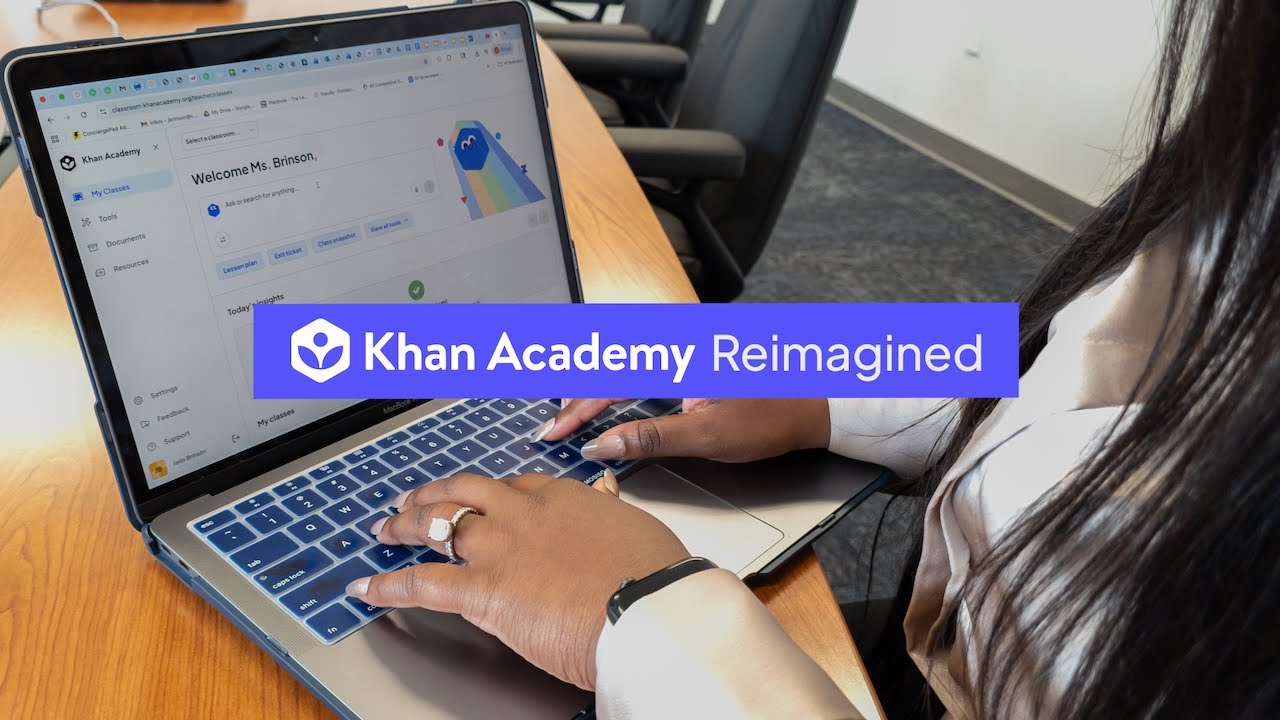
Real tools for real classrooms: A direct look at the next chapter of Khan Academy.
23:52

Real tools for real classrooms: A direct look at the next chapter of Khan Academy.

Khan Academy 30.04.2026 4 184 просмотров 69 лайков

Machine-readable: Markdown · JSON API · Site index

Поделиться Telegram VK Бот
Транскрипт Скачать .md
Анализ с AI
Описание видео
We know that the best tools are the ones that actually get used because they make sense in a busy classroom. This video offers a direct, jargon-free look at the new teacher dashboard and student practice experience. 00:00 - Welcome and what is coming this school year 02:53 - Why we updated the experience for your classrooms 04:55 - What is staying the same and what is new 06:05 - A quick look at the new teacher dashboard 07:44 - How to quickly set up and manage your classes 09:50 - Finding and picking the right lessons for students 11:08 - How AI helps teachers spend more time with students 15:06 - Simple ways to see how students are growing 18:12 - What learning feels like for the student 19:44 - How missions and goals keep students moving forward 23:02 - Using rewards to celebrate student progress

Оглавление (11 сегментов)

Welcome and what is coming this school year

All right. Let's go ahead and get started. Um, if you're just joining, welcome. First, I want to take the time to thank all of you for taking the time to join us today. Um, we can't wait to show you what's coming to Khan Academy this school year. My name is Audrey and I am a product manager at Khan Academy, um, focused on the teacher experience and I'm so excited to introduce you to the reimagined Khan Academy. And I'm also joined by my colleague Gintautas and I'll actually pass it over to him to quickly introduce himself. Yeah, hi everyone. My name is Gintautas Miliauskas. I'm also product manager. I work closely alongside Audrey. Um, so, so excited that all of you get a sneak peek at what is coming. I think all of us, uh, here at Khan Academy can't express how excited we are to get this in the hands of all of you, uh, for the next school year. I will be in the background answering any questions that come in through the Q& A. So, if you have a question, please submit it during the session. Otherwise, I'm going to turn it back over to Audrey to walk you through all of the goodness that's about to come your way. So, back over to you, Audrey. Awesome. Thank you, Gintautas. All right. So, today I'm going to walk you through what the new experience will look like both for you as the teacher and for your students. So, you'll see how to get set up, what tools are available to you in your classroom, and what the experience actually feels like from the student side. So, a few quick housekeeping items before we dive in. Um, first, we are recording the session and we'll share the link with you afterward. Um, second, as Gintautas mentioned, feel free to drop questions in the Q& A as we go and then someone from our team will answer questions throughout the webinar. And then lastly, I'll be sharing my screen for the demo so you can follow along live. All right. So, before, um, getting into the demo, I wanted to start by giving you a little context for what you're about to see with this reimagined experience. So, we've always known that Khan Academy works, but we also heard pretty clearly from students that it could feel like a chore. Um, sometimes it was overwhelming and they didn't know what to do next. And for teachers, while the tools were dependable, they weren't always built in a way that matched the flow of their classroom. So, we took a step back and started by listening to students and teachers and asking, "How do we keep everything that works, but make it more motivating? And for students, how do we make practice feel less like a task and more like play so that we can motivate them to keep on learning? " So, with the reimagined Khan Academy

Why we updated the experience for your classrooms

we're combining our trusted mastery-based learning with new AI-powered tools to support teachers. And all of that is designed to create a more classroom-focused experience that's clear, more engaging, and easier to use. And before I jump into the demo, I did want to quickly ground us on one important thing. And this is especially if you are already using Khan Academy, and it's that everything you rely on is still here. So, you can keep using your existing account with all of your classes and data. You still have access to the full content library. So, every video, exercise, and article that you've used in the past and loved, mastery-based learning is the same. Students still move at their own pace and receive immediate feedback. And it is still free. That hasn't changed. What's new is really the experience around it. So, it's more fo- it's a more focused interface, um, with new features designed to motivate students and make things easier for you as a teacher. And as we go through the demo, I'll call out what's new, what will feel familiar, so you always know what you're looking at. And so with that, let's start with the teacher side. All right. And I'm going to start right at login. When you log in to the new experience for the first time, you'll see a short onboarding experience to orient you. We'll also ask you for a couple of details if you don't already share that information with us. And those are going to be things like, "What school do you teach at? Whether you teach your teacher as part of a school or tutor or coach? " Um, so, since I've already logged in once to the new experience as this specific user, I won't see that onboarding, but I wanted

What is staying the same and what is new

to call that out for you all as something you can expect to see at the start of the school year. All right. So, after logging in, you'll land on your teacher dashboard and it's welcoming and organized around how you actually work. So, on the left-hand menu, you can see, uh, your classes. And then you can also access the content library, uh, Khanmigo teacher tools, and then, um, any of the documents that you've created if you've used teacher tools in the past. And so, if you have, just know that you can also continue to access those same documents, um, as well. And then over here at the top, you'll notice our Khanmigo assistant search bar. Um, and it lives in a few places across the experience. This is brand new, um, but we'll actually come back to that in a moment. So, from the dashboard, you'll see your classes either in the select a classroom drop-down, uh, menu over here at the top or as tiles at the bottom of the page. And if you don't have a class yet, you can easily create one from this page.

A quick look at the new teacher dashboard

So, I'm going to add a class here. And just like you can in the current experience, you can import from Google Classroom or you can choose to create classes, uh, manually. And I'm actually going to choose the manual option and call this, let's call that grade three, block 30. — [sighs and gasps] — All right. And then you can add students either through, um, having them join with the class code, um, or you can manually create student accounts. And I'm actually going to choose this option as well because we've made some improvements to this to help save time when you're setting up your rosters. So, now you can just take your roster and I'm actually going to take some students from a sample roster, paste them right in, and Khan Academy will help me create accounts for all of those students in bulk. And so, hopefully that just helps save time at the beginning of the school year when you are trying to get your students all set up. All right. So, now that we've created a class, I'm actually going to switch into one of the existing classes I've created so that we can look at the classes in depth. And inside the class, you'll find tabs across the top that let you switch between different class views. So, things like assignments, students, reports. Um, and we're actually going to start with the students tab. So, this is where you can manage your rosters. Um, you can view all the students who have joined your class. You can add more students using the methods I mentioned before, um, and also Google

How to quickly set up and manage your classes

Classroom if you didn't initially import your class from Google Classroom. And then for each student, you can also manage their details. So, you can edit their names, add them to different classes, remove them from a class, etc. All to just kind of help you easily get those rosters set up. All right. So, now that your students have joined your class, your roster is set up, let's walk through how you would find and assign content. So, before assigning anything, you'll want to make sure that you've selected the courses your class is using. So, if you head over to the settings tab and look for the class courses section, um, you will see what courses are linked to this class. And from here, you can actually click edit courses to preview all the courses that you can link. Um, you can also preview individual courses and then just check them by to add or remove them. So, once those are set, you're ready to start assigning, uh, content from those courses. But if you're not ready to select a course just yet, you can also explore Khan Academy's full content library right from this interface. So, if you click on explore library, you can jump right into a course. So, I'll jump into fourth grade. And then from here, I can browse all of the units associated with this course and then also all of the videos, articles, or exercises, um, that come with it. All right. So, now let's go back to Khanmigo, um, assistant and talk about that because that really changes how you can interact with the platform. So, instead of clicking through menus, you can just ask for what you need and Khanmigo can help you find content and navigate the platform. So, for example, I could type something like, "Show me exercises

Finding and picking the right lessons for students

on fractions for fourth grade. " And Khanmigo will pull up a set of relevant results um from content across the platform along with some helpful context and guidance about those results that you're seeing on the right. So, as you can see here, I see all the different um Khan Academy tools, videos, exercises, and I can filter to the things that I actually need. And then on the left, um I see a summary of what those results are and some guidance on how I can use them. And as I mentioned, this here at the top, but also in a few places throughout the experience. And then the other thing I wanted to call out is tools. I know we quickly went over this, but um just wanted to dig into this a bit more. Um so, over here you'll see the Khan Academy tools, and if you haven't used these tools before, they are AI-powered tools to support instruction. So, things like lesson hooks, IEP support, and more. These are meant to help support your workflow and not add more to it, and all teachers will be able to access Khan Academy tools um this fall. All right. So, let's go ahead and create an assignment. So, when I head over to

How AI helps teachers spend more time with students

the assignments tab for a class, um there's actually a few different ways that you can create an assignment, but let's do this from the assignments. Um and I click add assignment, there are a few different types to choose from. The first is unit missions, and this is where students can work through an entire unit at their own pace toward mastery. Uh the second is content assignment, which is where you can assign specific or individual videos, exercises, or articles. And then lastly is writing coach, um which is where you uh can your students can work on essays uh with support from Khan Academy. But let's actually click on unit mission. And then from here, you can choose a course. Um as you can see, I can see all the courses that I linked to my class, but you can always edit those. So, I'm going to choose second grade math. And then I'm going to pick the unit that matches what I'm teaching. Um so, my students and I are working on place value. And then you can choose a due date. Um and then, you can also choose who you want to assign it to. For the purposes of this demo, I'm just going to assign it to the whole class, but I can assign it to multiple classes and then also choose which students within that class. All right. And so, that's one way to create an assignment. If you still prefer to explore the library first to assign content, you still have that option as well. Um so, when you go into the library and I'm going to click uh since we were assigned from the second grade math course, um I'm going to go take a look at that course, and you can click on Let's say I wanted to assign this video, and I can easily assign um from the top as well. And that's it. Once you've created that assignment, it will appear right away for your students in their queue, and we'll take a look at what that looks like in a bit. All right. So, now that your students you created your assignments and students are working on them, you'll want a quick way to see how things are going. And so, if you go to your reports tab for a class, you'll find a few key but familiar views. Um the first is activity report, and this is a quick snapshot of how students are doing. Um you can see how much time they're spending on Khan Academy, what skills they've that they've worked on, and then their overall progress toward mastery. Um and then you can also drill down within a student um to see specifically what skills they've worked on and what is their proficiency in those skills. And then the skills report um lets you zoom in on mastery at the class level, so you can see how your class is progressing across different skills. So, I'm actually going to go to second grade cuz this is where my students have been working. And as you can see, I can see which students um have worked on the skill and what is their proficiency level, which have not yet worked on them, and who I probably should chat with. Um and then you can also see where students fall within this. So, for example, Annie familiar on this skill, and that's probably something I'll want to dig into a bit more. Okay. And then lastly is the assignments report where I can track completion and scores um for anything I've assigned. All right. So, lastly, let's head back to the overview. Um over on the right, you'll see something new, which is a card showing your class's progress um toward a gem challenge.

Simple ways to see how students are growing

And here's how it works. So, as students practice by completing exercises and finishing assignments, they will earn gems along the way, and we track that progress across the class, and as a teacher, you can set a shared goal that everyone is working toward together. So, as you can see here, I can edit this reward. I put pizza party, um but you can also do homework tasks or whatever really motivates your class. Um but it's a really low It's really low effort to set up, but can be a great way to build momentum and motivation in the classroom. And I'll show you what this looks like on the student side as well. So, on that note, let's actually switch over to the student experience. And same approach as before, I'll call out what's new and what will feel familiar. Um students can sign in the same way they always have. Um they can use the same login credentials, and like teachers, the first time that they log into the new experience, they'll go through a quick yet playful onboarding um just to get oriented and personalize things a bit. And then they'll land on their learner dashboard. So, let me go ahead and log in. All right. So, from here, students can move between the different classes that they're enrolled in. So, over here at the top, uh student can toggle between different classes if they're in multiple classes that are using Khan Academy. And within each class, they'll see what they have to work on. So, things like unit missions that have been assigned to them. They can also click view all assignments to view any type of assignment um that has been assigned to them by their teacher. And they can just jump in right from this page. And then on the right, they'll also see their progress toward mastery. So, they can quickly see how many skills they've reached proficiency in, um and then how many school skills they also need to work on. And then below that, they'll see their progress on missions. And missions are new to the experience, um and they're essentially learning goals made up of lessons and activities, and they help organize assignments and guide students on what to do next by breaking work into smaller, manageable steps. And I'll show you more about what missions look like for students in a bit. All right. And then lastly at the bottom, students will also see the gem challenge, so they can track their class's progress to that reward. Um and they can also see their own contribution to that goal. So, let's take a look at assignments because this is one of the biggest changes on the student side. So, when students click start or view all

What learning feels like for the student

assignments, they'll land on their learner queue. So, I'll go ahead and click start. And instead of a list of assignments, they now see a much more focused view of what to work on next with Khan Academy guiding them along the way. So, this is also where we help students pace their work. So, from the queue, students can move through their daily or weekly missions, so they can stay on track without feeling overwhelmed. So, for example, I'm looking at my daily mission, and I can quickly see, okay, once I finish these three assignments, I'll reach the end of what um I need to do today. And then if I go to view all assignments, I can see my whole I can also see what it looks like for the rest of this week. Um so, I know that, okay, these are all the assignments I need to work on before the end of the week just to kind of continue to stay on track. And the goal here is to make it easier for students to understand what they're supposed to be doing and to make that clear right away. All right. So, now we're actually going to dig into an assignment. Um and let's just retake the one that we've done before. All right. So, once a student clicks into an assignment, the actual learning experience will feel very familiar. They go straight into the content, whether that's an exercise, video, or article. And then as they work through those exercises, they're not just seeing right

How missions and goals keep students moving forward

or wrong. They're getting hints, worked examples, and support along the way. So, uh as an example, let's say that let's get this one wrong and say this is 10. Khan Academy will still give you those steps like it does in the current experience so that I can work through this problem and know how to work through it when it comes up again. And they can also reference their lessons folder over here at the top. Which is tied directly to what they're working on. So, we'll provide exercises, videos, and articles that students can reference while they're working on their assignment so that they can continue to move through their assignment without having to stop and wait for help. So, again, the idea is to help keep students moving and get unstuck on their own. All right, and then on the left you may have noticed Camilo. — [snorts] — And Camilo here acts as a motivational presence. It's there to encourage students and celebrate progress and keep them moving when they're stuck. So, I'm actually going to show you what it looks like if I get something right. So, Camilo just kind of helps me celebrate all of my little wins throughout the assignment, but if I'm stuck kind of encourages me to keep moving on. But, it's a simple way to support students in staying engaged as they work. All right, and now the part that students tend to love which is gems. So, over here at the top students can keep track of the gems that they've earned. And as I mentioned before, students can earn gems by completing assignments and working through their daily and weekly missions. And as students accumulate gems, they can unlock hats and accessories to customize Camilo. So, for example, I've unlocked the party hat, but every 50 gems that I earn I can unlock something else to customize my Camilo. And this is just a fun way to keep students motivated. And then like I showed earlier, students can also access the gem challenge from here so they can continue to see their classes combined progress toward that goal and then easily reference this as they're completing assignments. And then on top of that, students can also still maintain streaks. So, the more they use Khan Academy, the more they can extend their streak, which is just another way to help keep students engaged over time. So, that's a quick look at the student experience from logging in to knowing exactly what to work on to all the ways we try to motivate students along the way. And with that, that's actually a look full experience for both you as the teacher and for your students. And I we are getting close to time, so if we didn't get to your question today

Using rewards to celebrate student progress

or if you find yourself with a question after the session, please feel free to follow up with our team. And as a reminder, this session was recorded and you'll receive the recording along with some additional resources in your inbox. So, including the opportunity to join our feedback channel. So, please be on the lookout for an email from us next week. And thank you again for taking the time to join and for everything you do for your students. We're really excited to bring you this reimagined experience in the upcoming school year and enjoy the rest of your week.

Другие видео автора — Khan Academy

Ctrl+V

Экстракт Знаний в Telegram

Экстракты и дистилляты из лучших YouTube-каналов — сразу после публикации.

Подписаться

Дайджест Экстрактов

Лучшие методички за неделю — каждый понедельник