New to Linux and don't know where to start? Skip the overwhelming tier lists — these are the only 3 distros you need to know. Whether you're a gamer who wants things to just work, a power user ready to dive into Arch, or an office user who needs rock-solid stability, there's a perfect starting point for you. We cover Bazzite, CachyOS, and Linux Mint — including full installs, first-boot setup, and what makes each one stand out. Remember: distros aren't a destination, they're a starting spot.
0:00 - Why distros are a starting point, not an endpoint
0:53 - How to flash a USB drive with Rufus
1:34 - Installing Bazzite
3:01 - What makes Bazzite ATOMIC
5:41 - Bazzite Secure Boot Setup
6:40 - Using ujust, Flatpaks & Distrobox
9:07 - Topgrade
11:36 - Installing CachyOS
17:06 - Choosing a desktop environment
21:32 - CachyOS first boot
28:33 - Installing Linux Mint
32:37 - Linux Mint Walkthrough
35:42 - Final recommendations
►► Digital Downloads ➜ https://www.cttstore.com
►► Patreon ➜ https://www.patreon.com/christitustech
►► Twitch ➜ https://www.twitch.tv/christitustech
►► Website and Guides ➜ https://christitus.com
Оглавление (13 сегментов)
Why distros are a starting point, not an endpoint
These are the top distributions that every new Linux user should try. These are specifically meant for a Windows user coming to Linux. And I'm want you to think like this when you try a new distribution. What do I like? What do I not like? Because at the end of the day, you can put me on any Linux distribution and I will have a good time because at the it is Linux and I can modify it to my needs because I know exactly what I want. But as a new user, you don't know. So, think of distributions not as an endpoint, but as a starting spot, because a lot of times I will heavily modify or just use a base distribution that most things are based off of and then just kind of modify it to my needs. But you're not there yet. So, I want you to take these distributions that are pretty featurerich and see what you like and what you don't like. So, with that
How to flash a USB drive with Rufus
said, let's get into it. First off, in your Windows instance, if you've never burned anything and don't know how to install a new one, you need a USB drive. And I use Rufus when I'm using Windows. Rufus. ie is where you download this. If you use my Windows utility, it's actually in there. You can install it through there as well. Click download. Grab the first one. Install it. Then you're presented with this thing. You'd select your device, your USB drive that you plug in. Then you would select your ISO that you download. You'd grab either Basite, which I'm going to talk about today, Linux Mint, or Cashios. And I'm going to go through each three of those installers. But you get it from the
Installing Bazzite
official website, select your ISO, and then from here, you would just hit start once you've loaded those up. All three work great directly from Rufus. So, let's get over to the install. On startup, you're going to see a screen like this with it booted in. If you don't see that screen on startup, you're going to need F2. Delete typically goes ahead and gets into your BIOS. And you can select it from the boot device. Sometimes hitting escape or F8 also presents a boot menu to select that new USB. So from here, we're going to click install Bazite. Select your keyboard and language layout. We're going to hit next. Just select automatic for all these. Use entire disc. You can choose encryption or not. Um, I typically on all my desktops, I don't encrypt my data because I don't anticipate one, I don't do anything bad on the computer and I'm more concerned about someone stealing my hardware than necessarily the data on these PCs. But if it's a laptop, I probably would recommend encrypting the data as I always do on mine. Select uh user account. We're just going to make something pretty easy. Then we just hit next. uh leave enable re root account unchecked and then erase and install. Let's talk about a few things that are different from Basite than your traditional Linux install. First off, it's called an atomic install, which means you can change system configuration, but you can't change the system packages. So, what you see is
What makes Bazzite ATOMIC
what you get. For the most part, you can add software to it, though. It's not to say you can't install extra programs. It's just some of the system packages are pretty much programmed by the Basite machine or the and they they're going to know a lot better than you do. So the big thing here is for a new user, Basite's great. I technically use it in my environment here, but more from a home theater PC because I kind of wanted my own Steam machine per se. And I think the Bazite where it just boots right into Steam is just so much better than using a Windows small PC because uh the Windows PCs for whatever reason when you don't update them because sometimes it's like 2 3 months before I might get to that machine again and by that time it kind of breaks a lot of Windows installs when it just sits there without any internet access and never booted to where Bazite can sit for 2 3 months doesn't matter you boot it up if you want to do an update, cool. If you just want to play your Steam games, cool. And it just goes, which I love. So that's why I choose Basite for my home theater PC. But for a new gamer that really doesn't want to change a whole bunch with their system and tinker a bunch with it, it's a great starting spot. But we will get into some of the more advanced things like it has a specific package manager called ujust that you can install and do all kinds of crazy stuff with. as just a goof here. I wanted to see if I could do PCI passer and some more complex big changes to the system. And I usually run my own desktop and other things. And you could if you really wanted to. Uh but obviously I still prefer my version, which I'll get to at the end here. Now, one downside to using Basite, it is a pretty large distribution, meaning it does have a lot of packages installed by default, but it does mean there's going to be not very much there that uh you're missing right out of the gate. So, if you just want to load up Steam, play your games, you're pretty much good to go. One caveat here is not all Windows games play on Linux. And if you're new to Linux, which if you're watching this video, you probably are, uh, just know that if you're playing highly competitive shooters or highly competitive games like League of Legends, Apex Legends, uh, Counterstrike does play on Linux, but, uh, many other highly competitive shooters do not. Battlefield and Call of Duty series, all those are Windows only. They will remain so for the inevitable future. So, if you're that gamer, this whole Linux thing is just not for you. It's nothing wrong with Linux. It's a problem with the publishers, and they just will never support Linux. And they've made that
Bazzite Secure Boot Setup
point very clear. All right, we're back. We finished installing. On first reboot, you get presented with this screen starting up if you have secure boot enabled. Now, if you don't have secure boot enabled in your BIOS, just hit continue boot and you'll just skip the whole secure boot process. Otherwise, if you do have secure boot and let's say you dual boot Windows on your machine and you use Basite, well, you want to keep secure boot enabled because then you won't be able to boot into your Windows instance or you won't have secure boot for like Battlefield 6 or something in Windows. So, what you do come down to enroll and then hit continue enroll key. Yes. Password universal blue. And that's it. Then we just hit reboot and then technically we should boot into Basite. All right. And there we are. So we'll just type our password from the setup and we're in Basite.
Using ujust, Flatpaks & Distrobox
You'll configure the Steam environment. You'll pretty much be ready to go. You have a few things here. You got Bizaar to install Flatpacks, which is primarily how you install software on Basite. But you also have a few other things. It's a big thing I probably would show people. Uh I know console can be scary for a new user, but don't worry, you're using Linux. It's it's a normal progression. Let's uh increase the size a little bit. We'll go you just and then if you look at you, it gives you all these different options and stuff you can do. But if you do you just d-choose, you can actually choose a whole bunch of different options that are configuration settings for the system. I even set up like PCI pass through here. You got configure like Nvidia device info. Uh if you miss the secure boot setup and then after the install you want to go ahead and secure or launch secure boot, you could just type enroll secure boot key right on here on ujust. If you are connecting up through one of those little laptop docs that goes into lightning port, you could install display link which is needed for those ports. If you want to control the RGB in your keyboard and mouse, open RGB can be good, although it can be kind of confusing because there's only limited support for different things in OpenRGB. It has install Resolve for installing Da Vinci Resolve, which again can be hit and miss depending on the setup. Uh, Resolve has its own sets of quirks, which I need to go into a complete different video on how to set up Da Vinci Resolve in Linux because it's my primary way of editing all these videos is using Resolve in Linux now. And probably some of the big ones for the gamers out there like and set up Decki almost you absolutely have to do Decki. I think if you're doing it in a home theater PC, I love Decki. uh also do a lot of different things with this when it comes to doing like imu deck and other emulation which I do also on here which I don't think they have an imude deck setup here but I did install the mu deck on it and then finally probably the last thing to do is probably just an update the big thing here you just update will go ahead go through this entire setup it uses something called top grade now I need to do a video on top grade as well because it's my preferred way to update Linux
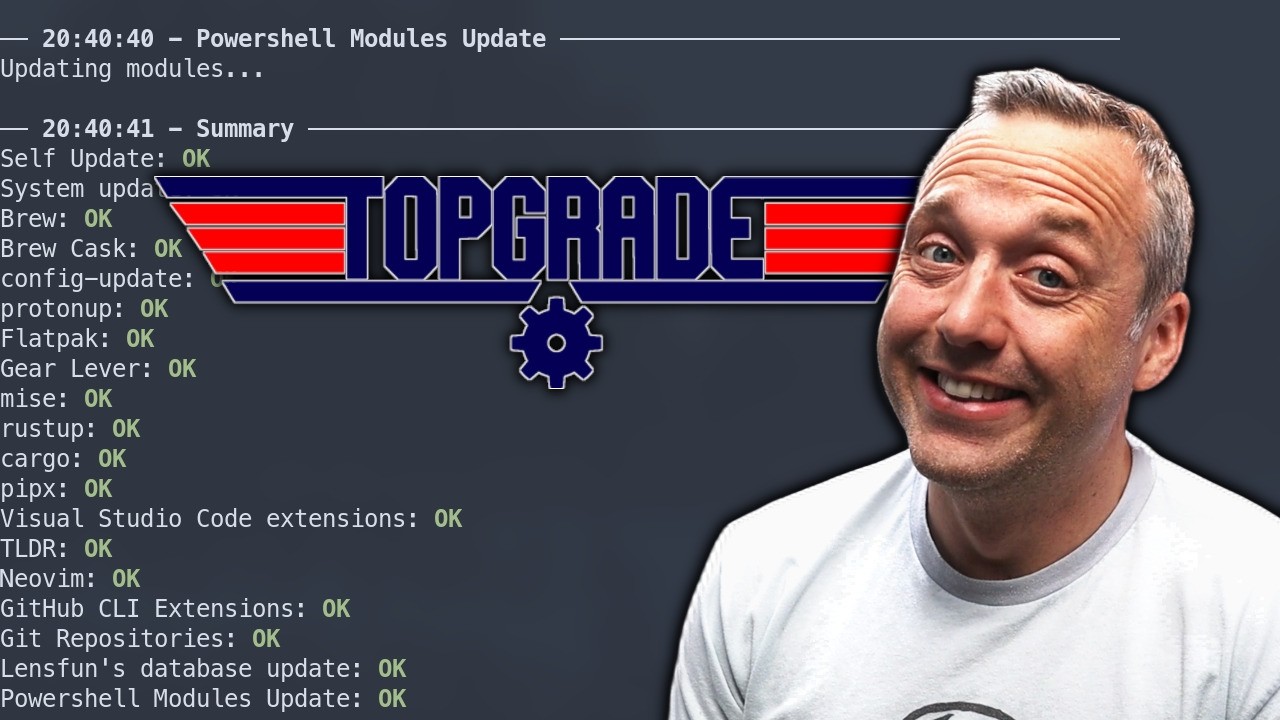
Topgrade
and actually using Basite was where I got this from. Uh, Topgrad's amazing. It does system updates. It does distro box updates. It does Python. Any kind of environment such as cargo. If you're a Rust developer, Topgrad's amazing. And it also uh kind of updates all the packages like if you download a bunch of git repos, it will update those as well. So, Topgrad's just fantastic. I love using it. Uh, I can't say enough great things. And I learned that from uh, Basite. Actually, I never saw the package before I used Basite like a year or two ago. I think it was like two years ago when I made my Basite video. I don't know. Time time's weird these days. Uh, but this is just a fantastic way to update any Linux system. A lot of people like want to use a guey tool that comes baked into their DRO. All of them kind of suck because what ends up happening is if you're installing stuff through AUR and an Arch Linux spin, well, a lot of times it uses like Python dependencies and other things that were installed for specific packages and then those never get updated, but then the base underlying dependencies get updated and then you have a whole mess on your hands. Topgrade kind of solves all of that. So, anytime I upgrade my systems, I like to use Topgrade. It's fantastic. So, thank you Bazite team for putting this in your DRO and kind of turning me on to it. Now, one thing I will caution you on when doing a top grade, whether you're using Basite or another DRO, is it will do firmware upgrades. And you really, really don't want to use uh firmware upgrades, especially for specific devices. But one thing I do is uh top grade exclusion for firmware because it will essentially break my system or cause the SSDs in my system not to be read because HP screwed up one of the firmware updates for the G5 servers, which unfortunate for me, but it's something that you should know. Not all firmware upgrades are created equal. Look at the patch notes and I wouldn't blindly update any firmware uh without actually first looking at that. But everything else I do upgrade. Like the flat pack's always good to just grab the latest. Nothing's ever going to break from upgrading a flat pack. Uh Python scripts is another one that's a big one that usually errors, especially if you're kind of doing simultaneous upgrades. Uh so it's really good to kind of get those and kind of work through any kind of dependency errors. If you do have like some kind of error that pops up, um I would probably address that. But again, I'll wait for that video. I
Installing CachyOS
could just go on for at least a good 10 20 minutes on top grade and the nuances of using it but also the amazing benefits of using it as well. All right. Then when you're finished you're get presented with an entire uh setup here. Now another thing if you are a Mac user and coming to Bazite you might notice homebrew is installed by default which is an awesome thing. So you can do brew install and then fill in the package here or you can use cast brewcast as well. A lot of that is kind of neat, but not even the best feature of Basite, I would say. So, you have this u you just amazing. It's a CLI tool, but it's a very powerful one. You can do a lot with it. A lot of uh noobs when they first get into Basite, they're like, "Well, it's an immutable DR. " And I'm like, "No, it's not an immutable DRO. It's an atomic dro. You can do system configurations. And if you do need to install anything on it, you can hit different dependencies. You can use any package manager. You can use a Debian package manager like apt. You can use uh Arch Pac-Man. You could use the AUR on this sucker. You can do anything. Uh it's just the setup. It could be used something called Dro Box to kind of make that happen, which is an amazing tool, by the way. But it's just very uh confusing for some new users. But just know that it has a lot more capabilities than almost every content creator I've seen that covered Basite shows, myself included. I don't even know if I remember in my original Basite video even mentioning it. Uh, so it's not really a knock, but if you go deeper, there's there's a lot of meat here. There's a lot you can do with Basite. It's not just simply some Steam OS clone because Steam OS just sucks. It's an immutable DRO that is just going to be awful for a regular user. So, don't be fooled by other content creators saying Steam OS is going to be the future. No, it's not. You'll never use it on any kind of normal desktop. You'll use it on a Steam machine. Deck and that's it. So, let's reboot. All right. And I'll just show that. So, we've kind of covered almost everything I want to show on here. You can do some emulation with like Android apparently with Way Droid. Uh, but the other one is Dro Box. I do want to show that just a little bit. Now, Drooxbox is more advanced, but you can actually use DroX to create and assemble certain things and inter them. So, right now, you can't really install anything on the system, right, from a system package point of view. All right, we're going to do DroX create Archbox image Arch Linux. All right, it is created. So, then we can just go Drobox enter archbox. All right. And now we're inside of this. Let's install a package that uh this doesn't have. So let's go pseudo Pac-Man s neoim and we'll install it. Now normally you couldn't just install that directly on basite but neovim is here or invim I should say and this is the arch version directly running on basite. Uh you might be thinking Titus that's not even a guey tool. All right fine you got me. We'll do Neovi then which is the guey version of Neovim. Neovi and then we have Neoim in the guey terminal and then we can actually sync this up and actually open things up in Neovide directly through our Dro box. It gets kind of complex from here but I just wanted to give you a little taste if you wanted to go from basic to more advanced. There's a lot more happening behind the scenes here. The one critique I have about Basite, which is, you know, not the best, I would say, is it's heavy. It's just very heavy. And at the end of the day, that's why I don't use it as a daily driver because it installs just a crap ton of stuff. But it does have everything. For the layman, for a brand new user, it's kind of got a lot of stuff to choose from. Anything and everything's kind of already ready to roll for you. You're not going to have very much problems setting up games. You're not going to be hunting down dependencies or anything like that. It just pretty much works out of the box. You just to get some of the more advanced features, you might end up doing some of this stuff. But that was Basite. I love it. It's great for a new user, especially a gamer that wants to do a lot of gaming. It's worth it. Now, on to Cashios. We've got our USB drive flash. We load it up. And as soon as you boot to your Cache OS ISO, you're presented with this screen right here. We're going to just say launch installer and see all the options Cashios has. Now, this is kind of like my power user recommendation where if you do some gaming but you need development, you need a lot of other stuff and you kind of want to Arch Linux base, this is just the best of all worlds, I think, for a new user. All right, English. do our time zone, local. Uh what type of installer do you want to use? You can use le mine or lemon. And you got a choice of all these boot loaders. So you got a lot of more options here. Most Windows users come in here. Just choose the defaults. It's fine. Um I technically use grub all the time, but lemonade is fine as well. So we're just
Choosing a desktop environment
going to erase the disc standard partitioning scheme as usual. Now, this is the coolest thing about Cashy and why I recommend it to power users. What winds up happen, most new users start hopping around to 50 different dros because they're like, I just need things to look the way I want it to look and this dro looks different. Cashy can look very different depending on the install. I love their little preview here. So, this is Plasma, which is what we're on right here. Then you have like the gnome setup. It looks a lot like Fedora and some other distros. You have Cosmic. Please don't install Cosmic. I just did a video going over its beta software. If you're not comfortable troubleshooting issues and being okay with some bugs, you're not going to like Cosmic, but I do like what Cosmic could be, and I really look forward to revisiting Cosmic here in a year or two. Uh, Nuri, which uh it's a cool like it's a scrolling window management and it it's neat. It's just kind of mindblowing for new users, but uh you kind of see how the exploration of cachy goes for a power user. Cinnamon, this kind of emulates your Linux mints out there. So, it gives the that's the desktop environment for Linux Mint. So, very solid. Budgy. I've never been a big fan of Budgie, but I also don't want to hate on them because it's kind of soulless dro that kind of did its own thing, but Cashi is like, "Sure, let's throw that in there. " Mate, this is kind of throws it back to the 90s, but it's very old, but it's also very good and stable. And any Mate user out there will be like, Titus, don't you say anything bad about Mate, I will kill you. So, Mate is good. If if you like something from the '9s, XFCE, I always have a soft spot for XFCE. The only complaint I have about XSV is the defaults make it look atrocious, like it's from the 90s, but Cashi already kind of pimps it out for you, so it looks like a modern system. Personally, I kind of like XFCE a little bit more than Plasmo, but I still highly recommend for a new user to probably pick Pat Plasma to start with. Um, but man, I just always this is probably be one of my top Cachios recommendations. LXQTS, if you don't have much hardware, this is a bare bones kind of install. So, LXQTT and DE. I'm surprised they even put DE in here. It's kind of old. I don't even know if it's I thought it was deprecated, but it does use almost no RAM. So, I think they just put these in here for lightweight options. UK uh UK UI. I have no idea what that is. That's a new lightweight desktop environment. Interesting. Similar to Windows 7. Nice. Hyperland. This just I've did videos on Hyperland. It's uh I think Omari and a few other dros run it by defaults, but it's cool that they have this here. I think this would be a great starting spot for many people that want to go that way. Sway is another window management. Wayfire, don't use that. Just stay far away. No. I3 kind of old school to window management. Same with Qile. BSPWM. Uh I have kind of a sweet spot for BSPWM. I used it for a year or so. Great. Open Box is just like bare bones. But god, they made open box look good. That's kind of impressive. So very neat. You got a lot of selections, but for a new user, I would stick to plasma gnome. If you want to go with this and this is like your thing, more for like a Mac user probably. Um, cinnamon, if you really like the mint aesthetic, then cinnamon would be a choose. And then probably XFCE4 would be those. And I would probably stick to those. And if you want to get into tiling window management, I think you almost have to go with Hyperland to start with. And then maybe if you're feeling just dangerous or if it's a virtual machine and you don't care about it uh being weird, Nuri's super cool. A lot of people rave about it. It's kind of a weird scrolling window manager and uh very interesting, but most people just stick with plasma. Next up, packages. You can choose all the stuff, but typically if you don't know what you're doing, don't just install a bunch of desktop environments here. Just click next and next. And install. Now, now when we did
CachyOS first boot
Bazite, the install did take roughly 15, no, it was 25 minutes actually on this uh system. You'll notice right out of the gate, Cashachi just does it a lot better and it's a lot more minimal because it's just giving you a solid base to tinker with. That's why I always like if you're a power user, this is where you should start because there's just so much that it offers, but you don't actually have to manually install everything either. So, it's a good starting spot for a power user. The other thing that it has for an advanced user as well is you can toggle the log. So you're not just looking at JPEGs that the DRO put in. So you can toggle this on and see exactly what's happening during the install, which I personally love. Some people will just be like, I don't understand anything that it's flashing, but I kind of like it because it kind of tells me better of where it's at in the install process. Now on my personal system, sometimes people think I actually use Cashy as the DRO base, but one of the big selling points that Cachi has is its repos are rebuilt. All their binaries are recompiled. I think it's with AVX2 and they're just a little bit faster than the standard Pac-Man repository. I don't know if I notice a difference. Maybe it's placebo effect, but for me, I have been using them on my Arch instance using the cachy repos for packages that are available there. Uh there's only been a couple times where I was like, "Oo, I probably should have used the Arch repo, but I think I was using like VS Code or something and it just didn't update as fast as the standard Arch repo. " But within I think it was like 2 hours or something, it was pretty much up to date. And the other thing is they do a custom compile of the kernel to optimize this for desktop and also gaming. You would be shocked to know probably that Basite uses the Cache US kernel as its base. I think like 90 something% of the Basite kernel is based on cash's kernel. they have a couple other options and uh stuff that they tweak for Basite because it's more like 100% geared for gaming where Cashachi is more multi-purpose and that's why uh just kind of a fun fact about Cashios which is funny because I've been sleeping on Cashios for like 2 years. I've had almost everybody in my community yelling at me to do a review of it and I just I don't know man I just don't like doing DRO reviews anymore. I appreciate them for what they offer, but I I personally don't think I will ever DRO skip or Dro hop again. I think I'm just good on regular Arch because I can just do whatever I want. But that is not a recommendation for a new user to use Arch. Don't take me wrong. This is where a new user should start. Don't get lost in the weeds of all the other stuff out there because wow, there's a lot. All right, and we're done. And it was about 10 minutes I think uh for this install. So not too bad. Probably on bare metal it would be a lot faster. So we'll just hit done. It should reboot. Here is the stock cachy setup. We have leine or lemonade and the startup. Kind of a cool startup screen. Cashy. Bam. Log into here. And then we're presented with the basic stuff uh as far as like install apps has its own little guey package manager. You manage your repos and stuff from here. Um you can do a lot of neat things for looking. You could also just use the CLA. Uh so it gives you a nice like handhold experience. Has a little tweaks page where you can actually go through do a full system update, reset key rings, all this other stuff. uh reset key rings and arch. Sometimes you get uh on an update sometimes it'll be like hey this is invalid or corrupted GPG key or something like that clicking reset key rings probably a nice little shortcut for many Arch users. Uh it happens every once in you know probably every couple months or something. Uh you can remove orphan packages or things that just aren't needed anymore. Rank mirrors. This just ensures your updates are as fast as possible. Uh so nice cool little thing. Windboat uh that's a nice RDP tool I think where you're uh doing remote apps. Think of Citrix from business where you actually display Windowsbased apps from a Windows PC somewhere on there without actually doing the full desktop. Uh so kind of a cool project. I need to cover that as well. God, there's so many videos I still need to make. Uh let's do something update because honestly every time you do I say this every time I do an install but every update what do you do? You do the full system update after the first initial install. Now unlike Bazite CUS already did this for you during the installation which is kind of nice. It's just a solid dro. I just love it from an arch distro perspective. I have a hard time recommending anything else to a new user. If you want to get started in Arch, I think Cashachi is the place to start now that I'm looking at this too. Sometimes whenever I find something when I'm doing a DRO or something like that on a VM, I might actually steal Shelly. Shelly is the modern Arch package manager that Cashy uses just to know. So if you are an Arch user and you want to steal some of Cash stuff, there's one thing. But I do like that we got the interactive updater. We already ran. It was fine. And it does come with Snapper, uh, which is a backup, which is something I highly recommend if you're going with that route. You can actually back up your devices using Snapper. Uh, I haven't ever used this on here, so I'm not going to actually showcase that, but I just thought I'd mention it. I went through all the stock defaults. You just have Firefox and a standard set of skills right out of the gate. So, a nice little blank canvas to work with. Uh, as a new user, I think you'll really appreciate this. And as far as the icon right here, this is just your updates where it'll show any updates. So, you can remove any old packages and it would from the DRO. That's it. So, you have a nice little uh badge for cachy update in the corner here. So, you constantly update. On Arch, I would recommend updating probably every week or two just to kind of keep up to date. If you don't want to update and you only want to update like once every couple months or something, probably wouldn't recommend an Archbased DRO for you. You'll probably be better off with Basite or uh Linux Mint, which I'm about to show. The
Installing Linux Mint
OG, everybody recommends Linux Mint, and for good reason. Let's get over there. All right, old Linux Mintth. Uh, on installing on the ISO, you'll launch in after making or burning it to it. You'll notice a lot of cool features. One, auto discovery of any network printers, which I have one here. And we're just going to install Mint English. Continue. Install codecs. I think they do this just for maybe a licensing standpoint, but you always want codecs. and we'll erase and install. All right, we're going to just log in automatically on this one. Linux Mint. Also, you can just view the log as you go, so you're not just staring at logos. And we'll time this one. Now, there's a couple things about Linux Mint people confuse. A lot of times they say Linux Mint can't game or Linux Mint can't fill in the blank. This is what the Linux users call new users. a skill issue. And it totally is. All these distros are starting spots for users. And I kind of lay out the purpose of each starting spot. But if you can't get something to work and you think it's going to be better on another DRO, that is a skill issue. That means you don't know something and you don't have the ability to make it work. to say another DRO will be different is a bit foolhardy. Some of them might do it better out of the box, but it's just a matter of time before you probably break it if that is the case. So, uh, whenever you're trying these things, some of them have better starting spots, but just know you can do anything on any of these distros. That dro box from Bazite you could install on Linux Mint and then run AUR packages if you wanted. So, don't think, "Oh, that's in the AUR. I can only use Arch stuff. " Well, I mean, technically, you can mix and match these things. I don't think I'd recommend this because you should just build from source based on what's in Linux Mint or install the flat pack if you want to go that route where flatpack just like using Bizaar on Basite. We could use the store here and install any flat pack that Basite has here or Cashy for that matter. The thing that's different about Mint and why some people say it has older software is because it's based on Ubuntu and unless you're using LMDE which is based on Debian but technically Ubuntu is based on Debian. I digress. What I mean is uh it is running older packages. So the stock packages, let's say you install on Cashios and you install over here, which is just like Photoshop alternative software in Linux Mint, that version will be older usually, sometimes by 2 years, sometimes by 6 months. It depends on the software and the release cycles. But if I needed that new version like Cashachi does by default, I could install the app image or flatpack and then that would bring it to the exact same feature parody over here. Or if I build from source, same thing. I could get that there. It's just a little bit more difficult. So if you constantly find yourself on Mint going, I really wish this was just a newer package version, then maybe you should be using Cashy. But if you don't care and you don't even know any of these things I've just mentioned, Mint's probably a better starting spot because it the stuff over here is just going to be so much more reliable. It's going to be a little bit older, but it is going to be tried and true and it's going to have almost no bugs. And there's another killer feature of Mint, but I don't want to spoil it. Let's go ahead. I'm going to finish this install and we're going to boot to the desktop. All right, there we go. Looked to be about 10 minutes. A lot like Cachy. And here we go. Linux Mint. Not much to say, but the cool thing is it has a good walkthrough. Probably one of
Linux Mint Walkthrough
the best intros of any Linux DRO in existence. You set up your desktop colors and say, "Hey, I want dark mode instead of light mode or mixed. " Okay, great. That's done. Set up snapshots. Log in as your user. Set up your backups. Oh, I'm missing an Nvidia driver. I'll go ahead and check that here. and then look to see that's installed. We're already getting a popup to install my printer. You got your update manager. This is a specific Linux Mint thing where it goes through checks the entire system for updates. Said, "Hey, do you want to switch to a local mirror? " They're faster. So, you always say yes to this and then it'll say, "Okay, which one to switch to? " Probably Usenet since I'm in the US. It has pretty good mirrors. kind of like how Arch users do it better though. I'm just saying. We need to rank mirrors up in here. Stat. I'm sure there's a better package for this. But anyways, sorry. I digress. You can add PPAs, which I haven't used it forever. Uh additional repositories, other things to expand your software selection in Mint. Uh but overall, solid, right? Update managers, simple. Change your system settings. Right here, you have all of that. switch hot corners, gestures, uh set up different accounts, font selection, screen saver, privacy, you name it. Firewall. I actually did a video just about going over basic stuff. You have I think it's GUFW here. Let's check. Yeah, GUFW. And this would you'd set all this up. Deny incoming, allow outbound. This is just some basic stuff. So typically this is what you do. I'm going to go ahead and disable that and it just gets you going exactly how you be. This shows any updates. So you can say, "Hey, there's one update available for mint upgrade info. " You can just apply that update and there it goes. And then your system's completely up to date. That's how easy the update system is in Mint. And the cool thing about Mint is if you don't update very often, it still doesn't break your system. It's still capable of going a month, two months even and it should be fine. Uh probably Basite does it a little bit better because it's an atomic system. So you can go like a year or two years with Basite and then update all of a sudden and it would be fine uh for the most part. So it's depends on the system, but I just love this to death. Uh so very simple. I mean it's very intuitive. There's not much really to go over here. It's meant. Install it. Try it out. If you're just a basic office user, you just want some Libre Office and some basic internet usage. I think it comes with Firefox. Yeah, Firefox by default. And yeah, you're good to go. So, for an office user perspective or just a basic user, I think you don't install anything but Mint. It's the most simple, logical
Final recommendations
choice. So, that brings me back to my desktop. You might have noticed something. This is for new users. I use Arch Linux. I'm constantly trying out different things, but I've had this installed for more than two years and I've gone through different all kinds of crazy stuff. Right now I'm running some nutty experiment of trying X Libre instead of Xorg or Wayland. It's going okay. Uh maybe make it into a video. Probably not though. I still would probably recommend Exorg over X Libre. Um, but it's still like something where as you get older, it's not really and you get more experience, it's not really about the dro anymore. And you'll get to the spot where you can install and do pretty much anything on any DRO. So, it's less of, hey, I have to have my DRO. That's just anybody that says, I have to install Dro to get my work done is someone that doesn't know that much about Linux. At the end of the day, Linux is Linux. The DRO does not matter. It's just a starting spot. So, these are your starting spots. Simple gamer that just wants stuff to work right out of the box. Basite. You are a power user. You want some of that arch goodness. bleeding edge and you want to kind of tinker around and try a whole bunch of different looks. Cashios is really the only option. And then third, you are just an office user. You want things to work. You want stability. You want reliability, you want something that's been around for decades, Linux Mint is the only option. And I think that's the starting spots. For a brand new Linux user, don't get confused by here's the top list. Here's the Linux tier list with 50 dros on it. Guess what? Half of them you're not even going to be able to use. It's just these are what new users should use. It's what every top distro should be. It's what every tier list should be. This is what you need to know. Boom. That's it. Get out of here.