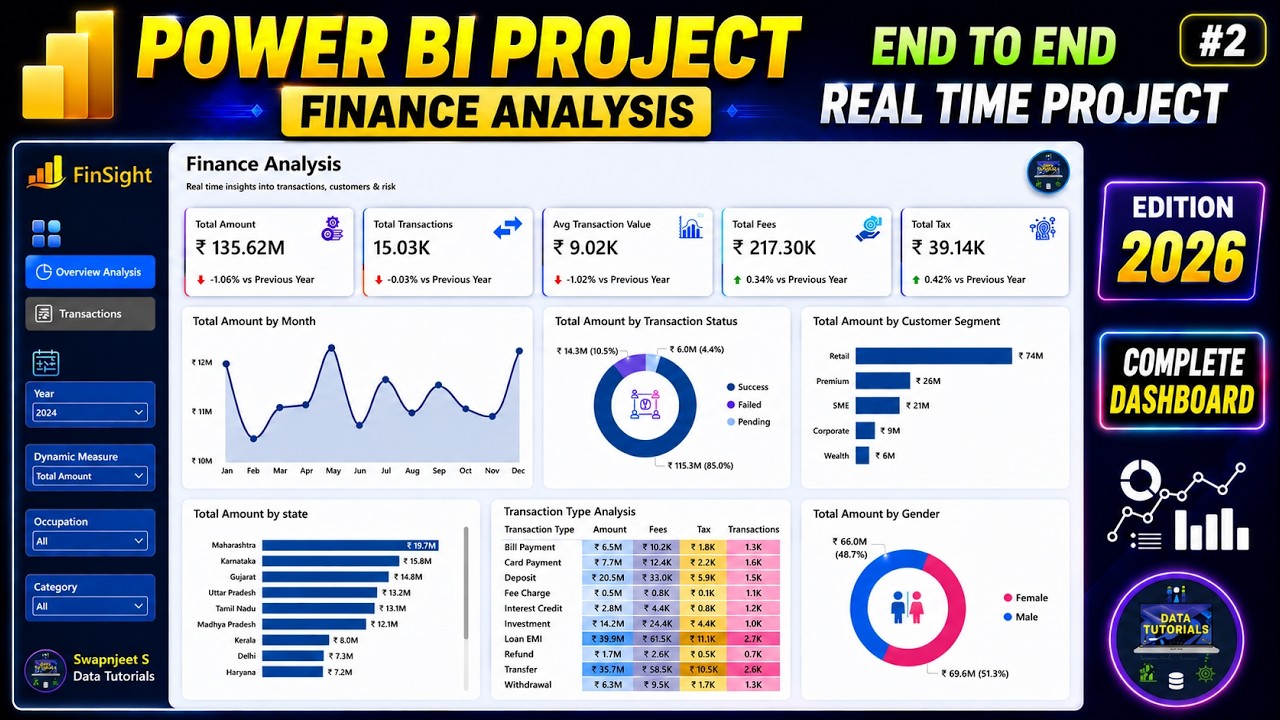
Power BI Project | Finance Analysis Part 2| Power BI | Complete Dashboard End to End #powerbi
1:13:25

Power BI Project | Finance Analysis Part 2| Power BI | Complete Dashboard End to End #powerbi

Data Tutorials 28.05.2026 6 223 просмотров 204 лайков

Machine-readable: Markdown · JSON API · Site index

Поделиться Telegram VK Бот
Транскрипт Скачать .md
Анализ с AI
Описание видео
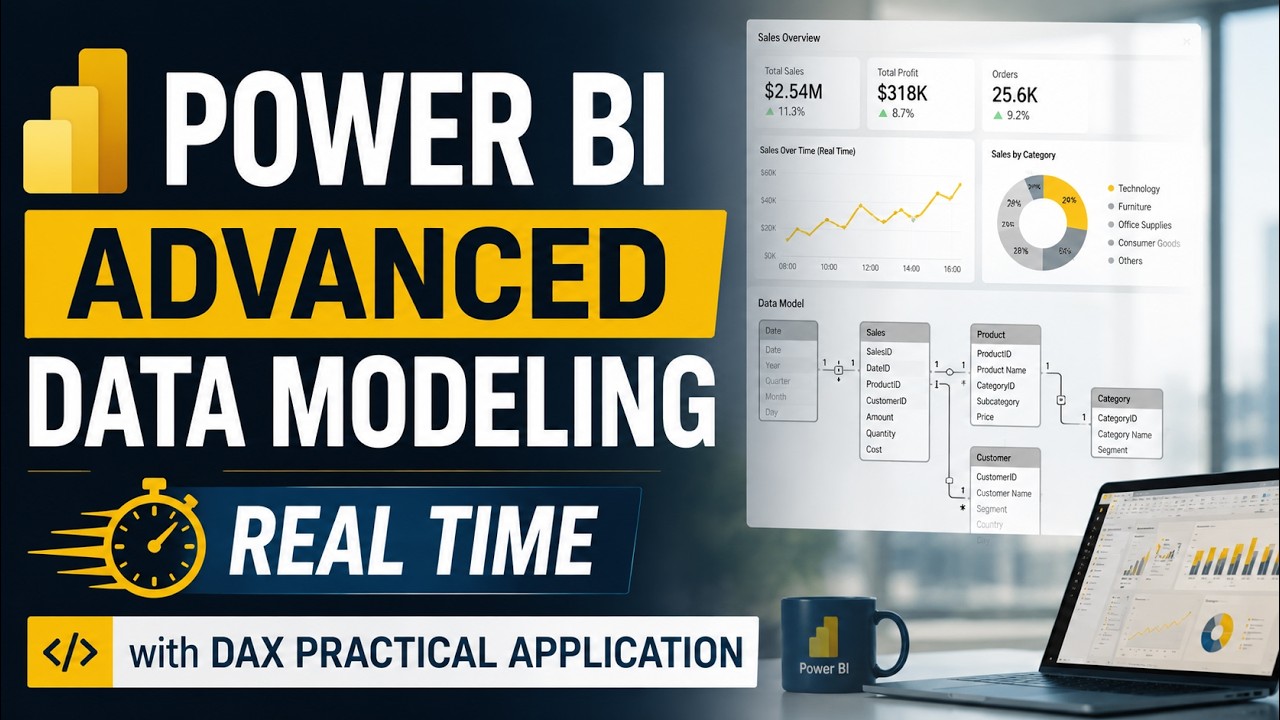
#powerbi #dataanalytics #datascience Part 1 - https://youtu.be/xVC9GyXergs Package Courses- ⭐Microsoft Fabric Complete Course (End to End) - https://topmate.io/data_tutorials/2082484 ⭐Microsoft Fabric + Power BI + AI + SQL + Project Course + Resources - https://topmate.io/data_tutorials/2082770 ⭐ SQL Complete Course - https://topmate.io/data_tutorials/1977020 ⭐ SQL + 3 SQL Projects + Power BI + Power BI DAX + 21 Power BI Projects + All Materials - https://topmate.io/data_tutorials/1981530 ⭐ Power BI Course + DAX Course + 20 Power BI Projects Video Course - https://topmate.io/data_tutorials/1857280 Individual Courses- ⭐ Power BI Complete Video Course - Basic to Advanced - https://topmate.io/data_tutorials/1855310 ⭐ Power BI DAX - Complete Video Course - https://topmate.io/data_tutorials/1842994 ⭐ Power BI Project Video Course - 21 Projects - https://topmate.io/data_tutorials/1826891 ⭐ Tableau Projects Video Course - 10 Unique Projects - https://topmate.io/data_tutorials/1832087 ⭐ For Important more visit my website - https://topmate.io/data_tutorials/ 💻 Download Data - https://drive.google.com/drive/folders/15wlZbKgQGb1qiCS4e1PPmpjsc9UGprex?usp=sharing In this video, you will learn how to build a complete end-to-end Data Analytics project using Microsoft Fabric, SQL, and Power BI. We will cover the full workflow including data ingestion, cleaning with SQL, creating Lakehouse & Data Warehouse, building a semantic model, and developing an interactive Power BI dashboard. This project is perfect for beginners who want real-world experience with Microsoft Fabric architecture. By the end of this tutorial, you’ll understand how modern data engineering and analytics workflows work in the industry. ➖➖➖➖➖➖➖➖➖➖➖➖➖ Checkout my other videos on dashboards design in Tableau, Power BI and Excel below- ✅Data Analyst Portfolio Projects - https://www.youtube.com/watch?v=3Acmk-rqn6c&list=PLO9LeSU_vHCWpfLDRTT5nBz9Z0libOs5k ✅Power BI Projects - https://www.youtube.com/watch?v=-sOHVl_iCHA&list=PLO9LeSU_vHCWUvkE1FrGeNxSve7YtJrYl ✅Power BI Tutorial - https://www.youtube.com/watch?v=JQ9wX1d7dGE&list=PLO9LeSU_vHCWfBQjbJY-N841Ils5xwAlH ✅Python Projects - https://www.youtube.com/watch?v=RWrnqhSYUmk&list=PLO9LeSU_vHCVYLLTcTEvzWwPjpIOyz9oY ✅Tableau Projects - https://www.youtube.com/watch?v=oAIubTqg-Kw&list=PLO9LeSU_vHCU_DHaLzEvsLxFdmB3Qcao_ ✅Excel Projects - https://www.youtube.com/watch?v=xHTUP1Dxu-M&list=PLO9LeSU_vHCWWRghKgAQRg_TrgtRl5-4Y ✅SQL Projects - https://www.youtube.com/watch?v=4l7GgWmaTGc&list=PLO9LeSU_vHCVbT81nMD2S_YMRJ1OpnXZi ✅Power BI Interview Questions with Answers - https://www.youtube.com/watch?v=bBYIvOytMwo&list=PLO9LeSU_vHCUAh-OkfoKUx6PlNJHAxgCK ✅Tableau Interview Questions with Answers - https://www.youtube.com/watch?v=S7ArMgAdOIE&list=PLO9LeSU_vHCUvp3KfoWQULRXAghIOh8Kx = ➖➖➖➖➖➖➖➖➖➖➖➖➖ Reach out to me for any personal or Business related Dashboard/ Report development on my email- swapnjeet555@gmail.com WhatsApp - +91 9579005495 Related Tags end to end power bi project,power bi project end to end,end to end project on power bi,power bi end to end project,power bi end to end tutorial,step by step tutorial to make a dashboard in power bi,power bi project start to end,power bi dashboard tutorial for begginers,power bi dashboard tutorial for beginners,finance dashboard power bi,power bi dashboard tutorial,data analysis project using power bi,power bi project dashboard,power bi dashboard project,swapnjeet,powerbi
Оглавление (15 сегментов)

Segment 1 (00:00 - 05:00)

Hey guys, we will move ahead with our next requirement and now we have to find out the total transaction. We have already designed the total amount. In this we will go ahead and add the total transaction now. Okay. So if you see here we have created a few calculations in the same way. Now we have to create the other calculation. So for now I will just uh you know hide this tab. So we have a full screen and now I will right click here and I will create a new measure. Okay. So now to find the total transaction if I show you the data. So this is the transactions data that we have and in this to see the total transaction we have a field called transaction ID and this field gives us an information where it is unique on each and every row. The ID So if you take distinct count or count of the transaction ID, it will give you the total transaction which has been made. So one rows give one row give you an information of one transaction. So you can think in that way. All right. So what I will do, I have taken a new measure and I will name it as total. Okay. So name it as total transactions. Okay. And now here we can use distinct count. If you want to you can use just count also that is also fine. Right. listing count of transaction ID. Okay, not date. I will choose it as ID. Okay, so we have to take listing count of transaction ID. I will just hit enter. Now I will select this and here I will bring the transaction. Right? So you can see these are the total transactions and it is specifically for 2025. Right? So you will see that total transactions are around 50,000 but you are seeing here 15k because we have selected the year that is 2025 which has been applied on all the dashboard which will be we will be creating in you know in further in this video. All right. So this is uh this will be the behavior. Now next what we have to find out is we have to find out previous year transactions because we have to find out the year on year analysis but we have already found out the previous amount. So we will use the same calculation. So I will just copy it and I will just create a new measure and I will paste it over here. Right? And instead of previous year amount I will name it as transaction. Okay. So this is my previous year transaction and instead of total amount here just we have to change your previous year total transaction. Right. So nothing but instead of previous year trans uh you know to find out previous year transaction instead of total amount we will just change total transaction because we are specifically finding it for transaction. Otherwise all the logic that is same period last year and with respect to the calendar date so that no date can be missed we are using the calendar date and that's the reason um you know for time intelligence function this is a time intelligence function the same period last year it is always recommended to use date table which we created in the name of calendar table. Okay. So this is how you do it. Now uh we already found out uh here uh the previous transaction. Now we will also find out the year on year right. So nothing but yearon-year amount. So this is year onear amount. I will name it. Okay. And I will copy this. Ctrl C. I will create a new measure and I will paste it. And here we have to find out transactions. Okay. So instead of total amount here we have to take total transaction and here instead of previous year we have to take previous year amount transaction. That's the only thing we have to change. And now we have to find out year on year percentage. So I will just copy this right click and I will create a new measure paste it over here and instead of this I will name it at transactions. Okay and so here instead of year on amount it will be year on year transaction divided by previous transaction. Okay that's it. So in if you are a pro if you are good in DAX you can write all of this calculation in one single DAX also but I have broke it in I have written a single calculation using three DAX so that you can understand it right but if you if you are good in DAX you can write it in single calculation also. So I can do it but to help you understand uh I have written it in multiple three taxes so that you will be understanding thoroughly and it will be you know easy learning as well. So now I will select this. Now we have to add it. Okay. So I'll just go here. So now here you have to go in reference label layout. So before that labels. So right now here you can see total amount has been selected. You have to select total transaction. Okay. And now here I have to add that. So I will type here on year and we have to add the year onear transaction. Here you can see it is added. Okay. Now I will go in reference label again settings to I don't want title to be present. Okay. And value I will make it as 14. Okay. And uh details I will add it. Okay. And the color of this should

Segment 2 (05:00 - 10:00)

be black. And the background color should be white. And now I will add the details as nothing but it should be giving us as versus previous year. Okay. That is it will give you an understanding that what is that thing right? Nothing but versus previous year. And we will uh use the third of the darker color right the third color in that shade. And now what we have to do we have to convert this into percentage. So for that I will select the yearon-year percentage from here and just click on percentage from measure tools. Okay. And here you can see it is converted. Okay. So this is how easy it is right now. Next as per our requirement if you see here we have to find out now average transaction value. Okay. It is very easy. Again I will right click create a new measure. Okay. I will name it as average transaction. Okay. Nothing but average transaction value. Okay. So this is average transaction value for us. And we have to name or we have average only. Right. So nothing but average of total amount. So that is our average transaction value. Okay. So average of amount not total amount. The field that we have is amount. Okay. And just hit okay. And I will select this and I will bring the average transaction. Right? So here you can see it is 9. 20K. So if you want to show the complete number instead of 15K, if you want to show up to two decimal points for the total transaction, you can select on total transaction and here you can increase up to two decimal points. Here you can see if you want to see an approximate number. Okay. Now next what we will do? We have to again do the same procedure. And we have to find out the previous year average transaction value. So we can see this is the previous year transaction. I will copy this and I will create a not new column. new measure. Okay. Paste it over here. And this is average or we'll say previous year. I will add here average transaction. Okay. And here instead of total transaction what we will add here I will add average transaction. That's it. Close this. Okay. And now we have to find out year on year. So I will just copy this. Right click. Create a new measure. So instead of year one year transaction you can say year on year average transaction. Okay. Here instead of this you have to write average transaction value. And here instead of previous we have to write previous average transaction. Hit okay. And now we have to find out percentage. So select the previous calculation. Control alt ctrl C. Right click new measure. Paste it. And here instead of this I will name it as yearon year average trans. This should be year onear average transaction here. And here also it should be previous year average transaction. Okay. Hit okay. Now close this. Now select this entire KPI and now we will do some formatting. So go back to reference labels. Here you have to select average transaction. Okay. And now we will add the label. So it should be here on your average transaction. Just select this. Okay. Now we'll turn off the title. Go into the value. Make it as 14. Okay. And here make this as white color. not white. Make it black only. But instead go in details, turn it on background. This will make white and color we will make it as black. Here we will add it as versus previous year. Okay. Because this value is with respect to previous year and color we will choose that this third. Okay. And now we have to convert this into percentage. So you'll select the year on year average transaction from here and just hit it the percentage value where you can see you'll get in the percentage. All right. So this you doing uh for the average transaction value. The same way we have to find out total fees. Okay. So fees we have an uh field over here called fee amount. So that field we have to use. Okay. I will right click create a new measure. I will name it as total fee. Okay. and we will take sum of e amount. Okay. So this will give you the total sum. Now select this card and here we will add total fees. Here you can see it has been added. Okay. Now next uh obviously we have to find out the previous year. So I will do this quick. Okay. So because it is repetitive you can also do it. I'll do it uh you know it should be not a long video. So I'll just do it fast. I'll do it as

Segment 3 (10:00 - 15:00)

previous year fees. Instead of this I will have to write fee. Okay. Hit okay. Then I will have to find out year on year. So select all. Ctrl C. Right click new measure. Paste over here. So it will be here on your fees. So instead of this it should be fees here also it should be fee. Okay. Previous year fees. Click. Okay. Close it. No, you're on your percentage. We have to find out back here it is not showing my formula table. Hey guys, before moving ahead into our project, I would like to tell you about the courses that I have for you. Okay, so this is the first latest course. Just now I have uploaded everything is up to date industry level. So you can see this is the Microsoft fabric course I have which I just launched and it is for both like for data analyst and data engineers. So now you will say why to learn Microsoft fabric. So remember guys, Microsoft fabric is a unified platform where you can do everything right. You can work with Azure data factory, lakehouses, you can work with data pipelines, right? All the activities, right? Data activities, you can work on warehouses, SQL queries, PowerBI integration is also available in this warehouse uh queries also you can fire, you can work on data engineering, sparks, right? Pi spark is there and you can do data cleaning, extensive data storage, data handling, data manipulation, data injections. So everything is been taught over here. So this is the latest course and this is the market trend now. Okay. So if you have this skill in your resume, you will have a hand right um uh you know to get um at least an job interview. So and if you learn this course from start to 20 you will be able to crack it also right. So this is the one and if you see the what I have in that course is um so this is the Microsoft fabric course which is of more than 22 hours. Okay. So you can see this is the complete syllabus I have everything is been taught. I have also told you how to create the account as your account and then later how you can create the fabric account as well. Right. So everything has been taught right. What is tenor? What is capacity workspace everything right? So you can see this is the fabric interface, how to create the workspaces, how to work on lakehouses, how to create it, how to work inside that files and factories, right? Then this is the data factory, ETL, ELT, everything has been taught over here. Then these are the copy data activities which are the most important one, right? Within workspace, Excel files, CSV files through APIs also, right? And I have also used SQL server integration in this right. So how you can bring the data from SQL server, how to use gateways to bring the data, how to install the gateway, how to manage the connections of the gateways, right? Then the different data load behaviors, data pipeline activities, multiple which are the most again to bring the data in proper way. I have also taught you in this the data flow generation to in that power query is there how to handle the data, how to use eld operations, how to um you know manipulate, how to process the data, transform the data. Okay. Then warehouse everything has been taught with SQL queries. Then I have also taught you how to do the PowerBI integration with uh you know uh with um fabric so that you can create the end to end reports also right similar way uh the spark engine also right the pi spark has been also taught how to clean the data how to read the data what is data frames what are different built-in functions and at the end one project also I have added so I will be adding three projects. So now one is there second will be added uh this Monday you will have two projects and one more will be added next uh you know in next week total three projects will be there and uh whatever updates I will be making in this you will be able to see all of them you don't have to purchase it again and again okay whatever updates will be there those will be visible directly if you once purchase it okay apart from this I also have my complete SQL course PowerBI courses is also there right you can see extensive you availability of all the things are available right end to end powerb course is there similar way end to end SQL course also I have designed so these are the three important requirements for data analyst and data engineers right on that I have already created the industry level courses everything is taught by myself everything okay you can actually see the syllabus also if you go here so this is the Microsoft fabric course okay you just have to scroll it down and at the bottom here you can see this is the link where you will see the complete syllabus right here where you can see a complete syllabus is available right

Segment 4 (15:00 - 20:00)

what's available in it right so everything is there if you want have any doubts you can reach out to me on this number right similar way if you go back okay so I have created a packaged course nothing but if you want fabric plus powerbi plusql with projects with AI integration with all the resources right everything is available in this package right so here you can see you'll get fabric course, SQL course, PowerBI course, projects course, material uh you know SQL material, PowerB material, fabric material is also uh in progress. This will be also added. You'll be directly having an exclusive access to it if you purchase it right now also. Okay. Here you can see everything is available. All the syllabus links are available. What is the modules? What will be taught to you in this? Everything is available in it. Right. And it is a industry level course. Okay. So for fabric also it is 22 hours. So if you see the packaged course it is more than 115 plus hours but it is actually more than 120 plus hours. So I have just added 115 because I'm updating it every week. Right? So it has passed 120 hours now. All right. Similar way if you are only interested in PowerBI SQL course this is also available the package. If you are only interested in PowerBI complete course where you will get PowerBI plus AI plus D max plus 21 PowerBI project studio course that is also available. And if you are interested in single you know individual courses you only want SQL you only want PowerBI you only want DAX or projects if you only want Tableau projects or if you want all the data analyst study material that is also available. This will be without videos but everything all the projects you will get of all the tools and everything you'll get in this but it will be in without video format but if you want without with the video format so these are the end to end courses with the video everything has been created by myself I have more than 11 plus years of experience in different domains across different softwares and more courses will be also coming in future so just check once if it will be helpful for you can go ahead if you have any doubts this in description my WhatsApp and my email is available you can reach out to me for any questions let's move ahead with our project okay guys so I have restarted now we have to find out the yearon-year percentage so this is for average one okay so I will just select all Ctrl C right click create a new measure paste it over here so instead of this it will be here on your percentage for fees fees also it will be previous fees. Okay, I will hit okay. Close it. Now, now select this and we will add it over here. I'll go in reference label. So, instead of amount, I will choose it as fees. Okay, click here on your fees. Okay. So, here on our fees is added. Now, we will do some formatting. We don't want title. Go in values. Make it as 14. Okay. And go in detail. Turn it on. color should be this. Okay. Background color should be white. It should be here as versus previous year. Okay. This is how it should be. Now next here you can see it is 0. 00 but we have to show it in percentage. So select the year on your fees over here to convert it into percentage. So here you can see it is showing it in percentage up to 27 points. Right? This is how we want and also for fees if you see under total fees we have to convert this into rupee symbol right. So we have to add a rupee symbol over here. So for that you can go in this currency over here and you can scroll down and you can find English India. Okay find English India somewhere you'll see it up somewhere here you can see English India. Okay here you can see it is been converted. So do it for average transaction value also like this. And from here currency we will choose again English India. Okay. Now next we have to find out the as per our requirements we have to find it the total tax also. Again right click create a new measure. Okay, I will name it as total tax and it should be sum of tax amount. Okay, we already have that field. Hit enter and I will add it over here. So this is your tax amount. Okay, now again we have to find out the previous year. Okay, I'll select Ctrl C new measure. Paste it. I will name it as tax. So instead of this also it should be tax hit. Okay.

Segment 5 (20:00 - 25:00)

Then we have to find out here on here. Control alt control C. Right click create a new measure. Paste it. So it will be here on here tax. Here it will be tax. Here also Okay. Now we will find out the percentage. Controll C. Create new measure. Paste it. It should be for tax instead of field should be tax here also. Okay. Hit okay. Close it. And now select the card. Go to reference labels. Select total tax. Add here on here. Okay. I will hide the title value. I will make it as 14. Then I will turn on the details. Make the background color as white and this as this color. Okay. I will name it as versus previous year. Okay. So this is as per that and now select the year on year tax convert it into percentage. Okay. Also for total tax you will convert and add it as a rupee symbol. Okay. So find English India over here. There it is. Okay. Here you can see now everything has been added. Okay. Now we'll do some formattings on this. I'll increase the size. I will bring it the center likewise. Looks good. Okay. Perfect. Now next what we will do? We will add all the images over here which will represent uh the meaningful or it will look nice and give the intuitive structure or professional structure to your dashboard. Okay. So for that come to insert click on image. Okay. So this is the image going style. Go in image and here you can browse it. Okay. So I have already added all the images. From there you can download all of them. Okay. So from here um I will select this as a gross total amount. Okay. And you can go in general and in properties let's say I will make it as 50 width and 50 height and I will add it over here. Okay. Now copy it bring And go in image cross this remove file. And for total transaction I will add this. Okay. Similar way copy it again bring it over here. Okay. Now remove this and for what next? Average transaction value you can bring this. Okay. Then Ctrl + V I will remove this. And from here for total fees uh you can actually bring this. Okay. And here for tax you can have this. Okay. So it's up to you guys. Whatever image you want to use you can use it. Okay. So at actually so this should be here. Okay. This should be here and this should be here. So this is your transaction value image and this is your Okay. So you are paying some fee for. All right. I'll bring this towards some left. Okay, perfect. I will save this. All right guys, so this is how you create the KPIs. Okay, obviously it will be as dynamic with respect to the year you select. So when you select 2023, here you can see it will go blank for the previous year because we do not have 2022 data because for 2023, previous year will be 2022. Okay. So that's how it will work and for 2026 we have 4 months of data for previous year also it will bring only 4 months of data even though you have total 12 months of data presenting because we are using a function called same period last year. Whatever period is in consideration same period which will be grabbed from the last year also. This I told you in the previous video also when we were understanding and finding out the total amount. Okay. So I hope you are understanding and now we will move ahead and we have to create now or um you know do the charts requirement. All right. So let's do that. Hey guys, now we will start this charts requirement. And if you see the problem statement, the first we have to find out is total amount by month. Okay. So for that what I will do first? Okay, we have to find out it with respect to the dynamic measure. Nothing but here you can see I have added a measure over here. Here you can see. So

Segment 6 (25:00 - 30:00)

based on this major whenever I select total fees here you can see the chart is changing with respect to that. So the same way I have to create here also the behavior should be same. So to do that what we have to do we have to create a parameter. Okay. So how So which will take those dynamic fields over there. So you'll go in modeling. Okay. And here you have an option called parameter. So if you see numeric parameter and field parameter numeric means what you add a numeric range like 1 2 3 4 5. Okay, it is mostly used for what if analysis, right? Um, so this is not of use over here. So this is the field where we can actually add the fields and it will act as a filter for us to change the metrics in that field. So I'll just click on field. Okay. Now I will name that parameter as dynamic metric. Okay. So from here you can actually select the dynamic metric. Okay. And now here we will select what metrics you want. So all of them are in uh you know transactions table. The first we want is total amount. Okay. Then I want total fees. I want total tax also. And I want to also see it based on you know total transaction. So these are the four important um you know things that we are going to uh you know or a matrix that we are going to use here. Now I will just click on create. So the moment you create it here you can see a automatic uh measure or we can say a DAX will be written for us. Okay I will close it for now. And here also here you can see in your data section here you can see a parameter will be created automatically where it will act as a new table but it will be connected for us right and here you can see this is the dynamic metric for us okay so uh it should be a single select. So what I will do I will select the year from here I will click on format pend and I'll just click on this here you can see it will be now a single select uh value okay now go to format visual I will go in slicer settings and instead of vertical list I will take it as a drop down okay that's it and now I will bring it over here okay so this will be a the dynamic metric right and now we will create that so before doing that the chart the total uh you know um the things uh with respect to month uh we have to uh add a placeholder around which we will be creating that. I will go in insert click on shape and I will use a rounded rectangle. Okay. First I will do some formattings. So corner radius I will choose it as four tile white color. Okay. And now I will bring it over here. Nice. Okay. make it in proper alignment with the top KPIs. Okay. And now in general from properties I will choose the height for this as 300. Okay. And width I will choose it as 615. Okay. So this will be the width. So and in style the border also I will choose it as this. Okay. 10% white. So this will be by placeable. Okay. Now around this only or on top of this we will create a area chart. So this is the area chart we have and now what we have to do is I will have to bring month from here. So we have a calendar table. Okay. We already have a month field. So bring it on x-axis. Okay. And now we want to uh bring the metric. Okay. To bring the metric you can see this is the dynamic metric that we created. Bring that dynamic metric on yaxis. Here you can see it has been created. Okay. Likewise because 2026 is selected we just have 4 months of data. If I select 2025 here you can see it is giving you complete 12 months of data. But next thing what you have to do is you have to format this from January to December. Okay. So to do that if you look over here you can sort this based on month right. So if you sort it based on month you can see it is sorting from September to April nothing but in descending order. But if you are sorting it based on month, it is actually sorting based on the alphabetical order of whatever is present. Right? Because s comes last in your uh alphabetical order and a comes first. In that way it is sorting right? So we don't have any other option. We have directly by total amount nothing but it will uh if you see it in total amount nothing but from maximum to minimum it will sort right or from minimum to maximum if you choose here in ascending order. So what we have to do here is we have to write one calculation so that it will sort it based on month. Okay. So for that I will do I'll go in table view. Okay. And I will go in my calendar table. Here you can see this is our calendar table. We have all the months over here. And now we will create one more field over here which will give you the month number nothing but the number of this month like January will be one, February will be two. So this integer value output we want. Okay. So for that what I will do I will expand the calendar table. Right click here and

Segment 7 (30:00 - 35:00)

I will create a new column not measure you have to and here I will name it as month number. Okay. And here you can use directly month function because it will give you can see returns the value from 1 for January and 12 for December right as an integer output. And we have to use a date column. So I'll scroll up and here we can see this is the date column. Close the bracket and hit enter. And moment you do here you can see you are getting for February 2, January 1, May 5 likewise. Right? And now this we will make use to sort this month column. I will come back here. Okay. Now select the month column. You have to go in column tools. Okay. And you can see sort column. So sort this column based on the month number. Okay. So the moment you hit it now this month column will be sorted on the numeric value which is of month number. Okay. And now if you come here and if I sort it based on month now it will be sorting correctly. Right. So from December to January but this is in descending order. We will change this to ascending order. Right? So here you can see January February you are getting this in serial wise. So this is how you have to do it. Now I'll bring it here. Okay. And we will try to place it properly in the middle. Okay. And now let's do some formatting on this chart. I will come here. Go in X-axis. First I will turn off the title. Okay. I don't want the title. And from here I will choose the name of this and I will make it as tag. Okay. The names of all of this. Or you can choose instead of this this. Okay. Similar way we will turn off y-axis also. We don't want title. Okay. Value we will keep it in same way. Okay. Grade lines I will turn off the horizontal grid lines. Then I will go in lines over here. Okay. So in line what I will do instead of linear I will use a smooth interpolation. Right. So smooth interpolation. So width of line I will keep it as three only. Color I will change. I will use this color. Okay, this color. So, this will be the color for me. Headed area. Okay, I will increase the transparency of this to let's say 75%. Okay, and markers I will turn off the markers right on this. And I will make it a six or you can make it increase up to seven also. So, this is how you create a line chart. Okay. And now we'll do some formatting more. I will come here first. Go in general for title. I will do some formattings. Instead of this, I will choose the title as semi bold and I will increase the I will keep the size of to 13. Okay, let's keep it as 13 or you can change it to 14 also. But for now, I will be keeping it as 13 only. Okay, or let's change it to 14. Very small. Okay, so 14. Perfect. And now here you can see if I change from total amount to total fees here you can see it is changing its color. So you can keep different colors also for total fees let's say uh when I change it you'll get a different sets of colors over here for all of the charts. But if you want to keep the same color um you can ideally we used to have a different colors but if you want to keep the same color again you can come here okay and go in lines okay and from color you can just choose this color okay similar way for total tax also you can change the color to this and for total transaction also you can change the color okay so ideally if you change or keep the different colors it will help you understand you are on which metric Okay. Or you can do better. What I will do, I will add a column over here or uh a KPI over here which will help you understand what year has been selected and on what metric you are seeing it everything. So let's do that first. Okay. What I will do here I will right click. I will create a new measure. Okay. And I will name it as selected year. Okay. And from here to grab this year value what you have to do? You have to use a selected value tax. So what it will do? It will return the result what is there in selected filter. Okay. And I will use the year filter. Hit enter. Okay. Similar way right click. I'll create a new measure and I will name it as dynamic or we can say selected dynamic measure. Okay. And here again I will use selected value. Okay. and from dynamic measure. Okay. Or

Segment 8 (35:00 - 40:00)

what measure order also? Yeah, dynamic metric I can give. Okay, hit enter. Close it. Okay. Now, let me check if you are getting the correct values. I will take a new card from here and I will select the dynamic. It is not actually giving you. Okay. So if I bring dynamic metric from here, so it will give you the value. What I will do? I will go back here. Okay. So select the dynamic metric. Okay. And from here you can see these fields are hidden over here. So right click and I will click um uncheck on hide on report. Here also click and uncheck hide on report. Okay. So this is dynamic metric field. I will come back here and here you can see dynamic metric field. So if I bring it over here, it is bringing everything. This it will give you the order and metric value. So what you can do is you can write you have to write a calculation from where you can extract the name of the uh value which you are selecting. Okay. So for that what you can do here is okay what we will do okay how can you extract I want total amount to be visible over here okay so what I will do here you can see we have this measures over here so we can use a function right uh a statement switch function we will use which will help you to give the information like if it is zero then it is total amount if it is one then it will total values. Yeah, we can do in that way. Okay, let's do that. Hello. Okay. So now we will write that particular uh column over here. So I'll right click and we will write that major or column. So it should be actually column for that. So I'll name it as dynamic item. Okay. So we will make use of this dynamic metric order right. So because zero is assigned to total amount, one is for total fees through two is for total tax and three is for total transaction. Okay, for that we will use a switch function. Okay, switch function will help you to do that. Expression is nothing but which table you have to work on. That is nothing but dynamic um or which field you have to work on. So it will be on dynamic metric. Okay, so nothing but this column. We'll use comma first and now we have to add the values. Okay, I will take it on new line. Okay, so here you can see the dynamic metric order we have to select actually. Okay, because these are the values available. So, switch we'll use it on dynamic metric order. So, if it is zero then uh what should be the result. Okay, so if it is zero here you can see what we have to add a result as I will add it as why this text coming here. So I will add it as so if it is zero here you can see it should be total amount. Okay. So write it in double commas comma. So else value right? So else nothing but if it is um you know this is zero bracket. Okay. So if it is zero it should be total amount. If it is one so here you can see if it is one it should be what? Total fees. The same way you will add it over here that is total fees comma on next line. So if it is two then it should be what? Total tax. Okay. Comma if it is four. Okay. Okay, if it is four then it should be total transactions. Okay, close this and I will hit the bracket or comma. Okay, what should be the other result? Nothing but if nothing is out of it then it should be other and I will close the bracket. Okay, that's it. Here you can see four it should be three actually or four here and now here you can see dynamic title has been added. Now we'll go back to my report view. So we added a dynamic title over here. So where is it? Selected dynamic major. Okay. So instead of this what I will do I will add the dynamic title. Okay. The field just now we created. Hit okay. Close this now. Okay. And from here I will select the card. Okay. And from card I will add the semic title. Okay. So here you can see the moment I change this from total transaction to total amount here also it will change. So it will give you the information that what has been selected here. Right. So this is how cool it is. So I will do some formattings here. Go to multicard from padding first we'll make it as zero. Make the padding as zero. Okay. Then I will go in title. Uh in effects I will turn off the background. Okay. And

Segment 9 (40:00 - 45:00)

in call out I will turn off the label also. I will add it here. and value we'll make it as 20. Also in the same way here we can add year also we just added year also right here you can see it is 2k but it should not show in that way. Okay so we can select go in call out value select the year from here. Okay and here we can see the display unit it should be null. Okay. So here you can see now 2025. Okay. So here from in this way you can actually you will get an idea what is been selected. Okay. So total amount 2025 or you can switch it. Right. So 2025 based on total amount you are seeing everything. Now if you change 2025 to 2024 here you can see and here you can change to total fees. Right? So you can do some more formattings on it. Okay. I will keep here as 2025 and total amount. So it will give you an idea that what has been selected right. So for this you can add a background color also. I will go in cards and in background I will choose let's say this or hello or increase the transparency%. Okay this is fine. You can give any color whatever it will help you understand what has been selected right. your I will go over here based on what dynamic metric as well as year has been selected. Okay. So this is how you do it. Now next as per our problem statement we have to find out the transaction status by the uh the total you know the total amount or whatever metric we select and for that we have to create a donut chart. I'll create a placeholder first. Ctrl C control V. Okay. And from here in general in properties what I will do? I will select its width as let's say width I will select it as 415. Okay. And now here I will take a donut chart. This is our donut chart. I will add it over here. Perfect. And here we have to see it based on transaction status. So bring the transaction status in legend and the dynamic metric value in here. Okay. So here you can see now we'll do some formattings on this quickly. So first I will select this. I'll click on format painter and this. Okay. So that title will be taken same. And now we will do go on legends. I will turn off the title for legends and text I will increase to 12. Okay. So you'll be it will be visible. Give me bold. Okay, make 11. And now we will do some formattings more. Go in slices. So you can see I will change the colors. First I will select the success one and I will choose this color. Then for failed I will choose it as this or okay. And for pending let's take this. Okay. Let me see the color codes on the other dashboard also. So this is the color code. So for success I can use more colors and I will use some fender color. Yeah, this is fine. Okay. You can give any colors but make sure it matches with the all dashboards. Okay. So that uh it will be good looking. very funky colors you cannot use. You can keep one theme to all the dashboard. Spacing I will increase it to 65%. Okay. Details I will go in values I will make it as 10 semi bold and this okay make it 11. And now we will rotate our label in such a way that all the values are visible. Okay. So come to rotation. I will increase the rotation. Here you can see I'm increasing the rotation now. You can see the values are now populating. Okay, perfect. Similar ways what we will do, we will add only one decimal points to all of this. So here you can see for um decimal points what I will do? I will just add one. Okay, here also Okay. So now in this way it will be visible for all of them. Okay. So this is how you find based on transaction status. Just this transaction status whatever text is there from here you can change it. So just double click here. Make T as capital here. Okay. And remove underscore and yes as capital. Okay. You can see it will be changing here. Perfect. Save it. Now next what we have

Segment 10 (45:00 - 50:00)

to do is we have to find out total amount by customer segment. Okay. So I'll copy the background and I will reduce its size in. And now we have to create a bar chart. Okay. Nothing but this. That bar chart I will take from here. Okay. And here what I will do? We have to find it based on customer segment which is available in customers table. So this is the customer segment and we have to do it on dynamic metric. Okay. Dynamic metric should be on X-axis in this way. Okay. Now select this. I will click on format painter and select here. You can see somewhat formatting has been done. We will do some more. Come here. I will go in bars. Firstly, I will change the color to this or this one. Then I will go on X-axis or on Yaxis. First I will make this to a darker color as well. it at 11 and on x-axis I will turn off the values because we will add the uh you know values or data labels. So just turn on the day labels and here go in values and here I will change it to semi- bold make it this color we'll increase it to 11 okay so that it is visible now select here come here and customer segment what I will do I will make C as capital here yes also capital hit enter can see has been converted and I will save this in This way, this is way how you create this charts. Now, we will go ahead and do the other charts as well. Hey guys, we will go ahead to our next requirement. So, as per this, what we have to do is we have to find out the total amount by state. Now, okay. So, to find out total amount by state, you can do it through uh you know uh Azure maps also. Okay. So, there are multiple ways to do it. You can do it through maps but I prefer here to do it through uh bar chart because it is giving you more value over there. Right? So that's the reason I have done it that way. So I'll just copy the background first. Ctrl + V. Okay. I will try to bring it over here. Okay. This way I will select this. I'm going in properties width I will choose it as let's say 520. Okay. And now here I will add the bar chart. So select the bar chart from here or what I will do I will select the same bar chart. So Ctrl + V instead of customer segment what I have to do I have to just add state over here. Okay. And here I will make it as capital yes that's it. And I will bring here add it nice hello. Perfect. And now we will do some formattings on this. So come here. Go in X-axis. Okay. Or first go in Y axis. And here you can see in layout the height I will increase it. Right. So I will increase let's say to 40 30. Okay. So that all are visible correctly over here. But we can make 28 also. Yeah. Then I will go in bars and here in layout the space what I will do? I will increase here. Make it as 30. So the space between the bars so it will be visible properly separated from each other. So you can see by total amount by state Maharashtra is at top and the least one is uh Telangana. Okay. So this is how it will be helpful for you. Perfect. Now next what you have to do is we have to do based on uh the matrix we have to find out that is transaction type analysis. Okay this I have to reduce it first. Okay. First I will take the background for this. I will add it over here. Take it to the left. Okay. And we will do it over here. Now from here you have to take a table. Okay. Just take a table from here. Okay. Try to place it over here first. And we will leave some t space at the top to add the title because we cannot add title to this. Okay. So I will create a title separately for this. We can add it but I want to create a title separately for this. Okay. Now [snorts] we have to do it based on transaction type. Okay.

Segment 11 (50:00 - 55:00)

So we have a transaction type field in finance transaction table. Okay. So here you can see transaction type is there. So these are the different types. Then I have to add total amount, total fees, total tax and total transaction which are BL. Okay. And now let's do some formattings. So first what I will do the transaction type I will change this T to capital this tree also to capital. Okay then instead of total amount okay I will just name it as amount. So just delete this hit enter. Here also instead of total fees select this and I will made it make it only fees so that columns will become smaller. Here also in tax I will make it as smaller and transactions also this one. Okay, visible in one column. Perfect. Now we'll do some formattings. Go in values. We will make it as semi bold first. Okay. First in totals we will turn off all the totals. We don't want to see the totals. Okay. And somewhat we will increase the height of this. So we will keep it as 11. Okay. And headers also column headers we'll make these also as 11. Okay. and enabled. Okay. And we can go in grid and this will make it as white. Okay. What we can do more over here is we'll try to increase the height of this at bottom. Okay. I'll just come here in properties. I will increase the height of this to 315. Okay. Similar way for this also so that we have enough space for this. Perfect. In this way. Okay. And now let's do some more formatting on this. So we'll go in specific column first. So select the amount. Okay. And display unit. For this amount we will convert it into millions. Okay. and we'll show it only up to one decimal point. Similar way go to ease. This we will convert it into thousands up to one decimal point. Okay. Then we'll go in tax this also we will show it in,000 to one decimal point. And for transaction this also for transactions also I'll make it in,000 up to 20. Perfect. And now we'll adjust the columns. Make all of them even. So that even space A will be taking. Perfect. Okay. And now what we will do? I will select this. Come here. Go to values. And here you can see the alternate background color. Make it as white. So that background colors will be not available. Now go in grid. We'll increase to two three. Yeah, we'll make it up to three. Okay. And go to specific column again. Okay. So first transaction make it as center. Okay. Transaction type we'll keep here. Amount we'll make it at center. Fees will also make it as center. Tax also from here make it as center. Okay. Then I will go in column headers and this also will make it at center. So it will be at center all of them. Perfect. Now select this. Come here again and we'll go to cell elements now and here select the amount and we will try to give the background color. Okay. So I'll just give the background color for this. Select on turn it on and click on FX. Okay. And this color will make it. Click on okay. Perfect. Similarly you can choose fees now turn it on and for fees we'll give a different color this maximum as this. Okay. So you can see this is for fees. For tax turn on for tax I will choose at this or uh let's choose it as pink and okay for transaction. For transaction we'll choose the pink one. Okay. For transaction, And for tax, we'll change it. We'll make it as yellow. This yellow.

Segment 12 (55:00 - 60:00)

Perfect. Okay. And now we will add the title for this. Okay. We can add the title from here. I don't know. We can actually. And I will name the title as from here. I will copy transaction type analysis. Paste it. Okay. And we'll increase the size of this and we'll make it as semi bold. We'll also come here in effects and we'll turn off the background. Okay, perfect. So this is your transaction type analysis. One more thing what you can do is you can grow in gradient and you can reduce the size one more select this and now I'll take it in okay so this looks good okay now we'll take the back placeholder again Ctrl + Okay. And reduce it likewise. Let's make it at this. This also we can reduce it. Bring it over here. And on this reduce this sizes. Okay. Now it looks good. Perfect. Now the other analysis that we have to do is the total amount by gender. Okay. So for that I will copy this only. Ctrl + V. Okay. So instead of transaction status we just have to add a gender over here. is this and right so just colors will change I will go in slices from here for male we'll choose it as blue color take it as this and for female we'll choose it as pink color Okay, that's it. And the next thing we'll reduce the space. Yeah. And now we will add the shapes over here. So I'll just copy this. Ctrl + V. Select this. Go to style image. Close this. And here I will bring this status. to add at the center. Now copy this and I will bring it on here. That is for male and female. The logos will make chart more better. Okay. Close this and browse. Perfect. Save it. So now this looks good. So this is how you create uh the first dashboard and I will name it as what should be the name for it should be overview analysis. Okay here also in title also you can add in front of this as overview analysis if you want to. Okay. So this is our first dashboard. In the same way we have to create our second dashboard. So what I will do I'll right click and I will duplicate this dashboard and I will name this as transactions. This is our transactions. So first I will delete all of the charts from here. Just keep one placeholder otherwise delete everything. Okay. expand this to the bottom. Okay. And here we'll change the corner radius to two. We'll make it as two. Okay. And now here we'll add a table.

Segment 13 (60:00 - 65:00)

Okay. And we will add the fields that we want from the transaction tables. From here I will check what fields we need to add. So transaction ID, customer name, customer date. So first is your uh transaction ID. Transaction date. Okay. Customer name. Then we have to add transaction type. Transaction status. Okay, where is it? Gender. Customer segment from here. Gender. Customer segments. Then we will add total amount, total fees, total tax. Okay. Yeah. So this is all the information that we want. And now let's do some formattings. I will go in grad. So first I'll make it as white. Increase the size to four. Okay. And in values or in column headers first totals I will turn it off. Okay. I go in values I'll make it as 12 semi bold. Okay. I think so not required as bold just say your UI. Okay. The normal font and grid lines vertical also I will add two color should be white. Okay. Now increase this in this way. Okay. Now select the table again. I will go in column headers. This I will make it as bold. 11th one is fine. Okay. And uh here grids vertical grid lines I will turn it off. I don't want it. Okay. And in values from here if you see the alternate background I'll make it as yellow. Okay. And I will go on more colors and I will make it as faint as possible. Yeah. This is fine. Okay. It looks good. This perfect. Uh next thing what I want you to do is I want to turn all this as capitals. Okay, make those all the capitals. From here you can just double click and you can change it. I don't want to waste time on it. You can do it on your own. It is very easy. Okay. Now what I have to do? So from here we have to see the underlying data. So nothing but this should work as a drill down. Okay. So to that what you can do is you can select the table which we created and here you can see drill down feature is available over here. Right. And here you can see the fields you can add. So what fields should be added over here in the drill down you can add all those fields uh I mean you know for creating this chart whatever metrics are responsible whatever metrics are responsib responsible to create all of these charts okay add all of those fields over here in this drill down okay so select the chart again so we know that total amount is responsible so add it over here total fees is also required total tax total transaction as well as average transaction. So these are the fields which were responsible to create uh or to build this all the uh you know uh charts over here. So that's the reason we have added that. Okay. Now what I will do? So here you can see when I hover over my mouse on July. So here you can see only July is present and here you have automatic drill down option available and here it will take you to the transactions table. Here you can see only July values will be shown for the date. This is how it will work. I will come back. Okay. Okay, if you want to see all the failed or pending. Okay, so if you want to see only pending transaction, just click on the drill through. Here you can see all the pending transaction. And from here you can download it, export the data. Okay, let's say I want to see it as pending transaction. So these are my pending transactions. I will save it in this file. Save it and I will open it now. Okay. If I open it, so you can see these are the grids. Okay. So these are all the pending transactions. You can actually download uh from that part of that chart. Okay. Nothing but you will see the underlying data which is responsible to create that chart and you can actually send this to your uh transaction team or your banking team to see what's going wrong in all

Segment 14 (65:00 - 70:00)

your you know um this those pending transaction and they can take an immediate action on that. Right. So this is how helpful it is. So it will be available for all of this. So you can see for female also if you click on so you'll see all the female. So you can see gender is female everywhere you will see all those female transaction. You can again export and if you want to send these are the female transactions and all those things. Right. So that is how you create it. So I hope you're understanding how the drill through works. Okay. Now next thing remaining is um uh you know you just have to do some formattings on this uh filter panels. Okay. So to do that what you can do is I will select this filter. Okay. Come here and I will go in general first in effects I will choose the background color for this as this. Okay. And the visual border I will turn it on and of the same color. Make the visual border of same color and make the rounder colors as five. Okay. Yeah. Five is good. Now select this. From here we'll do some slicer settings. Now I will go in values. So header first I will make it as white color. Okay make it as okay. And in values here you can see values also we'll make it of white color and background as same blue color. So in this way the background will also be in blue color. Okay. This is how we want. Click on format painter and do it the same for this also. Here you can see automatically it is converted. Okay. Now I will copy the year column. Ctrl C and Ctrl + V. Okay. I will add it over here. And as for this dashboard we have to add occupation and category. Okay. So instead of year we will add occupation. This is we want to add. But here you can see it is single value select. We don't want that. So I will go in slicer settings and in selection turn off this. And it should be a multiple value select. Turn this off. And here you can see now all has been selected. Okay, come here and instead of this I will make O as capital. Okay, now copy this. Paste this again over here. Come here. Add it below. And we also have to add category. So category we have here merchant category. Okay. So this is actually merchant category. We'll name it as only category. Okay. In this way when you select any of this it will be filtering all the columns. Okay. So this is how you do it. Next thing what you have to do is here you can see when I select any of uh the part of this slicer here you can see everything will be filtered out. But actually it is highlighting. It is not filtering out. Here you can see this chart is not completely filtered out. Here you can see it is only highlighting which is not good. So everything should be filtered out. So for that what you can do you can select this chart. Go to format and you can see edit interaction. Turn it on. Okay. And here wherever you see uh here you can see a highlight has been enabled. Turn on the filter. The moment you do you can see filtering will start. Here also turn on the filter. It is mostly for bar charts only and pie charts. It does not happen on other. Similar way you have to do it for others also. So first unselect this. Come to this and for here also you have to just filter this and filter this. In this way you have to do it for all the charts. Okay. when I select this chart and any of the member of this chart when I select so it will work as an action filter to filter out the other charts nothing but if you want to see the data for December month when you click here you can see it is not filtering it should filter for that you have to click on this click on this here you can see it is working now properly all the values are given properly similar way on this also you have to select this this here also this this similar way here this and this and now turn it off. Okay. And unselect this. Save it. Okay. So this is how you work. Now next you have to add the navigation over here. So for that you can go in insert. Here you can see buttons are there. And from here you can select the page navigator. Okay. So this is your navigation and go in grid layout make it as vertical. So make the size oops control side head make the size in this way this in this way increase the height like okay now we'll do some formatting so I'll increase the padding nothing but the vertical gap in between them 10. Okay, 10 is fine. Now I will go in shape. I will choose it as uh rounded

Segment 15 (70:00 - 73:00)

rectangle. Okay, and make this as five. Okay, next I will go in style. So default means what? Whatever um you know um uh is default nothing but right now if so right now here you'll try to change here you can see default is means nothing is been uh we are on overview analysis right now. So this is automatically selected. Default means we are on the dashboard which is not selected yet or we are not on that dashboard. So we have to format that. So I'll make it as for semi bold and make it as 12. And here I want to see you can see the background color also we'll give it. So f what we will do we'll make it as this. Okay. So that is nothing but it is not selected yet. But where on other hand if you see the selected one that is now overview analysis we'll make it as semi bold. Okay. And I will make it as 12. All right. And background color we will make it as this color. Okay. Nothing but we are on this dashboard now. We are on overview dashboard. Whereas transaction dashboard is not BTM selected. When you click on this here you can see now transaction dashboard will come back. So all these filters we have to add here also. Right. So first we'll delete this. Okay. So the moment you delete it here you can see all the years have been selected. So first select this press control and select all of this. Press Ctrl C come to transaction and paste it over here. And here you can see click on sync visuals. Okay. It will sync the visual with whatever values are available over here. All right. So this is how it is working. So here you can see 2025 is for 2024 it is 135 million. But here you can see nothing has been selected. Why? Because when you are using uh the drill down feature here you can see the filters are available over here. Right? So for that what you can do is click here and here you can turn off the click filters. First we will remove the filters from here. These filters. Okay. Here you can see it is start starting show start showing the data. So it is up to you if you want to keep the filters. But the reason why you are not seeing it is because when you come from drill down and see these values over here the filters are actually automatically applied over here. Right? So that's the reason I will come back here now. Okay. And Ctrl + V the image we will add it here which will work as a filter for us. Nothing but identify the navigation. And from here go to images used. This is the main. Okay. again. Copy. Bring it down here and we'll add the filter image is this. Okay. Perfect. All right. So, this is how you create a dashboard. I hope you have understood. So, last 5 10 minutes I have done it quick because those process is very easy and it is easy to understand also. You can slow down the video and you can learn it. If you have come at this point of this project, you have learned something. You will be able to add this in your resume. You will be uh you know able to answer the questions if you have done throughout by yourself. Okay? I hope you have understood and I will see you in the next one. Till then, bye-bye.

Другие видео автора — Data Tutorials

Ctrl+V

Экстракт Знаний в Telegram

Экстракты и дистилляты из лучших YouTube-каналов — сразу после публикации.

Подписаться

Дайджест Экстрактов

Лучшие методички за неделю — каждый понедельник