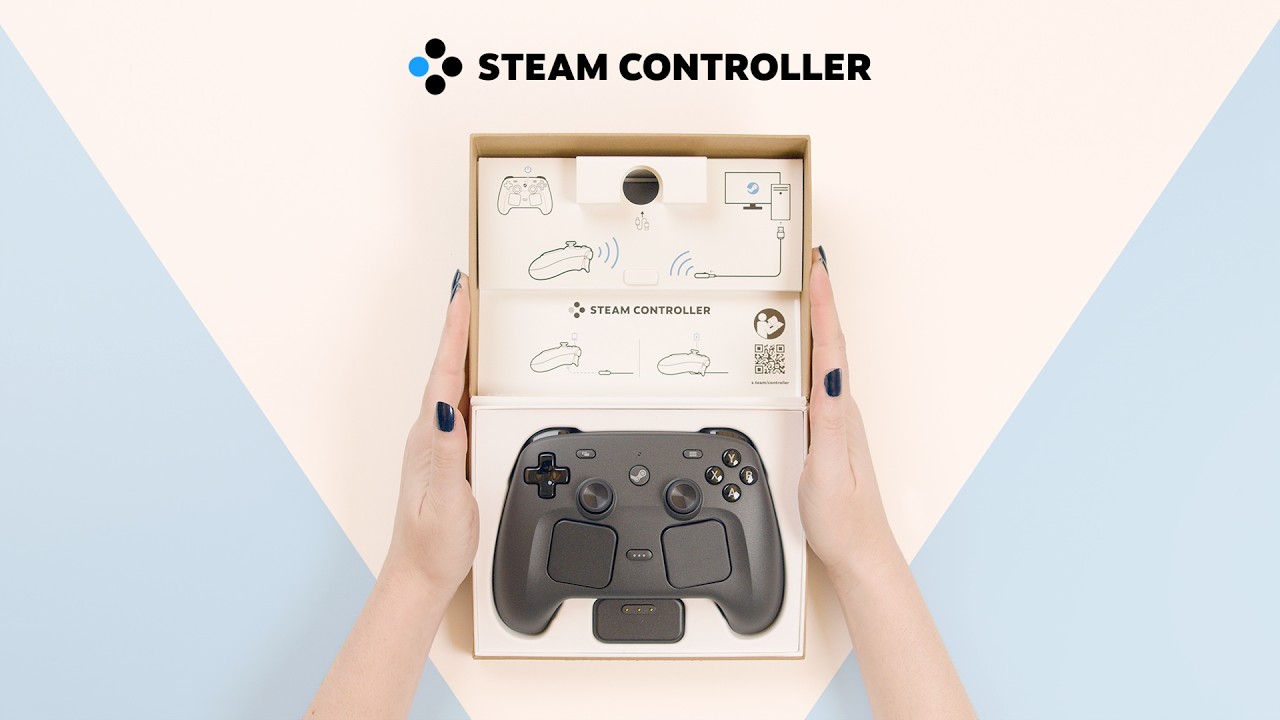
Steam Controller: Official Overview and Quick Start Guide
3:56

Steam Controller: Official Overview and Quick Start Guide

Valve 27.04.2026 1 416 627 просмотров 117 681 лайков

Machine-readable: Markdown · JSON API · Site index

Поделиться Telegram VK Бот
Транскрипт Скачать .md
Анализ с AI
Описание видео
Steam Controller arrives on Steam May 4th, 2026, at 10 a.m. Pacific, and we want you to be prepared: Start stretching those gaming hands! Actually, we're referring to this video, which walks you through the simple steps to get it working straight out-of-the-box. (But, like, if you also want to do some stretches that's cool too.) Learn more and wishlist here: https://store.steampowered.com/sale/steamcontroller

Оглавление (1 сегментов)

Segment 1 (00:00 - 03:00)

— Hey there. This video is a quick overview of what you'll find inside the Steam Controller box. How to get started with it, and a quick look at some of the features. First, let's open it up. Inside, you'll find the all-new Steam Controller, the Steam Controller puck, which is both a wireless receiver and charging station, a USB-A to USB-C cable, and an information book. The puck is the fastest, most reliable way to play wirelessly. The easiest way to get playing is to connect the USB-C cable to your puck, and then plug the other end of the cable into your PC. Steam does all the hard work to make sure your controller performs seamlessly when playing your games. Turn on the controller by pressing the Steam button. Your controller will automatically be connected wirelessly to your PC through the puck. The LED will be solid white when connected. Press the Steam button on the controller again to bring up Big Picture Mode, a controller-focused Steam interface. If you have a Steam Deck, this will look very familiar. Also, like the Steam Deck, we will be adding improvements and features with software updates. Make sure you install the newest firmware updates, especially when you first use the controller. When installing updates, the puck will update first. Once that's done, unplug the USB cable from your puck, then plug the cable into your Steam Controller. Your Steam Controller will start updating automatically. Once the update is finished, you can unplug the cable from your Steam Controller and plug it back into your puck. Now go ahead and launch a game. The Steam Controller has all the normal gamepad controls that you're familiar with, including responsive, longer-lasting, next-generation magnetic thumbsticks. It also has a bunch of great advanced inputs to help you make the most of your gaming experience. Two trackpads that can be customized for all sorts of uses, — a gyro sensor, which allows moving your controller around for input, four grip buttons, which can be toggled on or off and remapped to any functionality you'd like. — And finally, two capacitive grip sensors on the handles to detect when your fingers are on the grips. The trackpads can be used in a variety of ways. They can be used as a mouse substitute to give you a more precise way to aim and control the camera, or a more intuitive way to play mouse-first games like deck builders and 4X. It can be used as a radial pop-up menu to give direct access to key inputs and fully customizable for countless possibilities. The capacitive grip sensors are a new kind of input to help improve gyro gameplay. — It works by sensing whether your hands are touching the grips on the controller. If you extend your fingers away from the grip, the sensor will turn off. The sensitivity is customizable as well, so you can configure it to be as responsive as you'd like. It can be used as a way to ratchet while using gyro. Simply release your fingers to turn gyro off and reset your position back to center. In our gaming, — we found that grip sense can be used for other things as well. For example, it can be used to bring up a weapon wheel — or a map in game with just the release of a finger. When you're finished, we made it super easy to charge back up. Just set the controller over your puck and it'll snap into place. — The next time you want to use your controller, just grab it off the puck and press the Steam button to get going. To learn more about the Steam Controller and its endless configuration possibilities, visit this link. We're so excited for you to get your hands on this controller and start playing. — Have fun.

Другие видео автора — Valve

Ctrl+V

Экстракт Знаний в Telegram

Экстракты и дистилляты из лучших YouTube-каналов — сразу после публикации.

Подписаться

Дайджест Экстрактов

Лучшие методички за неделю — каждый понедельник