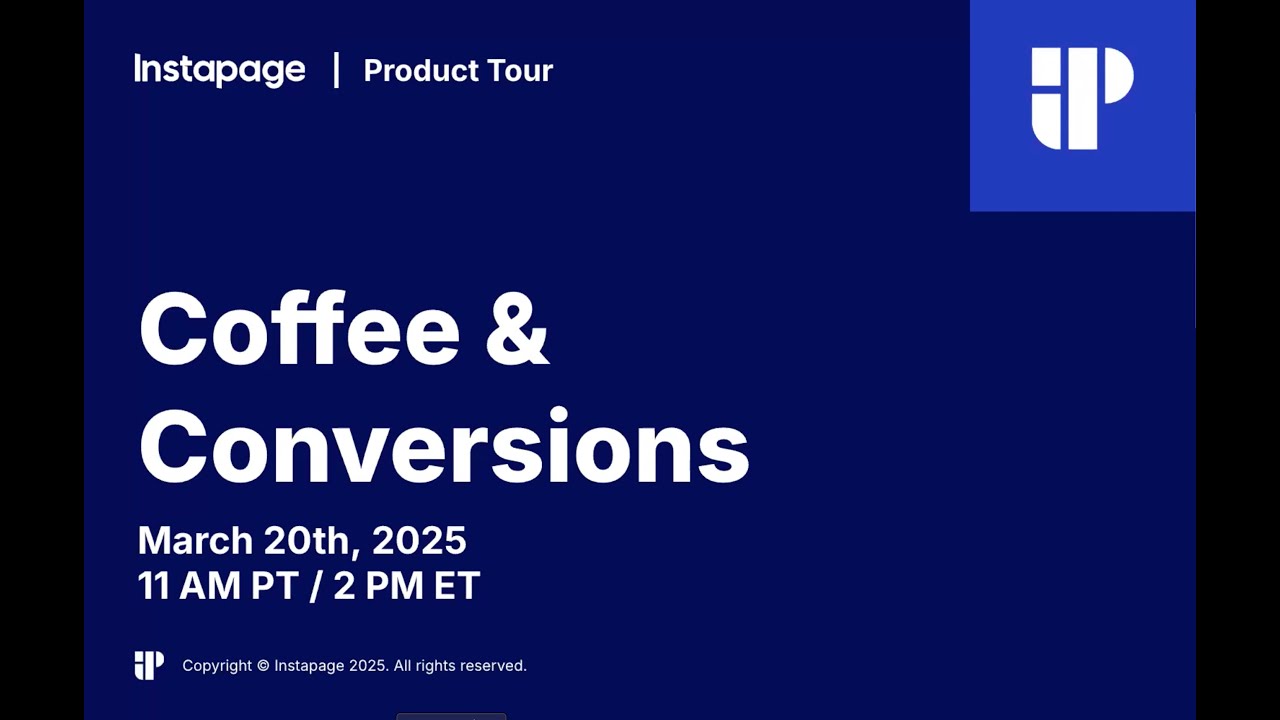
Coffee & Conversions: Instapage Product Updates & Demos (Mar 20, 2025)
30:02

Coffee & Conversions: Instapage Product Updates & Demos (Mar 20, 2025)

Instapage 02.03.2026 24 просмотров

Machine-readable: Markdown · JSON API · Site index

Поделиться Telegram VK Бот
Транскрипт Скачать .md
Анализ с AI
Описание видео
Follow us on our socials to stay up to date: ✔️ https://www.facebook.com/Instapageapp ✔️ https://www.linkedin.com/company/instapage Like, share, and subscribe for more helpful tutorials and tips!

Оглавление (7 сегментов)

Segment 1 (00:00 - 05:00)

hello good morning and good afternoon thank you for joining us today for our fourth in our series the insta page product tour coffee and conversions some quick housekeeping items as we get ready to begin in the next few minutes please if you have any questions during the webinar submit them to the Q& A window and we will answer them towards the end we'll also be sending out a recording and a copy of today's deck via email early next week and then finally at the end of today's session we will share a survey link via email to kind of gather your feedback and learn how we can improve a future webinars ensuring that they provide you with valuable and actionable insights so now that we have gone over those items I hope everyone has grabbed their cup of coffee and is ready to get started so our agenda for today we will be reviewing new and existing features in the insta page platform followed by a live in product demonstration and our Q& A joining us today we have Griffin our product marketing manager myself senior manager strategic services and then Evan our senior product manager diving right into our future Spotlight the first item that we want to review is our Cookie list external tracking Griffin I'm going to hand it off to you to go ahead and get us started sounds good thanks Michelle and hey everyone so with our cook culus external track tracking earlier last year we made it easy to track conversions without third party cookies the way we made this possible is by allowing you to set an external page like a thank you page as your conversion goal which counts each visit as a conversion all you have to do here is add a single workspace script to your destination page and then paste in your url another benefit with this is that you can now reuse that page to track conversion in insta page and yeah you can reuse it as much as you want and then the correct landing page will always be automatically attributed awesome and some additional considerations for when you're setting up your external conversion tracking it's important to determine what stage in the funnel your landing pages is if it's a lead generation and you have a form on that page that redirects to another page then external tracking will be good for measuring that conversion also if you're looking to see how top of funnel pages are impacting lower funnel conversions that would be another great use case for that also it's set up to use wild cards so if you have Dynamic redirects you can track uh multiple URLs that use kind of a similar structure and use that wild card as a placeholder as part of that uh external conversion URL the next item on the list is URL pass through so back to you Griffin yeah our URL pass through feature it's a feature that helps you better track your campaigns it's really simple to use you just have to toggle it on for text images and buttons and it ensures that any parameters in your links are then appended to your destination urls this is important because it keeps your campaign information intact and allows you to better show their impact across your organization awesome and so to ensure that the query parameters on the page don't break I would recommend using URL incuded values in place of special characters such as spaces so um you know space is like percent 20 um you can give a quick search online and you can find a list of those encoded values to help make sure that those are pulling through correctly another useful implementation of passing long parameters is to trigger personalized or dynamic experiences on the next page for example if you're pushing a special promotion you can ensure that your original promotion parameter is included in the URL leading to the next page and that will ensure that not only is the content on that third page or second page um in line with the landing page they came from but also that original ad that sent them to the first landing page next in our uh tracking Library we have G4 custom events Evan back to you or Griffin I called you all good yeah this is another useful tracking tool we offer on our convert plan it lets you assign ga4 custom events such as button clicks directly from The Landing Page Builder and without having to navigate any code to use this feature you first need to integrate G4 and connect it to your page after that all you have to do is toggle it on while building then you can see and gain deeper insights around your visitors actions in G4 that's awesome um with G4 you know everything became an event with parameters added to provide kind of that better granularity beyond the original category action and label and this gives us as users and the people consuming data better control of that data coming in and the story that it tells it's important to really conduct regular audits of the event tracking to ensure that you don't have Rogue elements that fall outside the purview of your reporting and then make sure that you implement standards and an internal

Segment 2 (05:00 - 10:00)

library of what types of events you want to track and how those should be labeled and the parameters that you want to use for those uh so now Switching gears a little bit um we're going to talk about the image Library Griffin back to you yeah for this feature I like to put it this way you already uploaded the image so why have to do it again with our image Library you don't have to just upload your images to your dedicated library then easily reuse them across your landing pages you can also organize your images and folders making it even easier to find and add images to your landing pages and I think one of the benefits of this launch is you know historically it used to be that you could only upload when you were building a landing page and now that lives outside of the landing page so if you want to mass import images you're able to do that um and then some tips and tricks on you know keeping that organize so make sure that you're using folders to better organize your content and really standard naming convention to make the content easier to search so for example um you can use things such as like a short descriptor so woman and dog like maybe it's a picture with a woman and a dog and then even like the image size so if you're looking for a specific size that you want to put on a page you could say like a 600 by 600 or 300 by 325 that way you can know which images are which and easily find those in your library and then I always recommend um adding alt tags to make sure that you're optimizing for accessibility Evan will go over that a little bit more in our in product demonstration so then the final feature that we're going to review today is our popup builder in library so Griffin tell us about that yeah with these latest additions this is one we added around a couple months ago and it gives you a dedicated Builder to create popups from outside your landing pages as Michelle mentioned with images you can also do it now with your popups and then you can access and reuse them across your pages through your central library and so yeah this should all sound familiar like the image Library discussed and those benefits there ultimately our aim is to allow you to build or add something once and then reuse it forever allowing you to get more landing pages out faster and ultimately drive more conversions in Revenue yeah and for those I really recommend you know testing some gamify popups that can help engage visitors more when they come up so um you know a lot of times we use the promotion approach of like oh give us your email and you'll get 10% or um something like that but sometimes gamifying a little bit um kind of hits that reward center of the brain and can encourage that interaction so I recommend testing that and then also using exit intent popups so you know Studies have shown that they recover up to 15% of abandoning visitors um but they're a great way to grab that visitor's attention when they're exiting your page and because they're exiting it's you know non-intrusive it's like you might as well try and get one last effort in pulling them back in um by providing that pop-up experience to them so now that we've kind of gone over some of these features their benefits and some tips and tricks I'm going to hand it over to Evan to show you how to use these inside the platform all right let me get this shared and can start so you should be able to see our screen where we're at right now and the first thing we're going to look at is that external tracking which comes from your landing page list so this is landing pages then when you select a landing page you get your slide out you're going to come to conversion goals and you'll have this external page tracking option here when you select that you will see a lot of instruction the script is here if you click this you can copy it and as Griffin said you only need to use this one copy for the whole workspace and when you set that up on your site you can put it across all your pages and it will only matter for whatever page you target so put in a URL here and then you can also like put wild cards in so if you had a URL similar to the ones we have in ours this number here is a variable so when you put like that in on your site you would have like a star here and that would fill those in and that would give you that tracking then on those pages when it detects it will see it because it's this page and know where it came from so that is your conversion

Segment 3 (10:00 - 15:00)

tracking and the next we want to look at is the URL pass through so let's go to the Builder and look at a page now URL pass through is available on every type of Link but we're going to look at say this text and with text you look at your link setup in here you can see this pass through URL parameter and you notice this link is pretty clean it has nothing on the end of it I'm going to look at this image here that also has a link set up and on this one actually have a UTM setup 2025 spring landing page and I also have that pass through URL set so then on the live page we'll switch to that you can see here as a highlight this in the bottom corner it is linked to instap page. com with no URL pass this also shows the UTM that I have set so then if we had a page that had a UTM on it and notice this one was source and that one's medium so now you have both the one that was set in the Builder and on the URL and then in this one you have the one that is set in the uro so then if you have one like this where you have a source that is a new source and you look at this it actually overwrote it so you could have default set in your Builder and have them overwrite if they come to a page and then it also just puts it on a link as you need and that kind of pulls all of your different ways to pass through can work and just figure out the way you need it and what's useful for you I know we have UTS on here but as was said you can use any URL parameters so if you have custom ones for your site or using something different for some ad platform that adds their own those will also pass through the next thing we want to look at is those GA custom events so let's go back to the Builder and we can look at any one of these links that we just looked at and you see assign GA event and that option when you turn it on you'll have to give this event a name so give it something that makes sense like um head body copy and then you can add a parameter and these parameters are like a key and a value and if you're using something that you're looking for a lot maybe you give this like an event name that you're using somewhere else so this could be um pass through conversion then your parameter could be like better body copy uh quick or you could have the value of that it's really up to you how you use these if you're using G4 you'll have your own way that you name these things and utilize them so in order to do this you also have to have ga4 setup and in order to do that there are two things you need to do one you go in your workspace settings and you go to Integrations and in here you will find Google analytics and you will set up your G4 you'll go through this process set it up with the key and then it will be attached here and then next we're going to go back to our workspace and under landing pages for that specific landing page you will need to open your slide out and go to Integrations and then specifically add that pixel tag to that page and once you have all that you will be able to use those GA custom events this is one of the features that is on our higher premium plans but it's one that if it's something you need it is worth looking into so you know reach out if you have any questions next let's look at that image Library so we'll start in the Builder and from here this is a thing you've probably done a million times you click image and it opens to the library in the library you can have these folders and you can actually use folders to organize your images if you're not doing it yet I would encourage it makes it easier to find things but the other part of finding things is making sure that you can see them and if I had way more maybe I

Segment 4 (15:00 - 20:00)

wouldn't see them immediately so I want to name them and I like to name things where it is what it is but then also some sort of identifier so this while it tells me that it's a client logo it has the word logo so I could search for that and I could find it um alt text you want to explain what it is so these ones are probably a little less effective than you would have for something like this where you would have head shot of person where they're from a presentation for accessibility want to explain the picture not the use if you have like a picture that is something a little more detailed right so this is a computer yeah it's just texture on the page but by explaining what it is it gives that experience to someone who only gets to see the old text and it lets them make that Assumption of what it's used for just like everybody else really has to the other thing on here is you have insert when you're in the library so that you can put it you can upload one at a time or you can always drop multiple images I'm going to drag a bunch of images directly in here and it will add multiple at a time so all of a sudden I have a whole herd of goats here and then if I did descriptions it would be very descriptive about who they are what they're standing on how they're looking away that kind of thing so that people do get that experience the other part of the image Library comes when you're outside of the Builder where you can find it in your assets you can click in here you can see your image Library you can click in you can edit your information here the only thing you can't do from the library is of course insert because you have no where to put it and that's everything about the library so lastly let's look at the popup Builder and we're going to go back into the Builder again and popups have a number of places that you can find them in page popups and those will allow you to have the different types that at Exit intent a scroll something for the time on page if you want it to come up immediately put that time really low and you'll see it as soon as somebody enters but you also can put popups on any other link so instead of an outside URL you can have popup here you can have them on a button an image and you can then really set up like all kinds of things with your popups so this is where we get into our popup Library we have this open Library when you come to the library always has to happen here we go okay we are back so I have a popup in the library that I can use and I can use the same popup across everything I could insert it right here I could preview and I could also create a new popup just by editing here and that will allow me to use the same popup in multiple places on the same page use them across other pages and let's look back at our assets where we have popups here as well and with the popups in your assets you have the library you also can edit and this is kind of a new thing we don't have anywhere else which is this individual builder for an element so create popup and when it loads it is your same page builder but it is not for a page it's only for the popup and you can use all your ele and build it just like you would any other popup and then when you save that it will be in your library just like any of the others that you've created and they'll be available for other pages and as with the other assets we are you know continuing to build on this and we will have newer pieces and just keep watching for improvements and that should be all the elements we're covering today awesome and we had a couple questions come in um so I'm going to start with this first one where uh they asked if we use UTM in the outside URL link do we need to select the pass URL parameter so I'm actually going to piggyback on this question too where uh does the UTM parameter override any UTM already on the link so I'll go ahead and answer this one if you're okay with that so um if you already have it attached to the URL that you're sending to you do not have to select the toggle in order for the UTM parameters to link but in

Segment 5 (20:00 - 25:00)

regards to the add-on question of does the UTM parameter override any utm's already on the link if you did have them both enabled and you had a UTM with a similar like let's say you had UTM Source in the URL outside link and then you also had it in the pass through it will use whichever one is last in the list as kind of like your trigger your tracking so if your url link is like UT mcore Source equals XYZ and then it's also passing UTM undor Source at the end of there then it's going to use that last one in there so you just have to kind of be careful on how you want to do that but it's perfectly fine um adding them inside of there of the URL itself um I do just recommend on a tracking standpoint that you will not get that original Source um from there if you're using the UTM parameter on the actual URL if you're overwriting that in some fashion so I hope that answers your question and then um we had a second one that I'm going to pass over to Evan uh is the assign GA event toggle available in the amp Builder it is not um we only have it in our regular Builder as you may have seen we have not added many new features to amp it is one of those things where a lot of people are moving just to using regular mobile so we're kind of starting to move that direction ourselves Google doesn't really support amp anymore though they say it does you know improve core web vitals it doesn't actually improve rank itself and most of the core web vital wins that you can get from it just making optimized Mobile Pay M yeah and I was like add to that so like you know Google's kind of like deprioritized that in general as well so used to be like amp Pages would show up more towards the top um but now it's just as long as you're providing a good mobile experience and hitting those core web vitals you should be good on ranking there um another question came through are we able to use multiple popups and I'm going to add a tandem probably on the same page is the question so Evan are you able to use multiple popups on one page definitely so as I had I have a page popup here but I could also go and add a popup on this link you could use different popups you could even use the same popup as long as you're using your library now once you insert it those are now technically separate popups so I could make modifications to this one and it would not change the one that I have on page popups but you can use them on every link you could use different types of popups maybe you have one that is kind of your intro like offer that when they come in it shows them an offer and then you have another one where it has a sign up button and you want to put that sign up on that modal kind of popup instead of having it in page you can use all kinds of them awesome um what about in terms of like can you with the triggering can you trigger multiple popups on the same page you cannot trigger multiple page so you really only get one of these and you can set one up that is something you know we're willing to look into I think it kind of gets into what is your intent so something like ex and intent your message is going to be a little different than you may want to kind of bump somebody when they're scrolling to kind of nudge them as Michelle said exit in 10 they're leaving they're already gone their mind is in a different spot so you can risk a little more there because you technically already lost them any gains you get are actual new gains um but on the page if they're scrolling and you have that same kind of offer that may be a little too aggressive to them that may actually push them away all right um one question I think I'm G to pass this one to Griffin is can you schedule a popup yeah with scheduling I mean it would work based off if you put it on the page then you would be able to schedule that page accordingly and if it has a popup then it would be able to essentially be scheduled whether it's an update or whether it's a new page so ultimately yes you can achieve this awesome um can I share images across

Segment 6 (25:00 - 30:00)

workspaces uh you currently cannot and the reason for this is workspaces themselves were originally intended to be like siloed workspaces for agencies those kind of people who want to separate their work we are looking at a new way in the future to be able to segment your work but not have them so siloed so as we go through we'll definitely be reaching out to some customers just to talk about how they're using workspaces when they're using them as part of the same account as opposed to having them siloed out and kneading those walls between say you are using them for campaigns something like campaign really shouldn't need you to have that kind of physical separation so we just need a better way to let you separate different work streams um here's a good one what makes it cookie storage EV I'm going pass that one to you yeah so our original one that you had to put every time on the page it needed something that would track exactly where you came from and know exactly where you're going and the idea of like the end point knowing where you came from we've changed a script so that it can now use a different storage unit from that original spot so on the original page instead of loading a cookie which is kind of a different third-party element that it can read and some browsers don't really support thirdparty cookies anymore Google goes back and forth on when they're going to get rid of it we're using something that's actually part of the browser and more encouraged by these browser creators which is a local storage there that kind of exists until we time it out and then there's one that exists until the end of your session so we're using a longer term one which means someone could come to your page they click through and they're on your site going around and maybe it takes them a little while to get to that conversion you would still get that conversion because that Cookie list tracker in your browser kind of told you where they came from one add-on question to that one um what happens if someone visits multiple of your insta page landing page which one will get the conversion it's going to depend so there's two possible things that happen here if both of your pages have the same conversion page then it's going to be the last one they visited because that one's going to have the record that says when you get to this page I get credit but because you can set those URLs in that tracking where it says what the conversion page is if they have different conversion Pages the one that is kind of set for that to be the conversion page would get that credit so if you had one that they visited first in the conversion Pages a and then they visited page the second page and its conversion is B but when they got to your site instead of hitting the conversion for B they hit a then that first page would actually still get the credit okay good to know all right well thank you everybody for your questions Evan I'm going to go ahead and take back the screen share yeah right so as we wrap up to today's learning session I do want to encourage if you would like to learn more about any of our features that you schedule a one-on-one demo with our team you can simply visit this bitly link uh bit. leip demo4 or when you receive the deck you can click the button below and then I also want to encourage you to register for our upcoming webinar we'll be sending out that link as well it'll be on May 8th at 10:00 a. m. Pacific 1 p. m. Eastern where we will review insta blocks Global blocks format Super Sub and strike Styles default Styles custom fonts and then also learn about our Professional Services team which I'm a little partial to because that's where I'm from but um very excited for the next one and I want to thank everybody for joining us today if you have any follow-up questions please feel free to reach out and we'll talk to you next

Segment 7 (30:00 - 30:00)

time bye

Другие видео автора — Instapage

Ctrl+V

Экстракт Знаний в Telegram

Экстракты и дистилляты из лучших YouTube-каналов — сразу после публикации.

Подписаться

Дайджест Экстрактов

Лучшие методички за неделю — каждый понедельник