My MacBook Setup - Everything I Use for Coding (minimalist)
4:29

My MacBook Setup - Everything I Use for Coding (minimalist)

Edmund Yong 03.12.2024 612 758 просмотров 14 361 лайков обн. 18.02.2026
Поделиться Telegram VK Бот
Транскрипт Скачать .md
Анализ с AI
Описание видео
Stop Building Apps That Make $0 - Join Startup Club: https://www.startupclub.community/ Try my startup: https://www.transcribr.io/ Try my other startup (Easy Folders): https://chromewebstore.google.com/detail/chatgpt-folders-search-pr/gdocioajfidpnaejbgmbnkflgmppibfe?utm_source=youtube Scrimba - Learn to code (20% off Pro): https://scrimba.com/courses?via=edmundyong Mobbin - Instant design inspiration for your apps: https://mobbin.com/?via=edmund Socials: https://www.instagram.com/e.yongg/ https://www.twitter.com/edmundyong/ ===== Many comments and requests later, this is a quick video sharing my minimalist MacBook setup and the tools I use to build my startups. Let me know in the comments if you want me to cover any other areas of running a solo startup! ===== 00:00 - Intro 00:24 - Hardware 01:30 - Software ===== #SeoulVlog #dayinthelife #korean #koreanvlog #startups #SeoulLife #indiehackers #DigitalNomad #softwareengineer #softwaredeveloper #codingvlog #solotravel #solopreneur #startupvlog
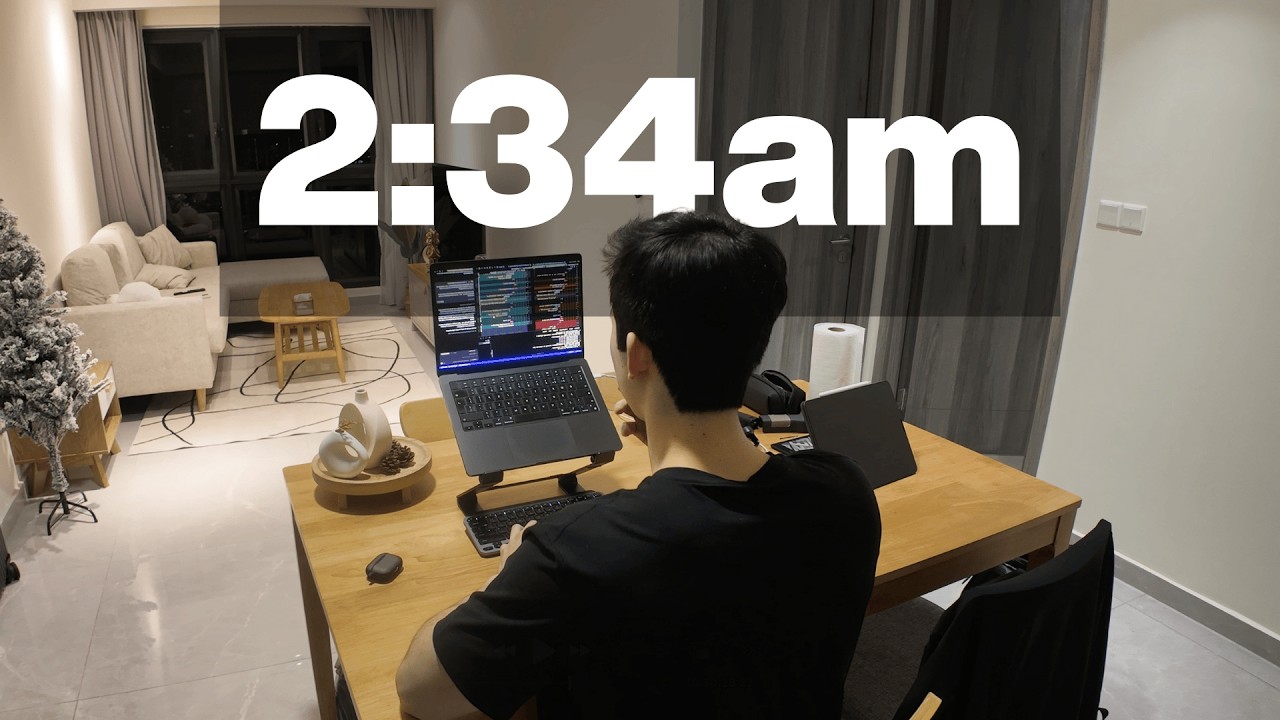
Оглавление (3 сегментов)

  1. 0:00 Intro 68 сл.
  2. 0:24 Hardware 247 сл.
  3. 1:30 Software 687 сл.
0:00

Intro

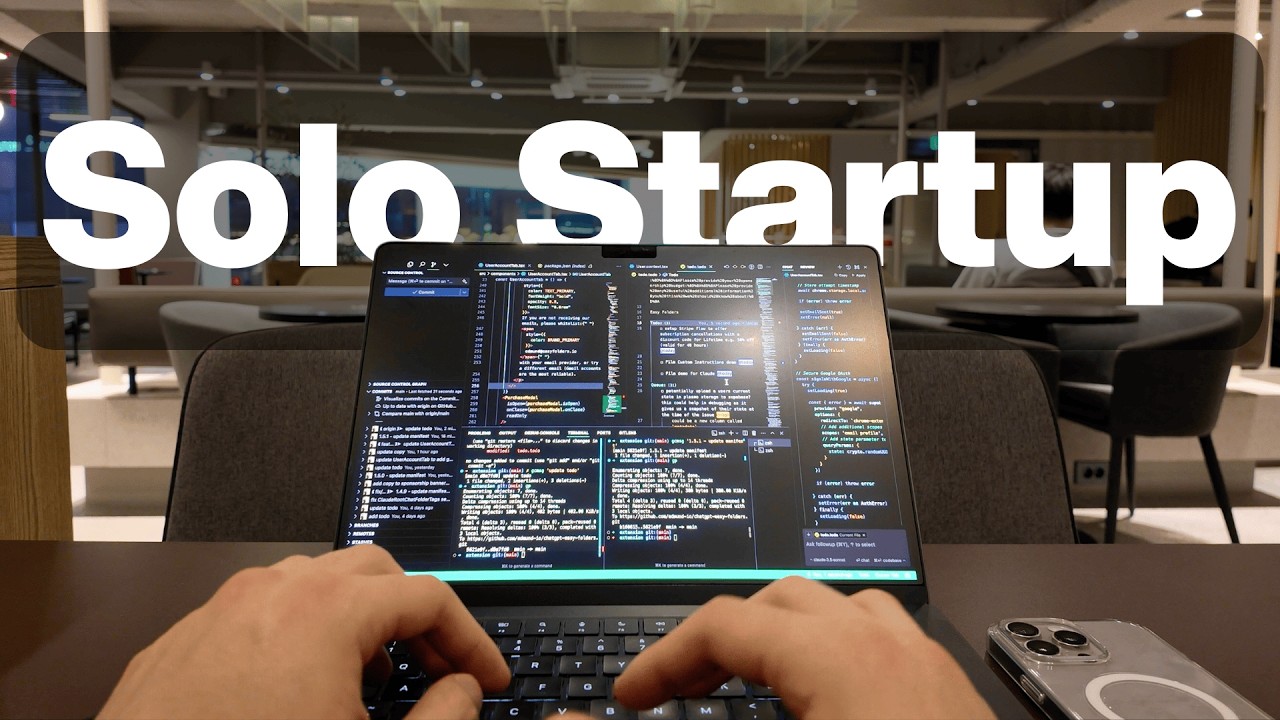
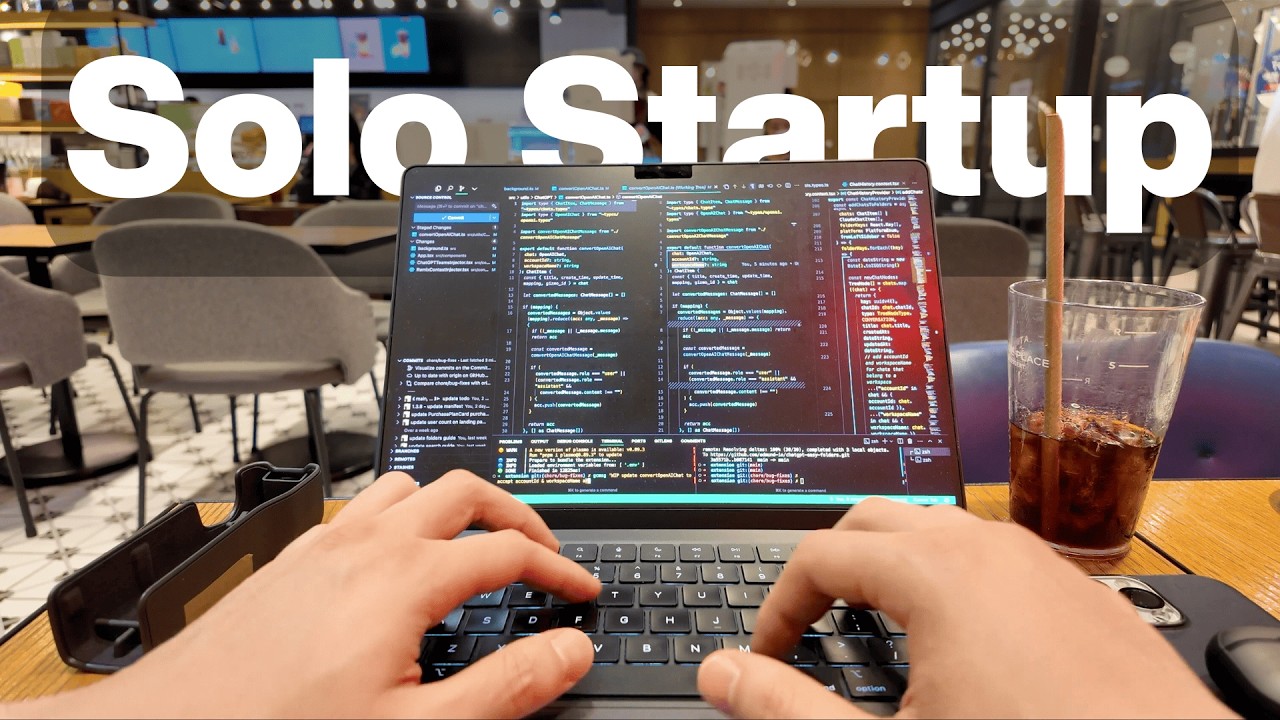
Many of you guys have been asking about my setup and what I use to build my projects. To be honest, my setup is pretty simple and I build everything on a single laptop using only a handful of tools, often from a cafe. In this video, I'll walk you through my minimalist MacBook setup, highlighting the essential tools that help me stay organized and productive. First, let's
0:24

Hardware

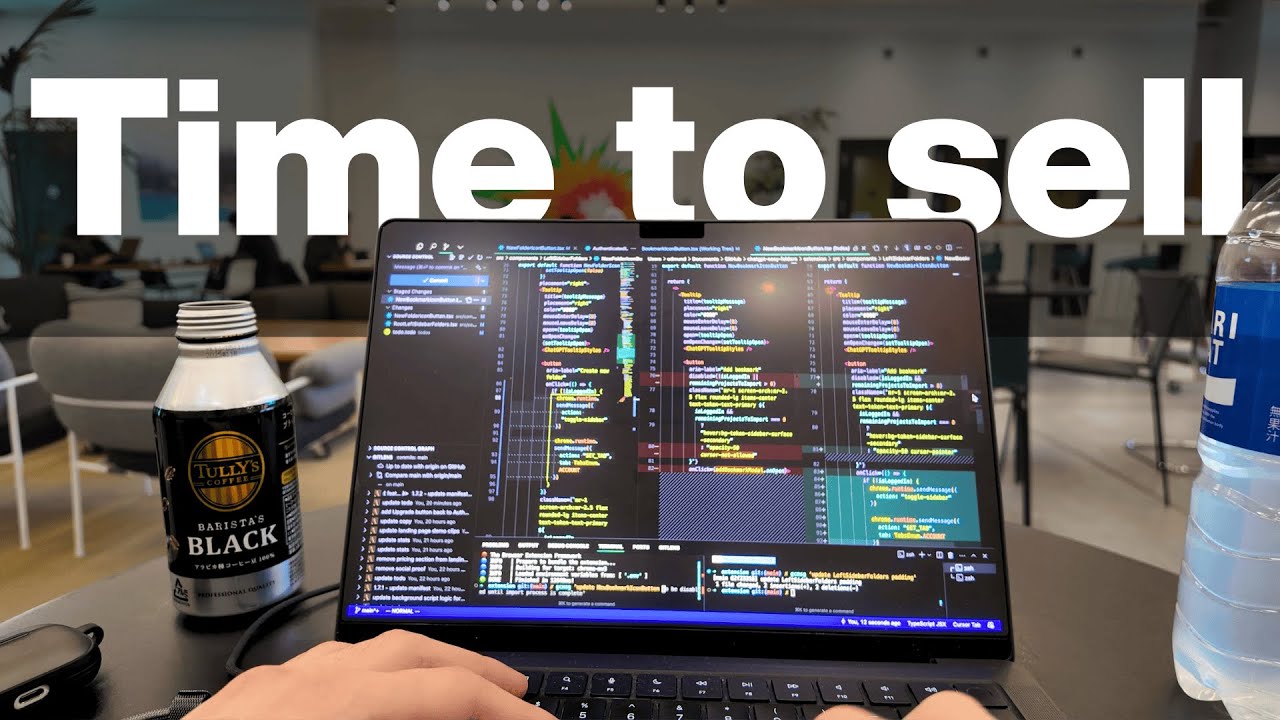
talk about the laptop I'm using. It's the 14-in M3 Max MacBook Pro. And it's the perfect balance between portability and power. This machine can handle anything I throw at it, whether it's long coding sessions or editing videos for YouTube. And I love the fact I can easily bring it with me anywhere and work from any location, whether I'm in a cafe, airport, or just on the couch. But here's a question I get asked a lot. How do you manage to work from just one screen? And honestly, it's probably not the best for my eyes, wrists, or my spine. But let me explain. I've tried dual monitors, ultra wide monitor setups, and yes, whilst they are cool and fun at first, it can become too distracting. When I try to do deep work, I usually only have one task at hand. So, I find that having only one screen helps me concentrate better and keeps distractions in check. With just one screen, I'm forced to be intentional. Working on one thing at a time and avoid multitasking. And as a result of this setup, I would say I've learned to be pretty efficient with the keyboard. Whether it's quickly switching between apps, running commands, or navigating through a codebase, at the end of the day, your setup should work for you, not against you. For me, this setup keeps things lean, simple, and portable. And it just goes to show sometimes less is
1:30

Software

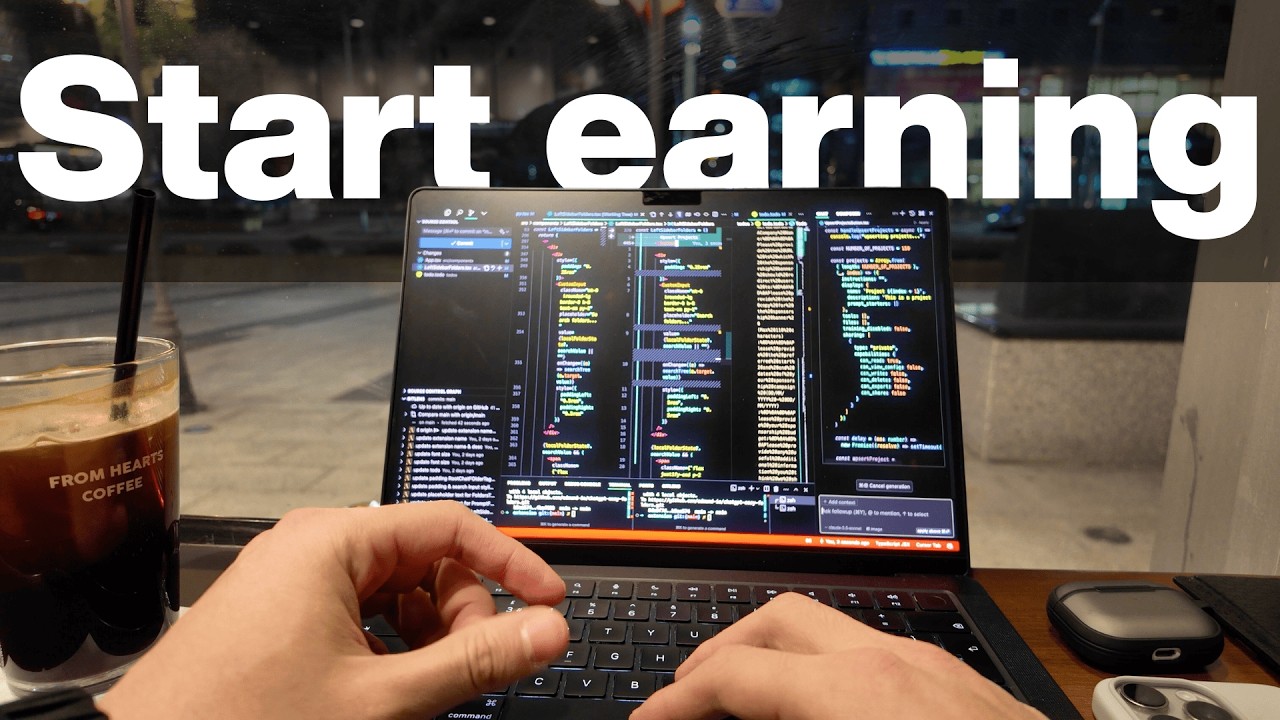
more. For coding on my Mac, I use cursor. Imagine your code editor is not just a tool, but a partner. It's like having an always available pair programmer that you can turn to for questions or suggestions. The AI code reviewer is handy, too. It reviews your current git changes to catch any potential bugs or suggest improvements before you commit. There have been countless times where this feature has saved me from pushing major bugs into my commits, saving me hours of debugging down the road. And its autocomp completion can be insanely good. Sometimes it feels like it's reading my mind. I just keep pressing tab and it knows exactly what I'm trying to do. However, keep in mind that this is just an AI assistant. Always double check the code it provides as these models are notorious for producing good-looking code that could have hidden bugs if you don't review it carefully. With that being said, I definitely could not build at the same speed without it. So, I would highly recommend using Cursor for your projects. And here are some useful extensions that I use with Cursor. First one is Vim, an emulator that lets you use the Vim keybindings to navigate your codebase. I'll admit it was quite painful to learn, but once you get the hang of it, I guarantee you will stay in the flow state for way longer during your coding sessions. You just need to learn the basic motions and then I would say that it's already enough to see a productivity boost. From there, you can easily navigate and make changes to any part of your codebase with just a few keystrokes. And let's be real, you just look and feel cooler when you're able to code continuously without having to take your hand off the keyboard. For the next extension, it's To-Do Plus and To-Do Highlight. Powerful and easy to use to-do list manager. It's my go-to for managing the to-dos in my project. It's a simple extension that lets me create a to-do file within my project and jot down to-dos to help me stay organized. And from there, you can use keyboard shortcuts to mark a task as started, and it will automatically track the start time. And when you mark a to-do as done, it will log the finish time, too. This is super helpful for improving your time estimates. You can see exactly how long a task takes and figure out if you're underestimating or overestimating your to-dos. Plus, manually marking a task as started works as a mini productivity hack. It keeps me laser focused and motivated to finish the task without getting distracted. I've used tools like Notion and Trello before for project management, but honestly, I didn't need all of the extra features they offer, especially when I'm just working solo. And finally, paste image and image preview allows me to quickly paste and preview images anywhere in my codebase as comments. It's perfect for bug fixes or when I need to illustrate my comments with some screenshots. Instead of writing long blocks of text, I can just paste an image to explain the issue more visually and clearly. The next app I use on my Mac everyday is Raycast. If you want to control your entire Mac from just one place, you can do it with Raycast. You can launch apps, manage Windows, adjust system settings, and so much more. All from a simple and clean interface. Plus, there's a huge library of community extensions that lets you interact with popular apps like Cursor, Chat GBT, and Spotify straight from your keyboard. As you've probably noticed, I love tools that let me work quickly and precisely with just the keyboard. And I think Raycast nails this perfectly. So, that's my minimalist MacBook setup, and it's proof that you don't need a lot to get a lot done. It's nothing fancy, but it does the job. You want more videos about running a solo startup? Please like and subscribe, and I'll see you in the next one. Bye-bye.

Ещё от Edmund Yong

Ctrl+V

Экстракт Знаний в Telegram

Транскрипты, идеи, методички — всё самое полезное из лучших YouTube-каналов.

Подписаться