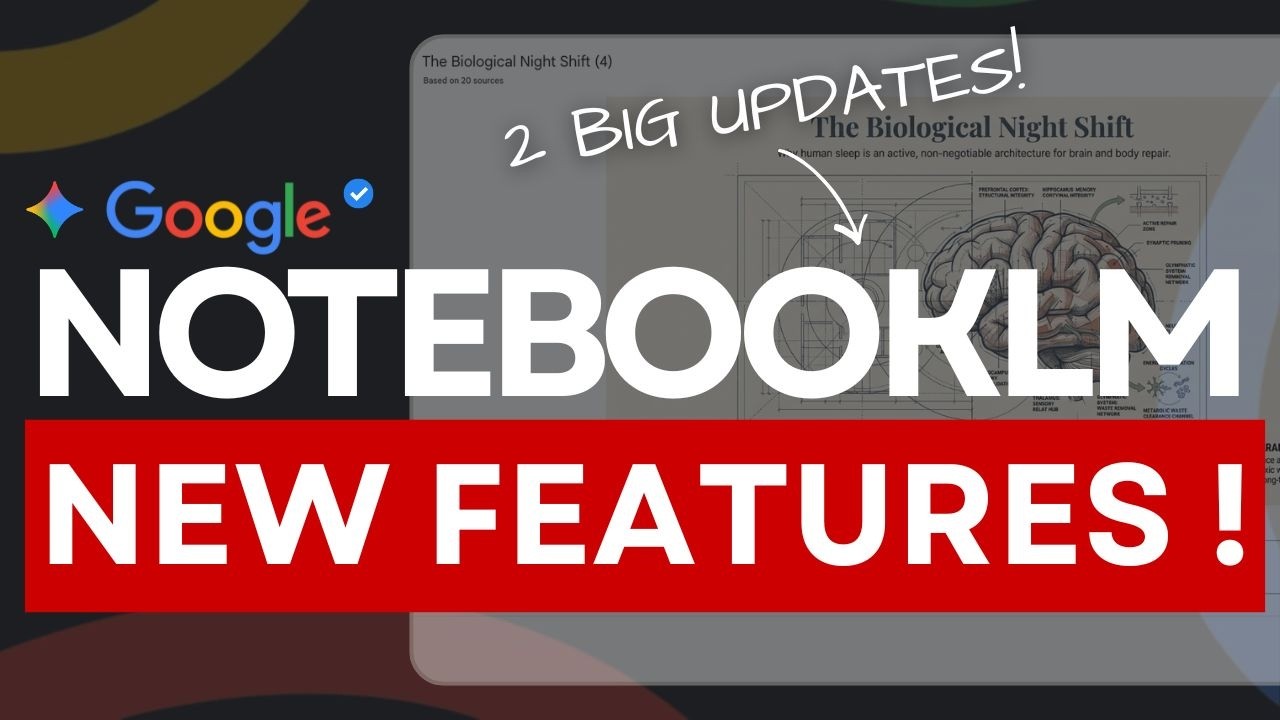
NotebookLM Just Got 2 HUGE Updates: Full Workflow Guide (2026)!
11:30

NotebookLM Just Got 2 HUGE Updates: Full Workflow Guide (2026)!

Universe of AI 03.03.2026 6 просмотров
Поделиться Telegram VK Бот
Транскрипт Скачать .md
Анализ с AI
Описание видео
NotebookLM just dropped 2 big updates — prompt-based slide revisions with PPTX export and custom infographic styles. In this video I walk you through the full workflow, including a Claude trick I use before touching NotebookLM that makes Deep Research significantly better. For hands-on demos, tools, workflows, and dev-focused content, check out World of AI, our channel dedicated to building with these models: ‪‪ ⁨‪‪‪‪‪‪‪@intheworldofai 🔗 My Links: 📩 Sponsor a Video or Feature Your Product: intheuniverseofaiz@gmail.com 🔥 Become a Patron (Private Discord): /worldofai 🧠 Follow me on Twitter: https://x.com/UniverseofAIz 🌐 Website: https://www.worldzofai.com 🚨 Subscribe To The FREE AI Newsletter For Regular AI Updates: https://intheworldofai.com/ #notebooklm #googlenotebooklm #claudeai #GoogleAI #AITools #NotebookLMUpdate #aiproductivity #DeepResearch #AIWorkflow #aitips NotebookLM,NotebookLM 2025,NotebookLM new features,NotebookLM tutorial,NotebookLM update,NotebookLM deep research,NotebookLM slides,NotebookLM slide deck,NotebookLM infographic,NotebookLM PPTX,NotebookLM workflow,NotebookLM tips,NotebookLM tricks,Google NotebookLM,Google AI,Google AI tools,AI research tool,AI productivity,AI tools 2025,best AI tools 2025,Claude AI,Claude tips,AI workflow,AI note taking,AI summarizer,research workflow 0:00 - Intro 0:43 - Deep Research Trick 2:47 - Creating Presentations 6:06 - NEW Feature One! 9:31 - NEW Feature Two! 10:34 - Workflow Summary 11:17 - Outro
Оглавление (7 сегментов)

  1. 0:00 Intro 147 сл.
  2. 0:43 Deep Research Trick 428 сл.
  3. 2:47 Creating Presentations 720 сл.
  4. 6:06 NEW Feature One! 783 сл.
  5. 9:31 NEW Feature Two! 211 сл.
  6. 10:34 Workflow Summary 129 сл.
  7. 11:17 Outro 45 сл.
0:00

Intro

Notebook LM just got two new updates that genuinely change how powerful this new tool is. But before I even show these, I want to walk you through how I actually start a research session in Notebook LM because there's a step most people skip that makes everything that comes after it significantly better. So, we'll start there, go through the full workflow, and then get into both the new features live. If you haven't used Notebook LM before, quick version, it's Google's research tool, and everything it tells you comes from only the sources you give it. It doesn't pull from the internet mid-con conversation. It doesn't hallucinate from training data. It reads your documents and answers from those only. Every claim it makes is traceable back to real sources. That's what makes it different and powerful. So, let's get into it. So, the thing I
0:43

Deep Research Trick

want to show you first is that Nobook LM has a feature called deep research. You give it a question or topic. It goes out, browses hundreds of websites on your behalf, builds a research plan, and comes back with a detailed report. and it pulls all those sources directly into your notebook. So instead of you manually hunting down papers and articles, it does that whole step for you. But the quality of what deep research returns depends almost entirely on how good your prompt is. A vague question gets a vague report. A specific well ststructured question gets something actually useful. So what I do before I touch notebook element at all is I go to Claude and ask it to write the deep research prompt for me. Let's say for example I want to learn about the importance of sleep. So I type in something like I want to use notebook's deep research feature to research the importance of sleep. Write me a detailed specific research prompt. And then I just press enter. So we can see from this example that Claude came back with a very detailed research prompt that I can just copy and paste. And now I have a structure for my report. I have an idea of what I need to understand topics and sections that must be addressed to fully understand the power of sleep. for example, because I'm not going to lie, I love sleeping and it's I think one of the biggest tools that we have access to when it comes to recovery. So, I have this detailed prompt and it doesn't have to be cloud. This could have been chat GPT or whatever Gemini even as well. But all I'm going to do is copy and paste this and then all you got to do in Notebook LM is put it in here and just press enter. So based off of that prompt, you now your deep research is going to be way more structured and way more specific and accurate compared to giving us something very vague like I want to learn about sleep. So now what's happening right now is that no is planning and it's going to do the research online. So this will take about couple of minutes and then once that is ready you can see you're going to get a structured report as well very detailed sources that are not only reputable but are also going to be useful for our next step. So let's give it a second. So our
2:47

Creating Presentations

deep research is now complete and I can view it over here and I have also about top 20 sources that has gathered and I can import it into my notebook. What you're seeing right now is that it's still called the untitled notebook because I haven't actually verified the sources I want to use from this deep research. So I'll click on this view. So this is a summary which is actually based on 70 sources that has gone and it basically has broken down the importance of sleep. So this is kind of like a report. If you are a science student, you might create yourself. This might take you a couple of, you know, weeks of studying and like finding all these sources, but all of that is synthesized into about maybe two to three minutes of work that Notebook LM does for you. And now you have a resource that not only you could build your own personal knowledge base on, but you can also generate the data from here, create more reports and everything like that. So we have all of this here and if I wanted to, I could look at all the sources that I cited. You can go open these all up and you can also see there are some sources that are not cited that it also used. But in this report specifically, it did research on 70 sources. And then all I have to do is press import. And what notebook element is going to do is take all of that information, research and created a notebook that I can start interacting with, asking questions with. And I'm also going to show you the two new features that Notebook LM added that are going to make it much more useful. So before I show you the two new features, the first thing you'll notice is that these academic papers examine the extensive physical and mental health risk caused by inadequate sleep across various age groups. So we can see that this notebook is grounded on our initial prompt, the importance of sleep. It talks about like mortality, talks about neurodedevelopment disorders and things like that occur because of lack of sleep. So if you're watching this and you're skipping out on sleep, guys, don't do it. It's not worth it. But anyways, I could ask a specific question. You can see these are prompts I have over here. I can ask it the role of NRM, sleep and brain repair. But what's really useful in Notebook LM is this studio section. Over in the studio panel, you got your output options. You have your audio overview, video overview, things like that, briefing doc that you can create in a slide deck and infographic. What's important to note is that the slides and the infographic section and even the video overview are using Google's image model. So, it's actually generating visuals and it's not just filling in a template. So, let me show you guys an example of a deck that I'm going to build from scratch because there's a new feature over here that you don't want to miss out. So, the first thing I will do is click on this and I'll click on this edit icon and this allows us to prompt the deck in a structure we would like. So, I'll click on this. So, you can see once again you have an option of detail deck and presenter slides depending on what you want. Length, short, they're default. I'll keep it on the default sections. But what's really important once again is this section. There's a prompt box here. So the same principle as before. The more specific you get, the better output you get. So I'll take a prompt that I got from Claude. And you can see that I wanted to create a slide deck on the importance of sleep for general audience. Open with a surprising statistic to hook people. Walk through the stages of sleep and why they matter. Cover what chronic deprivation actually does to the brain and body. And close with three specific things people can do tonight to sleep better. So you can see we have a really nice structure to our deck. and I'll click generate over here.
6:06

NEW Feature One!

So, it looks like our first draft of the deck is ready over here. So, I'll click on this and we can take a look at it and I'll just expand this so we can look at it at a bigger screen. So, it's loading in. This is a pretty solid professional looking draft. I am pretty happy with it. We have our key stats and everything like that, the sleep cycles. If we look at the other slides as well, we can see the silent cost of a sleepless world talking about like the mortality risk, everything like that. And these generations are pretty solid. Uh, it's probably using the Nano Banana Pro 2 model. Actually, we don't know that yet because last time when the new model was updated, Notebook Ele made an announcement. I haven't heard an announcement yet, but it's probably going to transition to the new Nano Banana model. But at least at the moment, these generations are not bad. But the key feature that I'm going to show you guys that is new today is the most awaited feature that Notebook LM has been, you know, holding on for a couple of months now, which is the revise button. Before this update, you were stuck with whatever it gave you first. If a slide was wrong or you didn't like it, you were going into PowerPoint manually or uploading this to Canva and fixing it. Now, you just tell it what to change. So, let's say I don't like the title of this slide, for example. it feels a little bit weak and rather I want the reader to look at this slide and instantly understand like okay why I need to prioritize my sleep. So I'll click on this revise button. Then I'll tell it to replace this title with a surprising statistic from the sources. So as soon as they open this slide they should see a stat that tells them why they need to prioritize their sleep. And then let's say for example this slide it has a little bit of too much text and a lot of things going on over here. So instead I want to say that this slide has too much text. cut it down to maybe two to three points and then at the end I want the takeaway to be a little bit more strong. This is kind of okay, but like I want it to be one single takeaway. I'll tell it the closing slide feels weak. Make it one strong single takeaway instead of a list. So now you can see I have about three pending changes and all I have to do now is click on generate new deck. You can also change any images you like. You can say take away this image, replace it with XYZ. But you can see this feature wasn't available before. you had to manually figure out a workaround to change all of the revisions you wanted to make. Some people had to, you know, take it into Photoshop. Some people had to take it into Canva like I mentioned. But this makes the whole process much more smoother. So now all I got to do is click on generate new deck. So the first change if you guys remember was on the first slide where I said it had a lot of text. So we can see it cut it down and it gave us three points like I requested. Okay. As soon as I read this, I understand that it helps me with my structural and systematic repair, accelerated waste clearance, cognitive and neural optimization. So, if you're somebody who's doing a research for work, this is going to save you a lot of time. Then, if I go over here, we can see it replaced our title with a stat. We can see that the static replace is kind of crazy that on average in the US alone, because people don't sleep, $400 billion are lost in economic value, which is crazy. And then we can see the last slide. We have one simple takeaway which is prioritizing your 7 to n hours of sleep is the single most effective thing you can do every day to reset your brain and body health. So this revision feature is really sick. What's really cool is that the slide revisions are actually rolled out on the mobile app too. So if you're on the go and if you're at going to work or anything like that and you need to make a quick change, you can also do that from the comfort of your phone which is very
9:31

NEW Feature Two!

helpful. Okay. Okay, so this next feature I actually can't show you live yet because it's still just rolling out, but it dropped today and I wanted to include it because it's worth knowing about. They added custom styles to infographics. So before you were kind of stuck with whatever visual style Notebook LM decided to generate. Now you get 10 presets, clay, editorial, bento grid, bricks, there's even kawaii one and you can describe your own style in a custom box if none of those work for you. You also get control over orientation, landscape, portrait or square, and a detail level toggle, concise, standard, or detailed. The reason this matters is the infographic output before this was fine, but it was one sizefits-all. If you're making something for a technical audience versus your general one, or you needed it to be more or you needed to match a specific aesthetic, you just had to live with what it gave you. Now, you actually have control over how the content gets presented visually. By the time you're watching this, it'll probably be fully rolled out soon, but it's worth going into the studio panel and checking it for yourself. If you see a customized option when you click infographic, you
10:34

Workflow Summary

got it. So, to summarize the full workflow, use Claude to write a specific deep research prompt. Run that in Notebook LM and let it pull sources for you. Ask questions and get cited answers you can verify. Build a slide deck with a focus prompt. Refine it slide by slide until it's actually good. export it as a PowerPoint and use the infographic styles when you need a standalone visual. The reason this combination works is because nothing is disconnected. The deep research sources, the slides, the infographic, it's all coming from the same material. Everything is traceable, which is huge for researchers, students, and even employees. Both new features are live right now and is worth going back in if you haven't used it recently. But that's
11:17

Outro

it for today's video. Make sure to subscribe to the channel, follow us on Twitter, follow the world of AI, and don't forget to subscribe to our newsletter. We post constantly, and you don't want to miss this. I'll see you guys in the next

Ещё от Universe of AI

Ctrl+V

Экстракт Знаний в Telegram

Транскрипты, идеи, методички — всё самое полезное из лучших YouTube-каналов.

Подписаться