How to Upload Your ChatGPT Chats to Claude (Step-by-Step)
1:04

How to Upload Your ChatGPT Chats to Claude (Step-by-Step)

Corey McClain 05.03.2026 54 просмотров 2 лайков

Machine-readable: Markdown · JSON API · Site index

Поделиться Telegram VK Бот
Транскрипт Скачать .md
Анализ с AI

Оглавление (1 сегментов)

  1. 0:00 Segment 1 (00:00 - 01:00) 214 сл.
0:00

Segment 1 (00:00 - 01:00)

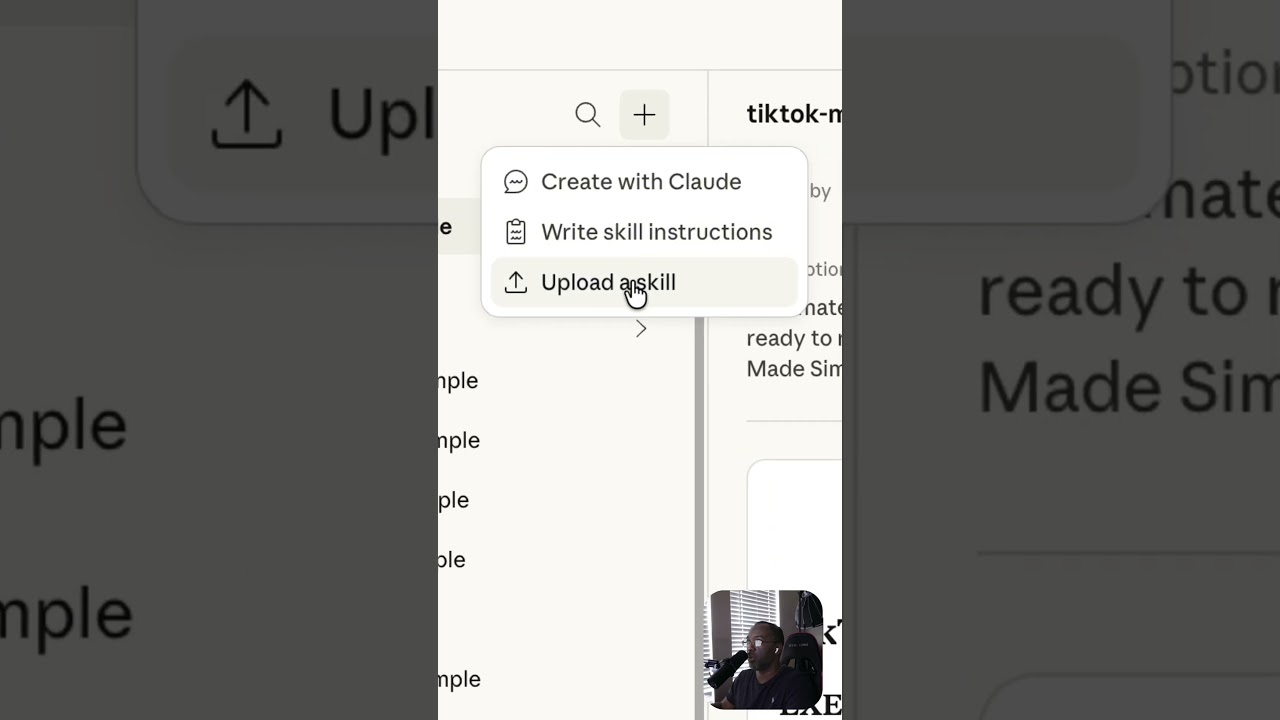
First things first, you have to be on claw desktop. Make sure you select co-work at the top and then come to the bottom lefthand corner where you see your initials. Click there. Click on settings and then click on capabilities. Scroll to the bottom. Click on go to customize. At the very top where you see skills, there's a plus button. Click there. And then you want to upload. Click there. Now you're going to click here and upload the file that you downloaded after you completed the Google form. So, I'm uploading the same skill just to show you that it worked. Now that I have the skill installed, I want to select new task. And you can either choose to work in a folder or you can choose the plus button. I'm inside of my chat GPT data folder. I can either just run it from here or I can upload the file. I'm just going to upload the file because I don't want to work with the rest of these. And then just like before, all I have to say is organize my chats. Press let's go. And it's automatically going to organize my chats for me. And once again, you see that the chat export organizer has been activated.

Ещё от Corey McClain

Ctrl+V

Экстракт Знаний в Telegram

Экстракты, дистилляты и транскрипты — проверенные знания из лучших YouTube-каналов.

Подписаться