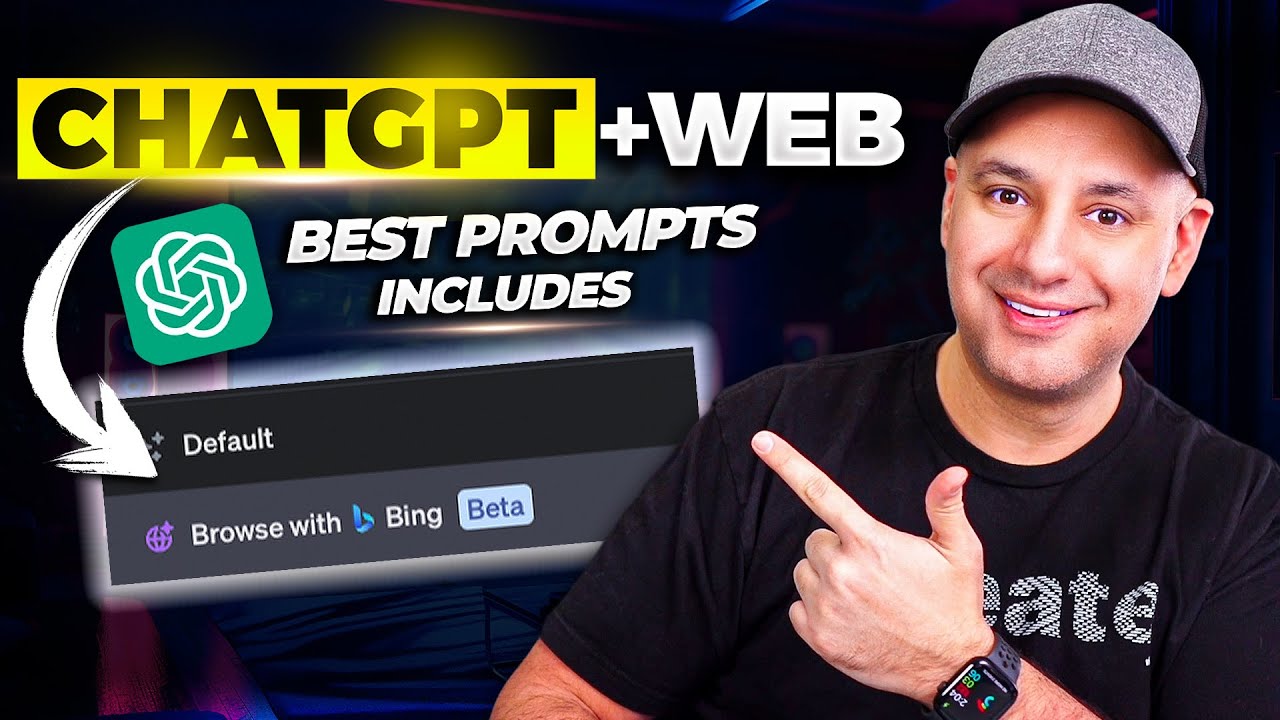
ChatGPT Can Now Access the Internet - Top 10 prompts for ChatGPT Browse with Bing
10:30

ChatGPT Can Now Access the Internet - Top 10 prompts for ChatGPT Browse with Bing

Skill Leap AI 28.09.2023 31 278 просмотров 603 лайков

Machine-readable: Markdown · JSON API · Site index

Поделиться Telegram VK Бот
Транскрипт Скачать .md
Анализ с AI
Описание видео
ChatGPT now has access to live internet data and no longer limited to it’s training data which ended in 2021. They first released this months ago but quickly removed it and it’s finally back today. Let me show you how to activate it first, and then I’ll show you 10 ways you can use it for both personal and work tasks. Right now, this option is only available on ChatGPT plus users but I’ll show you another way you can get it too. It should be coming to the free version of ChatGPT soon. If you don’t have ChatGPT plus, go to bing.com and click on Chat. Click on creative mode and that is powered by ChatGPT and has live web access. Back on ChatGPT, make sure this option is activated from the settings menu. Then, hover over GPT-4 and choose browse with Bing. If you don’t need access to up to date information, the default option is still very useful. Let me share 10 prompts you can use with ChatGPT’s browse with Bing. Prompt 1: Any events happening nearby in the next month I should know about? Here is my zip code Prompt 2: Give me a quick summary of the news for today in bullet point format. Focus mainly on world news. Prompt 3: Get a quick recap or summary of any page: "Recap this page in 5 bullet points" Prompt 4: Give me a 300 word summary from (insert link) Prompt 5: Shopping and Product Comparisons You can quickly compare two or more items and get a side by side comparison from a web link. I’ll use this link for example to compare the new iPhones. https://www.apple.com/iphone-15-pro/ Prompt 6: Fact-check information by searching for reliable sources. You can paste text into ChatGPT to verify its resources. “Verify the accuracy of following information and provide sources” Prompt 7: Find new entertainment. Find the top 10 movies I can watch right now. Create a table and give me the answer here. Prompt 8: Please visit my website (insert website URL). Give me 10 suggestions for improvements that I can implement. Prompt 9: Please visit my website at https://skillleap.ai/ and then provide HTML and CSS code to add a yellow banner on top that says 'Special Offer' Prompt 10: Explore recent developments in a field of interest to spark new ideas. "Give me the latest developments in space explorations" Master ChatGPT, Midjourney, and top 50 AI tools with Our New AI Education Platform. Start a free trial Today: https://bit.ly/skill-leap

Оглавление (8 сегментов)

Intro

chat GPT now has access to live internet data so you no longer are limited to the training data that it was using that was ending back in September 2021 now they first released this months ago so you may have used it already but they quickly removed it I think it only lasted a few weeks but they just brought it back it's one of my favorite ways to use chat GPT let me show you how to activate it first then I want to show you 10 different prompts you could use right now for both personal and work tasks so right now this option is only

Browse with Bing

available to chat GPT plus users but there is another way to get a two let me show you that you could just go to bing. com click this little chat icon and it's going to bring you to this chat page and if you click on more creative this is basically the default option of gpt4 so Bing which is from Microsoft is actually powered by chance GPT so this is another way you could use all these same prompts I'm going to share with you if you don't have the plus version of chat GPT but I like chat GPT more personally because there's a bunch of different options that Bing just doesn't have so I usually use this so let me show you how to activate this where it shows browsing you in bing and then I'll share the prompts with you so come down here because we need to go to settings this is still in beta and then go down here and click on settings and beta and then over here go to Beta and make sure browse with Bing is activated over here all the different options that are still in beta will need to be activated one at a time over here then if you start a new chat come over and hover over gpt4 and then you could come down here and make sure browse with Bing is activated Now default is still very useful and so I usually use this one if I don't need up-to-date information so the training data chat GPT has still works very well for almost most cases but if I need things like the 10 prompts I'm going to share with you need live internet access so I have to use browsing with Bing or use the Bing website to get that

Top 10 prompts

information okay so let me share the 10 prompts with you that actually require internet access is some of my favorite ways to use chat GPT with browsing so this one right here is very useful you can't do this with the regular version of chat GPT but any events happening nearby in the next month I should know about here's my ZIP code and then put in your ZIP code over here and as you can see when you ask things that require internet access is going to use right here browsing with Bing it's just going to do that automatically as long as you selected that on that drop down I showed you it's going to go to work right here on its own and then I could follow up saying give me a top 10 list you could also put this the top 10 list as one of your options available over here and as you can see a lot of these are dates relevant right so these are things that are happening in October it wouldn't know this information otherwise if you didn't use browsing with Bing here's the next prompt I'm going to say give me a quick summary of news for today in bullet point format Focus mainly on world news or you could say sports or Finance whatever you care about you could put that as your main focus or you could just kind of leave it broad again it's going to use browsing with Bing probably check a couple of different websites here that post news and then it's going to go ahead and summarize those in bullet point format so a really quick way to get today's news before you get going with your day and here's basically a bullet point list of everything that is happening today in a top 10 format okay this one is probably the one I use more than any other recap this page in five bullet point formats and I just went to a page on Digital Trends here about chat GPT being back actually so I'm going to go ahead and copy the link from right over here and I'll bring it back and I'll paste it here again something that was just not possible without this option it's going to go and browse the web and it's going to give me a five bullet point format in just a few seconds and there we go a really quick way to do this but sometimes I even like to take it further so give me a 300 word summary of this page for my blog and it's going to go ahead and recap that now I could do a lot more with this prompt or I could say write it in this type of writing style or make sure you include numbered list and bullet points I could combine a lot of different prompts but getting summaries and getting quick Recaps in list format or bullet point format really a useful way you could do this with most links on the Internet by just copy and pasting the link putting that prompt in the beginning of it okay I'll

Create a table

start a new chat here and this one is really useful it's going to save you a ton of time you could quickly compare two or more items side by side with just a web link okay let me show you exactly this prompt that I use all the time so I'm going to say create a table comparing the phone's list listed on the site I just went to the Apple site and pasted phones from the iPhone 15 release and I'll just go ahead and paste that over here again it's going to go and crawl that website the Apple website you can see clicked on apple. com so it kind of shows you exactly what it's doing in detail format here and you can see it's going to make that table for me so on that page that I gave it there was only two iPhones sometimes I've done it with pages that have 10 different items so iPhone 15 Pro iPhone 15 Max and it's going to show me a table here with all the details that they have available on that very specific page it's not using any other information in this case it's just crawling that page finding what's relevant and then I could follow up with another prompt to dive a

Verify accuracy

little bit deeper now this next prompt is really important sometimes these language models like chat GPT they hallucinate they make up the answer basically so sometimes you need to verify that with data that's available on the internet right not the default data that comes from chat GPT so to do that I start a new chat so let's say I get a response from the default chat I start a new chat and then choose this one and then I say verify the accuracy of the following information and provide sources and I paste whatever information I got out of that chatbot in this case it's going to basically scan through the text that I paste look it's actually looking at some of the information on the web right now using browsing with Bing trying to find me sources let me show you what it comes up with in a few seconds and you want to fact check one of them so far and then I said continue to fact check everything I pasted and it looks like it's reading through different articles the second one it actually says this seems to be incorrect it found different conflicting data so again this is important if you really need this information to be accurate which in a lot of cases if you're doing research you do need to have this information be accurate and using the default version of chat GPT opening in the chat pasting that verify prompt is really helpful in a lot of use cases

Entertainment

okay here's a little entertainment for personal use prompt find the top 10 movies I could watch right now create a table and give me the answer right here and it's going to go ahead and do a little bit of browsing right I could do this obviously with Google this just makes it a little bit easier to just give it to me in a list I could quickly browse and here we go here are the top 10 movies that are available to watch right now this next couple prompts

Website

have completely changed the way I do business let me show you this one I'm going to say please visit my website and then copy and paste the link to your website skillet. ai is my website and then I'm gonna say give me 10 suggestions for making improvements now I'm usually a lot more specific so I want improvements maybe for the title or for my FAQ section or for the benefits that I'm stating but this basically browses and goes to any website you want and it basically tells you all the different things that you need to think about like in this case is telling me things related to mobile responsiveness maybe I need to improve that and then I could go through follow up with a prompt and one at a time ask for a very detailed specific how-to guide on how to do that right so this is really awesome one of my favorite ways to use this but this one this next one takes it even to the next level so you see this banner I

Banner

have on top over here let me show you the prompt that had chance upt create this for me okay so all I have to do is please visit my website again put the link of your website and then provide HDMI CSS code to add a yellow Banner on top that says special offer in this case I added more text than that I put YouTube special basically but look what this does this is great look at this it's going to write the code specific to your website so you check the website let's say I don't know anything about HTML CSS I don't even know what those things are I could have just asked it to write to code in this case I was a little bit more specific because websites are made from HTML and CSS and JavaScript that's the three ways websites are made the three different codes basically and it put them all here and then if I know anything about where these go I could copy and paste them in this case I know a little bit about programming so I said create inline CSS so it doesn't have two separate things I need to copy this is the HTML this is the CSS this way is going to just give it to me all in one I could copy this and I could put it on the back end of my website if I was using Wordpress or anything like that it makes it really easy a lot of developers are using techniques like this to really speed up their process but people like myself that are not developers also could use these to do little things like for example this would have cost me a few hundred dollars right to hire a developer to do this but now I just did it in less than 10 minutes by a couple of different prompts back and forth with chat GPT then I asked that where should I put that on my website and it got kind of walked me through step by step on how to do it too based on the structure of my website and if you want to stay up to date with AI with complete courses not just these type of tutorials we have an entire platform where we have well over 10 courses and well over 300 individual tutorials from over five different instructors including myself we cover things like chat GPT prompt engineering we cover mid-journey the top 20 AI tools we have courses and tutorials on and you could try it totally for free with a free trial and a special link and all the prompts I use in this video are listed in the description so you can just copy and paste them from there I hope you found this useful I'll see you next time

Другие видео автора — Skill Leap AI

Ctrl+V

Экстракт Знаний в Telegram

Экстракты и дистилляты из лучших YouTube-каналов — сразу после публикации.

Подписаться

Дайджест Экстрактов

Лучшие методички за неделю — каждый понедельник




