How to Edit Videos on iPhone or Android - Filmr Tutorial
18:31

How to Edit Videos on iPhone or Android - Filmr Tutorial

Skill Leap AI 16.07.2021 1 242 просмотров 28 лайков

Machine-readable: Markdown · JSON API · Site index

Поделиться Telegram VK Бот
Транскрипт Скачать .md
Анализ с AI
Описание видео
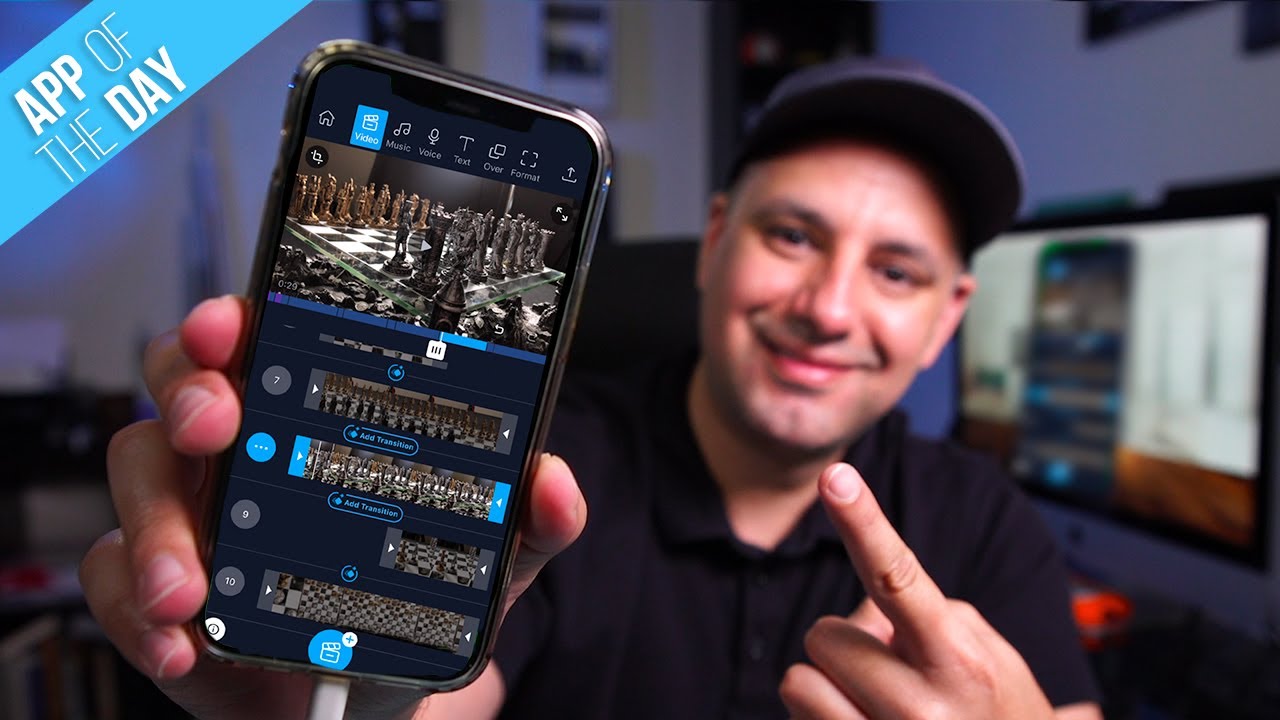
How to Edit Videos on Your Phone - Filmr Tutorial When it comes to editing videos on your phone, there is usually a learning curve and the process can be confusing. In this video, I want to show you an app that makes editing videos on iPhone or Android very intuitive and much easier. Filmr is the easiest, quickest, and most flexible way to edit videos on your iPhone and iPad. You can download Filmr for iPhone here: https://apps.apple.com/in/app/filmr-easy-video-editor/id1171358257 And download Filmr for Android here: https://play.google.com/store/apps/details?id=com.filmrapp.videoeditor&hl=en_US&gl=US To get started, you can choose to bring in video clips from your phone or use the built-in camera to record the clips. Next, you can choose a format if you know where you want the finished video to go. For example, you can choose vertical for YouTube shorts or TikTok or square for Instagram feed. You can also change this later too. Now, you can put the clips in the order that you want, trim them down, add new ones, and tell your story. Then, you can add transitions between clips and make your clips stand out with filters. Once you are happy, you can easily export and share your finished video on any platform. Thank you for watching this video! Please share and subscribe and never miss the next great app. ======================================= Share this video: https://youtu.be/ape_faDcgvA ======================================= See more, easy to follow how-to videos https://howfinity.com

Оглавление (22 сегментов)

Intro

hey everyone in today's video i'm going to show you one of the easiest ways i've ever come across for editing videos right on your phone and this is completely free with some paid upgrades that i'm going to cover in this video it's going to be a deep dive but by the end of the video you should know everything you need to know for editing high quality professional videos right on your mobile phone the app is called filmer and i'll put a link in the description you could get it for your iphone and for android phones as well and i'm gonna go ahead and open it up and walk you through the whole process here they do also have a desktop version so if you want to use it on your phone and on desktop they do have that version as well i'm gonna subscribe here to show you some of the paid upgrades but you don't have to use any of the paid upgrades you could completely export and post your video out of this app without a watermark but let me go ahead and subscribe and the paid upgrade also has a seven day free trial which is what i signed up for just now so when you first jump into the amp you're gonna see a blank area because i previously edited projects on here but you shouldn't see any projects so to start creating a project you could do one or two things

CREATE A PROJECT

you could use your camera roll here so whatever is already in your camera in the library here you could bring in or you could just press camera here and record using this app now i previously shot things on my phone with the native camera app to the phone so i'm going to press camera roll to bring those in here and as long as you give it access to your library here it's going to pull up all kinds of different videos here and let me go ahead and bring in a project that i actually made with this app i'll bring in this chess set that i was kind of making a video about and will bring in a bunch of different shots from that so select as many as you like here and then press import now at any time once your project starts you could still press this option here to do the exact same thing so you could still give it access to camera or camera roll and bring in more clips so you don't have to worry right now if you didn't bring everything in or you decide that you're missing something else but let me walk you through the whole process here and we'll go step by step because it's critical in editing that you actually do things in order to make it a lot easier to tell your story let me show you kind of the lay of the land here on top you have your top menu and it's exactly in this order from left to right so you start with video editing then you add your music and voiceover then you add text any layovers you have and then your format where you could change kind of the shape if you're going to different platforms that require vertical or 4x5 or traditional like youtube landscape so that's very simple to use and then finally your upload button for exporting your video and publishing it and then down here this is basically what's called the timeline this is all you're editing all your clips we're going to take care of over here a lot to do here and then this is the preview of your entire project or individual clips that you select they'll just appear right on top over here so let's go step by step over here on what you need to do typically i covered this in previous

SET VIDEO FORMAT

videos too but i like to actually go to format and do this first even though you could do this last but if you do this first you kind of get a good layout of what your clips look like up here so if you're going vertical for example choose that now in this case i'm going landscape and i shot everything in landscape format this is kind of perfect for youtube videos or facebook videos but it's not great for igtv or tick tock for example now i could come back to video and start our edit the very first thing i typically do before i make any edits to an individual clip is i want to tell my story in the order

CHANGE ORDER OF CLIPS

of these clips so what i mean by this is i want to change which clip starts my video what's my second clip what's my third clip so i could tell the story in that way so what i typically do is i just come over here and if you select and grab a clip you could bring it to the top or you could change the order of any clips this way so typically i do this first before i make any edits to an individual clip so i'll go ahead and select this one and then to preview it i could select the top the very first one press play see what it looks like and then later i could shorten this clip or make any edits to it which i'll show in a second but i kind of want to get a preview of is this telling the story of this chess match the right way and then i could select something and move it up and down so i'm gonna select this so now i could preview from here not from the very top i'll press play look at this shot then it will cut to this shot makes sense right these two should be after each other then it cuts to this shot great so i like the order let's say this clip didn't match at all let's say this one is not a clip i want so to delete a clip completely just press

DELETE UNWANTED CLIPS

the three dots right here and then just press delete and then it's gonna move that out of there but let's say you wanted to add a new clip now press this

ADD NEW CLIPS

i'm gonna get the camera roll back up again and let's go ahead and bring a clip that we didn't bring in before this top down clip here press import and it's going to add it over here and i could press play to see what it looks like so let's say this is my edit in order of clips but obviously that's not the only thing we need to do we need to make sure each clip is as long as or short as we want so if i press play good so far but

EDIT INDIVIDUAL CLIPS

that's it that's all i really need that clip to be it doesn't need to be any longer than that so to make a clip shorter let me go back to this clip here grab the end here bring it down and basically you get a live preview on top you see that preview i just wanted to end here if i wanted to start it a little bit later too i could grab the beginning and do this to it in this case it's fine let me press play great it's just a two second clip then it goes to this clip now i'm gonna actually delete this clip i don't like it as much let's go to this clip here and this time we're gonna change where it starts i'm gonna start it later so now if i go back to the beginning press play it's going to go from this clip exactly to this clip where i made that cut then to the third clip okay pretty straightforward i'll make a quick edit to it so after you change the order clips make individual edits to every clip to make sure it starts where you want and it ends you're happy with the edit and then continue to do that for the rest of your story here now sometimes you want to make an edit

SPLITTING CLIPS

but it doesn't take place in the beginning or the end you can't just bring in the end you want to split this clip into two because you want to take out a middle section to do that press the three dots over here on that clip and there's an option here that says split this is really handy for editing because then he splits your clip wherever you decide this is basically your cut point so let's say right in the center if i press the check mark that clip just became two separate clips here's one here's two so now i could trim the end of that and the beginning of that and then i'll get this kind of thing or i could just move this one to a different point of time if i want to make that edit like that so once you do your typical editing which is basically the order and trimming each clip the in and out point or splitting a clip we want to start working with transitions

ADD TRANSITIONS

transitions now transitions is what happens in the beginning of your video and what happens in between each clip so let me go ahead and add a transition that will go from the very first clip to the second clip so to do that i just press add transition here and there are a ton of transitions and the paid upgrade gives you a whole bunch more that i have available here that i didn't have in the free one so fade which is this kind of transition and dissolve let me go to dissolve as well this is this kind of transition very common type of transitions but those are the two free ones but then you have stylized this is kind of cool you have pixel you have iris okay and with each transition actually let me try the zoom transition here with each transition you could change how long the transition is so if you want a longer one here is double the length of time and you could change the type of transition too so that's a different type of zoom here's another type of zoom okay so this is great because you could work with any one of these transitions it will apply them and you could change some of the types and some of the duration of any one of these that you choose from this page when you're happy with it you don't have to do anything it's applied that transition you could see a little icon for it and you could actually apply a transition before so i like to fade into my videos typically so the very first clip usually gets a transition like that after transitions after i'm happy with all my transitions

ADD FILTERS & EFFECTS

i like to go to individual clips press these three dots here and then work with effects and filters now they're a little bit different effects for example lets you do things that give it a cool effect like this okay so you could see these type of effects and if i press play on it you could see that looks really nice on that shot for example and i could apply it to all the clips too so if i want to have a consistent look throughout my edit i could apply to all the clips or just remove this effect okay i'll go back in this case and then filters is basically changing the color or the look so if i do this these are not things that are gonna work with motion right this is just a filter that overlays on top but there are some really cool filters here and again the reason why i have all these available to me is because i have that filmer pro upgrade that i did in the beginning so some of these are going to require that if you don't have those options over here so effects and filters is typically what i do and just to show you there's a lot of different types of effects that you could use to kind of make this a lot more professional here than what you get by default okay let's go back then there is an option here in each of these clips let me go to this one where you could

RESIZING CLIPS

resize your clip and when you select the clip it's over here it's this crop option select it and you could zoom into your video okay so if you want to resize a clip like this you could do that and then if i go to the previous one press play now i see the resize shot over here okay so that's really useful let's go back and let's look at some of these other options here so we have speed speed is useful because you can make

SPEED CHANGE

things faster or slower so if i want to actually slow down this clip because it's a little bit shaky this might help me let me go ahead and press play so there's a slow motion version of that clip it obviously makes the clip longer because i basically cut the speed and then over here you also have volume so

VOLUME

if your clip has volume from the camera you go ahead and take it out entirely in this case i want to do that because i don't need the volume from these clips right they're going to have music later so i'll press ok on that let's go to adjust here adjust lets you do a whole bunch of

EXPOSURE AND COLOR CORRECTION

correcting the brightness correcting the contrast even adding saturation to make things very vibrant if things are dark bring up the exposure or if things are too bright bring it down and some more advanced things are color temperature for example to cool things down so in maybe a chess war scene a cooler look could be cool you have vignette here which basically darkens the edges so you could work with that when you're happy you press the check mark there that's very useful and you also have grain which lets you add

GRAIN

these kind of grainy look to your clips i'm not a big fan of grain so i'm not going to apply any here and then you also have let's go over here i showed you split already you have the focus which is kind of cool

DEFOCUS

but you could kind of set the focus this way to bring attention to a specific point in your video okay so i'm just gonna check that the one shot i had of the queen for example would be a perfect shot where i could really highlight the queen so let me add defocus i'm gonna change it to radial and then put this right on the queen press the check mark you could see that's a really cool effect here and i could do the same thing with this clip okay now you could also rotate flip and reverse any clip you could duplicate it from here and you could save this individual clip so those are pretty straightforward here if you want to do any of that on this page and then you're pretty much done with your edit and what you need to do but obviously take your time choose the right effects write filters make sure anything you need to change you utilize any of these settings that you have and add all your transitions and then what i recommend you do is go to the top of your whole story press clip 1 and watch the whole

PREVIEW YOUR EDIT

thing here make sure everything is exactly as you want watch it in full screen with this arrow option and let's say i'm happy with this video next i go to music because this is if you want to add

ADD MUSIC

music it's the place to do it press the plus sign here and you could add any type of music file that you want over here so epidemic sound is a royalty free music and sound effects library here which is very useful because then if you post this on youtube for example or social media platforms that are gonna scan this for copyright music you have no issues there and this gives you a lot of options so if you like something select it and it's gonna import the song and there's my song now i could make it shorter or longer here and i could press the three dots and duplicate and delete it too so that's very useful and i could add more music too so i could add another track let's say i had this track then i have two tracks so i could reduce this one and then this one starts over here for example okay so then i'll play through and it switches songs this way if i wanted to do it that way then let's go to voice because sometimes especially in this

VOICEOVER

kind of video i'm going to want to record voiceover as display so to do that just press start and it will give you a countdown and as long as you're pretty close to this microphone region on your phone it's recording voiceover on top of your video so you can narrate this way very useful i'll press stop here so you could see this yellow area is where i recorded my voiceover i just have my phone on mute right now so you won't hear anything when i'm talking then i go to text at this point and text especially for social media

ADD TEXT

videos is critical you could obviously do this with instagram and tick tock but it's nice just to take care of this in this portion so you could type in any text you want and then you have a bunch of options for fonts so make sure you choose a nice big font that's really easy to read press the check mark on that anytime you could select the font and if you change your mind you could change the color for example a bunch of colors available but again make sure you choose a color that stands out and it doesn't blend with the background i'm gonna make this bigger so this is not quite working with that kind of color so you could go ahead and change either the font or the style or the color to make sure it's just really easy to read against that background okay so i'll place it up here maybe you could add more text too so you could add a second text here text two will go over here you have numbers okay then there's text two and you could see i could change the duration of the text to now that i have couple layers you could see i could maybe lay the sound throughout the whole video here or end it here whatever i want these are very straightforward as far as adding text this over option lets you do video in

VIDEO IN VIDEO AND STICKERS

video okay so this is useful if you wanted to add another video so let's say i wanted to add this video here import i could shrink this down and place it like this somewhere else okay so this is video in video very straightforward there and you also have the sticker option where you select that and choose this option you could choose bunch of different stickers like this okay so select that put that somewhere in your video right it's getting kind of messy but you get the idea here and you could do the same thing with the duration of stickers as well and the duration of the video in video option as well finally you have format which again i do this in the beginning but if you decide to do it now you could change it over here to any other format that you want make sure everything's easy to read or go back and make adjustments if it's not that's why i recommend you do it in the beginning because you can see the text is cropped here but it was fine in landscape mode so if you take care of it in the beginning then you know you design things exactly as they should be for you finally press the upload option and you

SHARING/EXPORTING

could share your video now you could save it to your phone in different formats so the resolution depends on the type of clips that you imported i shot this in 1080p at 24 frames if i shot it in 4k i could choose 4k or i don't recommend 720p but you can if you want to save on file size choose that option and you have 60 frames if you shot things in slow motion for example but usually 24 and 1080p is what i choose and i press export and it puts it on my phone now once i have i could go anywhere i want from there but if you don't want that you could also use these options for instagram tick tock facebook youtube twitter whatsapp all from here so for example if i choose tick tock i could then export it based on that setting and it's going to open it right on tick tock for me okay pretty straightforward stuff as far as sharing goes and any time you go back to the home page and your project is saved here so you could always go back to it and make additional edits and then export it a different way for a different social media platform and it's really that simple and that powerful to edit right on your phone iphone or android and i want to thank filmer for sponsoring this video it's one of the coolest apps i've reviewed on this channel thanks so much for watching please make sure you give this a thumbs up and i'll see you next time

Другие видео автора — Skill Leap AI

Ctrl+V

Экстракт Знаний в Telegram

Экстракты и дистилляты из лучших YouTube-каналов — сразу после публикации.

Подписаться

Дайджест Экстрактов

Лучшие методички за неделю — каждый понедельник




