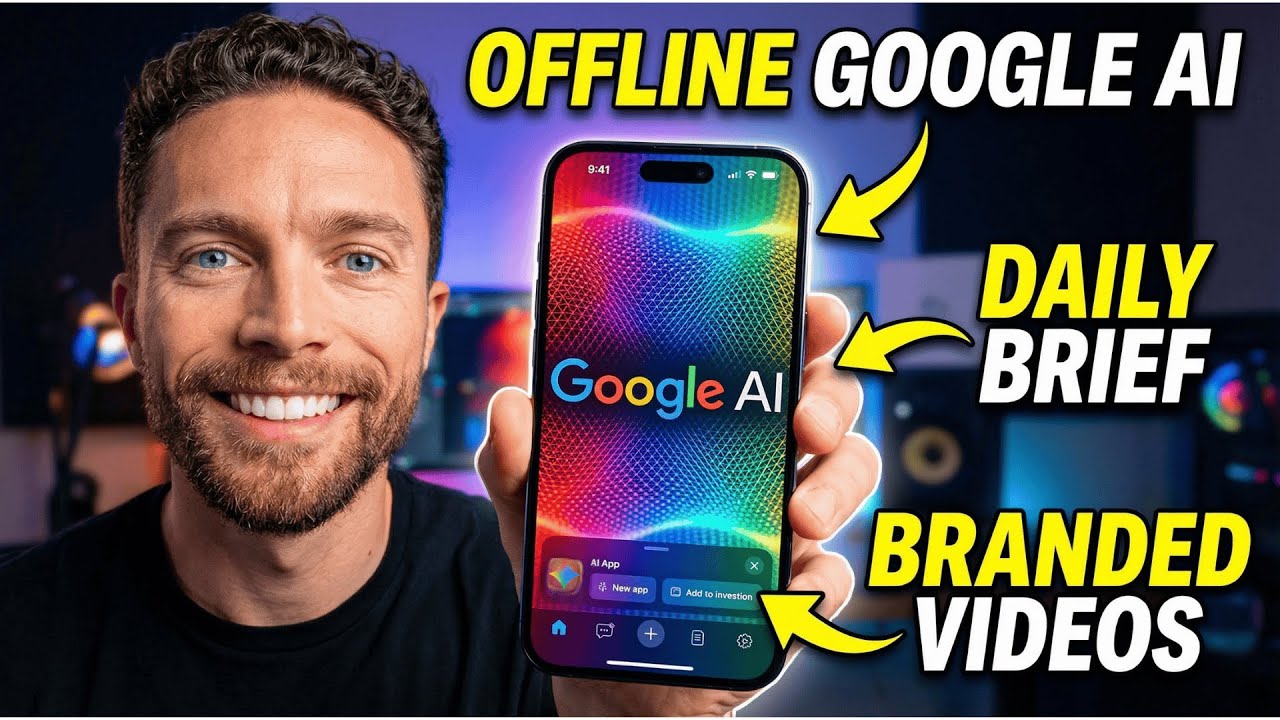
Google just dropped a wave of AI updates that could completely transform how you create content and manage your workflow.
https://testflight.apple.com/join/nAtSQKTF
Оглавление (3 сегментов)
Segment 1 (00:00 - 05:00)
It seems like almost every day Google either releases a new AI tool or an update to an existing one. And in this video, I'm going to break down all the major updates that have come out recently, including a new way that you can use Google AI completely offline. So, let's jump in and I'll show you all these updates and how to use them. So, the first update I want to talk about is to one of my favorite tools that Google released this year, my favorite Google AI tool. It's called Pamelli. So, if you've never used Pamelli, basically what this does is the first time you sign up, it's going to ask you for the link to your website. It will then scan your website and put together what's called your business DNA. And this is comprised of all the images from your website, the colors that are used, the font, the branding, and the aesthetics of your website, and the tone of voice for your brand as well. With all of that pulled in, it could then automatically create for you these different campaigns that you can then use for social media. For instance, here's one right here that I put together as a last call flash sale for one of my online courses. Now, in the past, it could only create still images like this right here or this one or this one. But now, there's a button right here that says animate. And when you click on this, it will actually turn this still image into a moving video. So, these are some of the ones I've already created. Let's go ahead and give them a watch. So, this is the first one. You see it makes that those lights move across the screen and then the text appears. I think that one looks really nice. This next one, I had it do it again. This one's a little bit more sloppy because the text covers itself over so it's overlapping. So, not as good. But then we have this one right here. Obviously, this is a clock, so you would expect this to have the clock moving, which is exactly what it does. Not perfect, but it gets the job done. And then the text appears. Now, you are limited in the number of video generations that you can make within a certain period. I'm not exactly sure what that period is. I haven't really been able to figure that out, but there is a cap on it, so just be aware of that. But yeah, just a neat little update that they made to Pomelia, which I already think is one of my favorite AI tools that they have come out with. It's just really cool and really handy for small businesses to be able to create these social media campaigns and all the graphics and now videos for them as well. All right, so this next one is pretty quick. There have been a few updates to Mixboard. If you haven't used Mixboard, this is sort of like a white canvas that you can use to organize a lot of things visually. So, here we have a party planner for like a cozy fall sort of party. So, you can put all these images here. You can have it create images for you. So, it really just allows you to visually organize a lot of information. One of the updates is that you can now upload PDFs, which you weren't able to do in the past. Of course, you can upload images as well. And the major update is that you can now transform any of these. So if you click on transform, you can now put together a visual deck using all the information inside your board. So here just tell if you want a visual deck or something that's read only. I want something visual, what kind of story you want to tell. You can choose which board you want and then choose what your presentation is going to look like. So I want it to look sort of like this analog film and then click on transform. And this is going to use nano banana to actually create this presentation. So this is the presentation that it put together. Why when the world grows cold do we turn inward? And this is kind of like pulling in the aesthetic from the mixboard that we put together using the theme that we told it to when we created the presentation. It looks super nice. You know, anytime we are able to create a presentation with Nano Banana, it always looks fantastic. And I love that you can now use Mixboard to kind of get like a good vibe for a presentation and really have that encapsulated in the presentation. It's super well done. Now, the next updates I want to talk about is to an app called Doppel. Now, the last time I looked at Doppel, this was an app where you could upload a photo of yourself and then you could virtually try on some outfits, but it's gotten some major updates since then. So now when you log in, it's actually going to ask you to create a model of yourself. So let's go ahead and give this a shot. I'll click on create a model. I'll upload a photo of me. There we go. And you can see it's now making my doppel. And now this is another update as well. This is basically a personalized fashion discovery feed. And so if you like any of these outfits, you can just click on try on. It will then be sent for processing. And you can keep scrolling, find other looks that you like. So you know, it's not really my style. This one maybe my style. Let's see. That's a lot more my style. So, I'll click on try on. That will be then sent up there as well. So, it looks completely different from the last time that I used it. And so, now if I click on the middle tab right here, I can actually see these outfits on me. So, this is the one that one of the ones I just chose right here. I mean, that looks pretty awesome. That looks like an outfit I was actually wearing. So
Segment 2 (05:00 - 10:00)
again, we can see the source and then we can actually see it on me. Here's another one right here. That looks pretty good. That outfit I don't think looks good on me. So, it's a great way that one definitely is not me at all. This one's a lot more me. So, I look at this now. I'm like, "Oh, this looks awesome. " Like, this is my look. I can now come over here, click on source, and I can actually scroll down and find this exact outfit or similar looks. Click through and actually make these purchases. So, a real great way to get us to spend more money. In addition to that, you could always come back to the homepage or this page to collections, click on this plus icon. You can actually upload screenshots of clothing that you like if you find it like on a website and actually try on those outfits as well. So, it's a big improvement from the last time that I looked at this. This whole discovery feed is brand new and is actually a pretty fun way to look at different outfits and to see how they would look on you. Again, this is called Doppel and you could download this directly from the App Store. This next tool has admittedly been out for a little while now, but it's only been available on Android, and now it's finally available on the iPhone as well. It's called Google AI Edge Gallery. And this basically allows you to download AI models directly onto your phone to use offline. Let me just show you how it works because it's super cool. So, you can see up here I'm currently in airplane mode. There's no Wi-Fi on. And yet, I can come to the chat, go ahead and open it up and ask it a question like, "What's the tallest building in the world? " And it gives me a very fast answer. It says the tallest building in the world is one in Dubai. It's currently or it's at 2717 ft tall. And here's a quick rundown of it. Now, coming back to the home screen, there are a few other choices here. So, let's go ahead and go with ask image. So, this will allow you to upload any image and ask questions about it. And again, it's going to be really fast. And the reason fast is because it's on device. It doesn't have to be sent to the cloud to get the in the information. All of the processing is done on your phone. And here it says, I see AQ dashound puppy. That's not quite accurate. Playing with a stuffed toy near a Christmas tree and wrap presents. All of that is correct. It's like a brown teddy bear. It's chewing. So, all of that is, you know, it's great. It's actually analyzing this image pretty accurately. There's a few other things you can do in here as well. So, there's audiocribe, which is basically transcription, but a lot better because it's AI transcription. So, for this to work, you can just click on the plus icon to either upload a file or click this and you can just start talking into Oh, let's press that. And we can just start talking and it's listening to what we're saying. Once you're done, it's going to take that full recording and actually transcribe it. And something like this as opposed to using the one from Google is actually going to be a lot more accurate. So, how do we do this? So, there we go. So, a little bit clunky. This is in beta. Like I said, I would expect that as soon as you upload the file, it would automatically start transcribing, but I actually had to prompt it, but it did work. And this is a lot more accurate than something I would get with Apple's native dictation using this button down here, which always gets it wrong for me. And the final one here is called Prompt Lab. This is basically your writing assistant. So coming in here, there's a few things you can do. So you can type in some text and it will rewrite for you. So for instance, you can type in some text. I'll change it to something a little bit more friendly. Click on submit and it's going to rewrite it in a friendlier tone, giving me three different options down here. We could also do things like summarize text. So, obviously you throw in a bunch of text, it's going to summarize it for you. And we even have some things for coding as well. So, really a very handy little app. Now, when you first come in here and actually download the app, you will also have to download which model you want to use. So, right here, I'm using this one. It's 3. 39 gigabytes. So, if your phone doesn't have a lot of room on it, this isn't going to work. And obviously, if you download like a larger file or a larger model like this one, it's going to be a little bit better as well. Now, because this is in beta, to actually use this, you have to do two steps. You have to download something called TestFlight, which is an app, and then you can download the Google AI Edge Gallery beta. And this is only available to a certain number of people. I'll leave a link for this page down below if you want to try it out. But if you're unable to get into the beta, but you're like, "Oh man, this is super cool. I wish I could use this. " Just know that there are actually a ton of thirdparty apps that do this same thing. Now, the next tool I want to talk about is brand new. It's by Google Labs. It's called Disco. And this is almost like an entirely new browser by Google. Now, to access this, you do have to join the weight list. And I haven't been approved yet. So, Google, if you're watching, please let me try it out. but it's still worth showing because this is really, really cool. So, like I said, it's almost like it's a brand new browser and this does two different things. So, first, it's sort of like an agent. So
Segment 3 (10:00 - 12:00)
you can say something like, "I'm planning a road trip from Boston to Berlingham or Burlington, I should say, and I want to go sledding and do other wintry things. Can you help me plan? " So, we already have agents that can do things like that. And you can see it's actually going out doing some planning with you. You could open up these links and actually interact with it as it's finding information for you. But in addition to that, what really makes this unique is it has these create gen tabs. So when you click on that, it actually turns the information from your tab into this interactive app in real time. So it's going to it looks like it's trying to completely transform the way we navigate the web. Anytime you're looking for something, doing some research, pulling up different search results, instead of just using what's available on the web, it actually transforms it into a usable app. It's really neat. And they give you a whole bunch of different examples here in the presentations. So, here they're trying to learn some sort of sciency thing, I think. And so, instead of just looking up the results, it actually creates an app that explains what it is. And then here they have another example as well. So, this is like an interactive solar system app that pulls up again as you're just searching and trying to learn about the solar system. So, this is definitely on my radar. I'd be super interested in trying it out in the future. And for sure, once it becomes available to me, I'll be making a full video on it. So, if that interests you, do make sure that you subscribe to the channel. And this last one is another new tool from Google Labs. It's called CC. So, CC is your personal assistant. And every single morning, it's going to email you a daily briefing that pulls information from your Gmail. It calendar, and it's able to give you a report of everything you need to worry about that day, all your major calendar events, and any important emails as well. So, I think this is just great. Every morning, I could just look at this email from CC and see what my day ahead is going to look like. So, those are all the Google AI updates that I care about that I discovered recently. But let me know in the comments section down below which one you are most excited about. Now, one thing I did not cover in this video are all the updates in Notebook LM. And that's because there are so many I gave it its own video. So, if you love Notebook LM as much as I do, click on this video right here. Check out all the updates that were made to it recently. And I'll see you over in this video in just one second. Bye for now.