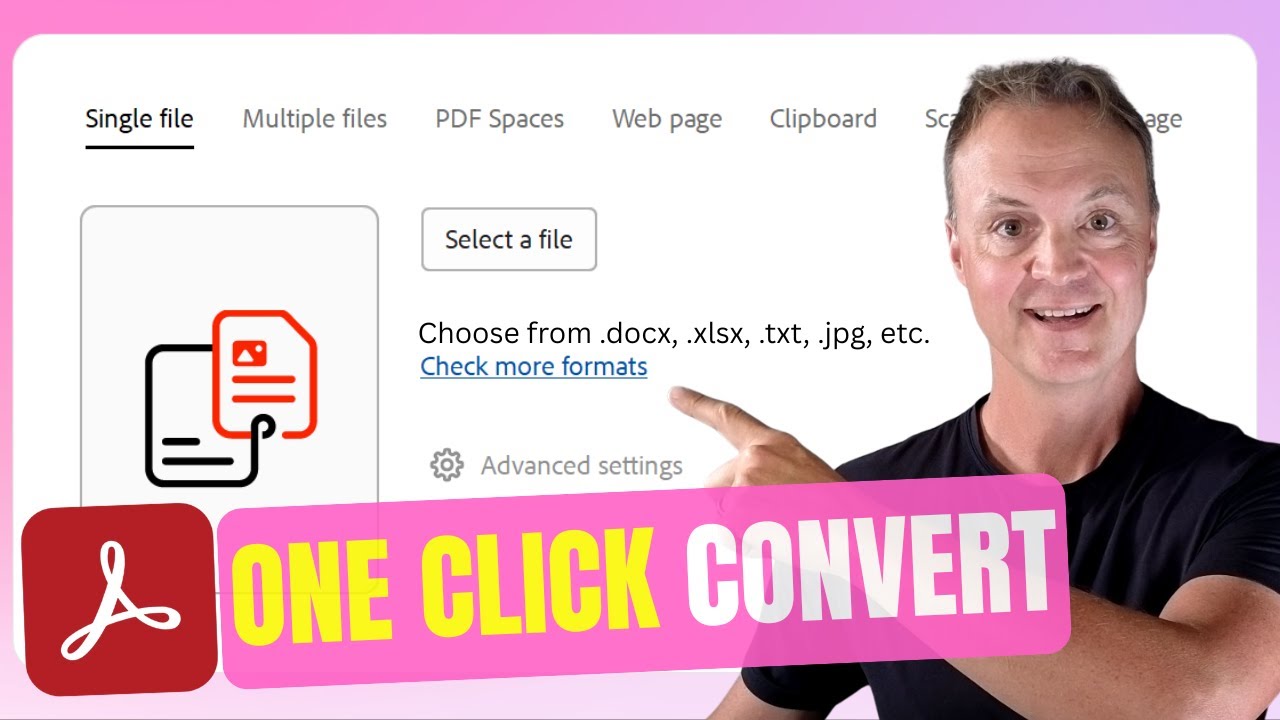
Best File Converter: How to Convert Different File Formats To & From PDF Fast | Adobe Acrobat Studio
5:57

Best File Converter: How to Convert Different File Formats To & From PDF Fast | Adobe Acrobat Studio

Teacher's Tech 19.12.2025 2 166 просмотров 46 лайков обн. 18.02.2026
Поделиться Telegram VK Бот
Транскрипт Скачать .md
Анализ с AI
Описание видео
Looking for the best way to convert different file formats to and from PDF easily? In this tutorial, I’ll show you how Adobe Acrobat Studio is the fastest and most reliable file converter for 2026. #adobepartner With Acrobat Studio, you can convert JPG to PDF, PDF to Word, Word to PDF, PPT to PDF, Excel to PDF, web links, images, and more - instantly. You’ll also see how PDF Spaces and the Acrobat AI Assistant help you combine multiple file types, convert them automatically, and generate summaries with simple prompts. 👉 Try Adobe Acrobat Studio here: https://adobe.ly/TryAcrobatStudio! ⏱ TIMESTAMPS 0:00 Intro 0:18 Acrobat Studio makes file conversion simple 0:44 Convert JPG to PDF 1:43 Convert PDF to Word 2:41 Other conversions (PPT, Excel, Web) 3:02 Convert multiple files using PDF Spaces 4:33 AI Assistant inside PDF Spaces 4:55 Business use case (Performance report) 5:24 Student use case 5:44 Conclusion

Оглавление (10 сегментов)

  1. 0:00 Intro 63 сл.
  2. 0:18 Acrobat Studio makes file conversion simple 55 сл.
  3. 0:44 Convert JPG to PDF 212 сл.
  4. 1:43 Convert PDF to Word 208 сл.
  5. 2:41 Other conversions (PPT, Excel, Web) 68 сл.
  6. 3:02 Convert multiple files using PDF Spaces 294 сл.
  7. 4:33 AI Assistant inside PDF Spaces 50 сл.
  8. 4:55 Business use case (Performance report) 81 сл.
  9. 5:24 Student use case 53 сл.
  10. 5:44 Conclusion 32 сл.
0:00

Intro

Today's video is sponsored by Adobe. If you've  been searching for how to convert different   file formats to and from PDF easily, or you're  wondering, where can I find a file converter   that works instantly? Adobe Acrobat Studio has you  covered. Let me show you the best file converter. Hi, I'm Jamie from Teachers Tech and today  we're exploring how Acrobat Studio makes
0:18

Acrobat Studio makes file conversion simple

file conversion incredibly simple. Acrobat Studio  gives you Acrobat PDF tools you already rely on,   plus AI powered workspaces, personalized AI  assistance, and powerful content creation   features all in one place. And whether you're  converting images, documents, spreadsheets,   slides, or web links, Acrobat Studio makes it fast  and simple while retaining quality. One of the
0:44

Convert JPG to PDF

most common conversion tasks is turning a picture  into a PDF. If you're asking what the fastest way   to change a picture into a PDF file or how do  I convert photos to PDF without losing quality,   here's how. Let me show you how fast we can do  this. I already have my Adobe Acrobat Studio open.    I'm going to go up top to create. This is where  I can go ahead and select my JPEG. And I'm going   to be selecting one JPEG, but I want to point  out you can also select multiple files and then   you have the option to combine them into one PDF  or multiple ones. But I'm going to go select my   image and it's going to be this one right here.   When I clicked open, you'll see that we have the   option to create a PD PDF. When I click it, in  just a few seconds, Acrobat gives you a clean,   highquality PDF version of your image. And yes,  you can also go the other direction with PDF to   JPEG if you need to export a document as an  image format. And if you notice right up top,   you have that option. You can go ahead and  select image. And just with that simple click,
1:43

Convert PDF to Word

it's converted to JPEG. Next up, how to convert  PDF to Docs format easily with Acrobat Studio.    This is one of the smoothest conversions you'll  ever see. Let's go ahead and open a new PDF that   we can convert to Docs. I'm just going to go  to the menu, open, and we're going to choose   this one I have ready. As you can see, this is  about a fourpage PDF here. Just like before with   the image, we're going to go up to convert. And  you're going to see the option right here. So,   if I choose it, I can go now convert to Docs.   Where do I want that docs to be? I can choose   the folder. I'm going to choose this one that  I have ready and hit save. Just like that,   as I'm talking, it's already converted. So,  if you're asking what's the easiest PDF word   converter for Mac or Window users, this is it.   And you can also convert Word back to PDF just   as quickly. Let's go up to create and we're going  to choose that Word file. So, we'll select a file.    And here it is right here. We'll open this up and  click create a PDF. Just like that, it's done.
2:41

Other conversions (PPT, Excel, Web)

Acrobat Studio can also convert PowerPoint to PDF  and PDF to PowerPoint, Excel to PDF and PDF to   Excel, web links into PDF, allowing you to bring  so many different file types into one tidy PDF,   all without needing all those apps installed.   It's your universal file converter, so you can   easily control how and where you work with your  docs. Now, here's another powerful way to convert
3:02

Convert multiple files using PDF Spaces

files. PDF spaces. If you need to bring multiple  formats together like JPEG, Word, PowerPoint,   Excel, web links, and even copied web text, just  drag them into a single AI powered workspace.    Let's go ahead and create a brand new PDF space.   You can do this in a few different ways. I'm just   going to select right here. Now, this is where I  can drag and drop my files into. I'm just going to   go ahead and click select files. And you can see  I have a number of different files. Word, Excel,   PDF, PowerPoint, and even a JPEG here of a chart.   I'm going to select all of these and click open.    But I'm not quite done yet. I also want to add a  link from a website. So I'm going to select right   here. And I'll just paste in one of my blogs from  my website and click add. You can see how this is   a link added to the list. I haven't created my  space yet. I still want to add one more thing.    And that's going to be pasting in some text. And  here's some information about just how well Adobe   Acrobat Studio can do conversion. I don't want  to leave this untitled, so I'm going to give it   a quick name as this. Let's click add. So now we  have our text, our link, our number of different   documents, and even a JPEG. Let's go ahead and  create our PDF space. Acrobat converts everything   automatically. Files are now in one workspace.   Everything becomes instantly searchable,   streamlined, and easy to manage. Plus, you can use  a customized AI assistant to chat across all your   documents for brainstorming and takeaways. Add  your notes and share. Inside a PDF space, I can
4:33

AI Assistant inside PDF Spaces

chat with all the content at once. For example,  I could ask synthesize this these documents into   three key learning and action items. Or brainstorm  five possible strategies combining the JPEG chart,   Word document notes, and Excel data. Let's say I'm  preparing for a performance report. I can go ahead
4:55

Business use case (Performance report)

and bring in a JPEG chart, Word meeting notes, a  PowerPoint strategy slide, an Excel data sheet,   so I can quickly grab these all and create  my PDF space. Acrobat converts everything   into PDF automatically. Then I can tell the AI  assistant to create a onepage executive summary   from all the files. Perfect for preparing updates  or sharing clean deliverables from a wide variety   of converted file types. Students can do the  same thing. Bring in JPEGs or PNGs of whiteboard
5:24

Student use case

pictures and easily convert to and from PDF, class  notes, PDFs, and web research together in one PDF   space and get instant summaries and study guides.   So, if you want the best way to convert different   file formats to and from PDF, or you're looking  for a fast file converter that works instantly,
5:44

Conclusion

Acrobat Studio has everything you need.   Click the link in the description to try   Acrobat Studio today. Thanks again to Adobe for  sponsoring this video and I'll see you in the next

Ещё от Teacher's Tech

Ctrl+V

Экстракт Знаний в Telegram

Транскрипты, идеи, методички — всё самое полезное из лучших YouTube-каналов.

Подписаться




